> ## Documentation Index
> Fetch the complete documentation index at: https://docs.allgoodhq.com/llms.txt
> Use this file to discover all available pages before exploring further.
# Asana
The Asana integration allows you to seamlessly connect your Asana workspace with allGood, enabling automated task management and team collaboration. This integration helps streamline your project workflows by syncing tasks, projects, and team updates between both platforms.
With this integration, you can automatically create tasks, update project statuses, and ensure your team stays aligned across both systems without manual intervention.
## Prerequisites
Before setting up the Asana integration with Mary, ensure you have:
* **Asana Account** with admin permissions to create users and manage integrations
* **Access to email** for the dedicated Asana user account verification
* **Mary's profile picture** for account setup ([download link](https://s3.us-east-1.amazonaws.com/asana-user-private-us-east-1/assets/1209103770281194/profile_photos/1210211616340570/f0cfd301a390d5e7f11eccb067b9fe4f_huge.jpeg))
* **allGood account** with integration permissions
## IT Coordination Guide
### Security & Account Setup Requirements
* Create a dedicated Asana user account for Mary with appropriate permissions
* Include Mary's profile picture during account setup for user identification
* Use a monitored email address for the service account (not personal email)
* Webhook configuration required for task collaboration notifications
* Store credentials securely according to company policy
## Step-by-Step Setup
1. **Log into Asana** with admin access
2. Navigate to **Admin Console** → **Members**
3. Click **Invite Members**
4. Set up Mary's account:
* **Email**: Use monitored team email address
* **Name**: Mary (allGood)
* **Profile Picture**: Upload [Mary's picture](https://s3.us-east-1.amazonaws.com/asana-user-private-us-east-1/assets/1209103770281194/profile_photos/1210211616340570/f0cfd301a390d5e7f11eccb067b9fe4f_huge.jpeg)
 5. **Send invitation** and complete verification process
1. **Log into allGood** and navigate to **Settings** → **Integrations**
2. Click **Add Integration** and select **Asana**
3. Click **Connect Asana Account**
5. **Send invitation** and complete verification process
1. **Log into allGood** and navigate to **Settings** → **Integrations**
2. Click **Add Integration** and select **Asana**
3. Click **Connect Asana Account**
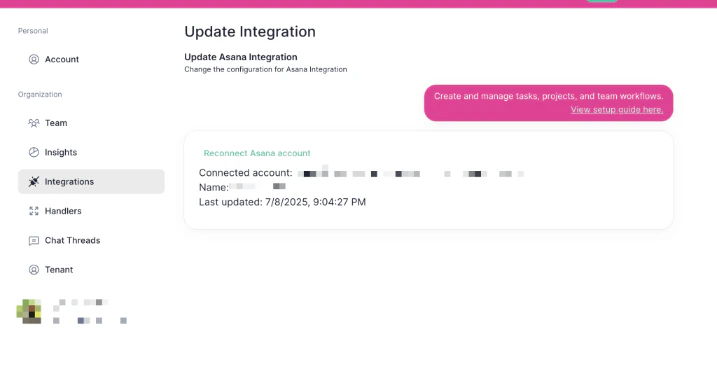 4. Sign in using the **dedicated Mary Asana account** credentials
5. **Authorize** allGood to access your Asana workspace
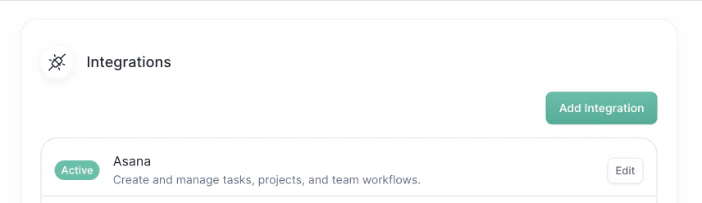
6. Verify the integration shows as **Active** on your integrations page
4. Sign in using the **dedicated Mary Asana account** credentials
5. **Authorize** allGood to access your Asana workspace
6. Verify the integration shows as **Active** on your integrations page
 The allGood team will work with your IT team to ensure that this is done properly — please reach out and we can collaborate on this.
1. **In allGood**, navigate to the Asana integration settings
2. Click **Configure Webhook**
3. **Select your Asana workspace** from the dropdown
4. **Enable task collaboration notifications**
5. **Save webhook configuration**
***Coming Soon***\
*Screenshot: allGood webhook configuration screen for Asana*
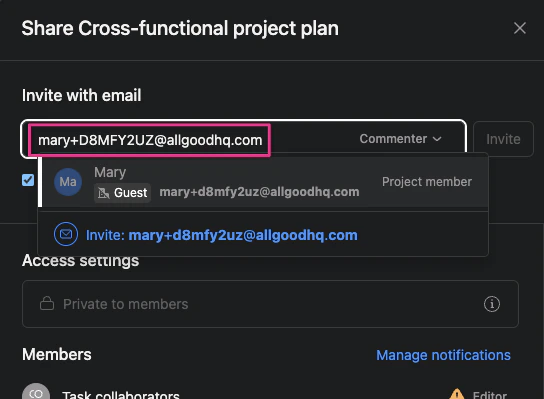
1. **In Asana**, navigate to the projects where you want Mary available
2. Click **Share** on each project
3. **Add Mary's account** as a project member
4. **Set appropriate permissions** (typically "Editor" or "Commenter")
The allGood team will work with your IT team to ensure that this is done properly — please reach out and we can collaborate on this.
1. **In allGood**, navigate to the Asana integration settings
2. Click **Configure Webhook**
3. **Select your Asana workspace** from the dropdown
4. **Enable task collaboration notifications**
5. **Save webhook configuration**
***Coming Soon***\
*Screenshot: allGood webhook configuration screen for Asana*
1. **In Asana**, navigate to the projects where you want Mary available
2. Click **Share** on each project
3. **Add Mary's account** as a project member
4. **Set appropriate permissions** (typically "Editor" or "Commenter")
 ## Verification & Testing
If Asana shows "Active" status in allGood integrations, Mary was able to connect successfully.
Create a test task in Asana and add Mary as a collaborator to confirm the integration and webhook are working properly.
## Frequently Asked Questions
Yes, you need admin permissions in your Asana workspace to set up the integration and create the necessary service accounts.
The integration uses OAuth 2.0 authentication. You'll need to authorize allGood to access your Asana workspace during the setup process.
Yes, you can configure the integration to sync only specific projects, teams, or workspaces based on your needs.
Data synchronization occurs in real-time for most operations, with some bulk operations running on scheduled intervals.
The integration includes conflict resolution mechanisms that prioritize recent changes and provide audit trails for all modifications.
## Troubleshooting
Common causes include:
* Insufficient permissions
* API rate limits
* Network connectivity issues
* Incorrect field mappings
You can monitor sync status through the integration dashboard, which shows recent sync activities and any errors.
* Review this page for setup steps and common issues
* Contact our support team for technical assistance
## Verification & Testing
If Asana shows "Active" status in allGood integrations, Mary was able to connect successfully.
Create a test task in Asana and add Mary as a collaborator to confirm the integration and webhook are working properly.
## Frequently Asked Questions
Yes, you need admin permissions in your Asana workspace to set up the integration and create the necessary service accounts.
The integration uses OAuth 2.0 authentication. You'll need to authorize allGood to access your Asana workspace during the setup process.
Yes, you can configure the integration to sync only specific projects, teams, or workspaces based on your needs.
Data synchronization occurs in real-time for most operations, with some bulk operations running on scheduled intervals.
The integration includes conflict resolution mechanisms that prioritize recent changes and provide audit trails for all modifications.
## Troubleshooting
Common causes include:
* Insufficient permissions
* API rate limits
* Network connectivity issues
* Incorrect field mappings
You can monitor sync status through the integration dashboard, which shows recent sync activities and any errors.
* Review this page for setup steps and common issues
* Contact our support team for technical assistance