> ## Documentation Index
> Fetch the complete documentation index at: https://docs.allgoodhq.com/llms.txt
> Use this file to discover all available pages before exploring further.
# Google
The Google integration enables seamless connectivity between allGood and Google Workspace services including Gmail, Google Drive, Google Calendar, and other Google applications. This integration streamlines your workflow by automatically syncing data and enabling two-way communication between platforms.
Leverage the power of Google's ecosystem within allGood to enhance productivity, automate routine tasks, and maintain consistent data across your organization's tools.
## Prerequisites
Before setting up the Google integration with Mary, ensure you have:
* **Google Workspace account** with admin permissions to create service accounts
* **IT department coordination** for creating dedicated Google accounts
* **allGood account** with integration permissions
## IT Coordination Guide
### Security & Account Setup Requirements
* Create a dedicated Google Workspace account for Mary (e.g., [mary-allgood-yourcompany@yourcompany.com](mailto:mary-allgood-yourcompany@yourcompany.com))
* Configure appropriate Google Workspace services (Drive, Docs, Sheets)
* Set up folder structure with proper sharing permissions
* Mary account needs at least "Viewer" access to files for integration use
## Step-by-Step Setup
1. **Work with your IT department** to create a new Google Workspace account
2. **Account format**: [mary-allgood-yourcompany@yourcompany.com](mailto:mary-allgood-yourcompany@yourcompany.com)
3. **Configure services**: Enable Google Drive, Docs, and Sheets access
4. **Set security settings** according to company policy
1. **Create main folder** in Google Drive called "allGood"
2. **Create subfolders** for organization:
1. **Right-click** the "allGood" folder
2. Click **Share**
3. **Add the Mary account** email address
4. **Set permissions** to "Editor" access
5. **Check "Notify people"**
6. **Important**: Check "Make available to people with access"
 1. **Log into allGood** and navigate to **Settings** → **Integrations**
2. Click **Add Integration** and select **Google**
3. Click **Connect Google Account**
4. Sign in using the **dedicated Mary Google account** credentials
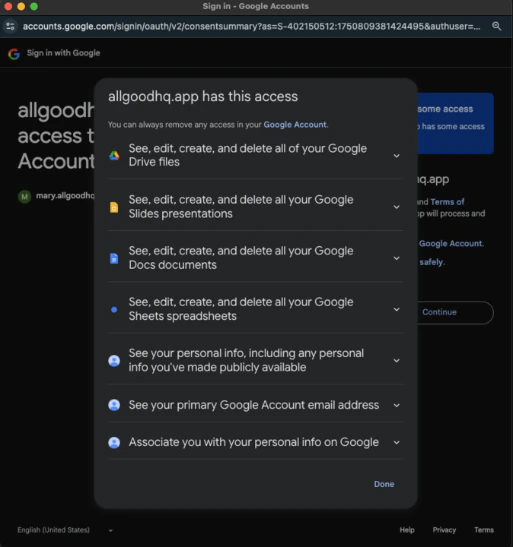
5. **Review and accept** the required access scope permissions
6. Verify the integration shows as **Active** on your integrations page
1. **Log into allGood** and navigate to **Settings** → **Integrations**
2. Click **Add Integration** and select **Google**
3. Click **Connect Google Account**
4. Sign in using the **dedicated Mary Google account** credentials
5. **Review and accept** the required access scope permissions
6. Verify the integration shows as **Active** on your integrations page
 ## Verification & Testing
If Google shows "Active" status in allGood integrations, Mary was able to connect successfully.
Ask Mary to retrieve content from a Google Doc in your shared folder to confirm the integration is working properly.
## Frequently Asked Questions
The integration supports Gmail, Google Drive, Google Calendar, Google Sheets, and other Google Workspace services.
While a Google Workspace account is recommended for full functionality, many features work with regular Google accounts.
The integration uses OAuth 2.0 authentication. You'll need to authorize allGood to access your Google services during setup.
Yes, you can configure specific scopes and permissions to limit access to only the Google services you want to integrate.
All data is encrypted in transit and at rest. We follow Google's security best practices and maintain SOC 2 compliance.
Google imposes various rate limits on their APIs. The integration includes intelligent rate limiting to ensure smooth operation.
## Troubleshooting
Common causes include:
* Expired OAuth tokens
* Changed Google account passwords
* Insufficient permissions
* API access restrictions
Check your internet connection, verify API quotas, review error logs, and ensure proper permissions are configured.
* Review this page for setup steps and common issues
* Contact our support team for technical assistance
## Verification & Testing
If Google shows "Active" status in allGood integrations, Mary was able to connect successfully.
Ask Mary to retrieve content from a Google Doc in your shared folder to confirm the integration is working properly.
## Frequently Asked Questions
The integration supports Gmail, Google Drive, Google Calendar, Google Sheets, and other Google Workspace services.
While a Google Workspace account is recommended for full functionality, many features work with regular Google accounts.
The integration uses OAuth 2.0 authentication. You'll need to authorize allGood to access your Google services during setup.
Yes, you can configure specific scopes and permissions to limit access to only the Google services you want to integrate.
All data is encrypted in transit and at rest. We follow Google's security best practices and maintain SOC 2 compliance.
Google imposes various rate limits on their APIs. The integration includes intelligent rate limiting to ensure smooth operation.
## Troubleshooting
Common causes include:
* Expired OAuth tokens
* Changed Google account passwords
* Insufficient permissions
* API access restrictions
Check your internet connection, verify API quotas, review error logs, and ensure proper permissions are configured.
* Review this page for setup steps and common issues
* Contact our support team for technical assistance