> ## Documentation Index
> Fetch the complete documentation index at: https://docs.allgoodhq.com/llms.txt
> Use this file to discover all available pages before exploring further.
# HubSpot
The HubSpot integration connects your CRM, marketing automation, and sales pipeline directly with allGood. This powerful integration enables automatic synchronization of contacts, deals, companies, and marketing activities to provide a unified view of your customer journey.
Streamline your sales and marketing processes by leveraging HubSpot's comprehensive customer data within allGood's workflow automation capabilities.
## Prerequisites
Before setting up the HubSpot integration with Mary, ensure you have:
* **HubSpot Account** with either [super admin](https://knowledge.hubspot.com/settings/hubspot-user-permissions-guide#super-admin) permissions or [App Marketplace Access](https://knowledge.hubspot.com/settings/hubspot-user-permissions-guide#settings) permissions
* **Access to email** for the dedicated HubSpot user account verification
* **allGood account** with integration permissions
## IT Coordination Guide
### Security & Account Setup Requirements
* Create a dedicated HubSpot user account with appropriate permissions for integration use
* User needs super admin or App Marketplace Access permissions to install the integration
* Use a monitored email address for the service account (not personal email)
* Store credentials securely according to company policy
## Step-by-Step Setup
1. **Log into HubSpot** with admin access
2. Navigate to **Settings** → **Users & Teams**
3. Click **Create User**
4. Set up user with appropriate permissions (super admin or App Marketplace Access)
5. Use a monitored team email address
6. Complete user verification process
1. **Log into allGood** and navigate to **Settings** → **Integrations**
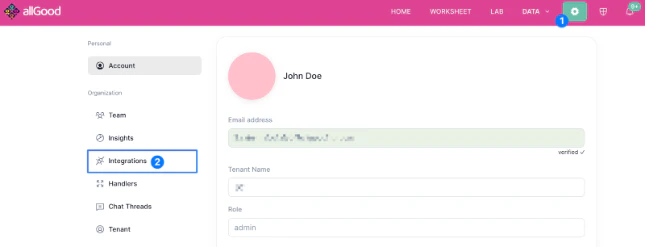 2. Click **Add Integration** and select **HubSpot**
3. Select the use-case for pre-configured scopes, or choose them using the dropdown
2. Click **Add Integration** and select **HubSpot**
3. Select the use-case for pre-configured scopes, or choose them using the dropdown
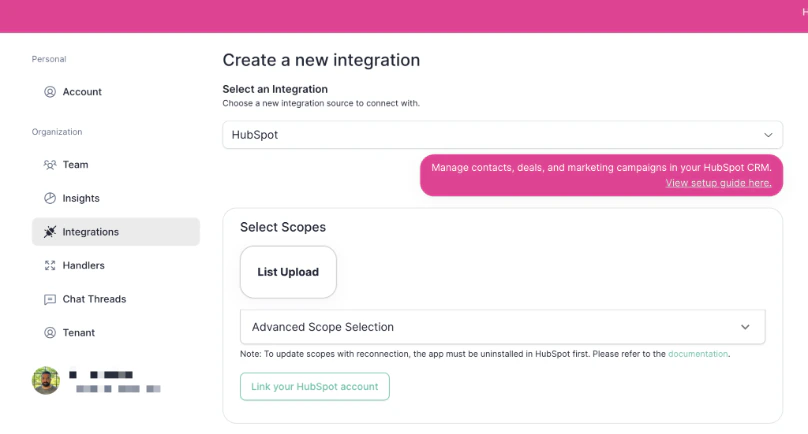 4. Click **Connect HubSpot Account**
5. Sign in using the **dedicated HubSpot user credentials** created above
4. Click **Connect HubSpot Account**
5. Sign in using the **dedicated HubSpot user credentials** created above
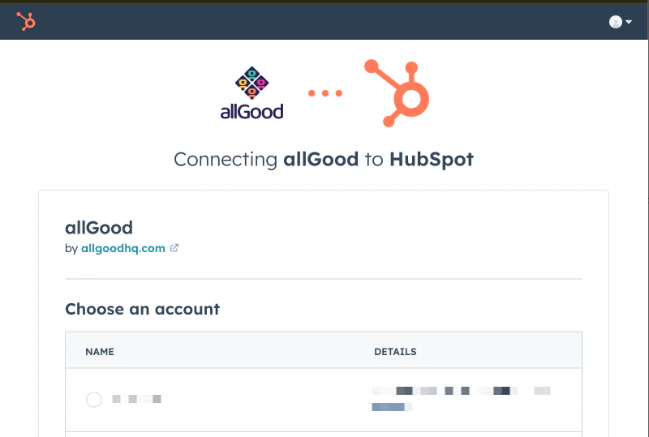 6. Verify the integration shows as **Active** on your integrations page
If you need to update integration scopes by adding/removing them:
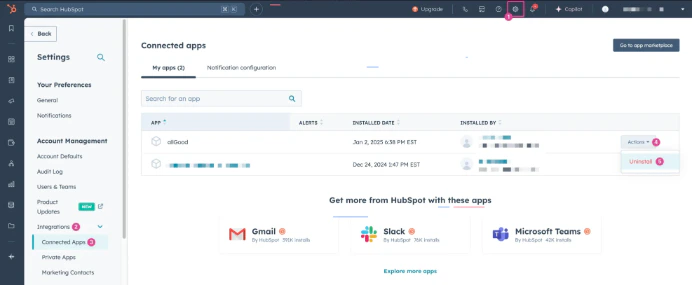
1. First, uninstall the app in HubSpot:
* Go to HubSpot **Account Management → Integrations → Connected Apps**
* Select **Action → Uninstall**
6. Verify the integration shows as **Active** on your integrations page
If you need to update integration scopes by adding/removing them:
1. First, uninstall the app in HubSpot:
* Go to HubSpot **Account Management → Integrations → Connected Apps**
* Select **Action → Uninstall**
 2. Navigate to **Settings** → **Integrations** in allGood
3. Click **Edit** next to your HubSpot integration
4. Click **Reconnect HubSpot Account**
5. Complete the OAuth flow with updated scopes
## Verification & Testing
If HubSpot shows "Active" status in allGood integrations, Mary was able to connect successfully.
Ask Mary to retrieve contact lists to confirm the integration is working properly.
## Frequently Asked Questions
The integration works with all HubSpot plans, though some advanced features may require Professional or Enterprise subscriptions.
The integration uses OAuth 2.0 authentication with your HubSpot account. You'll need admin permissions to authorize the connection.
Yes, the integration supports synchronization of custom properties and fields from your HubSpot account.
The integration supports contacts, companies, deals, tickets, products, and custom objects.
Data synchronization occurs in real-time for most operations, with periodic bulk syncs for large datasets.
## Troubleshooting
Common causes include:
* Insufficient HubSpot permissions
* API rate limits exceeded
* Field mapping configuration issues
* Data validation errors
The integration includes duplicate detection and merge capabilities to maintain data integrity.
* Review this page for setup steps and common issues
* Contact our support team for technical assistance
2. Navigate to **Settings** → **Integrations** in allGood
3. Click **Edit** next to your HubSpot integration
4. Click **Reconnect HubSpot Account**
5. Complete the OAuth flow with updated scopes
## Verification & Testing
If HubSpot shows "Active" status in allGood integrations, Mary was able to connect successfully.
Ask Mary to retrieve contact lists to confirm the integration is working properly.
## Frequently Asked Questions
The integration works with all HubSpot plans, though some advanced features may require Professional or Enterprise subscriptions.
The integration uses OAuth 2.0 authentication with your HubSpot account. You'll need admin permissions to authorize the connection.
Yes, the integration supports synchronization of custom properties and fields from your HubSpot account.
The integration supports contacts, companies, deals, tickets, products, and custom objects.
Data synchronization occurs in real-time for most operations, with periodic bulk syncs for large datasets.
## Troubleshooting
Common causes include:
* Insufficient HubSpot permissions
* API rate limits exceeded
* Field mapping configuration issues
* Data validation errors
The integration includes duplicate detection and merge capabilities to maintain data integrity.
* Review this page for setup steps and common issues
* Contact our support team for technical assistance