> ## Documentation Index
> Fetch the complete documentation index at: https://docs.allgoodhq.com/llms.txt
> Use this file to discover all available pages before exploring further.
# Marketo
The Marketo integration provides seamless connectivity between allGood and Adobe Marketo Engage, enabling powerful marketing automation and lead management capabilities. This integration synchronizes leads, campaigns, and marketing activities to create a unified customer experience.
Enhance your marketing operations by leveraging Marketo's advanced automation features within allGood's comprehensive workflow platform.
## Prerequisites
Before setting up the Marketo integration with Mary, ensure you have:
* **Administrator access** to the Marketo instance you're creating API access for
* **allGood account** with integration permissions
## IT Coordination Guide
### Security & Account Setup Requirements
* Create a dedicated API-only user in Marketo with appropriate role permissions
* Configure LaunchPoint service for secure API access
* Note IP restrictions — may need to whitelist allGood IP addresses (52.25.122.65, 52.26.241.77)
* Store API credentials securely according to company policy
## Step-by-Step Setup
1. **Log into Marketo** with administrator access
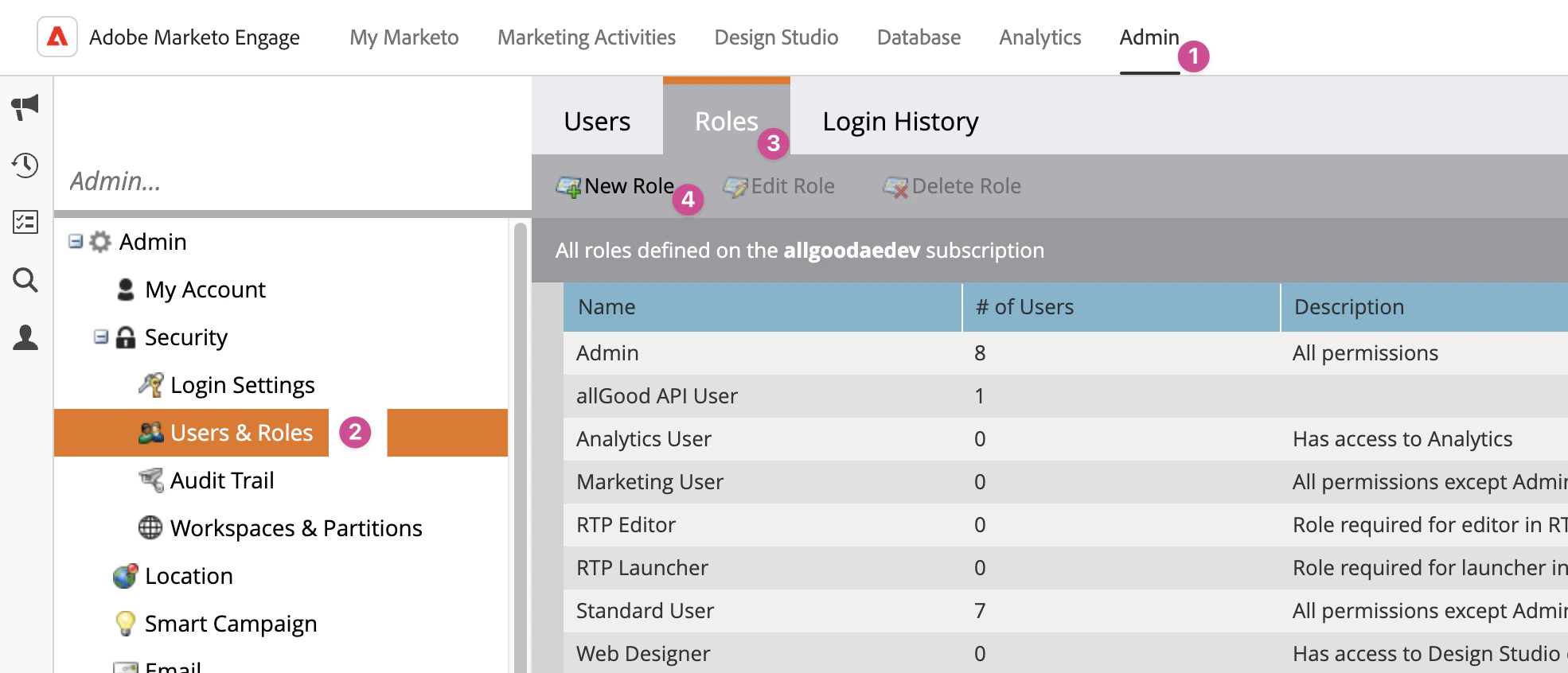
2. Navigate to **Admin** → **Users & Roles** → **Roles**
3. Click **New Role**
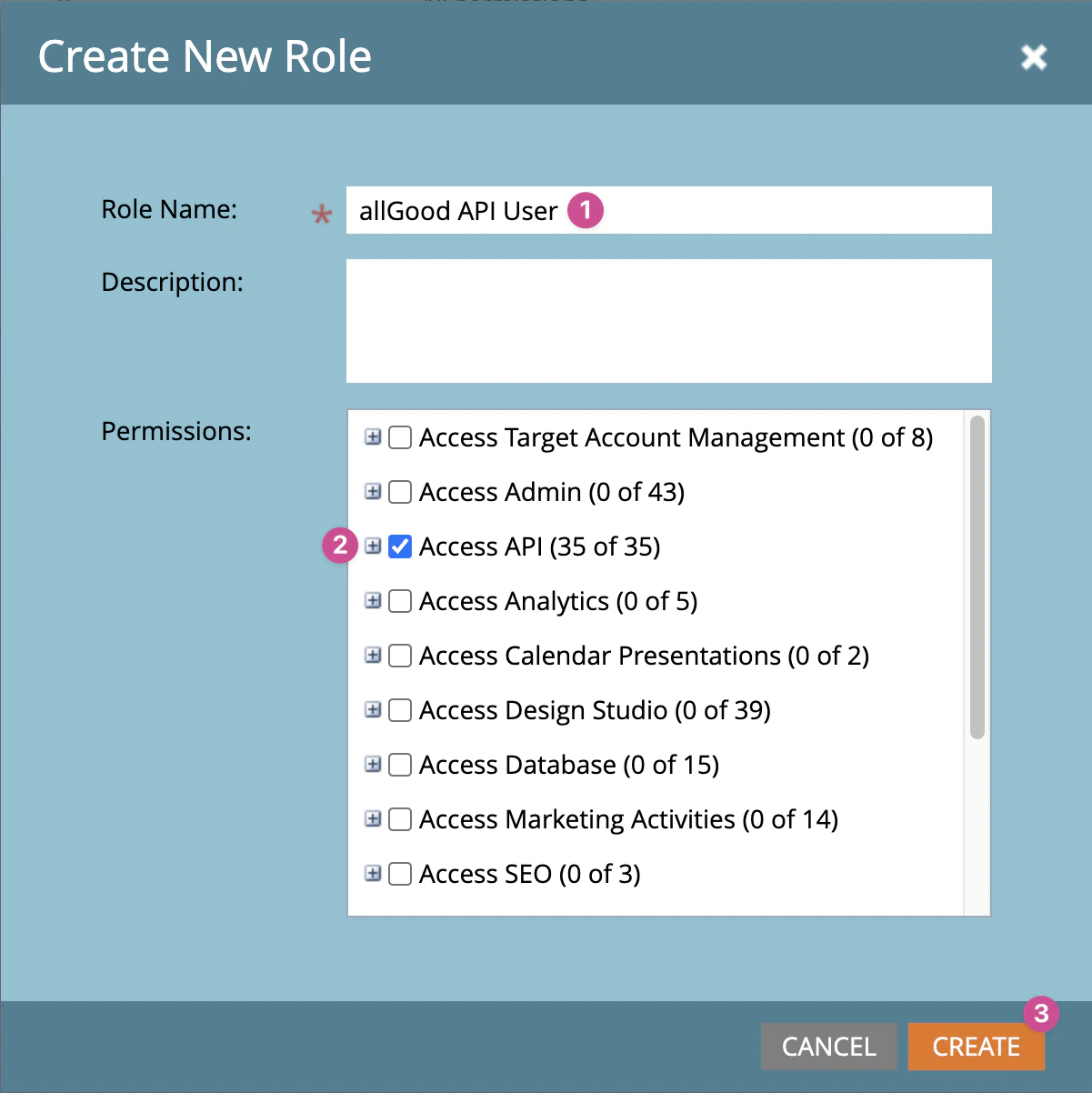
 4. Give the role a name (e.g., "allGood API Role")
5. Enable **API Access** checkbox
6. Click **Create**
4. Give the role a name (e.g., "allGood API Role")
5. Enable **API Access** checkbox
6. Click **Create**
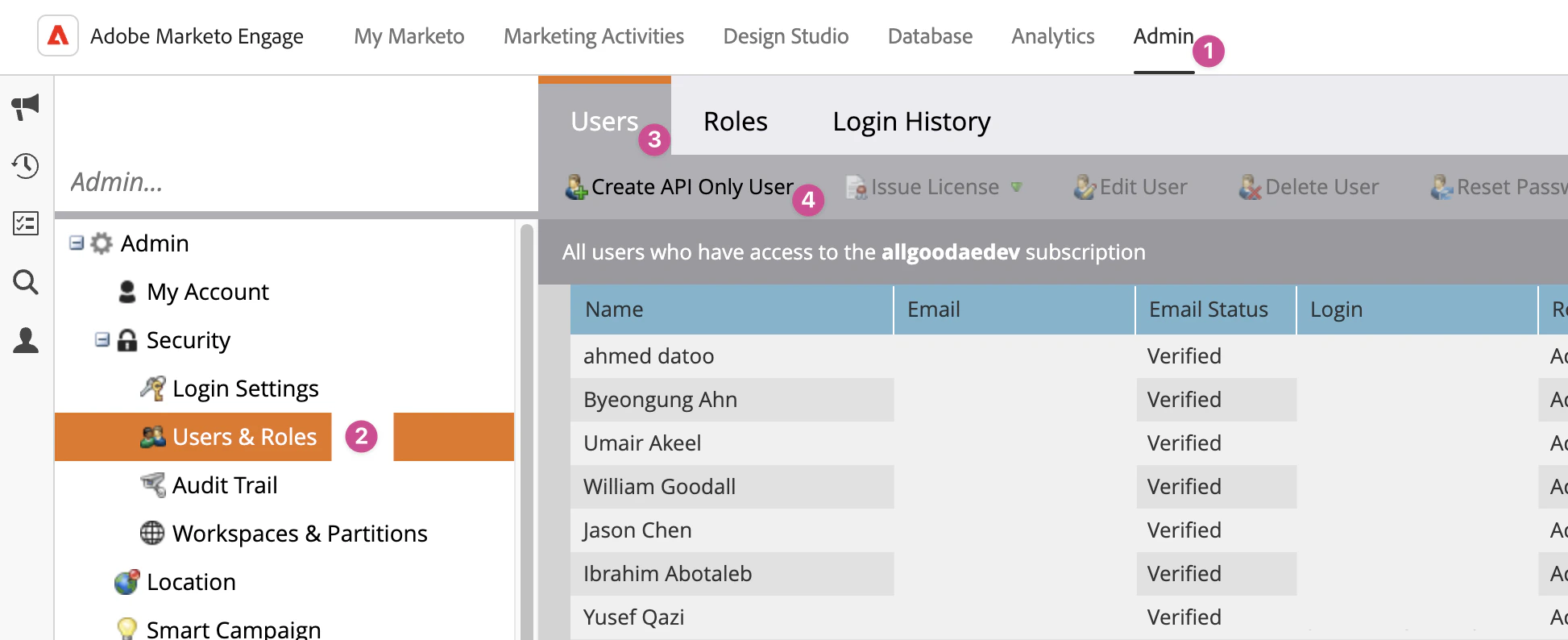
 1. Navigate to **Admin** → **Users & Roles** → **Users**
2. Click **Create API Only User**
1. Navigate to **Admin** → **Users & Roles** → **Users**
2. Click **Create API Only User**
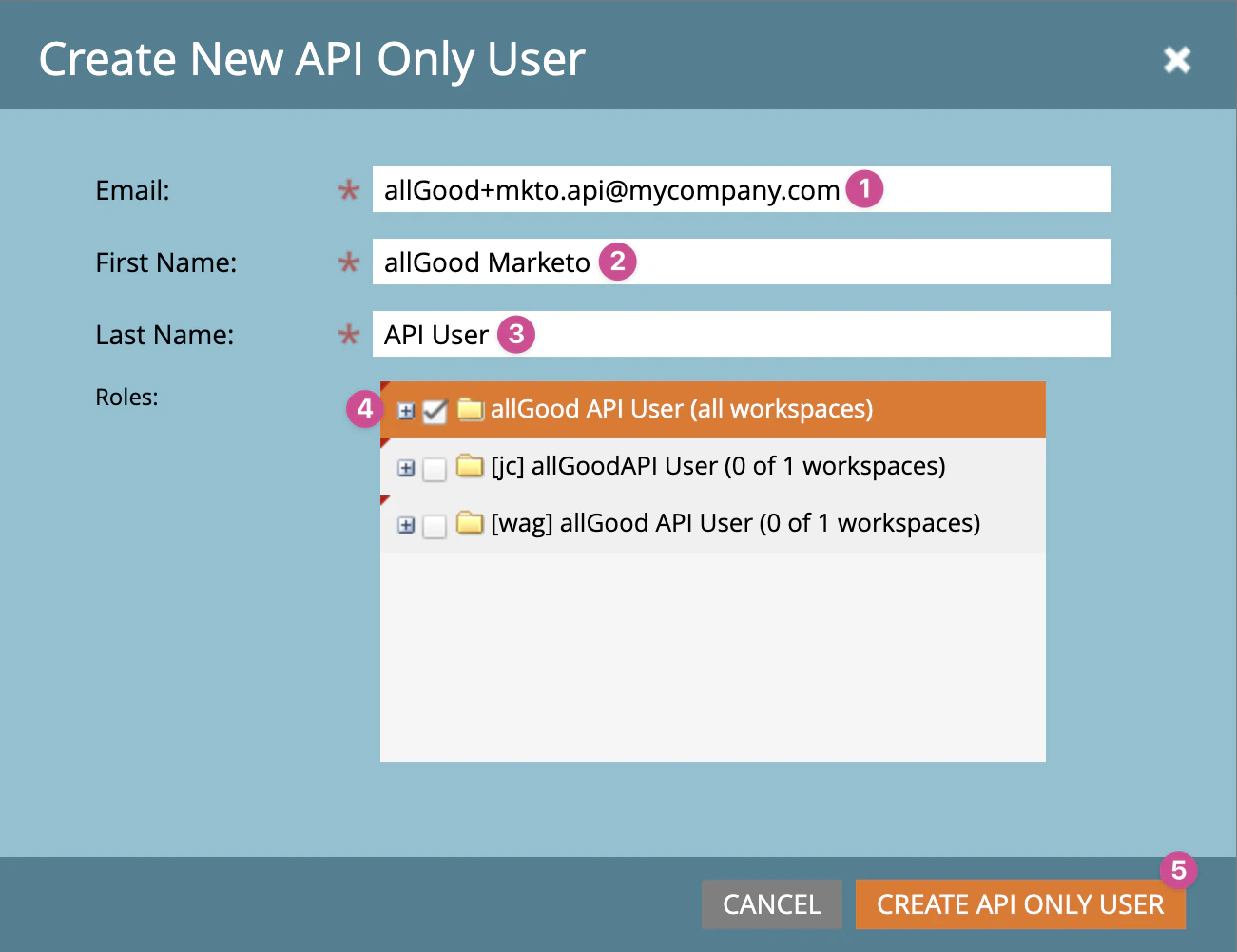
 3. Enter email address and name for the API user
4. Assign the role created in Step 1
5. Click **Create**
3. Enter email address and name for the API user
4. Assign the role created in Step 1
5. Click **Create**
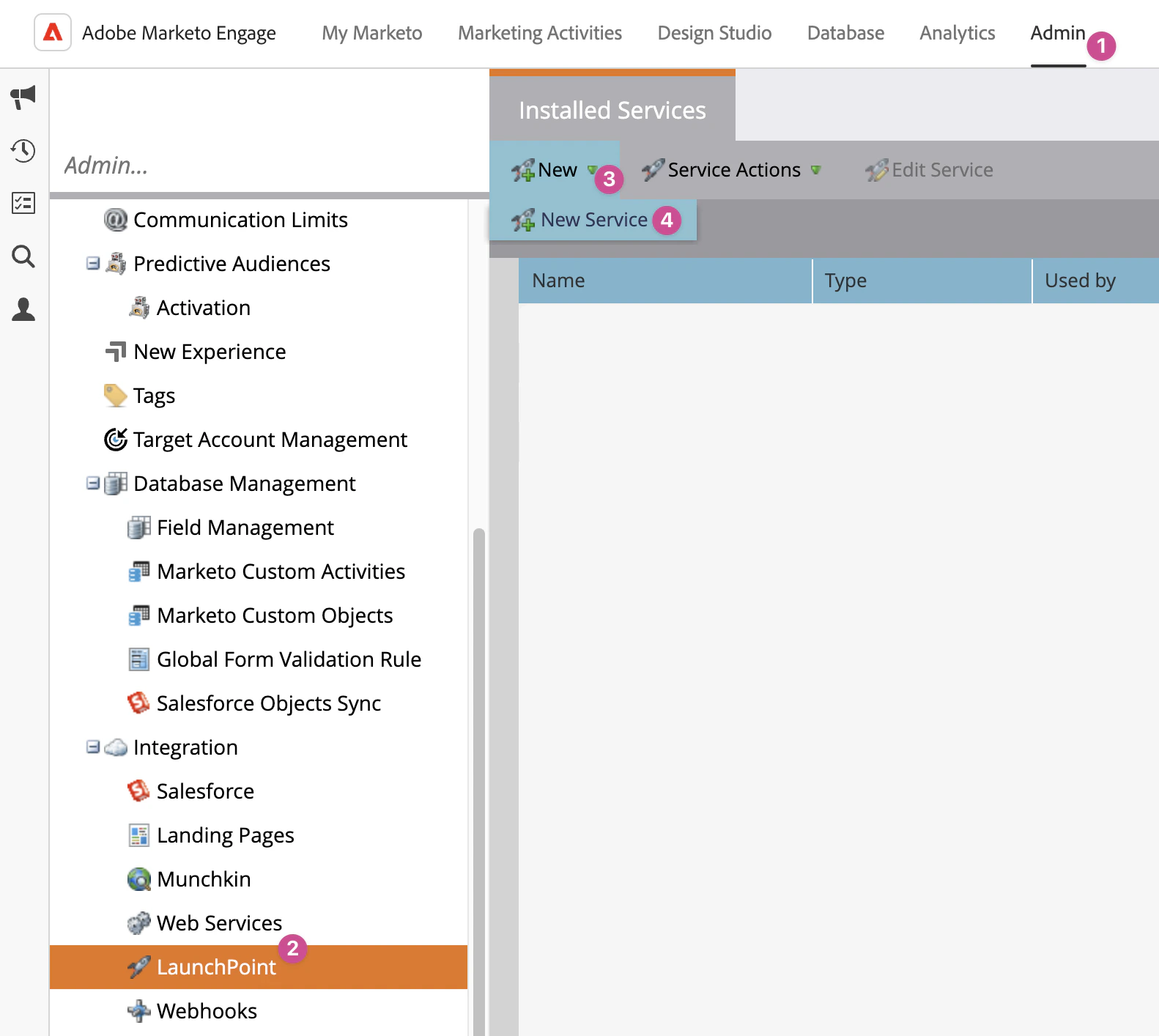
 1. Navigate to **Admin** → **LaunchPoint**
2. Click **New** → **New Service**
1. Navigate to **Admin** → **LaunchPoint**
2. Click **New** → **New Service**
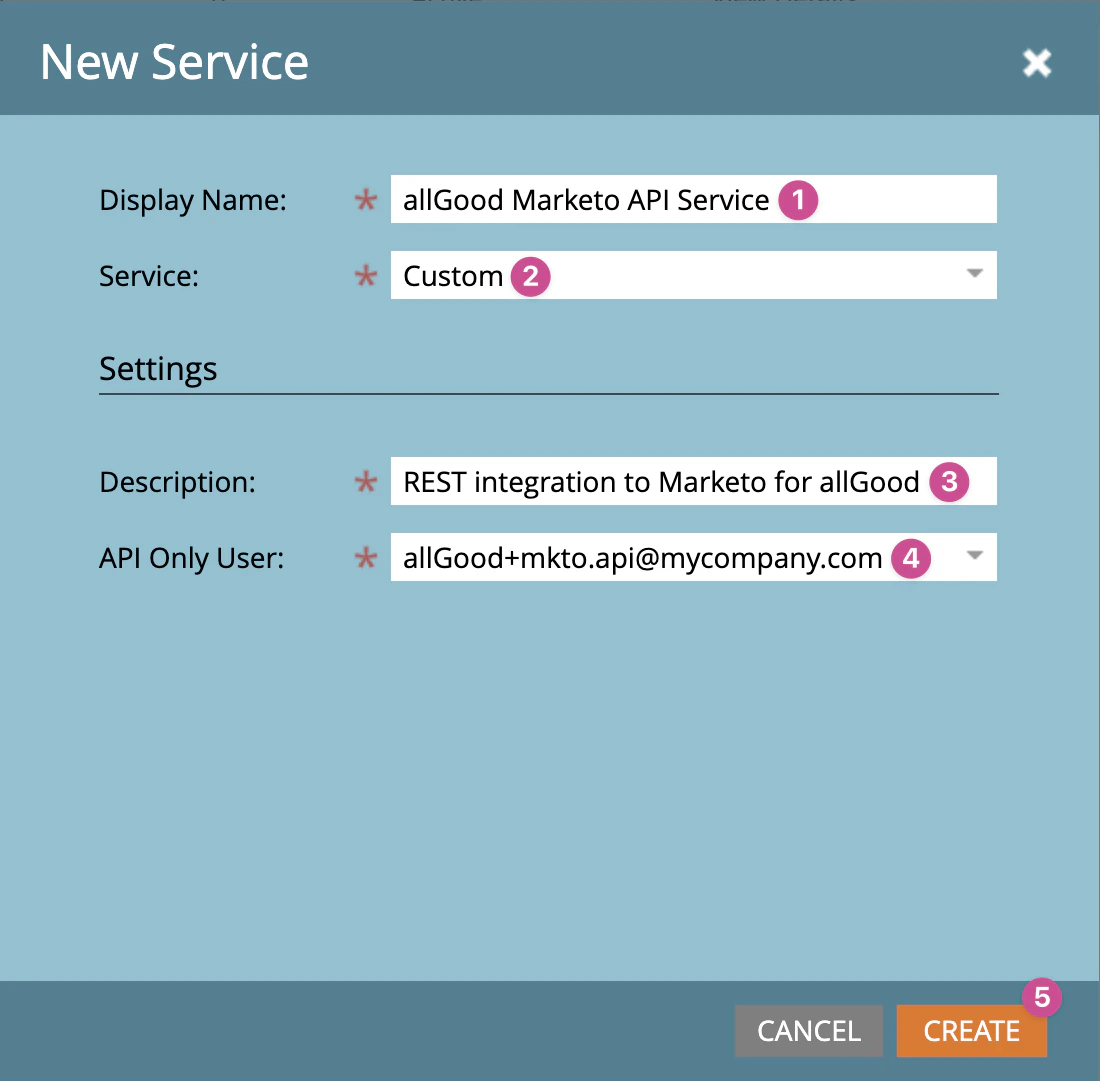
 3. Configure service settings:
* **Display Name**: allGood Integration
* **Service Type**: Custom
* **API Only User**: Select the user created in Step 2
4. Click **Create**
3. Configure service settings:
* **Display Name**: allGood Integration
* **Service Type**: Custom
* **API Only User**: Select the user created in Step 2
4. Click **Create**
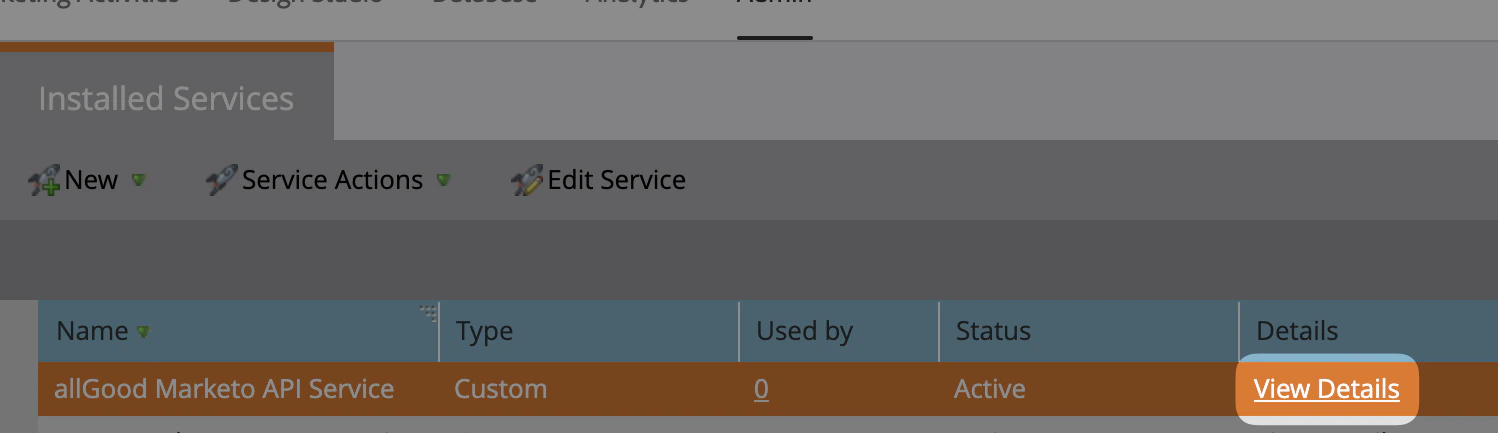
 1. Click **View Details** on the service you just created
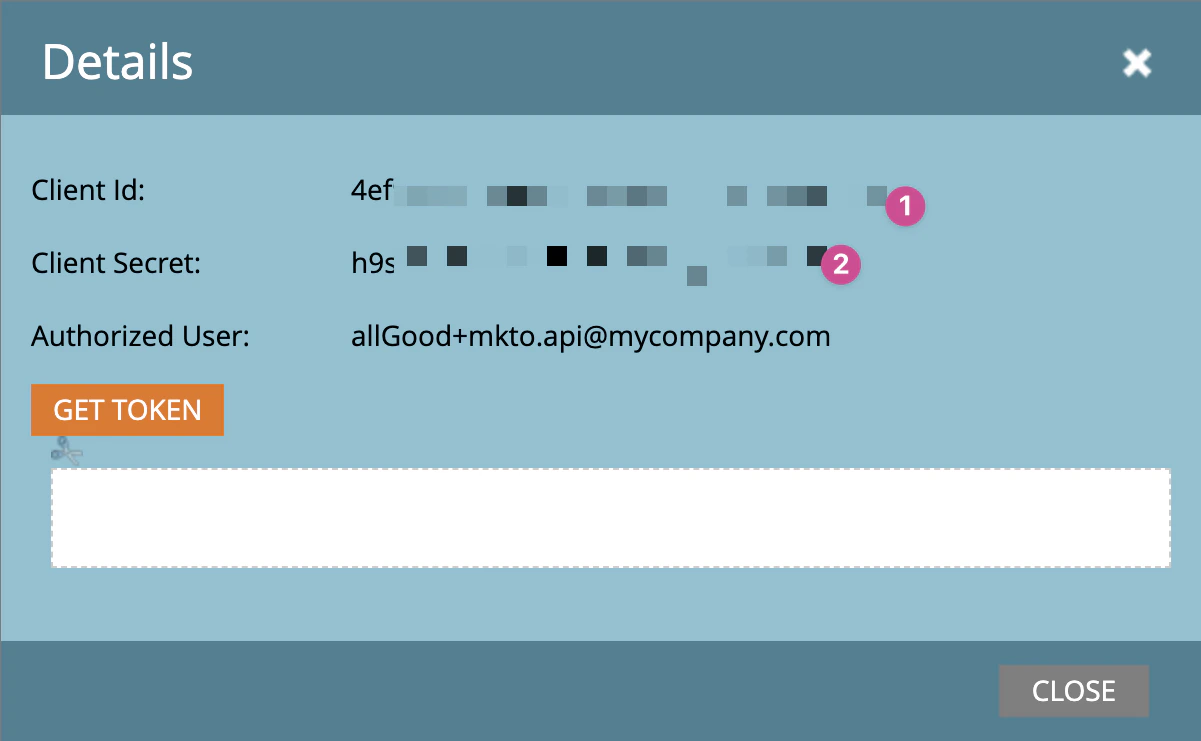
 2. Copy the **Client ID** and **Client Secret**
3. Store these credentials securely
2. Copy the **Client ID** and **Client Secret**
3. Store these credentials securely
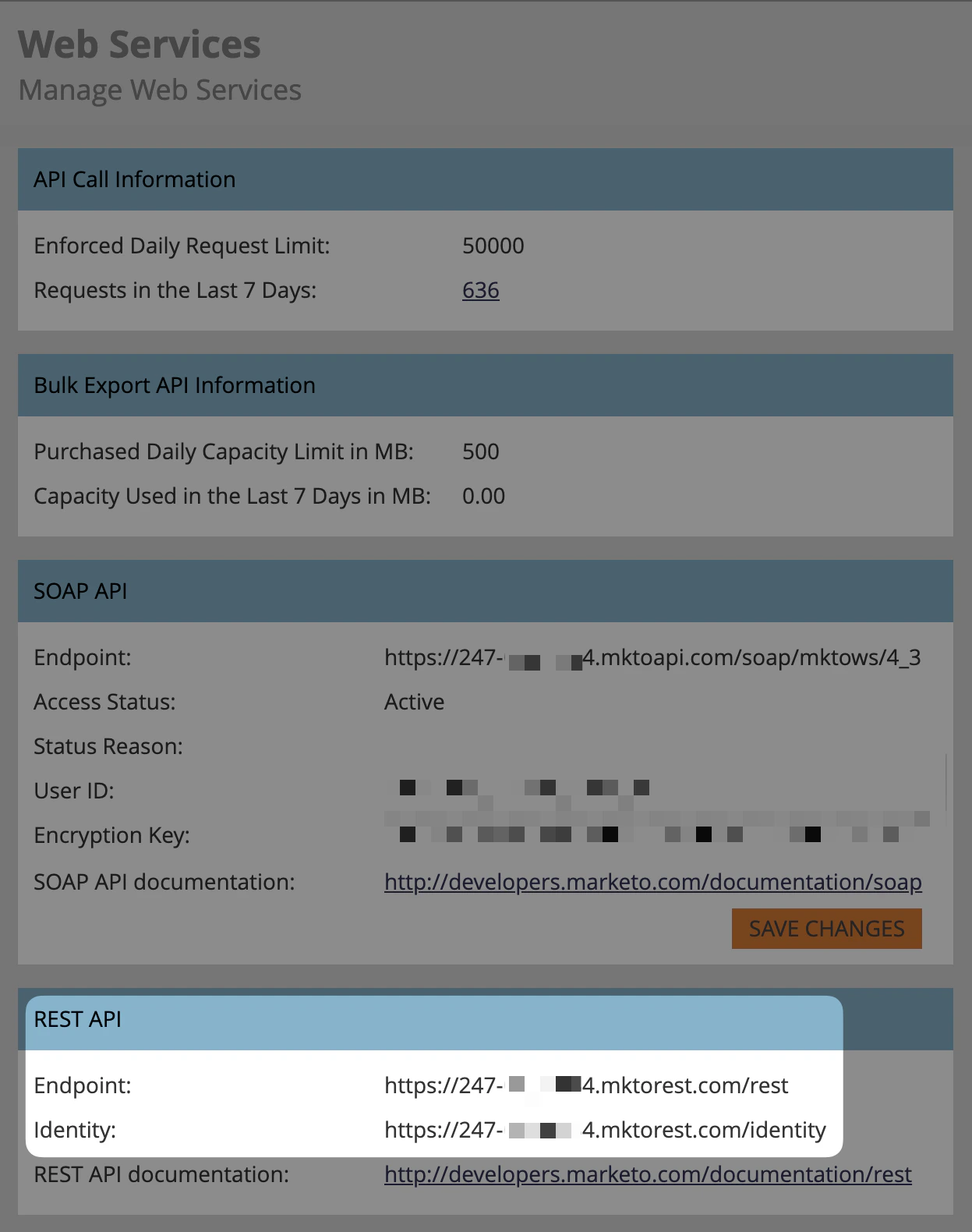
 1. Navigate to **Admin** → **Web Services**
2. Copy the **Endpoint** and **Identity** URLs from the REST API section
1. Navigate to **Admin** → **Web Services**
2. Copy the **Endpoint** and **Identity** URLs from the REST API section
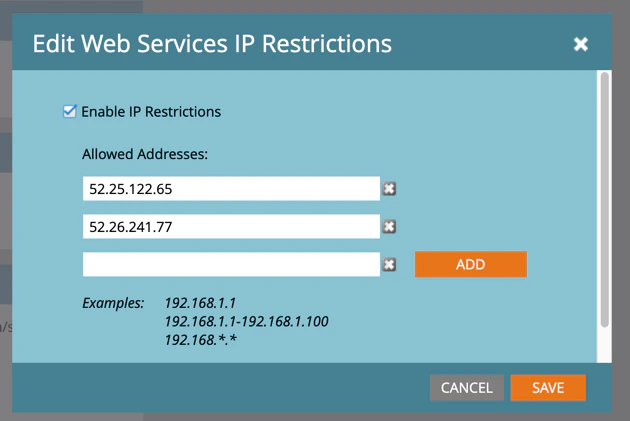
 3. **Important**: If IP Restrictions are enabled, add these IP addresses:
* 52.25.122.65
* 52.26.241.77
3. **Important**: If IP Restrictions are enabled, add these IP addresses:
* 52.25.122.65
* 52.26.241.77
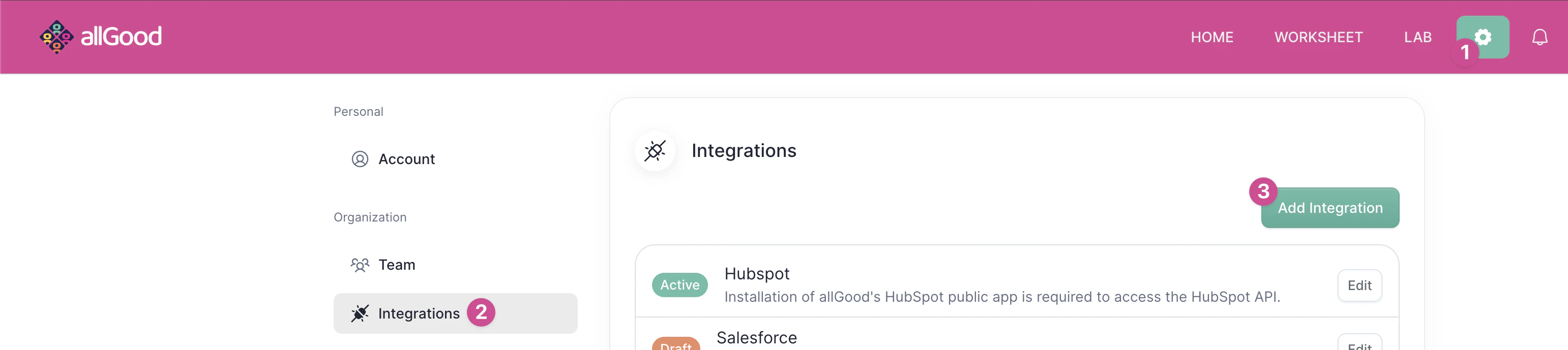
 1. **Log into allGood** and navigate to **Settings** → **Integrations**
2. Click **Add Integration** and select **Marketo**
1. **Log into allGood** and navigate to **Settings** → **Integrations**
2. Click **Add Integration** and select **Marketo**
 3. Enter the four required credentials:
* Client ID
* Client Secret
* Endpoint URL
* Identity URL
3. Enter the four required credentials:
* Client ID
* Client Secret
* Endpoint URL
* Identity URL
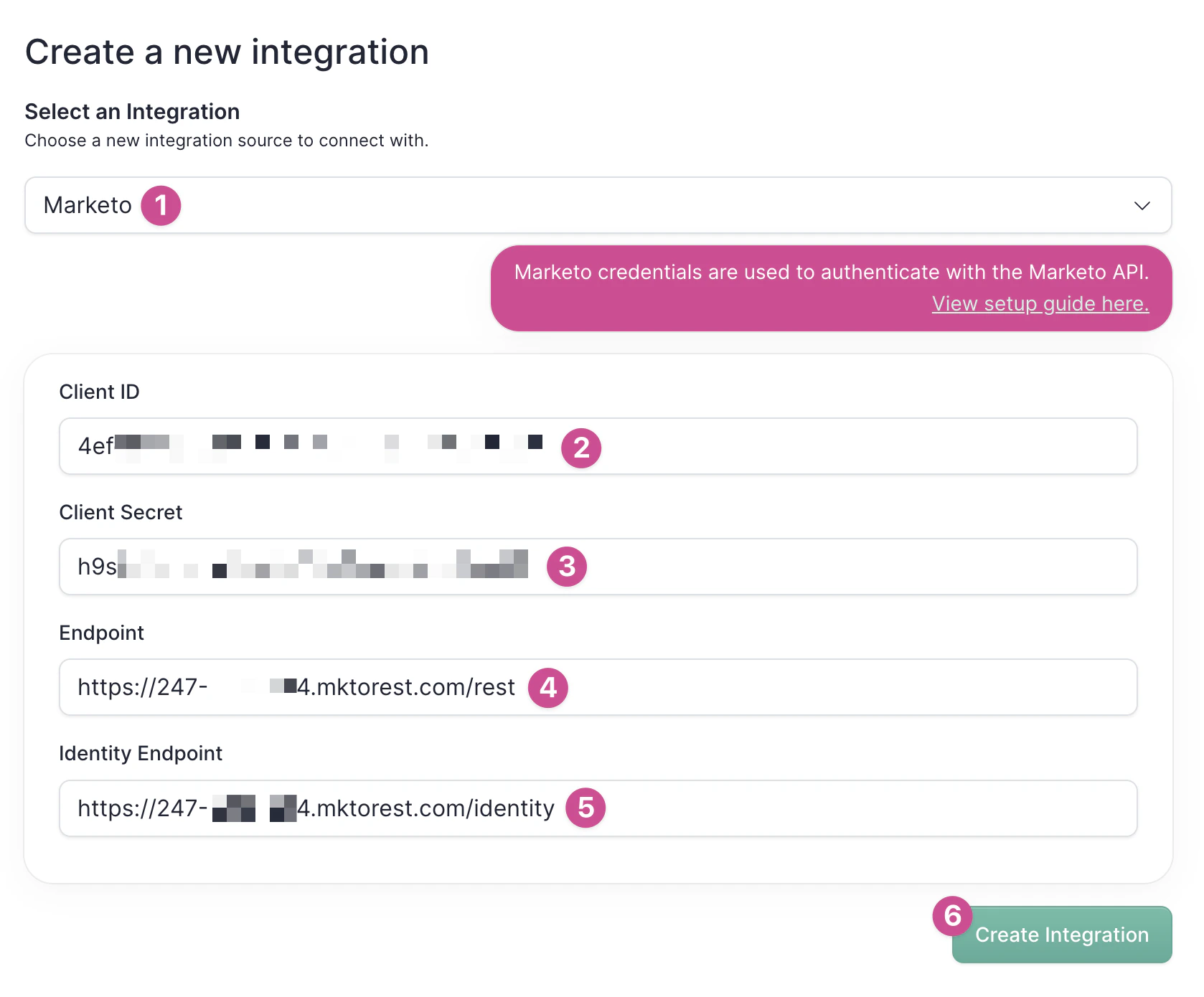 4. Click **Save** to complete the connection
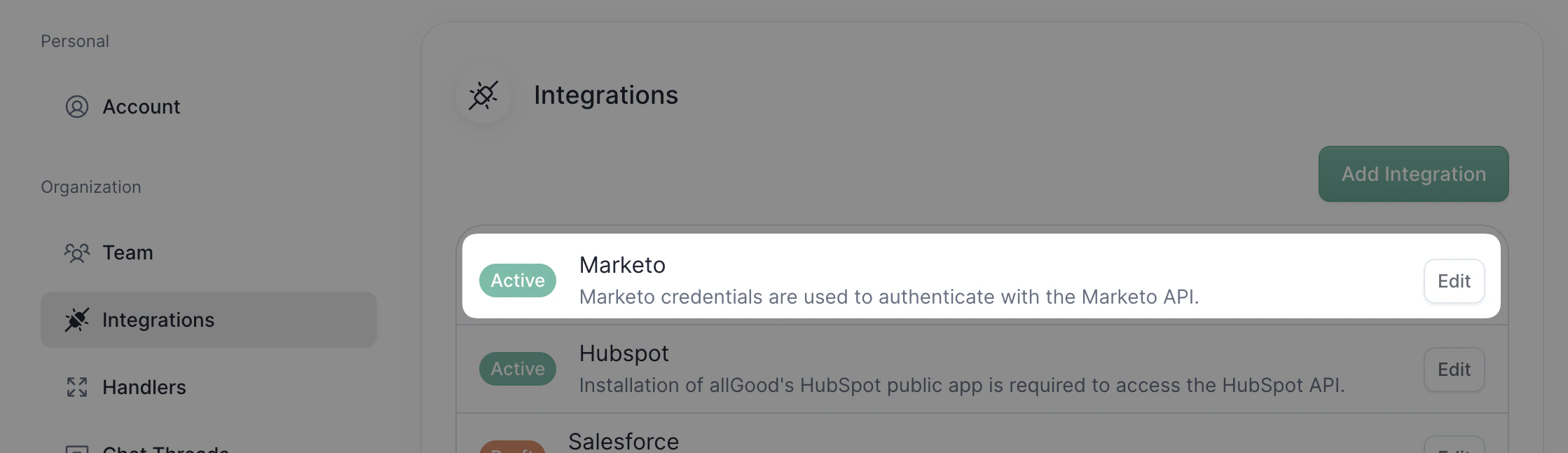
5. Verify the integration shows as **Active** on your integrations page
4. Click **Save** to complete the connection
5. Verify the integration shows as **Active** on your integrations page
 ## Verification & Testing
If Marketo shows "Active" status in allGood integrations, Mary was able to connect successfully.
Ask Mary to retrieve basic program or lead information to confirm the integration is working properly.
## Frequently Asked Questions
Yes, you need administrator access to create API users, configure LaunchPoint services, and set up the necessary permissions.
You'll need to create a dedicated API user, set up a LaunchPoint service, and configure the appropriate role permissions in Marketo. See the step-by-step setup above.
Some Marketo instances have IP restrictions. You may need to whitelist allGood's IP addresses (52.25.122.65 and 52.26.241.77) for the integration to work.
The integration supports leads, companies, programs, campaigns, and custom objects from your Marketo instance.
Lead scores and other custom fields sync bidirectionally, maintaining consistency across both platforms.
## Troubleshooting
Common causes include:
* Incorrect API credentials
* Exceeded API rate limits
* IP address restrictions not configured
* Insufficient user permissions
Use the integration dashboard to monitor sync status, view error logs, and track API usage metrics.
* Review this page for setup steps and common issues
* Contact our support team for technical assistance
## Verification & Testing
If Marketo shows "Active" status in allGood integrations, Mary was able to connect successfully.
Ask Mary to retrieve basic program or lead information to confirm the integration is working properly.
## Frequently Asked Questions
Yes, you need administrator access to create API users, configure LaunchPoint services, and set up the necessary permissions.
You'll need to create a dedicated API user, set up a LaunchPoint service, and configure the appropriate role permissions in Marketo. See the step-by-step setup above.
Some Marketo instances have IP restrictions. You may need to whitelist allGood's IP addresses (52.25.122.65 and 52.26.241.77) for the integration to work.
The integration supports leads, companies, programs, campaigns, and custom objects from your Marketo instance.
Lead scores and other custom fields sync bidirectionally, maintaining consistency across both platforms.
## Troubleshooting
Common causes include:
* Incorrect API credentials
* Exceeded API rate limits
* IP address restrictions not configured
* Insufficient user permissions
Use the integration dashboard to monitor sync status, view error logs, and track API usage metrics.
* Review this page for setup steps and common issues
* Contact our support team for technical assistance