> ## Documentation Index
> Fetch the complete documentation index at: https://docs.allgoodhq.com/llms.txt
> Use this file to discover all available pages before exploring further.
# Salesforce
The Salesforce integration enables powerful connectivity between allGood and the world's leading CRM platform. This integration provides seamless synchronization of leads, opportunities, accounts, and custom objects to create a unified sales and customer management experience.
Leverage Salesforce's comprehensive CRM capabilities within allGood to streamline your sales processes, automate workflows, and maintain consistent customer data across your organization.
## Capabilities
Connecting Salesforce to the allGood platform enables deep integration with your CRM data. Key capabilities include:
* **Lead-to-Account Matching**\
Mary finds the right account for every lead. We use agentic search to resolve duplicate Account records, fix typos, expand or contract acronyms and initialisms, and incorporate custom contextual clues and signals (ICP match, BDR assignment, etc.) to ensure the best possible match.
* **Lead Routing**\
Mary understands your routing rules. We can handle MQL/AQL determination; understand your lead's geography even when data is missing, incomplete, or inconsistent; and route leads to your sales team based on the results of account-level research agents.
* **Lead Conversion**\
Mary can figure out which of your Leads are worth converting to Contacts---tying in lead-to-account match information, agentic MQL/AQL/SQL determination, and other custom/contextual signals to make the best possible decision. Mary will also deduplicate Lead records by intelligently merging them into the same Contact when possible.
* **List/Campaign Upload**\
Mary can take lists of leads/contacts, perform data cleaning and normalization, and upload them to Salesforce as members of a Salesforce/Pardot campaign. Mary can handle campaign status setup, and once the campaign has been created, Mary can create SFDC reports to track campaign performance.
* **Data integration into other Mary use-cases**\
Connecting Salesforce data allows us to pull your CRM data into any other Mary use-case. We can query live data with SOQL, or run agentic search against a cloned snapshot of data in allGood's internal, tenant-isolated Snowflake data warehouse.
## Prerequisites
Before setting up the Salesforce integration with Mary, ensure you have:
* **Salesforce Account** with Enterprise access or API quota purchased
* **Admin access** to your Salesforce instance to create users and profiles
* **Access to email** for the dedicated Salesforce user account verification
* **allGood account** with integration permissions
## Step-by-Step Setup
1. **Log in to Salesforce** with an admin account
2. Click the **gear icon** (top right) → **Setup**
3. In left navigation: **Administration** → **Users** → **Profiles**
4. Click **New Profile**
5. Set **Existing Profile** to **Read only**
6. Set **Profile Name** to **allGood User**
7. Click **Save**
1. On the Profiles page, click **Edit** next to your new profile
2. Scroll to **Standard Object Permissions** and **Custom Object Permissions**
3. Enable **View All Data** permissions for objects Mary should access. At the minumum, enable full read access for `User`, and full read-write access for `Account`, `Lead`, `Contact`, `Opportunity`, and `Campaign`.
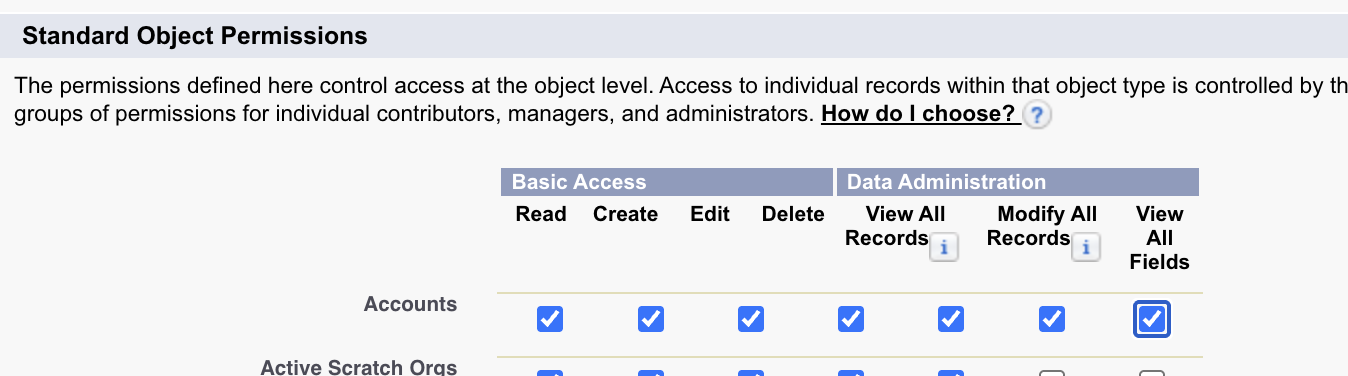 4. Scroll to top and click **Save**
1. In left navigation: **Administration** → **Users** → **Users**
2. Click **New User**
3. Fill required fields:
* **License**: Select **Salesforce**
* **Profile**: Select **allGood User**
* **Email**: Use accessible team email address that somehow indicates "allGood"
* Make sure the `Marketing User` box is checked.
4. Click **Save**
5. **Copy the Username** and store it securely
1. Check the email inbox used for the new user
2. Open the Salesforce verification email
3. Follow the verification link and **set a password**
4. **Store the password** securely.
1. **Log into allGood** and navigate to **Settings** → **Integrations**. Click **Install** next to "Salesforce".
4. Scroll to top and click **Save**
1. In left navigation: **Administration** → **Users** → **Users**
2. Click **New User**
3. Fill required fields:
* **License**: Select **Salesforce**
* **Profile**: Select **allGood User**
* **Email**: Use accessible team email address that somehow indicates "allGood"
* Make sure the `Marketing User` box is checked.
4. Click **Save**
5. **Copy the Username** and store it securely
1. Check the email inbox used for the new user
2. Open the Salesforce verification email
3. Follow the verification link and **set a password**
4. **Store the password** securely.
1. **Log into allGood** and navigate to **Settings** → **Integrations**. Click **Install** next to "Salesforce".
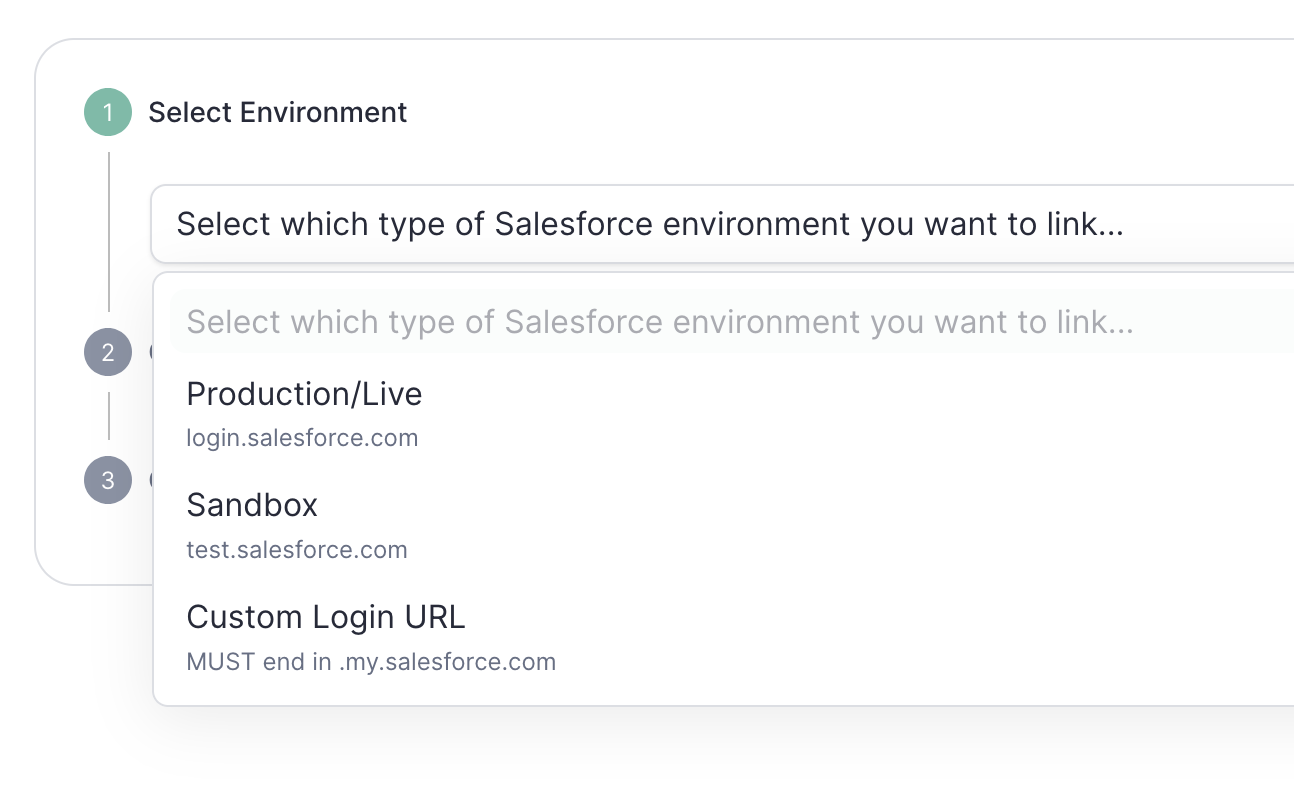
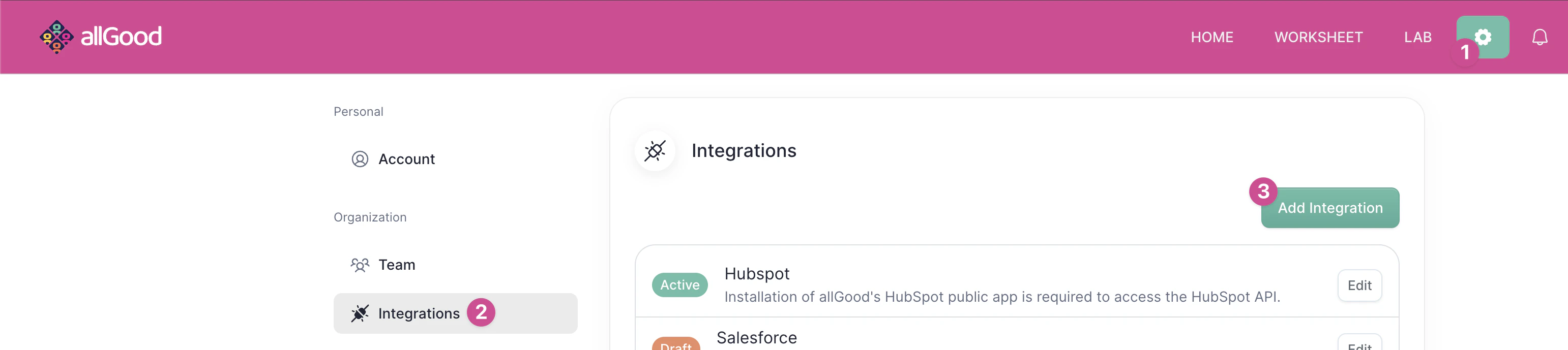 2. **Select the right SFDC environment** (either production/live, sandbox, or a custom instance login URL)
 3. Click **Connect to Salesforce** .
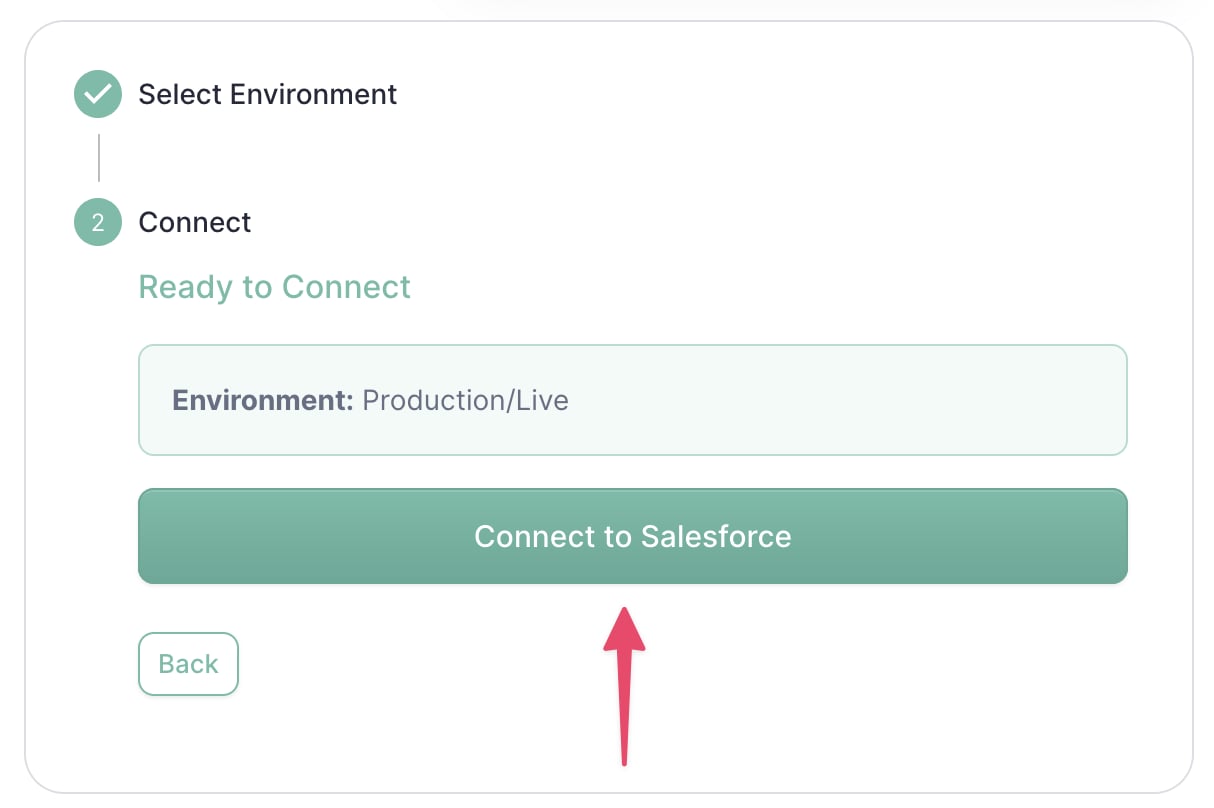 4. Sign in using the **allGood user credentials** created above
5. Verify the integration shows as **Active** on your integrations page
## Verification & Testing
If Salesforce shows "Active" status in allGood integrations, Mary was able to connect successfully.
## Frequently Asked Questions
The integration works with Professional, Enterprise, and Unlimited editions.
Developer and Essentials editions have limited API access.
The integration user needs "View All Data" permissions for objects you want
to sync, plus API access permissions.
The integration supports standard objects like Leads, Contacts, Accounts,
Opportunities, and Cases, plus custom objects.
Custom fields are fully supported and can be mapped between Salesforce and
allGood according to your requirements.
## Troubleshooting
Common causes include:
* Incorrect credentials
* IP restrictions
* Security token issues
* Expired passwords
Salesforce has daily API limits. The integration includes smart batching and scheduling to optimize API usage.
* Review this page for setup steps and common issues
* Contact our support team for technical assistance
4. Sign in using the **allGood user credentials** created above
5. Verify the integration shows as **Active** on your integrations page
## Verification & Testing
If Salesforce shows "Active" status in allGood integrations, Mary was able to connect successfully.
## Frequently Asked Questions
The integration works with Professional, Enterprise, and Unlimited editions.
Developer and Essentials editions have limited API access.
The integration user needs "View All Data" permissions for objects you want
to sync, plus API access permissions.
The integration supports standard objects like Leads, Contacts, Accounts,
Opportunities, and Cases, plus custom objects.
Custom fields are fully supported and can be mapped between Salesforce and
allGood according to your requirements.
## Troubleshooting
Common causes include:
* Incorrect credentials
* IP restrictions
* Security token issues
* Expired passwords
Salesforce has daily API limits. The integration includes smart batching and scheduling to optimize API usage.
* Review this page for setup steps and common issues
* Contact our support team for technical assistance