> ## Documentation Index
> Fetch the complete documentation index at: https://docs.allgoodhq.com/llms.txt
> Use this file to discover all available pages before exploring further.
# Salesforce for Email Reply Management
> Connect Salesforce to allGood for Email Reply Management, and grant the exact permissions Mary needs to write reply-classification results back to your CRM.
This guide walks you through connecting Salesforce to allGood for [Email Reply Management](/use-cases/erm/overview) and granting the dedicated allGood user the permissions Mary needs.
For ERM, Mary looks a reply's sender up in Salesforce by email, then writes the result of her classification back to the matching **Contact** or **Lead** — flipping opt-out fields on `Unsubscribe`, recording rationale, and adding senders to campaigns. Because Mary acts on records she doesn't *own*, the permission setup below is stricter than a read-only sync, and getting it right is what makes the difference between Mary finding a record and Mary silently finding nothing.
Already have Salesforce connected for another Mary use-case? You still need to
confirm the [object permissions](#grant-object-permissions) and [field-level
security](#field-level-security-fls) below — the ERM write-backs require `View
All` / `Modify All` on **Contact** and **Lead**, which a read-only profile
won't have.
## Prerequisites
Before setting up the Salesforce integration for ERM, ensure you have:
* **Salesforce Account** with Enterprise access or API quota purchased
* **Admin access** to your Salesforce instance to create users and profiles
* **Access to email** for the dedicated Salesforce user account verification
* **allGood account** with integration permissions
## Step-by-Step Setup
1. **Log in to Salesforce** with an admin account
2. Click the **gear icon** (top right) → **Setup**
3. In left navigation: **Administration** → **Users** → **Profiles**
4. Click **New Profile**
5. Set **Existing Profile** to **Read only**
6. Set **Profile Name** to **allGood User**
7. Click **Save**
Grant these on the **allGood User** profile (Setup → **Users** → **Profiles** → **allGood User** → **Edit**):
| Object | Read | Create | Edit | View All | Modify All |
| :------------------ | :--: | :----: | :--: | :------: | :--------: |
| **Contact** | ✅ | ✅ | ✅ | ✅ | ✅ |
| **Lead** | ✅ | ✅ | ✅ | ✅ | ✅ |
| **Campaign** | ✅ | | ✅ | ✅ | |
| **Campaign Member** | ✅ | ✅ | ✅ | | |
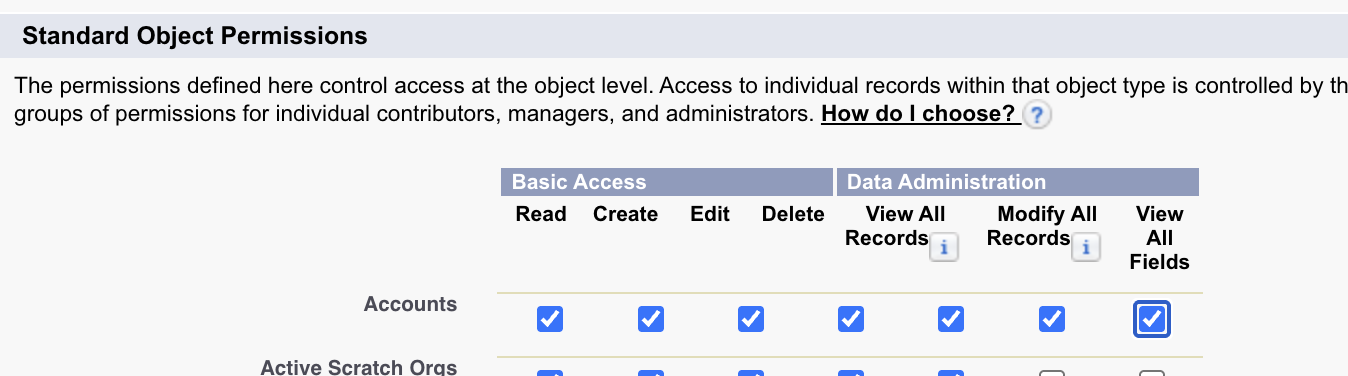
**`View All` and `Modify All` on Contact and Lead are required, not optional.** The allGood user does not *own* the records it looks up by email. With only `Read`/`Edit`, Salesforce's sharing model hides records the user doesn't own, so Mary's lookup finds nothing, or the update fails on records it can't access. `View All` lets Mary find any matching record; `Modify All` lets her write to records she doesn't own.
To set them:
1. Go to Setup → **Users** → **Profiles**, click **Edit** next to **allGood User**.
2. Under **Standard Object Permissions**, set the checkboxes exactly as in the table above:
* **Contact** and **Lead** → **Read, Create, Edit, View All, Modify All**
* **Campaign** → **Read, Edit, View All**
* **Campaign Member** → **Read, Create, Edit**
3. Leave **Delete** unchecked on every object — the integration never deletes records.
4. Scroll to the top and click **Save**.
 Object-level permissions do **not** cover individual fields — field access is controlled separately by Field-Level Security (FLS). Grant the allGood User profile **Read + Edit** on the fields Mary writes:
1. Go to Setup → **Object Manager** → **Contact** → **Fields & Relationships** → **Email Opt Out**.
2. Click **Set Field-Level Security**.
3. For the **allGood User** profile, check **Visible** and leave **Read-Only** unchecked, then **Save**.
4. Repeat for **Lead**: Object Manager → **Lead** → **Fields & Relationships** → **Email Opt Out** → **Set Field-Level Security** → **Visible** (not Read-Only) → **Save**.
5. Do the same for any other fields you configure Mary to write, plus **Company** on **Lead** (Salesforce requires it when creating new Leads).
Standard required fields (**Email**, **Last Name**) are always visible and need no FLS change.
1. In left navigation: **Administration** → **Users** → **Users**
2. Click **New User**
3. Fill required fields:
* **License**: Select **Salesforce**
* **Profile**: Select **allGood User**
* **Email**: Use accessible team email address that somehow indicates "allGood"
* Make sure the `Marketing User` box is checked.
4. Click **Save**
5. **Copy the Username** and store it securely
1. Check the email inbox used for the new user
2. Open the Salesforce verification email
3. Follow the verification link and **set a password**
4. **Store the password** securely.
1. **Log into allGood** and navigate to **Settings** → **Integrations**. Click **Install** next to "Salesforce".
Object-level permissions do **not** cover individual fields — field access is controlled separately by Field-Level Security (FLS). Grant the allGood User profile **Read + Edit** on the fields Mary writes:
1. Go to Setup → **Object Manager** → **Contact** → **Fields & Relationships** → **Email Opt Out**.
2. Click **Set Field-Level Security**.
3. For the **allGood User** profile, check **Visible** and leave **Read-Only** unchecked, then **Save**.
4. Repeat for **Lead**: Object Manager → **Lead** → **Fields & Relationships** → **Email Opt Out** → **Set Field-Level Security** → **Visible** (not Read-Only) → **Save**.
5. Do the same for any other fields you configure Mary to write, plus **Company** on **Lead** (Salesforce requires it when creating new Leads).
Standard required fields (**Email**, **Last Name**) are always visible and need no FLS change.
1. In left navigation: **Administration** → **Users** → **Users**
2. Click **New User**
3. Fill required fields:
* **License**: Select **Salesforce**
* **Profile**: Select **allGood User**
* **Email**: Use accessible team email address that somehow indicates "allGood"
* Make sure the `Marketing User` box is checked.
4. Click **Save**
5. **Copy the Username** and store it securely
1. Check the email inbox used for the new user
2. Open the Salesforce verification email
3. Follow the verification link and **set a password**
4. **Store the password** securely.
1. **Log into allGood** and navigate to **Settings** → **Integrations**. Click **Install** next to "Salesforce".
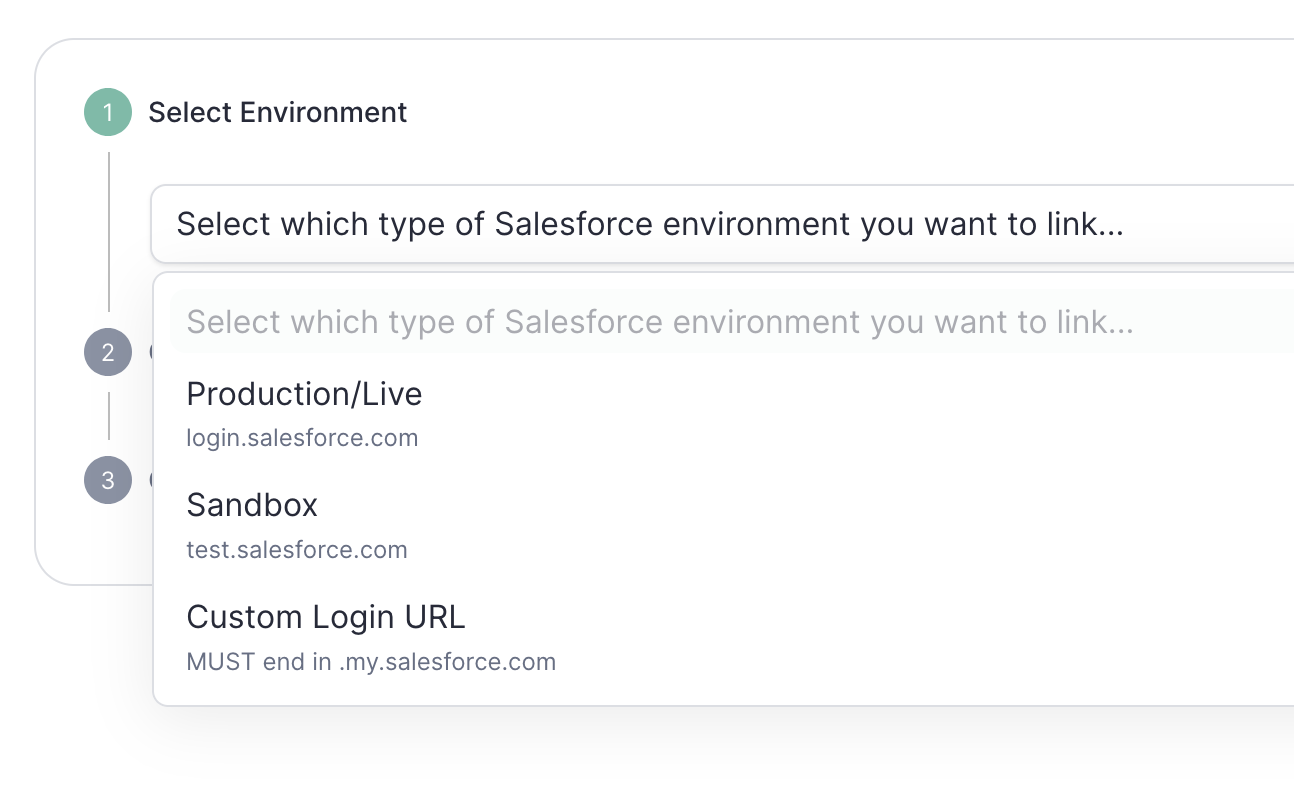
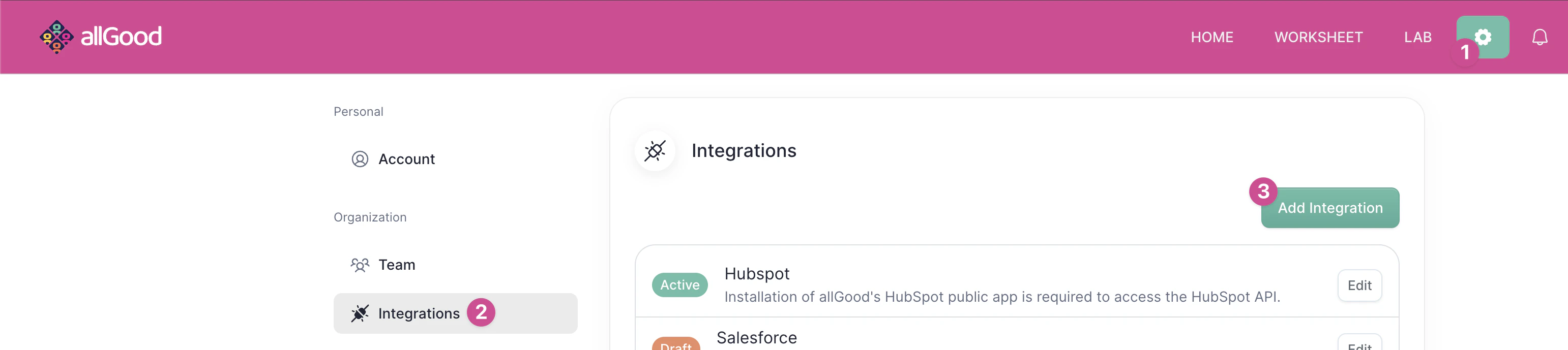 2. **Select the right SFDC environment** (either production/live, sandbox, or a custom instance login URL)
 3. Click **Connect to Salesforce** .
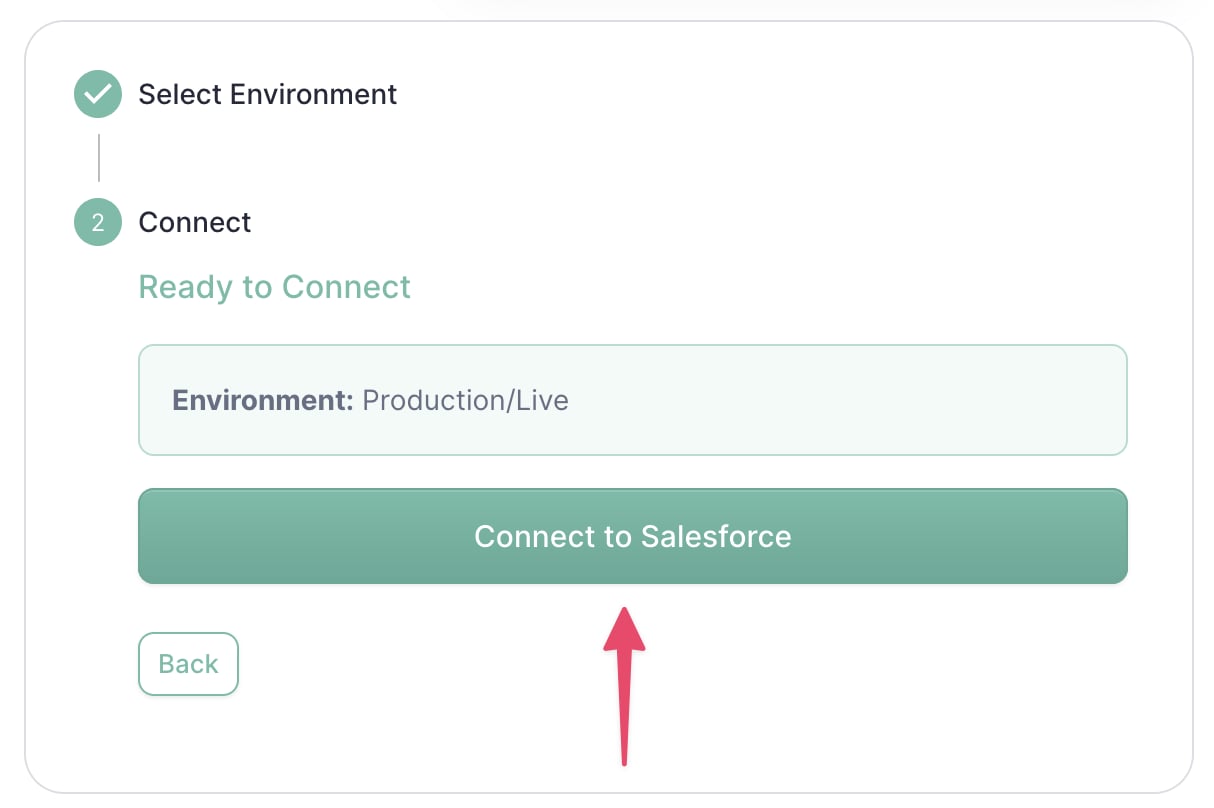 4. Sign in using the **allGood user credentials** created above
5. Verify the integration shows as **Active** on your integrations page
## Verification & Testing
If Salesforce shows "Active" status in allGood integrations, Mary was able to connect successfully.
Object-level access and FLS only surface at execution time, so verify the write path end-to-end before going live:
* Send a message against a category whose actions write to Salesforce.
* Confirm the target **Contact**/**Lead** actually updated — including the `Email Opt Out` field for `Unsubscribe`.
* If the record wasn't found or the update was silently skipped, re-check `View All` / `Modify All` on **Contact** and **Lead** and the FLS on the field being written.
## Frequently Asked Questions
The allGood user doesn't *own* the Contact and Lead records it looks up by
email. Salesforce's sharing model hides records a user doesn't own, so with
only `Read`/`Edit`, Mary's lookup finds nothing (or the update fails on a
record she can't touch). `View All` lets her find any matching record;
`Modify All` lets her write to records she doesn't own.
No. The integration never deletes records — leave **Delete** unchecked on
every object.
Almost always Field-Level Security. Object permissions don't cover
individual fields — confirm the allGood User profile has the field set to
**Visible** (not Read-Only) under **Set Field-Level Security** for both
**Contact** and **Lead**.
The integration works with Professional, Enterprise, and Unlimited editions.
Developer and Essentials editions have limited API access.
## Troubleshooting
This is a Field-Level Security issue, not a missing field. When the allGood
User profile can't see a field, Salesforce reports it as if the column
doesn't exist. Grant **Read + Edit** FLS on the field for the allGood User
profile (see the [field-level security step](#field-level-security-fls)
above).
The allGood user likely lacks **View All** on Contact/Lead, so records it
doesn't own are hidden by your org's sharing model. Enable **View All
Records** on both Contact and Lead.
The user can *read* the record but not *edit* one it doesn't own. Enable
**Modify All Records** on Contact and Lead (in addition to Edit).
Confirm three things: the **Marketing User** flag is enabled on the allGood
user, the profile has **Edit** on **Campaign**, and it has **Create** on
**Campaign Member**. All three are required to add a member.
The field is missing **Edit** FLS for the allGood User profile. Salesforce
silently drops fields the user can't edit. Grant Read + Edit FLS on each
field Mary writes.
Salesforce requires **Company** on new Leads. Grant the allGood User profile
**Read + Edit** FLS on **Company** (Lead), and make sure the record has a
value for it.
Common causes include incorrect credentials, IP restrictions, security token
issues, and expired passwords.
* Review this page for setup steps and common issues - Contact our support
team for technical assistance
4. Sign in using the **allGood user credentials** created above
5. Verify the integration shows as **Active** on your integrations page
## Verification & Testing
If Salesforce shows "Active" status in allGood integrations, Mary was able to connect successfully.
Object-level access and FLS only surface at execution time, so verify the write path end-to-end before going live:
* Send a message against a category whose actions write to Salesforce.
* Confirm the target **Contact**/**Lead** actually updated — including the `Email Opt Out` field for `Unsubscribe`.
* If the record wasn't found or the update was silently skipped, re-check `View All` / `Modify All` on **Contact** and **Lead** and the FLS on the field being written.
## Frequently Asked Questions
The allGood user doesn't *own* the Contact and Lead records it looks up by
email. Salesforce's sharing model hides records a user doesn't own, so with
only `Read`/`Edit`, Mary's lookup finds nothing (or the update fails on a
record she can't touch). `View All` lets her find any matching record;
`Modify All` lets her write to records she doesn't own.
No. The integration never deletes records — leave **Delete** unchecked on
every object.
Almost always Field-Level Security. Object permissions don't cover
individual fields — confirm the allGood User profile has the field set to
**Visible** (not Read-Only) under **Set Field-Level Security** for both
**Contact** and **Lead**.
The integration works with Professional, Enterprise, and Unlimited editions.
Developer and Essentials editions have limited API access.
## Troubleshooting
This is a Field-Level Security issue, not a missing field. When the allGood
User profile can't see a field, Salesforce reports it as if the column
doesn't exist. Grant **Read + Edit** FLS on the field for the allGood User
profile (see the [field-level security step](#field-level-security-fls)
above).
The allGood user likely lacks **View All** on Contact/Lead, so records it
doesn't own are hidden by your org's sharing model. Enable **View All
Records** on both Contact and Lead.
The user can *read* the record but not *edit* one it doesn't own. Enable
**Modify All Records** on Contact and Lead (in addition to Edit).
Confirm three things: the **Marketing User** flag is enabled on the allGood
user, the profile has **Edit** on **Campaign**, and it has **Create** on
**Campaign Member**. All three are required to add a member.
The field is missing **Edit** FLS for the allGood User profile. Salesforce
silently drops fields the user can't edit. Grant Read + Edit FLS on each
field Mary writes.
Salesforce requires **Company** on new Leads. Grant the allGood User profile
**Read + Edit** FLS on **Company** (Lead), and make sure the record has a
value for it.
Common causes include incorrect credentials, IP restrictions, security token
issues, and expired passwords.
* Review this page for setup steps and common issues - Contact our support
team for technical assistance