> ## Documentation Index
> Fetch the complete documentation index at: https://docs.allgoodhq.com/llms.txt
> Use this file to discover all available pages before exploring further.
# Set up Web Edge Sessions for your site
> Register the subdomains that host your landing pages and forms, add the DNS records allGood needs, and confirm which origins can submit to them.
**Web Edge Sessions** is where you register the subdomains that host your allGood landing pages, forms, and tracking events. This article walks you through adding your allowed origins and registering a subdomain. It also covers the DNS records you'll add so allGood can issue an SSL certificate and turn on bot protection automatically.
Every landing page, form, and tracking event allGood serves on your domain depends on this setup. It's not paperwork — each piece closes a real security gap. For the reasoning behind each step, see [How Web Edge keeps your domain secure](/mk/settings/web-edge/how-it-works).
**In a hurry?** Add your allowed origins, register a subdomain, add its two CNAME records at your DNS provider, wait for DNS to propagate, then click **Sync**. The rest of this article covers what to do if something doesn't verify.
## Prerequisites
* Access to the **Web Edge Sessions** settings page
* Access to your DNS provider — wherever you manage records for the domain you want to use — or a teammate who has it
* The exact subdomain you want to use for landing pages and forms, for example `pages.yourbrand.com`
## How registration works
Two settings work together here. **Allowed origins** controls which browser origins can submit form data or send tracking events. Each submission is checked against the browser's Origin header. That's a label every browser request carries automatically — your IT or web team will recognize it even if the term is new to you. The match must be exact, including the `https://` part. Wildcards aren't allowed either — you can't enter `*.yourbrand.com` to cover every subdomain at once; each origin needs its own exact entry. Until you add at least one origin, only your own allGood-hosted pages can submit — a browser on any other site gets refused.
Registering a subdomain starts a four-stage process, tracked in the **Progress** column for each row:
* **Hostname created** — allGood has registered your subdomain and is ready for its DNS records.
* **DNS propagated** — allGood has found and verified the DNS records you added.
* **SSL active** — your SSL certificate has been issued, so the subdomain is secure.
* **Bot protection ready** — a bot-protection widget has been provisioned for forms that need one.
The row's **State** badge tracks overall progress: it starts at **propagating** and moves to **active** once allGood verifies your DNS records. Adding the records is safe — you're pointing a new subdomain at allGood, not changing anything else on your domain.
 Bot protection provisions last, and only after you click **Sync** on an active domain. Until then, forms that require a bot check can't be registered on that subdomain.
## Add your allowed origins
Think through everywhere your forms and tracking need to work, not only your main site. A third-party platform can serve pages on your behalf — for example, a content platform hosting pages at `yourcompany.pathfactory.com`. Add that origin too, or its forms and tracking events get silently blocked. Add every origin you recognize and want to allow. Leave out anything you don't — that's what keeps this list a real security boundary, not a formality.
Open **Web Edge Sessions** in your account settings.
In the **Allowed origins** section, enter the full origin — including the `https://` part — in **Add an origin**. For example: `https://www.yourbrand.com`.
Click **Add**.
## Register a subdomain
If you're migrating off another platform — Marketo, HubSpot, or similar — don't register the subdomain that platform is using today. Keep that one free so you can redirect old links to your new allGood pages once you cut over. Register a different subdomain here instead, such as `pages.yourbrand.com` or `marketing.yourbrand.com`.
Bot protection provisions last, and only after you click **Sync** on an active domain. Until then, forms that require a bot check can't be registered on that subdomain.
## Add your allowed origins
Think through everywhere your forms and tracking need to work, not only your main site. A third-party platform can serve pages on your behalf — for example, a content platform hosting pages at `yourcompany.pathfactory.com`. Add that origin too, or its forms and tracking events get silently blocked. Add every origin you recognize and want to allow. Leave out anything you don't — that's what keeps this list a real security boundary, not a formality.
Open **Web Edge Sessions** in your account settings.
In the **Allowed origins** section, enter the full origin — including the `https://` part — in **Add an origin**. For example: `https://www.yourbrand.com`.
Click **Add**.
## Register a subdomain
If you're migrating off another platform — Marketo, HubSpot, or similar — don't register the subdomain that platform is using today. Keep that one free so you can redirect old links to your new allGood pages once you cut over. Register a different subdomain here instead, such as `pages.yourbrand.com` or `marketing.yourbrand.com`.
 In the **Add a subdomain** section, enter your subdomain in **Hostname**. For example: `pages.yourbrand.com`.
Click **Register**.
allGood creates the hostname and shows the DNS records you need to add next.
## Add the DNS records at your provider
Go to your DNS provider — the place you bought or manage the domain. A **CNAME record** is a DNS instruction that points one address at another. It's how you tell the internet your subdomain actually lives at allGood, without moving your whole domain. Add both CNAME records shown in the DNS setup panel:
* A **CNAME** record on your subdomain, for example `pages.yourbrand.com`. This routes visitors on the subdomain to **allGood Edge** — the network that hosts and serves your pages.
* A **CNAME** record on `_acme-challenge.` plus your subdomain. The unusual-looking prefix is expected — copy it exactly as shown. This delegates SSL certificate validation to allGood, so your certificate renews automatically. Add it once and you're done.
In the **Add a subdomain** section, enter your subdomain in **Hostname**. For example: `pages.yourbrand.com`.
Click **Register**.
allGood creates the hostname and shows the DNS records you need to add next.
## Add the DNS records at your provider
Go to your DNS provider — the place you bought or manage the domain. A **CNAME record** is a DNS instruction that points one address at another. It's how you tell the internet your subdomain actually lives at allGood, without moving your whole domain. Add both CNAME records shown in the DNS setup panel:
* A **CNAME** record on your subdomain, for example `pages.yourbrand.com`. This routes visitors on the subdomain to **allGood Edge** — the network that hosts and serves your pages.
* A **CNAME** record on `_acme-challenge.` plus your subdomain. The unusual-looking prefix is expected — copy it exactly as shown. This delegates SSL certificate validation to allGood, so your certificate renews automatically. Add it once and you're done.
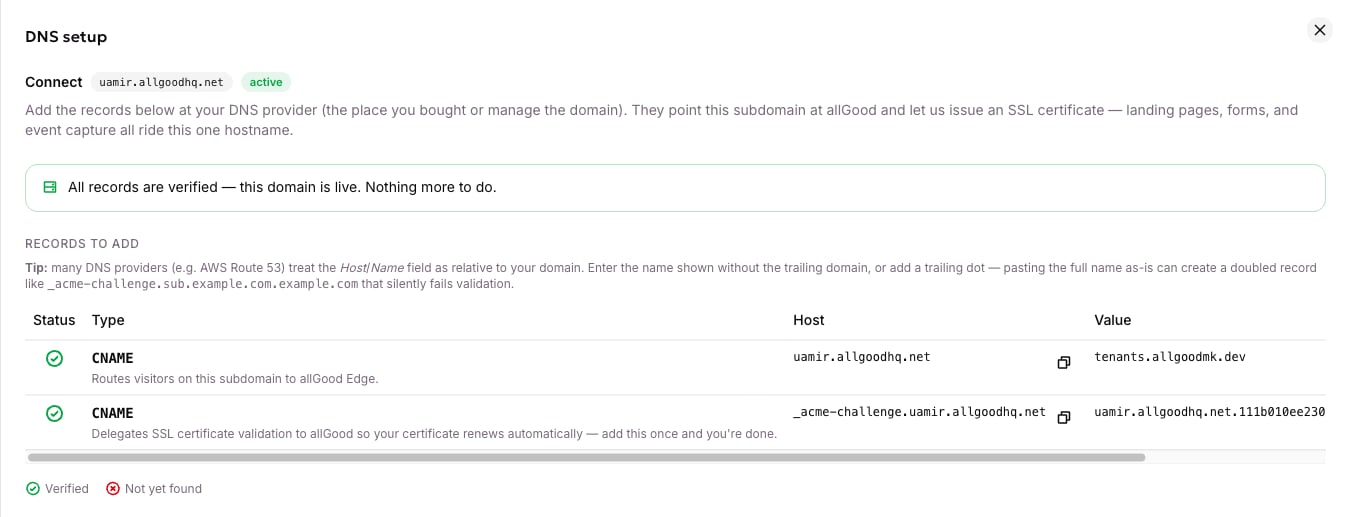 Many DNS providers, including AWS Route 53, treat the Host/Name field as relative to your domain. Enter the host exactly as shown, without the trailing domain, or add a trailing dot. Pasting the full name as-is can create a doubled record like `_acme-challenge.pages.yourbrand.com.yourbrand.com`, which silently fails validation.
The values in your DNS setup panel are unique to your subdomain. Always copy the host and value shown to you there — don't reuse values from this article or from another subdomain.
## Recheck your DNS and finish provisioning
This can take a few minutes to an hour worldwide.
Back on **Web Edge Sessions**, click **Sync** to re-check your records.
Watch **State** move from **propagating** to **active**. Each step in **Progress** turns to done in order: **Hostname created**, **DNS propagated**, **SSL active**, then **Bot protection ready**.
Many DNS providers, including AWS Route 53, treat the Host/Name field as relative to your domain. Enter the host exactly as shown, without the trailing domain, or add a trailing dot. Pasting the full name as-is can create a doubled record like `_acme-challenge.pages.yourbrand.com.yourbrand.com`, which silently fails validation.
The values in your DNS setup panel are unique to your subdomain. Always copy the host and value shown to you there — don't reuse values from this article or from another subdomain.
## Recheck your DNS and finish provisioning
This can take a few minutes to an hour worldwide.
Back on **Web Edge Sessions**, click **Sync** to re-check your records.
Watch **State** move from **propagating** to **active**. Each step in **Progress** turns to done in order: **Hostname created**, **DNS propagated**, **SSL active**, then **Bot protection ready**.
 Once your subdomain's State is now active, with all four progress steps complete, allGood has issued an SSL certificate for it and provisioned bot protection. You can now publish landing pages and forms — including forms that require a bot check — on that subdomain.
## Manage multiple domains
If you connect more than one subdomain, one of them is your **default**. That's the domain automatically filled into any snippet or URL allGood generates — your tracking tag, for example, or a form's capture endpoint. Only an active domain can be the default, and there's always exactly one.
To change it, or to remove a domain you no longer need, open the row's **⋮** menu.
Once your subdomain's State is now active, with all four progress steps complete, allGood has issued an SSL certificate for it and provisioned bot protection. You can now publish landing pages and forms — including forms that require a bot check — on that subdomain.
## Manage multiple domains
If you connect more than one subdomain, one of them is your **default**. That's the domain automatically filled into any snippet or URL allGood generates — your tracking tag, for example, or a form's capture endpoint. Only an active domain can be the default, and there's always exactly one.
To change it, or to remove a domain you no longer need, open the row's **⋮** menu.
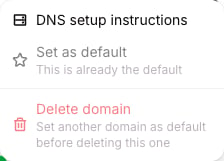 * **Set as default** makes this domain the one allGood uses for new snippets and URLs going forward. Pages already published and tags already installed keep working — switching the default only changes what gets generated after you switch it.
* **Delete domain** asks you to type the hostname to confirm, then immediately stops landing pages, form capture, and tracking on that subdomain. You can't delete the current default — make another domain the default first.
If the issue doesn't resolve, see the [Web Edge FAQ](/mk/settings/web-edge/faq).
## Related articles
* [How Web Edge keeps your domain secure](/mk/settings/web-edge/how-it-works)
* [Set up Web Tracking on your site](/mk/settings/web-edge/tracking-setup)
* [Web Edge FAQ](/mk/settings/web-edge/faq)
* [Turn on bot protection for a form](/mk/settings/web-edge/bot-protection)
* Create a landing page (TBD)
* Need the domain-connection or edge-sync internals? See the developer reference: [Connect a domain](/mk/developer/web-edge/connect-a-domain) and [Edge Sync](/mk/developer/web-edge/edge-sync)
* **Set as default** makes this domain the one allGood uses for new snippets and URLs going forward. Pages already published and tags already installed keep working — switching the default only changes what gets generated after you switch it.
* **Delete domain** asks you to type the hostname to confirm, then immediately stops landing pages, form capture, and tracking on that subdomain. You can't delete the current default — make another domain the default first.
If the issue doesn't resolve, see the [Web Edge FAQ](/mk/settings/web-edge/faq).
## Related articles
* [How Web Edge keeps your domain secure](/mk/settings/web-edge/how-it-works)
* [Set up Web Tracking on your site](/mk/settings/web-edge/tracking-setup)
* [Web Edge FAQ](/mk/settings/web-edge/faq)
* [Turn on bot protection for a form](/mk/settings/web-edge/bot-protection)
* Create a landing page (TBD)
* Need the domain-connection or edge-sync internals? See the developer reference: [Connect a domain](/mk/developer/web-edge/connect-a-domain) and [Edge Sync](/mk/developer/web-edge/edge-sync)