> ## Documentation Index
> Fetch the complete documentation index at: https://docs.allgoodhq.com/llms.txt
> Use this file to discover all available pages before exploring further.
# Act-On Actions
> What Mary does after she classifies a reply — Act-On contact syncs, marketing list adds, and native opt-outs.
**Actions** are what Mary *does* once she's classified a reply and pulled out any [extracted data](/use-cases/erm/data-extraction). They run automatically the moment a match is confirmed, so by the time an email shows up in the [Messages](/use-cases/erm/untitled-page-1) feed, the downstream work in Act-On is already done.
Actions are configured per category. A reply that lands in `Unsubscribe` runs one set of actions; one that lands in `Left Company` runs another.
## Available action types
### Forward Email
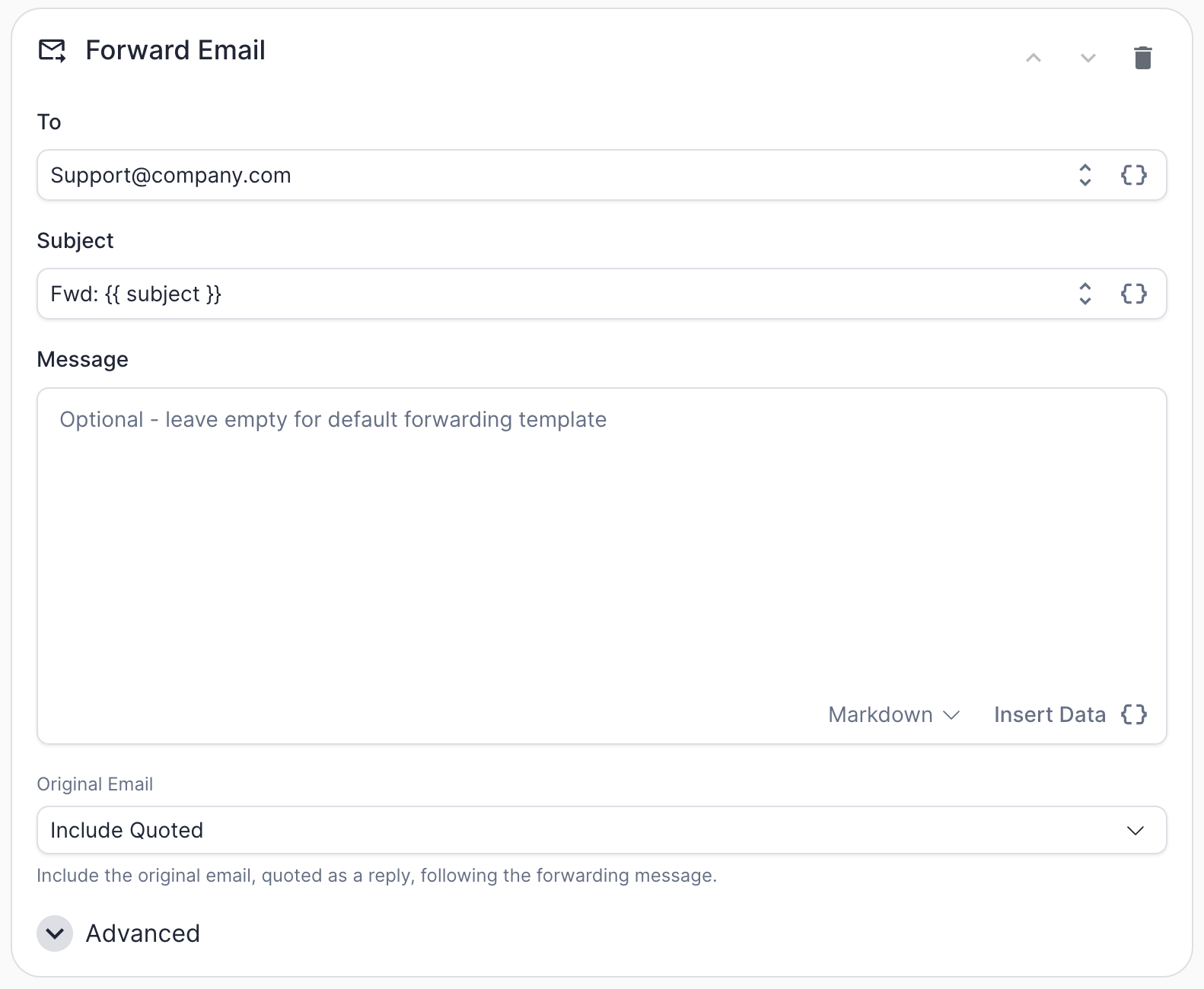 Forward the classified reply to another email address. This is the go-to action when a reply needs a human — for example, routing a `Human Request` reply to your shared sales inbox, or looping a specific rep in on `Out-Of-Office` replies for accounts they own.
Forward Email is a **generic action** and works the same way regardless of which marketing automation platform you're connected to.
| Field | What it does |
| ---------------- | ----------------------------------------------------------------------------------------------------------------------------------------------------------- |
| `To` | Destination email address. Accepts tokens (e.g., `{{ owner.email }}`). |
| `Subject` | Subject line for the forwarded message. Defaults to `Fwd: {{ subject }}`. |
| `Message` | Optional custom message body. Supports **Markdown** formatting and token insertion via **Insert Data**. Leave empty to use the default forwarding template. |
| `Original Email` | Controls how the original email is included in the forward — see below. |
The `Original Email` dropdown controls what happens with the source message:
| Option | Behavior |
| ---------------- | ------------------------------------------------------------------------- |
| `Include Inline` | Original message body is appended directly beneath your message |
| `Include Quoted` | Original message is included as a quoted reply — the familiar default |
| `Don't Include` | Forward only contains the message you wrote; the original body is dropped |
Under **Advanced**:
| Field | What it does |
| --------------- | -------------------------------------------------------------------------------------------------------------------- |
| `Message Style` | Rendering style for the forwarded email. `AllGood Branded` uses the allGood template; other styles may be available. |
| `CC` | Additional addresses to CC on the forward. Accepts tokens. |
| `Reply-To` | Override the reply-to address so recipient replies land somewhere other than the original sender. |
| `From Name` | Display name shown in the recipient's inbox (e.g., "Support Team" instead of the raw address). |
### Add to Worksheet
Forward the classified reply to another email address. This is the go-to action when a reply needs a human — for example, routing a `Human Request` reply to your shared sales inbox, or looping a specific rep in on `Out-Of-Office` replies for accounts they own.
Forward Email is a **generic action** and works the same way regardless of which marketing automation platform you're connected to.
| Field | What it does |
| ---------------- | ----------------------------------------------------------------------------------------------------------------------------------------------------------- |
| `To` | Destination email address. Accepts tokens (e.g., `{{ owner.email }}`). |
| `Subject` | Subject line for the forwarded message. Defaults to `Fwd: {{ subject }}`. |
| `Message` | Optional custom message body. Supports **Markdown** formatting and token insertion via **Insert Data**. Leave empty to use the default forwarding template. |
| `Original Email` | Controls how the original email is included in the forward — see below. |
The `Original Email` dropdown controls what happens with the source message:
| Option | Behavior |
| ---------------- | ------------------------------------------------------------------------- |
| `Include Inline` | Original message body is appended directly beneath your message |
| `Include Quoted` | Original message is included as a quoted reply — the familiar default |
| `Don't Include` | Forward only contains the message you wrote; the original body is dropped |
Under **Advanced**:
| Field | What it does |
| --------------- | -------------------------------------------------------------------------------------------------------------------- |
| `Message Style` | Rendering style for the forwarded email. `AllGood Branded` uses the allGood template; other styles may be available. |
| `CC` | Additional addresses to CC on the forward. Accepts tokens. |
| `Reply-To` | Override the reply-to address so recipient replies land somewhere other than the original sender. |
| `From Name` | Display name shown in the recipient's inbox (e.g., "Support Team" instead of the raw address). |
### Add to Worksheet
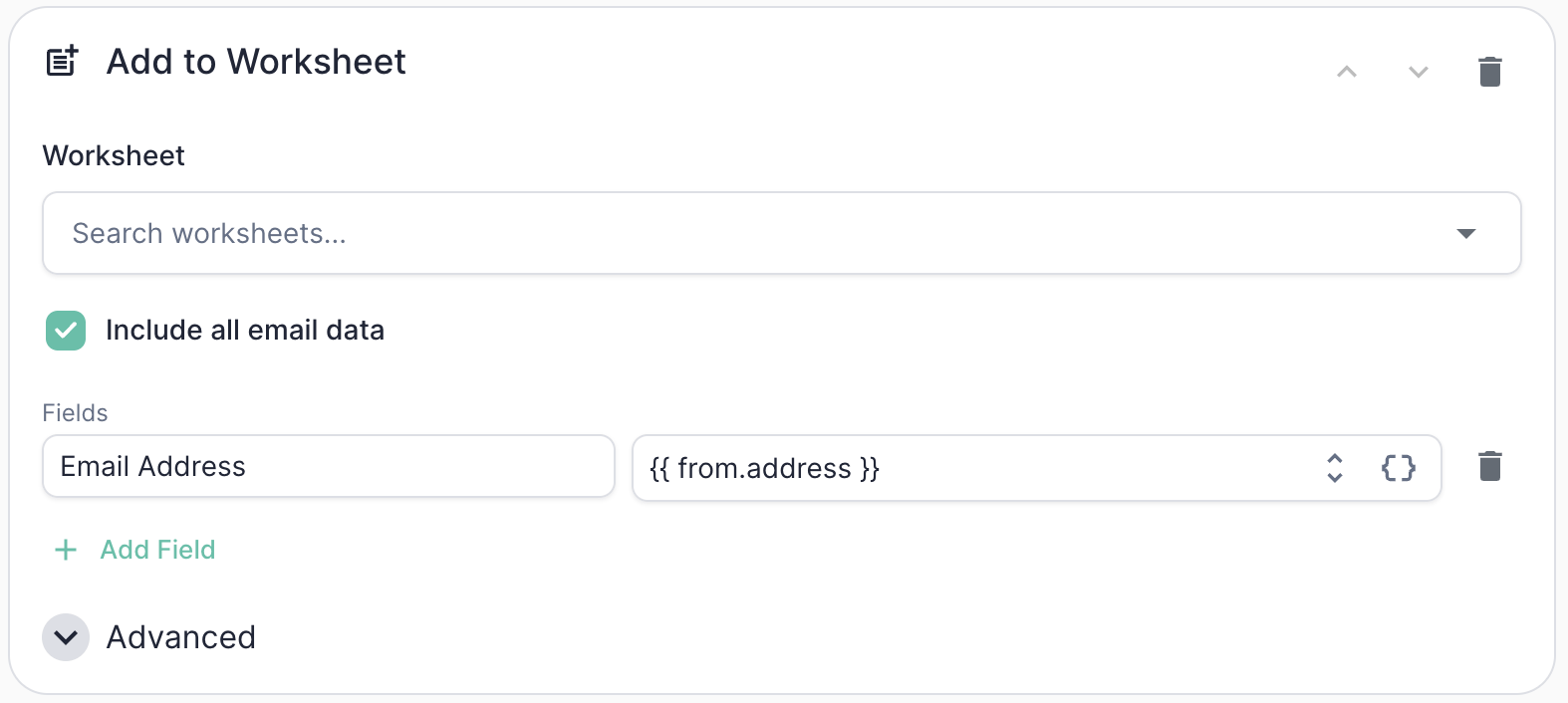 Push the sender into an allGood worksheet, optionally running it through the worksheet's flow steps. This is how you take a classified reply and hand it off to another allGood workflow — for example, adding a `Human Request` sender to a follow-up worksheet that triages and routes them, or pushing extracted replacement contacts from `Left Company` replies into a new-lead worksheet.
Add to Worksheet is a **generic action** and works the same way regardless of which marketing automation platform you're connected to.
| Field | What it does |
| ------------------------ | --------------------------------------------------------------------------------------------------------------------------------------------------------------------------- |
| `Worksheet` | The worksheet to add the contact to. Search by name to pick from your existing worksheets. |
| `Include all email data` | When checked, attaches the full email content (subject, body, from, headers) to the worksheet row. Useful when downstream flow steps need access to the raw reply. |
| `Fields` | Map worksheet fields to values or tokens. Left column is the worksheet field name; right column is the value or token to write. Click **+ Add Field** to add more mappings. |
Under **Advanced**:
| Field | What it does |
| ------------------------- | ----------------------------------------------------------------------------------------------------------------------------------------------------------------- |
| `Behavior` | Choose whether Mary just adds the contact to the worksheet, or adds and immediately runs them through the worksheet's flow steps (`Add to Worksheet + Run Flow`). |
| `Include source metadata` | Attaches metadata about where the entry originated (which ERM configuration, category, classification rationale, etc.) so downstream steps can reference it. |
| `Only If` | Standard [conditional expression](#conditional-actions) that must evaluate to `true` for the action to run. Use to fan out behavior within a single category. |
### Sync Contact to Act-On
Push the sender into an allGood worksheet, optionally running it through the worksheet's flow steps. This is how you take a classified reply and hand it off to another allGood workflow — for example, adding a `Human Request` sender to a follow-up worksheet that triages and routes them, or pushing extracted replacement contacts from `Left Company` replies into a new-lead worksheet.
Add to Worksheet is a **generic action** and works the same way regardless of which marketing automation platform you're connected to.
| Field | What it does |
| ------------------------ | --------------------------------------------------------------------------------------------------------------------------------------------------------------------------- |
| `Worksheet` | The worksheet to add the contact to. Search by name to pick from your existing worksheets. |
| `Include all email data` | When checked, attaches the full email content (subject, body, from, headers) to the worksheet row. Useful when downstream flow steps need access to the raw reply. |
| `Fields` | Map worksheet fields to values or tokens. Left column is the worksheet field name; right column is the value or token to write. Click **+ Add Field** to add more mappings. |
Under **Advanced**:
| Field | What it does |
| ------------------------- | ----------------------------------------------------------------------------------------------------------------------------------------------------------------- |
| `Behavior` | Choose whether Mary just adds the contact to the worksheet, or adds and immediately runs them through the worksheet's flow steps (`Add to Worksheet + Run Flow`). |
| `Include source metadata` | Attaches metadata about where the entry originated (which ERM configuration, category, classification rationale, etc.) so downstream steps can reference it. |
| `Only If` | Standard [conditional expression](#conditional-actions) that must evaluate to `true` for the action to run. Use to fan out behavior within a single category. |
### Sync Contact to Act-On
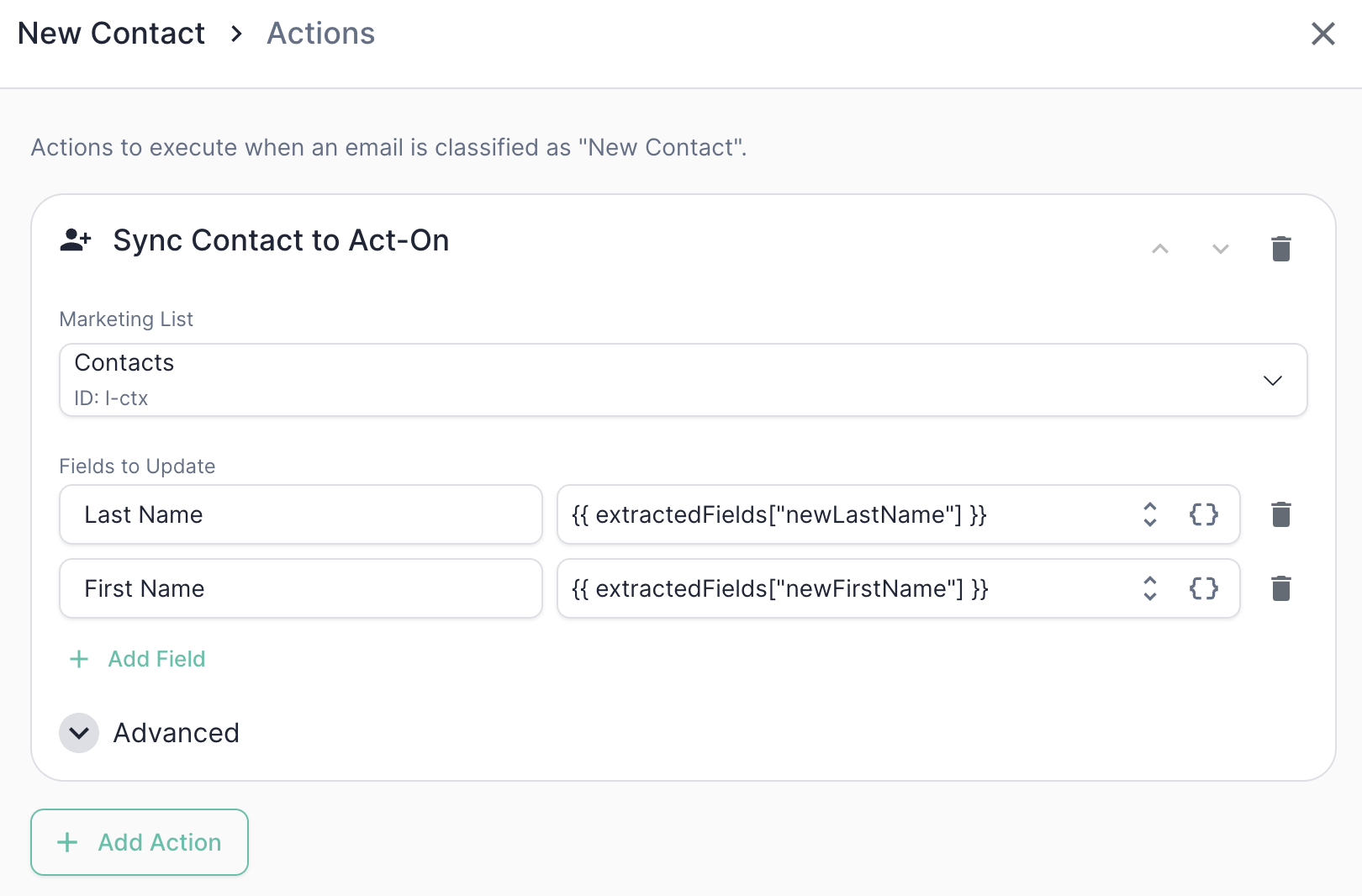 Create or update a contact in an Act-On **marketing list**, identified by the sender's email address. Mary writes the contact into the list you select, creating it if it doesn't exist yet and updating it if it does — both in a single call.
Act-On writes are **list-scoped**: every sync targets a specific marketing list rather than a global contact table. Pick the list from the **Marketing List** dropdown, which is populated from the contact lists in your Act-On account.
You can set:
* **Static values** — e.g., `Unsubscribed = true`
* **Dynamic values** — tokens that resolve at runtime from Mary's classification or [extracted data](/use-cases/erm/data-extraction), e.g., `Unsubscribe Reason = [allGood] {{ classification }}: {{ rationale }}`
Each row in the **field map** pairs an Act-On list **column** with a value or token. Use the field picker to choose from the columns on the selected list — the keys are the column names exactly as they appear in Act-On (e.g., `First Name`, `Company`), not internal API names. The email address is always included automatically — it's the lookup key.
There's no sync-mode dropdown. Act-On's list-record endpoint always upserts (create-or-update) in one call, so the sync both creates the contact when it's missing and updates it when it already exists.
Common tokens you can reference:
| Token | What it resolves to |
| ---------------------------------- | ---------------------------------------------------------------------------------------- |
| `{{ classification }}` | The category Mary assigned (e.g., `Unsubscribe`) |
| `{{ rationale }}` | Mary's plain-English reasoning for the classification |
| `{{ from.address }}` | The sender's email address |
| `{{ from.name }}` | The sender's display name |
| `{{ extractedFields[""] }}` | Any field defined in [Data Extraction](/use-cases/erm/data-extraction) for that category |
| `{{ enriched[""] }}` | Any field produced by an enrichment step earlier in the pipeline |
### Add to Act-On List
Create or update a contact in an Act-On **marketing list**, identified by the sender's email address. Mary writes the contact into the list you select, creating it if it doesn't exist yet and updating it if it does — both in a single call.
Act-On writes are **list-scoped**: every sync targets a specific marketing list rather than a global contact table. Pick the list from the **Marketing List** dropdown, which is populated from the contact lists in your Act-On account.
You can set:
* **Static values** — e.g., `Unsubscribed = true`
* **Dynamic values** — tokens that resolve at runtime from Mary's classification or [extracted data](/use-cases/erm/data-extraction), e.g., `Unsubscribe Reason = [allGood] {{ classification }}: {{ rationale }}`
Each row in the **field map** pairs an Act-On list **column** with a value or token. Use the field picker to choose from the columns on the selected list — the keys are the column names exactly as they appear in Act-On (e.g., `First Name`, `Company`), not internal API names. The email address is always included automatically — it's the lookup key.
There's no sync-mode dropdown. Act-On's list-record endpoint always upserts (create-or-update) in one call, so the sync both creates the contact when it's missing and updates it when it already exists.
Common tokens you can reference:
| Token | What it resolves to |
| ---------------------------------- | ---------------------------------------------------------------------------------------- |
| `{{ classification }}` | The category Mary assigned (e.g., `Unsubscribe`) |
| `{{ rationale }}` | Mary's plain-English reasoning for the classification |
| `{{ from.address }}` | The sender's email address |
| `{{ from.name }}` | The sender's display name |
| `{{ extractedFields[""] }}` | Any field defined in [Data Extraction](/use-cases/erm/data-extraction) for that category |
| `{{ enriched[""] }}` | Any field produced by an enrichment step earlier in the pipeline |
### Add to Act-On List
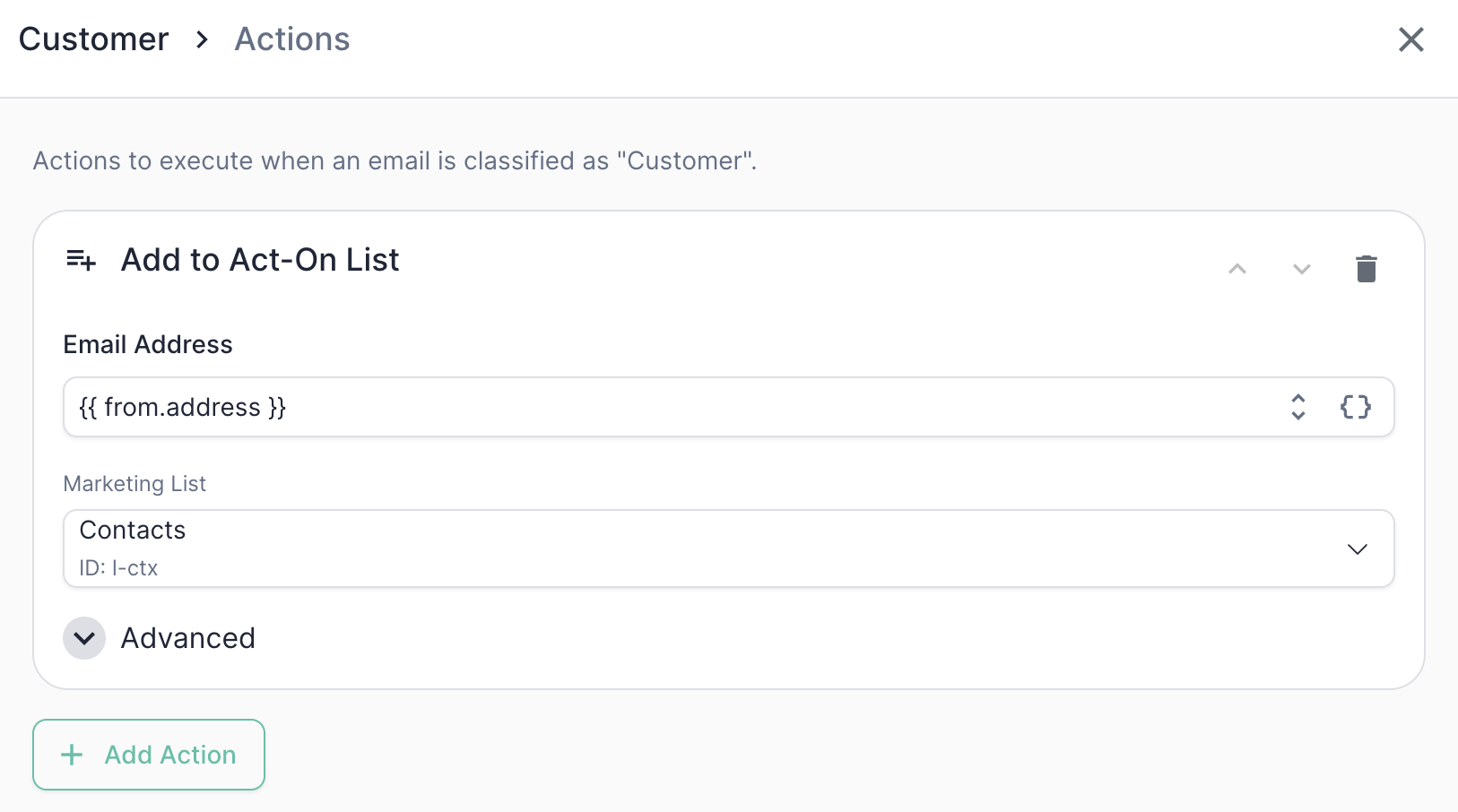 Add the sender to a specific Act-On marketing list. Mary writes the contact into the list you select from the **Marketing List** dropdown.
Like the sync action, this **upserts** by email — it creates the contact on the list if they aren't there yet and leaves an existing record in place otherwise. Because of that, you don't need to sync the contact first: adding to a list will never fail just because the contact was missing.
### Unsubscribe in Act-On
Add the sender to a specific Act-On marketing list. Mary writes the contact into the list you select from the **Marketing List** dropdown.
Like the sync action, this **upserts** by email — it creates the contact on the list if they aren't there yet and leaves an existing record in place otherwise. Because of that, you don't need to sync the contact first: adding to a list will never fail just because the contact was missing.
### Unsubscribe in Act-On
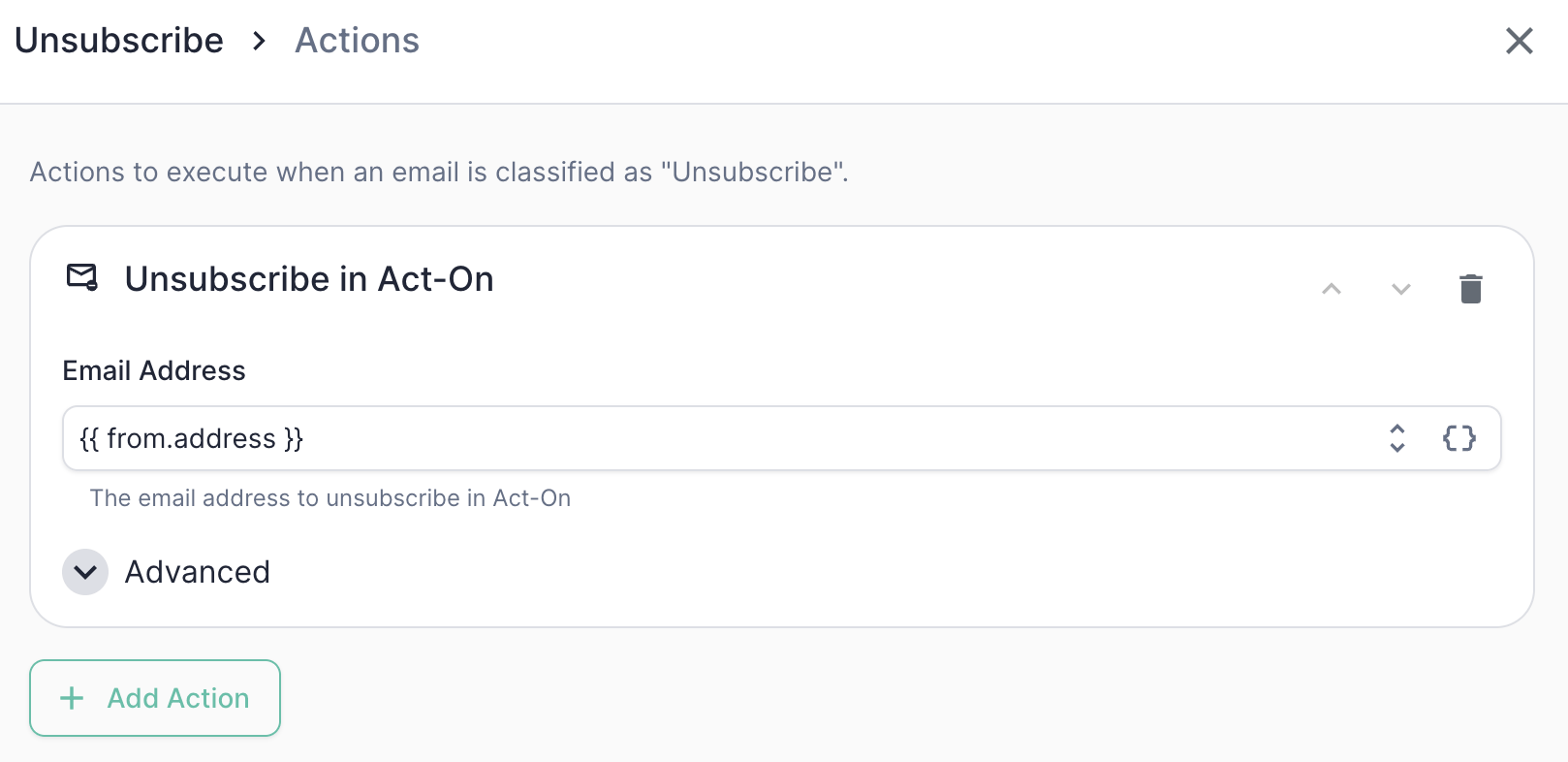 Opt the sender out of marketing email in Act-On. This is the cleanest way to honor an opt-out, because it records the suppression in Act-On directly rather than just flipping a field on a list.
The opt-out is keyed on the email address and is idempotent — Mary doesn't need to look the contact up first, so an unsubscribe is always honored.
Under **Advanced**, you can set a **Subscription Category**:
| Field | Behavior |
| ------------------------------- | ------------------------------------------------------------------------------------------------------ |
| Blank (default) | Account-level opt-out — the sender is suppressed from all marketing email. |
| A category (e.g. `Newsletters`) | Scopes the opt-out to a single Act-On subscription category, leaving the contact subscribed to others. |
Because the opt-out doesn't require a prior lookup, there's no **skip if not found** toggle on this action — it applies the suppression by email regardless of whether the contact already exists on a list.
## Example: Unsubscribe actions
Here's the action chain a typical `Unsubscribe` category would run:
Honor the opt-out so the suppression is recorded in Act-On and respected on future sends. Leave **Subscription Category** blank for an account-level opt-out.
Record the reason on the contact for the audit trail. Because the sync upserts, it also guarantees the contact is on your suppression list.
| Field | Value |
| -------------------- | ------------------------------------------------- |
| `Unsubscribed` | `true` |
| `Unsubscribe Reason` | `[allGood] {{ classification }}: {{ rationale }}` |
The `{{ rationale }}` token is particularly useful here — it gives your ops team a human-readable audit trail directly on the contact record explaining *why* Mary marked someone as unsubscribed.
## Stacking and reordering actions
You can configure multiple actions per category, and they run in the order they're listed. Use the up/down arrows on each action row to reorder them. Click **+ Add Action** to add more.
Order matters mainly for **field dependencies** — if a later action references a field set by an earlier action, make sure the order reflects that dependency.
Unlike some platforms, Act-On's **Add to Act-On List** and **Sync Contact to Act-On** both upsert by email, so you don't need to order a sync before a list-add to make sure the contact exists — either action will create it.
## Conditional actions
Every action supports an **only-if** condition — a token expression that must evaluate to `true` for the action to run. This lets you fan out behavior within a single category. For example, only add to a "Hot Leads" list when an extracted `intent` field is `high`, while still running the rest of the chain for everyone.
Act-On actions don't expose a **skip if not found** toggle. None of them do a prior contact lookup — syncs and list-adds upsert by email, and unsubscribes apply by email — so there's no "missing contact" case to skip or error on.
## Fetching contact data (optional)
If you want to reference a sender's existing Act-On fields inside your action templates — for example, writing their `Owner` or `Region` into a forward — add a **Fetch Act-On Contact** step to the category's data pipeline. It looks the contact up by email and exposes the record to later templates:
| Token | What it resolves to |
| ---------------------------------- | --------------------------------------- |
| `{{ actOnContact.email }}` | The fetched contact's email address |
| `{{ actOnContact["FIELD_NAME"] }}` | Any field on the fetched Act-On contact |
**Fetch Act-On Contact** is the only piece of Act-On that needs an **Account ID**. Set it on the Act-On integration (**Settings → Integrations → Act-On**) — the fetcher can't look contacts up without it. None of the actions above require it.
## Best practices
* **Use the `[allGood]` prefix in audit fields.** Following the example above (`Unsubscribe Reason = [allGood] ...`) makes it easy to see at a glance which records were touched by Mary versus a human or another system.
* **Use the list's column names, and pick from the field picker.** The field-map keys must match the columns on the selected marketing list exactly. The picker lists them for you so you don't have to guess — a column name that doesn't exist on the list will fail at execution time.
* **Prefer the native unsubscribe.** For opt-outs, use **Unsubscribe in Act-On** rather than just setting a field on a list — it records the suppression in Act-On so it's honored on future sends.
* **Pick the right list up front.** Every sync and list-add targets one marketing list. If you suppress and report out of a dedicated list (e.g. `Unsubscribed by Mary`), point both the sync and the add at it.
* **Test the full chain, not just the classification.** The [Test Suite](/use-cases/erm/test-suite) validates categorization and extraction; once those pass, sanity-check the actions against a sandbox Act-On account before going live.
Opt the sender out of marketing email in Act-On. This is the cleanest way to honor an opt-out, because it records the suppression in Act-On directly rather than just flipping a field on a list.
The opt-out is keyed on the email address and is idempotent — Mary doesn't need to look the contact up first, so an unsubscribe is always honored.
Under **Advanced**, you can set a **Subscription Category**:
| Field | Behavior |
| ------------------------------- | ------------------------------------------------------------------------------------------------------ |
| Blank (default) | Account-level opt-out — the sender is suppressed from all marketing email. |
| A category (e.g. `Newsletters`) | Scopes the opt-out to a single Act-On subscription category, leaving the contact subscribed to others. |
Because the opt-out doesn't require a prior lookup, there's no **skip if not found** toggle on this action — it applies the suppression by email regardless of whether the contact already exists on a list.
## Example: Unsubscribe actions
Here's the action chain a typical `Unsubscribe` category would run:
Honor the opt-out so the suppression is recorded in Act-On and respected on future sends. Leave **Subscription Category** blank for an account-level opt-out.
Record the reason on the contact for the audit trail. Because the sync upserts, it also guarantees the contact is on your suppression list.
| Field | Value |
| -------------------- | ------------------------------------------------- |
| `Unsubscribed` | `true` |
| `Unsubscribe Reason` | `[allGood] {{ classification }}: {{ rationale }}` |
The `{{ rationale }}` token is particularly useful here — it gives your ops team a human-readable audit trail directly on the contact record explaining *why* Mary marked someone as unsubscribed.
## Stacking and reordering actions
You can configure multiple actions per category, and they run in the order they're listed. Use the up/down arrows on each action row to reorder them. Click **+ Add Action** to add more.
Order matters mainly for **field dependencies** — if a later action references a field set by an earlier action, make sure the order reflects that dependency.
Unlike some platforms, Act-On's **Add to Act-On List** and **Sync Contact to Act-On** both upsert by email, so you don't need to order a sync before a list-add to make sure the contact exists — either action will create it.
## Conditional actions
Every action supports an **only-if** condition — a token expression that must evaluate to `true` for the action to run. This lets you fan out behavior within a single category. For example, only add to a "Hot Leads" list when an extracted `intent` field is `high`, while still running the rest of the chain for everyone.
Act-On actions don't expose a **skip if not found** toggle. None of them do a prior contact lookup — syncs and list-adds upsert by email, and unsubscribes apply by email — so there's no "missing contact" case to skip or error on.
## Fetching contact data (optional)
If you want to reference a sender's existing Act-On fields inside your action templates — for example, writing their `Owner` or `Region` into a forward — add a **Fetch Act-On Contact** step to the category's data pipeline. It looks the contact up by email and exposes the record to later templates:
| Token | What it resolves to |
| ---------------------------------- | --------------------------------------- |
| `{{ actOnContact.email }}` | The fetched contact's email address |
| `{{ actOnContact["FIELD_NAME"] }}` | Any field on the fetched Act-On contact |
**Fetch Act-On Contact** is the only piece of Act-On that needs an **Account ID**. Set it on the Act-On integration (**Settings → Integrations → Act-On**) — the fetcher can't look contacts up without it. None of the actions above require it.
## Best practices
* **Use the `[allGood]` prefix in audit fields.** Following the example above (`Unsubscribe Reason = [allGood] ...`) makes it easy to see at a glance which records were touched by Mary versus a human or another system.
* **Use the list's column names, and pick from the field picker.** The field-map keys must match the columns on the selected marketing list exactly. The picker lists them for you so you don't have to guess — a column name that doesn't exist on the list will fail at execution time.
* **Prefer the native unsubscribe.** For opt-outs, use **Unsubscribe in Act-On** rather than just setting a field on a list — it records the suppression in Act-On so it's honored on future sends.
* **Pick the right list up front.** Every sync and list-add targets one marketing list. If you suppress and report out of a dedicated list (e.g. `Unsubscribed by Mary`), point both the sync and the add at it.
* **Test the full chain, not just the classification.** The [Test Suite](/use-cases/erm/test-suite) validates categorization and extraction; once those pass, sanity-check the actions against a sandbox Act-On account before going live.