> ## Documentation Index
> Fetch the complete documentation index at: https://docs.allgoodhq.com/llms.txt
> Use this file to discover all available pages before exploring further.
# Categories
> Define the buckets Mary uses to classify every incoming reply — and the plain-English prompts that teach her how to recognize them.
A **category** is a bucket that an incoming reply can fall into. You give it a name and write a plain-English prompt that tells Mary how to recognize it. When an email arrives, Mary reads the body, subject, and metadata, compares it against every category you've defined, and picks the best match.
Categories are the foundation of every reply management workflow — they're the layer that everything else ([data extraction](/use-cases/erm/data-extraction) and [actions](/use-cases/erm/actions)) hangs off of.
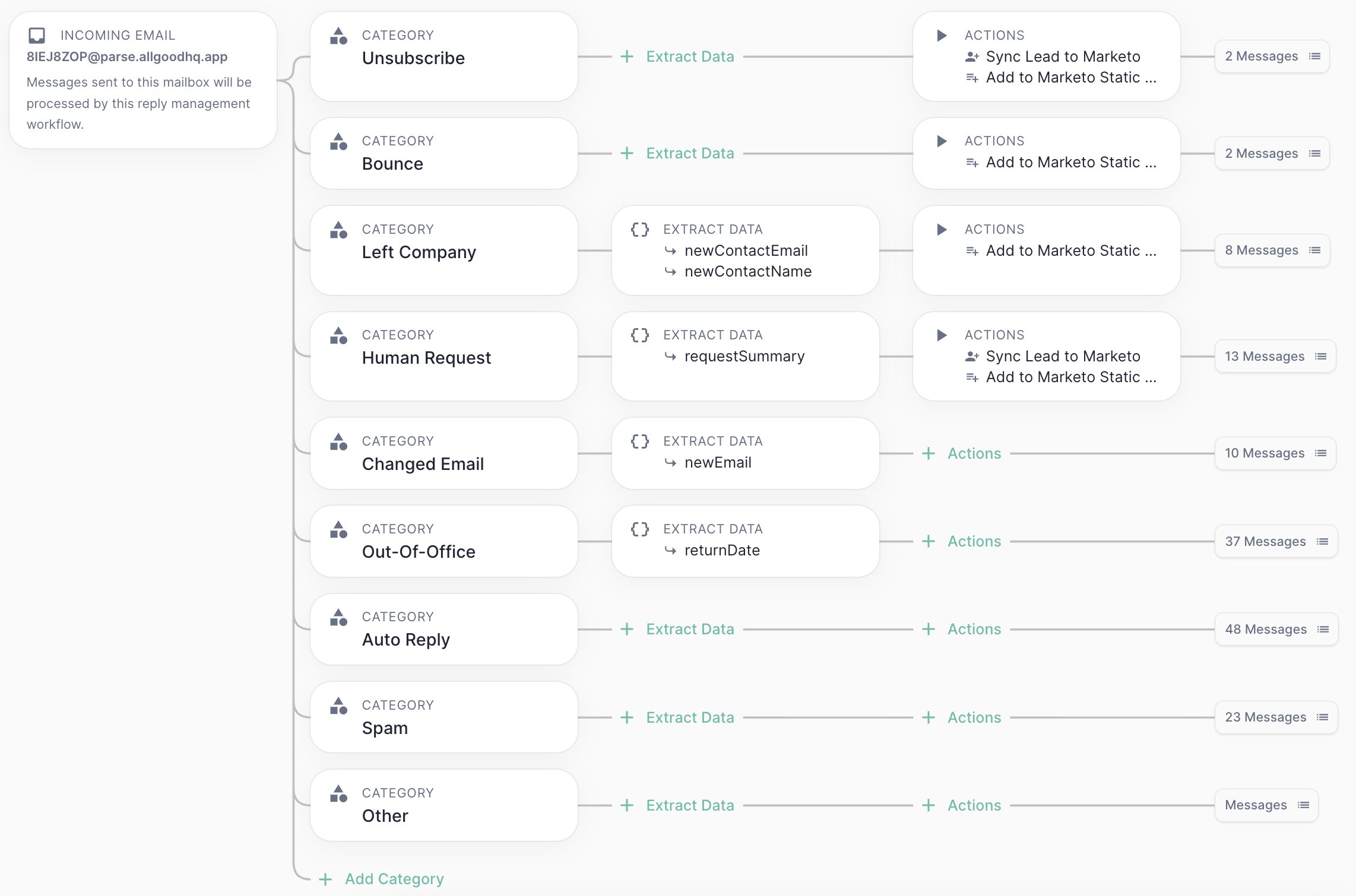 ## Default categories
Every workspace ships with a starting set of categories that cover the most common reply types. You can customize the prompts, rename them, or delete them entirely.
| Category | What it captures |
| ----------------- | ---------------------------------------------------------------------- |
| **Unsubscribe** | Real people actively asking to be removed from your list |
| **Bounce** | Delivery failure notifications |
| **Left Company** | Auto-replies indicating the recipient no longer works there |
| **Human Request** | Genuine replies from a person who wants a response |
| **Changed Email** | Notifications that the person's email address has changed |
| **Out-Of-Office** | Temporary unavailability messages |
| **Auto Reply** | Generic automated responses (e.g., "Thanks, we received your message") |
| **Spam** | Irrelevant or junk messages |
| **Other** | Anything that doesn't fit another category |
## Writing a good category prompt
The prompt is the most important part of each category. Mary reads it literally, so the more specific and clear you are, the more accurately she'll classify. A strong prompt does two things: it tells Mary **what to look for** and **what to rule out**.
> *"Real people asking to be removed from our email list. Look for phrases like 'please remove me,' 'stop emailing me,' or 'why am I still getting these emails.' Be careful — don't count emails that just have 'unsubscribe' in the footer, those are usually spam."*
Notice how this prompt tells Mary both what to look for **and** what to explicitly rule out. That kind of nuance matters — without the second sentence, promotional emails with unsubscribe footers could be miscategorized.
> *"Automatic replies saying the person doesn't work at that company anymore. Messages like 'John no longer works here' or 'This employee has left the organization.' No new contact info is provided."*
This prompt also distinguishes Left Company from a similar-looking scenario — because if a replacement contact *is* mentioned, that's worth noting separately in the [data extraction](/use-cases/erm/data-extraction) step.
> *"Automatic responses indicating that the recipient is currently unavailable. Common phrases include 'out of office,' 'on vacation,' or 'will return on \[date].' These are temporary — the person will be back."*
The final sentence ("the person will be back") is a conceptual cue for Mary that helps her distinguish this from Left Company, where the person is gone permanently.
### Tips for writing prompts that hold up
* **Lead with the positive case.** Open with what Mary *should* match, in the phrasing she's likely to see in real emails.
* **Name the false positives.** If a similar-looking reply belongs in a different category, call it out explicitly. Mary will use that contrast to disambiguate.
* **Quote the phrases.** Specific example phrases ("please remove me," "no longer works here") give Mary concrete anchors to look for.
* **Keep it short.** Two or three sentences is usually enough. Long prompts dilute the signal.
## Adding a new category
The default set covers the common cases, but if your workflow has a reply type that doesn't fit — say, "Requesting Pricing" or "Meeting Reschedule" — you can add a category of your own.
Open a new category form from the Categories & Actions page.
Use a short, descriptive name. This name will appear in Messages, Search, and your action configuration.
Describe the reply type in plain English, following the patterns above. Lead with the positive case, name the false positives, and quote example phrases.
Before relying on the category in production, add a few cases to the [Test Suite](/use-cases/erm/test-suite) — both positives you expect to match and negatives that shouldn't.
Treat each category like a piece of routing logic in a smart campaign: validate it with real examples before you let it run against live traffic. The [Test Suite](/use-cases/erm/test-suite) is built for exactly this.
***
## Default categories
Every workspace ships with a starting set of categories that cover the most common reply types. You can customize the prompts, rename them, or delete them entirely.
| Category | What it captures |
| ----------------- | ---------------------------------------------------------------------- |
| **Unsubscribe** | Real people actively asking to be removed from your list |
| **Bounce** | Delivery failure notifications |
| **Left Company** | Auto-replies indicating the recipient no longer works there |
| **Human Request** | Genuine replies from a person who wants a response |
| **Changed Email** | Notifications that the person's email address has changed |
| **Out-Of-Office** | Temporary unavailability messages |
| **Auto Reply** | Generic automated responses (e.g., "Thanks, we received your message") |
| **Spam** | Irrelevant or junk messages |
| **Other** | Anything that doesn't fit another category |
## Writing a good category prompt
The prompt is the most important part of each category. Mary reads it literally, so the more specific and clear you are, the more accurately she'll classify. A strong prompt does two things: it tells Mary **what to look for** and **what to rule out**.
> *"Real people asking to be removed from our email list. Look for phrases like 'please remove me,' 'stop emailing me,' or 'why am I still getting these emails.' Be careful — don't count emails that just have 'unsubscribe' in the footer, those are usually spam."*
Notice how this prompt tells Mary both what to look for **and** what to explicitly rule out. That kind of nuance matters — without the second sentence, promotional emails with unsubscribe footers could be miscategorized.
> *"Automatic replies saying the person doesn't work at that company anymore. Messages like 'John no longer works here' or 'This employee has left the organization.' No new contact info is provided."*
This prompt also distinguishes Left Company from a similar-looking scenario — because if a replacement contact *is* mentioned, that's worth noting separately in the [data extraction](/use-cases/erm/data-extraction) step.
> *"Automatic responses indicating that the recipient is currently unavailable. Common phrases include 'out of office,' 'on vacation,' or 'will return on \[date].' These are temporary — the person will be back."*
The final sentence ("the person will be back") is a conceptual cue for Mary that helps her distinguish this from Left Company, where the person is gone permanently.
### Tips for writing prompts that hold up
* **Lead with the positive case.** Open with what Mary *should* match, in the phrasing she's likely to see in real emails.
* **Name the false positives.** If a similar-looking reply belongs in a different category, call it out explicitly. Mary will use that contrast to disambiguate.
* **Quote the phrases.** Specific example phrases ("please remove me," "no longer works here") give Mary concrete anchors to look for.
* **Keep it short.** Two or three sentences is usually enough. Long prompts dilute the signal.
## Adding a new category
The default set covers the common cases, but if your workflow has a reply type that doesn't fit — say, "Requesting Pricing" or "Meeting Reschedule" — you can add a category of your own.
Open a new category form from the Categories & Actions page.
Use a short, descriptive name. This name will appear in Messages, Search, and your action configuration.
Describe the reply type in plain English, following the patterns above. Lead with the positive case, name the false positives, and quote example phrases.
Before relying on the category in production, add a few cases to the [Test Suite](/use-cases/erm/test-suite) — both positives you expect to match and negatives that shouldn't.
Treat each category like a piece of routing logic in a smart campaign: validate it with real examples before you let it run against live traffic. The [Test Suite](/use-cases/erm/test-suite) is built for exactly this.
***