> ## Documentation Index
> Fetch the complete documentation index at: https://docs.allgoodhq.com/llms.txt
> Use this file to discover all available pages before exploring further.
# Data Extraction
> Pull structured fields out of incoming replies so you can use them in downstream Marketo updates and list adds.
Classifying a reply tells you *what kind* of email it is. **Data Extraction** tells you *what's in it*. For some categories — Left Company, Out-Of-Office, Changed Email — the body of the reply contains information you'll want to use downstream: a replacement contact, a return date, a new email address. Data Extraction is how Mary pulls those values out as named fields.
Once extracted, those values become variables you can reference in your [Actions](/use-cases/erm/actions) — for example, creating a new Marketo lead using the extracted `newContactEmail`.
 ## How extraction works
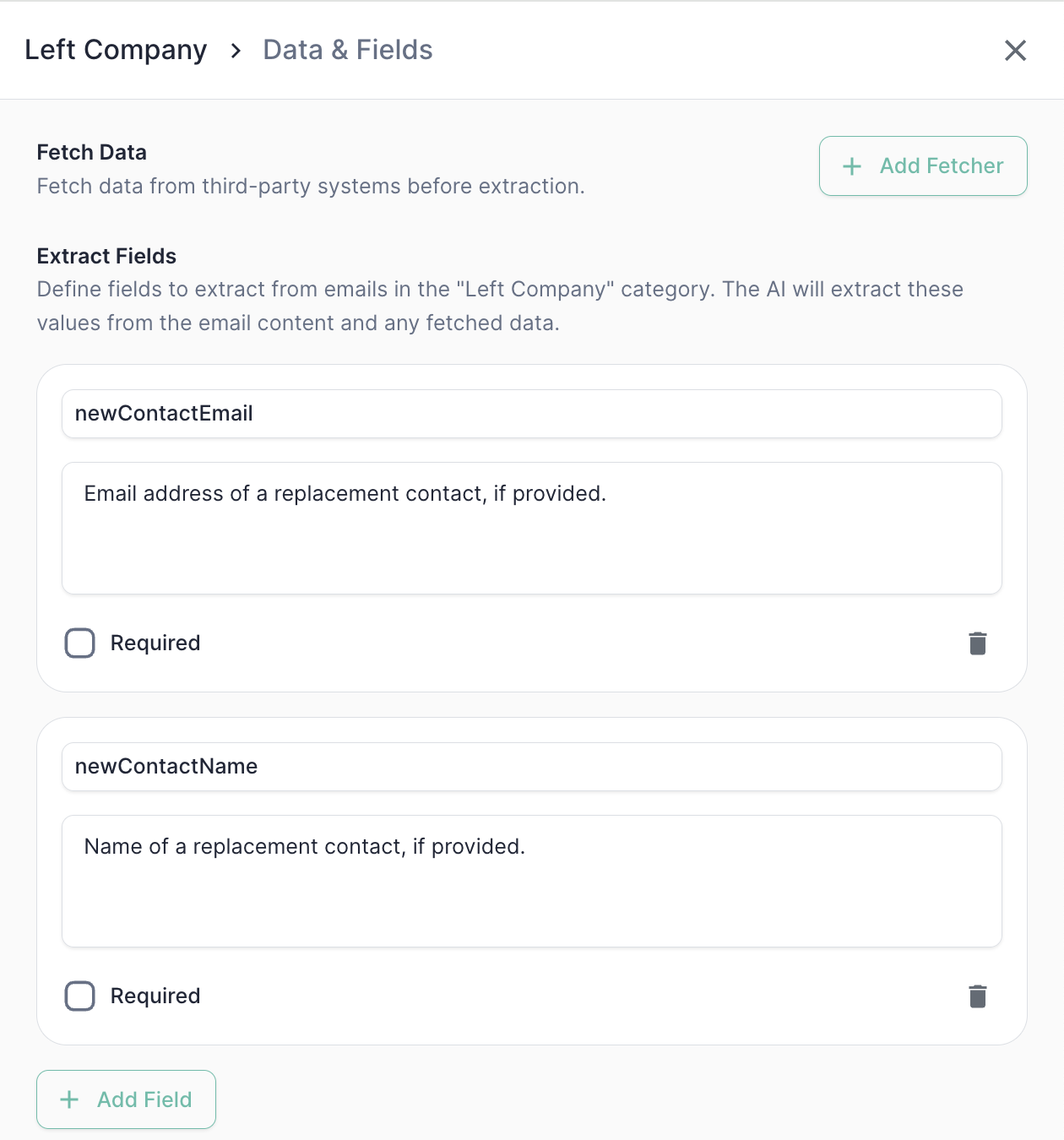
For each category, you define a list of fields. Each field has:
* **A field name** — the variable name you'll reference in actions (e.g., `newContactEmail`)
* **A description** — a plain-English explanation of what the field contains, which Mary uses to find it in the email
When a reply matches the category, Mary reads the email and tries to populate each field. If a field isn't present and you haven't marked it as required, Mary leaves it blank.
## Example configurations
### Left Company
When a reply tells you the recipient has left the company, you often want to capture the replacement contact's details so you can route them into your nurture flow.
| Field name | Description |
| ----------------- | --------------------------------------------------- |
| `newContactEmail` | Email address of a replacement contact, if provided |
| `newContactName` | Name of a replacement contact, if provided |
### Out-Of-Office
For OOO replies, the most useful piece of data is when the person is coming back — so you can pause outreach until then.
| Field name | Description |
| ------------ | -------------------------------------------- |
| `returnDate` | The date the person will return, if provided |
### Changed Email
For "I have a new email" replies, capture the new address so you can update the lead record.
| Field name | Description |
| ---------- | ------------------------------ |
| `newEmail` | The person's new email address |
## Required vs. optional fields
Each field can be marked as **Required** or left as optional.
Mark a field as **Required** if the email must contain that data to be processed. If a required field can't be found, the email will be flagged for review rather than processed automatically — preventing partial or broken downstream actions.
Use **Required** when the field is load-bearing for an action — for example, if your "Changed Email" category is wired up to update the lead's primary email, you want the extraction to be all-or-nothing.
Leave the field **optional** when the data is nice-to-have but not blocking — for example, the return date on an OOO. If Mary can't find it, you probably still want the email classified and logged.
## Using extracted values in actions
Once a value is extracted, it's available as a variable in the [Actions](/use-cases/erm/actions) configuration for that category. Reference it with the standard token syntax — for example, `{{ newContactEmail }}` — anywhere the action accepts a dynamic value.
This is how the full chain comes together: a reply gets classified, fields get pulled, and those values flow directly into the Marketo updates and list adds you've configured.
Before relying on an extraction in production, add the case to the [Test Suite](/use-cases/erm/test-suite) with an extraction check. Use **Exact** matching for structured values (dates, emails) and **Semantic** matching for free-text fields the model may paraphrase.
## How extraction works
For each category, you define a list of fields. Each field has:
* **A field name** — the variable name you'll reference in actions (e.g., `newContactEmail`)
* **A description** — a plain-English explanation of what the field contains, which Mary uses to find it in the email
When a reply matches the category, Mary reads the email and tries to populate each field. If a field isn't present and you haven't marked it as required, Mary leaves it blank.
## Example configurations
### Left Company
When a reply tells you the recipient has left the company, you often want to capture the replacement contact's details so you can route them into your nurture flow.
| Field name | Description |
| ----------------- | --------------------------------------------------- |
| `newContactEmail` | Email address of a replacement contact, if provided |
| `newContactName` | Name of a replacement contact, if provided |
### Out-Of-Office
For OOO replies, the most useful piece of data is when the person is coming back — so you can pause outreach until then.
| Field name | Description |
| ------------ | -------------------------------------------- |
| `returnDate` | The date the person will return, if provided |
### Changed Email
For "I have a new email" replies, capture the new address so you can update the lead record.
| Field name | Description |
| ---------- | ------------------------------ |
| `newEmail` | The person's new email address |
## Required vs. optional fields
Each field can be marked as **Required** or left as optional.
Mark a field as **Required** if the email must contain that data to be processed. If a required field can't be found, the email will be flagged for review rather than processed automatically — preventing partial or broken downstream actions.
Use **Required** when the field is load-bearing for an action — for example, if your "Changed Email" category is wired up to update the lead's primary email, you want the extraction to be all-or-nothing.
Leave the field **optional** when the data is nice-to-have but not blocking — for example, the return date on an OOO. If Mary can't find it, you probably still want the email classified and logged.
## Using extracted values in actions
Once a value is extracted, it's available as a variable in the [Actions](/use-cases/erm/actions) configuration for that category. Reference it with the standard token syntax — for example, `{{ newContactEmail }}` — anywhere the action accepts a dynamic value.
This is how the full chain comes together: a reply gets classified, fields get pulled, and those values flow directly into the Marketo updates and list adds you've configured.
Before relying on an extraction in production, add the case to the [Test Suite](/use-cases/erm/test-suite) with an extraction check. Use **Exact** matching for structured values (dates, emails) and **Semantic** matching for free-text fields the model may paraphrase.