> ## Documentation Index
> Fetch the complete documentation index at: https://docs.allgoodhq.com/llms.txt
> Use this file to discover all available pages before exploring further.
# Enrichment
> Fill in the details an incoming reply doesn't contain — job title, company, LinkedIn URL — so your downstream actions have the full picture.
Classifying a reply tells you *what kind* of email it is. [Data Extraction](/use-cases/erm/data-extraction) tells you *what's in it*. **Enrichment** goes one step further: it looks the contact up across third-party data providers and fills in the fields the email itself never mentioned — things like job title, company, or LinkedIn URL.
Enrichment runs as a dedicated step in the pipeline, after extraction and before your [Actions](/use-cases/erm/actions):
> Classify → Fetch → Extract → **Enrich** → Actions
Once the contact is enriched, those values become variables you can reference in that category's actions — for example, setting a Marketo `Title` field from the enriched job title, or creating a brand-new lead for a replacement contact with their company already filled in.
Enrichment is **optional and configured per category**. A reply that lands in `Left Company` might enrich a newly-extracted contact; one that lands in `Unsubscribe` needs no enrichment at all.
This page covers wiring enrichment into a Reply Management category. For help building or tuning the **enrichment profile** itself — picking Basic vs. Advanced mode, choosing data providers, and deciding which fields to look for — start with the [Enrichment Setup Guide](/use-cases/enrichment/setup-guide), or read [Lead Enrichment](/use-cases/enrichment/index) for how enrichment works across allGood.
## Adding enrichment to a category
Navigate to **Reply Management → Categories & Actions**, then click **Enrich** on the category row to open the enrichment panel. The panel has two parts: **who** to enrich (the enrichment input) and **which profile** to enrich them with.
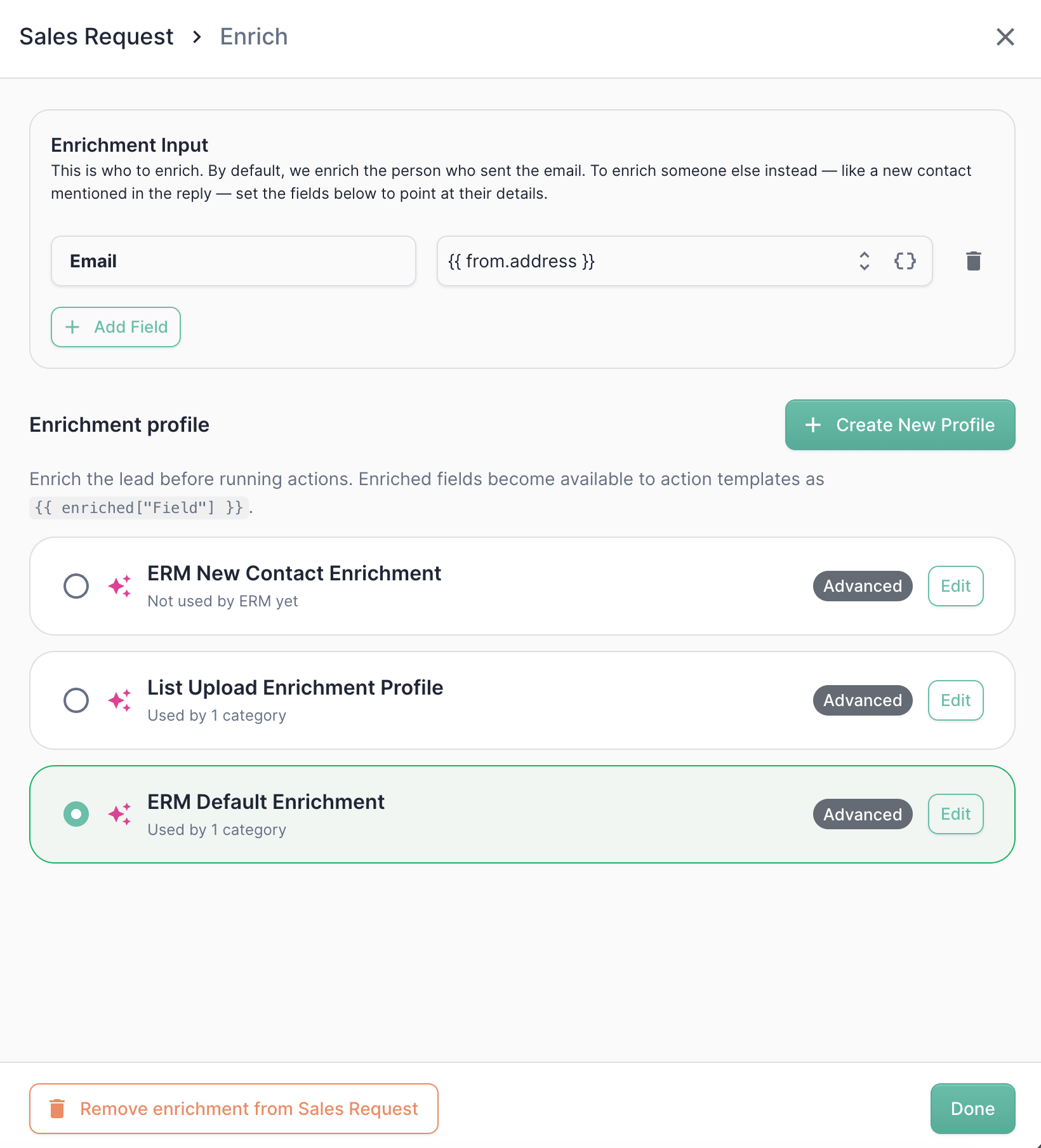 By default, Mary enriches the person who sent the reply. Point the input somewhere else to enrich a different contact — see [Enrichment input](#enrichment-input-who-to-enrich) below.
Pick a profile from the list, or click **Create New Profile**. The profile decides *how* enrichment runs — which data providers to use and which fields to look for.
Your enrichment configuration is saved with the rest of the category. Click **Save & Publish** on the Categories & Actions page when you're ready to push it live.
Reference the results in that category's [Actions](/use-cases/erm/actions) with `{{ enriched["Field"] }}`.
To turn enrichment off for a category, open the panel and click **Remove enrichment from *\[category]***.
## Enrichment input (who to enrich)
The **Enrichment Input** section controls *whose* details Mary looks up. By default she enriches the person who sent the email — the input ships pre-set to the sender's address.
To enrich **someone other than the sender** — most commonly a new contact mentioned in the reply — click **+ Add Field** and map one or more fields to a value from the email. Each row is a pair:
* **Field** — what the value *is*, in enrichment's vocabulary (`Email`, `First Name`, `Last Name`, `LinkedIn URL`, `Company`)
* **Value** — where to find it, as a token. This can reference the sender (`{{ from.address }}`), an [extracted field](/use-cases/erm/data-extraction) (`{{ extractedFields["newContactEmail"] }}`), or fetched CRM data
**Map only what you actually have.** There's no required set of fields — a single `Email` row is a perfectly valid input, and often it's all a reply gives you. Add more rows only when the reply reliably contains more; each extra field gives enrichment another signal to match on, but a blank one costs you nothing.
The **Field** name matters — it tells Mary what each value represents so she can run the right lookups (an `Email` drives email-based lookups, a `LinkedIn URL` drives LinkedIn lookups, and so on). Stick to the suggested names so the value is actually used.
Leave the input untouched. Mary enriches whoever sent the reply.
| Field | Value |
| ------- | -------------------- |
| `Email` | `{{ from.address }}` |
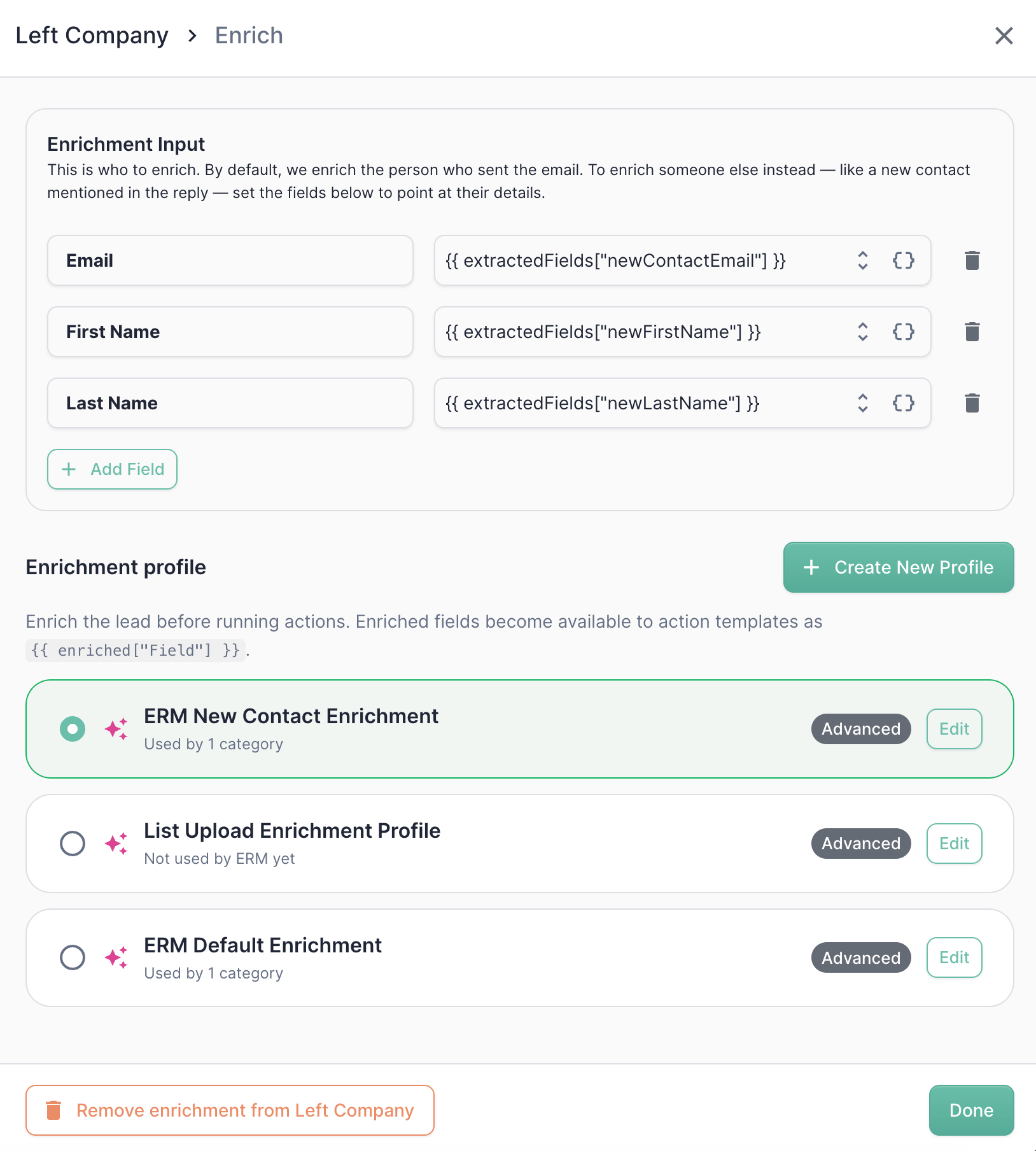
In a `Left Company` category, you might [extract](/use-cases/erm/data-extraction) a replacement contact's details, then enrich *them* instead of the sender.
| Field | Value |
| ------------ | ------------------------------------------ |
| `Email` | `{{ extractedFields["newContactEmail"] }}` |
| `First Name` | `{{ extractedFields["newFirstName"] }}` |
| `Last Name` | `{{ extractedFields["newLastName"] }}` |
Plenty of replies name a replacement contact by email address and nothing else. That's enough — map the email on its own and let enrichment fill in the name, title, and company.
| Field | Value |
| ------- | ------------------------------------------ |
| `Email` | `{{ extractedFields["newContactEmail"] }}` |
By default, Mary enriches the person who sent the reply. Point the input somewhere else to enrich a different contact — see [Enrichment input](#enrichment-input-who-to-enrich) below.
Pick a profile from the list, or click **Create New Profile**. The profile decides *how* enrichment runs — which data providers to use and which fields to look for.
Your enrichment configuration is saved with the rest of the category. Click **Save & Publish** on the Categories & Actions page when you're ready to push it live.
Reference the results in that category's [Actions](/use-cases/erm/actions) with `{{ enriched["Field"] }}`.
To turn enrichment off for a category, open the panel and click **Remove enrichment from *\[category]***.
## Enrichment input (who to enrich)
The **Enrichment Input** section controls *whose* details Mary looks up. By default she enriches the person who sent the email — the input ships pre-set to the sender's address.
To enrich **someone other than the sender** — most commonly a new contact mentioned in the reply — click **+ Add Field** and map one or more fields to a value from the email. Each row is a pair:
* **Field** — what the value *is*, in enrichment's vocabulary (`Email`, `First Name`, `Last Name`, `LinkedIn URL`, `Company`)
* **Value** — where to find it, as a token. This can reference the sender (`{{ from.address }}`), an [extracted field](/use-cases/erm/data-extraction) (`{{ extractedFields["newContactEmail"] }}`), or fetched CRM data
**Map only what you actually have.** There's no required set of fields — a single `Email` row is a perfectly valid input, and often it's all a reply gives you. Add more rows only when the reply reliably contains more; each extra field gives enrichment another signal to match on, but a blank one costs you nothing.
The **Field** name matters — it tells Mary what each value represents so she can run the right lookups (an `Email` drives email-based lookups, a `LinkedIn URL` drives LinkedIn lookups, and so on). Stick to the suggested names so the value is actually used.
Leave the input untouched. Mary enriches whoever sent the reply.
| Field | Value |
| ------- | -------------------- |
| `Email` | `{{ from.address }}` |
In a `Left Company` category, you might [extract](/use-cases/erm/data-extraction) a replacement contact's details, then enrich *them* instead of the sender.
| Field | Value |
| ------------ | ------------------------------------------ |
| `Email` | `{{ extractedFields["newContactEmail"] }}` |
| `First Name` | `{{ extractedFields["newFirstName"] }}` |
| `Last Name` | `{{ extractedFields["newLastName"] }}` |
Plenty of replies name a replacement contact by email address and nothing else. That's enough — map the email on its own and let enrichment fill in the name, title, and company.
| Field | Value |
| ------- | ------------------------------------------ |
| `Email` | `{{ extractedFields["newContactEmail"] }}` |
 When enriching an extracted contact, mark the extract field as **Required** (or add an **only runs if** condition to the downstream action) so you don't act on a half-empty record when the reply didn't actually name a replacement.
## Choosing an enrichment profile
An **enrichment profile** is a reusable recipe for *how* to enrich a contact — which data providers to use, which fields to look for, and when to skip. The same profile can be shared across many categories, and across other parts of allGood such as [List Upload](/use-cases/list-upload/features/enrich).
From the enrichment panel you can:
* **Select a profile** — click any profile in the list to use it for this category. The selected profile is highlighted, and each row shows whether it's an **Advanced** or **Basic** profile plus how many categories already use it.
* **Create a new profile** — click **Create New Profile** to spin one up and open it for editing.
* **Edit a profile** — click **Edit** on any profile to change its fields, providers, and run conditions.
| Badge | What it means |
| -------------------------- | ------------------------------------------------------------------------------------------------------------- |
| **Advanced** | Searches the web for a LinkedIn profile first, then tries multiple providers automatically. Higher hit rates. |
| **Basic** | A single lookup against one provider you choose. Cheaper and more predictable. |
| **Used by *n* categories** | How many Reply Management categories already point at this profile. |
| **Not used by ERM yet** | The profile exists in your workspace but no category uses it — it may still be in use elsewhere in allGood. |
Because profiles are shared, editing one affects **every** category, skill, and flow step that uses it. Check the usage count on the row before you change a profile's internals — if only one category should change, create a new profile instead.
Configuring a profile's internals — enrichment mode, the fields to find, provider lookups, and when-to-run rules — is covered in the [Enrichment Setup Guide](/use-cases/enrichment/setup-guide). See [Lead Enrichment](/use-cases/enrichment/index) for how enrichment works more broadly.
## Using enriched values in actions
Once a contact is enriched, each field the profile produced is available as a variable in that category's [Actions](/use-cases/erm/actions). Reference it with the `enriched` token:
```
{{ enriched["First Name"] }}
{{ enriched["Last Name"] }}
{{ enriched["Job Title"] }}
{{ enriched["Company"] }}
{{ enriched["LinkedIn URL"] }}
```
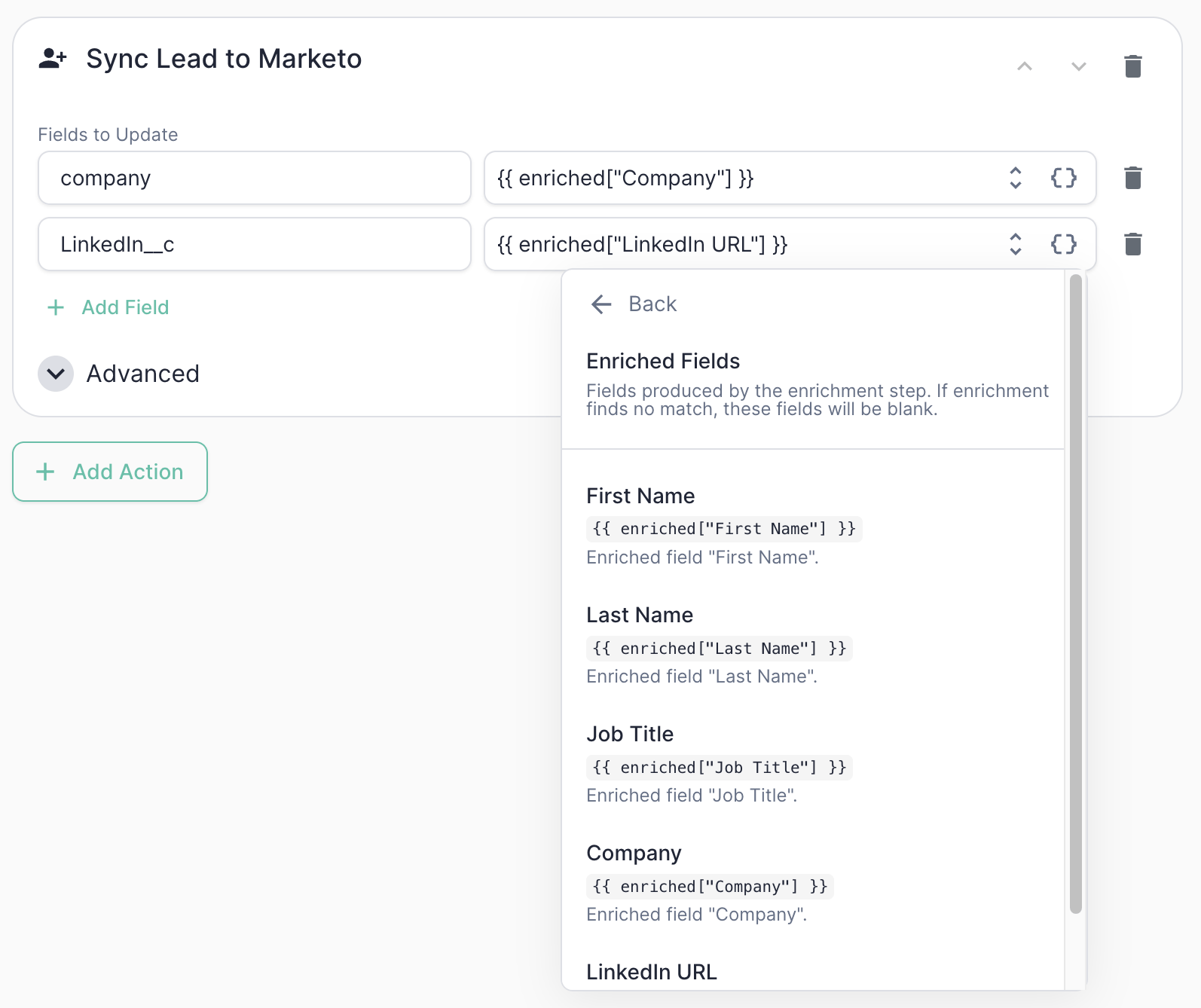
You don't have to type these from memory — open the `{}` token picker on any action field and choose **Enriched Fields** to see everything the enrichment step produces.
When enriching an extracted contact, mark the extract field as **Required** (or add an **only runs if** condition to the downstream action) so you don't act on a half-empty record when the reply didn't actually name a replacement.
## Choosing an enrichment profile
An **enrichment profile** is a reusable recipe for *how* to enrich a contact — which data providers to use, which fields to look for, and when to skip. The same profile can be shared across many categories, and across other parts of allGood such as [List Upload](/use-cases/list-upload/features/enrich).
From the enrichment panel you can:
* **Select a profile** — click any profile in the list to use it for this category. The selected profile is highlighted, and each row shows whether it's an **Advanced** or **Basic** profile plus how many categories already use it.
* **Create a new profile** — click **Create New Profile** to spin one up and open it for editing.
* **Edit a profile** — click **Edit** on any profile to change its fields, providers, and run conditions.
| Badge | What it means |
| -------------------------- | ------------------------------------------------------------------------------------------------------------- |
| **Advanced** | Searches the web for a LinkedIn profile first, then tries multiple providers automatically. Higher hit rates. |
| **Basic** | A single lookup against one provider you choose. Cheaper and more predictable. |
| **Used by *n* categories** | How many Reply Management categories already point at this profile. |
| **Not used by ERM yet** | The profile exists in your workspace but no category uses it — it may still be in use elsewhere in allGood. |
Because profiles are shared, editing one affects **every** category, skill, and flow step that uses it. Check the usage count on the row before you change a profile's internals — if only one category should change, create a new profile instead.
Configuring a profile's internals — enrichment mode, the fields to find, provider lookups, and when-to-run rules — is covered in the [Enrichment Setup Guide](/use-cases/enrichment/setup-guide). See [Lead Enrichment](/use-cases/enrichment/index) for how enrichment works more broadly.
## Using enriched values in actions
Once a contact is enriched, each field the profile produced is available as a variable in that category's [Actions](/use-cases/erm/actions). Reference it with the `enriched` token:
```
{{ enriched["First Name"] }}
{{ enriched["Last Name"] }}
{{ enriched["Job Title"] }}
{{ enriched["Company"] }}
{{ enriched["LinkedIn URL"] }}
```
You don't have to type these from memory — open the `{}` token picker on any action field and choose **Enriched Fields** to see everything the enrichment step produces.
 This is how the chain comes together: a reply is classified, a contact's identity is assembled (sender or extracted), Mary enriches it, and those values flow straight into your Marketo updates, list adds, or new-lead creation.
## Example: enrich a replacement contact from a "Left Company" reply
A common pattern: someone has left, the reply names their replacement, and you want to create that replacement as a fully-enriched lead in Marketo.
In the enrichment panel, point the input at the extracted contact and pick a profile — here, one built for new contacts rather than the workspace default.
| Field | Value |
| ------------ | ------------------------------------------ |
| `Email` | `{{ extractedFields["newContactEmail"] }}` |
| `First Name` | `{{ extractedFields["newFirstName"] }}` |
| `Last Name` | `{{ extractedFields["newLastName"] }}` |
Only `Email` is needed here — drop the name rows if your replies don't reliably include them, and enrichment will resolve the name itself.
Add a **Sync Lead to Marketo** action (`Create or Update`) that identifies the lead by the extracted email and fills the rest from the enriched values.
| Marketo field | Value |
| ------------- | -------------------------------- |
| `company` | `{{ enriched["Company"] }}` |
| `title` | `{{ enriched["Job Title"] }}` |
| `LinkedIn__c` | `{{ enriched["LinkedIn URL"] }}` |
## How enrichment behaves
* **Skipped when not configured.** Categories without an enrichment profile skip the step entirely — no credits consumed.
* **Skipped when there's nothing to enrich.** If the input resolves to no contact — for example, no replacement email was extracted — enrichment is skipped for that reply.
* **Blank fields, not errors.** If enrichment runs but finds no match, the `enriched` fields come through empty rather than failing the reply. Downstream actions still run, so guard anything load-bearing with an **only runs if** condition.
* **The profile decides when to run.** A profile can be set to only enrich when data is missing, so Mary won't burn credits re-fetching fields you already have. See the [Enrichment Setup Guide](/use-cases/enrichment/setup-guide).
* **Every run is traceable.** Open a reply in [Messages](/use-cases/erm/messages) to see the enrichment result — which providers were tried, what was found, and the full agent run.
Validate enrichment the same way you validate everything else in Reply Management: add the case to the [Test Suite](/use-cases/erm/test-suite) so you can confirm the right contact gets enriched before the configuration goes live.
This is how the chain comes together: a reply is classified, a contact's identity is assembled (sender or extracted), Mary enriches it, and those values flow straight into your Marketo updates, list adds, or new-lead creation.
## Example: enrich a replacement contact from a "Left Company" reply
A common pattern: someone has left, the reply names their replacement, and you want to create that replacement as a fully-enriched lead in Marketo.
In the enrichment panel, point the input at the extracted contact and pick a profile — here, one built for new contacts rather than the workspace default.
| Field | Value |
| ------------ | ------------------------------------------ |
| `Email` | `{{ extractedFields["newContactEmail"] }}` |
| `First Name` | `{{ extractedFields["newFirstName"] }}` |
| `Last Name` | `{{ extractedFields["newLastName"] }}` |
Only `Email` is needed here — drop the name rows if your replies don't reliably include them, and enrichment will resolve the name itself.
Add a **Sync Lead to Marketo** action (`Create or Update`) that identifies the lead by the extracted email and fills the rest from the enriched values.
| Marketo field | Value |
| ------------- | -------------------------------- |
| `company` | `{{ enriched["Company"] }}` |
| `title` | `{{ enriched["Job Title"] }}` |
| `LinkedIn__c` | `{{ enriched["LinkedIn URL"] }}` |
## How enrichment behaves
* **Skipped when not configured.** Categories without an enrichment profile skip the step entirely — no credits consumed.
* **Skipped when there's nothing to enrich.** If the input resolves to no contact — for example, no replacement email was extracted — enrichment is skipped for that reply.
* **Blank fields, not errors.** If enrichment runs but finds no match, the `enriched` fields come through empty rather than failing the reply. Downstream actions still run, so guard anything load-bearing with an **only runs if** condition.
* **The profile decides when to run.** A profile can be set to only enrich when data is missing, so Mary won't burn credits re-fetching fields you already have. See the [Enrichment Setup Guide](/use-cases/enrichment/setup-guide).
* **Every run is traceable.** Open a reply in [Messages](/use-cases/erm/messages) to see the enrichment result — which providers were tried, what was found, and the full agent run.
Validate enrichment the same way you validate everything else in Reply Management: add the case to the [Test Suite](/use-cases/erm/test-suite) so you can confirm the right contact gets enriched before the configuration goes live.