> ## Documentation Index
> Fetch the complete documentation index at: https://docs.allgoodhq.com/llms.txt
> Use this file to discover all available pages before exploring further.
# Marketo Actions
> What Mary does after she classifies a reply — Marketo updates, static list adds, and more.
**Actions** are what Mary *does* once she's classified a reply and pulled out any [extracted data](/use-cases/erm/data-extraction). They run automatically the moment a match is confirmed, so by the time an email shows up in the [Messages](/use-cases/erm/untitled-page-1) feed, the downstream work in Marketo is already done.
Actions are configured per category. A reply that lands in `Unsubscribe` runs one set of actions; one that lands in `Left Company` runs another.
## Available action types
### Forward Email
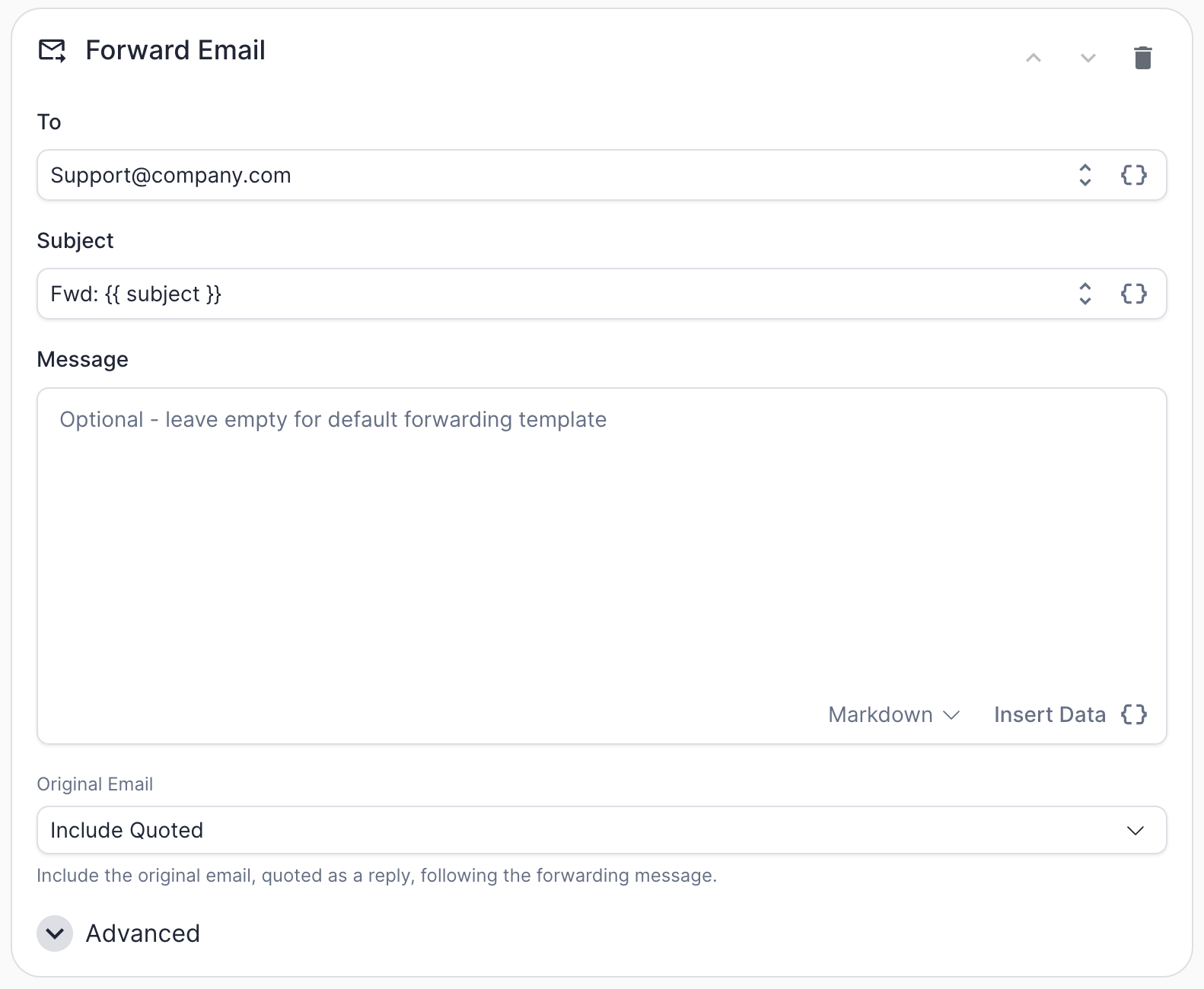 Forward the classified reply to another email address. This is the go-to action when a reply needs a human — for example, routing a `Human Request` reply to your shared sales inbox, or looping a specific rep in on `Out-Of-Office` replies for accounts they own.
Forward Email is a **generic action** and works the same way regardless of which marketing automation platform you're connected to.
| Field | What it does |
| ---------------- | ----------------------------------------------------------------------------------------------------------------------------------------------------------- |
| `To` | Destination email address. Accepts tokens (e.g., `{{ owner.email }}`). |
| `Subject` | Subject line for the forwarded message. Defaults to `Fwd: {{ subject }}`. |
| `Message` | Optional custom message body. Supports **Markdown** formatting and token insertion via **Insert Data**. Leave empty to use the default forwarding template. |
| `Original Email` | Controls how the original email is included in the forward — see below. |
The `Original Email` dropdown controls what happens with the source message:
| Option | Behavior |
| ---------------- | ------------------------------------------------------------------------- |
| `Include Inline` | Original message body is appended directly beneath your message |
| `Include Quoted` | Original message is included as a quoted reply — the familiar default |
| `Don't Include` | Forward only contains the message you wrote; the original body is dropped |
Under **Advanced**:
| Field | What it does |
| --------------- | -------------------------------------------------------------------------------------------------------------------- |
| `Message Style` | Rendering style for the forwarded email. `AllGood Branded` uses the allGood template; other styles may be available. |
| `CC` | Additional addresses to CC on the forward. Accepts tokens. |
| `Reply-To` | Override the reply-to address so recipient replies land somewhere other than the original sender. |
| `From Name` | Display name shown in the recipient's inbox (e.g., "Support Team" instead of the raw address). |
### Add to Worksheet
Forward the classified reply to another email address. This is the go-to action when a reply needs a human — for example, routing a `Human Request` reply to your shared sales inbox, or looping a specific rep in on `Out-Of-Office` replies for accounts they own.
Forward Email is a **generic action** and works the same way regardless of which marketing automation platform you're connected to.
| Field | What it does |
| ---------------- | ----------------------------------------------------------------------------------------------------------------------------------------------------------- |
| `To` | Destination email address. Accepts tokens (e.g., `{{ owner.email }}`). |
| `Subject` | Subject line for the forwarded message. Defaults to `Fwd: {{ subject }}`. |
| `Message` | Optional custom message body. Supports **Markdown** formatting and token insertion via **Insert Data**. Leave empty to use the default forwarding template. |
| `Original Email` | Controls how the original email is included in the forward — see below. |
The `Original Email` dropdown controls what happens with the source message:
| Option | Behavior |
| ---------------- | ------------------------------------------------------------------------- |
| `Include Inline` | Original message body is appended directly beneath your message |
| `Include Quoted` | Original message is included as a quoted reply — the familiar default |
| `Don't Include` | Forward only contains the message you wrote; the original body is dropped |
Under **Advanced**:
| Field | What it does |
| --------------- | -------------------------------------------------------------------------------------------------------------------- |
| `Message Style` | Rendering style for the forwarded email. `AllGood Branded` uses the allGood template; other styles may be available. |
| `CC` | Additional addresses to CC on the forward. Accepts tokens. |
| `Reply-To` | Override the reply-to address so recipient replies land somewhere other than the original sender. |
| `From Name` | Display name shown in the recipient's inbox (e.g., "Support Team" instead of the raw address). |
### Add to Worksheet
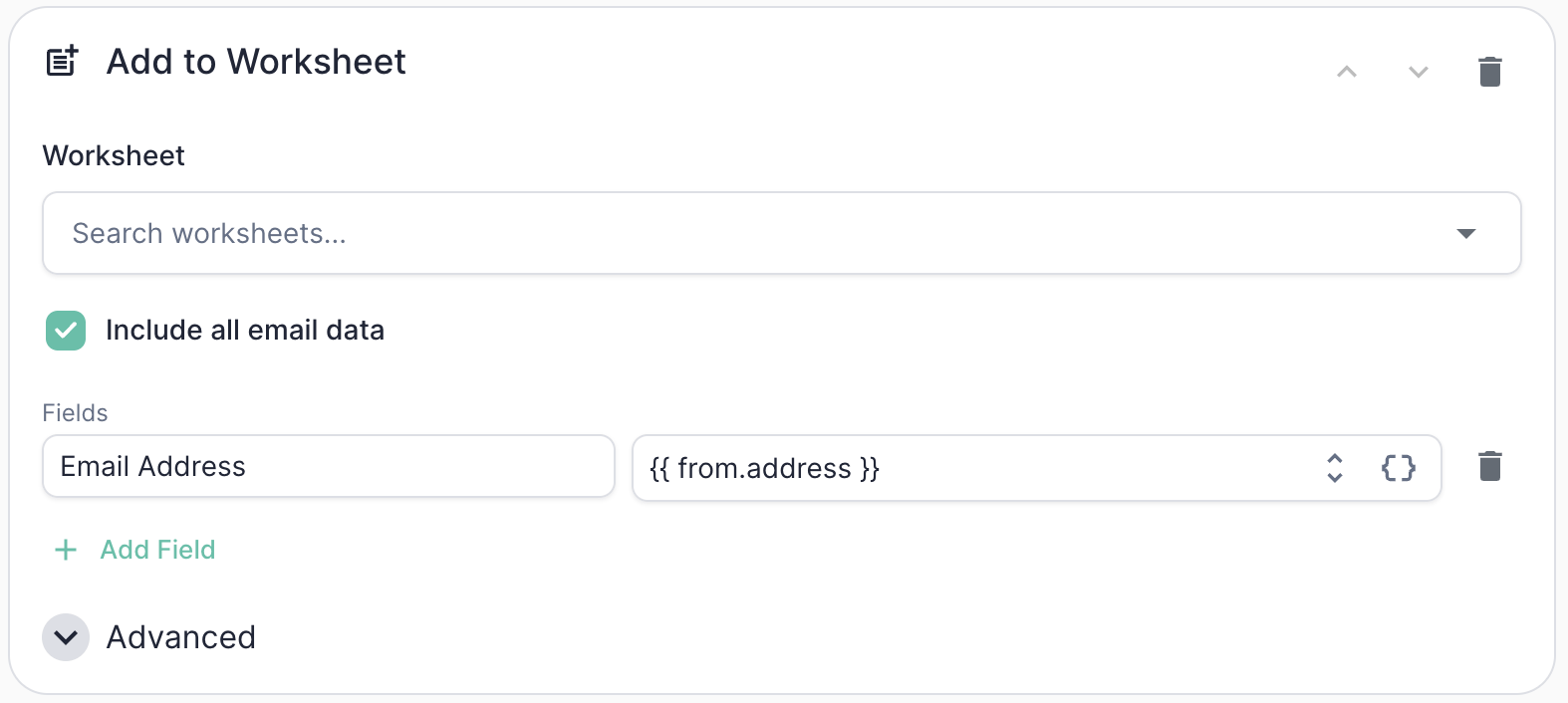 Push the sender into an allGood worksheet, optionally running it through the worksheet's flow steps. This is how you take a classified reply and hand it off to another allGood workflow — for example, adding a `Human Request` sender to a follow-up worksheet that triages and routes them, or pushing extracted replacement contacts from `Left Company` replies into a new-lead worksheet.
Add to Worksheet is a **generic action** and works the same way regardless of which marketing automation platform you're connected to.
| Field | What it does |
| ------------------------ | --------------------------------------------------------------------------------------------------------------------------------------------------------------------------- |
| `Worksheet` | The worksheet to add the contact to. Search by name to pick from your existing worksheets. |
| `Include all email data` | When checked, attaches the full email content (subject, body, from, headers) to the worksheet row. Useful when downstream flow steps need access to the raw reply. |
| `Fields` | Map worksheet fields to values or tokens. Left column is the worksheet field name; right column is the value or token to write. Click **+ Add Field** to add more mappings. |
Under **Advanced**:
| Field | What it does |
| ------------------------- | ----------------------------------------------------------------------------------------------------------------------------------------------------------------- |
| `Behavior` | Choose whether Mary just adds the contact to the worksheet, or adds and immediately runs them through the worksheet's flow steps (`Add to Worksheet + Run Flow`). |
| `Include source metadata` | Attaches metadata about where the entry originated (which ERM configuration, category, classification rationale, etc.) so downstream steps can reference it. |
| `Only If` | Standard [conditional expression](#conditional-actions) that must evaluate to `true` for the action to run. Use to fan out behavior within a single category. |
### Sync Lead to Marketo
Push the sender into an allGood worksheet, optionally running it through the worksheet's flow steps. This is how you take a classified reply and hand it off to another allGood workflow — for example, adding a `Human Request` sender to a follow-up worksheet that triages and routes them, or pushing extracted replacement contacts from `Left Company` replies into a new-lead worksheet.
Add to Worksheet is a **generic action** and works the same way regardless of which marketing automation platform you're connected to.
| Field | What it does |
| ------------------------ | --------------------------------------------------------------------------------------------------------------------------------------------------------------------------- |
| `Worksheet` | The worksheet to add the contact to. Search by name to pick from your existing worksheets. |
| `Include all email data` | When checked, attaches the full email content (subject, body, from, headers) to the worksheet row. Useful when downstream flow steps need access to the raw reply. |
| `Fields` | Map worksheet fields to values or tokens. Left column is the worksheet field name; right column is the value or token to write. Click **+ Add Field** to add more mappings. |
Under **Advanced**:
| Field | What it does |
| ------------------------- | ----------------------------------------------------------------------------------------------------------------------------------------------------------------- |
| `Behavior` | Choose whether Mary just adds the contact to the worksheet, or adds and immediately runs them through the worksheet's flow steps (`Add to Worksheet + Run Flow`). |
| `Include source metadata` | Attaches metadata about where the entry originated (which ERM configuration, category, classification rationale, etc.) so downstream steps can reference it. |
| `Only If` | Standard [conditional expression](#conditional-actions) that must evaluate to `true` for the action to run. Use to fan out behavior within a single category. |
### Sync Lead to Marketo
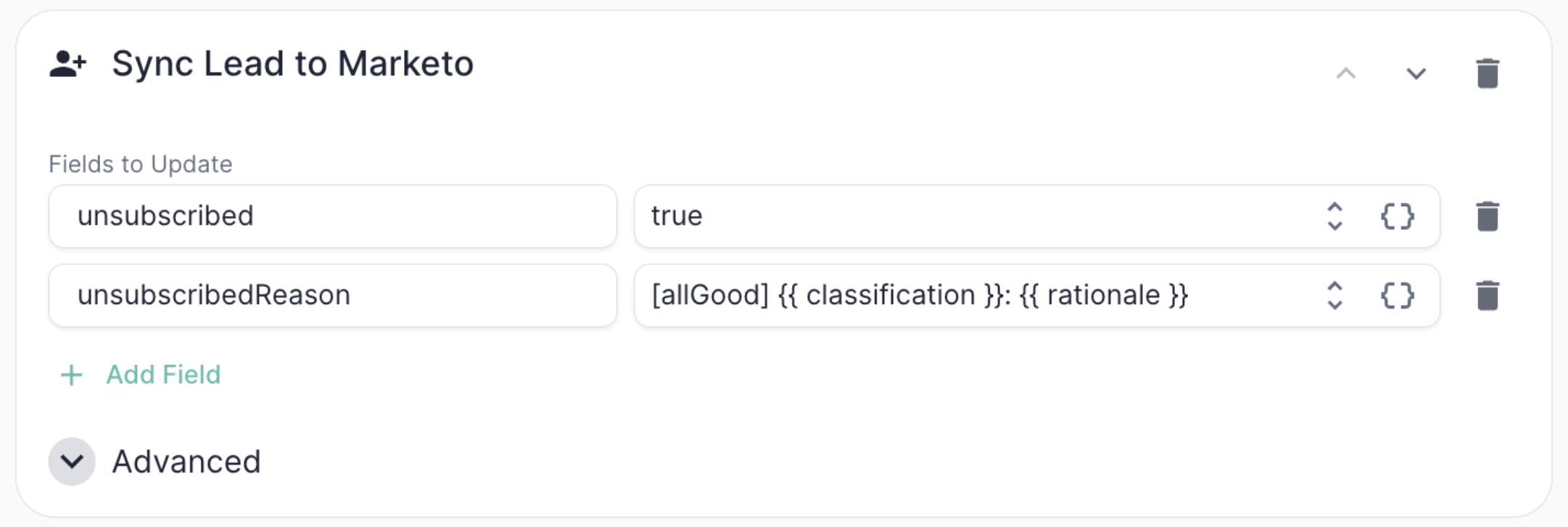 Create or update a lead record in Marketo, identified by the sender's email address. Mary looks the lead up by email, then creates or updates it depending on the sync mode you choose.
You can set:
* **Static values** — e.g., `unsubscribed = true`
* **Dynamic values** — tokens that resolve at runtime from Mary's classification or [extracted data](/use-cases/erm/data-extraction), e.g., `unsubscribedReason = [allGood] {{ classification }}: {{ rationale }}`
Each row in the **field map** pairs a Marketo lead field's internal name (the same name you see in Marketo **Admin → Field Management**) with a value or token. The email address is always included automatically — it's the lookup key.
You also choose a **sync mode** under the advanced tab:
| Mode | Behavior |
| ------------------ | -------------------------------------------------------------------- |
| `Create or Update` | Update the lead if it exists, otherwise create it (the safe default) |
| `Create Only` | Create a new lead; fail if one already exists for that email |
| `Update Only` | Update an existing lead; fail (or skip) if no lead is found |
Common tokens you can reference:
| Token | What it resolves to |
| ---------------------------------- | ---------------------------------------------------------------------------------------- |
| `{{ classification }}` | The category Mary assigned (e.g., `Unsubscribe`) |
| `{{ rationale }}` | Mary's plain-English reasoning for the classification |
| `{{ from.address }}` | The sender's email address |
| `{{ from.name }}` | The sender's display name |
| `{{ extractedFields[""] }}` | Any field defined in [Data Extraction](/use-cases/erm/data-extraction) for that category |
### Add to Marketo Static List
Create or update a lead record in Marketo, identified by the sender's email address. Mary looks the lead up by email, then creates or updates it depending on the sync mode you choose.
You can set:
* **Static values** — e.g., `unsubscribed = true`
* **Dynamic values** — tokens that resolve at runtime from Mary's classification or [extracted data](/use-cases/erm/data-extraction), e.g., `unsubscribedReason = [allGood] {{ classification }}: {{ rationale }}`
Each row in the **field map** pairs a Marketo lead field's internal name (the same name you see in Marketo **Admin → Field Management**) with a value or token. The email address is always included automatically — it's the lookup key.
You also choose a **sync mode** under the advanced tab:
| Mode | Behavior |
| ------------------ | -------------------------------------------------------------------- |
| `Create or Update` | Update the lead if it exists, otherwise create it (the safe default) |
| `Create Only` | Create a new lead; fail if one already exists for that email |
| `Update Only` | Update an existing lead; fail (or skip) if no lead is found |
Common tokens you can reference:
| Token | What it resolves to |
| ---------------------------------- | ---------------------------------------------------------------------------------------- |
| `{{ classification }}` | The category Mary assigned (e.g., `Unsubscribe`) |
| `{{ rationale }}` | Mary's plain-English reasoning for the classification |
| `{{ from.address }}` | The sender's email address |
| `{{ from.name }}` | The sender's display name |
| `{{ extractedFields[""] }}` | Any field defined in [Data Extraction](/use-cases/erm/data-extraction) for that category |
### Add to Marketo Static List
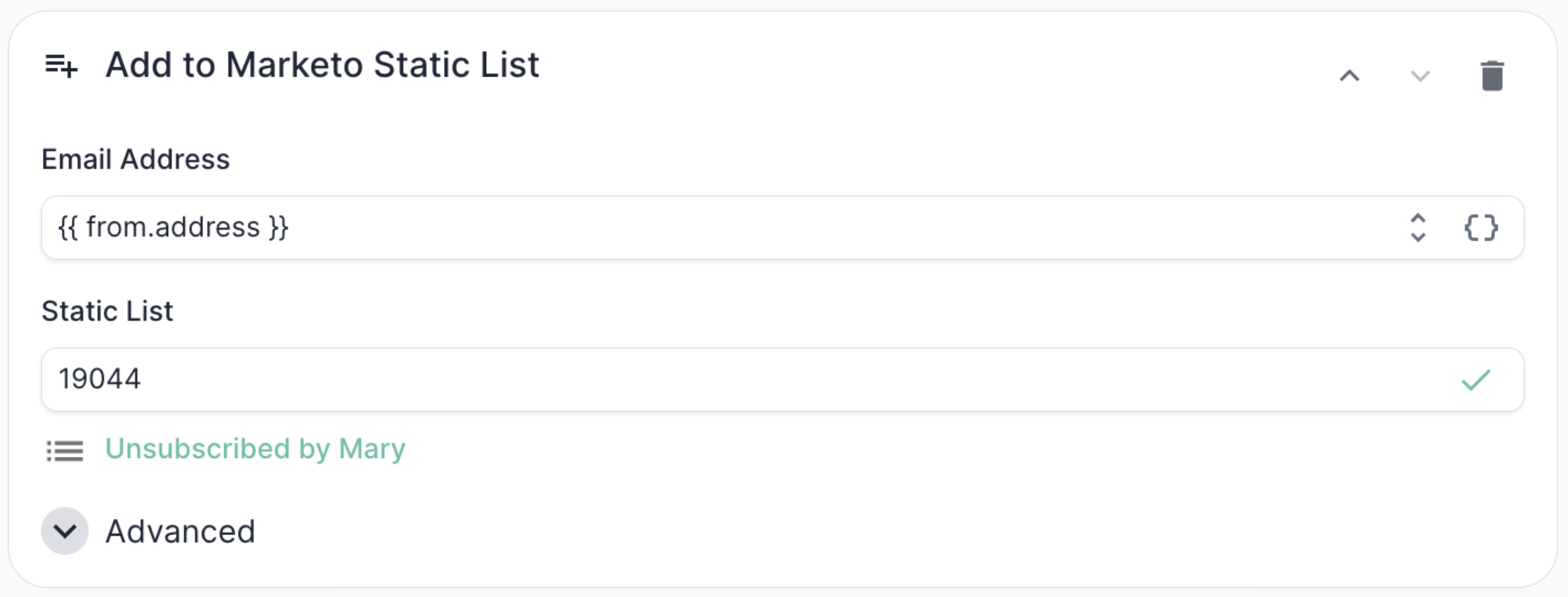 Add the sender's lead to a specific Marketo static list. Mary looks the lead up by email and adds them to the list you select. The list is identified by ID, and allGood will display the list name for confirmation once you've picked it from the static lists in your Marketo instance.
When adding a lead to a Marketo static list, the lead must already exist in Marketo. If it might not, add a **Sync Lead to Marketo** action *before* the **Add to Marketo Static List** action — the sync (in `Create or Update` mode) will create the lead if it doesn't exist. allGood will warn you if this ordering is wrong.
## Example: Unsubscribe actions
Here's the action chain a typical `Unsubscribe` category would run:
Mark the lead as unsubscribed and record the reason for the audit trail. Using `Create or Update` mode also guarantees the lead exists before the next step runs.
| Field | Value |
| -------------------- | ------------------------------------------------- |
| `unsubscribed` | `true` |
| `unsubscribedReason` | `[allGood] {{ classification }}: {{ rationale }}` |
Drop the lead into the Mary-managed unsubscribe list for downstream reporting and suppression.
| Field | Value |
| ------------- | ---------------------------------- |
| Email address | `{{ from.address }}` |
| List | `Unsubscribed by Mary` (ID: 19044) |
The `{{ rationale }}` token is particularly useful here — it gives your ops team a human-readable audit trail directly on the lead record explaining *why* Mary marked someone as unsubscribed.
## Stacking and reordering actions
You can configure multiple actions per category, and they run in the order they're listed. Use the up/down arrows on each action row to reorder them. Click **+ Add Action** to add more.
Order matters in two cases:
* **Dependent actions.** If an `Add to Static List` depends on the lead existing, put `Sync Lead to Marketo` (in `Create or Update` mode) first.
* **Field dependencies.** If a later action references a field set by an earlier action, make sure the order reflects that dependency.
## Conditional actions
Every action supports an **only-if** condition — a token expression that must evaluate to `true` for the action to run. This lets you fan out behavior within a single category. For example, only add to a "Hot Leads" list when an extracted `intent` field is `high`, while still running the rest of the chain for everyone.
Actions that look a lead up by email also expose a **skip if not found** toggle, which controls whether a missing lead is treated as a quiet skip or a hard error.
## Best practices
* **Use the `[allGood]` prefix in audit fields.** Following the example above (`unsubscribedReason = [allGood] ...`) makes it easy to see at a glance which records were touched by Mary versus a human or another system.
* **Use field *internal* names, not labels.** The field map keys must be Marketo's internal field names (found in **Admin → Field Management**), not the friendly labels shown elsewhere in the UI. A field name that doesn't exist will fail at execution time.
* **Test the full chain, not just the classification.** The [Test Suite](/use-cases/erm/test-suite) validates categorization and extraction; once those pass, sanity-check the actions in a sandbox Marketo instance before going live.
* **Watch the order when adding to lists.** Most static-list add failures we see are leads that didn't exist yet. Lead with a **Sync Lead to Marketo** in `Create or Update` mode to be safe.
Add the sender's lead to a specific Marketo static list. Mary looks the lead up by email and adds them to the list you select. The list is identified by ID, and allGood will display the list name for confirmation once you've picked it from the static lists in your Marketo instance.
When adding a lead to a Marketo static list, the lead must already exist in Marketo. If it might not, add a **Sync Lead to Marketo** action *before* the **Add to Marketo Static List** action — the sync (in `Create or Update` mode) will create the lead if it doesn't exist. allGood will warn you if this ordering is wrong.
## Example: Unsubscribe actions
Here's the action chain a typical `Unsubscribe` category would run:
Mark the lead as unsubscribed and record the reason for the audit trail. Using `Create or Update` mode also guarantees the lead exists before the next step runs.
| Field | Value |
| -------------------- | ------------------------------------------------- |
| `unsubscribed` | `true` |
| `unsubscribedReason` | `[allGood] {{ classification }}: {{ rationale }}` |
Drop the lead into the Mary-managed unsubscribe list for downstream reporting and suppression.
| Field | Value |
| ------------- | ---------------------------------- |
| Email address | `{{ from.address }}` |
| List | `Unsubscribed by Mary` (ID: 19044) |
The `{{ rationale }}` token is particularly useful here — it gives your ops team a human-readable audit trail directly on the lead record explaining *why* Mary marked someone as unsubscribed.
## Stacking and reordering actions
You can configure multiple actions per category, and they run in the order they're listed. Use the up/down arrows on each action row to reorder them. Click **+ Add Action** to add more.
Order matters in two cases:
* **Dependent actions.** If an `Add to Static List` depends on the lead existing, put `Sync Lead to Marketo` (in `Create or Update` mode) first.
* **Field dependencies.** If a later action references a field set by an earlier action, make sure the order reflects that dependency.
## Conditional actions
Every action supports an **only-if** condition — a token expression that must evaluate to `true` for the action to run. This lets you fan out behavior within a single category. For example, only add to a "Hot Leads" list when an extracted `intent` field is `high`, while still running the rest of the chain for everyone.
Actions that look a lead up by email also expose a **skip if not found** toggle, which controls whether a missing lead is treated as a quiet skip or a hard error.
## Best practices
* **Use the `[allGood]` prefix in audit fields.** Following the example above (`unsubscribedReason = [allGood] ...`) makes it easy to see at a glance which records were touched by Mary versus a human or another system.
* **Use field *internal* names, not labels.** The field map keys must be Marketo's internal field names (found in **Admin → Field Management**), not the friendly labels shown elsewhere in the UI. A field name that doesn't exist will fail at execution time.
* **Test the full chain, not just the classification.** The [Test Suite](/use-cases/erm/test-suite) validates categorization and extraction; once those pass, sanity-check the actions in a sandbox Marketo instance before going live.
* **Watch the order when adding to lists.** Most static-list add failures we see are leads that didn't exist yet. Lead with a **Sync Lead to Marketo** in `Create or Update` mode to be safe.