> ## Documentation Index
> Fetch the complete documentation index at: https://docs.allgoodhq.com/llms.txt
> Use this file to discover all available pages before exploring further.
# Messages
> A live view of every email Mary has processed — with full reasoning behind each classification.
The **Messages** page is your operational view into everything Mary has handled. It shows every processed reply, the category she assigned, and — if you click in — exactly *why* she classified it that way and what actions she fired.
This is where you go when you want to confirm the system is working, debug a specific reply, or audit a category's behavior after a prompt change.
 ## The message feed
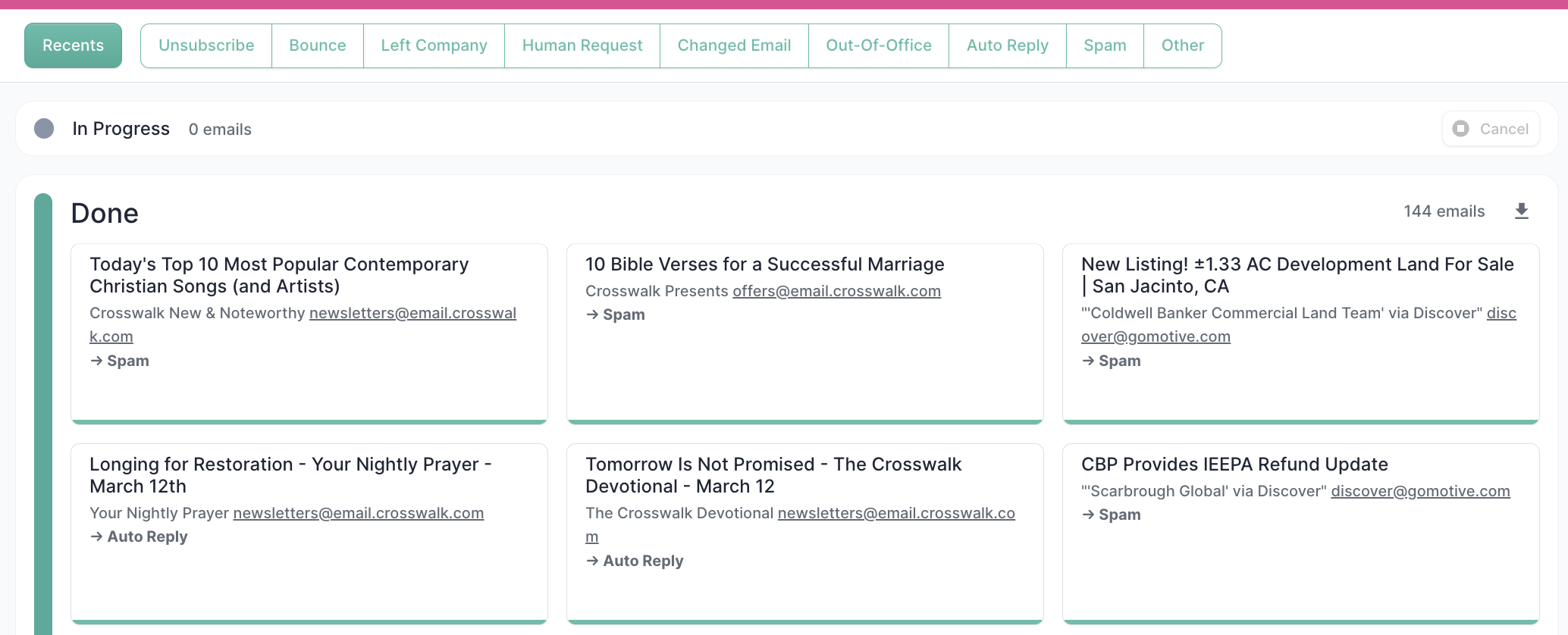
Processed emails are displayed as cards showing:
* The email **subject line**
* The sender's **name and email address**
* The **category** Mary assigned (e.g., `→ Human Request`)
Cards are listed newest-first by default.
## Filtering by category
Use the tab bar at the top to slice the feed by category. Click **Unsubscribe** to see only unsubscribe replies, **Bounce** for bounces, and so on. **Recents** shows the most recently processed emails regardless of category.
## The message feed
Processed emails are displayed as cards showing:
* The email **subject line**
* The sender's **name and email address**
* The **category** Mary assigned (e.g., `→ Human Request`)
Cards are listed newest-first by default.
## Filtering by category
Use the tab bar at the top to slice the feed by category. Click **Unsubscribe** to see only unsubscribe replies, **Bounce** for bounces, and so on. **Recents** shows the most recently processed emails regardless of category.
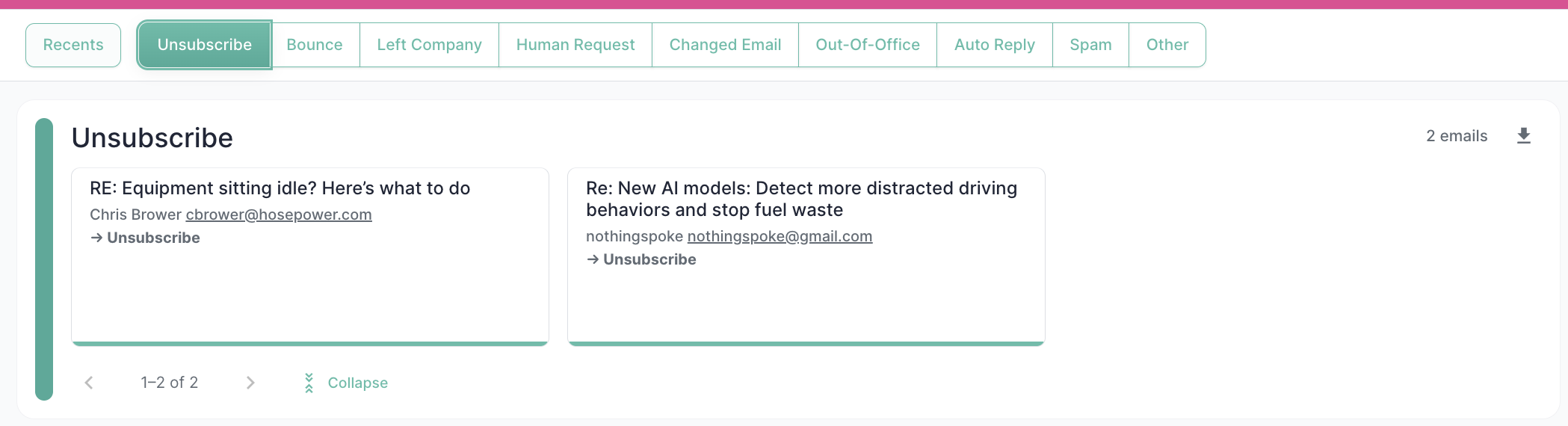 Filtering is the fastest way to spot-check a category after you've edited its prompt — open the tab, scan the recent matches, and confirm they all look right.
## Inspecting an individual email
Click any message card to open the detailed view. The detail panel is structured around the full processing pipeline, so you can see exactly what happened at each step.
Filtering is the fastest way to spot-check a category after you've edited its prompt — open the tab, scan the recent matches, and confirm they all look right.
## Inspecting an individual email
Click any message card to open the detailed view. The detail panel is structured around the full processing pipeline, so you can see exactly what happened at each step.
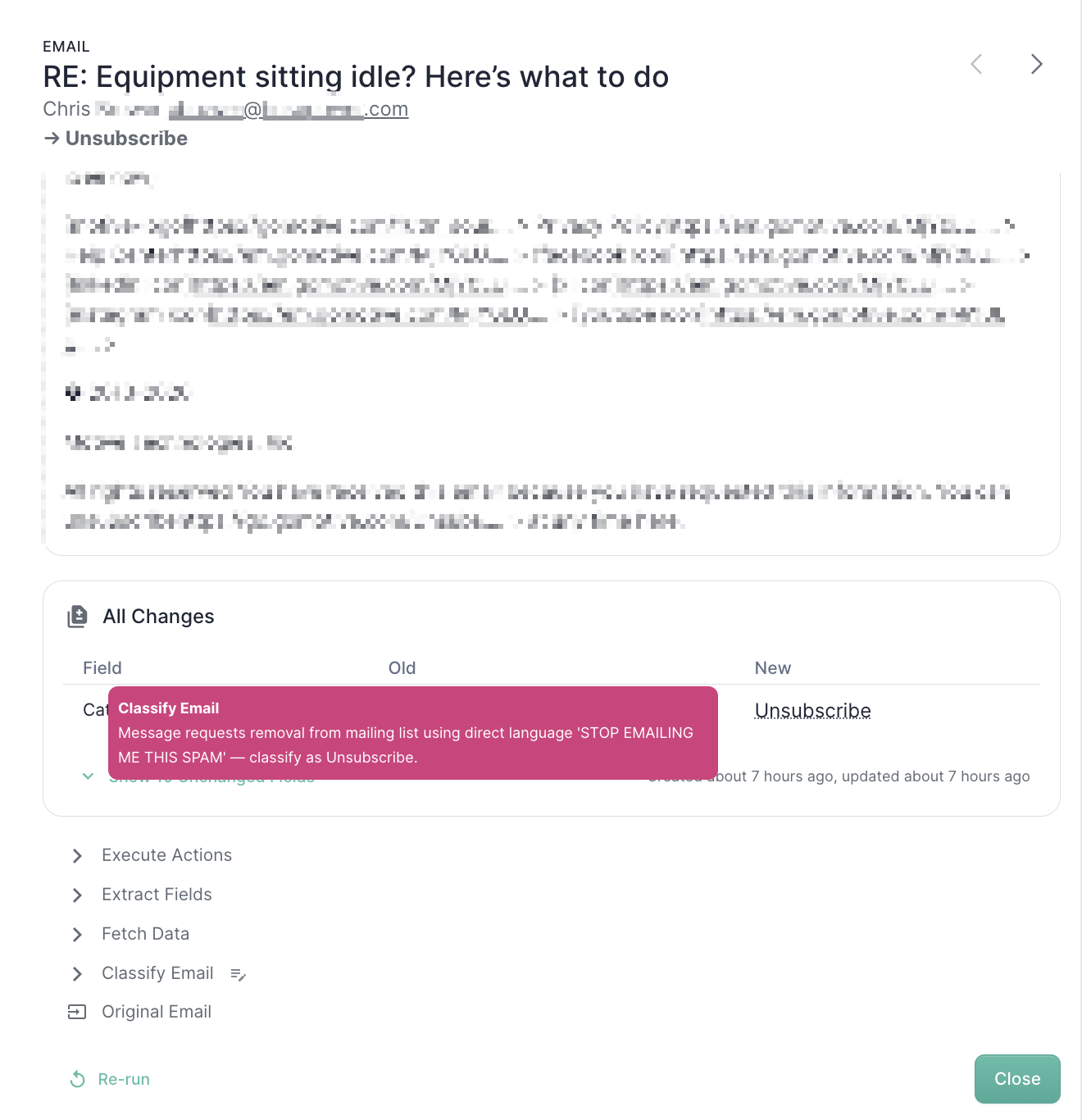 The top of the panel shows:
* The full **email body** as it arrived
* The **classification** Mary assigned and her **plain-English reasoning** for why she made that call
Below that, expandable sections walk through the rest of the pipeline:
| Section | What it shows |
| ------------------- | ----------------------------------------------------------------------------------------------------------- |
| **Classify Email** | Mary's full reasoning for the category she chose |
| **Extract Fields** | The values Mary pulled from the email body (if [extraction](/use-cases/erm/data-extraction) was configured) |
| **Fetch Data** | Any data retrieved from external systems (e.g., Marketo) before extraction |
| **Execute Actions** | Which [actions](/use-cases/erm/actions) ran and their outcomes (success / failure / details) |
| **Original Email** | The raw email as it arrived, headers and all |
This view is the single best debugging tool when something looks off — you can see Mary's reasoning, the values she extracted, and the result of every action she fired, all in one place.
## Re-running a misclassified email
If you spot an email that was classified incorrectly, you don't have to wait for a similar reply to arrive again to test your fix. Click **Re-run** on the detail view and Mary will reprocess the email using your current category configuration.
This is the standard workflow for tightening up a category prompt:
Spot it in the feed or via [Search](/use-cases/erm/search).
Edit the [category](/use-cases/erm/categories) that should have caught it — or the one that incorrectly caught it.
Open the message and click **Re-run**. Confirm the new classification is correct.
Add the email to the [Test Suite](/use-cases/erm/test-suite) as a regression check so the fix can't quietly break later.
Re-runs use your current configuration, so they're also a quick way to retroactively reclassify a backlog of emails after a category change — open them one by one and re-run.
The top of the panel shows:
* The full **email body** as it arrived
* The **classification** Mary assigned and her **plain-English reasoning** for why she made that call
Below that, expandable sections walk through the rest of the pipeline:
| Section | What it shows |
| ------------------- | ----------------------------------------------------------------------------------------------------------- |
| **Classify Email** | Mary's full reasoning for the category she chose |
| **Extract Fields** | The values Mary pulled from the email body (if [extraction](/use-cases/erm/data-extraction) was configured) |
| **Fetch Data** | Any data retrieved from external systems (e.g., Marketo) before extraction |
| **Execute Actions** | Which [actions](/use-cases/erm/actions) ran and their outcomes (success / failure / details) |
| **Original Email** | The raw email as it arrived, headers and all |
This view is the single best debugging tool when something looks off — you can see Mary's reasoning, the values she extracted, and the result of every action she fired, all in one place.
## Re-running a misclassified email
If you spot an email that was classified incorrectly, you don't have to wait for a similar reply to arrive again to test your fix. Click **Re-run** on the detail view and Mary will reprocess the email using your current category configuration.
This is the standard workflow for tightening up a category prompt:
Spot it in the feed or via [Search](/use-cases/erm/search).
Edit the [category](/use-cases/erm/categories) that should have caught it — or the one that incorrectly caught it.
Open the message and click **Re-run**. Confirm the new classification is correct.
Add the email to the [Test Suite](/use-cases/erm/test-suite) as a regression check so the fix can't quietly break later.
Re-runs use your current configuration, so they're also a quick way to retroactively reclassify a backlog of emails after a category change — open them one by one and re-run.