> ## Documentation Index
> Fetch the complete documentation index at: https://docs.allgoodhq.com/llms.txt
> Use this file to discover all available pages before exploring further.
# Claude Desktop
> Install the allGood Marketo MCP server as a custom connector in Claude Desktop so you can work with Marketo directly from a Claude conversation.
The allGood Marketo MCP server brings Mary's Marketo capabilities — looking up programs, emails, forms, and templates, cloning campaigns, uploading assets to Design Studio — directly into Claude Desktop. This setup takes about 5 minutes.
## Before you begin
You'll need:
* **Claude Desktop** installed (macOS or Windows)
* A Claude plan that supports custom connectors (Pro, Max, Team, or Enterprise)
* An **allGood account** with access to the Marketo integration
* The allGood Marketo MCP server URL: `https://api.allgoodhq.app/mcp/marketo`
Custom connectors aren't available on Claude's Free plan, and may need to be enabled by a workspace admin on Team or Enterprise plans.
## Steps
1. Open **Claude Desktop**
2. Click your profile icon in the bottom-left corner and select **Settings**
3. Go to the **Connectors** tab
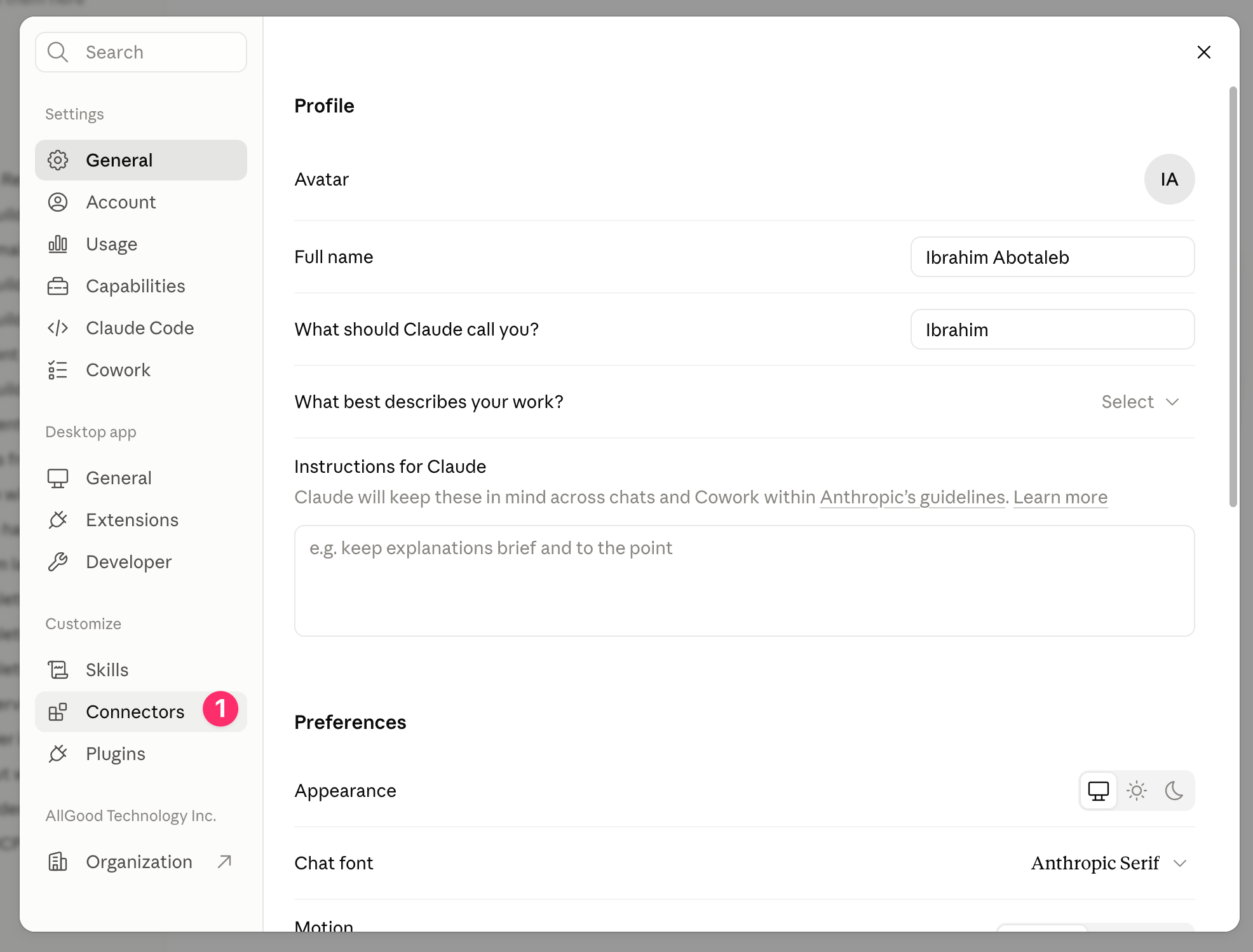 1. Scroll to the top of the Connectors list and click **Add > Add custom connector**
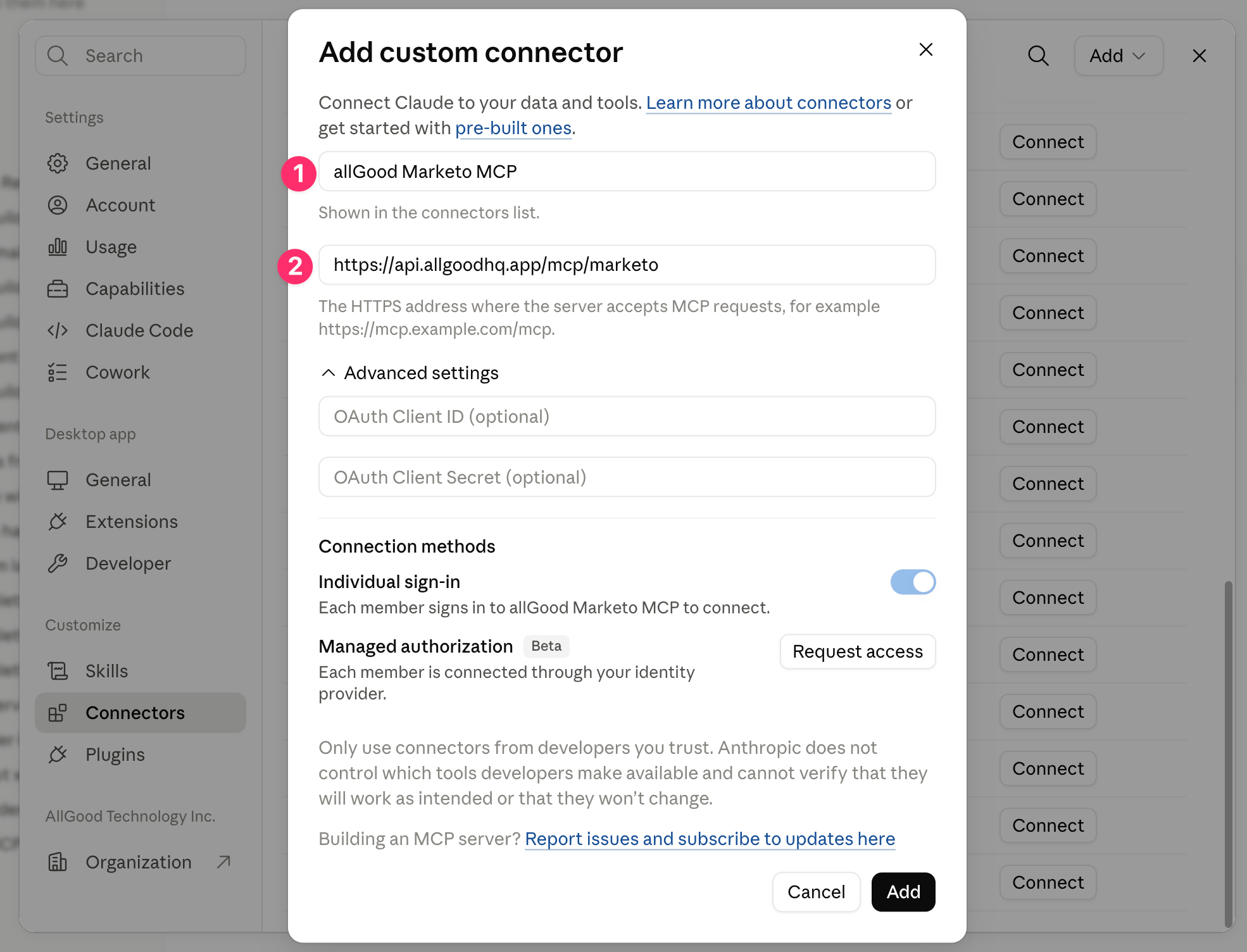
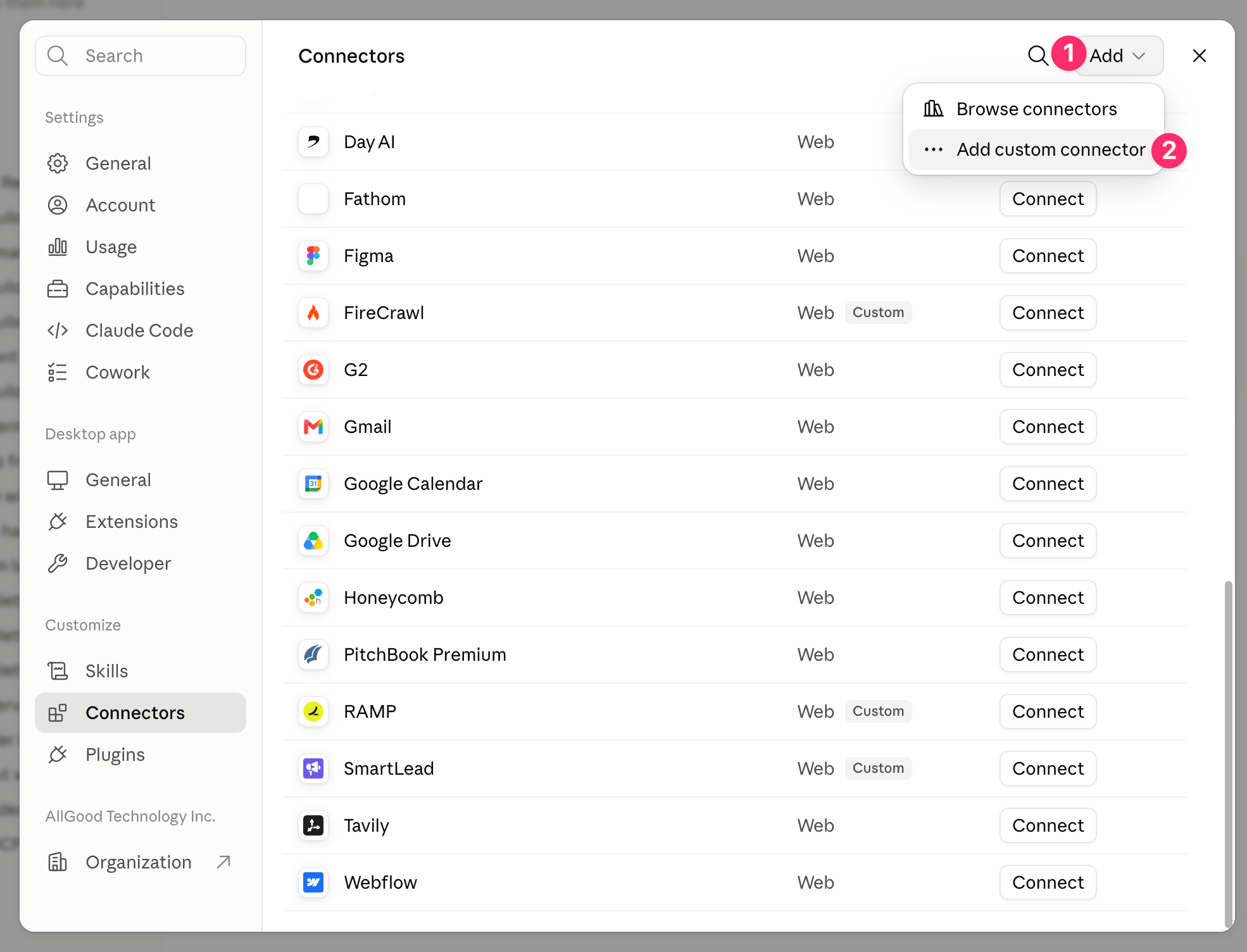 2. Fill in the connector details:
* **Name**: `allGood Marketo`
* **URL**: `https://api.allgoodhq.app/mcp/marketo`
3. Click **Add**
2. Fill in the connector details:
* **Name**: `allGood Marketo`
* **URL**: `https://api.allgoodhq.app/mcp/marketo`
3. Click **Add**
 1. Find **allGood Marketo** in your Connectors list and click **Connect**
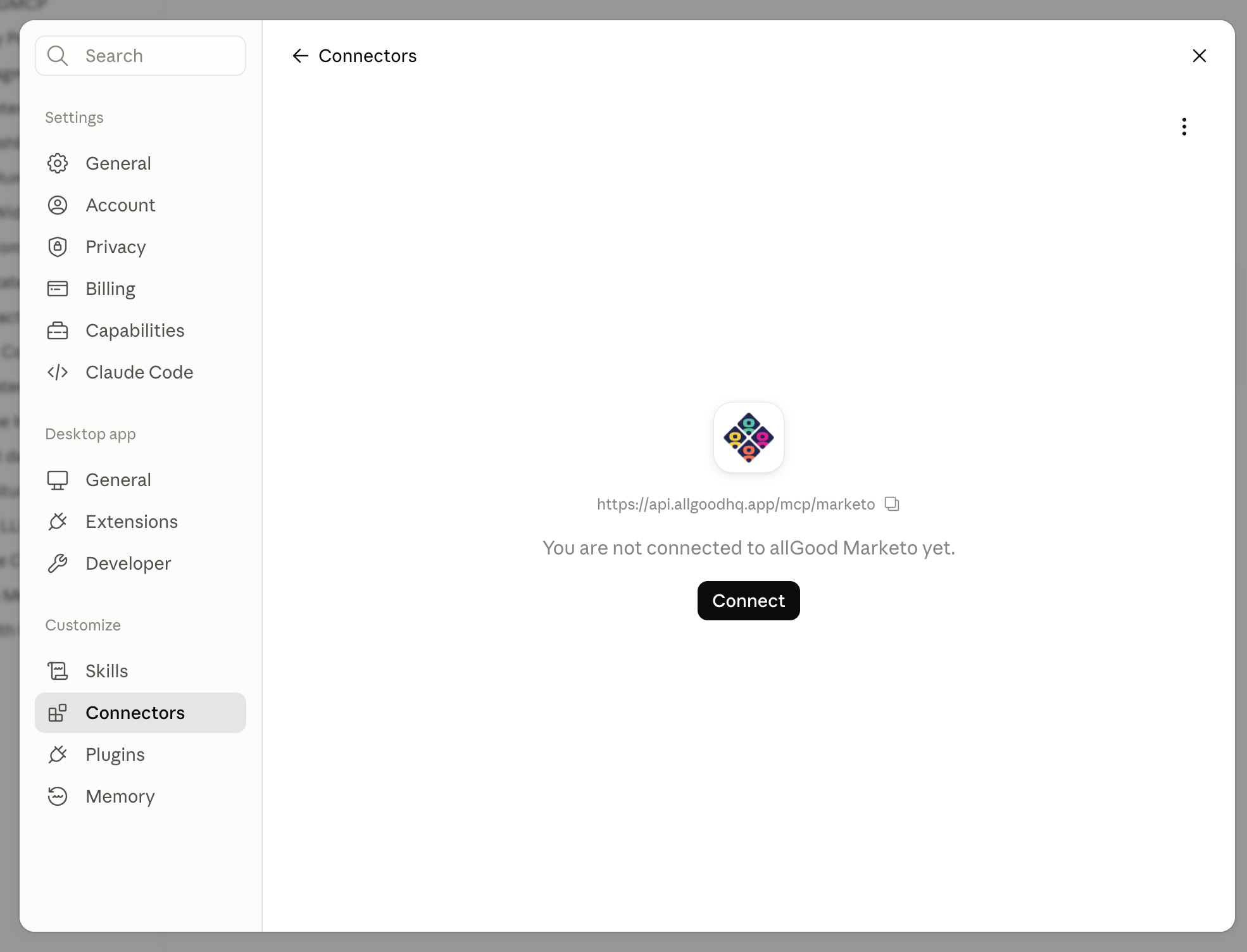 2. A browser window opens and prompts you to log into your allGood account
3. Review the requested permissions and click **Allow**
4. Once authorized, the browser window closes and the connector status changes to **Connected**
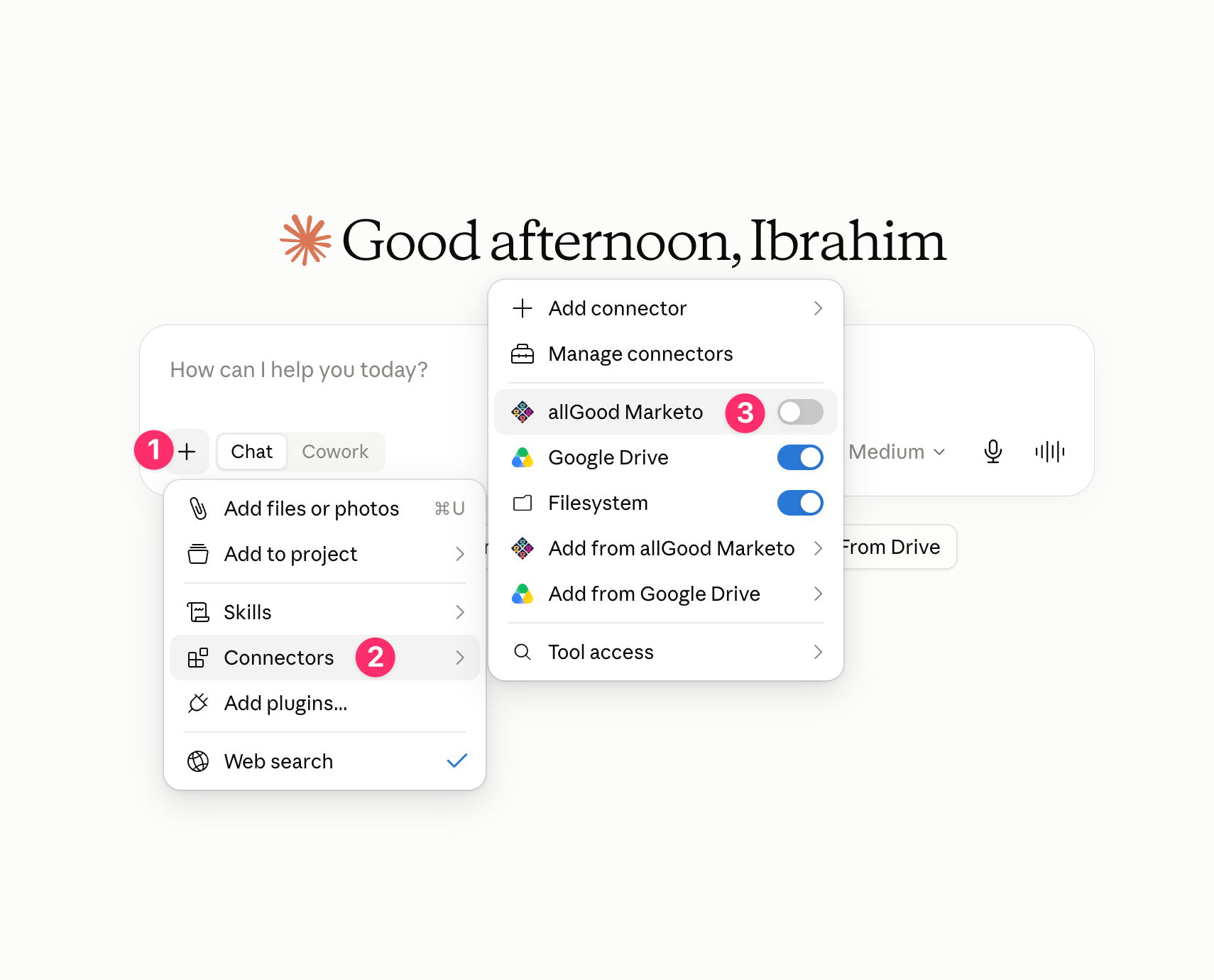
1. Start a new chat in Claude Desktop
2. Click the tools icon below the message box
3. Confirm **allGood Marketo** is toggled on for this conversation
2. A browser window opens and prompts you to log into your allGood account
3. Review the requested permissions and click **Allow**
4. Once authorized, the browser window closes and the connector status changes to **Connected**
1. Start a new chat in Claude Desktop
2. Click the tools icon below the message box
3. Confirm **allGood Marketo** is toggled on for this conversation
 4. Test the connection by asking Claude something like:
> "Using allGood Marketo, look up the program details for \[program name]."
If Claude returns Marketo data, the connection is working correctly.
## Optional: Allow allGood's API domain for image uploads
This step is only needed if you want to use the Marketo MCP's image upload capability (uploading assets to Design Studio). Everything else — looking up programs, emails, forms, and templates, cloning campaigns — works without it.
Claude restricts which external domains a connector can reach for capabilities like file/image handling. To let Claude upload images to Marketo's Design Studio through the allGood connector, add allGood's API domain to the allowlist:
1. In **Settings**, go to the **Capabilities** tab
2. Find the **Domain allowlist** (sometimes listed under network or connector permissions)
3. Click **Add domain** and enter `api.allgoodhq.app`
4. Save your changes
## Troubleshooting
Check that your browser isn't blocking pop-ups, then retry.
Click **Connect** again and re-authenticate — your allGood session may have expired.
Make sure the connector is toggled on for the current chat (see Step 4) — it's enabled per-conversation, not globally.
Custom connectors require a Claude plan that supports them (Pro, Max, Team, or Enterprise) and may need to be enabled by your workspace admin.
Check **Settings → Capabilities → Domain allowlist** and confirm `api.allgoodhq.app` is listed. If your workspace restricts outbound domains, Claude blocks the image upload until the domain is added — this doesn't affect any other Marketo MCP functionality.
4. Test the connection by asking Claude something like:
> "Using allGood Marketo, look up the program details for \[program name]."
If Claude returns Marketo data, the connection is working correctly.
## Optional: Allow allGood's API domain for image uploads
This step is only needed if you want to use the Marketo MCP's image upload capability (uploading assets to Design Studio). Everything else — looking up programs, emails, forms, and templates, cloning campaigns — works without it.
Claude restricts which external domains a connector can reach for capabilities like file/image handling. To let Claude upload images to Marketo's Design Studio through the allGood connector, add allGood's API domain to the allowlist:
1. In **Settings**, go to the **Capabilities** tab
2. Find the **Domain allowlist** (sometimes listed under network or connector permissions)
3. Click **Add domain** and enter `api.allgoodhq.app`
4. Save your changes
## Troubleshooting
Check that your browser isn't blocking pop-ups, then retry.
Click **Connect** again and re-authenticate — your allGood session may have expired.
Make sure the connector is toggled on for the current chat (see Step 4) — it's enabled per-conversation, not globally.
Custom connectors require a Claude plan that supports them (Pro, Max, Team, or Enterprise) and may need to be enabled by your workspace admin.
Check **Settings → Capabilities → Domain allowlist** and confirm `api.allgoodhq.app` is listed. If your workspace restricts outbound domains, Claude blocks the image upload until the domain is added — this doesn't affect any other Marketo MCP functionality.