Every email allGood sends for you leaves from an IP address. Mailbox providers judge that address alongside your sending domain, so its reputation affects whether your email reaches the inbox. allGood assigns your sending IP during account setup. Most accounts send from allGood’s shared pool, and that’s the right choice for most senders. You don’t add your sending IP to your DNS. The records from Set up an email domain already cover whichever IPs allGood sends from.

Prerequisites

  • Access to Settings → Email
  • A sending domain, if you plan to ask about a dedicated IP. See Set up an email domain

See which IPs you send from

Open Settings → Email and find the Sending IP card. It shows:
  • Which kind of IP you’re on. The badge reads Shared pool or Dedicated.
  • The IP addresses your email currently goes out from.
  • Reverse DNS under each IP, when allGood has a record of it. On the shared pool, reverse DNS is managed by allGood’s email delivery provider, so there’s nothing for you to set up.
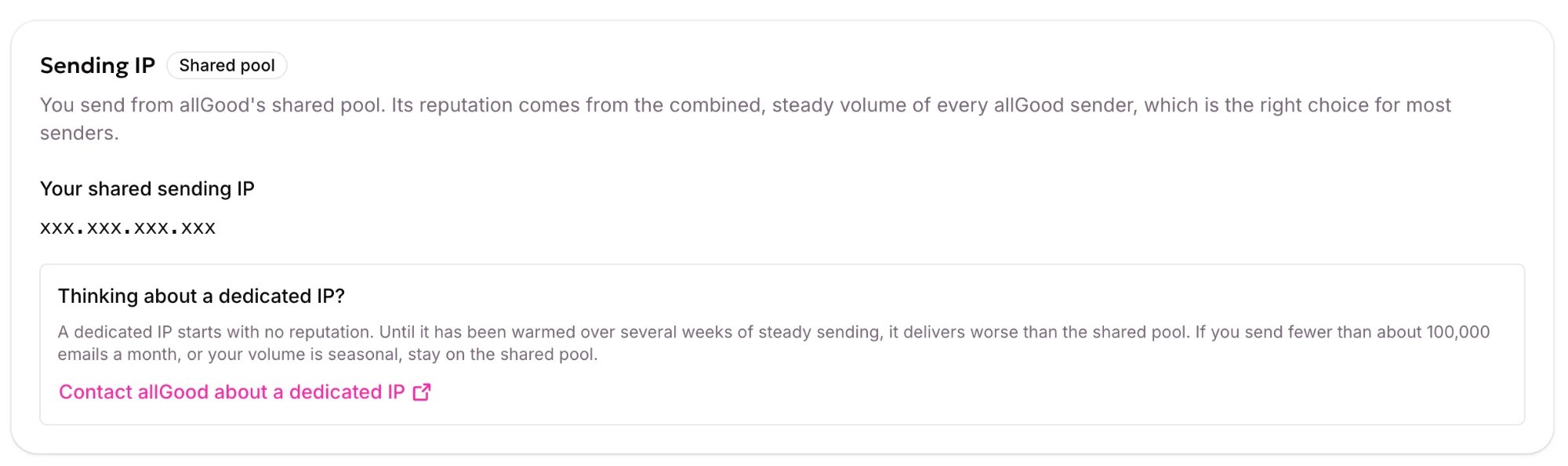
The Sending IP card on the shared pool, with your sending IP and the dedicated IP advice

The Sending IP card on the shared pool, with your sending IP and the dedicated IP advice.

The card is read-only. allGood staff make any change to your sending IP.

Shared pool or dedicated IP

A new dedicated IP starts with no reputation. Until it has been warmed up over several weeks of steady sending, it delivers worse than the shared pool. If you send fewer than about 100,000 emails a month, or your volume comes in bursts, stay on the shared pool.
Once you’re on a dedicated IP, its reputation depends only on what you send, so keep your volume steady.

Ask for a dedicated IP

1

Open the Sending IP card

Open Settings → Email and find the Sending IP card.
2

Contact allGood

Under Thinking about a dedicated IP?, click Contact allGood about a dedicated IP. This opens an email to allGood support with your account, your email address, and your sending domain already filled in.
3

Describe your volume

Answer the questions in the email: your expected monthly email volume, whether that volume is steady or seasonal, and anything else allGood should know. Then send it.
allGood reviews your volume with you and, if a dedicated IP fits, assigns it to your account. Warm-up isn’t automated in allGood, so agree a ramp-up plan with allGood before you send at full volume.

While a change is taking effect

After allGood changes your sending IP, the card’s badge reads Moving to dedicated or Moving to shared pool until the change reaches your sending account. Until then, you keep sending from the IPs listed on the card.

If no sending IP is shown

If the card says No sending IP is assigned yet, allGood won’t send your email, including previews. Without an IP, a message would be accepted and then never delivered, so allGood stops it instead. Settings → Email shows Not ready to send until an IP is assigned. allGood assigns an IP during account setup. If the card stays empty, contact allGood support.