Register a subdomain, add two DNS records, and wait for allGood to verify it and issue an SSL certificate.
A connected subdomain is the address allGood uses to host your landing pages, receive form submissions, record tracking events, and serve the links in your emails. Without one, the tracking tag has nowhere to load from, forms have no endpoint, and pages have nowhere to live.This article walks you through registering a subdomain on Web Edge Sessions and adding the DNS records that prove you own it. For why each step exists, see How Web Edge keeps your domain secure.
You have the Admin or Power user role, and you can open Web Edge Sessions in your account settings. With the Standard role, you cannot register, sync, delete, or change the default subdomain.
You have access to your DNS provider, or a teammate who does.
You have chosen a subdomain, such as pages.yourbrand.com or mk.yourbrand.com.
Choose a subdomain that nothing else uses. Pointing a hostname at allGood takes it over completely. It will serve allGood pages, not your current site. If you are migrating from Marketo or HubSpot, do not register the subdomain that platform uses today. Keep it free so you can redirect old links when you cut over.Registering a subdomain does not touch your main website. Adding pages.yourbrand.com has no effect on www.yourbrand.com.
In Add a subdomain, enter the full hostname in Hostname, for example pages.yourbrand.com. Do not enter only pages or only yourbrand.com. Select Register.
The Add a subdomain card, where you register the hostname.
2
Open the DNS instructions
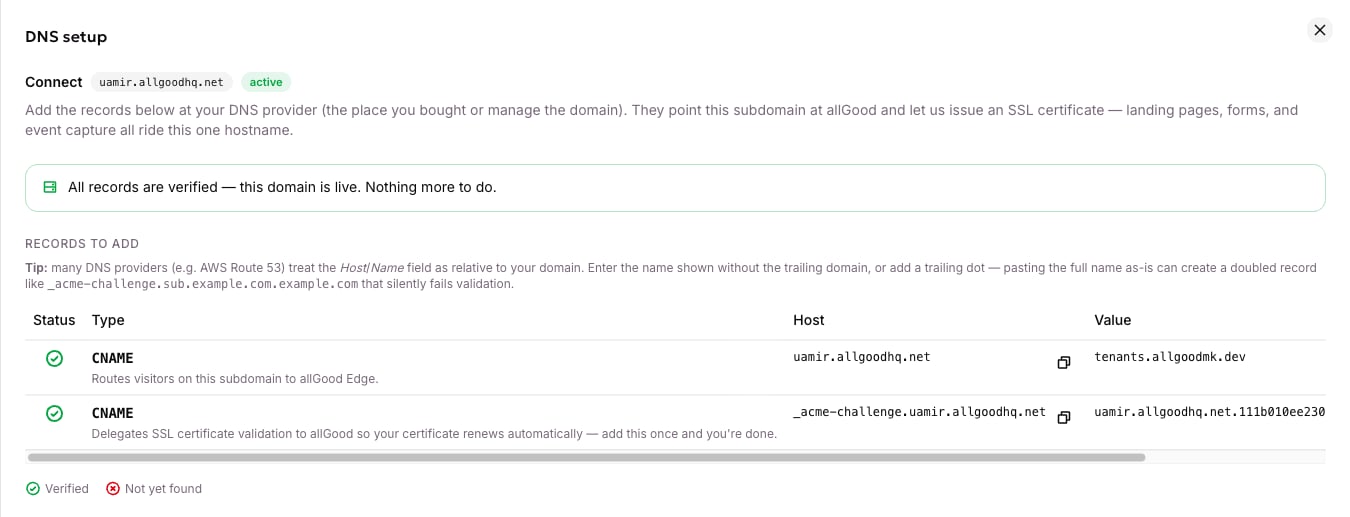
On the new row, open the ⋮ menu and choose DNS setup instructions. A drawer lists every record you need. Each has a copy button and a tick that shows whether it has resolved yet.
3
Add the routing record at your DNS provider
A CNAME record is a DNS instruction that points one address at another. Add a CNAME on your subdomain, for example pages.yourbrand.com, with the target shown on the row. It sends visitors on your subdomain to allGood Edge, the network that hosts and serves your pages.
4
Add the certificate record
The second record lets allGood issue an SSL certificate for your subdomain. The drawer shows one of two shapes:
A delegation CNAME on _acme-challenge. plus your subdomain. Add it once, and the certificate renews automatically from then on. Copy the unusual prefix exactly as shown.
TXT records at the same _acme-challenge. name. There may be more than one. Add every record shown. If you miss one, a backup certificate authority can fail to renew later without any warning.
The values in the drawer are unique to your subdomain. Always copy them from the drawer. Do not reuse values from this article or from another subdomain.
5
Wait, then select Sync
DNS can take a few minutes to an hour to propagate. Back on Web Edge Sessions, select Sync to re-check your records. The list refreshes about 30 seconds later.
The domain table, showing the four-step progress rail and the default domain badge.
6
Confirm every record is verified
Reopen the DNS drawer. When both records resolve, each shows a green tick and the drawer confirms the domain is live.
The DNS drawer once every record has resolved and the domain is live.
Many DNS providers, including AWS Route 53, treat the Host or Name field as relative to your domain. Pasting the full name can create a doubled record such as _acme-challenge.pages.yourbrand.com.yourbrand.com, and the record fails with no error. Enter the host without your domain suffix, for example _acme-challenge.pages, or add a trailing dot if your provider supports it. This is the most common setup failure.
When the row’s State reads active and all four steps under Progress are done, allGood has issued your SSL certificate and provisioned bot protection. You can now publish landing pages and forms on that subdomain.
The row’s State badge starts at propagating and moves to active once DNS is verified. Only active counts as connected.
Bot protection finishes last, because a widget can only cover a subdomain once its certificate is live. If a row shows SSL active but not Bot protection ready, select Sync again. Until it is ready, forms that require a bot check cannot be registered on that subdomain.
If a subdomain has sat in propagating for more than an hour or two, treat it as broken, not slow. Compare every record against the DNS drawer and look for the doubled name described above. The Web Edge FAQ covers DNS caching, Cloudflare proxying, and how to check records yourself.
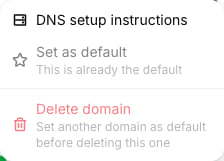
If you connect more than one subdomain, one of them is the default. allGood fills it into every snippet and URL it generates, such as your tracking tag, the Google Tag Manager template, form endpoint URLs, and published page URLs. Only an active subdomain can be the default, and there is always exactly one.Open the row’s ⋮ menu to change it or to remove a subdomain you no longer need.
The row actions menu, with DNS setup instructions, Set as default and Delete domain.
Set as default changes what allGood generates from now on. Pages already published and tags already installed keep working.
Delete domain asks you to type the hostname, then immediately stops landing pages, form capture, and tracking on that subdomain. You cannot delete the default. Make another subdomain the default first.
allGood also serves a preview address, shaped like {yourTenantId}.preview.allgoodmk.app, for signed page previews and the hosted test page. It is not branded and is not where real traffic goes, so it does not replace a connected subdomain.
{"docsConfig":{"theme":"luma","$schema":"https://mintlify.com/docs.json","name":"allGood Docs","colors":{"primary":"#dc4393","light":"#ea7cb9","dark":"#b12563"},"logo":{"light":"https://mintcdn.com/allgoodtechnologyinc/QQ498qL6_aJdv7lm/logo/light.svg?fit=max\u0026auto=format\u0026n=QQ498qL6_aJdv7lm\u0026q=85\u0026s=0a6e25720e392678288f3d5e92580677","dark":"https://mintcdn.com/allgoodtechnologyinc/QQ498qL6_aJdv7lm/logo/dark.svg?fit=max\u0026auto=format\u0026n=QQ498qL6_aJdv7lm\u0026q=85\u0026s=d68d3e70bcb0adf89895e438a7dd3dd1"},"favicon":"https://mintcdn.com/allgoodtechnologyinc/QQ498qL6_aJdv7lm/favicon.svg?fit=max\u0026auto=format\u0026n=QQ498qL6_aJdv7lm\u0026q=85\u0026s=393be1889fc5f811dc575e9e7c4aa16f","background":{"decoration":"gradient"},"navbar":{"links":[{"href":"mailto:support@allgoodhq.com","label":"Support"}],"primary":{"type":"button","label":"App","href":"https://allgoodhq.app"}},"icons":{"library":"lucide"},"contextual":{"options":["copy","view","chatgpt","claude","mcp"],"display":"header"},"interaction":{"drilldown":true},"styling":{"latex":true},"navigation":{"global":{"anchors":[{"anchor":"Welcome","icon":"house","href":"/"},{"anchor":"Release Notes","icon":"list","href":"/release-notes"}]},"pages":[]}},"deployment":{"deploymentMetadataValue":{"subdomain":"allgoodtechnologyinc","hasAudioNarration":false,"actualSubdomain":"allgoodtechnologyinc","customDomains":["docs.allgoodhq.com"],"gitSource":{"type":"github","owner":"allgoodhq","repo":"mint","deployBranch":"main","contentDirectory":"","isPrivate":true,"mountPath":"","label":""},"chroma":{"liveDeploymentHistoryId":"6ae89845ed2f58cb10ee7f21","collectionId":"ded4f481-a124-4f34-9b5d-99e441c864c1","schemaVersion":"v3","latestBuiltDeploymentHistoryId":"6ae89845ed2f58cb10ee7f21"},"feedback":{"thumbs":true,"agentFeedback":true},"entitlements":{"AI_CHAT":{"status":"ENABLED"},"WEB_MCP":{"status":"ENABLED"},"NARRATION":{"status":"ENABLED"}},"buildId":"6aee4936ccb0d32d838b1741","clientVersion":"0.0.4076","searchFilterCounts":[{"language":"default","tag":"allGood","count":127},{"language":"default","tag":"Use Cases","count":68},{"language":"default","tag":"Email Reply Management","count":65},{"language":"default","tag":"Error Codes","count":38},{"language":"default","tag":"Marketing Kernel","count":20},{"language":"default","tag":"Marketo","count":18},{"language":"default","tag":"Integrations","count":17},{"language":"default","tag":"Settings","count":16},{"language":"default","tag":"Email Builder","count":12},{"language":"default","tag":"HubSpot","count":11}]},"assistantConfig":{"enableAskAiButton":false,"enableStarterQuestions":false,"enableAskAiSearchBar":true,"deflection":{"enabled":true,"email":"support@allgoodhq.com","showHelpButton":true}},"basePath":"","hasChatPermissions":true,"hasWebMcpPermissions":true,"toggles":[{"name":"kill-isr","enabled":true,"variant":{"name":"disabled","enabled":false,"feature_enabled":true},"impressionData":false},{"name":"agent-mintlify-slack","enabled":true,"variant":{"name":"disabled","enabled":false,"feature_enabled":true},"impressionData":false},{"name":"agent-integrations-settings","enabled":true,"variant":{"name":"disabled","enabled":false,"feature_enabled":true},"impressionData":false},{"name":"rbac-expansion","enabled":true,"variant":{"name":"disabled","enabled":false,"feature_enabled":true},"impressionData":false},{"name":"automations-pr-grouping","enabled":true,"variant":{"name":"disabled","enabled":false,"feature_enabled":true},"impressionData":false},{"name":"custom-prefix","enabled":true,"variant":{"name":"disabled","enabled":false,"feature_enabled":true},"impressionData":false},{"name":"analytics-v7","enabled":true,"variant":{"name":"disabled","enabled":false,"feature_enabled":true},"impressionData":false},{"name":"user-flows-analytics","enabled":true,"variant":{"name":"disabled","enabled":false,"feature_enabled":true},"impressionData":false},{"name":"no-publish-flow","enabled":true,"variant":{"name":"disabled","enabled":false,"feature_enabled":true},"impressionData":false},{"name":"workos-onboarding","enabled":true,"variant":{"name":"disabled","enabled":false,"feature_enabled":true},"impressionData":false},{"name":"llms-txt-v2","enabled":true,"variant":{"name":"disabled","enabled":false,"feature_enabled":true},"impressionData":false},{"name":"snapshot-serving-live","enabled":true,"variant":{"name":"disabled","enabled":false,"feature_enabled":true},"impressionData":false},{"name":"stripTemperatureMiddleware","enabled":true,"variant":{"name":"disabled","enabled":false,"feature_enabled":true},"impressionData":false},{"name":"support-platform-pylon-zendesk","enabled":true,"variant":{"name":"disabled","enabled":false,"feature_enabled":true},"impressionData":false},{"name":"snapshot-serving","enabled":true,"variant":{"name":"disabled","enabled":false,"feature_enabled":true},"impressionData":false},{"name":"instant-rollback","enabled":true,"variant":{"name":"disabled","enabled":false,"feature_enabled":true},"impressionData":false},{"name":"granular-notifications-server","enabled":true,"variant":{"name":"disabled","enabled":false,"feature_enabled":true},"impressionData":false},{"name":"granular-notifications","enabled":true,"variant":{"name":"disabled","enabled":false,"feature_enabled":true},"impressionData":false},{"name":"automations-fable","enabled":true,"variant":{"name":"disabled","enabled":false,"feature_enabled":true},"impressionData":false},{"name":"fixed-ai-action-pricing","enabled":true,"variant":{"name":"disabled","enabled":false,"feature_enabled":true},"impressionData":false},{"name":"automation-resolve-merge-conflict","enabled":true,"variant":{"name":"disabled","enabled":false,"feature_enabled":true},"impressionData":false},{"name":"scoped-publishing","enabled":true,"variant":{"name":"disabled","enabled":false,"feature_enabled":true},"impressionData":false},{"name":"mintql","enabled":true,"variant":{"name":"disabled","enabled":false,"feature_enabled":true},"impressionData":false},{"name":"page-level-analytics","enabled":true,"variant":{"name":"disabled","enabled":false,"feature_enabled":true},"impressionData":false},{"name":"editor-version-history-v2","enabled":true,"variant":{"name":"disabled","enabled":false,"feature_enabled":true},"impressionData":false},{"name":"billing-page-v2","enabled":true,"variant":{"name":"disabled","enabled":false,"feature_enabled":true},"impressionData":false},{"name":"full-page-search","enabled":true,"variant":{"name":"disabled","enabled":false,"feature_enabled":true},"impressionData":false},{"name":"workspace-projects","enabled":true,"variant":{"name":"disabled","enabled":false,"feature_enabled":true},"impressionData":false},{"name":"assistant-v5","enabled":true,"variant":{"name":"disabled","enabled":false,"feature_enabled":true},"impressionData":false},{"name":"fork-pr-previews","enabled":true,"variant":{"name":"disabled","enabled":false,"feature_enabled":true},"impressionData":false},{"name":"revalidation-jwt","enabled":true,"variant":{"name":"disabled","enabled":false,"feature_enabled":true},"impressionData":false},{"name":"workos-sso-scim","enabled":true,"variant":{"name":"disabled","enabled":false,"feature_enabled":true},"impressionData":false},{"name":"hobby-abuse-scan","enabled":true,"variant":{"name":"disabled","enabled":false,"feature_enabled":true},"impressionData":false},{"name":"dashboard-inbox","enabled":true,"variant":{"name":"disabled","enabled":false,"feature_enabled":true},"impressionData":false},{"name":"workos-signup","enabled":true,"variant":{"name":"disabled","enabled":false,"feature_enabled":true},"impressionData":false},{"name":"turbopuffer-dual-write","enabled":true,"variant":{"name":"disabled","enabled":false,"feature_enabled":true},"impressionData":false},{"name":"workos-enabled","enabled":true,"variant":{"name":"disabled","enabled":false,"feature_enabled":true},"impressionData":false},{"name":"approve-review-flow","enabled":true,"variant":{"name":"disabled","enabled":false,"feature_enabled":true},"impressionData":false},{"name":"sso-setup-deadline-banner","enabled":true,"variant":{"name":"disabled","enabled":false,"feature_enabled":true},"impressionData":false},{"name":"turbopuffer-serve","enabled":true,"variant":{"name":"disabled","enabled":false,"feature_enabled":true},"impressionData":false},{"name":"live-agents","enabled":true,"variant":{"name":"disabled","enabled":false,"feature_enabled":true},"impressionData":false},{"name":"comment-mode","enabled":true,"variant":{"name":"disabled","enabled":false,"feature_enabled":true},"impressionData":false}],"googleFontsInlined":false},"customCss":[{"filePath":"style.css","content":":root{--sidebar-width: 18rem}.frame{padding:0}.frame>.relative>*[data-as=\"p\"]{margin:0!important}div:has(>.frame){margin:0.5rem 0}.frame [data-component-part=\"frame-caption\"]{margin:0.5rem 0;margin-left:1rem;padding:0;text-align:left}"}],"page":{"pagePath":"mk/settings/web-edge/connect-a-subdomain","slug":"/mk/settings/web-edge/connect-a-subdomain","pageMetadata":{"title":"Connect a subdomain","sidebarTitle":"Connect a subdomain","description":"Register a subdomain, add two DNS records, and wait for allGood to verify it and issue an SSL certificate.","lifecycle":"onboarding","owner":"TBD","reviewed":"2026-10-27","href":"/mk/settings/web-edge/connect-a-subdomain"},"description":{"compiledSource":"\"use strict\";\nconst {jsx: _jsx} = arguments[0];\nconst {useMDXComponents: _provideComponents} = arguments[0];\nfunction _createMdxContent(props) {\n const _components = {\n p: \"p\",\n ..._provideComponents(),\n ...props.components\n };\n return _jsx(_components.p, {\n children: \"Register a subdomain, add two DNS records, and wait for allGood to verify it and issue an SSL certificate.\"\n });\n}\nfunction MDXContent(props = {}) {\n const {wrapper: MDXLayout} = {\n ..._provideComponents(),\n ...props.components\n };\n return MDXLayout ? _jsx(MDXLayout, {\n ...props,\n children: _jsx(_createMdxContent, {\n ...props\n })\n }) : _createMdxContent(props);\n}\nreturn {\n default: MDXContent\n};\n","frontmatter":{},"scope":{}},"pageType":"default","mdx":{"mdxSource":{"compiledSource":"\"use strict\";const{Fragment:_Fragment,jsx:_jsx,jsxs:_jsxs}=arguments[0];const{useMDXComponents:_provideComponents}=arguments[0];function _createMdxContent(props){const _components={a:`a`,code:`code`,li:`li`,p:`p`,strong:`strong`,tbody:`tbody`,td:`td`,th:`th`,thead:`thead`,tr:`tr`,ul:`ul`,..._provideComponents(),...props.components},{Frame,Heading,Note,OptimizedImage,Step,Steps,Table,Warning}=_components;if(!Frame)_missingMdxReference(`Frame`,true);if(!Heading)_missingMdxReference(`Heading`,true);if(!Note)_missingMdxReference(`Note`,true);if(!OptimizedImage)_missingMdxReference(`OptimizedImage`,true);if(!Step)_missingMdxReference(`Step`,true);if(!Steps)_missingMdxReference(`Steps`,true);if(!Table)_missingMdxReference(`Table`,true);if(!Warning)_missingMdxReference(`Warning`,true);return _jsxs(_Fragment,{children:[_jsx(_components.p,{children:`A connected subdomain is the address allGood uses to host your landing pages, receive form submissions, record tracking events, and serve the links in your emails. Without one, the tracking tag has nowhere to load from, forms have no endpoint, and pages have nowhere to live.`}),`\n`,_jsxs(_components.p,{children:[`This article walks you through registering a subdomain on `,_jsx(_components.strong,{children:`Web Edge Sessions`}),` and adding the DNS records that prove you own it. For why each step exists, see `,_jsx(_components.a,{href:`/mk/settings/web-edge/how-it-works`,children:`How Web Edge keeps your domain secure`}),`.`]}),`\n`,_jsx(Heading,{level:`2`,id:`before-you-start`,children:`Before you start`}),`\n`,_jsxs(_components.ul,{children:[`\n`,_jsxs(_components.li,{children:[`You have the `,_jsx(_components.strong,{children:`Admin`}),` or `,_jsx(_components.strong,{children:`Power user`}),` role, and you can open `,_jsx(_components.strong,{children:`Web Edge Sessions`}),` in your account settings. With the `,_jsx(_components.strong,{children:`Standard`}),` role, you cannot register, sync, delete, or change the default subdomain.`]}),`\n`,_jsx(_components.li,{children:`You have access to your DNS provider, or a teammate who does.`}),`\n`,_jsxs(_components.li,{children:[`You have chosen a subdomain, such as `,_jsx(_components.code,{children:`pages.yourbrand.com`}),` or `,_jsx(_components.code,{children:`mk.yourbrand.com`}),`.`]}),`\n`]}),`\n`,_jsxs(_components.p,{children:[_jsx(_components.strong,{children:`Choose a subdomain that nothing else uses.`}),` Pointing a hostname at allGood takes it over completely. It will serve allGood pages, not your current site. If you are migrating from Marketo or HubSpot, do not register the subdomain that platform uses today. Keep it free so you can redirect old links when you cut over.`]}),`\n`,_jsxs(_components.p,{children:[`Registering a subdomain does not touch your main website. Adding `,_jsx(_components.code,{children:`pages.yourbrand.com`}),` has no effect on `,_jsx(_components.code,{children:`www.yourbrand.com`}),`.`]}),`\n`,_jsx(Heading,{level:`2`,id:`register-the-subdomain`,children:`Register the subdomain`}),`\n`,_jsxs(Steps,{children:[_jsxs(Step,{id:`enter-hostname`,title:`Register the hostname`,children:[_jsxs(_components.p,{children:[`In `,_jsx(_components.strong,{children:`Add a subdomain`}),`, enter the full hostname in `,_jsx(_components.strong,{children:`Hostname`}),`, for example `,_jsx(_components.code,{children:`pages.yourbrand.com`}),`. Do not enter only `,_jsx(_components.code,{children:`pages`}),` or only `,_jsx(_components.code,{children:`yourbrand.com`}),`. Select `,_jsx(_components.strong,{children:`Register`}),`.`]}),_jsx(Frame,{caption:`The Add a subdomain card, where you register the hostname.`,children:_jsx(OptimizedImage,{src:`https://mintcdn.com/allgoodtechnologyinc/bf1LRHwyriZvgDxT/images/mk/web-edge/setup-web-edge-add-subdomain.png?fit=max\u0026auto=format\u0026n=bf1LRHwyriZvgDxT\u0026q=85\u0026s=c85f1e5af37d32bb5b9fe4bda6ff8c14`,alt:`The Add a subdomain card, where you register the hostname`,\"data-og-width\":`1105`,width:`1105`,\"data-og-height\":`148`,height:`148`,\"data-path\":`images/mk/web-edge/setup-web-edge-add-subdomain.png`,\"data-optimize\":`true`,\"data-opv\":`3`,srcset:`https://mintcdn.com/allgoodtechnologyinc/bf1LRHwyriZvgDxT/images/mk/web-edge/setup-web-edge-add-subdomain.png?w=280\u0026fit=max\u0026auto=format\u0026n=bf1LRHwyriZvgDxT\u0026q=85\u0026s=0d1ca0833840f23f0bfa0baaffd2b4f1 280w, https://mintcdn.com/allgoodtechnologyinc/bf1LRHwyriZvgDxT/images/mk/web-edge/setup-web-edge-add-subdomain.png?w=560\u0026fit=max\u0026auto=format\u0026n=bf1LRHwyriZvgDxT\u0026q=85\u0026s=cba9503038d26cc6d514056e39c52f56 560w, https://mintcdn.com/allgoodtechnologyinc/bf1LRHwyriZvgDxT/images/mk/web-edge/setup-web-edge-add-subdomain.png?w=840\u0026fit=max\u0026auto=format\u0026n=bf1LRHwyriZvgDxT\u0026q=85\u0026s=5467d3263761de738b261f2ce96c8806 840w, https://mintcdn.com/allgoodtechnologyinc/bf1LRHwyriZvgDxT/images/mk/web-edge/setup-web-edge-add-subdomain.png?w=1100\u0026fit=max\u0026auto=format\u0026n=bf1LRHwyriZvgDxT\u0026q=85\u0026s=86ead142a08e8682692819d1723edb68 1100w, https://mintcdn.com/allgoodtechnologyinc/bf1LRHwyriZvgDxT/images/mk/web-edge/setup-web-edge-add-subdomain.png?w=1650\u0026fit=max\u0026auto=format\u0026n=bf1LRHwyriZvgDxT\u0026q=85\u0026s=e68e7a9bc660c93befc83bbbe18d1dd2 1650w, https://mintcdn.com/allgoodtechnologyinc/bf1LRHwyriZvgDxT/images/mk/web-edge/setup-web-edge-add-subdomain.png?w=2500\u0026fit=max\u0026auto=format\u0026n=bf1LRHwyriZvgDxT\u0026q=85\u0026s=f6bc97e6c48116b8d65956417fa517ec 2500w`})})]}),_jsx(Step,{id:`open-dns-instructions`,title:`Open the DNS instructions`,children:_jsxs(_components.p,{children:[`On the new row, open the `,_jsx(_components.strong,{children:`⋮`}),` menu and choose `,_jsx(_components.strong,{children:`DNS setup instructions`}),`. A drawer lists every record you need. Each has a copy button and a tick that shows whether it has resolved yet.`]})}),_jsx(Step,{id:`add-the-routing-record`,title:`Add the routing record at your DNS provider`,children:_jsxs(_components.p,{children:[`A `,_jsx(_components.strong,{children:`CNAME record`}),` is a DNS instruction that points one address at another. Add a CNAME on your subdomain, for example `,_jsx(_components.code,{children:`pages.yourbrand.com`}),`, with the target shown on the row. It sends visitors on your subdomain to `,_jsx(_components.strong,{children:`allGood Edge`}),`, the network that hosts and serves your pages.`]})}),_jsxs(Step,{id:`add-the-certificate-record`,title:`Add the certificate record`,children:[_jsx(_components.p,{children:`The second record lets allGood issue an SSL certificate for your subdomain. The drawer shows one of two shapes:`}),_jsxs(_components.ul,{children:[`\n`,_jsxs(_components.li,{children:[_jsx(_components.strong,{children:`A delegation CNAME`}),` on `,_jsx(_components.code,{children:`_acme-challenge.`}),` plus your subdomain. Add it once, and the certificate renews automatically from then on. Copy the unusual prefix exactly as shown.`]}),`\n`,_jsxs(_components.li,{children:[_jsx(_components.strong,{children:`TXT records`}),` at the same `,_jsx(_components.code,{children:`_acme-challenge.`}),` name. There may be more than one. Add every record shown. If you miss one, a backup certificate authority can fail to renew later without any warning.`]}),`\n`]}),_jsx(_components.p,{children:`The values in the drawer are unique to your subdomain. Always copy them from the drawer. Do not reuse values from this article or from another subdomain.`})]}),_jsxs(Step,{id:`wait-then-sync`,title:`Wait, then select Sync`,children:[_jsxs(_components.p,{children:[`DNS can take a few minutes to an hour to propagate. Back on `,_jsx(_components.strong,{children:`Web Edge Sessions`}),`, select `,_jsx(_components.strong,{children:`Sync`}),` to re-check your records. The list refreshes about 30 seconds later.`]}),_jsx(Frame,{caption:`The domain table, showing the four-step progress rail and the default domain badge.`,children:_jsx(OptimizedImage,{src:`https://mintcdn.com/allgoodtechnologyinc/bSgN7e8oktmf793O/images/mk/web-edge/setup-web-edge-domain-table.png?fit=max\u0026auto=format\u0026n=bSgN7e8oktmf793O\u0026q=85\u0026s=72acae05b66044d5eb02474fcc648810`,alt:`The domain table, showing the four-step progress rail and the default domain badge`,\"data-og-width\":`1105`,width:`1105`,\"data-og-height\":`169`,height:`169`,\"data-path\":`images/mk/web-edge/setup-web-edge-domain-table.png`,\"data-optimize\":`true`,\"data-opv\":`3`,srcset:`https://mintcdn.com/allgoodtechnologyinc/bSgN7e8oktmf793O/images/mk/web-edge/setup-web-edge-domain-table.png?w=280\u0026fit=max\u0026auto=format\u0026n=bSgN7e8oktmf793O\u0026q=85\u0026s=49751d55d9d10f4dac0d1b4c00760aad 280w, https://mintcdn.com/allgoodtechnologyinc/bSgN7e8oktmf793O/images/mk/web-edge/setup-web-edge-domain-table.png?w=560\u0026fit=max\u0026auto=format\u0026n=bSgN7e8oktmf793O\u0026q=85\u0026s=2bfed918147a73c5d184d6ee36ef0c2d 560w, https://mintcdn.com/allgoodtechnologyinc/bSgN7e8oktmf793O/images/mk/web-edge/setup-web-edge-domain-table.png?w=840\u0026fit=max\u0026auto=format\u0026n=bSgN7e8oktmf793O\u0026q=85\u0026s=e868408d642bd1c80e646980584db05b 840w, https://mintcdn.com/allgoodtechnologyinc/bSgN7e8oktmf793O/images/mk/web-edge/setup-web-edge-domain-table.png?w=1100\u0026fit=max\u0026auto=format\u0026n=bSgN7e8oktmf793O\u0026q=85\u0026s=2d8242c4033ee1c9cc99a5e486103a9a 1100w, https://mintcdn.com/allgoodtechnologyinc/bSgN7e8oktmf793O/images/mk/web-edge/setup-web-edge-domain-table.png?w=1650\u0026fit=max\u0026auto=format\u0026n=bSgN7e8oktmf793O\u0026q=85\u0026s=1774129fe60ed70a274049be18de1d28 1650w, https://mintcdn.com/allgoodtechnologyinc/bSgN7e8oktmf793O/images/mk/web-edge/setup-web-edge-domain-table.png?w=2500\u0026fit=max\u0026auto=format\u0026n=bSgN7e8oktmf793O\u0026q=85\u0026s=c673c04c83b9c454773a77bafa7c4295 2500w`})})]}),_jsxs(Step,{id:`confirm-verified`,title:`Confirm every record is verified`,children:[_jsx(_components.p,{children:`Reopen the DNS drawer. When both records resolve, each shows a green tick and the drawer confirms the domain is live.`}),_jsx(Frame,{caption:`The DNS drawer once every record has resolved and the domain is live.`,children:_jsx(OptimizedImage,{src:`https://mintcdn.com/allgoodtechnologyinc/bf1LRHwyriZvgDxT/images/mk/web-edge/setup-web-edge-dns-drawer-verified.png?fit=max\u0026auto=format\u0026n=bf1LRHwyriZvgDxT\u0026q=85\u0026s=ffe6d3741fdfe3bb75ea2eff85775f6c`,alt:`The DNS drawer once every record has resolved and the domain is live`,\"data-og-width\":`1350`,width:`1350`,\"data-og-height\":`517`,height:`517`,\"data-path\":`images/mk/web-edge/setup-web-edge-dns-drawer-verified.png`,\"data-optimize\":`true`,\"data-opv\":`3`,srcset:`https://mintcdn.com/allgoodtechnologyinc/bf1LRHwyriZvgDxT/images/mk/web-edge/setup-web-edge-dns-drawer-verified.png?w=280\u0026fit=max\u0026auto=format\u0026n=bf1LRHwyriZvgDxT\u0026q=85\u0026s=4f8279ce43d2eea0144f10320f4653c4 280w, https://mintcdn.com/allgoodtechnologyinc/bf1LRHwyriZvgDxT/images/mk/web-edge/setup-web-edge-dns-drawer-verified.png?w=560\u0026fit=max\u0026auto=format\u0026n=bf1LRHwyriZvgDxT\u0026q=85\u0026s=2cffbb375eb481dfad6662544320f7f8 560w, https://mintcdn.com/allgoodtechnologyinc/bf1LRHwyriZvgDxT/images/mk/web-edge/setup-web-edge-dns-drawer-verified.png?w=840\u0026fit=max\u0026auto=format\u0026n=bf1LRHwyriZvgDxT\u0026q=85\u0026s=1135808a82fb3b4131dd282e9d538ec7 840w, https://mintcdn.com/allgoodtechnologyinc/bf1LRHwyriZvgDxT/images/mk/web-edge/setup-web-edge-dns-drawer-verified.png?w=1100\u0026fit=max\u0026auto=format\u0026n=bf1LRHwyriZvgDxT\u0026q=85\u0026s=cf242c25828f86eb6340b32e814150e2 1100w, https://mintcdn.com/allgoodtechnologyinc/bf1LRHwyriZvgDxT/images/mk/web-edge/setup-web-edge-dns-drawer-verified.png?w=1650\u0026fit=max\u0026auto=format\u0026n=bf1LRHwyriZvgDxT\u0026q=85\u0026s=7d749f44d2556f490b8fc7ffbcbb1450 1650w, https://mintcdn.com/allgoodtechnologyinc/bf1LRHwyriZvgDxT/images/mk/web-edge/setup-web-edge-dns-drawer-verified.png?w=2500\u0026fit=max\u0026auto=format\u0026n=bf1LRHwyriZvgDxT\u0026q=85\u0026s=03b37a3d6e7350c0869645f1ecf0b9c7 2500w`})})]})]}),`\n`,_jsx(Warning,{children:_jsxs(_components.p,{children:[`Many DNS providers, including AWS Route 53, treat the Host or Name field as relative to your domain. Pasting the full name can create a doubled record such as `,_jsx(_components.code,{children:`_acme-challenge.pages.yourbrand.com.yourbrand.com`}),`, and the record fails with no error. Enter the host without your domain suffix, for example `,_jsx(_components.code,{children:`_acme-challenge.pages`}),`, or add a trailing dot if your provider supports it. This is the most common setup failure.`]})}),`\n`,_jsxs(_components.p,{children:[`When the row’s `,_jsx(_components.strong,{children:`State`}),` reads `,_jsx(_components.strong,{children:`active`}),` and all four steps under `,_jsx(_components.strong,{children:`Progress`}),` are done, allGood has issued your SSL certificate and provisioned bot protection. You can now publish landing pages and forms on that subdomain.`]}),`\n`,_jsx(Heading,{level:`2`,id:`what-the-four-progress-steps-mean`,children:`What the four progress steps mean`}),`\n`,_jsxs(Table,{children:[_jsx(_components.thead,{children:_jsxs(_components.tr,{children:[_jsx(_components.th,{children:`Step`}),_jsx(_components.th,{children:`Means`})]})}),_jsxs(_components.tbody,{children:[_jsxs(_components.tr,{children:[_jsx(_components.td,{children:_jsx(_components.strong,{children:`Hostname created`})}),_jsx(_components.td,{children:`allGood has registered your subdomain.`})]}),_jsxs(_components.tr,{children:[_jsx(_components.td,{children:_jsx(_components.strong,{children:`DNS propagated`})}),_jsx(_components.td,{children:`allGood can see your routing record.`})]}),_jsxs(_components.tr,{children:[_jsx(_components.td,{children:_jsx(_components.strong,{children:`SSL active`})}),_jsx(_components.td,{children:`The certificate is issued and deployed.`})]}),_jsxs(_components.tr,{children:[_jsx(_components.td,{children:_jsx(_components.strong,{children:`Bot protection ready`})}),_jsx(_components.td,{children:`The bot-check widget covers this subdomain.`})]})]})]}),`\n`,_jsxs(_components.p,{children:[`The row’s `,_jsx(_components.strong,{children:`State`}),` badge starts at `,_jsx(_components.strong,{children:`propagating`}),` and moves to `,_jsx(_components.strong,{children:`active`}),` once DNS is verified. Only `,_jsx(_components.strong,{children:`active`}),` counts as connected.`]}),`\n`,_jsx(Note,{children:_jsxs(_components.p,{children:[`Bot protection finishes last, because a widget can only cover a subdomain once its certificate is live. If a row shows `,_jsx(_components.strong,{children:`SSL active`}),` but not `,_jsx(_components.strong,{children:`Bot protection ready`}),`, select `,_jsx(_components.strong,{children:`Sync`}),` again. Until it is ready, forms that require a bot check cannot be registered on that subdomain.`]})}),`\n`,_jsxs(_components.p,{children:[`If a subdomain has sat in `,_jsx(_components.strong,{children:`propagating`}),` for more than an hour or two, treat it as broken, not slow. Compare every record against the DNS drawer and look for the doubled name described above. The `,_jsx(_components.a,{href:`/mk/settings/web-edge/faq`,children:`Web Edge FAQ`}),` covers DNS caching, Cloudflare proxying, and how to check records yourself.`]}),`\n`,_jsx(Heading,{level:`2`,id:`manage-more-than-one-subdomain`,children:`Manage more than one subdomain`}),`\n`,_jsxs(_components.p,{children:[`If you connect more than one subdomain, one of them is the `,_jsx(_components.strong,{children:`default`}),`. allGood fills it into every snippet and URL it generates, such as your tracking tag, the Google Tag Manager template, form endpoint URLs, and published page URLs. Only an active subdomain can be the default, and there is always exactly one.`]}),`\n`,_jsxs(_components.p,{children:[`Open the row’s `,_jsx(_components.strong,{children:`⋮`}),` menu to change it or to remove a subdomain you no longer need.`]}),`\n`,_jsx(Frame,{caption:`The row actions menu, with DNS setup instructions, Set as default and Delete domain.`,children:_jsx(OptimizedImage,{src:`https://mintcdn.com/allgoodtechnologyinc/bf1LRHwyriZvgDxT/images/mk/web-edge/setup-web-edge-domain-actions.png?fit=max\u0026auto=format\u0026n=bf1LRHwyriZvgDxT\u0026q=85\u0026s=15bf03bdb2a4b291c71352822e4d1721`,alt:`The row actions menu, with DNS setup instructions, Set as default and Delete domain`,\"data-og-width\":`224`,width:`224`,\"data-og-height\":`161`,height:`161`,\"data-path\":`images/mk/web-edge/setup-web-edge-domain-actions.png`,\"data-optimize\":`true`,\"data-opv\":`3`,srcset:`https://mintcdn.com/allgoodtechnologyinc/bf1LRHwyriZvgDxT/images/mk/web-edge/setup-web-edge-domain-actions.png?w=280\u0026fit=max\u0026auto=format\u0026n=bf1LRHwyriZvgDxT\u0026q=85\u0026s=340ebf036d111a8c4d54deea18a8f9cc 280w, https://mintcdn.com/allgoodtechnologyinc/bf1LRHwyriZvgDxT/images/mk/web-edge/setup-web-edge-domain-actions.png?w=560\u0026fit=max\u0026auto=format\u0026n=bf1LRHwyriZvgDxT\u0026q=85\u0026s=382d0226d0083b480e12ede7ee4d6cfd 560w, https://mintcdn.com/allgoodtechnologyinc/bf1LRHwyriZvgDxT/images/mk/web-edge/setup-web-edge-domain-actions.png?w=840\u0026fit=max\u0026auto=format\u0026n=bf1LRHwyriZvgDxT\u0026q=85\u0026s=eafd5e0146048c33b5ea3046b4874b2d 840w, https://mintcdn.com/allgoodtechnologyinc/bf1LRHwyriZvgDxT/images/mk/web-edge/setup-web-edge-domain-actions.png?w=1100\u0026fit=max\u0026auto=format\u0026n=bf1LRHwyriZvgDxT\u0026q=85\u0026s=924fd388f181f442c83e254967bd013e 1100w, https://mintcdn.com/allgoodtechnologyinc/bf1LRHwyriZvgDxT/images/mk/web-edge/setup-web-edge-domain-actions.png?w=1650\u0026fit=max\u0026auto=format\u0026n=bf1LRHwyriZvgDxT\u0026q=85\u0026s=9217d0fd9d9a046119d399c8dfa7d9c0 1650w, https://mintcdn.com/allgoodtechnologyinc/bf1LRHwyriZvgDxT/images/mk/web-edge/setup-web-edge-domain-actions.png?w=2500\u0026fit=max\u0026auto=format\u0026n=bf1LRHwyriZvgDxT\u0026q=85\u0026s=bc97647f55542a827eeffc20d76bc411 2500w`})}),`\n`,_jsxs(_components.ul,{children:[`\n`,_jsxs(_components.li,{children:[_jsx(_components.strong,{children:`Set as default`}),` changes what allGood generates from now on. Pages already published and tags already installed keep working.`]}),`\n`,_jsxs(_components.li,{children:[_jsx(_components.strong,{children:`Delete domain`}),` asks you to type the hostname, then immediately stops landing pages, form capture, and tracking on that subdomain. You cannot delete the default. Make another subdomain the default first.`]}),`\n`]}),`\n`,_jsxs(_components.p,{children:[`allGood also serves a preview address, shaped like `,_jsx(_components.code,{children:`{yourTenantId}.preview.allgoodmk.app`}),`, for signed page previews and the hosted test page. It is not branded and is not where real traffic goes, so it does not replace a connected subdomain.`]}),`\n`,_jsx(Heading,{level:`2`,id:`next-steps`,children:`Next steps`}),`\n`,_jsxs(_components.p,{children:[`After the subdomain is active, `,_jsx(_components.a,{href:`/mk/settings/web-edge/allowed-origins`,children:`list the websites allowed to send data`}),`.`]}),`\n`,_jsx(Heading,{level:`2`,id:`related-articles`,children:`Related articles`}),`\n`,_jsxs(_components.ul,{children:[`\n`,_jsx(_components.li,{children:_jsx(_components.a,{href:`/mk/settings/web-edge/how-it-works`,children:`How Web Edge keeps your domain secure`})}),`\n`,_jsx(_components.li,{children:_jsx(_components.a,{href:`/mk/settings/web-edge/allowed-origins`,children:`Allowed origins`})}),`\n`,_jsx(_components.li,{children:_jsx(_components.a,{href:`/mk/settings/web-edge/edge-sync`,children:`Saved vs live at the edge`})}),`\n`,_jsx(_components.li,{children:_jsx(_components.a,{href:`/mk/settings/web-edge/faq`,children:`Web Edge FAQ`})}),`\n`]})]})}function MDXContent(props={}){const{wrapper:MDXLayout}={..._provideComponents(),...props.components};return MDXLayout?_jsx(MDXLayout,{...props,children:_jsx(_createMdxContent,{...props})}):_createMdxContent(props)}return{default:MDXContent};function _missingMdxReference(id,component){throw new Error(`Expected `+(component?`component`:`object`)+\" `\"+id+\"` to be defined: you likely forgot to import, pass, or provide it.\")}","frontmatter":{},"scope":{"config":{},"pageMetadata":{"title":"Connect a subdomain","sidebarTitle":"Connect a subdomain","description":"Register a subdomain, add two DNS records, and wait for allGood to verify it and issue an SSL certificate.","lifecycle":"onboarding","owner":"TBD","reviewed":"2026-10-27","href":"/mk/settings/web-edge/connect-a-subdomain"}}},"mdxSourceWithNoJs":null},"mdxExtracts":{"tableOfContents":[{"title":"Before you start","slug":"before-you-start","depth":2,"children":[]},{"title":"Register the subdomain","slug":"register-the-subdomain","depth":2,"children":[]},{"title":"What the four progress steps mean","slug":"what-the-four-progress-steps-mean","depth":2,"children":[]},{"title":"Manage more than one subdomain","slug":"manage-more-than-one-subdomain","depth":2,"children":[]},{"title":"Next steps","slug":"next-steps","depth":2,"children":[]},{"title":"Related articles","slug":"related-articles","depth":2,"children":[]}],"codeExamples":{}},"jsLinks":[],"subdomain":"allgoodtechnologyinc","siteName":"allGood Docs","title":"Connect a subdomain - allGood Docs","relatedPagesConfig":{"enabled":false,"limit":5,"mode":"automatic"},"navMaps":{"firstHrefInVersion":{},"firstHrefInLanguage":{}},"lastModified":"2026-10-30T16:53:24.844Z","originalFileLocation":"mk/settings/web-edge/connect-a-subdomain.mdx"},"headHtml":"\u003cscript data-mint-head>(function(){var d=document.documentElement,p=null;if(!p){try{p=localStorage.getItem(\"isDarkMode\")}catch(e){}if(p==='true')p='dark';else if(p==='false')p='light';if(p!=='light'\u0026\u0026p!=='dark'\u0026\u0026p!=='system')p=\"system\"}var r=p==='system'?(matchMedia(\"(prefers-color-scheme: dark)\").matches?'dark':'light'):p;d.classList.remove(r==='dark'?'light':'dark');d.classList.add(r);d.setAttribute(\"data-theme-preference\",p)})();\u003c/script>\u003cmeta data-mint-head name=\"description\" content=\"Register a subdomain, add two DNS records, and wait for allGood to verify it and issue an SSL certificate.\">\u003cmeta data-mint-head name=\"application-name\" content=\"allGood Docs\">\u003cmeta data-mint-head name=\"generator\" content=\"Mintlify\">\u003clink data-mint-head rel=\"icon\" type=\"image/png\" sizes=\"192x192\" href=\"/mintlify-assets/_mintlify/favicons/allgoodtechnologyinc/_ALjgld6m1uJaRhW/_generated/favicon/android-chrome-192x192.png\" media=\"(prefers-color-scheme: light)\">\u003clink data-mint-head rel=\"apple-touch-icon\" type=\"image/png\" sizes=\"180x180\" href=\"/mintlify-assets/_mintlify/favicons/allgoodtechnologyinc/_ALjgld6m1uJaRhW/_generated/favicon/apple-touch-icon.png\">\u003clink data-mint-head rel=\"icon\" type=\"image/png\" sizes=\"16x16\" href=\"/mintlify-assets/_mintlify/favicons/allgoodtechnologyinc/_ALjgld6m1uJaRhW/_generated/favicon/favicon-16x16.png\" media=\"(prefers-color-scheme: light)\">\u003clink data-mint-head rel=\"icon\" type=\"image/png\" sizes=\"32x32\" href=\"/mintlify-assets/_mintlify/favicons/allgoodtechnologyinc/_ALjgld6m1uJaRhW/_generated/favicon/favicon-32x32.png\" media=\"(prefers-color-scheme: light)\">\u003clink data-mint-head rel=\"shortcut icon\" type=\"image/x-icon\" href=\"/mintlify-assets/_mintlify/favicons/allgoodtechnologyinc/_ALjgld6m1uJaRhW/_generated/favicon/favicon.ico\" media=\"(prefers-color-scheme: light)\">\u003clink data-mint-head rel=\"icon\" type=\"image/png\" sizes=\"192x192\" href=\"/mintlify-assets/_mintlify/favicons/allgoodtechnologyinc/_ALjgld6m1uJaRhW/_generated/favicon-dark/android-chrome-192x192.png\" media=\"(prefers-color-scheme: dark)\">\u003clink data-mint-head rel=\"icon\" type=\"image/png\" sizes=\"16x16\" href=\"/mintlify-assets/_mintlify/favicons/allgoodtechnologyinc/_ALjgld6m1uJaRhW/_generated/favicon-dark/favicon-16x16.png\" media=\"(prefers-color-scheme: dark)\">\u003clink data-mint-head rel=\"icon\" type=\"image/png\" sizes=\"32x32\" href=\"/mintlify-assets/_mintlify/favicons/allgoodtechnologyinc/_ALjgld6m1uJaRhW/_generated/favicon-dark/favicon-32x32.png\" media=\"(prefers-color-scheme: dark)\">\u003clink data-mint-head rel=\"shortcut icon\" type=\"image/x-icon\" href=\"/mintlify-assets/_mintlify/favicons/allgoodtechnologyinc/_ALjgld6m1uJaRhW/_generated/favicon-dark/favicon.ico\" media=\"(prefers-color-scheme: dark)\">\u003cmeta data-mint-head property=\"og:title\" content=\"Connect a subdomain - allGood Docs\">\u003cmeta data-mint-head property=\"og:description\" content=\"Register a subdomain, add two DNS records, and wait for allGood to verify it and issue an SSL certificate.\">\u003cmeta data-mint-head property=\"og:site_name\" content=\"allGood Docs\">\u003cmeta data-mint-head property=\"og:url\" content=\"https://docs.allgoodhq.com/mk/settings/web-edge/connect-a-subdomain\">\u003cmeta data-mint-head property=\"og:type\" content=\"website\">\u003cmeta data-mint-head property=\"og:image\" content=\"https://allgoodtechnologyinc.mintlify.site/_mintlify/api/og/v2?division=Web+Edge\u0026amp;title=Connect+a+subdomain\u0026amp;description=Register+a+subdomain%2C+add+two+DNS+records%2C+and+wait+for+allGood+to+verify+it+and+issue+an+SSL+certificate.\u0026amp;theme=1dffc1444f7b7db60f57189e\u0026amp;signature=f1a432d1e9f9c922780480fb059db2e5f5476fa3ce2286db7f93cb096b06d0f2\">\u003cmeta data-mint-head property=\"og:image:width\" content=\"1200\">\u003cmeta data-mint-head property=\"og:image:height\" content=\"630\">\u003cmeta data-mint-head name=\"twitter:card\" content=\"summary_large_image\">\u003cmeta data-mint-head name=\"twitter:title\" content=\"Connect a subdomain - allGood Docs\">\u003cmeta data-mint-head name=\"twitter:description\" content=\"Register a subdomain, add two DNS records, and wait for allGood to verify it and issue an SSL certificate.\">\u003cmeta data-mint-head name=\"twitter:image\" content=\"https://allgoodtechnologyinc.mintlify.site/_mintlify/api/og/v2?division=Web+Edge\u0026amp;title=Connect+a+subdomain\u0026amp;description=Register+a+subdomain%2C+add+two+DNS+records%2C+and+wait+for+allGood+to+verify+it+and+issue+an+SSL+certificate.\u0026amp;theme=1dffc1444f7b7db60f57189e\u0026amp;signature=f1a432d1e9f9c922780480fb059db2e5f5476fa3ce2286db7f93cb096b06d0f2\">\u003cmeta data-mint-head name=\"twitter:image:width\" content=\"1200\">\u003cmeta data-mint-head name=\"twitter:image:height\" content=\"630\">\u003cmeta data-mint-head name=\"msapplication-config\" content=\"/mintlify-assets/_mintlify/favicons/allgoodtechnologyinc/_ALjgld6m1uJaRhW/_generated/favicon/browserconfig.xml\">\u003cmeta data-mint-head name=\"apple-mobile-web-app-title\" content=\"allGood Docs\">\u003cmeta data-mint-head name=\"msapplication-TileColor\" content=\"#dc4393\">\u003clink data-mint-head rel=\"canonical\" href=\"https://docs.allgoodhq.com/mk/settings/web-edge/connect-a-subdomain\">\u003clink data-mint-head rel=\"alternate\" type=\"application/xml\" href=\"/sitemap.xml\">\u003clink data-mint-head rel=\"alternate\" type=\"text/markdown\" href=\"/mk/settings/web-edge/connect-a-subdomain.md\">\u003cscript data-mint-head type=\"application/ld+json\">{\"@context\":\"https://schema.org\",\"@graph\":[{\"@type\":\"Organization\",\"@id\":\"https://docs.allgoodhq.com/#organization\",\"name\":\"allGood Docs\",\"url\":\"https://docs.allgoodhq.com\",\"logo\":{\"@type\":\"ImageObject\",\"url\":\"https://mintcdn.com/allgoodtechnologyinc/QQ498qL6_aJdv7lm/logo/light.svg?fit=max\u0026auto=format\u0026n=QQ498qL6_aJdv7lm\u0026q=85\u0026s=0a6e25720e392678288f3d5e92580677\"}},{\"@type\":\"WebSite\",\"@id\":\"https://docs.allgoodhq.com#website\",\"name\":\"allGood Docs\",\"url\":\"https://docs.allgoodhq.com\",\"publisher\":{\"@id\":\"https://docs.allgoodhq.com/#organization\"}},{\"@type\":\"WebPage\",\"@id\":\"https://docs.allgoodhq.com/mk/settings/web-edge/connect-a-subdomain#webpage\",\"url\":\"https://docs.allgoodhq.com/mk/settings/web-edge/connect-a-subdomain\",\"name\":\"Connect a subdomain\",\"description\":\"Register a subdomain, add two DNS records, and wait for allGood to verify it and issue an SSL certificate.\",\"dateModified\":\"2026-10-30T16:53:24.844Z\",\"isPartOf\":{\"@id\":\"https://docs.allgoodhq.com#website\"},\"breadcrumb\":{\"@id\":\"https://docs.allgoodhq.com/mk/settings/web-edge/connect-a-subdomain#breadcrumb\"}},{\"@type\":\"BreadcrumbList\",\"@id\":\"https://docs.allgoodhq.com/mk/settings/web-edge/connect-a-subdomain#breadcrumb\",\"itemListElement\":[{\"@type\":\"ListItem\",\"position\":1,\"name\":\"Settings\",\"item\":\"https://docs.allgoodhq.com/mk/settings/web-edge/index\"},{\"@type\":\"ListItem\",\"position\":2,\"name\":\"Web Edge\",\"item\":\"https://docs.allgoodhq.com/mk/settings/web-edge/index\"},{\"@type\":\"ListItem\",\"position\":3,\"name\":\"Connect a subdomain\",\"item\":\"https://docs.allgoodhq.com/mk/settings/web-edge/connect-a-subdomain\"}]},{\"@type\":[\"Article\",\"TechArticle\"],\"@id\":\"https://docs.allgoodhq.com/mk/settings/web-edge/connect-a-subdomain#article\",\"headline\":\"Connect a subdomain\",\"name\":\"Connect a subdomain\",\"description\":\"Register a subdomain, add two DNS records, and wait for allGood to verify it and issue an SSL certificate.\",\"url\":\"https://docs.allgoodhq.com/mk/settings/web-edge/connect-a-subdomain\",\"mainEntityOfPage\":{\"@id\":\"https://docs.allgoodhq.com/mk/settings/web-edge/connect-a-subdomain#webpage\"},\"dateModified\":\"2026-10-30T16:53:24.844Z\",\"publisher\":{\"@id\":\"https://docs.allgoodhq.com/#organization\"},\"isPartOf\":{\"@id\":\"https://docs.allgoodhq.com#website\"}}]}\u003c/script>\u003cscript data-mint-head type=\"application/ld+json\">{\"@context\":\"https://schema.org\",\"@type\":\"WebSite\",\"name\":\"allGood Docs\",\"creator\":{\"@type\":\"Organization\",\"name\":\"Mintlify\",\"url\":\"https://mintlify.com\"}}\u003c/script>","siteName":"allGood Docs","nav":{"global":{"anchors":[{"anchor":"Welcome","icon":"house","href":"/"},{"anchor":"Release Notes","icon":"list","href":"/release-notes"}]},"tabs":[{"tab":"allGood","icon":"book-open","pages":[{"title":"allGood","href":"/use-cases/email-builder"}]},{"tab":"Marketing Kernel","icon":"layers","groups":[{"group":"Marketing Kernel","pages":[{"title":"Marketing Kernel","sidebarTitle":"Overview","href":"/mk"},{"group":"Content","pages":[{"title":"Content","sidebarTitle":"Overview","href":"/mk/content/index"},{"title":"Getting started with Content","sidebarTitle":"Getting Started","href":"/mk/content/getting-started"},{"group":"Set up once","pages":[{"title":"Brand guidelines","sidebarTitle":"Brand Guidelines","href":"/mk/content/brand-guidelines"},{"title":"Component libraries","sidebarTitle":"Component Libraries","href":"/mk/content/component-libraries"},{"title":"Templates","sidebarTitle":"Templates","href":"/mk/content/templates"}]},{"group":"Visual assets","pages":[{"title":"Visual assets","sidebarTitle":"Overview","href":"/mk/content/visual-assets/index"},{"title":"Using an image in an email or page","sidebarTitle":"In an email or page","href":"/mk/content/visual-assets/using-an-image-in-an-email-or-page"},{"title":"Using an image you host elsewhere","sidebarTitle":"Images hosted elsewhere","href":"/mk/content/visual-assets/images-hosted-elsewhere"},{"title":"Visual assets FAQ","sidebarTitle":"FAQ","href":"/mk/content/visual-assets/faq"}]},{"title":"Hosted files","sidebarTitle":"Hosted Files","href":"/mk/content/hosted-files"},{"group":"Landing pages","pages":[{"title":"Landing pages","sidebarTitle":"Overview","href":"/mk/content/landing-pages/index"},{"title":"What a landing page is","sidebarTitle":"What a landing page is","href":"/mk/content/landing-pages/what-a-landing-page-is"},{"title":"Creating a landing page","sidebarTitle":"Creating a landing page","href":"/mk/content/landing-pages/creating-a-landing-page"},{"title":"Making a page from a template","sidebarTitle":"From a template","href":"/mk/content/landing-pages/making-a-page-from-a-template"},{"title":"Page components","sidebarTitle":"Page Components","href":"/mk/content/landing-pages/page-components"},{"title":"Editing a landing page's code","sidebarTitle":"Editing the code","href":"/mk/content/landing-pages/editing-the-code"},{"title":"Previewing a landing page","sidebarTitle":"Previewing","href":"/mk/content/landing-pages/previewing-a-landing-page"},{"title":"Checks before a page goes live","sidebarTitle":"Checks before publishing","href":"/mk/content/landing-pages/checks-before-publishing"},{"title":"Publishing a landing page","sidebarTitle":"Publishing and taking down","href":"/mk/content/landing-pages/publishing-a-landing-page"},{"title":"Showing different versions of a page","sidebarTitle":"Different versions","href":"/mk/content/landing-pages/testing-versions-of-a-page"},{"title":"Using a page you host elsewhere","sidebarTitle":"External pages","href":"/mk/content/landing-pages/using-an-external-page"},{"title":"Coming from Marketo or HubSpot: landing pages","sidebarTitle":"Coming from Marketo/HubSpot","href":"/mk/content/landing-pages/coming-from-marketo-hubspot"},{"title":"Landing page not showing or not saving?","sidebarTitle":"Troubleshooting","href":"/mk/content/landing-pages/troubleshooting"},{"title":"Landing pages FAQ","sidebarTitle":"FAQ","href":"/mk/content/landing-pages/faq"}]},{"group":"Email","pages":[{"title":"Email","sidebarTitle":"Overview","href":"/mk/content/email/index"},{"group":"Components","pages":[{"title":"Email components","sidebarTitle":"Overview","href":"/mk/content/email/components/index"},{"title":"Editing an email component","sidebarTitle":"Editing a component","href":"/mk/content/email/components/editing-an-email-component"},{"title":"Setting up and reviewing email components in allGood","sidebarTitle":"Setting up and reviewing","href":"/mk/content/email/components/setting-up-and-reviewing-email-components"},{"title":"What MJML is","sidebarTitle":"What MJML is","href":"/mk/content/email/components/what-mjml-is"}]},{"group":"Email templates","pages":[{"title":"Email templates","sidebarTitle":"Overview","href":"/mk/content/email/templates/index"},{"title":"What an email template is","sidebarTitle":"What a template is","href":"/mk/content/email/templates/what-an-email-template-is"},{"title":"Creating an email template","sidebarTitle":"Creating a template","href":"/mk/content/email/templates/creating-an-email-template"},{"title":"Decide what writers fill in","sidebarTitle":"What writers fill in","href":"/mk/content/email/templates/writing-the-copy-schema"},{"title":"Changing an email template","sidebarTitle":"Changing a template","href":"/mk/content/email/templates/changing-an-email-template"}]},{"group":"Emails","pages":[{"title":"Emails","sidebarTitle":"Overview","href":"/mk/content/email/emails/index"},{"title":"What an email is","sidebarTitle":"What an email is","href":"/mk/content/email/emails/what-an-email-is"},{"title":"Creating an email","sidebarTitle":"Creating an email","href":"/mk/content/email/emails/creating-an-email"},{"title":"Previewing and testing an email","sidebarTitle":"Previewing and testing","href":"/mk/content/email/emails/previewing-and-testing-an-email"},{"title":"Editing an email's code","sidebarTitle":"Editing the code","href":"/mk/content/email/emails/editing-the-code"},{"title":"Personalizing an email","sidebarTitle":"Personalizing","href":"/mk/content/email/emails/personalizing-an-email"},{"title":"Merge field reference","sidebarTitle":"Merge field reference","href":"/mk/content/email/emails/merge-field-reference"},{"title":"Show content conditionally and repeat a list","sidebarTitle":"Conditional content","href":"/mk/content/email/emails/conditional-content-and-lists"},{"title":"Liquid recipes for emails","sidebarTitle":"Liquid recipes","href":"/mk/content/email/emails/liquid-recipes"},{"title":"Before an email can send","sidebarTitle":"Before it can send","href":"/mk/content/email/emails/before-an-email-can-send"},{"title":"How unsubscribes work","sidebarTitle":"How unsubscribes work","href":"/mk/content/email/emails/how-unsubscribes-work"},{"title":"Email not sending or rendering wrong?","sidebarTitle":"Troubleshooting","href":"/mk/content/email/emails/troubleshooting"}]},{"title":"Email FAQ","sidebarTitle":"FAQ","href":"/mk/content/email/faq"},{"title":"Coming from Marketo or HubSpot: email","sidebarTitle":"Coming from Marketo or HubSpot","href":"/mk/content/email/coming-from-marketo-hubspot"}]},{"group":"Forms","pages":[{"title":"Forms","sidebarTitle":"Overview","href":"/mk/content/forms/index"},{"title":"What a form is","sidebarTitle":"What a form is","href":"/mk/content/forms/what-a-form-is"},{"title":"Creating a form","sidebarTitle":"Creating a form","href":"/mk/content/forms/creating-a-form"},{"title":"Testing a form","sidebarTitle":"Testing a form","href":"/mk/content/forms/testing-a-form"},{"title":"Adding a form to a page","sidebarTitle":"Adding a form to a page","href":"/mk/content/forms/adding-a-form-to-a-page"},{"title":"What protects a form","sidebarTitle":"What protects a form","href":"/mk/content/forms/what-protects-a-form"},{"title":"See how a form is performing","sidebarTitle":"Seeing performance","href":"/mk/content/forms/seeing-form-performance"},{"title":"Find where a form is used","sidebarTitle":"Finding where it's used","href":"/mk/content/forms/finding-where-a-form-is-used"},{"title":"Form not capturing submissions?","sidebarTitle":"Troubleshooting","href":"/mk/content/forms/troubleshooting"},{"title":"Forms FAQ","sidebarTitle":"FAQ","href":"/mk/content/forms/faq"},{"title":"Coming from Marketo or HubSpot: forms","sidebarTitle":"Coming from Marketo/HubSpot","href":"/mk/content/forms/coming-from-marketo-hubspot"}]},{"title":"Copy and variants","sidebarTitle":"Copy and Variants","href":"/mk/content/copy-and-variants"},{"title":"Publishing and versions","sidebarTitle":"Publishing and Versions","href":"/mk/content/approvals"},{"title":"Marketo to MK","icon":"arrow-right-left","href":"/mk/content/marketo-to-mk"}]},{"group":"Data Platform","pages":[{"title":"MK Data Platform","sidebarTitle":"Overview","href":"/mk/data/index"},{"title":"Data Sharing","sidebarTitle":"Data Sharing","href":"/mk/data/sharing"},{"title":"Data Architecture","href":"/mk/data/architecture"},{"title":"Orchestration","sidebarTitle":"Orchestration","href":"/mk/data/orchestration"}]},{"group":"Formulas","pages":[{"title":"Formulas in MK","sidebarTitle":"Overview","href":"/mk/formulas/index"},{"title":"What formulas are and when to use one","sidebarTitle":"What formulas are","href":"/mk/formulas/what-formulas-are"},{"title":"How formulas find your data","sidebarTitle":"How formulas find your data","href":"/mk/formulas/how-formulas-find-your-data"},{"title":"Filter a list with a formula","sidebarTitle":"Filter a list","href":"/mk/formulas/filter-a-list"},{"title":"Add a calculated column to a list","sidebarTitle":"Add a calculated column","href":"/mk/formulas/add-a-calculated-column"},{"title":"Handle blank and messy values in formulas","sidebarTitle":"Handle blank values","href":"/mk/formulas/handle-blank-values"},{"title":"Formula recipes","sidebarTitle":"Recipes","href":"/mk/formulas/recipes"},{"title":"Where you can use formulas in MK","sidebarTitle":"Where you can use formulas","href":"/mk/formulas/where-you-can-use-formulas"},{"title":"Formula reference: functions and operators","sidebarTitle":"Reference","href":"/mk/formulas/reference"},{"title":"Formula gives a blank, wrong, or error result","sidebarTitle":"Formula not working","href":"/mk/formulas/not-working"},{"title":"Formulas FAQ","sidebarTitle":"FAQ","href":"/mk/formulas/faq"},{"title":"Coming from Marketo: formulas in MK","sidebarTitle":"Coming from Marketo","href":"/mk/formulas/coming-from-marketo"}]},{"group":"Motions","pages":[{"title":"Motions","sidebarTitle":"Overview","href":"/mk/motions/index"},{"title":"Motion types","sidebarTitle":"Motion Types","href":"/mk/motions/motion-types"},{"title":"Gated content","sidebarTitle":"Gated Content","href":"/mk/motions/gated-content"},{"title":"Webinars","sidebarTitle":"Webinars","href":"/mk/motions/webinars"},{"title":"Launching a motion","sidebarTitle":"Launching","href":"/mk/motions/launching"}]},{"group":"Web Edge for developers","pages":[{"title":"Add Web Edge to your website","sidebarTitle":"Overview","href":"/mk/developer/web-edge/index"},{"group":"Add it to your website","pages":[{"title":"Create a form","sidebarTitle":"Create a Form","href":"/mk/developer/web-edge/create-a-form"},{"title":"Install the tag","sidebarTitle":"Install the Tag","href":"/mk/developer/web-edge/install-the-tag"},{"title":"Install with Google Tag Manager","sidebarTitle":"Install with GTM","href":"/mk/developer/web-edge/install-with-gtm"},{"title":"Capture a form","sidebarTitle":"Capture a Form","href":"/mk/developer/web-edge/capture-a-form"},{"title":"Identify and track","sidebarTitle":"Identify and Track","href":"/mk/developer/web-edge/identify-and-track"},{"title":"Track custom events on your website","sidebarTitle":"Track Custom Events","href":"/mk/developer/web-edge/track-custom-events"},{"title":"What consent gates","sidebarTitle":"Consent Behavior","href":"/mk/developer/web-edge/consent-behavior"},{"title":"A complete example page","sidebarTitle":"Worked Example","href":"/mk/developer/web-edge/worked-example"},{"title":"Test your setup","sidebarTitle":"Test Your Setup","href":"/mk/developer/web-edge/test-your-setup"},{"title":"Troubleshooting","sidebarTitle":"Troubleshooting","href":"/mk/developer/web-edge/troubleshooting"},{"title":"Coming from Marketo: Web Edge for developers","sidebarTitle":"Coming from Marketo","href":"/mk/developer/web-edge/from-marketo"}]},{"group":"Reference","pages":[{"title":"Form capture API","sidebarTitle":"Form Capture API","href":"/mk/developer/web-edge/reference/form-api"},{"title":"Event capture API","sidebarTitle":"Event Capture API","href":"/mk/developer/web-edge/reference/event-api"},{"title":"Endpoint reference","sidebarTitle":"Endpoints","href":"/mk/developer/web-edge/reference/endpoints"},{"title":"Reason codes","sidebarTitle":"Reason Codes","href":"/mk/developer/web-edge/reference/reason-codes"},{"title":"Settings reference","sidebarTitle":"Settings","href":"/mk/developer/web-edge/reference/settings"},{"title":"Glossary","sidebarTitle":"Glossary","href":"/mk/developer/web-edge/reference/glossary"}]}]}]},{"group":"Platform","pages":[{"group":"Integrations","pages":[{"title":"The Integrations screen","sidebarTitle":"Overview","href":"/mk/integrations/index"},{"title":"Add your Anthropic API key","sidebarTitle":"Anthropic","href":"/mk/integrations/anthropic"},{"title":"How allGood connects with your other marketing tools","href":"/mk/integrations/how-allgood-connects"},{"title":"Understanding incoming and outgoing webhooks","href":"/mk/integrations/webhooks"}]},{"group":"Email components for developers","pages":[{"title":"How MJML works","sidebarTitle":"How MJML works","href":"/mk/developer/email/how-mjml-works"},{"title":"Write an email component","sidebarTitle":"Writing components","href":"/mk/developer/email/how-to-write-email-components"},{"title":"Compare MJML with other email tools","sidebarTitle":"Compare MJML with other tools","href":"/mk/developer/email/compare-mjml-with-other-tools"},{"title":"Move your Marketo unsubscribes to allGood","sidebarTitle":"Move Marketo unsubscribes","href":"/mk/developer/email/move-your-marketo-unsubscribes"}]},{"group":"Landing pages for developers","pages":[{"title":"Write a landing page by hand","sidebarTitle":"Write a page by hand","href":"/mk/developer/landing-pages/write-a-landing-page"},{"title":"Retire your Marketo landing page subdomain","sidebarTitle":"Retire Marketo landing pages","href":"/mk/developer/landing-pages/retire-marketo-landing-pages"}]},{"group":"API and Webhooks","pages":[{"title":"API and Webhooks","sidebarTitle":"Overview","href":"/mk/developer/api/index"}]}]},{"group":"Enterprise","pages":[{"title":"Enterprise","sidebarTitle":"Overview","href":"/mk/enterprise/index"},{"title":"MCP usage","sidebarTitle":"MCP Usage","href":"/mk/enterprise/mcp-usage"},{"title":"Data privacy","sidebarTitle":"Data Privacy","href":"/mk/enterprise/data-privacy"}]},{"group":"Settings","pages":[{"group":"Web Edge","pages":[{"title":"Web Edge","sidebarTitle":"Overview","href":"/mk/settings/web-edge/index"},{"title":"How Web Edge keeps your domain secure","sidebarTitle":"How it works","description":"What domains and subdomains are, and why allowed origins, subdomain registration, SSL, and bot protection each matter for security.","href":"/mk/settings/web-edge/how-it-works"},{"title":"Connect a subdomain","sidebarTitle":"Connect a subdomain","href":"/mk/settings/web-edge/connect-a-subdomain"},{"title":"Set your allowed origins","sidebarTitle":"Allowed origins","description":"List the websites allGood will accept form submissions and tracking events from, and avoid the most common cause of nothing being captured.","href":"/mk/settings/web-edge/allowed-origins"},{"title":"Connect your consent platform","sidebarTitle":"Consent provider","href":"/mk/settings/web-edge/consent-provider"},{"title":"Set up Web Tracking","sidebarTitle":"Web Tracking","href":"/mk/settings/web-edge/tracking-setup"},{"title":"Turn on bot protection for a form","sidebarTitle":"Bot protection","href":"/mk/settings/web-edge/bot-protection"},{"title":"Review your form processing settings","sidebarTitle":"Form processing","href":"/mk/settings/web-edge/form-processing"},{"title":"Manage your landing page settings","sidebarTitle":"Landing page settings","href":"/mk/settings/web-edge/landing-page-settings"},{"title":"Saved vs live at the edge","sidebarTitle":"Saved vs live","href":"/mk/settings/web-edge/edge-sync"},{"title":"Web Edge setup checklist","sidebarTitle":"Setup checklist","href":"/mk/settings/web-edge/setup-checklist"},{"title":"Coming from Marketo: Web Edge for admins","sidebarTitle":"Coming from Marketo","href":"/mk/settings/web-edge/coming-from-marketo"},{"title":"Web Edge FAQ","sidebarTitle":"FAQ","href":"/mk/settings/web-edge/faq"}]},{"group":"Email","pages":[{"title":"Set up an email domain","href":"/mk/settings/email/domains-setup"},{"title":"Web Edge domain vs. email domain","href":"/mk/settings/email/domains-vs-web-edge"},{"title":"Authenticate your sending domain: SPF, DKIM, DMARC, BIMI, and VMC","href":"/mk/settings/email/authentication"},{"title":"Your sending IP: shared pool or dedicated","href":"/mk/settings/email/sending-ip"},{"title":"Set up your Subscription Center","sidebarTitle":"Subscription Center","href":"/mk/settings/email/subscription-center"},{"title":"Email Frequently Asked Questions","href":"/mk/settings/email/faq"}]}]}]}]},"basePath":"","title":"Connect a subdomain - allGood Docs","buildId":"dpl_8LJbrAiZvr1K98WQNZXCyY5AvT34","deploymentId":"dpl_8LJbrAiZvr1K98WQNZXCyY5AvT34","dynamics":["07c022d89b","a74be98ba7"],"chunks":["Frame-NdetNziF.js","DynamicMarkdown-CD8713Yy.js","zoom-image-lightbox-DMoL6lHz.js","lightbox-handle-r17bVUz3.js"]}