

Prerequisites
- Access to the Consent Provider settings page
- Your site already has a consent banner or platform in place
- A developer or web team who can add a short bridging snippet to your site — see below
What this setting actually controls
There are two things here, and it helps to keep them separate: Consent provider is a label — Not configured, OneTrust, Cookiebot, or Custom. It records which platform you run for your own team’s reference. On its own, it doesn’t change any tracking behavior. What actually gates tracking is a signal your website writes to a specific spot in the page’s JavaScript, which allGood’s tracking tag checks before sending anything. Wiring that signal up is a one-time developer task. See Set up Web Tracking on your site for where the tag itself gets installed, and the developer reference for the exact bridging code for OneTrust, Cookiebot, or a custom banner.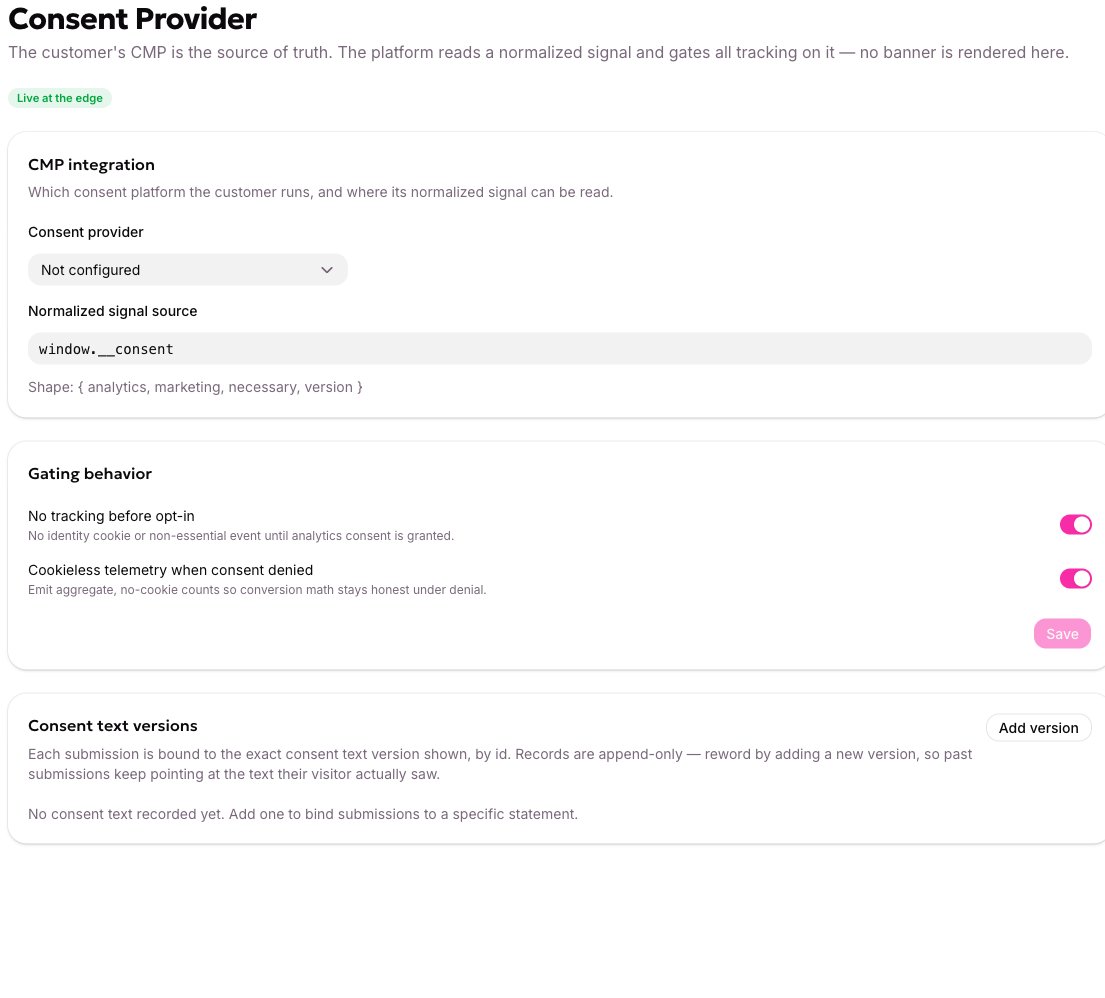
The Consent Provider settings, with the signal source and the gating behaviour.
Choose what happens before a visitor answers
1
Open Consent Provider
Open Consent Provider in your account settings.
2
Set the provider label
Choose the platform you actually run from the dropdown, so your team and support have an accurate record.
3
Confirm No tracking before opt-in
Leave No tracking before opt-in on unless your privacy counsel has told you otherwise. On, tracking is held until a visitor answers; off, allGood treats every visitor as already consented.
To confirm it’s actually holding tracking, watch the network tab on your site: tracking requests should stay held until you grant consent in the console, then send. See Set up Web Tracking on your site for the exact console check.
What this doesn’t cover
Three things surprise people, because they don’t behave like the tracking above:- Form submissions are never held for consent. A submission is something the visitor explicitly did, and it rests on a separate basis from analytics tracking.
- A landing page allGood hosts for you records a page view the moment it’s served, before anyone has answered. If a page must not do that under your privacy policy, host it on your own site with the tracking tag installed instead, where the gate does apply.
- A tracked email link click still works and still records, the same way a submission does — the click has to go somewhere either way.
Keep evidence of what visitors agreed to
Each consent text version you add is a permanent record: an id, a label, and the exact wording a visitor saw. Bind one to a form, and allGood stamps its id onto every accepted submission — automatically, and from allGood’s own record, not from whatever the page happened to send. That’s what makes it evidence you can point to later, rather than a claim.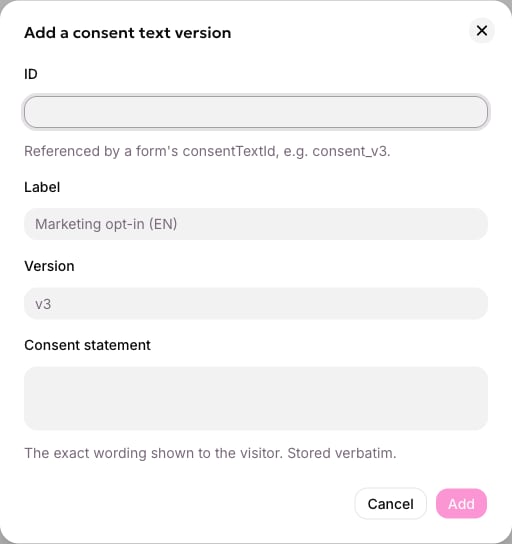
Adding a consent text version, with its id, label, version and the exact statement shown.
The list only grows. To change your wording, add a new version rather than editing the old one — that way, a submission from six months ago still points at the exact text its visitor actually agreed to.
If tracking never seems to fire
- Nothing sends, ever. Your bridging snippet likely isn’t writing the signal at all. Confirm with your developer that the console shows a value at the expected path.
- Nothing sends until you reload the page after answering. This is expected — a later yes takes effect on the next page load, not retroactively on the one already open.
- Forms aren’t submitting. Consent isn’t the cause — see Set up Web Tracking on your site or the Web Edge FAQ instead.
Related articles
- Set up Web Tracking on your site
- Web Edge FAQ
- Need the exact bridging code for OneTrust or Cookiebot, or the full gating matrix? See the developer reference: Consent provider and What consent gates.