

Prerequisites
Before setting up the Asana integration with Mary, ensure you have:- Asana Account with admin permissions to create users and manage integrations
- Access to email for the dedicated Asana user account verification
- Mary’s profile picture for account setup (download link)
- allGood account with integration permissions
IT Coordination Guide
Security & Account Setup Requirements
- Create a dedicated Asana user account for Mary with appropriate permissions
- Include Mary’s profile picture during account setup for user identification
- Use a monitored email address for the service account (not personal email)
- Webhook configuration required for task collaboration notifications
- Store credentials securely according to company policy
Step-by-Step Setup
1
Create Dedicated Mary Asana Account
- Log into Asana with admin access
- Navigate to Admin Console → Members
- Click Invite Members
- Set up Mary’s account:
- Email: Use monitored team email address
- Name: Mary (allGood)
- Profile Picture: Upload Mary’s picture

Asana profile page for Mary
- Send invitation and complete verification process
2
Connect Integration in allGood
- Log into allGood and navigate to Settings → Integrations
- Click Add Integration and select Asana
- Click Connect Asana Account
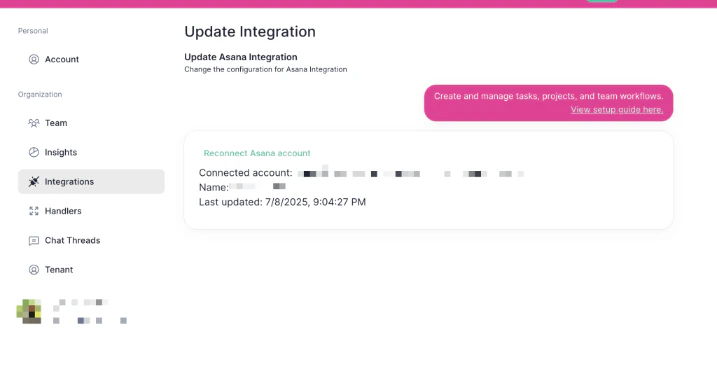
Asana OAuth authorization screen
- Sign in using the dedicated Mary Asana account credentials
- Authorize allGood to access your Asana workspace
- Verify the integration shows as Active on your integrations page
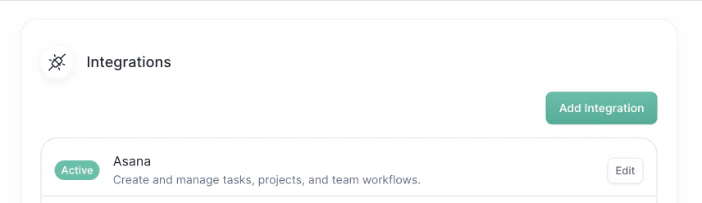
allGood integrations page with Asana marked as Active
3
Configure Webhook for Task Collaboration
The allGood team will work with your IT team to ensure that this is done properly — please reach out and we can collaborate on this.
Screenshot: allGood webhook configuration screen for Asana
- In allGood, navigate to the Asana integration settings
- Click Configure Webhook
- Select your Asana workspace from the dropdown
- Enable task collaboration notifications
- Save webhook configuration
Screenshot: allGood webhook configuration screen for Asana
4
Add Mary to Asana Projects
- In Asana, navigate to the projects where you want Mary available
- Click Share on each project
- Add Mary’s account as a project member
- Set appropriate permissions (typically “Editor” or “Commenter”)
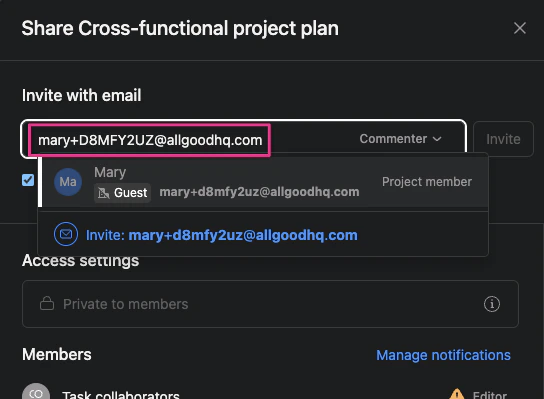
Asana project sharing dialog with Mary added as member
Verification & Testing
If Asana shows “Active” status in allGood integrations, Mary was able to connect successfully. Create a test task in Asana and add Mary as a collaborator to confirm the integration and webhook are working properly.Frequently Asked Questions
Do I need admin permissions in Asana?
Do I need admin permissions in Asana?
Yes, you need admin permissions in your Asana workspace to set up the integration and create the necessary service accounts.
How do I authenticate with Asana?
How do I authenticate with Asana?
The integration uses OAuth 2.0 authentication. You’ll need to authorize allGood to access your Asana workspace during the setup process.
Can I sync specific projects only?
Can I sync specific projects only?
Yes, you can configure the integration to sync only specific projects, teams, or workspaces based on your needs.
How often does data sync between systems?
How often does data sync between systems?
Data synchronization occurs in real-time for most operations, with some bulk operations running on scheduled intervals.
What happens if there's a sync conflict?
What happens if there's a sync conflict?
The integration includes conflict resolution mechanisms that prioritize recent changes and provide audit trails for all modifications.
Troubleshooting
Why aren't my tasks syncing?
Why aren't my tasks syncing?
Common causes include:
- Insufficient permissions
- API rate limits
- Network connectivity issues
- Incorrect field mappings
How do I check sync status?
How do I check sync status?
You can monitor sync status through the integration dashboard, which shows recent sync activities and any errors.
Where can I get help?
Where can I get help?
- Review this page for setup steps and common issues
- Contact our support team for technical assistance