

Prerequisites
Before setting up the Google integration with Mary, ensure you have:- Google Workspace account with admin permissions to create service accounts
- IT department coordination for creating dedicated Google accounts
- allGood account with integration permissions
IT Coordination Guide
Security & Account Setup Requirements
- Create a dedicated Google Workspace account for Mary (e.g., mary-allgood-yourcompany@yourcompany.com)
- Configure appropriate Google Workspace services (Drive, Docs, Sheets)
- Set up folder structure with proper sharing permissions
- Mary account needs at least “Viewer” access to files for integration use
Step-by-Step Setup
1
Create Dedicated Mary Google Account
- Work with your IT department to create a new Google Workspace account
- Account format: mary-allgood-yourcompany@yourcompany.com
- Configure services: Enable Google Drive, Docs, and Sheets access
- Set security settings according to company policy
2
Set Up Folder Structure
- Create main folder in Google Drive called “allGood”
- Create subfolders for organization:
allGood
Projects
Project A
Project B
Project C
Briefing Docs
Templates
Shared Resources
3
Configure Folder Permissions
- Right-click the “allGood” folder
- Click Share
- Add the Mary account email address
- Set permissions to “Editor” access
- Check “Notify people”
- Important: Check “Make available to people with access”
Google Drive sharing dialog with Mary account and Editor permissions
4
Connect Integration in allGood
- Log into allGood and navigate to Settings → Integrations
- Click Add Integration and select Google
- Click Connect Google Account
- Sign in using the dedicated Mary Google account credentials
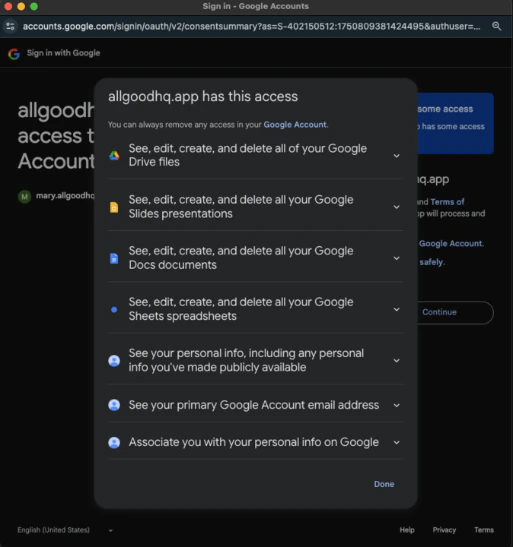
- Review and accept the required access scope permissions
- Verify the integration shows as Active on your integrations page

allGood integrations page with Google marked as Active
Verification & Testing
If Google shows “Active” status in allGood integrations, Mary was able to connect successfully. Ask Mary to retrieve content from a Google Doc in your shared folder to confirm the integration is working properly.Frequently Asked Questions
What Google services are supported?
What Google services are supported?
The integration supports Gmail, Google Drive, Google Calendar, Google Sheets, and other Google Workspace services.
Do I need a Google Workspace account?
Do I need a Google Workspace account?
While a Google Workspace account is recommended for full functionality, many features work with regular Google accounts.
How do I authenticate with Google services?
How do I authenticate with Google services?
The integration uses OAuth 2.0 authentication. You’ll need to authorize allGood to access your Google services during setup.
Can I limit which Google services are accessed?
Can I limit which Google services are accessed?
Yes, you can configure specific scopes and permissions to limit access to only the Google services you want to integrate.
How is my data stored and secured?
How is my data stored and secured?
All data is encrypted in transit and at rest. We follow Google’s security best practices and maintain SOC 2 compliance.
What are the API rate limits?
What are the API rate limits?
Google imposes various rate limits on their APIs. The integration includes intelligent rate limiting to ensure smooth operation.
Troubleshooting
Why am I getting authentication errors?
Why am I getting authentication errors?
Common causes include:
- Expired OAuth tokens
- Changed Google account passwords
- Insufficient permissions
- API access restrictions
How do I resolve sync issues?
How do I resolve sync issues?
Check your internet connection, verify API quotas, review error logs, and ensure proper permissions are configured.
Where can I get help?
Where can I get help?
- Review this page for setup steps and common issues
- Contact our support team for technical assistance