

Prerequisites
Before setting up the Workfront integration with Mary, ensure you have:- Adobe Workfront account with admin permissions to create OAuth applications
- IT department coordination for creating OAuth2 applications
- allGood (Mary) account with any Access Level with at least these permissions:
- View Projects
- View Tasks
- View Documents
- View Users (make sure that the fine-tune setting of “View Contact Info” is turned on)
- Inbox access to the allGood (Mary) account to receive verification codes
Configuring Access Levels
Navigate to Setup > Access Levels in Workfront.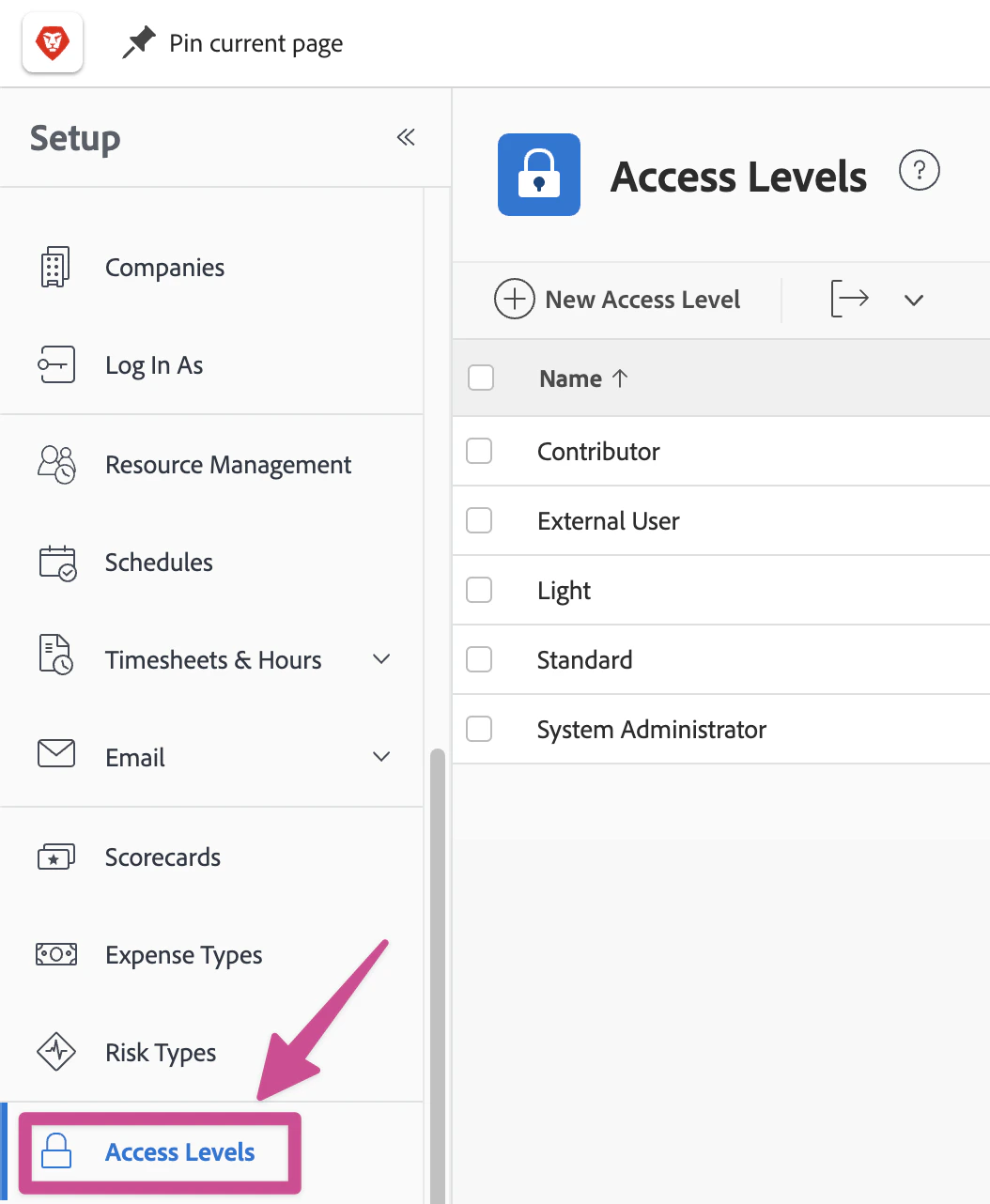
Navigate to Setup > Access Levels
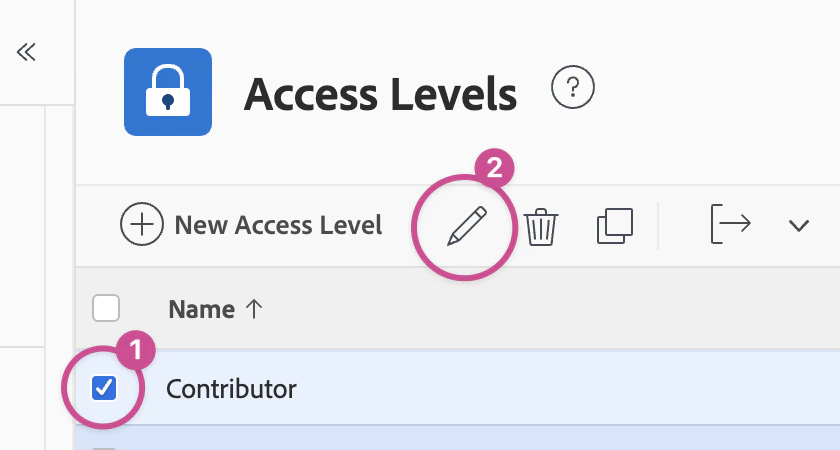
Select and edit the Contributor access level
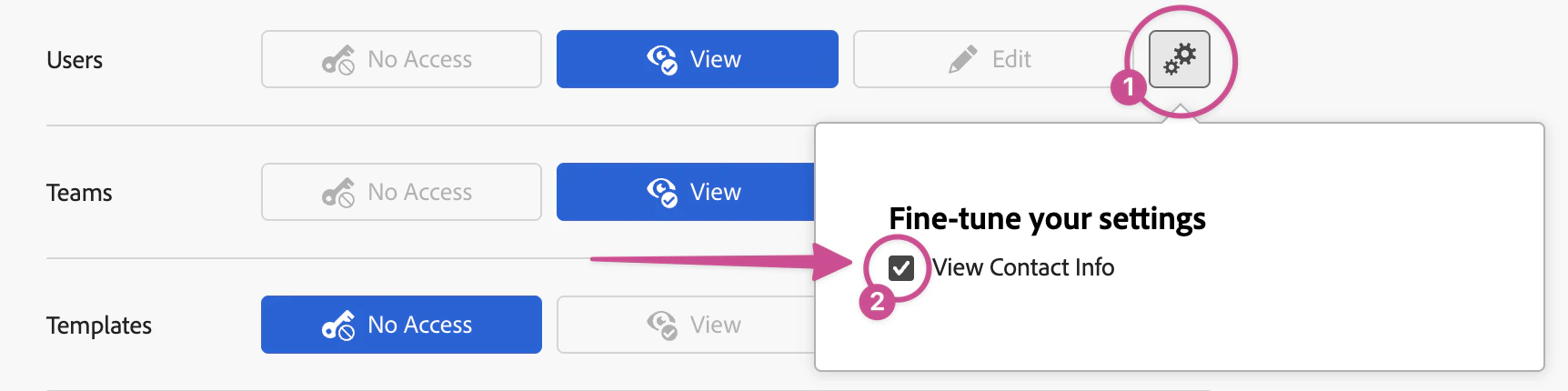
Enable 'View Contact Info' in the fine-tune settings for Users
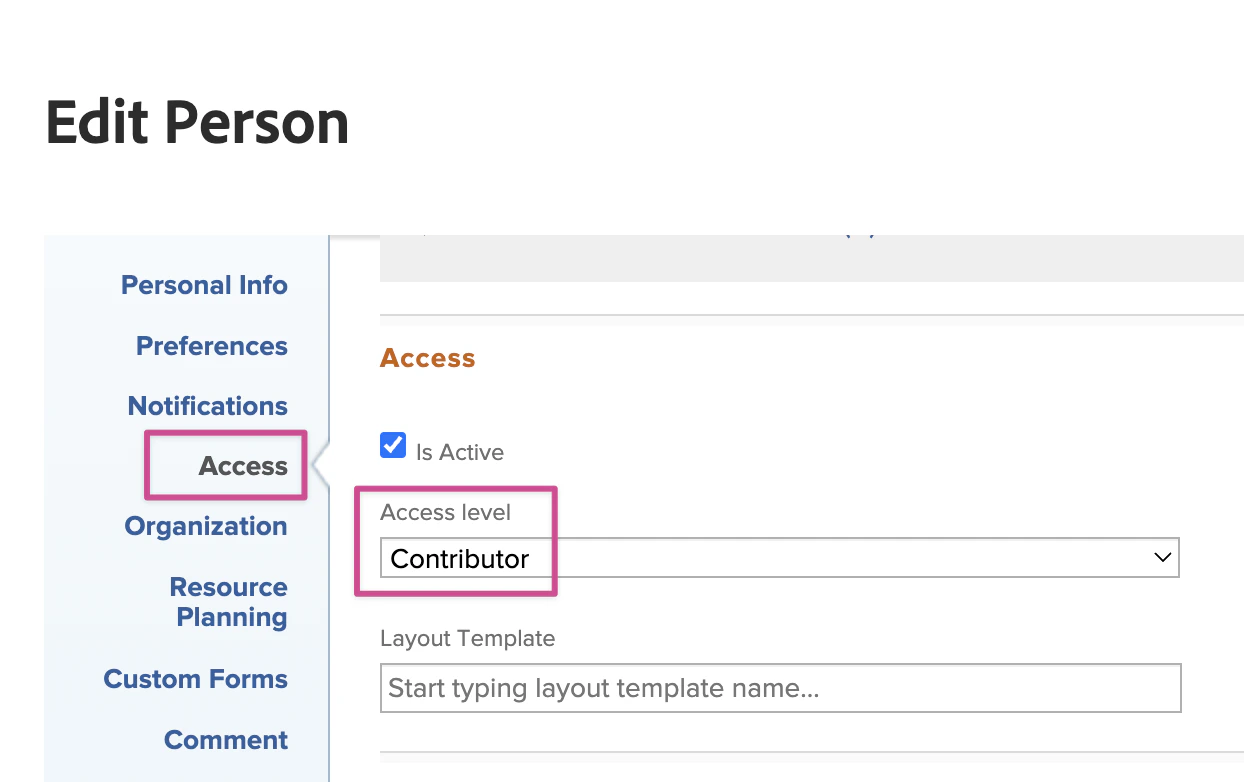
Set the Mary account's access level to Contributor
IT Coordination Guide
Security & Account Setup Requirements
- Create a dedicated OAuth2 single-page web application in your Workfront instance
- Configure application with appropriate permissions for allGood integration
- Collect required credentials: Client ID, Client Secret, and Organization Domain
- Store credentials securely according to company policy
- Have inbox access to the allGood (Mary) account to receive verification codes
Step-by-Step Setup
Create OAuth2 Application in Workfront
- Navigate to Setup > System > OAuth2 Applications
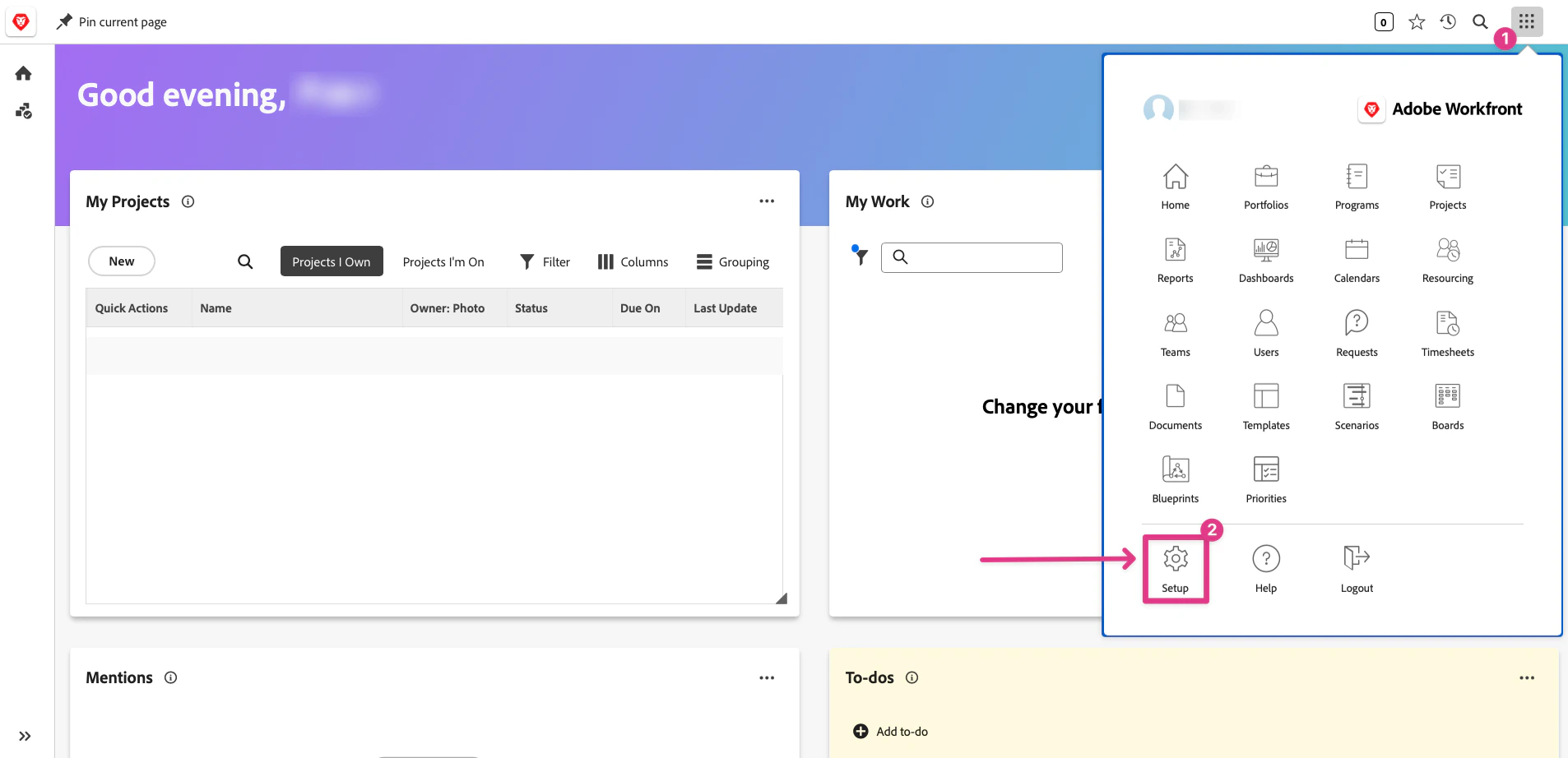
Navigate to Setup in Workfront
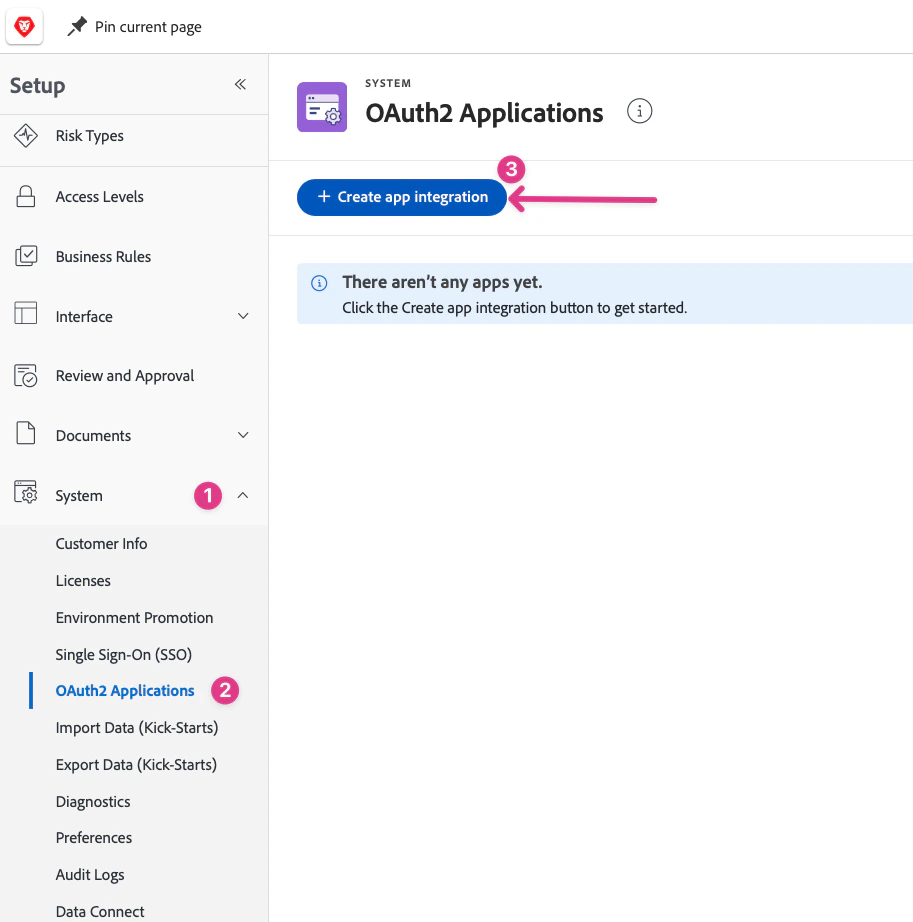
Go to Setup > OAuth2 Applications
- Click Create app integration
- Select Web Application
- Enter application name (e.g., “allGood Integration”) and click Create
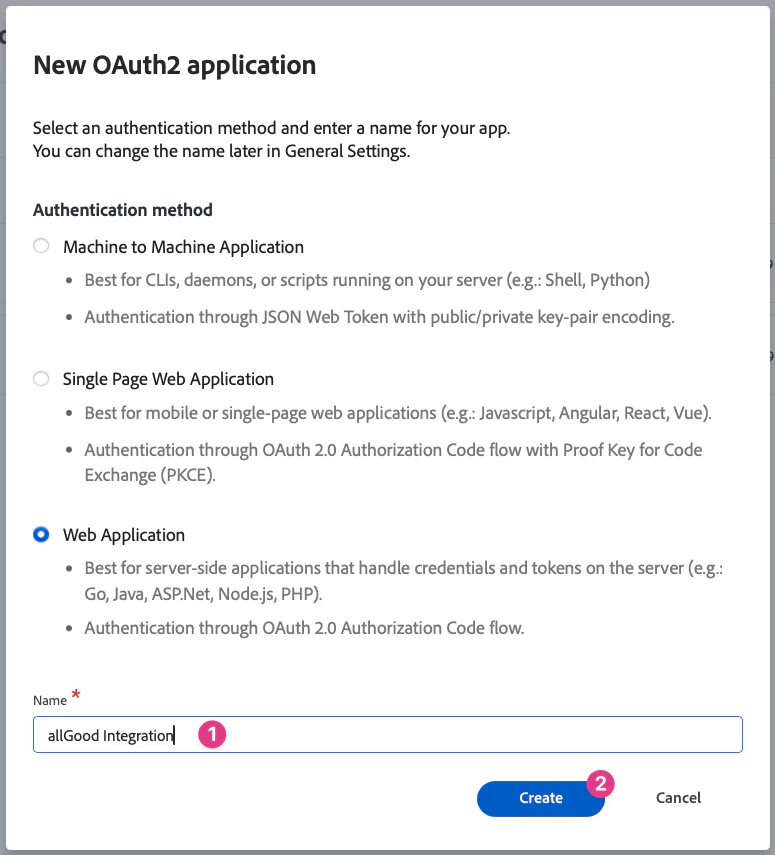
Select Web Application
- Copy the Client ID and Client Secret — make sure to keep these in a safe location until the integration is complete
- Enter the Redirect URI:
https://allgoodhq.app/oauth2/workfront/callback
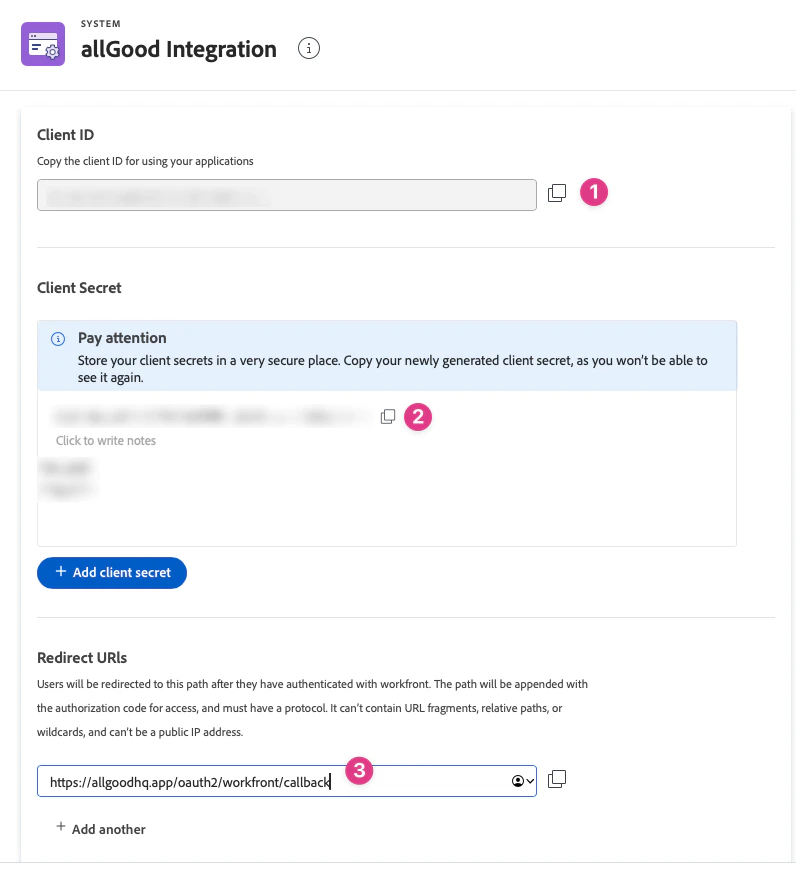
Copy Client ID, Client Secret, and enter the Redirect URI
- Add the allGood logo to the application
- Add link to privacy policy:
https://www.allgoodhq.com/privacy-policy - Click Save
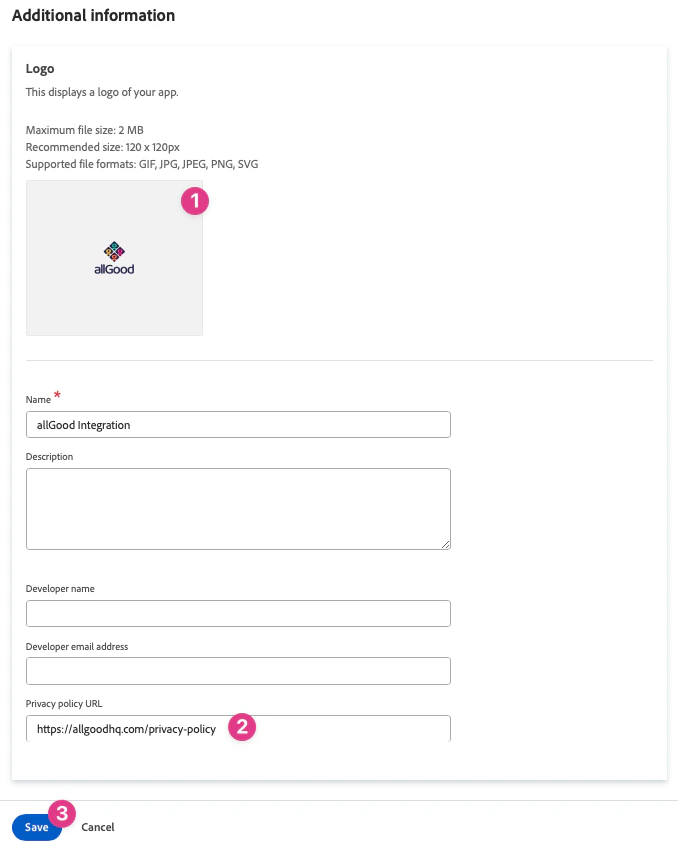
Add the allGood logo, privacy policy URL, and save
- Client ID
- Client Secret
- Organization Domain (e.g., your-company.my.workfront.com)
Configure Integration in allGood
- Log into allGood and navigate to Settings > Integrations
- Click Add Integration and select Workfront
- Enter the credentials from Step 1:
- Client ID
- Client Secret
- Organization Domain
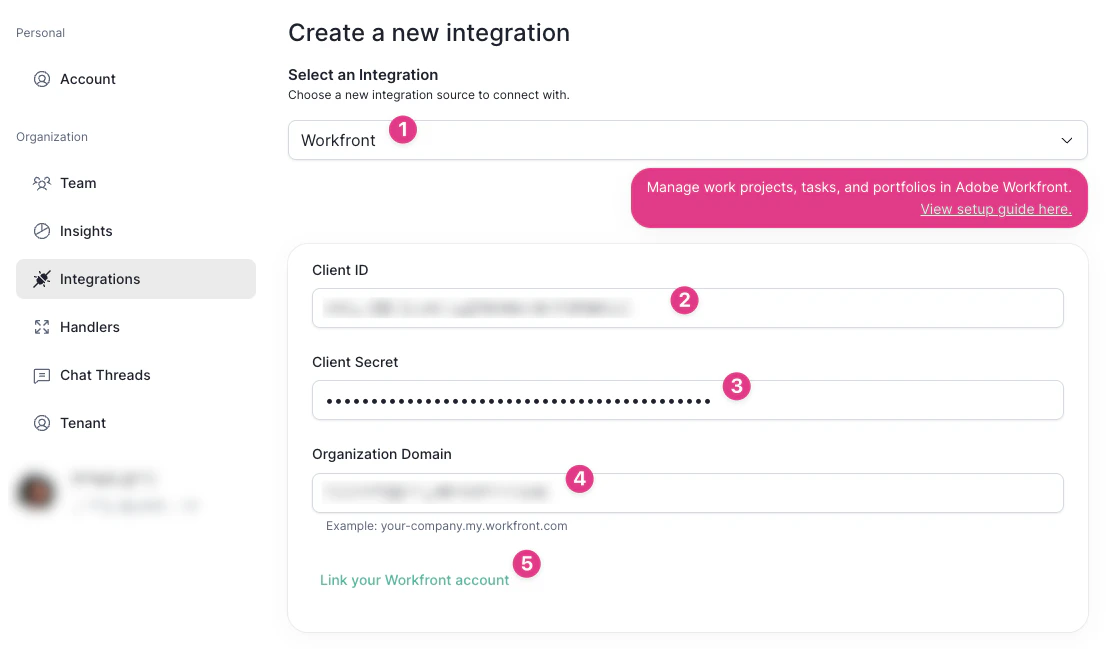
allGood Workfront integration form with credential fields
Complete OAuth Connection
- After saving credentials, click Link your Workfront Account
- Make sure to keep your Client ID and Client Secret — you’ll need them again later
- Sign in using your Workfront Admin credentials
- Authorize allGood to access your Workfront instance
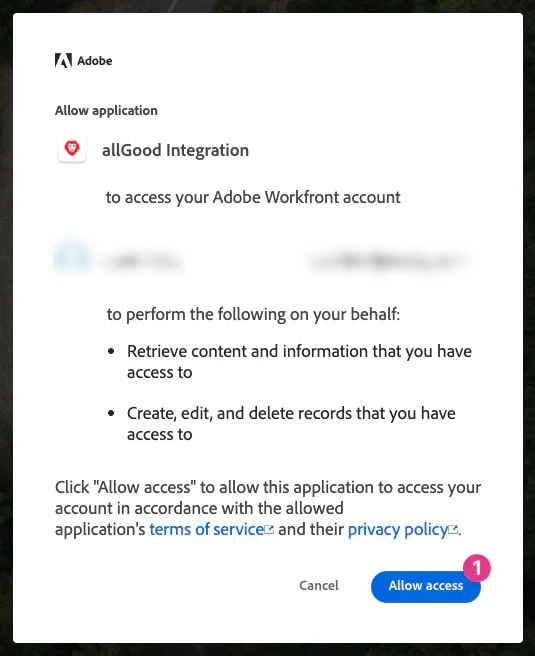
Workfront OAuth authorization screen
- Verify the integration shows as Active on your integrations page in allGood
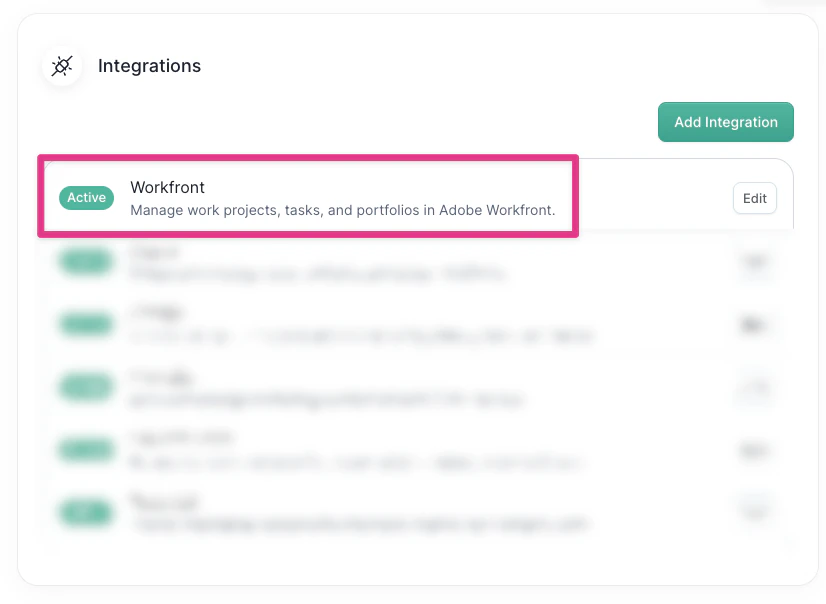
Workfront integration showing Active status in allGood
Configure Subscriptions
- Click Edit on the Workfront Integration
- Click Subscribe in the Event Subscriptions section — this will automatically configure the subscriptions necessary for allGood to access your Workfront instance
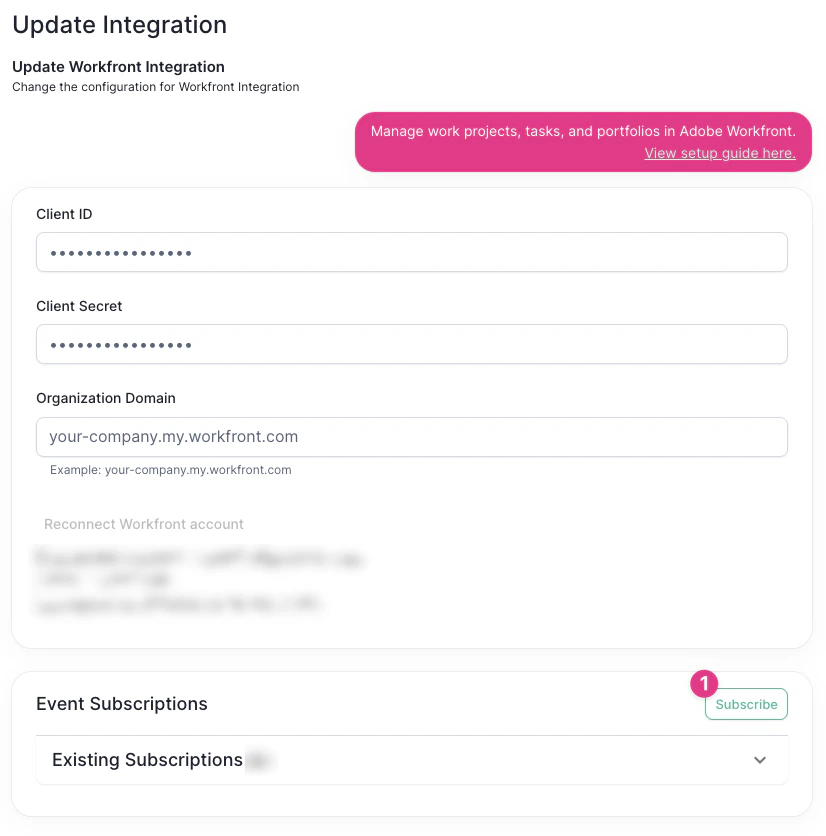
Click Subscribe in the Event Subscriptions section
- Verify that the two subscriptions were created
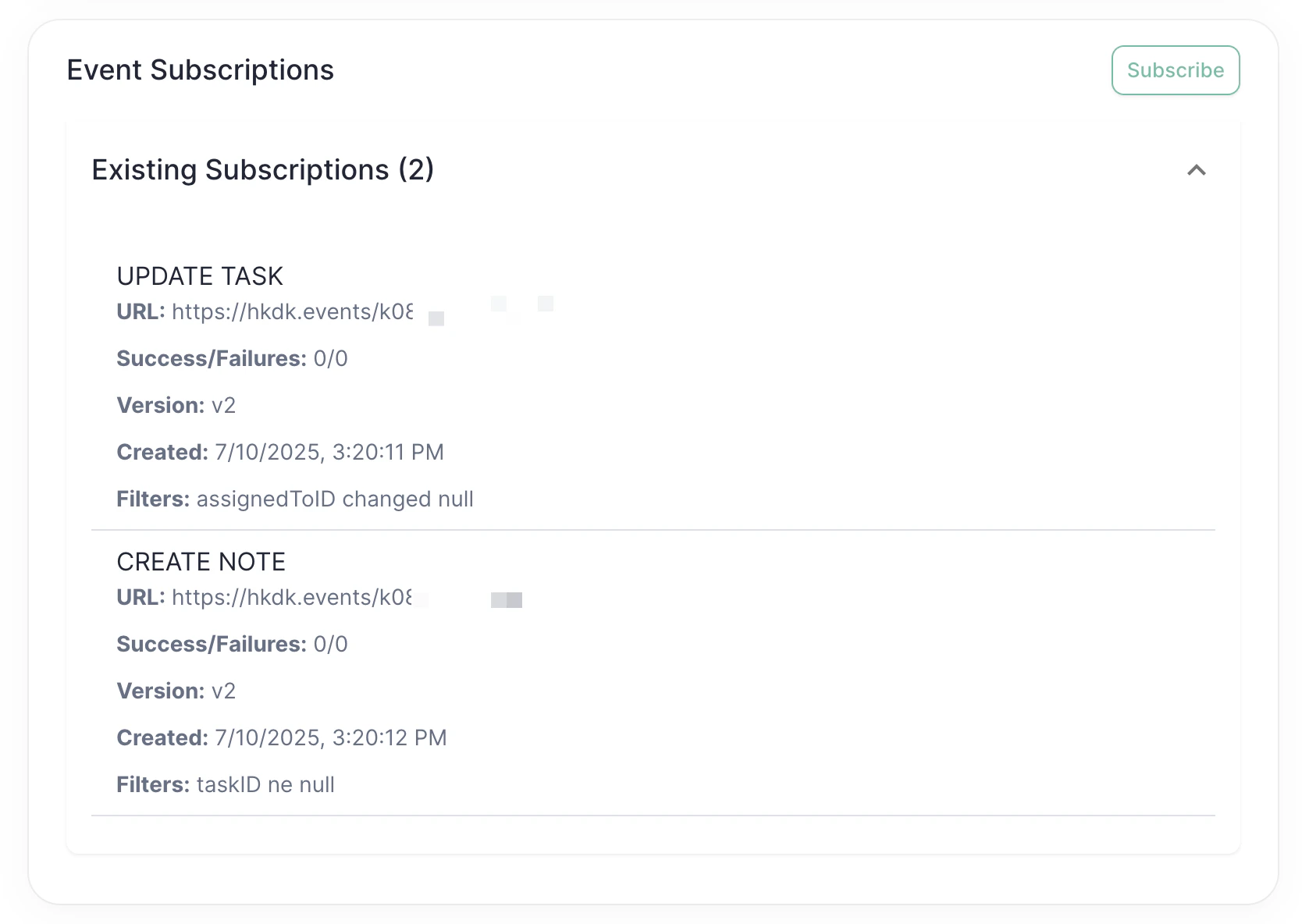
Verify the two Event Subscriptions were created
Reconnect with Mary Account
- Re-enter your Client ID and Client Secret and click Link your Workfront Account
Re-enter credentials to link the Mary account
- Sign in using your allGood (Mary) account credentials
- This is what gives Mary access to work on specific tasks assigned to her
Verification & Testing
If Workfront shows “Active” status in allGood integrations, Mary was able to connect successfully.Simple Test
To confirm the integration is working properly in Workfront:- Create a task specifically named “Confirming Mary Access”
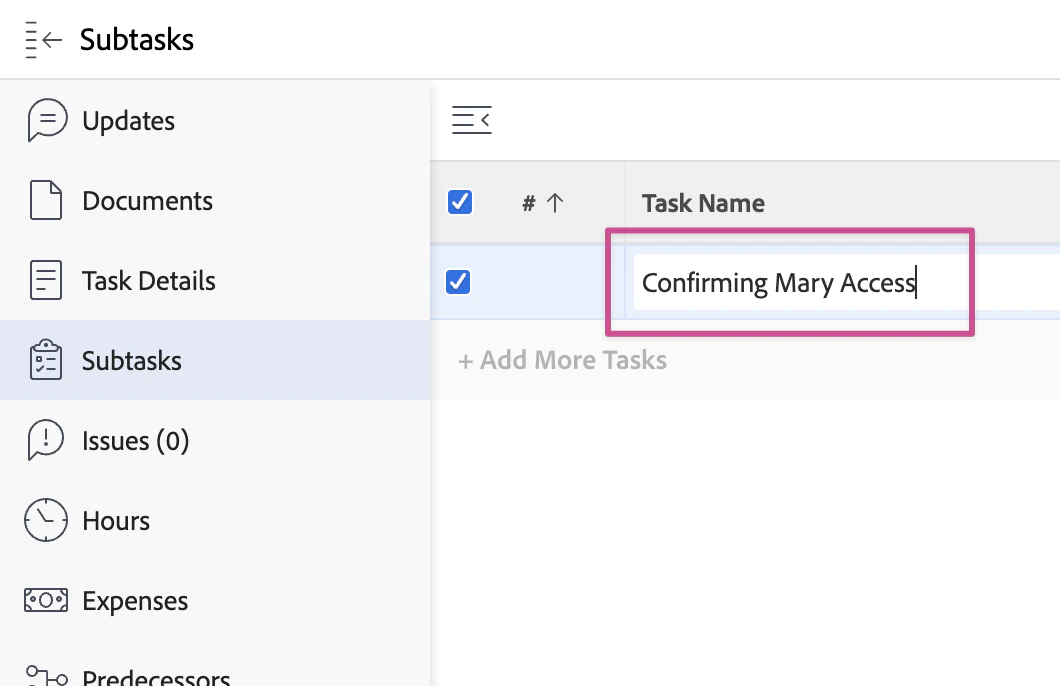
Create a 'Confirming Mary Access' task in Workfront
- Assign Mary to the task
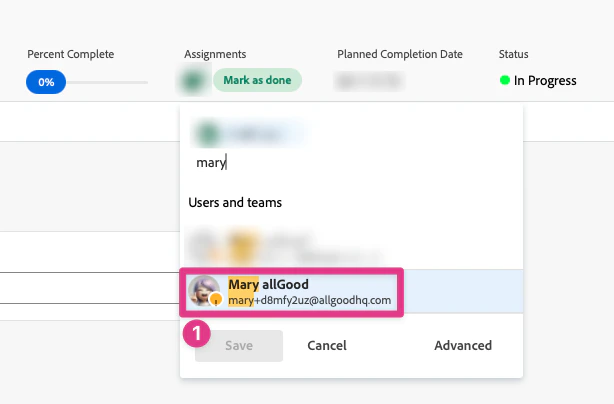
Assign Mary to the task
- Look for a note left by Mary saying “Access confirmed. Thank you!” in the Updates page
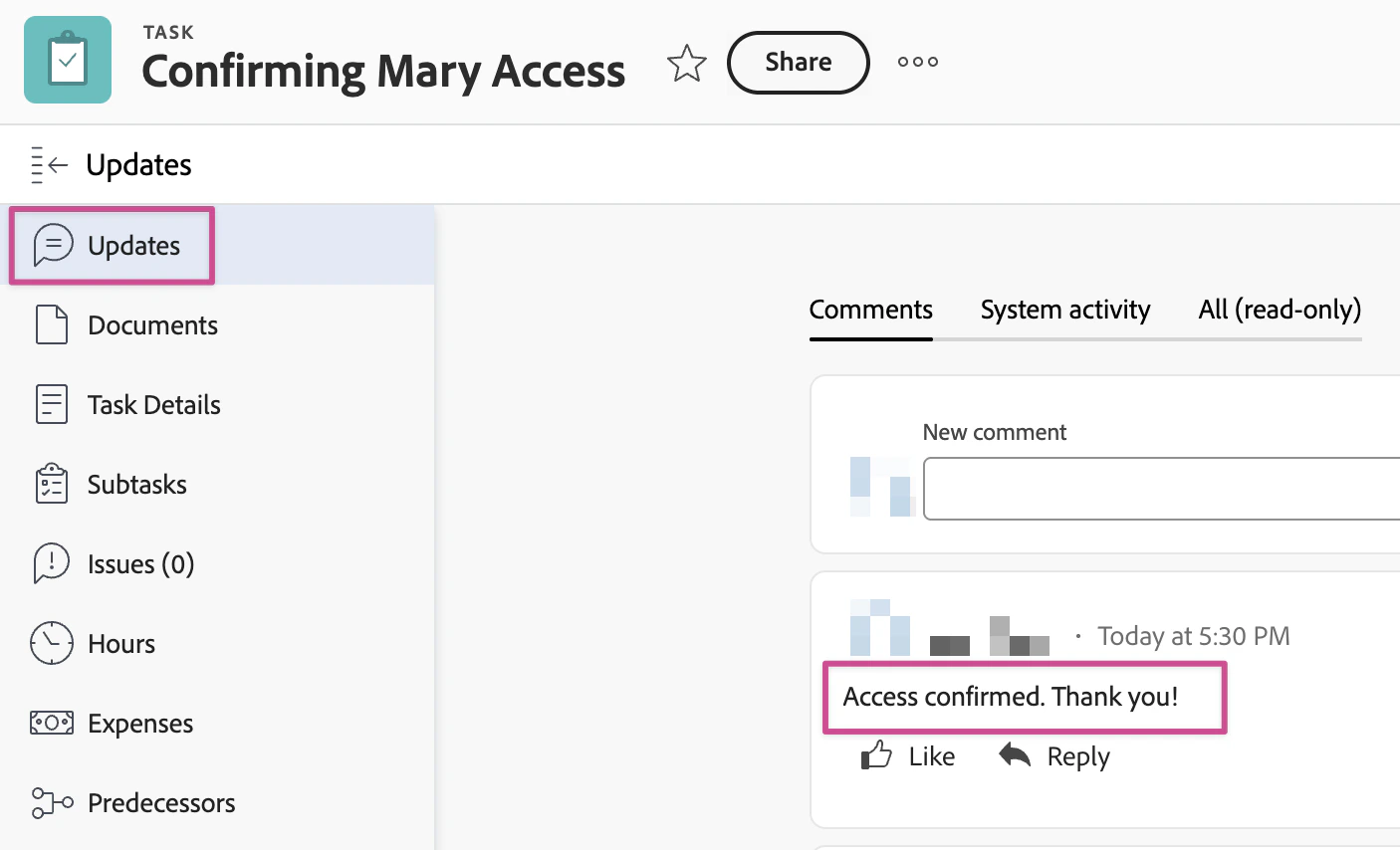
Mary confirms access in the task Updates
Frequently Asked Questions
Do I need admin access to Workfront?
Do I need admin access to Workfront?
How do I authenticate with Workfront?
How do I authenticate with Workfront?
https://allgoodhq.app/oauth2/workfront/callback.Why do I need to connect twice (Steps 3 and 5)?
Why do I need to connect twice (Steps 3 and 5)?
Can I sync specific projects only?
Can I sync specific projects only?
What Workfront objects are supported?
What Workfront objects are supported?
How does resource management sync?
How does resource management sync?
Troubleshooting
Why aren't my projects syncing?
Why aren't my projects syncing?
- Insufficient user permissions
- API access restrictions
- Network connectivity issues
- Object-level sharing restrictions
How do I resolve authentication issues?
How do I resolve authentication issues?
I'm being asked for a verification code when connecting the Mary account
I'm being asked for a verification code when connecting the Mary account
Where can I get help?
Where can I get help?
- Review this page for setup steps and common issues
- Contact our support team for technical assistance