

Prerequisites
Before setting up the HubSpot integration with Mary, ensure you have:- HubSpot Account with either super admin permissions or App Marketplace Access permissions
- Access to email for the dedicated HubSpot user account verification
- allGood account with integration permissions
IT Coordination Guide
Security & Account Setup Requirements
- Create a dedicated HubSpot user account with appropriate permissions for integration use
- User needs super admin or App Marketplace Access permissions to install the integration
- Use a monitored email address for the service account (not personal email)
- Store credentials securely according to company policy
Step-by-Step Setup
1
Create Dedicated HubSpot User (Recommended)
- Log into HubSpot with admin access
- Navigate to Settings → Users & Teams
- Click Create User
- Set up user with appropriate permissions (super admin or App Marketplace Access)
- Use a monitored team email address
- Complete user verification process
2
Connect Integration in allGood
- Log into allGood and navigate to Settings → Integrations
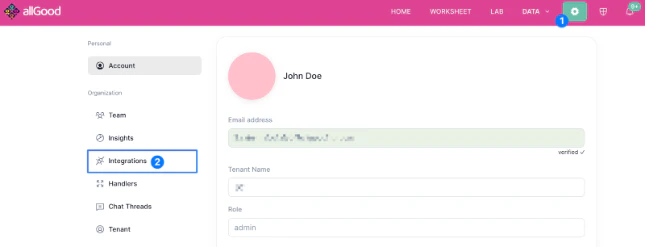
allGood settings page
- Click Add Integration and select HubSpot
- Select the use-case for pre-configured scopes, or choose them using the dropdown
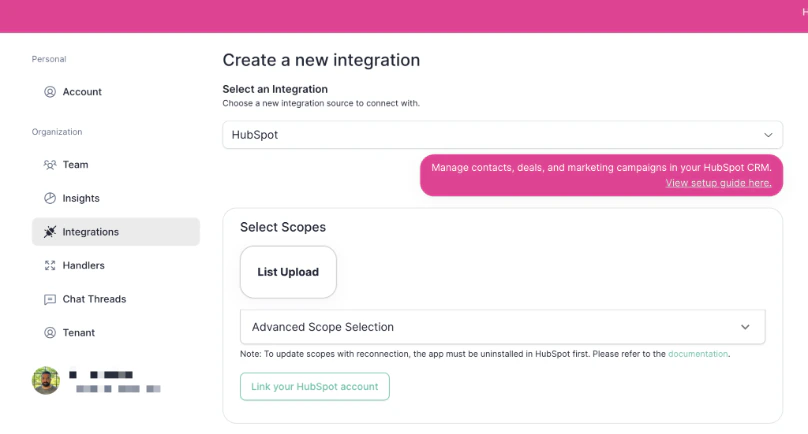
allGood HubSpot integration page with Select Scopes
- Click Connect HubSpot Account
- Sign in using the dedicated HubSpot user credentials created above
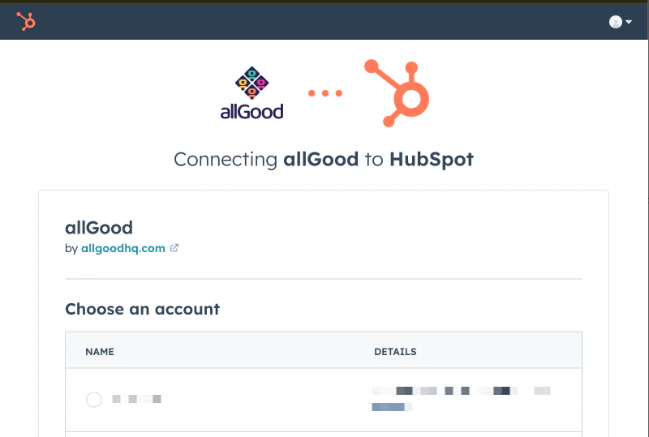
HubSpot login screen popup
- Verify the integration shows as Active on your integrations page
3
Reconnecting with Different Scopes (If Needed)
If you need to update integration scopes by adding/removing them: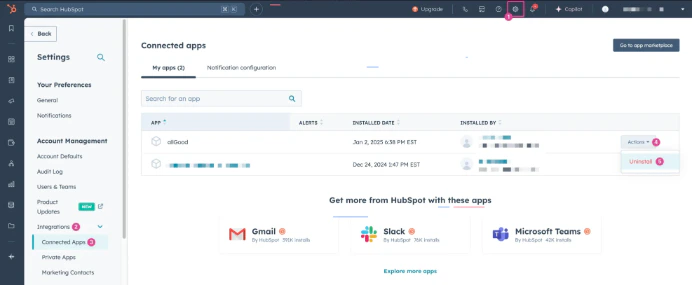
- First, uninstall the app in HubSpot:
- Go to HubSpot Account Management → Integrations → Connected Apps
- Select Action → Uninstall
HubSpot Connected Apps Screen
- Navigate to Settings → Integrations in allGood
- Click Edit next to your HubSpot integration
- Click Reconnect HubSpot Account
- Complete the OAuth flow with updated scopes
Verification & Testing
If HubSpot shows “Active” status in allGood integrations, Mary was able to connect successfully. Ask Mary to retrieve contact lists to confirm the integration is working properly.Frequently Asked Questions
Which HubSpot plan do I need?
Which HubSpot plan do I need?
The integration works with all HubSpot plans, though some advanced features may require Professional or Enterprise subscriptions.
How do I authenticate with HubSpot?
How do I authenticate with HubSpot?
The integration uses OAuth 2.0 authentication with your HubSpot account. You’ll need admin permissions to authorize the connection.
Can I sync custom properties?
Can I sync custom properties?
Yes, the integration supports synchronization of custom properties and fields from your HubSpot account.
What HubSpot objects are supported?
What HubSpot objects are supported?
The integration supports contacts, companies, deals, tickets, products, and custom objects.
How often does data sync?
How often does data sync?
Data synchronization occurs in real-time for most operations, with periodic bulk syncs for large datasets.
Troubleshooting
Why aren't my contacts syncing?
Why aren't my contacts syncing?
Common causes include:
- Insufficient HubSpot permissions
- API rate limits exceeded
- Field mapping configuration issues
- Data validation errors
How do I handle duplicate records?
How do I handle duplicate records?
The integration includes duplicate detection and merge capabilities to maintain data integrity.
Where can I get help?
Where can I get help?
- Review this page for setup steps and common issues
- Contact our support team for technical assistance