

Before you begin
You’ll need:- Administrator access to your Marketo instance
- Permission to create API users in Marketo’s Admin panel
- allGood account with integration permissions
What happens during setup
You’ll create a dedicated API user in Marketo that allGood uses to access your data. This user has no login password — it exists only for API connections. You control exactly what data this user can access by setting its role permissions. The setup process generates four credentials: a Client ID, Client Secret, REST Endpoint URL, and Identity URL. You’ll copy these into allGood to complete the connection. Data access: Once connected, Mary can read Marketo Programs, Smart Campaigns, Smart Lists, and lead records. Mary cannot delete Programs, send emails, or modify Smart Campaign logic. If your organization’s security policy requires IP whitelisting, you’ll add allGood’s IP addresses in Step 5.Steps
Create an API role
- Log into Marketo with administrator access
- Go to Admin → Users & Roles → Roles
- Click New Role
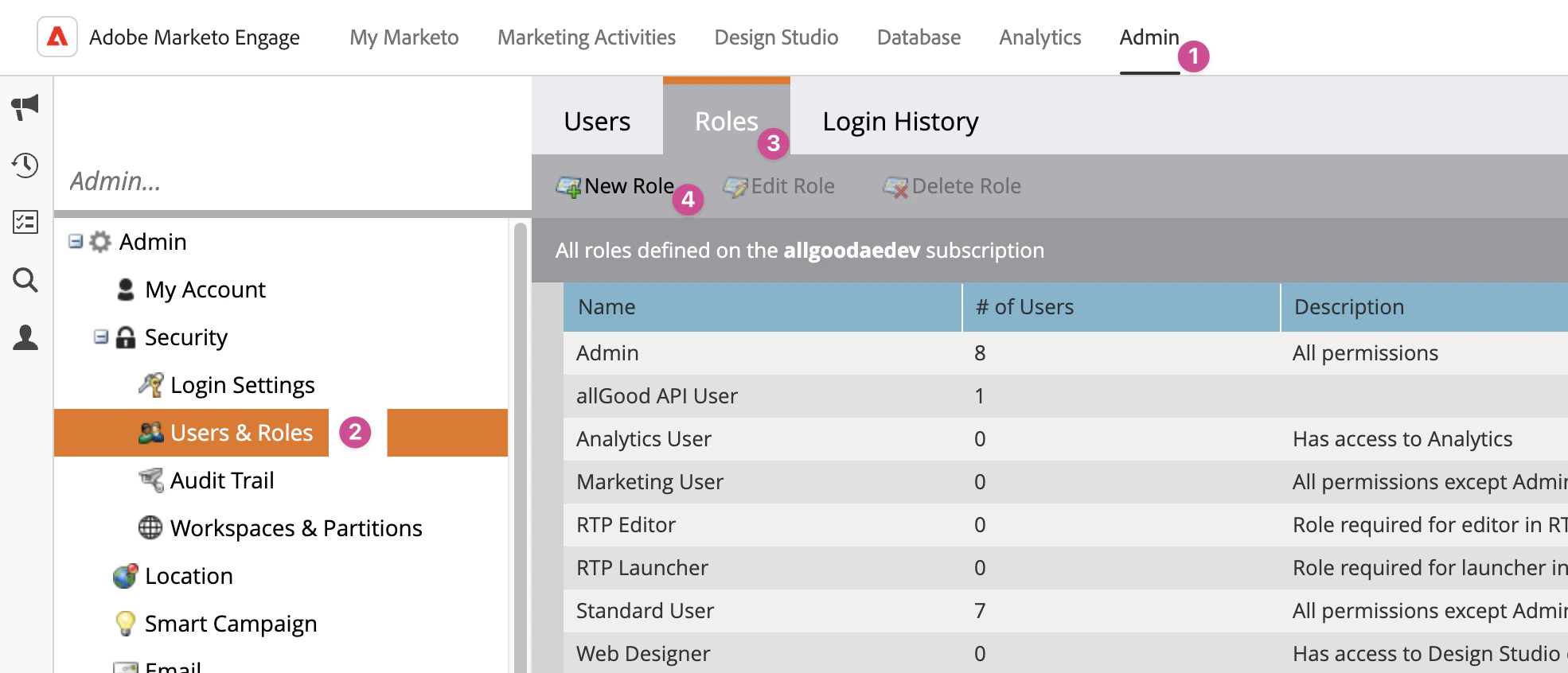
Roles page showing New Role button
- Name the role
allGood API Role - Check the Access API checkbox under API Access
- Click Create
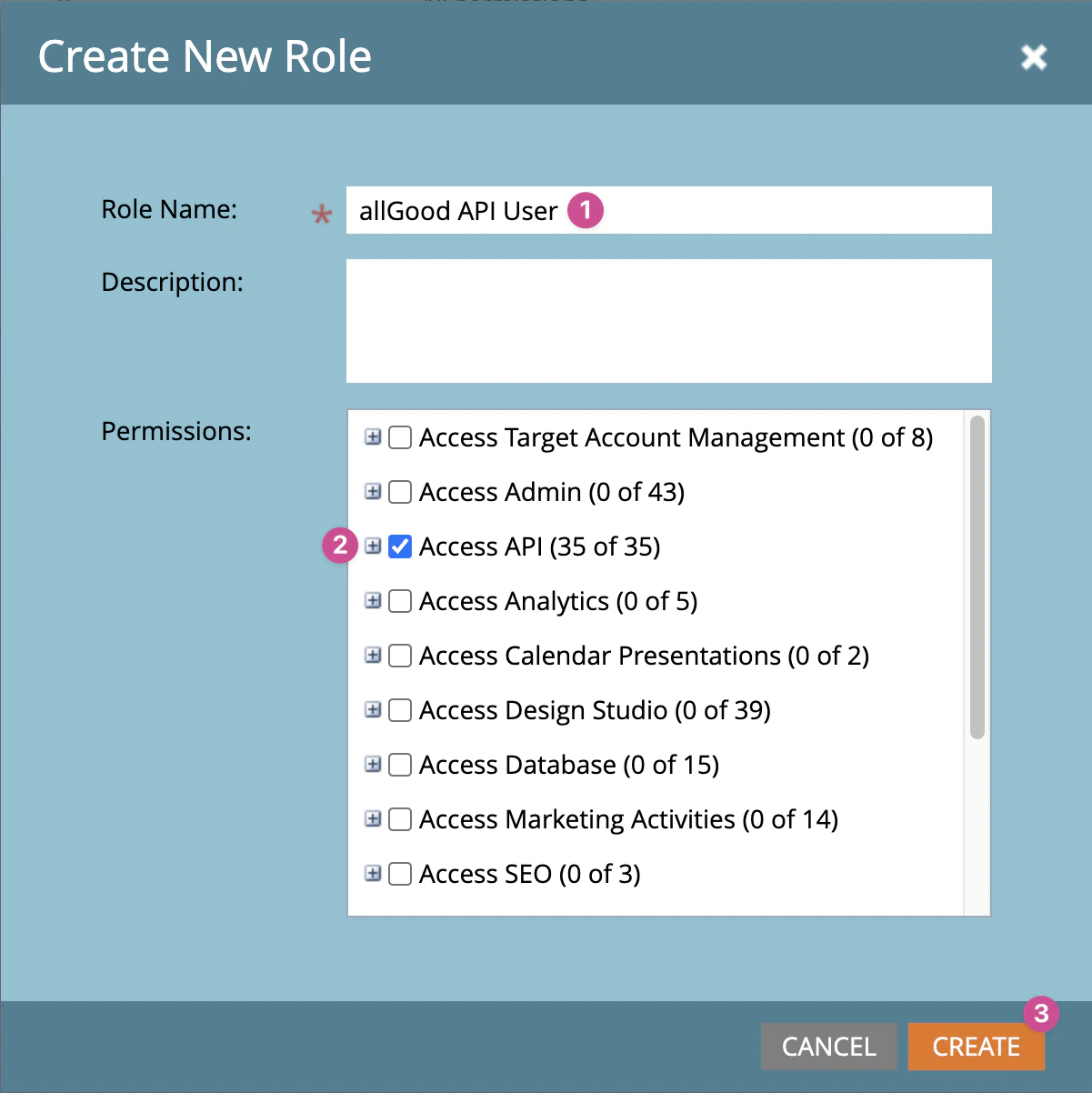
New Role form with API Access enabled
Create an API-only user
- Go to Admin → Users & Roles → Users
- Click Invite New User
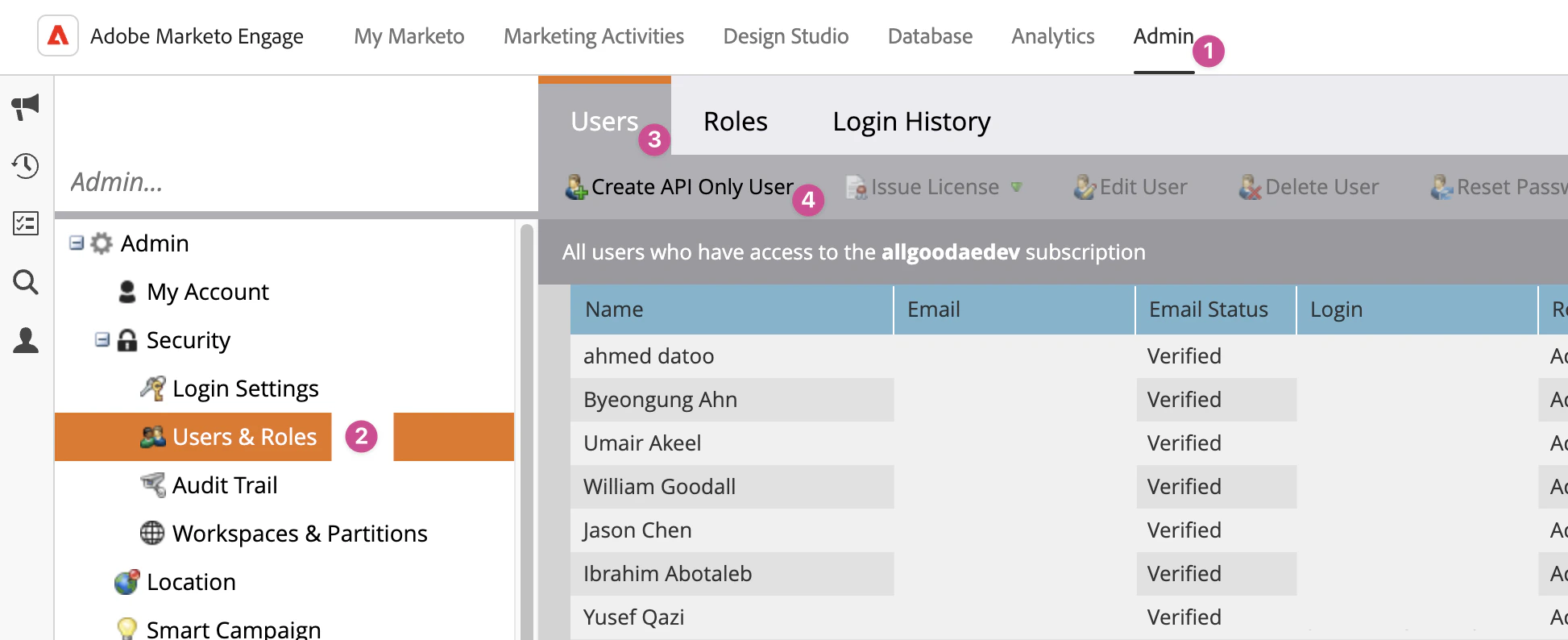
Users page showing Invite New User button
- Enter an email address for the API user (example:
api-allgood@yourcompany.com) - Enter a first and last name (example: “allGood API User”)
- Under User Role, select the
allGood API Roleyou created in Step 1 - Check API Only — this prevents the account from logging into Marketo’s UI
- Click Send Invite
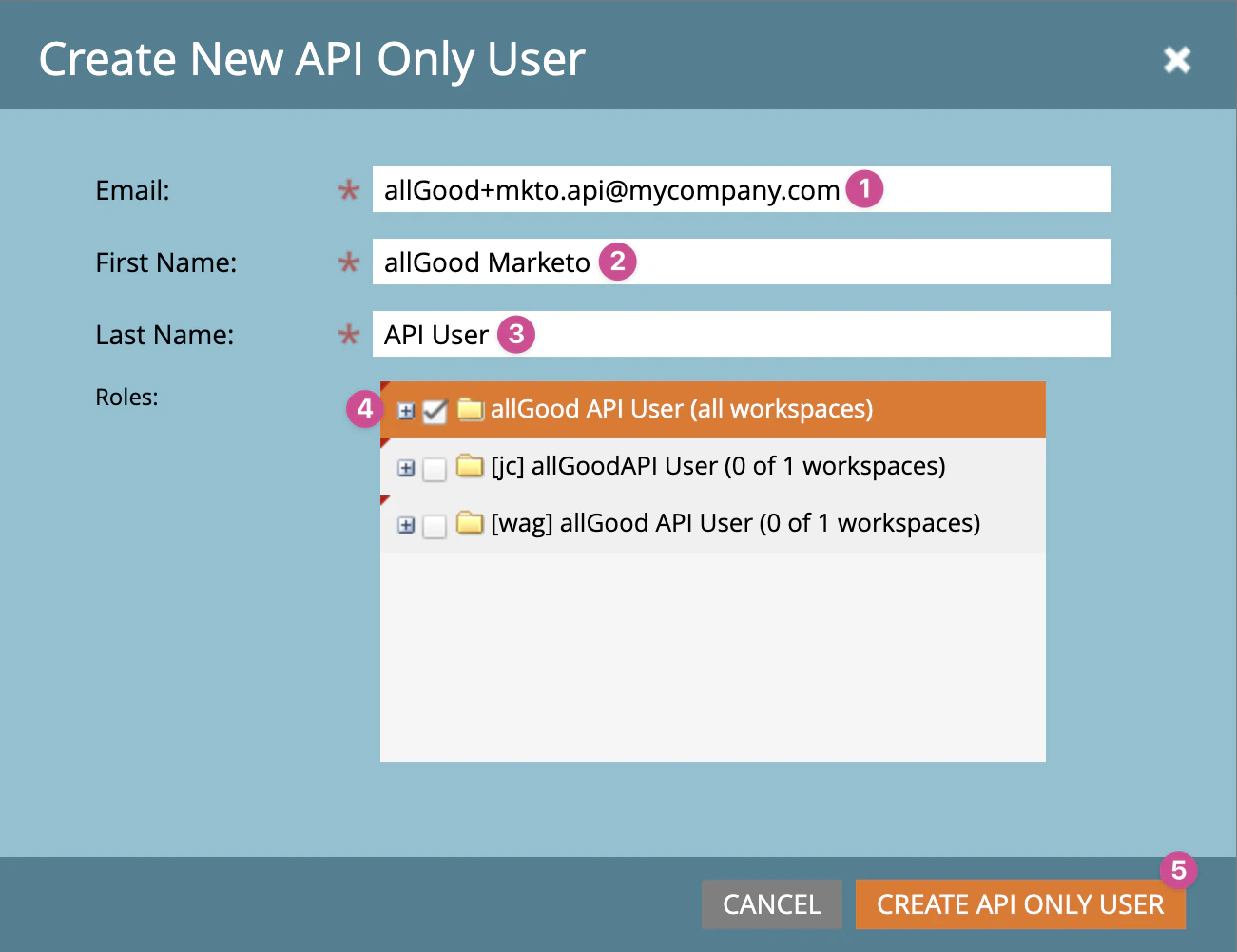
New API User form with role assignment
Create a LaunchPoint service
- Go to Admin → LaunchPoint
- Click New → New Service
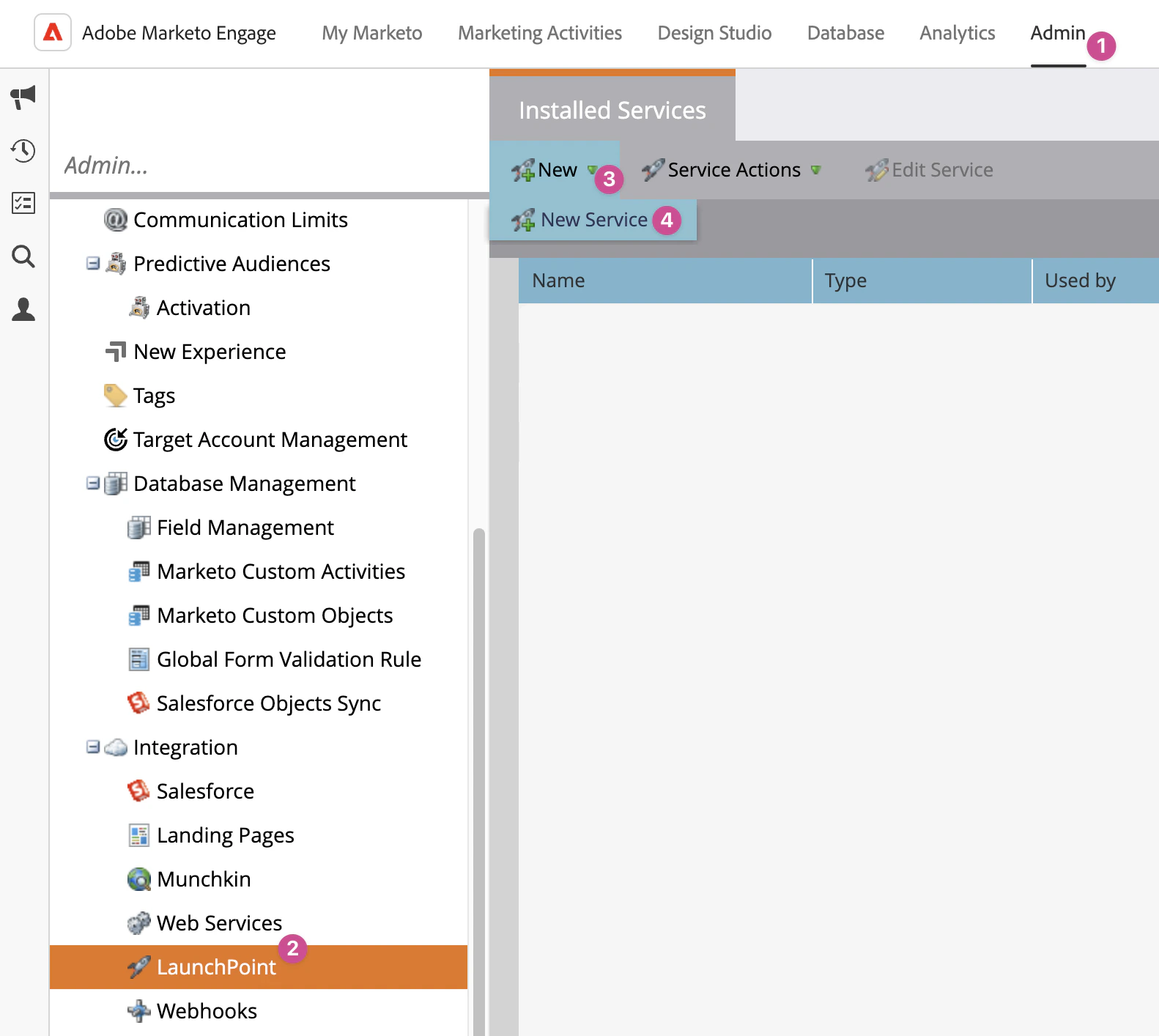
LaunchPoint page showing New Service option
- Configure the service:
- Display Name:
allGood Integration - Service: Select Custom
- Description (optional):
API access for allGood Mary - API User: Select the user you created in Step 2
- Display Name:
- Click Create
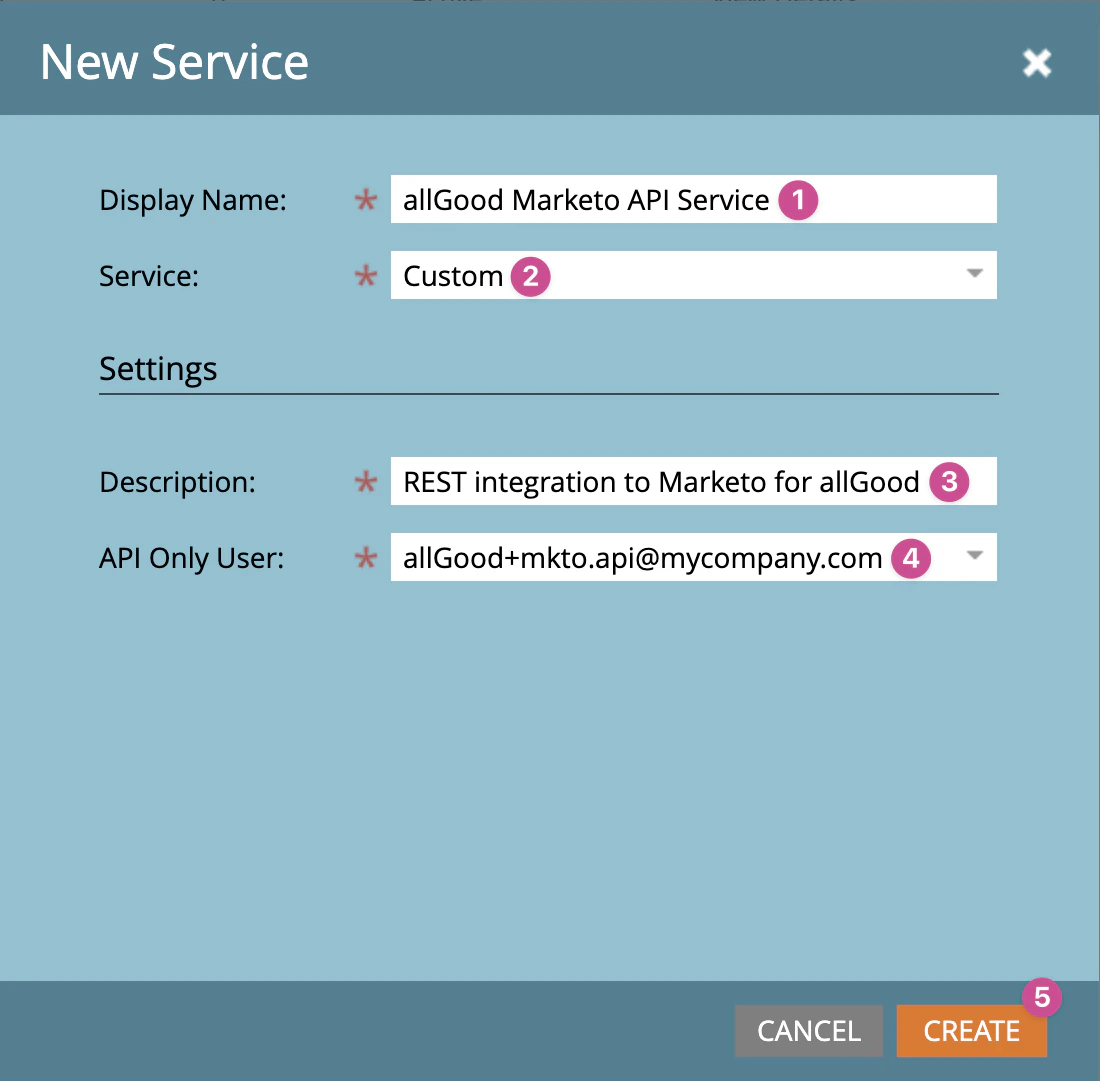
New LaunchPoint form with configuration
Copy your API credentials
- On the LaunchPoint services list, find the
allGood Integrationservice you just created - Click View Details
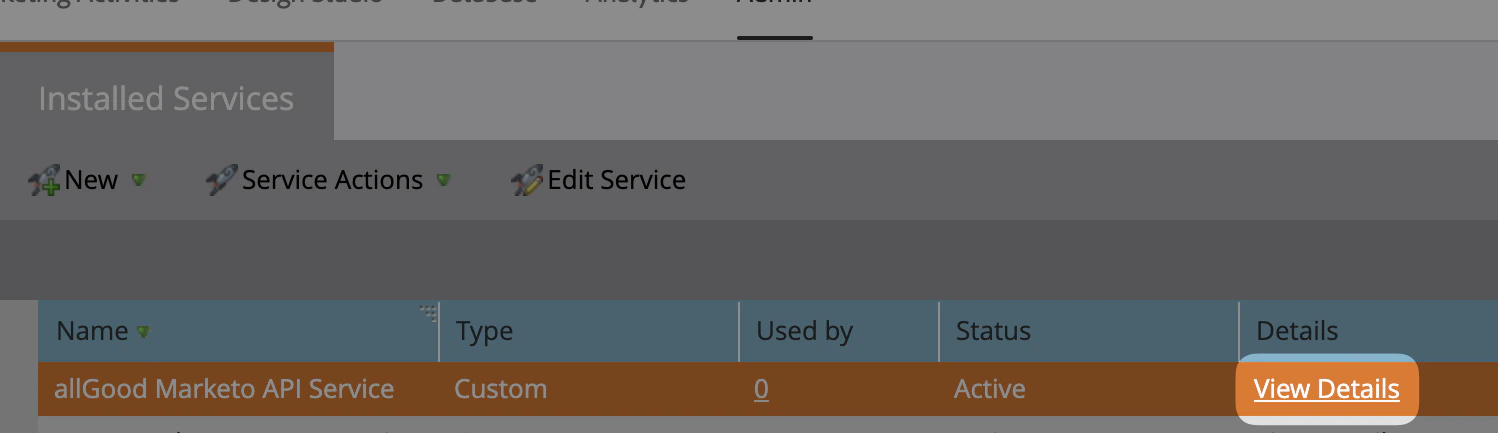
LaunchPoint service list showing View Details link
- Copy the Client ID — it looks like
a1b2c3d4-e5f6-7890-abcd-ef1234567890 - Click Show next to Client Secret, then copy the secret value
- Store both values temporarily in a secure location (you’ll paste them into allGood in Step 6)
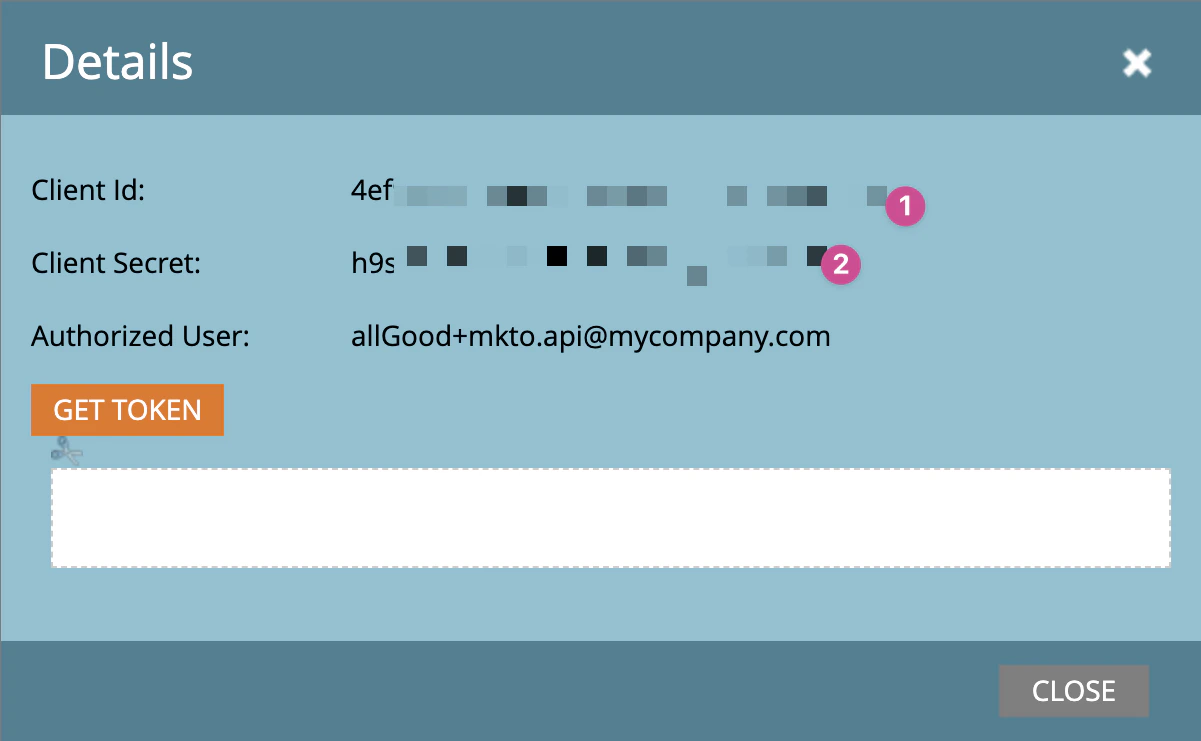
Client ID and Secret display screen
Get your REST API endpoint URLs
- Go to Admin → Web Services
- Scroll to the REST API section
- Copy the Endpoint URL — it looks like
https://123-ABC-456.mktorest.com/rest - Copy the Identity URL — it looks like
https://123-ABC-456.mktorest.com/identity
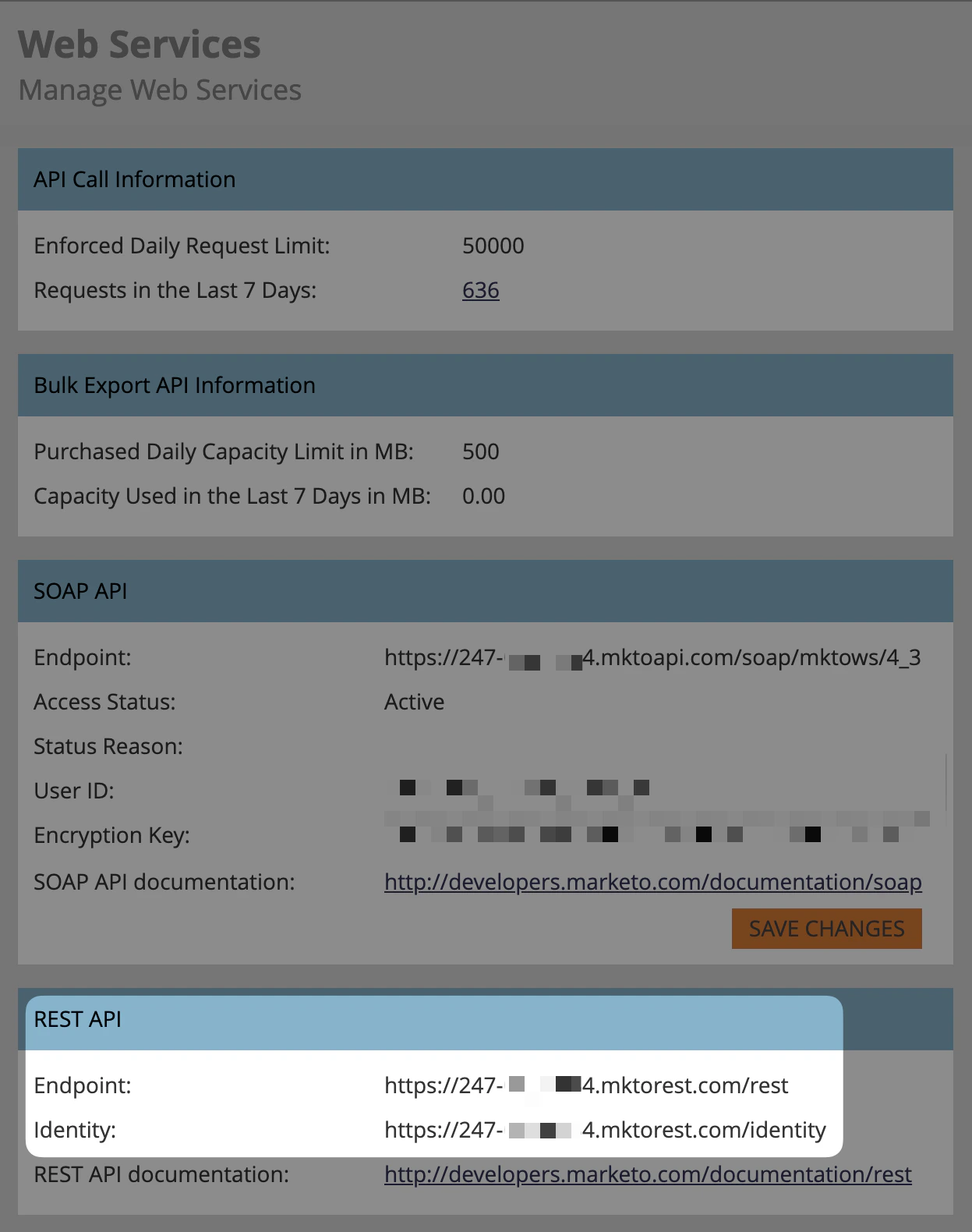
Web Services page showing REST API endpoints
52.25.122.6552.26.241.77
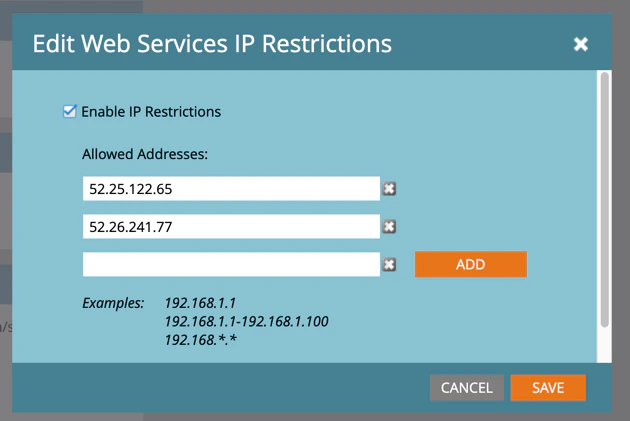
IP Restrictions section with allGood IPs added
Connect the integration in allGood
- Log into allGood and go to Settings → Integrations
- Click Add Integration and select Marketo
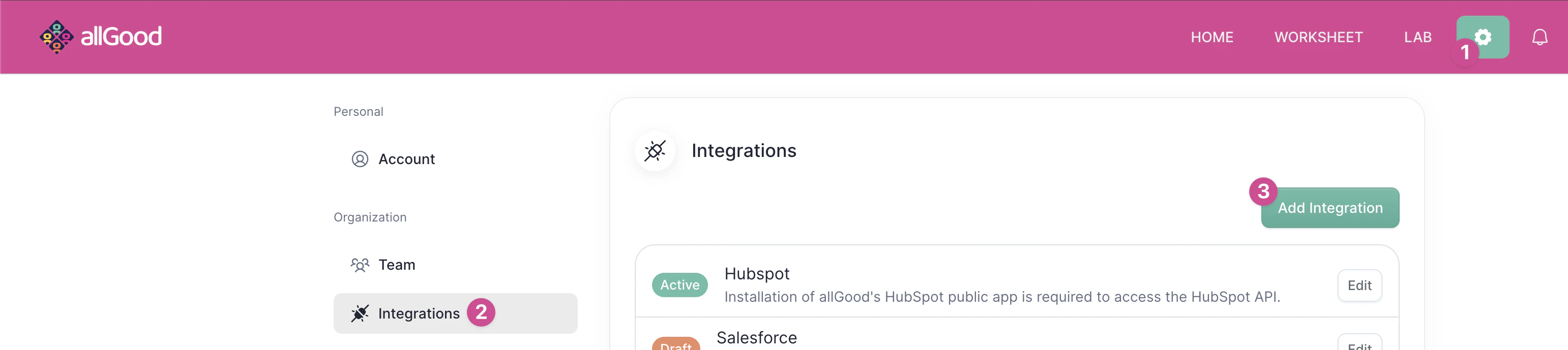
allGood integrations page
- Paste the four credentials you collected:
- Client ID (from Step 4)
- Client Secret (from Step 4)
- Endpoint URL (from Step 5)
- Identity URL (from Step 5)

Marketo integration form with credential fields
- Click Save
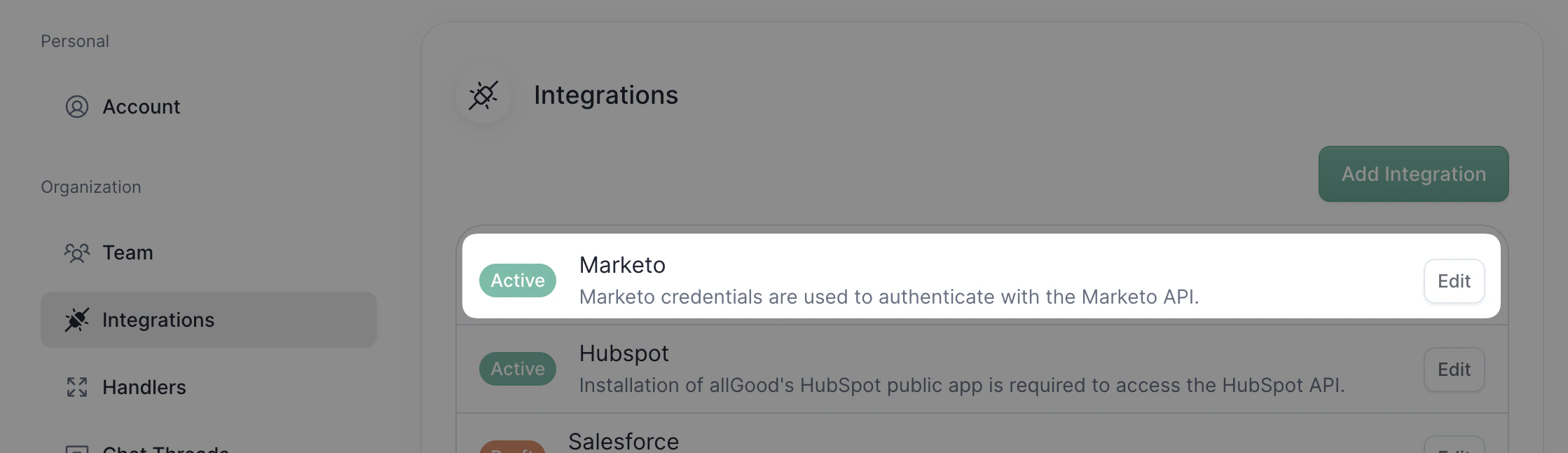
allGood integrations page with Marketo marked as Active
You’re done — verify the connection
Once the integration shows Active on your Integrations page, Mary can access your Marketo data. Test the connection by asking Mary a simple question like:- “Show me all Marketo Programs created this month”
- “What Marketo Smart Lists exist in the Email Nurture workspace?”
- “Get the token values for [Program Name]”
Troubleshooting
Status shows 'Connection Failed' immediately after saving
Status shows 'Connection Failed' immediately after saving
- Client ID and Client Secret — Copy them again from the LaunchPoint service details and re-paste them into allGood. Make sure there are no extra spaces before or after the values.
- Endpoint and Identity URLs — Verify you copied the full URLs from the REST API section, not the SOAP API section.
- LaunchPoint service configuration — Confirm the API User assigned to the service is the API-only user you created, not a different user.
IP restrictions are blocking the connection
IP restrictions are blocking the connection
- Go to Admin → Web Services in Marketo
- Scroll to IP Restrictions
- If restrictions are enabled, add both allGood IP addresses to the allowed list:
52.25.122.6552.26.241.77
- Click Save
- Return to allGood and click Reconnect on the Marketo integration
Mary returns 'insufficient permissions' when accessing specific data
Mary returns 'insufficient permissions' when accessing specific data
- Workspace restrictions — If your Marketo instance uses Workspaces, the API user must be assigned to the Workspace containing the data Mary is trying to access. Check the user’s Workspace assignments in Admin → Users & Roles → Users.
- Role permissions — The allGood API Role must have Access API checked. Verify this in Admin → Users & Roles → Roles.
If none of these resolve the issue
If none of these resolve the issue
- The exact error message Mary returned
- A screenshot of your LaunchPoint service configuration (with Client Secret hidden)
- Whether IP restrictions are enabled in your Marketo instance
- The Marketo instance ID (visible in your Endpoint URL — the part before
.mktorest.com)
Frequently asked questions
What data will allGood be able to access?
What data will allGood be able to access?
Why do we need a dedicated API user?
Why do we need a dedicated API user?
What are the IP addresses used by allGood?
What are the IP addresses used by allGood?
52.25.122.6552.26.241.77
Can we limit access to specific Workspaces?
Can we limit access to specific Workspaces?
How do we revoke access if needed?
How do we revoke access if needed?
- In allGood: Go to Settings → Integrations → Marketo, and click Disconnect
- In Marketo: Go to Admin → LaunchPoint, find the allGood Integration service, and click Delete
Does this integration consume API calls from our daily limit?
Does this integration consume API calls from our daily limit?
Related articles
- Managing Mary’s access to Marketo data
- Updating Marketo Program tokens with Mary
- Using Mary to analyze Marketo campaign performance