

Prerequisites
- A Marketo Smart Campaign to trigger the webhook from. This can be an existing campaign, or you can create a new one for this purpose.
- A webhook payload template. This payload determines the data Marketo sends to allGood. Reach out to allGood support for a template tailored to your use case, or use the default template provided in the steps below.
-
An allGood webhook URL.
This looks like
https://webhook.allgoodhq.app/xxxxxxxxxxxxxx. You can get this from allGood support, or by creating an Item Webhook in the allGood worksheet you want to connect to.
Create a webhook URL (if you don't have one yet)
Create a webhook URL (if you don't have one yet)
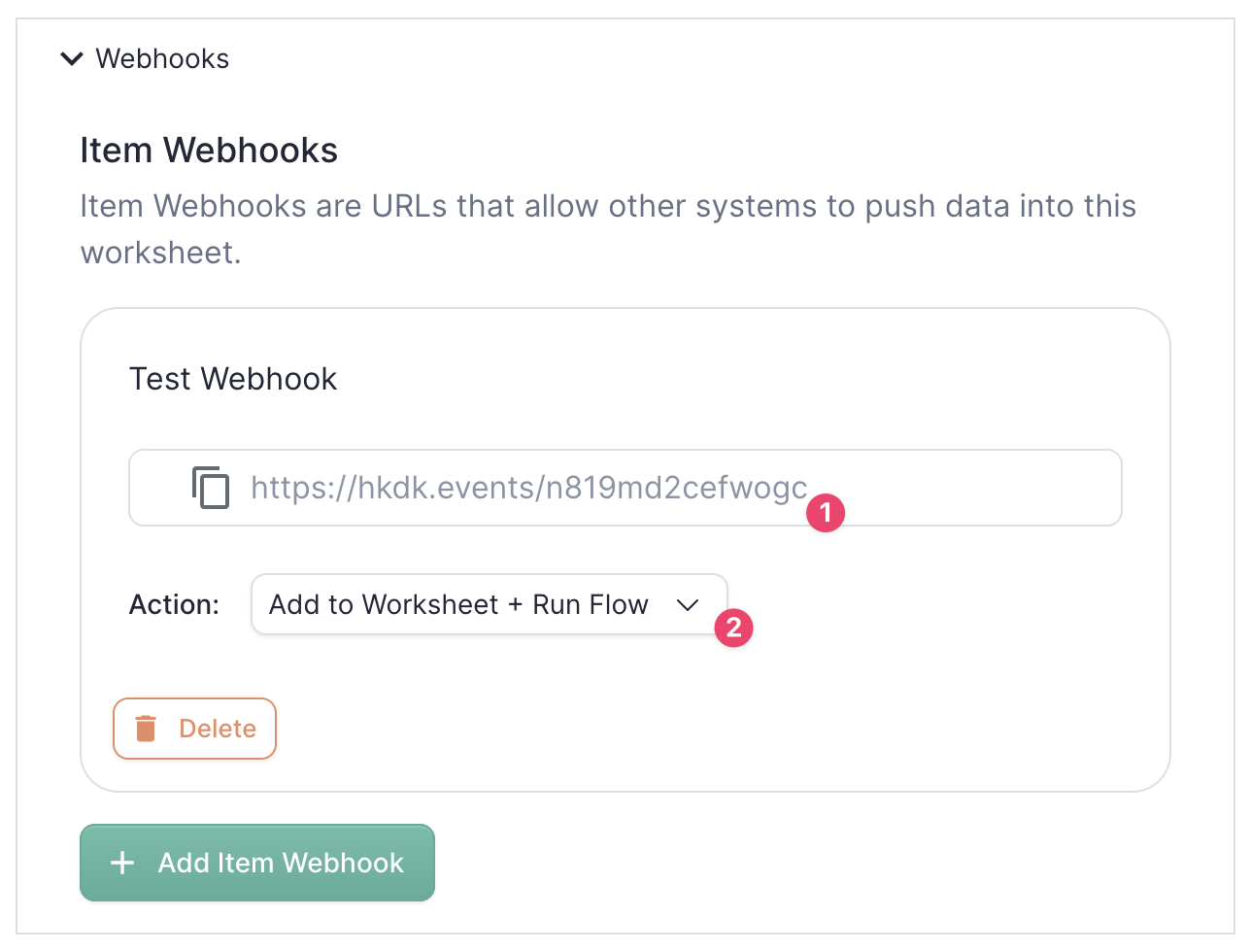
Item Webhook settings in an allGood worksheet
Copy the webhook URL
Set the action
Part 1: Create a webhook configuration in Marketo
Navigate to Webhooks in Admin
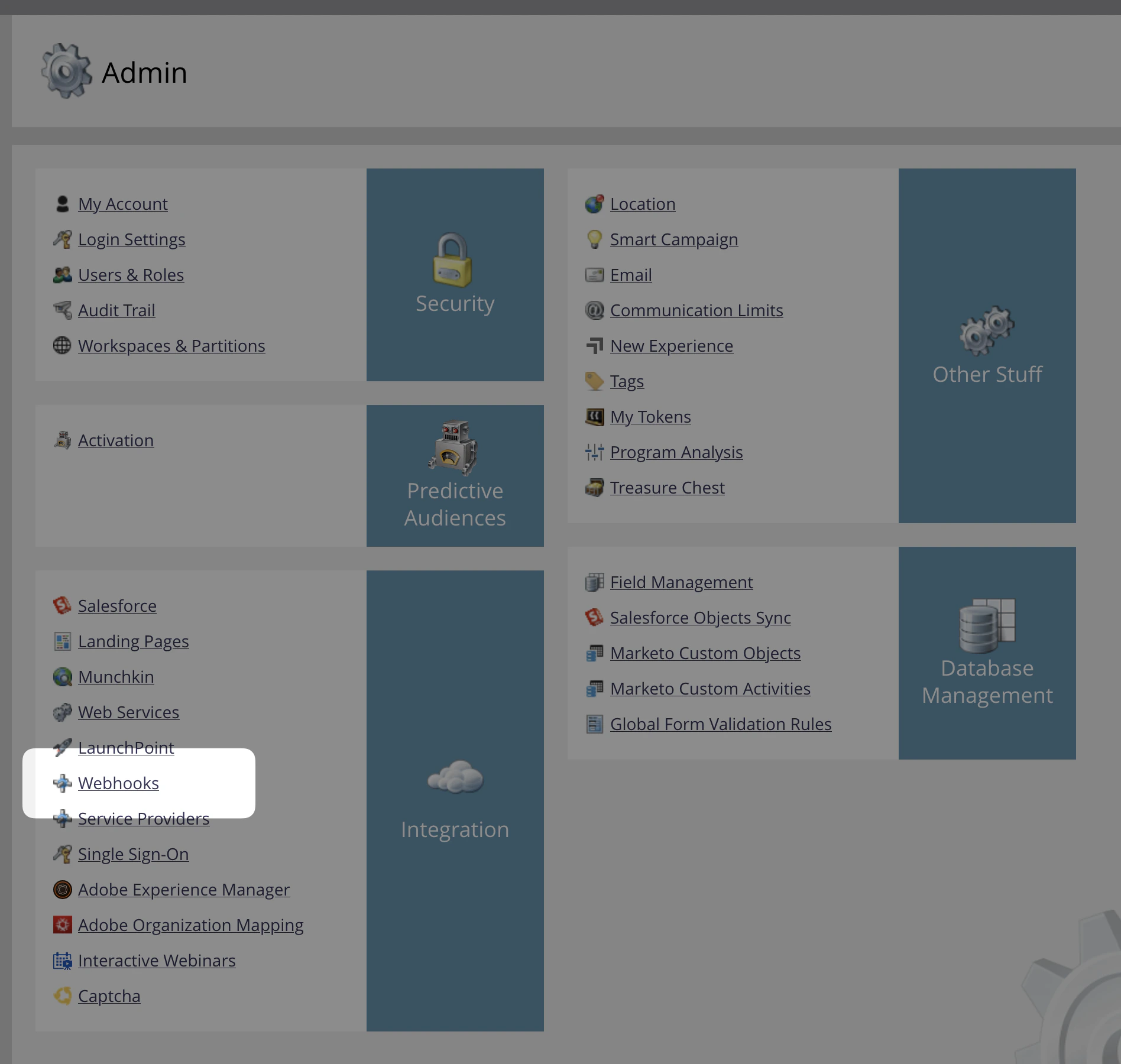
Marketo Admin panel with Webhooks selected in the left navigation
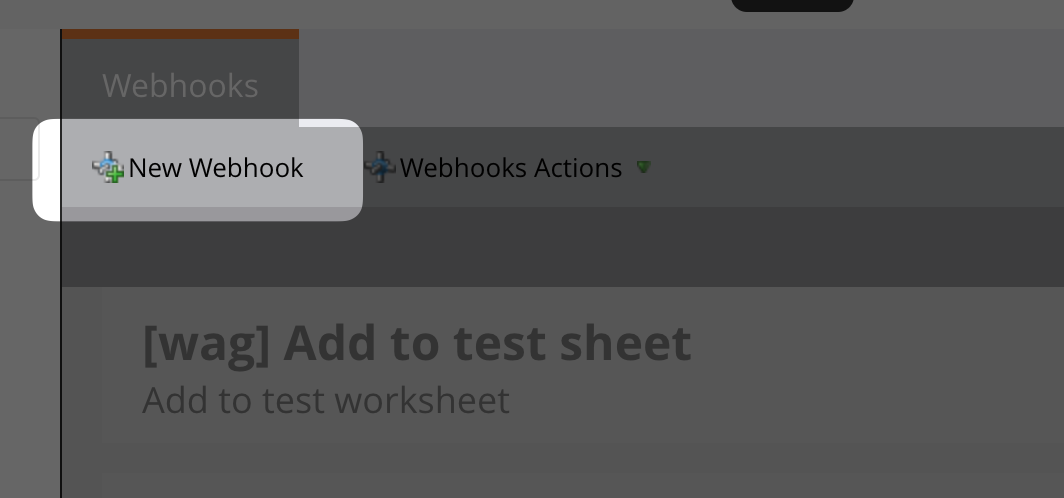
The New Webhook button in the Webhooks header toolbar
Set the URL and request type
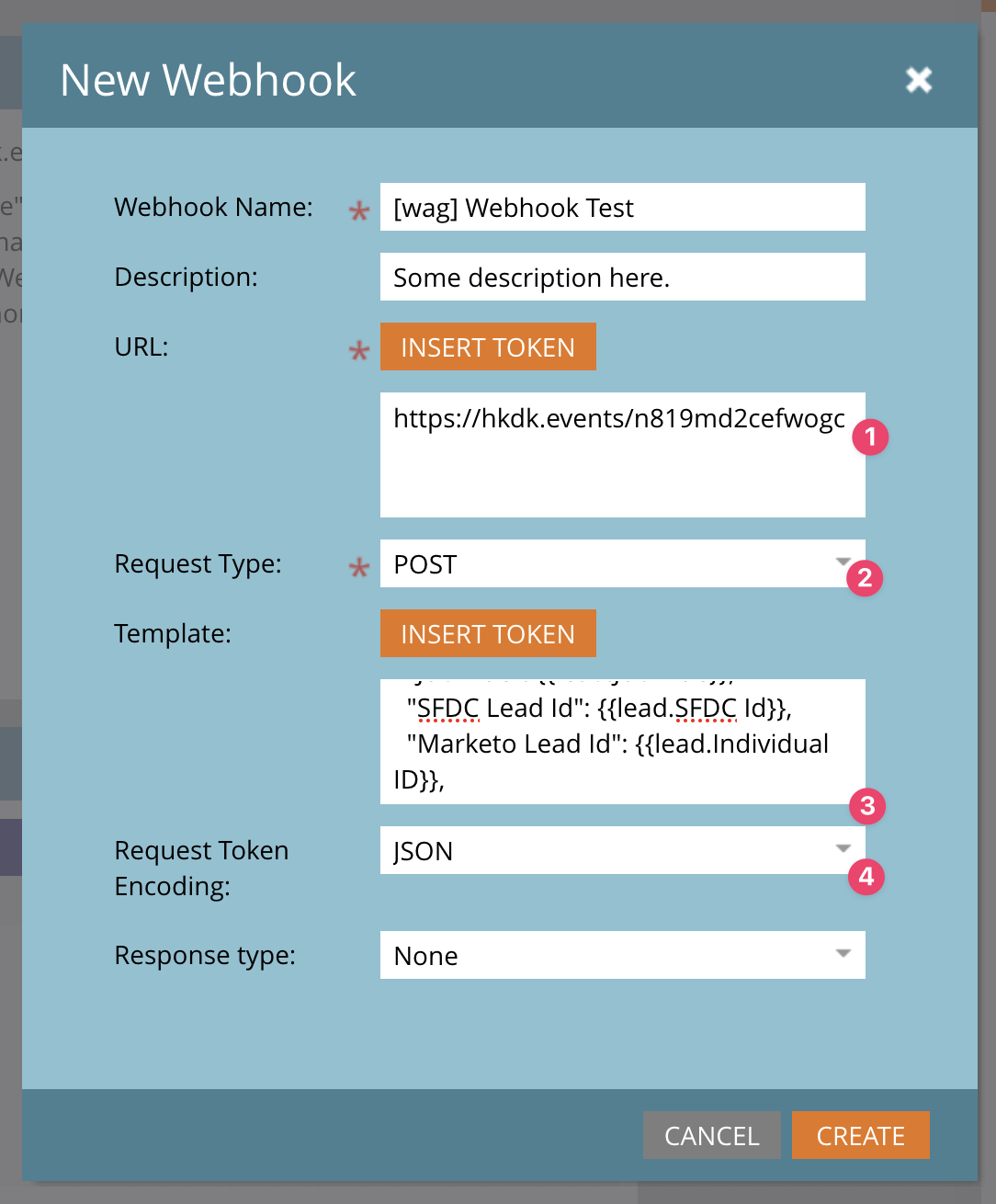
The New Webhook form in Marketo with fields for URL, Request Type, Template, and encoding
Paste the payload template
400 errors.Default payload template
Default payload template
Set encoding and response type
Create the webhook
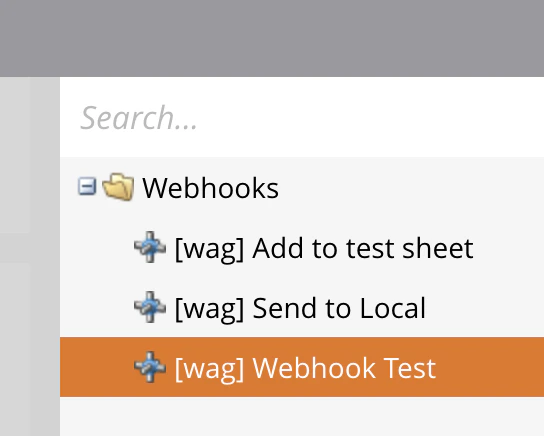
The right-panel navigation menu in Marketo showing the newly created webhook listed
Add the Content-Type header
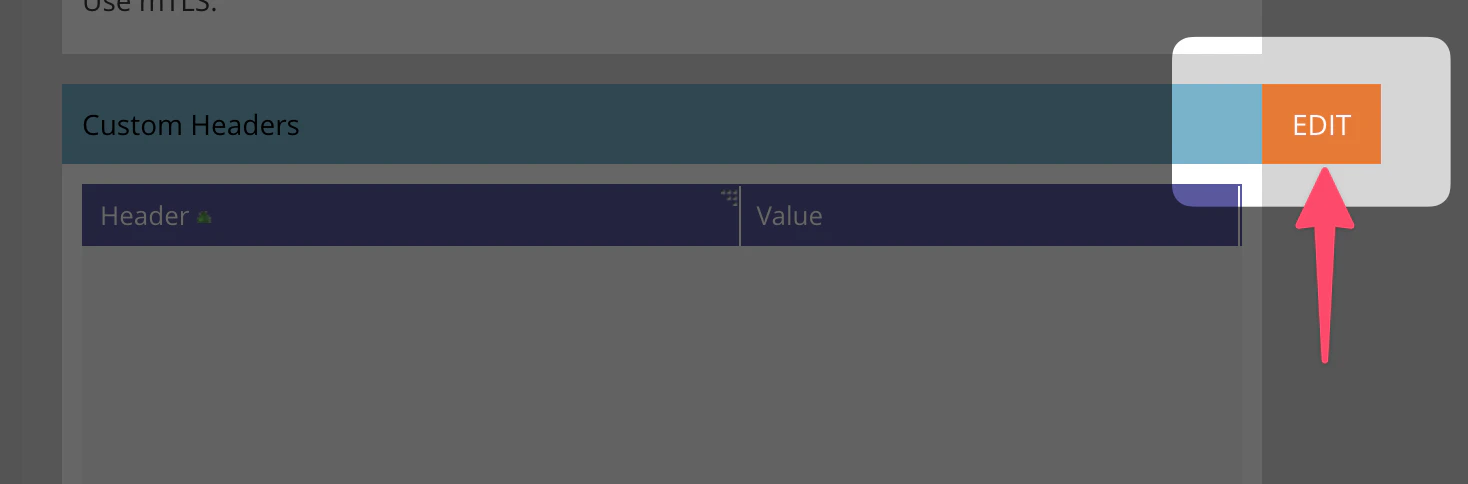
The Custom Headers section with the EDIT button highlighted
Content-Type and Value to application/json.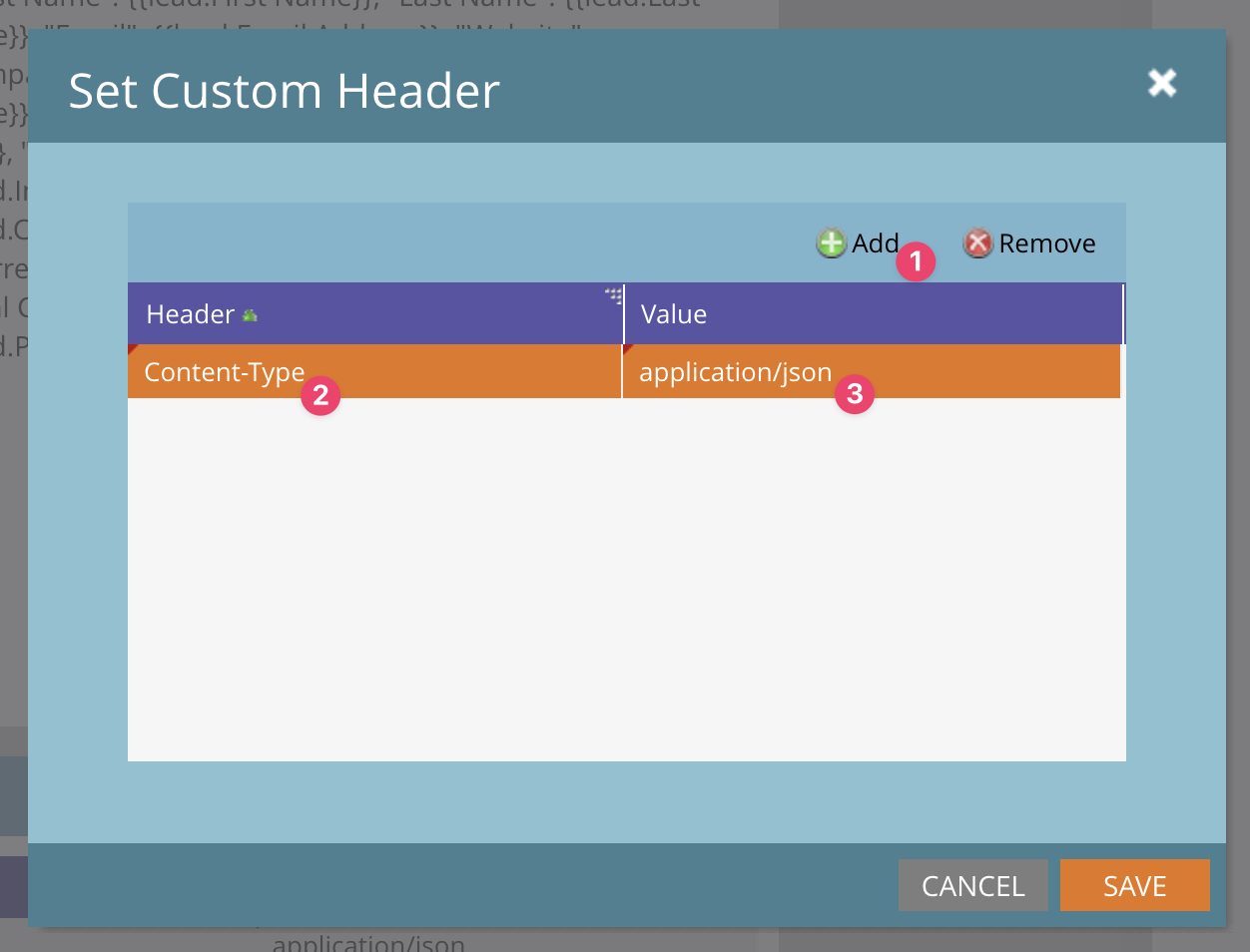
The Custom Headers editor showing Content-Type set to application/json
Verify the configuration
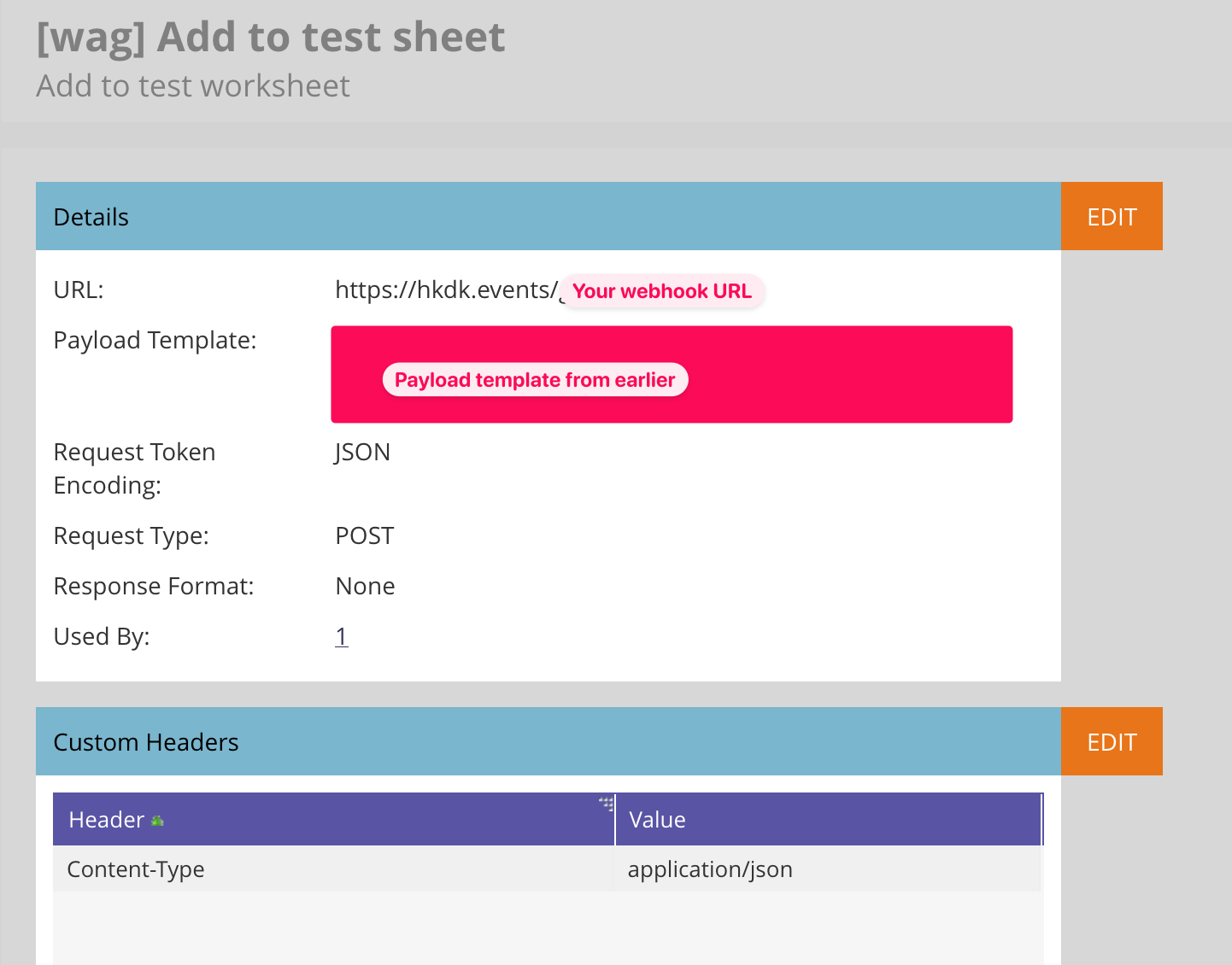
A completed Marketo webhook configuration showing all required fields filled in correctly
Part 2: Trigger the webhook from a Smart Campaign
Create or open a Smart Campaign
Configure the Smart List trigger
Add a consent filter
Add the webhook action to the Flow
Configure the Schedule
Activate the campaign
200 OK. Open your allGood worksheet — the test lead’s data should appear as a new item within a few seconds.
Troubleshooting
If you see400 errors or “Unparseable JSON” in the Marketo activity log, the cause is almost always a configuration error. Work through these checks in order.
Check 1: Template copied verbatim
Open the webhook configuration and compare your template to the one in this article character by character. Word, Google Docs, and similar apps can silently add hidden formatting characters when you paste through them — this breaks the JSON even when it looks correct on screen. Copy the template directly from this article and paste it directly into Marketo.
Check 2: Content-Type header set correctly
Confirm that the Custom Headers section contains exactly one entry: Header = Content-Type, Value = application/json. If this header is missing or misspelled, Marketo sends the webhook in the wrong format and allGood cannot parse it.
Check 3: You’re editing the right webhook
Marketo navigates you away from the current webhook every time you save a setting. Confirm the webhook name shown at the top of the configuration page matches the one you created. If you’re on a different webhook, your changes are going to the wrong place.
Still need help?
If you’ve worked through all three checks and the webhook is still failing, contact allGood and include:- The error code or activity log message from Marketo
- A screenshot of your completed webhook configuration page
- The step in this article where things went wrong