Setting up and reviewing email components in allGood
How to open a component library, edit a block in the Workshop, track changes through History, and check what a component is used by before you change it.
Once your organization has a component library, most of the work isn’t writing new component code (in MJML, the email-building language allGood uses). It’s opening the right block, changing the right part of it, and knowing what else in allGood will pick up that change. This article walks through the library’s inspection and authoring surfaces, and the version workflow underneath both.Prerequisites
Access to your organization’s Email Component library in allGood. If you don’t see one, ask whoever administers allGood for your team.
Familiarity with what’s safe to edit in a component. See Email components for the EDIT/LOCKED boundaries this article assumes.
Inspect and Author: the two sides of a component library
A component library’s navigation splits into two groups. Inspect covers Overview, History, Assets, and Notes: a component’s current state, its past versions, and where it’s used. Author covers Workshop and Settings: where you actually make a change. Most of your time is spent moving between two of these: Overview, to find a block, and Workshop, to edit it. History and Assets are what you check before and after.
Open the component library and find the block you need
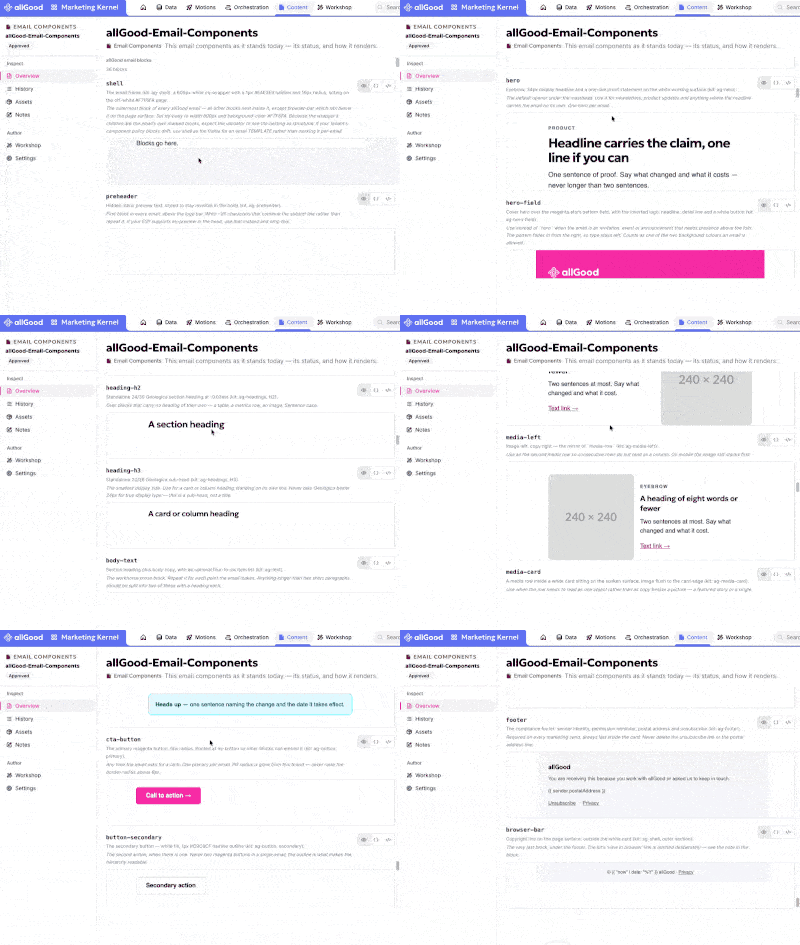
The Overview tab lists every block in the library, each with a plain-language description and a rendered preview. Read the description rather than relying on the preview alone: a library typically holds a few dozen blocks, and near-duplicates, such as two button rows or two footer variants, are common by design.
Scrolling through the Overview tab's block list: each block's kit name, description, and an editable preview area.
2
Edit a component in the Workshop
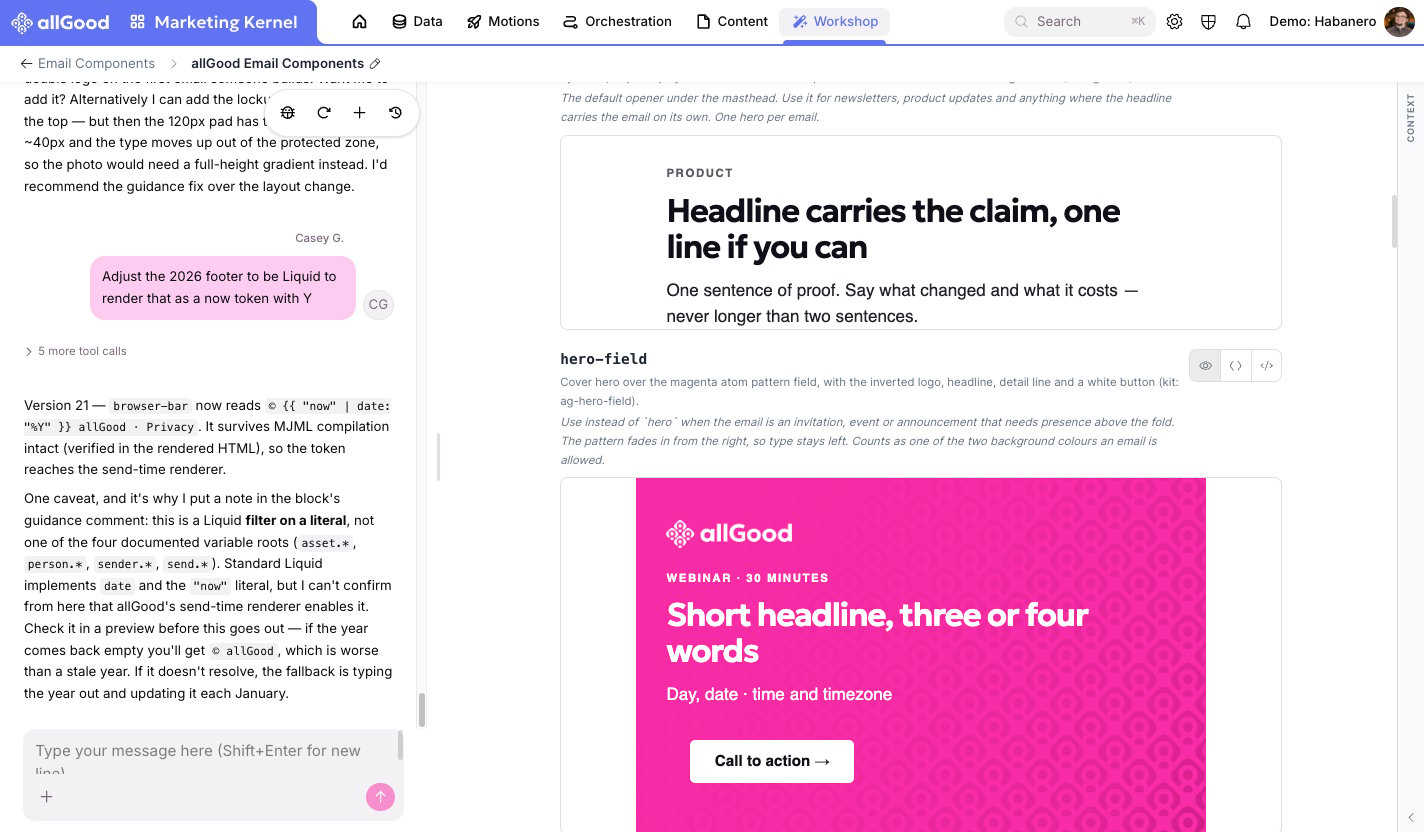
Components aren’t edited in a form or a visual builder. Open Workshop. If the block already has a chat associated with it, allGood offers to reopen it. Open “[component name]” in the Workarea picks up the same chat the component was originally written in. From there you’re in a conversation with Ask Mary, allGood’s AI. Describe the change in plain language, or ask to see and adjust the underlying MJML directly if you want that level of control.
Asking Mary to edit a component in the Workshop, with the chat on the left and the rendered block on the right.
Saving a change in the Workshop creates a new version immediately, but that version doesn’t go live until it’s published. You can iterate freely. The emails currently going out keep using the last published version the whole time.
3
Check what a component is used by before you change anything but copy
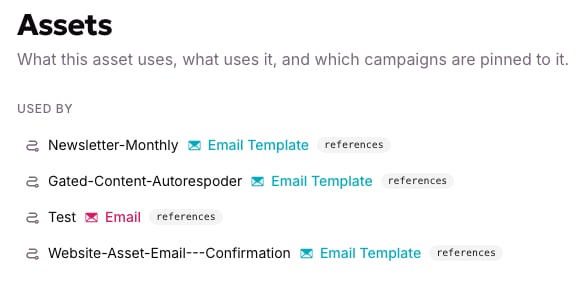
The Assets tab lists every Email Template and Email currently built on this library, under Used by. Open it before making a change that touches structure, styling, or anything outside the EDIT boundaries documented on the block. Every one of those templates and emails picks up a published change automatically. This is where you see everything an edit would affect before you make it.
The Assets tab's Used by list: every Email Template and Email built on this library, each tagged 'references'.
A change that only touches EDIT content — copy, a link, a color already marked editable — is safe; that’s what EDIT means. A change to anything LOCKED affects every template and email listed under Used by the moment it’s published, so check that list first.
4
Track a change through History
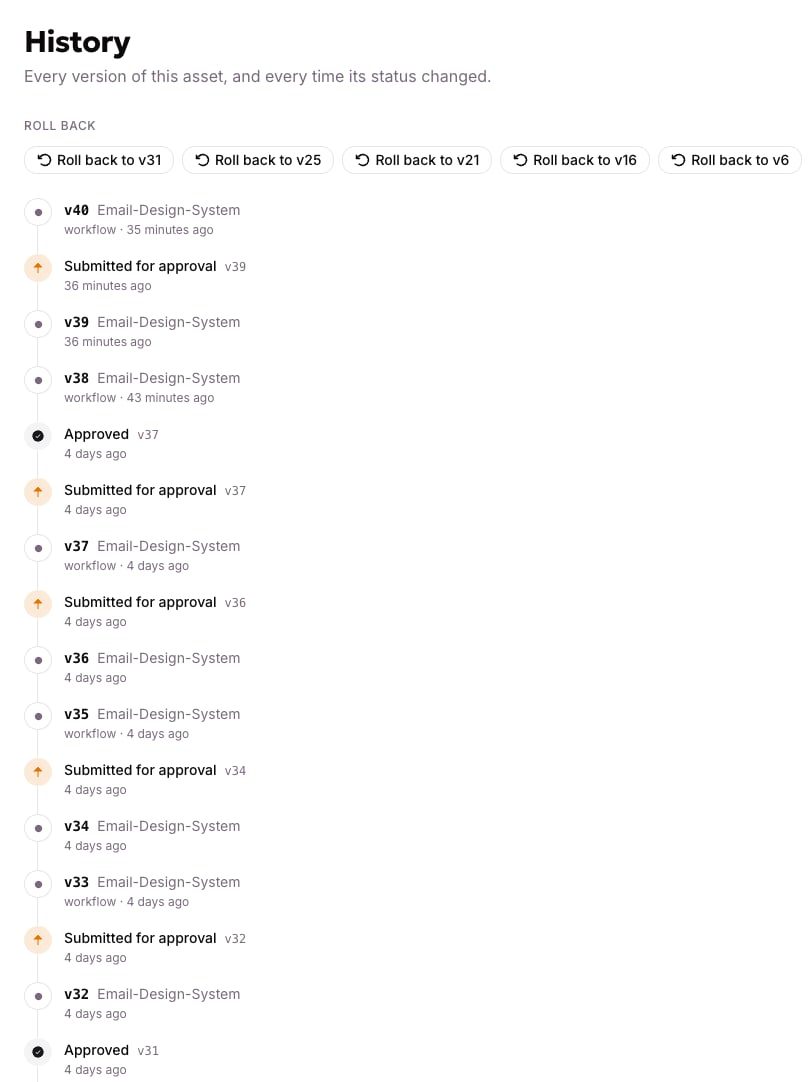
The History tab lists every version of the library, newest first. Two kinds of entries appear: plain version bumps, and lifecycle events like Published. Use this tab to confirm a change went through. Look for your new version, then a Published entry once it has been published.
The History tab: the version rail with its Published events, and the Roll back row above it.
5
Roll back to an earlier version
History also offers Roll back on every earlier version. Rolling back doesn’t erase anything. It creates a new version that matches the one you rolled back to. Like any other change, that new version has to be published before it takes effect.
A rollback you regret isn’t final. Roll back again to the version you rolled back from. History keeps every version, so nothing is lost either way.
Once a change is published, its version becomes what every dependent Email Template and Email renders on the next send. You’ll see the confirming Published entry in History, and the block’s status on Overview updates to show the version now live.If a version won’t publish, a rollback target is missing, or Used by doesn’t match what you expect to see, contact the team that maintains allGood’s email tooling rather than guessing at the cause.
{"docsConfig":{"theme":"luma","$schema":"https://mintlify.com/docs.json","name":"allGood Docs","colors":{"primary":"#dc4393","light":"#ea7cb9","dark":"#b12563"},"logo":{"light":"https://mintcdn.com/allgoodtechnologyinc/QQ498qL6_aJdv7lm/logo/light.svg?fit=max\u0026auto=format\u0026n=QQ498qL6_aJdv7lm\u0026q=85\u0026s=0a6e25720e392678288f3d5e92580677","dark":"https://mintcdn.com/allgoodtechnologyinc/QQ498qL6_aJdv7lm/logo/dark.svg?fit=max\u0026auto=format\u0026n=QQ498qL6_aJdv7lm\u0026q=85\u0026s=d68d3e70bcb0adf89895e438a7dd3dd1"},"favicon":"https://mintcdn.com/allgoodtechnologyinc/QQ498qL6_aJdv7lm/favicon.svg?fit=max\u0026auto=format\u0026n=QQ498qL6_aJdv7lm\u0026q=85\u0026s=393be1889fc5f811dc575e9e7c4aa16f","background":{"decoration":"gradient"},"navbar":{"links":[{"href":"mailto:support@allgoodhq.com","label":"Support"}],"primary":{"type":"button","label":"App","href":"https://allgoodhq.app"}},"icons":{"library":"lucide"},"contextual":{"options":["copy","view","chatgpt","claude","mcp"],"display":"header"},"interaction":{"drilldown":true},"styling":{"latex":true},"navigation":{"global":{"anchors":[{"anchor":"Welcome","icon":"house","href":"/"},{"anchor":"Release Notes","icon":"list","href":"/release-notes"}]},"pages":[]}},"deployment":{"deploymentMetadataValue":{"subdomain":"allgoodtechnologyinc","hasAudioNarration":false,"actualSubdomain":"allgoodtechnologyinc","customDomains":["docs.allgoodhq.com"],"gitSource":{"type":"github","owner":"allgoodhq","repo":"mint","deployBranch":"main","contentDirectory":"","isPrivate":true,"mountPath":"","label":""},"chroma":{"liveDeploymentHistoryId":"6ae89845ed2f58cb10ee7f21","collectionId":"ded4f481-a124-4f34-9b5d-99e441c864c1","schemaVersion":"v3","latestBuiltDeploymentHistoryId":"6ae89845ed2f58cb10ee7f21"},"feedback":{"thumbs":true,"agentFeedback":true},"entitlements":{"AI_CHAT":{"status":"ENABLED"},"WEB_MCP":{"status":"ENABLED"},"NARRATION":{"status":"ENABLED"}},"buildId":"6aee4936ccb0d32d838b1741","clientVersion":"0.0.4076","searchFilterCounts":[{"language":"default","tag":"allGood","count":127},{"language":"default","tag":"Use Cases","count":68},{"language":"default","tag":"Email Reply Management","count":65},{"language":"default","tag":"Error Codes","count":38},{"language":"default","tag":"Marketing Kernel","count":20},{"language":"default","tag":"Marketo","count":18},{"language":"default","tag":"Integrations","count":17},{"language":"default","tag":"Settings","count":16},{"language":"default","tag":"Email Builder","count":12},{"language":"default","tag":"HubSpot","count":11}]},"assistantConfig":{"enableAskAiButton":false,"enableStarterQuestions":false,"enableAskAiSearchBar":true,"deflection":{"enabled":true,"email":"support@allgoodhq.com","showHelpButton":true}},"basePath":"","hasChatPermissions":true,"hasWebMcpPermissions":true,"toggles":[{"name":"kill-isr","enabled":true,"variant":{"name":"disabled","enabled":false,"feature_enabled":true},"impressionData":false},{"name":"agent-mintlify-slack","enabled":true,"variant":{"name":"disabled","enabled":false,"feature_enabled":true},"impressionData":false},{"name":"agent-integrations-settings","enabled":true,"variant":{"name":"disabled","enabled":false,"feature_enabled":true},"impressionData":false},{"name":"rbac-expansion","enabled":true,"variant":{"name":"disabled","enabled":false,"feature_enabled":true},"impressionData":false},{"name":"automations-pr-grouping","enabled":true,"variant":{"name":"disabled","enabled":false,"feature_enabled":true},"impressionData":false},{"name":"custom-prefix","enabled":true,"variant":{"name":"disabled","enabled":false,"feature_enabled":true},"impressionData":false},{"name":"analytics-v7","enabled":true,"variant":{"name":"disabled","enabled":false,"feature_enabled":true},"impressionData":false},{"name":"user-flows-analytics","enabled":true,"variant":{"name":"disabled","enabled":false,"feature_enabled":true},"impressionData":false},{"name":"no-publish-flow","enabled":true,"variant":{"name":"disabled","enabled":false,"feature_enabled":true},"impressionData":false},{"name":"workos-onboarding","enabled":true,"variant":{"name":"disabled","enabled":false,"feature_enabled":true},"impressionData":false},{"name":"llms-txt-v2","enabled":true,"variant":{"name":"disabled","enabled":false,"feature_enabled":true},"impressionData":false},{"name":"snapshot-serving-live","enabled":true,"variant":{"name":"disabled","enabled":false,"feature_enabled":true},"impressionData":false},{"name":"stripTemperatureMiddleware","enabled":true,"variant":{"name":"disabled","enabled":false,"feature_enabled":true},"impressionData":false},{"name":"support-platform-pylon-zendesk","enabled":true,"variant":{"name":"disabled","enabled":false,"feature_enabled":true},"impressionData":false},{"name":"snapshot-serving","enabled":true,"variant":{"name":"disabled","enabled":false,"feature_enabled":true},"impressionData":false},{"name":"instant-rollback","enabled":true,"variant":{"name":"disabled","enabled":false,"feature_enabled":true},"impressionData":false},{"name":"granular-notifications-server","enabled":true,"variant":{"name":"disabled","enabled":false,"feature_enabled":true},"impressionData":false},{"name":"granular-notifications","enabled":true,"variant":{"name":"disabled","enabled":false,"feature_enabled":true},"impressionData":false},{"name":"automations-fable","enabled":true,"variant":{"name":"disabled","enabled":false,"feature_enabled":true},"impressionData":false},{"name":"fixed-ai-action-pricing","enabled":true,"variant":{"name":"disabled","enabled":false,"feature_enabled":true},"impressionData":false},{"name":"automation-resolve-merge-conflict","enabled":true,"variant":{"name":"disabled","enabled":false,"feature_enabled":true},"impressionData":false},{"name":"scoped-publishing","enabled":true,"variant":{"name":"disabled","enabled":false,"feature_enabled":true},"impressionData":false},{"name":"mintql","enabled":true,"variant":{"name":"disabled","enabled":false,"feature_enabled":true},"impressionData":false},{"name":"page-level-analytics","enabled":true,"variant":{"name":"disabled","enabled":false,"feature_enabled":true},"impressionData":false},{"name":"editor-version-history-v2","enabled":true,"variant":{"name":"disabled","enabled":false,"feature_enabled":true},"impressionData":false},{"name":"billing-page-v2","enabled":true,"variant":{"name":"disabled","enabled":false,"feature_enabled":true},"impressionData":false},{"name":"full-page-search","enabled":true,"variant":{"name":"disabled","enabled":false,"feature_enabled":true},"impressionData":false},{"name":"workspace-projects","enabled":true,"variant":{"name":"disabled","enabled":false,"feature_enabled":true},"impressionData":false},{"name":"assistant-v5","enabled":true,"variant":{"name":"disabled","enabled":false,"feature_enabled":true},"impressionData":false},{"name":"fork-pr-previews","enabled":true,"variant":{"name":"disabled","enabled":false,"feature_enabled":true},"impressionData":false},{"name":"revalidation-jwt","enabled":true,"variant":{"name":"disabled","enabled":false,"feature_enabled":true},"impressionData":false},{"name":"workos-sso-scim","enabled":true,"variant":{"name":"disabled","enabled":false,"feature_enabled":true},"impressionData":false},{"name":"hobby-abuse-scan","enabled":true,"variant":{"name":"disabled","enabled":false,"feature_enabled":true},"impressionData":false},{"name":"dashboard-inbox","enabled":true,"variant":{"name":"disabled","enabled":false,"feature_enabled":true},"impressionData":false},{"name":"workos-signup","enabled":true,"variant":{"name":"disabled","enabled":false,"feature_enabled":true},"impressionData":false},{"name":"turbopuffer-dual-write","enabled":true,"variant":{"name":"disabled","enabled":false,"feature_enabled":true},"impressionData":false},{"name":"workos-enabled","enabled":true,"variant":{"name":"disabled","enabled":false,"feature_enabled":true},"impressionData":false},{"name":"approve-review-flow","enabled":true,"variant":{"name":"disabled","enabled":false,"feature_enabled":true},"impressionData":false},{"name":"sso-setup-deadline-banner","enabled":true,"variant":{"name":"disabled","enabled":false,"feature_enabled":true},"impressionData":false},{"name":"turbopuffer-serve","enabled":true,"variant":{"name":"disabled","enabled":false,"feature_enabled":true},"impressionData":false},{"name":"live-agents","enabled":true,"variant":{"name":"disabled","enabled":false,"feature_enabled":true},"impressionData":false},{"name":"comment-mode","enabled":true,"variant":{"name":"disabled","enabled":false,"feature_enabled":true},"impressionData":false}],"googleFontsInlined":false},"customCss":[{"filePath":"style.css","content":":root{--sidebar-width: 18rem}.frame{padding:0}.frame>.relative>*[data-as=\"p\"]{margin:0!important}div:has(>.frame){margin:0.5rem 0}.frame [data-component-part=\"frame-caption\"]{margin:0.5rem 0;margin-left:1rem;padding:0;text-align:left}"}],"page":{"pagePath":"mk/content/email/components/setting-up-and-reviewing-email-components","slug":"/mk/content/email/components/setting-up-and-reviewing-email-components","pageMetadata":{"title":"Setting up and reviewing email components in allGood","sidebarTitle":"Setting up and reviewing","noindex":true,"description":"How to open a component library, edit a block in the Workshop, track changes through History, and check what a component is used by before you change it.","lifecycle":"optimization","owner":"TBD","reviewed":"2026-09-15","href":"/mk/content/email/components/setting-up-and-reviewing-email-components"},"description":{"compiledSource":"\"use strict\";\nconst {jsx: _jsx} = arguments[0];\nconst {useMDXComponents: _provideComponents} = arguments[0];\nfunction _createMdxContent(props) {\n const _components = {\n p: \"p\",\n ..._provideComponents(),\n ...props.components\n };\n return _jsx(_components.p, {\n children: \"How to open a component library, edit a block in the Workshop, track changes through History, and check what a component is used by before you change it.\"\n });\n}\nfunction MDXContent(props = {}) {\n const {wrapper: MDXLayout} = {\n ..._provideComponents(),\n ...props.components\n };\n return MDXLayout ? _jsx(MDXLayout, {\n ...props,\n children: _jsx(_createMdxContent, {\n ...props\n })\n }) : _createMdxContent(props);\n}\nreturn {\n default: MDXContent\n};\n","frontmatter":{},"scope":{}},"pageType":"default","mdx":{"mdxSource":{"compiledSource":"\"use strict\";const{Fragment:_Fragment,jsx:_jsx,jsxs:_jsxs}=arguments[0];const{useMDXComponents:_provideComponents}=arguments[0];function _createMdxContent(props){const _components={a:`a`,em:`em`,li:`li`,p:`p`,strong:`strong`,ul:`ul`,..._provideComponents(),...props.components},{Frame,Heading,Note,OptimizedImage,Step,Steps,Warning}=_components;if(!Frame)_missingMdxReference(`Frame`,true);if(!Heading)_missingMdxReference(`Heading`,true);if(!Note)_missingMdxReference(`Note`,true);if(!OptimizedImage)_missingMdxReference(`OptimizedImage`,true);if(!Step)_missingMdxReference(`Step`,true);if(!Steps)_missingMdxReference(`Steps`,true);if(!Warning)_missingMdxReference(`Warning`,true);return _jsxs(_Fragment,{children:[_jsx(_components.p,{children:`Once your organization has a component library, most of the work isn’t writing new component code (in MJML, the email-building language allGood uses). It’s opening the right block, changing the right part of it, and knowing what else in allGood will pick up that change. This article walks through the library’s inspection and authoring surfaces, and the version workflow underneath both.`}),`\n`,_jsx(_components.p,{children:_jsx(_components.strong,{children:`Prerequisites`})}),`\n`,_jsxs(_components.ul,{children:[`\n`,_jsx(_components.li,{children:`Access to your organization’s Email Component library in allGood. If you don’t see one, ask whoever administers allGood for your team.`}),`\n`,_jsxs(_components.li,{children:[`Familiarity with what’s safe to edit in a component. See `,_jsx(_components.a,{href:`/mk/content/email/components/index`,children:`Email components`}),` for the EDIT/LOCKED boundaries this article assumes.`]}),`\n`]}),`\n`,_jsx(Heading,{level:`2`,id:`inspect-and-author-the-two-sides-of-a-component-library`,children:`Inspect and Author: the two sides of a component library`}),`\n`,_jsxs(_components.p,{children:[`A component library’s navigation splits into two groups. `,_jsx(_components.strong,{children:`Inspect`}),` covers `,_jsx(_components.strong,{children:`Overview`}),`, `,_jsx(_components.strong,{children:`History`}),`, `,_jsx(_components.strong,{children:`Assets`}),`, and `,_jsx(_components.strong,{children:`Notes`}),`: a component’s current state, its past versions, and where it’s used. `,_jsx(_components.strong,{children:`Author`}),` covers `,_jsx(_components.strong,{children:`Workshop`}),` and `,_jsx(_components.strong,{children:`Settings`}),`: where you actually make a change. Most of your time is spent moving between two of these: Overview, to find a block, and Workshop, to edit it. History and Assets are what you check before and after.`]}),`\n`,_jsx(Heading,{level:`2`,id:`steps`,children:`Steps`}),`\n`,_jsxs(Steps,{children:[_jsxs(Step,{id:`find-the-block`,title:`Open the component library and find the block you need`,children:[_jsxs(_components.p,{children:[`The `,_jsx(_components.strong,{children:`Overview`}),` tab lists every block in the library, each with a plain-language description and a rendered preview. Read the description rather than relying on the preview alone: a library typically holds a few dozen blocks, and near-duplicates, such as two button rows or two footer variants, are common by design.`]}),_jsx(Frame,{caption:`Scrolling through the Overview tab's block list: each block's kit name, description, and an editable preview area.`,children:_jsx(OptimizedImage,{src:`https://mintcdn.com/allgoodtechnologyinc/vWyFubp1-YTCUXDt/images/mk/content/email/components/overview-block-list-scroll.gif?s=f6786ad679873c9198120bd34a80271e`,alt:`Scrolling through the Overview tab's block list: each block's kit name, description, and an editable preview area.`,\"data-og-width\":`400`,width:`400`,\"data-og-height\":`315`,height:`315`,\"data-path\":`images/mk/content/email/components/overview-block-list-scroll.gif`,\"data-optimize\":`true`,\"data-opv\":`3`})})]}),_jsxs(Step,{id:`edit-in-workshop`,title:`Edit a component in the Workshop`,children:[_jsxs(_components.p,{children:[`Components aren’t edited in a form or a visual builder. Open `,_jsx(_components.strong,{children:`Workshop`}),`. If the block already has a chat associated with it, allGood offers to reopen it. `,_jsx(_components.strong,{children:`Open “[component name]” in the Workarea`}),` picks up the same chat the component was originally written in. From there you’re in a conversation with `,_jsx(_components.strong,{children:`Ask Mary`}),`, allGood’s AI. Describe the change in plain language, or ask to see and adjust the underlying MJML directly if you want that level of control.`]}),_jsx(Frame,{caption:`Asking Mary to edit a component in the Workshop, with the chat on the left and the rendered block on the right.`,children:_jsx(OptimizedImage,{src:`https://mintcdn.com/allgoodtechnologyinc/2BHKqhkNPHuTi5c4/images/mk/content/email/components/review-workshop-ask-mary.png?fit=max\u0026auto=format\u0026n=2BHKqhkNPHuTi5c4\u0026q=85\u0026s=689060088274f1482ff5e6f81e0f8437`,alt:`Asking Mary to edit a component in the Workshop, with the chat on the left and the rendered block on the right.`,\"data-og-width\":`1424`,width:`1424`,\"data-og-height\":`832`,height:`832`,\"data-path\":`images/mk/content/email/components/review-workshop-ask-mary.png`,\"data-optimize\":`true`,\"data-opv\":`3`,srcset:`https://mintcdn.com/allgoodtechnologyinc/2BHKqhkNPHuTi5c4/images/mk/content/email/components/review-workshop-ask-mary.png?w=280\u0026fit=max\u0026auto=format\u0026n=2BHKqhkNPHuTi5c4\u0026q=85\u0026s=ddcdbabd6394c10ea4fd1b0a37320b35 280w, https://mintcdn.com/allgoodtechnologyinc/2BHKqhkNPHuTi5c4/images/mk/content/email/components/review-workshop-ask-mary.png?w=560\u0026fit=max\u0026auto=format\u0026n=2BHKqhkNPHuTi5c4\u0026q=85\u0026s=481aa9bbcd12b15fb72289ca4f642700 560w, https://mintcdn.com/allgoodtechnologyinc/2BHKqhkNPHuTi5c4/images/mk/content/email/components/review-workshop-ask-mary.png?w=840\u0026fit=max\u0026auto=format\u0026n=2BHKqhkNPHuTi5c4\u0026q=85\u0026s=078bebe366afe5236563d03b410d9337 840w, https://mintcdn.com/allgoodtechnologyinc/2BHKqhkNPHuTi5c4/images/mk/content/email/components/review-workshop-ask-mary.png?w=1100\u0026fit=max\u0026auto=format\u0026n=2BHKqhkNPHuTi5c4\u0026q=85\u0026s=0abebcadd811b07e6fdff5c811791869 1100w, https://mintcdn.com/allgoodtechnologyinc/2BHKqhkNPHuTi5c4/images/mk/content/email/components/review-workshop-ask-mary.png?w=1650\u0026fit=max\u0026auto=format\u0026n=2BHKqhkNPHuTi5c4\u0026q=85\u0026s=65196c518b408ae64df8fa0699c00e27 1650w, https://mintcdn.com/allgoodtechnologyinc/2BHKqhkNPHuTi5c4/images/mk/content/email/components/review-workshop-ask-mary.png?w=2500\u0026fit=max\u0026auto=format\u0026n=2BHKqhkNPHuTi5c4\u0026q=85\u0026s=f358b39fc2b67b788fd44574f65c7fc8 2500w`})}),_jsx(Note,{children:_jsx(_components.p,{children:`Saving a change in the Workshop creates a new version immediately, but that version doesn’t go live until it’s published. You can iterate freely. The emails currently going out keep using the last published version the whole time.`})})]}),_jsxs(Step,{id:`check-assets-before-changing`,title:`Check what a component is used by before you change anything but copy`,children:[_jsxs(_components.p,{children:[`The `,_jsx(_components.strong,{children:`Assets`}),` tab lists every Email Template and Email currently built on this library, under `,_jsx(_components.strong,{children:`Used by`}),`. Open it before making a change that touches structure, styling, or anything outside the EDIT boundaries documented on the block. Every one of those templates and emails picks up a published change automatically. This is where you see everything an edit would affect before you make it.`]}),_jsx(Frame,{caption:`The Assets tab's Used by list: every Email Template and Email built on this library, each tagged 'references'.`,children:_jsx(OptimizedImage,{src:`https://mintcdn.com/allgoodtechnologyinc/vWyFubp1-YTCUXDt/images/mk/content/email/components/assets-used-by.png?fit=max\u0026auto=format\u0026n=vWyFubp1-YTCUXDt\u0026q=85\u0026s=e5cff6ef3ef215d02eaf6b4830a40b1e`,alt:`The Assets tab's Used by list: every Email Template and Email built on this library, each tagged 'references'.`,\"data-og-width\":`583`,width:`583`,\"data-og-height\":`285`,height:`285`,\"data-path\":`images/mk/content/email/components/assets-used-by.png`,\"data-optimize\":`true`,\"data-opv\":`3`,srcset:`https://mintcdn.com/allgoodtechnologyinc/vWyFubp1-YTCUXDt/images/mk/content/email/components/assets-used-by.png?w=280\u0026fit=max\u0026auto=format\u0026n=vWyFubp1-YTCUXDt\u0026q=85\u0026s=9ab286c71238efda2fa24fbebef42d6e 280w, https://mintcdn.com/allgoodtechnologyinc/vWyFubp1-YTCUXDt/images/mk/content/email/components/assets-used-by.png?w=560\u0026fit=max\u0026auto=format\u0026n=vWyFubp1-YTCUXDt\u0026q=85\u0026s=01d5222a387f40073f08836d479db87c 560w, https://mintcdn.com/allgoodtechnologyinc/vWyFubp1-YTCUXDt/images/mk/content/email/components/assets-used-by.png?w=840\u0026fit=max\u0026auto=format\u0026n=vWyFubp1-YTCUXDt\u0026q=85\u0026s=0f080acad9fb50e0e5fb7ab6636bbf2d 840w, https://mintcdn.com/allgoodtechnologyinc/vWyFubp1-YTCUXDt/images/mk/content/email/components/assets-used-by.png?w=1100\u0026fit=max\u0026auto=format\u0026n=vWyFubp1-YTCUXDt\u0026q=85\u0026s=a0e1f99e48ca06e7d9f556271b3c4bbf 1100w, https://mintcdn.com/allgoodtechnologyinc/vWyFubp1-YTCUXDt/images/mk/content/email/components/assets-used-by.png?w=1650\u0026fit=max\u0026auto=format\u0026n=vWyFubp1-YTCUXDt\u0026q=85\u0026s=89c4d153a6493fa8f140834797646d60 1650w, https://mintcdn.com/allgoodtechnologyinc/vWyFubp1-YTCUXDt/images/mk/content/email/components/assets-used-by.png?w=2500\u0026fit=max\u0026auto=format\u0026n=vWyFubp1-YTCUXDt\u0026q=85\u0026s=33e5b1a762f6efe927a4b821e99bd646 2500w`})}),_jsx(Warning,{children:_jsx(_components.p,{children:`A change that only touches EDIT content — copy, a link, a color already marked editable — is safe; that’s what EDIT means. A change to anything LOCKED affects every template and email listed under Used by the moment it’s published, so check that list first.`})})]}),_jsxs(Step,{id:`track-through-history`,title:`Track a change through History`,children:[_jsxs(_components.p,{children:[`The `,_jsx(_components.strong,{children:`History`}),` tab lists every version of the library, newest first. Two kinds of entries appear: plain version bumps, and lifecycle events like `,_jsx(_components.strong,{children:`Published`}),`. Use this tab to confirm a change went through. Look for your new version, then a `,_jsx(_components.strong,{children:`Published`}),` entry once it has been published.`]}),_jsx(Frame,{caption:`The History tab: the version rail with its Published events, and the Roll back row above it.`,children:_jsx(OptimizedImage,{src:`https://mintcdn.com/allgoodtechnologyinc/vWyFubp1-YTCUXDt/images/mk/content/email/components/history-rollback.png?fit=max\u0026auto=format\u0026n=vWyFubp1-YTCUXDt\u0026q=85\u0026s=9d5c2b1568944889f3845fa9b8b7c099`,alt:`The History tab: the version rail with its Published events, and the Roll back row above it.`,\"data-og-width\":`809`,width:`809`,\"data-og-height\":`1082`,height:`1082`,\"data-path\":`images/mk/content/email/components/history-rollback.png`,\"data-optimize\":`true`,\"data-opv\":`3`,srcset:`https://mintcdn.com/allgoodtechnologyinc/vWyFubp1-YTCUXDt/images/mk/content/email/components/history-rollback.png?w=280\u0026fit=max\u0026auto=format\u0026n=vWyFubp1-YTCUXDt\u0026q=85\u0026s=9c0abac4d73ba0196658b6c047d4a035 280w, https://mintcdn.com/allgoodtechnologyinc/vWyFubp1-YTCUXDt/images/mk/content/email/components/history-rollback.png?w=560\u0026fit=max\u0026auto=format\u0026n=vWyFubp1-YTCUXDt\u0026q=85\u0026s=158ec8c27c88bc5f328d18d938ad7a36 560w, https://mintcdn.com/allgoodtechnologyinc/vWyFubp1-YTCUXDt/images/mk/content/email/components/history-rollback.png?w=840\u0026fit=max\u0026auto=format\u0026n=vWyFubp1-YTCUXDt\u0026q=85\u0026s=db1b0b385058acbdc93780d3043f3006 840w, https://mintcdn.com/allgoodtechnologyinc/vWyFubp1-YTCUXDt/images/mk/content/email/components/history-rollback.png?w=1100\u0026fit=max\u0026auto=format\u0026n=vWyFubp1-YTCUXDt\u0026q=85\u0026s=22252393bf0e4d2ca02a0e7191596987 1100w, https://mintcdn.com/allgoodtechnologyinc/vWyFubp1-YTCUXDt/images/mk/content/email/components/history-rollback.png?w=1650\u0026fit=max\u0026auto=format\u0026n=vWyFubp1-YTCUXDt\u0026q=85\u0026s=d3f7fed26f86e4de8bc63bf65b999b44 1650w, https://mintcdn.com/allgoodtechnologyinc/vWyFubp1-YTCUXDt/images/mk/content/email/components/history-rollback.png?w=2500\u0026fit=max\u0026auto=format\u0026n=vWyFubp1-YTCUXDt\u0026q=85\u0026s=4f4b3d77b073167f94f6261d8f2117a3 2500w`})})]}),_jsxs(Step,{id:`roll-back-a-version`,title:`Roll back to an earlier version`,children:[_jsxs(_components.p,{children:[`History also offers `,_jsx(_components.strong,{children:`Roll back`}),` on every earlier version. Rolling back doesn’t erase anything. It creates a new version that matches the one you rolled back to. Like any other change, that new version has to be published before it takes effect.`]}),_jsx(Note,{children:_jsx(_components.p,{children:`A rollback you regret isn’t final. Roll back again to the version you rolled back from. History keeps every version, so nothing is lost either way.`})})]})]}),`\n`,_jsxs(_components.p,{children:[`Once a change is published, its version becomes what every dependent Email Template and Email renders on the next send. You’ll see the confirming `,_jsx(_components.strong,{children:`Published`}),` entry in History, and the block’s status on Overview updates to show the version now live.`]}),`\n`,_jsx(_components.p,{children:`If a version won’t publish, a rollback target is missing, or Used by doesn’t match what you expect to see, contact the team that maintains allGood’s email tooling rather than guessing at the cause.`}),`\n`,_jsx(Heading,{level:`2`,id:`related-articles`,children:`Related articles`}),`\n`,_jsxs(_components.ul,{children:[`\n`,_jsxs(_components.li,{children:[_jsx(_components.a,{href:`/mk/content/email/components/index`,children:`Email components`}),`: `,_jsx(_components.em,{children:`what a component is and what EDIT/LOCKED actually mean, assumed background for this article`})]}),`\n`,_jsxs(_components.li,{children:[_jsx(_components.a,{href:`/mk/content/email/components/what-mjml-is`,children:`What MJML is`}),`: `,_jsx(_components.em,{children:`the short primer behind the MJML editing option in the Workshop step below`})]}),`\n`,_jsxs(_components.li,{children:[_jsx(_components.a,{href:`/mk/developer/email/how-to-write-email-components`,children:`Write an email component`}),`: `,_jsx(_components.em,{children:`the authoring how-to this article’s Workshop step assumes`})]}),`\n`]})]})}function MDXContent(props={}){const{wrapper:MDXLayout}={..._provideComponents(),...props.components};return MDXLayout?_jsx(MDXLayout,{...props,children:_jsx(_createMdxContent,{...props})}):_createMdxContent(props)}return{default:MDXContent};function _missingMdxReference(id,component){throw new Error(`Expected `+(component?`component`:`object`)+\" `\"+id+\"` to be defined: you likely forgot to import, pass, or provide it.\")}","frontmatter":{},"scope":{"config":{},"pageMetadata":{"title":"Setting up and reviewing email components in allGood","sidebarTitle":"Setting up and reviewing","noindex":true,"description":"How to open a component library, edit a block in the Workshop, track changes through History, and check what a component is used by before you change it.","lifecycle":"optimization","owner":"TBD","reviewed":"2026-09-15","href":"/mk/content/email/components/setting-up-and-reviewing-email-components"}}},"mdxSourceWithNoJs":null},"mdxExtracts":{"tableOfContents":[{"title":"Inspect and Author: the two sides of a component library","slug":"inspect-and-author-the-two-sides-of-a-component-library","depth":2,"children":[]},{"title":"Steps","slug":"steps","depth":2,"children":[]},{"title":"Related articles","slug":"related-articles","depth":2,"children":[]}],"codeExamples":{}},"jsLinks":[],"subdomain":"allgoodtechnologyinc","siteName":"allGood Docs","title":"Setting up and reviewing email components in allGood - allGood Docs","relatedPagesConfig":{"enabled":false,"limit":5,"mode":"automatic"},"navMaps":{"firstHrefInVersion":{},"firstHrefInLanguage":{}},"lastModified":"2026-10-29T14:26:59.878Z","originalFileLocation":"mk/content/email/components/setting-up-and-reviewing-email-components.mdx"},"headHtml":"\u003cscript data-mint-head>(function(){var d=document.documentElement,p=null;if(!p){try{p=localStorage.getItem(\"isDarkMode\")}catch(e){}if(p==='true')p='dark';else if(p==='false')p='light';if(p!=='light'\u0026\u0026p!=='dark'\u0026\u0026p!=='system')p=\"system\"}var r=p==='system'?(matchMedia(\"(prefers-color-scheme: dark)\").matches?'dark':'light'):p;d.classList.remove(r==='dark'?'light':'dark');d.classList.add(r);d.setAttribute(\"data-theme-preference\",p)})();\u003c/script>\u003cmeta data-mint-head name=\"description\" content=\"How to open a component library, edit a block in the Workshop, track changes through History, and check what a component is used by before you change it.\">\u003cmeta data-mint-head name=\"application-name\" content=\"allGood Docs\">\u003cmeta data-mint-head name=\"generator\" content=\"Mintlify\">\u003cmeta data-mint-head name=\"robots\" content=\"noindex\">\u003clink data-mint-head rel=\"icon\" type=\"image/png\" sizes=\"192x192\" href=\"/mintlify-assets/_mintlify/favicons/allgoodtechnologyinc/_ALjgld6m1uJaRhW/_generated/favicon/android-chrome-192x192.png\" media=\"(prefers-color-scheme: light)\">\u003clink data-mint-head rel=\"apple-touch-icon\" type=\"image/png\" sizes=\"180x180\" href=\"/mintlify-assets/_mintlify/favicons/allgoodtechnologyinc/_ALjgld6m1uJaRhW/_generated/favicon/apple-touch-icon.png\">\u003clink data-mint-head rel=\"icon\" type=\"image/png\" sizes=\"16x16\" href=\"/mintlify-assets/_mintlify/favicons/allgoodtechnologyinc/_ALjgld6m1uJaRhW/_generated/favicon/favicon-16x16.png\" media=\"(prefers-color-scheme: light)\">\u003clink data-mint-head rel=\"icon\" type=\"image/png\" sizes=\"32x32\" href=\"/mintlify-assets/_mintlify/favicons/allgoodtechnologyinc/_ALjgld6m1uJaRhW/_generated/favicon/favicon-32x32.png\" media=\"(prefers-color-scheme: light)\">\u003clink data-mint-head rel=\"shortcut icon\" type=\"image/x-icon\" href=\"/mintlify-assets/_mintlify/favicons/allgoodtechnologyinc/_ALjgld6m1uJaRhW/_generated/favicon/favicon.ico\" media=\"(prefers-color-scheme: light)\">\u003clink data-mint-head rel=\"icon\" type=\"image/png\" sizes=\"192x192\" href=\"/mintlify-assets/_mintlify/favicons/allgoodtechnologyinc/_ALjgld6m1uJaRhW/_generated/favicon-dark/android-chrome-192x192.png\" media=\"(prefers-color-scheme: dark)\">\u003clink data-mint-head rel=\"icon\" type=\"image/png\" sizes=\"16x16\" href=\"/mintlify-assets/_mintlify/favicons/allgoodtechnologyinc/_ALjgld6m1uJaRhW/_generated/favicon-dark/favicon-16x16.png\" media=\"(prefers-color-scheme: dark)\">\u003clink data-mint-head rel=\"icon\" type=\"image/png\" sizes=\"32x32\" href=\"/mintlify-assets/_mintlify/favicons/allgoodtechnologyinc/_ALjgld6m1uJaRhW/_generated/favicon-dark/favicon-32x32.png\" media=\"(prefers-color-scheme: dark)\">\u003clink data-mint-head rel=\"shortcut icon\" type=\"image/x-icon\" href=\"/mintlify-assets/_mintlify/favicons/allgoodtechnologyinc/_ALjgld6m1uJaRhW/_generated/favicon-dark/favicon.ico\" media=\"(prefers-color-scheme: dark)\">\u003cmeta data-mint-head property=\"og:title\" content=\"Setting up and reviewing email components in allGood - allGood Docs\">\u003cmeta data-mint-head property=\"og:description\" content=\"How to open a component library, edit a block in the Workshop, track changes through History, and check what a component is used by before you change it.\">\u003cmeta data-mint-head property=\"og:site_name\" content=\"allGood Docs\">\u003cmeta data-mint-head property=\"og:url\" content=\"https://docs.allgoodhq.com/mk/content/email/components/setting-up-and-reviewing-email-components\">\u003cmeta data-mint-head property=\"og:type\" content=\"website\">\u003cmeta data-mint-head property=\"og:image\" content=\"https://allgoodtechnologyinc.mintlify.site/_mintlify/api/og/v2?division=Components\u0026amp;title=Setting+up+and+reviewing+email+components+in+allGood\u0026amp;description=How+to+open+a+component+library%2C+edit+a+block+in+the+Workshop%2C+track+changes+through+History%2C+and+check+what+a+component+is+used+by+before+you+change+it.\u0026amp;theme=1dffc1444f7b7db60f57189e\u0026amp;signature=c2d68cec453e7319486da1587d18147c448a5e23f38535033fe148077310441a\">\u003cmeta data-mint-head property=\"og:image:width\" content=\"1200\">\u003cmeta data-mint-head property=\"og:image:height\" content=\"630\">\u003cmeta data-mint-head name=\"twitter:card\" content=\"summary_large_image\">\u003cmeta data-mint-head name=\"twitter:title\" content=\"Setting up and reviewing email components in allGood - allGood Docs\">\u003cmeta data-mint-head name=\"twitter:description\" content=\"How to open a component library, edit a block in the Workshop, track changes through History, and check what a component is used by before you change it.\">\u003cmeta data-mint-head name=\"twitter:image\" content=\"https://allgoodtechnologyinc.mintlify.site/_mintlify/api/og/v2?division=Components\u0026amp;title=Setting+up+and+reviewing+email+components+in+allGood\u0026amp;description=How+to+open+a+component+library%2C+edit+a+block+in+the+Workshop%2C+track+changes+through+History%2C+and+check+what+a+component+is+used+by+before+you+change+it.\u0026amp;theme=1dffc1444f7b7db60f57189e\u0026amp;signature=c2d68cec453e7319486da1587d18147c448a5e23f38535033fe148077310441a\">\u003cmeta data-mint-head name=\"twitter:image:width\" content=\"1200\">\u003cmeta data-mint-head name=\"twitter:image:height\" content=\"630\">\u003cmeta data-mint-head name=\"msapplication-config\" content=\"/mintlify-assets/_mintlify/favicons/allgoodtechnologyinc/_ALjgld6m1uJaRhW/_generated/favicon/browserconfig.xml\">\u003cmeta data-mint-head name=\"apple-mobile-web-app-title\" content=\"allGood Docs\">\u003cmeta data-mint-head name=\"msapplication-TileColor\" content=\"#dc4393\">\u003clink data-mint-head rel=\"canonical\" href=\"https://docs.allgoodhq.com/mk/content/email/components/setting-up-and-reviewing-email-components\">\u003clink data-mint-head rel=\"alternate\" type=\"application/xml\" href=\"/sitemap.xml\">\u003clink data-mint-head rel=\"alternate\" type=\"text/markdown\" href=\"/mk/content/email/components/setting-up-and-reviewing-email-components.md\">\u003cscript data-mint-head type=\"application/ld+json\">{\"@context\":\"https://schema.org\",\"@type\":\"WebSite\",\"name\":\"allGood Docs\",\"creator\":{\"@type\":\"Organization\",\"name\":\"Mintlify\",\"url\":\"https://mintlify.com\"}}\u003c/script>","siteName":"allGood Docs","nav":{"global":{"anchors":[{"anchor":"Welcome","icon":"house","href":"/"},{"anchor":"Release Notes","icon":"list","href":"/release-notes"}]},"tabs":[{"tab":"allGood","icon":"book-open","pages":[{"title":"allGood","href":"/use-cases/email-builder"}]},{"tab":"Marketing Kernel","icon":"layers","groups":[{"group":"Marketing Kernel","pages":[{"title":"Marketing Kernel","sidebarTitle":"Overview","href":"/mk"},{"group":"Content","pages":[{"title":"Content","sidebarTitle":"Overview","href":"/mk/content/index"},{"title":"Getting started with Content","sidebarTitle":"Getting Started","href":"/mk/content/getting-started"},{"group":"Set up once","pages":[{"title":"Brand guidelines","sidebarTitle":"Brand Guidelines","href":"/mk/content/brand-guidelines"},{"title":"Component libraries","sidebarTitle":"Component Libraries","href":"/mk/content/component-libraries"},{"title":"Templates","sidebarTitle":"Templates","href":"/mk/content/templates"}]},{"group":"Visual assets","pages":[{"title":"Visual assets","sidebarTitle":"Overview","href":"/mk/content/visual-assets/index"},{"title":"Using an image in an email or page","sidebarTitle":"In an email or page","href":"/mk/content/visual-assets/using-an-image-in-an-email-or-page"},{"title":"Using an image you host elsewhere","sidebarTitle":"Images hosted elsewhere","href":"/mk/content/visual-assets/images-hosted-elsewhere"},{"title":"Visual assets FAQ","sidebarTitle":"FAQ","href":"/mk/content/visual-assets/faq"}]},{"title":"Hosted files","sidebarTitle":"Hosted Files","href":"/mk/content/hosted-files"},{"group":"Landing pages","pages":[{"title":"Landing pages","sidebarTitle":"Overview","href":"/mk/content/landing-pages/index"},{"title":"What a landing page is","sidebarTitle":"What a landing page is","href":"/mk/content/landing-pages/what-a-landing-page-is"},{"title":"Creating a landing page","sidebarTitle":"Creating a landing page","href":"/mk/content/landing-pages/creating-a-landing-page"},{"title":"Making a page from a template","sidebarTitle":"From a template","href":"/mk/content/landing-pages/making-a-page-from-a-template"},{"title":"Page components","sidebarTitle":"Page Components","href":"/mk/content/landing-pages/page-components"},{"title":"Editing a landing page's code","sidebarTitle":"Editing the code","href":"/mk/content/landing-pages/editing-the-code"},{"title":"Previewing a landing page","sidebarTitle":"Previewing","href":"/mk/content/landing-pages/previewing-a-landing-page"},{"title":"Checks before a page goes live","sidebarTitle":"Checks before publishing","href":"/mk/content/landing-pages/checks-before-publishing"},{"title":"Publishing a landing page","sidebarTitle":"Publishing and taking down","href":"/mk/content/landing-pages/publishing-a-landing-page"},{"title":"Showing different versions of a page","sidebarTitle":"Different versions","href":"/mk/content/landing-pages/testing-versions-of-a-page"},{"title":"Using a page you host elsewhere","sidebarTitle":"External pages","href":"/mk/content/landing-pages/using-an-external-page"},{"title":"Coming from Marketo or HubSpot: landing pages","sidebarTitle":"Coming from Marketo/HubSpot","href":"/mk/content/landing-pages/coming-from-marketo-hubspot"},{"title":"Landing page not showing or not saving?","sidebarTitle":"Troubleshooting","href":"/mk/content/landing-pages/troubleshooting"},{"title":"Landing pages FAQ","sidebarTitle":"FAQ","href":"/mk/content/landing-pages/faq"}]},{"group":"Email","pages":[{"title":"Email","sidebarTitle":"Overview","href":"/mk/content/email/index"},{"group":"Components","pages":[{"title":"Email components","sidebarTitle":"Overview","href":"/mk/content/email/components/index"},{"title":"Editing an email component","sidebarTitle":"Editing a component","description":"What you can safely change in an email component, in plain language, with no code or technical background needed.","href":"/mk/content/email/components/editing-an-email-component"},{"title":"Setting up and reviewing email components in allGood","sidebarTitle":"Setting up and reviewing","href":"/mk/content/email/components/setting-up-and-reviewing-email-components"},{"title":"What MJML is","sidebarTitle":"What MJML is","description":"MJML is the format allGood email components are written in. You can build and edit components without ever typing it.","href":"/mk/content/email/components/what-mjml-is"}]},{"group":"Email templates","pages":[{"title":"Email templates","sidebarTitle":"Overview","href":"/mk/content/email/templates/index"},{"title":"What an email template is","sidebarTitle":"What a template is","href":"/mk/content/email/templates/what-an-email-template-is"},{"title":"Creating an email template","sidebarTitle":"Creating a template","href":"/mk/content/email/templates/creating-an-email-template"},{"title":"Decide what writers fill in","sidebarTitle":"What writers fill in","href":"/mk/content/email/templates/writing-the-copy-schema"},{"title":"Changing an email template","sidebarTitle":"Changing a template","href":"/mk/content/email/templates/changing-an-email-template"}]},{"group":"Emails","pages":[{"title":"Emails","sidebarTitle":"Overview","href":"/mk/content/email/emails/index"},{"title":"What an email is","sidebarTitle":"What an email is","href":"/mk/content/email/emails/what-an-email-is"},{"title":"Creating an email","sidebarTitle":"Creating an email","href":"/mk/content/email/emails/creating-an-email"},{"title":"Previewing and testing an email","sidebarTitle":"Previewing and testing","href":"/mk/content/email/emails/previewing-and-testing-an-email"},{"title":"Editing an email's code","sidebarTitle":"Editing the code","href":"/mk/content/email/emails/editing-the-code"},{"title":"Personalizing an email","sidebarTitle":"Personalizing","href":"/mk/content/email/emails/personalizing-an-email"},{"title":"Merge field reference","sidebarTitle":"Merge field reference","href":"/mk/content/email/emails/merge-field-reference"},{"title":"Show content conditionally and repeat a list","sidebarTitle":"Conditional content","href":"/mk/content/email/emails/conditional-content-and-lists"},{"title":"Liquid recipes for emails","sidebarTitle":"Liquid recipes","href":"/mk/content/email/emails/liquid-recipes"},{"title":"Before an email can send","sidebarTitle":"Before it can send","href":"/mk/content/email/emails/before-an-email-can-send"},{"title":"How unsubscribes work","sidebarTitle":"How unsubscribes work","href":"/mk/content/email/emails/how-unsubscribes-work"},{"title":"Email not sending or rendering wrong?","sidebarTitle":"Troubleshooting","href":"/mk/content/email/emails/troubleshooting"}]},{"title":"Email FAQ","sidebarTitle":"FAQ","href":"/mk/content/email/faq"},{"title":"Coming from Marketo or HubSpot: email","sidebarTitle":"Coming from Marketo or HubSpot","href":"/mk/content/email/coming-from-marketo-hubspot"}]},{"group":"Forms","pages":[{"title":"Forms","sidebarTitle":"Overview","href":"/mk/content/forms/index"},{"title":"What a form is","sidebarTitle":"What a form is","href":"/mk/content/forms/what-a-form-is"},{"title":"Creating a form","sidebarTitle":"Creating a form","href":"/mk/content/forms/creating-a-form"},{"title":"Testing a form","sidebarTitle":"Testing a form","href":"/mk/content/forms/testing-a-form"},{"title":"Adding a form to a page","sidebarTitle":"Adding a form to a page","href":"/mk/content/forms/adding-a-form-to-a-page"},{"title":"What protects a form","sidebarTitle":"What protects a form","href":"/mk/content/forms/what-protects-a-form"},{"title":"See how a form is performing","sidebarTitle":"Seeing performance","href":"/mk/content/forms/seeing-form-performance"},{"title":"Find where a form is used","sidebarTitle":"Finding where it's used","href":"/mk/content/forms/finding-where-a-form-is-used"},{"title":"Form not capturing submissions?","sidebarTitle":"Troubleshooting","href":"/mk/content/forms/troubleshooting"},{"title":"Forms FAQ","sidebarTitle":"FAQ","href":"/mk/content/forms/faq"},{"title":"Coming from Marketo or HubSpot: forms","sidebarTitle":"Coming from Marketo/HubSpot","href":"/mk/content/forms/coming-from-marketo-hubspot"}]},{"title":"Copy and variants","sidebarTitle":"Copy and Variants","href":"/mk/content/copy-and-variants"},{"title":"Publishing and versions","sidebarTitle":"Publishing and Versions","href":"/mk/content/approvals"},{"title":"Marketo to MK","icon":"arrow-right-left","href":"/mk/content/marketo-to-mk"}]},{"group":"Data Platform","pages":[{"title":"MK Data Platform","sidebarTitle":"Overview","href":"/mk/data/index"},{"title":"Data Sharing","sidebarTitle":"Data Sharing","href":"/mk/data/sharing"},{"title":"Data Architecture","href":"/mk/data/architecture"},{"title":"Orchestration","sidebarTitle":"Orchestration","href":"/mk/data/orchestration"}]},{"group":"Formulas","pages":[{"title":"Formulas in MK","sidebarTitle":"Overview","href":"/mk/formulas/index"},{"title":"What formulas are and when to use one","sidebarTitle":"What formulas are","href":"/mk/formulas/what-formulas-are"},{"title":"How formulas find your data","sidebarTitle":"How formulas find your data","href":"/mk/formulas/how-formulas-find-your-data"},{"title":"Filter a list with a formula","sidebarTitle":"Filter a list","href":"/mk/formulas/filter-a-list"},{"title":"Add a calculated column to a list","sidebarTitle":"Add a calculated column","href":"/mk/formulas/add-a-calculated-column"},{"title":"Handle blank and messy values in formulas","sidebarTitle":"Handle blank values","href":"/mk/formulas/handle-blank-values"},{"title":"Formula recipes","sidebarTitle":"Recipes","href":"/mk/formulas/recipes"},{"title":"Where you can use formulas in MK","sidebarTitle":"Where you can use formulas","href":"/mk/formulas/where-you-can-use-formulas"},{"title":"Formula reference: functions and operators","sidebarTitle":"Reference","href":"/mk/formulas/reference"},{"title":"Formula gives a blank, wrong, or error result","sidebarTitle":"Formula not working","href":"/mk/formulas/not-working"},{"title":"Formulas FAQ","sidebarTitle":"FAQ","href":"/mk/formulas/faq"},{"title":"Coming from Marketo: formulas in MK","sidebarTitle":"Coming from Marketo","href":"/mk/formulas/coming-from-marketo"}]},{"group":"Motions","pages":[{"title":"Motions","sidebarTitle":"Overview","href":"/mk/motions/index"},{"title":"Motion types","sidebarTitle":"Motion Types","href":"/mk/motions/motion-types"},{"title":"Gated content","sidebarTitle":"Gated Content","href":"/mk/motions/gated-content"},{"title":"Webinars","sidebarTitle":"Webinars","href":"/mk/motions/webinars"},{"title":"Launching a motion","sidebarTitle":"Launching","href":"/mk/motions/launching"}]},{"group":"Web Edge for developers","pages":[{"title":"Add Web Edge to your website","sidebarTitle":"Overview","href":"/mk/developer/web-edge/index"},{"group":"Add it to your website","pages":[{"title":"Create a form","sidebarTitle":"Create a Form","href":"/mk/developer/web-edge/create-a-form"},{"title":"Install the tag","sidebarTitle":"Install the Tag","href":"/mk/developer/web-edge/install-the-tag"},{"title":"Install with Google Tag Manager","sidebarTitle":"Install with GTM","href":"/mk/developer/web-edge/install-with-gtm"},{"title":"Capture a form","sidebarTitle":"Capture a Form","href":"/mk/developer/web-edge/capture-a-form"},{"title":"Identify and track","sidebarTitle":"Identify and Track","href":"/mk/developer/web-edge/identify-and-track"},{"title":"Track custom events on your website","sidebarTitle":"Track Custom Events","href":"/mk/developer/web-edge/track-custom-events"},{"title":"What consent gates","sidebarTitle":"Consent Behavior","href":"/mk/developer/web-edge/consent-behavior"},{"title":"A complete example page","sidebarTitle":"Worked Example","href":"/mk/developer/web-edge/worked-example"},{"title":"Test your setup","sidebarTitle":"Test Your Setup","href":"/mk/developer/web-edge/test-your-setup"},{"title":"Troubleshooting","sidebarTitle":"Troubleshooting","href":"/mk/developer/web-edge/troubleshooting"},{"title":"Coming from Marketo: Web Edge for developers","sidebarTitle":"Coming from Marketo","href":"/mk/developer/web-edge/from-marketo"}]},{"group":"Reference","pages":[{"title":"Form capture API","sidebarTitle":"Form Capture API","href":"/mk/developer/web-edge/reference/form-api"},{"title":"Event capture API","sidebarTitle":"Event Capture API","href":"/mk/developer/web-edge/reference/event-api"},{"title":"Endpoint reference","sidebarTitle":"Endpoints","href":"/mk/developer/web-edge/reference/endpoints"},{"title":"Reason codes","sidebarTitle":"Reason Codes","href":"/mk/developer/web-edge/reference/reason-codes"},{"title":"Settings reference","sidebarTitle":"Settings","href":"/mk/developer/web-edge/reference/settings"},{"title":"Glossary","sidebarTitle":"Glossary","href":"/mk/developer/web-edge/reference/glossary"}]}]}]},{"group":"Platform","pages":[{"group":"Integrations","pages":[{"title":"The Integrations screen","sidebarTitle":"Overview","href":"/mk/integrations/index"},{"title":"Add your Anthropic API key","sidebarTitle":"Anthropic","href":"/mk/integrations/anthropic"},{"title":"How allGood connects with your other marketing tools","href":"/mk/integrations/how-allgood-connects"},{"title":"Understanding incoming and outgoing webhooks","href":"/mk/integrations/webhooks"}]},{"group":"Email components for developers","pages":[{"title":"How MJML works","sidebarTitle":"How MJML works","href":"/mk/developer/email/how-mjml-works"},{"title":"Write an email component","sidebarTitle":"Writing components","href":"/mk/developer/email/how-to-write-email-components"},{"title":"Compare MJML with other email tools","sidebarTitle":"Compare MJML with other tools","href":"/mk/developer/email/compare-mjml-with-other-tools"},{"title":"Move your Marketo unsubscribes to allGood","sidebarTitle":"Move Marketo unsubscribes","href":"/mk/developer/email/move-your-marketo-unsubscribes"}]},{"group":"Landing pages for developers","pages":[{"title":"Write a landing page by hand","sidebarTitle":"Write a page by hand","href":"/mk/developer/landing-pages/write-a-landing-page"},{"title":"Retire your Marketo landing page subdomain","sidebarTitle":"Retire Marketo landing pages","href":"/mk/developer/landing-pages/retire-marketo-landing-pages"}]},{"group":"API and Webhooks","pages":[{"title":"API and Webhooks","sidebarTitle":"Overview","href":"/mk/developer/api/index"}]}]},{"group":"Enterprise","pages":[{"title":"Enterprise","sidebarTitle":"Overview","href":"/mk/enterprise/index"},{"title":"MCP usage","sidebarTitle":"MCP Usage","href":"/mk/enterprise/mcp-usage"},{"title":"Data privacy","sidebarTitle":"Data Privacy","href":"/mk/enterprise/data-privacy"}]},{"group":"Settings","pages":[{"group":"Web Edge","pages":[{"title":"Web Edge","sidebarTitle":"Overview","href":"/mk/settings/web-edge/index"},{"title":"How Web Edge keeps your domain secure","sidebarTitle":"How it works","href":"/mk/settings/web-edge/how-it-works"},{"title":"Connect a subdomain","sidebarTitle":"Connect a subdomain","href":"/mk/settings/web-edge/connect-a-subdomain"},{"title":"Set your allowed origins","sidebarTitle":"Allowed origins","href":"/mk/settings/web-edge/allowed-origins"},{"title":"Connect your consent platform","sidebarTitle":"Consent provider","href":"/mk/settings/web-edge/consent-provider"},{"title":"Set up Web Tracking","sidebarTitle":"Web Tracking","href":"/mk/settings/web-edge/tracking-setup"},{"title":"Turn on bot protection for a form","sidebarTitle":"Bot protection","href":"/mk/settings/web-edge/bot-protection"},{"title":"Review your form processing settings","sidebarTitle":"Form processing","href":"/mk/settings/web-edge/form-processing"},{"title":"Manage your landing page settings","sidebarTitle":"Landing page settings","href":"/mk/settings/web-edge/landing-page-settings"},{"title":"Saved vs live at the edge","sidebarTitle":"Saved vs live","href":"/mk/settings/web-edge/edge-sync"},{"title":"Web Edge setup checklist","sidebarTitle":"Setup checklist","href":"/mk/settings/web-edge/setup-checklist"},{"title":"Coming from Marketo: Web Edge for admins","sidebarTitle":"Coming from Marketo","href":"/mk/settings/web-edge/coming-from-marketo"},{"title":"Web Edge FAQ","sidebarTitle":"FAQ","href":"/mk/settings/web-edge/faq"}]},{"group":"Email","pages":[{"title":"Set up an email domain","href":"/mk/settings/email/domains-setup"},{"title":"Web Edge domain vs. email domain","href":"/mk/settings/email/domains-vs-web-edge"},{"title":"Authenticate your sending domain: SPF, DKIM, DMARC, BIMI, and VMC","href":"/mk/settings/email/authentication"},{"title":"Your sending IP: shared pool or dedicated","href":"/mk/settings/email/sending-ip"},{"title":"Set up your Subscription Center","sidebarTitle":"Subscription Center","href":"/mk/settings/email/subscription-center"},{"title":"Email Frequently Asked Questions","href":"/mk/settings/email/faq"}]}]}]}]},"basePath":"","title":"Setting up and reviewing email components in allGood - allGood Docs","buildId":"dpl_8LJbrAiZvr1K98WQNZXCyY5AvT34","deploymentId":"dpl_8LJbrAiZvr1K98WQNZXCyY5AvT34","dynamics":["07c022d89b","a74be98ba7"],"chunks":["Frame-NdetNziF.js","DynamicMarkdown-CD8713Yy.js","zoom-image-lightbox-DMoL6lHz.js","lightbox-handle-r17bVUz3.js"]}