In Content, select Create and choose the email template option. Give it a name.
2
Choose where it starts
Pick one of three starting points:
A written brief. Describe the sections, their order, and the kind of message. This works best when you are starting fresh.
A URL. Give the address of a page or email layout you want to match. allGood reads it and builds a design from it.
An email you already have. Point at an email in allGood. This works best once you have made a few by hand and want to stop rebuilding the same layout.
3
Attach your brand and components
Link your brand guideline and your Email Components library. The design comes back built from approved blocks and styled to your brand.
4
Review the design and the copy schema
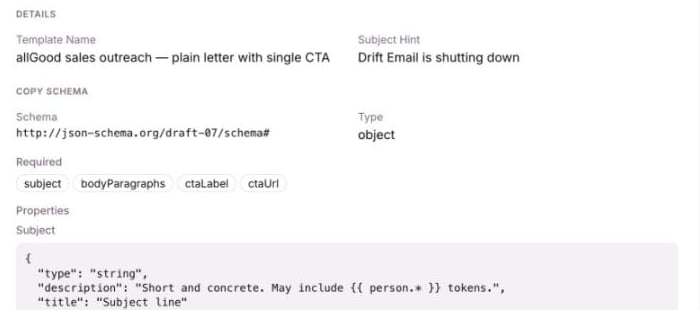
You get a rendered preview of the design and its copy schema. Check that each field is named for the person who will fill it. See Writing the copy schema.
A template's copy schema: the named fields the next email has to supply.
5
Publish it
Publishing locks in the brand guideline and component library at the versions it was built against. If either changes later, the template shows as out of date. See Changing an email template.
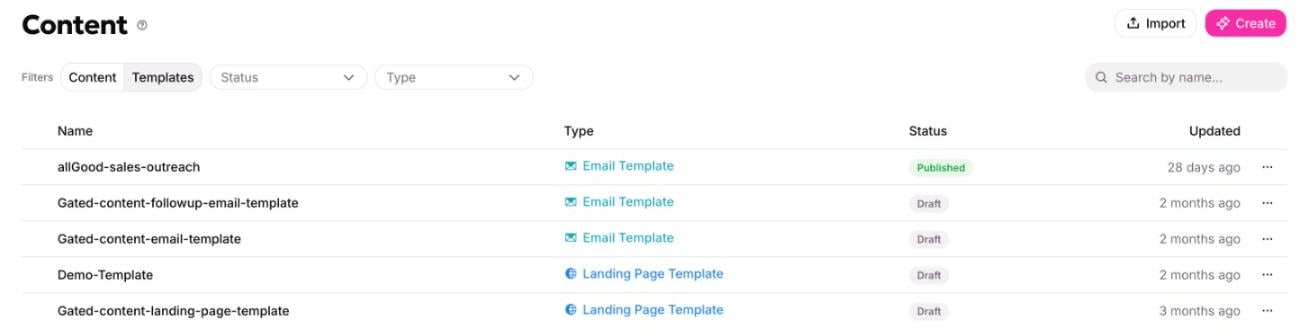
When this works, you will see the template under the Templates toggle in Content with a Published status, ready to start new emails from.
Templates are the other half of the library, reached by the toggle.
{"docsConfig":{"theme":"luma","$schema":"https://mintlify.com/docs.json","name":"allGood Docs","colors":{"primary":"#dc4393","light":"#ea7cb9","dark":"#b12563"},"logo":{"light":"https://mintcdn.com/allgoodtechnologyinc/QQ498qL6_aJdv7lm/logo/light.svg?fit=max\u0026auto=format\u0026n=QQ498qL6_aJdv7lm\u0026q=85\u0026s=0a6e25720e392678288f3d5e92580677","dark":"https://mintcdn.com/allgoodtechnologyinc/QQ498qL6_aJdv7lm/logo/dark.svg?fit=max\u0026auto=format\u0026n=QQ498qL6_aJdv7lm\u0026q=85\u0026s=d68d3e70bcb0adf89895e438a7dd3dd1"},"favicon":"https://mintcdn.com/allgoodtechnologyinc/QQ498qL6_aJdv7lm/favicon.svg?fit=max\u0026auto=format\u0026n=QQ498qL6_aJdv7lm\u0026q=85\u0026s=393be1889fc5f811dc575e9e7c4aa16f","background":{"decoration":"gradient"},"navbar":{"links":[{"href":"mailto:support@allgoodhq.com","label":"Support"}],"primary":{"type":"button","label":"App","href":"https://allgoodhq.app"}},"icons":{"library":"lucide"},"contextual":{"options":["copy","view","chatgpt","claude","mcp"],"display":"header"},"interaction":{"drilldown":true},"styling":{"latex":true},"navigation":{"global":{"anchors":[{"anchor":"Welcome","icon":"house","href":"/"},{"anchor":"Release Notes","icon":"list","href":"/release-notes"}]},"pages":[]}},"deployment":{"deploymentMetadataValue":{"subdomain":"allgoodtechnologyinc","hasAudioNarration":false,"actualSubdomain":"allgoodtechnologyinc","customDomains":["docs.allgoodhq.com"],"gitSource":{"type":"github","owner":"allgoodhq","repo":"mint","deployBranch":"main","contentDirectory":"","isPrivate":true,"mountPath":"","label":""},"chroma":{"liveDeploymentHistoryId":"6ae89845ed2f58cb10ee7f21","collectionId":"ded4f481-a124-4f34-9b5d-99e441c864c1","schemaVersion":"v3","latestBuiltDeploymentHistoryId":"6ae89845ed2f58cb10ee7f21"},"feedback":{"thumbs":true,"agentFeedback":true},"entitlements":{"AI_CHAT":{"status":"ENABLED"},"WEB_MCP":{"status":"ENABLED"},"NARRATION":{"status":"ENABLED"}},"buildId":"6aee4936ccb0d32d838b1741","clientVersion":"0.0.4076","searchFilterCounts":[{"language":"default","tag":"allGood","count":127},{"language":"default","tag":"Use Cases","count":68},{"language":"default","tag":"Email Reply Management","count":65},{"language":"default","tag":"Error Codes","count":38},{"language":"default","tag":"Marketing Kernel","count":20},{"language":"default","tag":"Marketo","count":18},{"language":"default","tag":"Integrations","count":17},{"language":"default","tag":"Settings","count":16},{"language":"default","tag":"Email Builder","count":12},{"language":"default","tag":"HubSpot","count":11}]},"assistantConfig":{"enableAskAiButton":false,"enableStarterQuestions":false,"enableAskAiSearchBar":true,"deflection":{"enabled":true,"email":"support@allgoodhq.com","showHelpButton":true}},"basePath":"","hasChatPermissions":true,"hasWebMcpPermissions":true,"toggles":[{"name":"kill-isr","enabled":true,"variant":{"name":"disabled","enabled":false,"feature_enabled":true},"impressionData":false},{"name":"agent-mintlify-slack","enabled":true,"variant":{"name":"disabled","enabled":false,"feature_enabled":true},"impressionData":false},{"name":"agent-integrations-settings","enabled":true,"variant":{"name":"disabled","enabled":false,"feature_enabled":true},"impressionData":false},{"name":"rbac-expansion","enabled":true,"variant":{"name":"disabled","enabled":false,"feature_enabled":true},"impressionData":false},{"name":"automations-pr-grouping","enabled":true,"variant":{"name":"disabled","enabled":false,"feature_enabled":true},"impressionData":false},{"name":"custom-prefix","enabled":true,"variant":{"name":"disabled","enabled":false,"feature_enabled":true},"impressionData":false},{"name":"analytics-v7","enabled":true,"variant":{"name":"disabled","enabled":false,"feature_enabled":true},"impressionData":false},{"name":"user-flows-analytics","enabled":true,"variant":{"name":"disabled","enabled":false,"feature_enabled":true},"impressionData":false},{"name":"no-publish-flow","enabled":true,"variant":{"name":"disabled","enabled":false,"feature_enabled":true},"impressionData":false},{"name":"workos-onboarding","enabled":true,"variant":{"name":"disabled","enabled":false,"feature_enabled":true},"impressionData":false},{"name":"llms-txt-v2","enabled":true,"variant":{"name":"disabled","enabled":false,"feature_enabled":true},"impressionData":false},{"name":"snapshot-serving-live","enabled":true,"variant":{"name":"disabled","enabled":false,"feature_enabled":true},"impressionData":false},{"name":"stripTemperatureMiddleware","enabled":true,"variant":{"name":"disabled","enabled":false,"feature_enabled":true},"impressionData":false},{"name":"support-platform-pylon-zendesk","enabled":true,"variant":{"name":"disabled","enabled":false,"feature_enabled":true},"impressionData":false},{"name":"snapshot-serving","enabled":true,"variant":{"name":"disabled","enabled":false,"feature_enabled":true},"impressionData":false},{"name":"instant-rollback","enabled":true,"variant":{"name":"disabled","enabled":false,"feature_enabled":true},"impressionData":false},{"name":"granular-notifications-server","enabled":true,"variant":{"name":"disabled","enabled":false,"feature_enabled":true},"impressionData":false},{"name":"granular-notifications","enabled":true,"variant":{"name":"disabled","enabled":false,"feature_enabled":true},"impressionData":false},{"name":"automations-fable","enabled":true,"variant":{"name":"disabled","enabled":false,"feature_enabled":true},"impressionData":false},{"name":"fixed-ai-action-pricing","enabled":true,"variant":{"name":"disabled","enabled":false,"feature_enabled":true},"impressionData":false},{"name":"automation-resolve-merge-conflict","enabled":true,"variant":{"name":"disabled","enabled":false,"feature_enabled":true},"impressionData":false},{"name":"scoped-publishing","enabled":true,"variant":{"name":"disabled","enabled":false,"feature_enabled":true},"impressionData":false},{"name":"mintql","enabled":true,"variant":{"name":"disabled","enabled":false,"feature_enabled":true},"impressionData":false},{"name":"page-level-analytics","enabled":true,"variant":{"name":"disabled","enabled":false,"feature_enabled":true},"impressionData":false},{"name":"editor-version-history-v2","enabled":true,"variant":{"name":"disabled","enabled":false,"feature_enabled":true},"impressionData":false},{"name":"billing-page-v2","enabled":true,"variant":{"name":"disabled","enabled":false,"feature_enabled":true},"impressionData":false},{"name":"full-page-search","enabled":true,"variant":{"name":"disabled","enabled":false,"feature_enabled":true},"impressionData":false},{"name":"workspace-projects","enabled":true,"variant":{"name":"disabled","enabled":false,"feature_enabled":true},"impressionData":false},{"name":"assistant-v5","enabled":true,"variant":{"name":"disabled","enabled":false,"feature_enabled":true},"impressionData":false},{"name":"fork-pr-previews","enabled":true,"variant":{"name":"disabled","enabled":false,"feature_enabled":true},"impressionData":false},{"name":"revalidation-jwt","enabled":true,"variant":{"name":"disabled","enabled":false,"feature_enabled":true},"impressionData":false},{"name":"workos-sso-scim","enabled":true,"variant":{"name":"disabled","enabled":false,"feature_enabled":true},"impressionData":false},{"name":"hobby-abuse-scan","enabled":true,"variant":{"name":"disabled","enabled":false,"feature_enabled":true},"impressionData":false},{"name":"dashboard-inbox","enabled":true,"variant":{"name":"disabled","enabled":false,"feature_enabled":true},"impressionData":false},{"name":"workos-signup","enabled":true,"variant":{"name":"disabled","enabled":false,"feature_enabled":true},"impressionData":false},{"name":"turbopuffer-dual-write","enabled":true,"variant":{"name":"disabled","enabled":false,"feature_enabled":true},"impressionData":false},{"name":"workos-enabled","enabled":true,"variant":{"name":"disabled","enabled":false,"feature_enabled":true},"impressionData":false},{"name":"approve-review-flow","enabled":true,"variant":{"name":"disabled","enabled":false,"feature_enabled":true},"impressionData":false},{"name":"sso-setup-deadline-banner","enabled":true,"variant":{"name":"disabled","enabled":false,"feature_enabled":true},"impressionData":false},{"name":"turbopuffer-serve","enabled":true,"variant":{"name":"disabled","enabled":false,"feature_enabled":true},"impressionData":false},{"name":"live-agents","enabled":true,"variant":{"name":"disabled","enabled":false,"feature_enabled":true},"impressionData":false},{"name":"comment-mode","enabled":true,"variant":{"name":"disabled","enabled":false,"feature_enabled":true},"impressionData":false}],"googleFontsInlined":false},"customCss":[{"filePath":"style.css","content":":root{--sidebar-width: 18rem}.frame{padding:0}.frame>.relative>*[data-as=\"p\"]{margin:0!important}div:has(>.frame){margin:0.5rem 0}.frame [data-component-part=\"frame-caption\"]{margin:0.5rem 0;margin-left:1rem;padding:0;text-align:left}"}],"page":{"pagePath":"mk/content/email/templates/creating-an-email-template","slug":"/mk/content/email/templates/creating-an-email-template","pageMetadata":{"title":"Creating an email template","sidebarTitle":"Creating a template","description":"Build an email template from a brief, a URL, or an email you already have, using your approved components.","noindex":true,"href":"/mk/content/email/templates/creating-an-email-template"},"description":{"compiledSource":"\"use strict\";\nconst {jsx: _jsx} = arguments[0];\nconst {useMDXComponents: _provideComponents} = arguments[0];\nfunction _createMdxContent(props) {\n const _components = {\n p: \"p\",\n ..._provideComponents(),\n ...props.components\n };\n return _jsx(_components.p, {\n children: \"Build an email template from a brief, a URL, or an email you already have, using your approved components.\"\n });\n}\nfunction MDXContent(props = {}) {\n const {wrapper: MDXLayout} = {\n ..._provideComponents(),\n ...props.components\n };\n return MDXLayout ? _jsx(MDXLayout, {\n ...props,\n children: _jsx(_createMdxContent, {\n ...props\n })\n }) : _createMdxContent(props);\n}\nreturn {\n default: MDXContent\n};\n","frontmatter":{},"scope":{}},"pageType":"default","mdx":{"mdxSource":{"compiledSource":"\"use strict\";const{Fragment:_Fragment,jsx:_jsx,jsxs:_jsxs}=arguments[0];const{useMDXComponents:_provideComponents}=arguments[0];function _createMdxContent(props){const _components={a:`a`,li:`li`,p:`p`,strong:`strong`,ul:`ul`,..._provideComponents(),...props.components},{Frame,Heading,OptimizedImage,Step,Steps}=_components;if(!Frame)_missingMdxReference(`Frame`,true);if(!Heading)_missingMdxReference(`Heading`,true);if(!OptimizedImage)_missingMdxReference(`OptimizedImage`,true);if(!Step)_missingMdxReference(`Step`,true);if(!Steps)_missingMdxReference(`Steps`,true);return _jsxs(_Fragment,{children:[_jsx(_components.p,{children:`You can build an email template three ways. All three produce the same result, so start from whatever you already have.`}),`\n`,_jsx(_components.p,{children:_jsx(_components.strong,{children:`Prerequisites`})}),`\n`,_jsxs(_components.ul,{children:[`\n`,_jsxs(_components.li,{children:[`Your `,_jsx(_components.a,{href:`/mk/content/brand-guidelines`,children:`brand guidelines`}),` are in allGood and published.`]}),`\n`,_jsxs(_components.li,{children:[`An `,_jsx(_components.a,{href:`/mk/content/email/components/index`,children:`Email Components library`}),`, if you want the template built from approved blocks. Without one, nothing checks the design against a set of blocks.`]}),`\n`]}),`\n`,_jsx(Heading,{level:`2`,id:`steps`,children:`Steps`}),`\n`,_jsxs(Steps,{children:[_jsx(Step,{id:`start-a-template`,title:`Start an email template`,children:_jsxs(_components.p,{children:[`In `,_jsx(_components.strong,{children:`Content`}),`, select `,_jsx(_components.strong,{children:`Create`}),` and choose the email template option. Give it a name.`]})}),_jsxs(Step,{id:`choose-a-source`,title:`Choose where it starts`,children:[_jsx(_components.p,{children:`Pick one of three starting points:`}),_jsxs(_components.ul,{children:[`\n`,_jsxs(_components.li,{children:[_jsx(_components.strong,{children:`A written brief.`}),` Describe the sections, their order, and the kind of message. This works best when you are starting fresh.`]}),`\n`,_jsxs(_components.li,{children:[_jsx(_components.strong,{children:`A URL.`}),` Give the address of a page or email layout you want to match. allGood reads it and builds a design from it.`]}),`\n`,_jsxs(_components.li,{children:[_jsx(_components.strong,{children:`An email you already have.`}),` Point at an email in allGood. This works best once you have made a few by hand and want to stop rebuilding the same layout.`]}),`\n`]})]}),_jsx(Step,{id:`attach-your-setup`,title:`Attach your brand and components`,children:_jsx(_components.p,{children:`Link your brand guideline and your Email Components library. The design comes back built from approved blocks and styled to your brand.`})}),_jsxs(Step,{id:`review-the-template`,title:`Review the design and the copy schema`,children:[_jsxs(_components.p,{children:[`You get a rendered preview of the design and its copy schema. Check that each field is named for the person who will fill it. See `,_jsx(_components.a,{href:`/mk/content/email/templates/writing-the-copy-schema`,children:`Writing the copy schema`}),`.`]}),_jsx(Frame,{caption:`A template's copy schema: the named fields the next email has to supply.`,children:_jsx(OptimizedImage,{src:`https://mintcdn.com/allgoodtechnologyinc/LW4p5NqCb6SZm7Lp/images/mk/content/template-copy-schema.png?fit=max\u0026auto=format\u0026n=LW4p5NqCb6SZm7Lp\u0026q=85\u0026s=65f7c53fc99f95a837b12912a010800d`,alt:`A template's copy schema: the named fields the next email has to supply.`,\"data-og-width\":`700`,width:`700`,\"data-og-height\":`310`,height:`310`,\"data-path\":`images/mk/content/template-copy-schema.png`,\"data-optimize\":`true`,\"data-opv\":`3`,srcset:`https://mintcdn.com/allgoodtechnologyinc/LW4p5NqCb6SZm7Lp/images/mk/content/template-copy-schema.png?w=280\u0026fit=max\u0026auto=format\u0026n=LW4p5NqCb6SZm7Lp\u0026q=85\u0026s=8f258d352473a1a5a7995c332dae0286 280w, https://mintcdn.com/allgoodtechnologyinc/LW4p5NqCb6SZm7Lp/images/mk/content/template-copy-schema.png?w=560\u0026fit=max\u0026auto=format\u0026n=LW4p5NqCb6SZm7Lp\u0026q=85\u0026s=2272e197cf908871e65981131fc19ce4 560w, https://mintcdn.com/allgoodtechnologyinc/LW4p5NqCb6SZm7Lp/images/mk/content/template-copy-schema.png?w=840\u0026fit=max\u0026auto=format\u0026n=LW4p5NqCb6SZm7Lp\u0026q=85\u0026s=252bd952d45dc8c340e437f40ddf40c3 840w, https://mintcdn.com/allgoodtechnologyinc/LW4p5NqCb6SZm7Lp/images/mk/content/template-copy-schema.png?w=1100\u0026fit=max\u0026auto=format\u0026n=LW4p5NqCb6SZm7Lp\u0026q=85\u0026s=d7ae0075e799f98ba5c457d0b35b61c6 1100w, https://mintcdn.com/allgoodtechnologyinc/LW4p5NqCb6SZm7Lp/images/mk/content/template-copy-schema.png?w=1650\u0026fit=max\u0026auto=format\u0026n=LW4p5NqCb6SZm7Lp\u0026q=85\u0026s=cbea29be00354f681d96b7e790e4e8a7 1650w, https://mintcdn.com/allgoodtechnologyinc/LW4p5NqCb6SZm7Lp/images/mk/content/template-copy-schema.png?w=2500\u0026fit=max\u0026auto=format\u0026n=LW4p5NqCb6SZm7Lp\u0026q=85\u0026s=8a12facba8617a40d550f47139e9104d 2500w`})})]}),_jsx(Step,{id:`approve-the-template`,title:`Publish it`,children:_jsxs(_components.p,{children:[`Publishing locks in the brand guideline and component library at the versions it was built against. If either changes later, the template shows as out of date. See `,_jsx(_components.a,{href:`/mk/content/email/templates/changing-an-email-template`,children:`Changing an email template`}),`.`]})})]}),`\n`,_jsxs(_components.p,{children:[`When this works, you will see the template under the `,_jsx(_components.strong,{children:`Templates`}),` toggle in `,_jsx(_components.strong,{children:`Content`}),` with a `,_jsx(_components.strong,{children:`Published`}),` status, ready to start new emails from.`]}),`\n`,_jsx(Frame,{caption:`Templates are the other half of the library, reached by the toggle.`,children:_jsx(OptimizedImage,{src:`https://mintcdn.com/allgoodtechnologyinc/LW4p5NqCb6SZm7Lp/images/mk/content/templates-toggle.png?fit=max\u0026auto=format\u0026n=LW4p5NqCb6SZm7Lp\u0026q=85\u0026s=64b6311a07360dcd83f09663ab4594c8`,alt:`Templates are the other half of the library, reached by the toggle.`,\"data-og-width\":`1309`,width:`1309`,\"data-og-height\":`336`,height:`336`,\"data-path\":`images/mk/content/templates-toggle.png`,\"data-optimize\":`true`,\"data-opv\":`3`,srcset:`https://mintcdn.com/allgoodtechnologyinc/LW4p5NqCb6SZm7Lp/images/mk/content/templates-toggle.png?w=280\u0026fit=max\u0026auto=format\u0026n=LW4p5NqCb6SZm7Lp\u0026q=85\u0026s=6aac453df1cdaa5843d94521a32aa66f 280w, https://mintcdn.com/allgoodtechnologyinc/LW4p5NqCb6SZm7Lp/images/mk/content/templates-toggle.png?w=560\u0026fit=max\u0026auto=format\u0026n=LW4p5NqCb6SZm7Lp\u0026q=85\u0026s=0f587bd3f03af283cfa85e5167693bd4 560w, https://mintcdn.com/allgoodtechnologyinc/LW4p5NqCb6SZm7Lp/images/mk/content/templates-toggle.png?w=840\u0026fit=max\u0026auto=format\u0026n=LW4p5NqCb6SZm7Lp\u0026q=85\u0026s=4678a8676f17199defbded5d1d2d2c0f 840w, https://mintcdn.com/allgoodtechnologyinc/LW4p5NqCb6SZm7Lp/images/mk/content/templates-toggle.png?w=1100\u0026fit=max\u0026auto=format\u0026n=LW4p5NqCb6SZm7Lp\u0026q=85\u0026s=2c397079dd3273c9fde28e249a2fff3c 1100w, https://mintcdn.com/allgoodtechnologyinc/LW4p5NqCb6SZm7Lp/images/mk/content/templates-toggle.png?w=1650\u0026fit=max\u0026auto=format\u0026n=LW4p5NqCb6SZm7Lp\u0026q=85\u0026s=e35922fd39b1b50d60fffc9844473fe7 1650w, https://mintcdn.com/allgoodtechnologyinc/LW4p5NqCb6SZm7Lp/images/mk/content/templates-toggle.png?w=2500\u0026fit=max\u0026auto=format\u0026n=LW4p5NqCb6SZm7Lp\u0026q=85\u0026s=6e8a16e0b96eddb0dbc959c4c08d280b 2500w`})}),`\n`,_jsxs(_components.p,{children:[`If you get stuck, contact `,_jsx(_components.a,{href:`mailto:support@allgoodhq.com`,children:`support@allgoodhq.com`}),`.`]}),`\n`,_jsx(Heading,{level:`2`,id:`related-articles`,children:`Related articles`}),`\n`,_jsxs(_components.ul,{children:[`\n`,_jsx(_components.li,{children:_jsx(_components.a,{href:`/mk/content/email/templates/what-an-email-template-is`,children:`What an email template is`})}),`\n`,_jsx(_components.li,{children:_jsx(_components.a,{href:`/mk/content/email/emails/creating-an-email`,children:`Creating an email`})}),`\n`,_jsx(_components.li,{children:_jsx(_components.a,{href:`/mk/content/approvals`,children:`Publishing and versions`})}),`\n`]})]})}function MDXContent(props={}){const{wrapper:MDXLayout}={..._provideComponents(),...props.components};return MDXLayout?_jsx(MDXLayout,{...props,children:_jsx(_createMdxContent,{...props})}):_createMdxContent(props)}return{default:MDXContent};function _missingMdxReference(id,component){throw new Error(`Expected `+(component?`component`:`object`)+\" `\"+id+\"` to be defined: you likely forgot to import, pass, or provide it.\")}","frontmatter":{},"scope":{"config":{},"pageMetadata":{"title":"Creating an email template","sidebarTitle":"Creating a template","description":"Build an email template from a brief, a URL, or an email you already have, using your approved components.","noindex":true,"href":"/mk/content/email/templates/creating-an-email-template"}}},"mdxSourceWithNoJs":null},"mdxExtracts":{"tableOfContents":[{"title":"Steps","slug":"steps","depth":2,"children":[]},{"title":"Related articles","slug":"related-articles","depth":2,"children":[]}],"codeExamples":{}},"jsLinks":[],"subdomain":"allgoodtechnologyinc","siteName":"allGood Docs","title":"Creating an email template - allGood Docs","relatedPagesConfig":{"enabled":false,"limit":5,"mode":"automatic"},"navMaps":{"firstHrefInVersion":{},"firstHrefInLanguage":{}},"lastModified":"2026-11-06T21:40:13.929Z","originalFileLocation":"mk/content/email/templates/creating-an-email-template.mdx"},"headHtml":"\u003cscript data-mint-head>(function(){var d=document.documentElement,p=null;if(!p){try{p=localStorage.getItem(\"isDarkMode\")}catch(e){}if(p==='true')p='dark';else if(p==='false')p='light';if(p!=='light'\u0026\u0026p!=='dark'\u0026\u0026p!=='system')p=\"system\"}var r=p==='system'?(matchMedia(\"(prefers-color-scheme: dark)\").matches?'dark':'light'):p;d.classList.remove(r==='dark'?'light':'dark');d.classList.add(r);d.setAttribute(\"data-theme-preference\",p)})();\u003c/script>\u003cmeta data-mint-head name=\"description\" content=\"Build an email template from a brief, a URL, or an email you already have, using your approved components.\">\u003cmeta data-mint-head name=\"application-name\" content=\"allGood Docs\">\u003cmeta data-mint-head name=\"generator\" content=\"Mintlify\">\u003cmeta data-mint-head name=\"robots\" content=\"noindex\">\u003clink data-mint-head rel=\"icon\" type=\"image/png\" sizes=\"192x192\" href=\"/mintlify-assets/_mintlify/favicons/allgoodtechnologyinc/_ALjgld6m1uJaRhW/_generated/favicon/android-chrome-192x192.png\" media=\"(prefers-color-scheme: light)\">\u003clink data-mint-head rel=\"apple-touch-icon\" type=\"image/png\" sizes=\"180x180\" href=\"/mintlify-assets/_mintlify/favicons/allgoodtechnologyinc/_ALjgld6m1uJaRhW/_generated/favicon/apple-touch-icon.png\">\u003clink data-mint-head rel=\"icon\" type=\"image/png\" sizes=\"16x16\" href=\"/mintlify-assets/_mintlify/favicons/allgoodtechnologyinc/_ALjgld6m1uJaRhW/_generated/favicon/favicon-16x16.png\" media=\"(prefers-color-scheme: light)\">\u003clink data-mint-head rel=\"icon\" type=\"image/png\" sizes=\"32x32\" href=\"/mintlify-assets/_mintlify/favicons/allgoodtechnologyinc/_ALjgld6m1uJaRhW/_generated/favicon/favicon-32x32.png\" media=\"(prefers-color-scheme: light)\">\u003clink data-mint-head rel=\"shortcut icon\" type=\"image/x-icon\" href=\"/mintlify-assets/_mintlify/favicons/allgoodtechnologyinc/_ALjgld6m1uJaRhW/_generated/favicon/favicon.ico\" media=\"(prefers-color-scheme: light)\">\u003clink data-mint-head rel=\"icon\" type=\"image/png\" sizes=\"192x192\" href=\"/mintlify-assets/_mintlify/favicons/allgoodtechnologyinc/_ALjgld6m1uJaRhW/_generated/favicon-dark/android-chrome-192x192.png\" media=\"(prefers-color-scheme: dark)\">\u003clink data-mint-head rel=\"icon\" type=\"image/png\" sizes=\"16x16\" href=\"/mintlify-assets/_mintlify/favicons/allgoodtechnologyinc/_ALjgld6m1uJaRhW/_generated/favicon-dark/favicon-16x16.png\" media=\"(prefers-color-scheme: dark)\">\u003clink data-mint-head rel=\"icon\" type=\"image/png\" sizes=\"32x32\" href=\"/mintlify-assets/_mintlify/favicons/allgoodtechnologyinc/_ALjgld6m1uJaRhW/_generated/favicon-dark/favicon-32x32.png\" media=\"(prefers-color-scheme: dark)\">\u003clink data-mint-head rel=\"shortcut icon\" type=\"image/x-icon\" href=\"/mintlify-assets/_mintlify/favicons/allgoodtechnologyinc/_ALjgld6m1uJaRhW/_generated/favicon-dark/favicon.ico\" media=\"(prefers-color-scheme: dark)\">\u003cmeta data-mint-head property=\"og:title\" content=\"Creating an email template - allGood Docs\">\u003cmeta data-mint-head property=\"og:description\" content=\"Build an email template from a brief, a URL, or an email you already have, using your approved components.\">\u003cmeta data-mint-head property=\"og:site_name\" content=\"allGood Docs\">\u003cmeta data-mint-head property=\"og:url\" content=\"https://docs.allgoodhq.com/mk/content/email/templates/creating-an-email-template\">\u003cmeta data-mint-head property=\"og:type\" content=\"website\">\u003cmeta data-mint-head property=\"og:image\" content=\"https://allgoodtechnologyinc.mintlify.site/_mintlify/api/og/v2?division=Email+templates\u0026amp;title=Creating+an+email+template\u0026amp;description=Build+an+email+template+from+a+brief%2C+a+URL%2C+or+an+email+you+already+have%2C+using+your+approved+components.\u0026amp;theme=1dffc1444f7b7db60f57189e\u0026amp;signature=2589375b70c63cc07f6377273fab42dce350668c2000807e6c9814ccaf8ecc7d\">\u003cmeta data-mint-head property=\"og:image:width\" content=\"1200\">\u003cmeta data-mint-head property=\"og:image:height\" content=\"630\">\u003cmeta data-mint-head name=\"twitter:card\" content=\"summary_large_image\">\u003cmeta data-mint-head name=\"twitter:title\" content=\"Creating an email template - allGood Docs\">\u003cmeta data-mint-head name=\"twitter:description\" content=\"Build an email template from a brief, a URL, or an email you already have, using your approved components.\">\u003cmeta data-mint-head name=\"twitter:image\" content=\"https://allgoodtechnologyinc.mintlify.site/_mintlify/api/og/v2?division=Email+templates\u0026amp;title=Creating+an+email+template\u0026amp;description=Build+an+email+template+from+a+brief%2C+a+URL%2C+or+an+email+you+already+have%2C+using+your+approved+components.\u0026amp;theme=1dffc1444f7b7db60f57189e\u0026amp;signature=2589375b70c63cc07f6377273fab42dce350668c2000807e6c9814ccaf8ecc7d\">\u003cmeta data-mint-head name=\"twitter:image:width\" content=\"1200\">\u003cmeta data-mint-head name=\"twitter:image:height\" content=\"630\">\u003cmeta data-mint-head name=\"msapplication-config\" content=\"/mintlify-assets/_mintlify/favicons/allgoodtechnologyinc/_ALjgld6m1uJaRhW/_generated/favicon/browserconfig.xml\">\u003cmeta data-mint-head name=\"apple-mobile-web-app-title\" content=\"allGood Docs\">\u003cmeta data-mint-head name=\"msapplication-TileColor\" content=\"#dc4393\">\u003clink data-mint-head rel=\"canonical\" href=\"https://docs.allgoodhq.com/mk/content/email/templates/creating-an-email-template\">\u003clink data-mint-head rel=\"alternate\" type=\"application/xml\" href=\"/sitemap.xml\">\u003clink data-mint-head rel=\"alternate\" type=\"text/markdown\" href=\"/mk/content/email/templates/creating-an-email-template.md\">\u003cscript data-mint-head type=\"application/ld+json\">{\"@context\":\"https://schema.org\",\"@type\":\"WebSite\",\"name\":\"allGood Docs\",\"creator\":{\"@type\":\"Organization\",\"name\":\"Mintlify\",\"url\":\"https://mintlify.com\"}}\u003c/script>","siteName":"allGood Docs","nav":{"global":{"anchors":[{"anchor":"Welcome","icon":"house","href":"/"},{"anchor":"Release Notes","icon":"list","href":"/release-notes"}]},"tabs":[{"tab":"allGood","icon":"book-open","pages":[{"title":"allGood","href":"/use-cases/email-builder"}]},{"tab":"Marketing Kernel","icon":"layers","groups":[{"group":"Marketing Kernel","pages":[{"title":"Marketing Kernel","sidebarTitle":"Overview","href":"/mk"},{"group":"Content","pages":[{"title":"Content","sidebarTitle":"Overview","href":"/mk/content/index"},{"title":"Getting started with Content","sidebarTitle":"Getting Started","href":"/mk/content/getting-started"},{"group":"Set up once","pages":[{"title":"Brand guidelines","sidebarTitle":"Brand Guidelines","href":"/mk/content/brand-guidelines"},{"title":"Component libraries","sidebarTitle":"Component Libraries","href":"/mk/content/component-libraries"},{"title":"Templates","sidebarTitle":"Templates","href":"/mk/content/templates"}]},{"group":"Visual assets","pages":[{"title":"Visual assets","sidebarTitle":"Overview","href":"/mk/content/visual-assets/index"},{"title":"Using an image in an email or page","sidebarTitle":"In an email or page","href":"/mk/content/visual-assets/using-an-image-in-an-email-or-page"},{"title":"Using an image you host elsewhere","sidebarTitle":"Images hosted elsewhere","href":"/mk/content/visual-assets/images-hosted-elsewhere"},{"title":"Visual assets FAQ","sidebarTitle":"FAQ","href":"/mk/content/visual-assets/faq"}]},{"title":"Hosted files","sidebarTitle":"Hosted Files","href":"/mk/content/hosted-files"},{"group":"Landing pages","pages":[{"title":"Landing pages","sidebarTitle":"Overview","href":"/mk/content/landing-pages/index"},{"title":"What a landing page is","sidebarTitle":"What a landing page is","href":"/mk/content/landing-pages/what-a-landing-page-is"},{"title":"Creating a landing page","sidebarTitle":"Creating a landing page","href":"/mk/content/landing-pages/creating-a-landing-page"},{"title":"Making a page from a template","sidebarTitle":"From a template","href":"/mk/content/landing-pages/making-a-page-from-a-template"},{"title":"Page components","sidebarTitle":"Page Components","href":"/mk/content/landing-pages/page-components"},{"title":"Editing a landing page's code","sidebarTitle":"Editing the code","href":"/mk/content/landing-pages/editing-the-code"},{"title":"Previewing a landing page","sidebarTitle":"Previewing","href":"/mk/content/landing-pages/previewing-a-landing-page"},{"title":"Checks before a page goes live","sidebarTitle":"Checks before publishing","href":"/mk/content/landing-pages/checks-before-publishing"},{"title":"Publishing a landing page","sidebarTitle":"Publishing and taking down","href":"/mk/content/landing-pages/publishing-a-landing-page"},{"title":"Showing different versions of a page","sidebarTitle":"Different versions","href":"/mk/content/landing-pages/testing-versions-of-a-page"},{"title":"Using a page you host elsewhere","sidebarTitle":"External pages","href":"/mk/content/landing-pages/using-an-external-page"},{"title":"Coming from Marketo or HubSpot: landing pages","sidebarTitle":"Coming from Marketo/HubSpot","href":"/mk/content/landing-pages/coming-from-marketo-hubspot"},{"title":"Landing page not showing or not saving?","sidebarTitle":"Troubleshooting","href":"/mk/content/landing-pages/troubleshooting"},{"title":"Landing pages FAQ","sidebarTitle":"FAQ","href":"/mk/content/landing-pages/faq"}]},{"group":"Email","pages":[{"title":"Email","sidebarTitle":"Overview","href":"/mk/content/email/index"},{"group":"Components","pages":[{"title":"Email components","sidebarTitle":"Overview","href":"/mk/content/email/components/index"},{"title":"Editing an email component","sidebarTitle":"Editing a component","href":"/mk/content/email/components/editing-an-email-component"},{"title":"Setting up and reviewing email components in allGood","sidebarTitle":"Setting up and reviewing","href":"/mk/content/email/components/setting-up-and-reviewing-email-components"},{"title":"What MJML is","sidebarTitle":"What MJML is","href":"/mk/content/email/components/what-mjml-is"}]},{"group":"Email templates","pages":[{"title":"Email templates","sidebarTitle":"Overview","href":"/mk/content/email/templates/index"},{"title":"What an email template is","sidebarTitle":"What a template is","description":"An email template is a reusable design plus a copy schema. Here is what that means and how it differs from a component and an email.","href":"/mk/content/email/templates/what-an-email-template-is"},{"title":"Creating an email template","sidebarTitle":"Creating a template","href":"/mk/content/email/templates/creating-an-email-template"},{"title":"Decide what writers fill in","sidebarTitle":"What writers fill in","description":"Name the fields an email template asks for, so whoever fills it in knows exactly what to write.","href":"/mk/content/email/templates/writing-the-copy-schema"},{"title":"Changing an email template","sidebarTitle":"Changing a template","href":"/mk/content/email/templates/changing-an-email-template"}]},{"group":"Emails","pages":[{"title":"Emails","sidebarTitle":"Overview","href":"/mk/content/email/emails/index"},{"title":"What an email is","sidebarTitle":"What an email is","href":"/mk/content/email/emails/what-an-email-is"},{"title":"Creating an email","sidebarTitle":"Creating an email","href":"/mk/content/email/emails/creating-an-email"},{"title":"Previewing and testing an email","sidebarTitle":"Previewing and testing","href":"/mk/content/email/emails/previewing-and-testing-an-email"},{"title":"Editing an email's code","sidebarTitle":"Editing the code","href":"/mk/content/email/emails/editing-the-code"},{"title":"Personalizing an email","sidebarTitle":"Personalizing","href":"/mk/content/email/emails/personalizing-an-email"},{"title":"Merge field reference","sidebarTitle":"Merge field reference","href":"/mk/content/email/emails/merge-field-reference"},{"title":"Show content conditionally and repeat a list","sidebarTitle":"Conditional content","href":"/mk/content/email/emails/conditional-content-and-lists"},{"title":"Liquid recipes for emails","sidebarTitle":"Liquid recipes","href":"/mk/content/email/emails/liquid-recipes"},{"title":"Before an email can send","sidebarTitle":"Before it can send","href":"/mk/content/email/emails/before-an-email-can-send"},{"title":"How unsubscribes work","sidebarTitle":"How unsubscribes work","href":"/mk/content/email/emails/how-unsubscribes-work"},{"title":"Email not sending or rendering wrong?","sidebarTitle":"Troubleshooting","href":"/mk/content/email/emails/troubleshooting"}]},{"title":"Email FAQ","sidebarTitle":"FAQ","href":"/mk/content/email/faq"},{"title":"Coming from Marketo or HubSpot: email","sidebarTitle":"Coming from Marketo or HubSpot","href":"/mk/content/email/coming-from-marketo-hubspot"}]},{"group":"Forms","pages":[{"title":"Forms","sidebarTitle":"Overview","href":"/mk/content/forms/index"},{"title":"What a form is","sidebarTitle":"What a form is","href":"/mk/content/forms/what-a-form-is"},{"title":"Creating a form","sidebarTitle":"Creating a form","href":"/mk/content/forms/creating-a-form"},{"title":"Testing a form","sidebarTitle":"Testing a form","href":"/mk/content/forms/testing-a-form"},{"title":"Adding a form to a page","sidebarTitle":"Adding a form to a page","href":"/mk/content/forms/adding-a-form-to-a-page"},{"title":"What protects a form","sidebarTitle":"What protects a form","href":"/mk/content/forms/what-protects-a-form"},{"title":"See how a form is performing","sidebarTitle":"Seeing performance","href":"/mk/content/forms/seeing-form-performance"},{"title":"Find where a form is used","sidebarTitle":"Finding where it's used","href":"/mk/content/forms/finding-where-a-form-is-used"},{"title":"Form not capturing submissions?","sidebarTitle":"Troubleshooting","href":"/mk/content/forms/troubleshooting"},{"title":"Forms FAQ","sidebarTitle":"FAQ","href":"/mk/content/forms/faq"},{"title":"Coming from Marketo or HubSpot: forms","sidebarTitle":"Coming from Marketo/HubSpot","href":"/mk/content/forms/coming-from-marketo-hubspot"}]},{"title":"Copy and variants","sidebarTitle":"Copy and Variants","href":"/mk/content/copy-and-variants"},{"title":"Publishing and versions","sidebarTitle":"Publishing and Versions","href":"/mk/content/approvals"},{"title":"Marketo to MK","icon":"arrow-right-left","href":"/mk/content/marketo-to-mk"}]},{"group":"Data Platform","pages":[{"title":"MK Data Platform","sidebarTitle":"Overview","href":"/mk/data/index"},{"title":"Data Sharing","sidebarTitle":"Data Sharing","href":"/mk/data/sharing"},{"title":"Data Architecture","href":"/mk/data/architecture"},{"title":"Orchestration","sidebarTitle":"Orchestration","href":"/mk/data/orchestration"}]},{"group":"Formulas","pages":[{"title":"Formulas in MK","sidebarTitle":"Overview","href":"/mk/formulas/index"},{"title":"What formulas are and when to use one","sidebarTitle":"What formulas are","href":"/mk/formulas/what-formulas-are"},{"title":"How formulas find your data","sidebarTitle":"How formulas find your data","href":"/mk/formulas/how-formulas-find-your-data"},{"title":"Filter a list with a formula","sidebarTitle":"Filter a list","href":"/mk/formulas/filter-a-list"},{"title":"Add a calculated column to a list","sidebarTitle":"Add a calculated column","href":"/mk/formulas/add-a-calculated-column"},{"title":"Handle blank and messy values in formulas","sidebarTitle":"Handle blank values","href":"/mk/formulas/handle-blank-values"},{"title":"Formula recipes","sidebarTitle":"Recipes","href":"/mk/formulas/recipes"},{"title":"Where you can use formulas in MK","sidebarTitle":"Where you can use formulas","href":"/mk/formulas/where-you-can-use-formulas"},{"title":"Formula reference: functions and operators","sidebarTitle":"Reference","href":"/mk/formulas/reference"},{"title":"Formula gives a blank, wrong, or error result","sidebarTitle":"Formula not working","href":"/mk/formulas/not-working"},{"title":"Formulas FAQ","sidebarTitle":"FAQ","href":"/mk/formulas/faq"},{"title":"Coming from Marketo: formulas in MK","sidebarTitle":"Coming from Marketo","href":"/mk/formulas/coming-from-marketo"}]},{"group":"Motions","pages":[{"title":"Motions","sidebarTitle":"Overview","href":"/mk/motions/index"},{"title":"Motion types","sidebarTitle":"Motion Types","href":"/mk/motions/motion-types"},{"title":"Gated content","sidebarTitle":"Gated Content","href":"/mk/motions/gated-content"},{"title":"Webinars","sidebarTitle":"Webinars","href":"/mk/motions/webinars"},{"title":"Launching a motion","sidebarTitle":"Launching","href":"/mk/motions/launching"}]},{"group":"Web Edge for developers","pages":[{"title":"Add Web Edge to your website","sidebarTitle":"Overview","href":"/mk/developer/web-edge/index"},{"group":"Add it to your website","pages":[{"title":"Create a form","sidebarTitle":"Create a Form","href":"/mk/developer/web-edge/create-a-form"},{"title":"Install the tag","sidebarTitle":"Install the Tag","href":"/mk/developer/web-edge/install-the-tag"},{"title":"Install with Google Tag Manager","sidebarTitle":"Install with GTM","href":"/mk/developer/web-edge/install-with-gtm"},{"title":"Capture a form","sidebarTitle":"Capture a Form","href":"/mk/developer/web-edge/capture-a-form"},{"title":"Identify and track","sidebarTitle":"Identify and Track","href":"/mk/developer/web-edge/identify-and-track"},{"title":"Track custom events on your website","sidebarTitle":"Track Custom Events","href":"/mk/developer/web-edge/track-custom-events"},{"title":"What consent gates","sidebarTitle":"Consent Behavior","href":"/mk/developer/web-edge/consent-behavior"},{"title":"A complete example page","sidebarTitle":"Worked Example","href":"/mk/developer/web-edge/worked-example"},{"title":"Test your setup","sidebarTitle":"Test Your Setup","href":"/mk/developer/web-edge/test-your-setup"},{"title":"Troubleshooting","sidebarTitle":"Troubleshooting","href":"/mk/developer/web-edge/troubleshooting"},{"title":"Coming from Marketo: Web Edge for developers","sidebarTitle":"Coming from Marketo","href":"/mk/developer/web-edge/from-marketo"}]},{"group":"Reference","pages":[{"title":"Form capture API","sidebarTitle":"Form Capture API","href":"/mk/developer/web-edge/reference/form-api"},{"title":"Event capture API","sidebarTitle":"Event Capture API","href":"/mk/developer/web-edge/reference/event-api"},{"title":"Endpoint reference","sidebarTitle":"Endpoints","href":"/mk/developer/web-edge/reference/endpoints"},{"title":"Reason codes","sidebarTitle":"Reason Codes","href":"/mk/developer/web-edge/reference/reason-codes"},{"title":"Settings reference","sidebarTitle":"Settings","href":"/mk/developer/web-edge/reference/settings"},{"title":"Glossary","sidebarTitle":"Glossary","href":"/mk/developer/web-edge/reference/glossary"}]}]}]},{"group":"Platform","pages":[{"group":"Integrations","pages":[{"title":"The Integrations screen","sidebarTitle":"Overview","href":"/mk/integrations/index"},{"title":"Add your Anthropic API key","sidebarTitle":"Anthropic","href":"/mk/integrations/anthropic"},{"title":"How allGood connects with your other marketing tools","href":"/mk/integrations/how-allgood-connects"},{"title":"Understanding incoming and outgoing webhooks","href":"/mk/integrations/webhooks"}]},{"group":"Email components for developers","pages":[{"title":"How MJML works","sidebarTitle":"How MJML works","href":"/mk/developer/email/how-mjml-works"},{"title":"Write an email component","sidebarTitle":"Writing components","href":"/mk/developer/email/how-to-write-email-components"},{"title":"Compare MJML with other email tools","sidebarTitle":"Compare MJML with other tools","href":"/mk/developer/email/compare-mjml-with-other-tools"},{"title":"Move your Marketo unsubscribes to allGood","sidebarTitle":"Move Marketo unsubscribes","href":"/mk/developer/email/move-your-marketo-unsubscribes"}]},{"group":"Landing pages for developers","pages":[{"title":"Write a landing page by hand","sidebarTitle":"Write a page by hand","href":"/mk/developer/landing-pages/write-a-landing-page"},{"title":"Retire your Marketo landing page subdomain","sidebarTitle":"Retire Marketo landing pages","href":"/mk/developer/landing-pages/retire-marketo-landing-pages"}]},{"group":"API and Webhooks","pages":[{"title":"API and Webhooks","sidebarTitle":"Overview","href":"/mk/developer/api/index"}]}]},{"group":"Enterprise","pages":[{"title":"Enterprise","sidebarTitle":"Overview","href":"/mk/enterprise/index"},{"title":"MCP usage","sidebarTitle":"MCP Usage","href":"/mk/enterprise/mcp-usage"},{"title":"Data privacy","sidebarTitle":"Data Privacy","href":"/mk/enterprise/data-privacy"}]},{"group":"Settings","pages":[{"group":"Web Edge","pages":[{"title":"Web Edge","sidebarTitle":"Overview","href":"/mk/settings/web-edge/index"},{"title":"How Web Edge keeps your domain secure","sidebarTitle":"How it works","href":"/mk/settings/web-edge/how-it-works"},{"title":"Connect a subdomain","sidebarTitle":"Connect a subdomain","href":"/mk/settings/web-edge/connect-a-subdomain"},{"title":"Set your allowed origins","sidebarTitle":"Allowed origins","href":"/mk/settings/web-edge/allowed-origins"},{"title":"Connect your consent platform","sidebarTitle":"Consent provider","href":"/mk/settings/web-edge/consent-provider"},{"title":"Set up Web Tracking","sidebarTitle":"Web Tracking","href":"/mk/settings/web-edge/tracking-setup"},{"title":"Turn on bot protection for a form","sidebarTitle":"Bot protection","href":"/mk/settings/web-edge/bot-protection"},{"title":"Review your form processing settings","sidebarTitle":"Form processing","href":"/mk/settings/web-edge/form-processing"},{"title":"Manage your landing page settings","sidebarTitle":"Landing page settings","href":"/mk/settings/web-edge/landing-page-settings"},{"title":"Saved vs live at the edge","sidebarTitle":"Saved vs live","href":"/mk/settings/web-edge/edge-sync"},{"title":"Web Edge setup checklist","sidebarTitle":"Setup checklist","href":"/mk/settings/web-edge/setup-checklist"},{"title":"Coming from Marketo: Web Edge for admins","sidebarTitle":"Coming from Marketo","href":"/mk/settings/web-edge/coming-from-marketo"},{"title":"Web Edge FAQ","sidebarTitle":"FAQ","href":"/mk/settings/web-edge/faq"}]},{"group":"Email","pages":[{"title":"Set up an email domain","href":"/mk/settings/email/domains-setup"},{"title":"Web Edge domain vs. email domain","href":"/mk/settings/email/domains-vs-web-edge"},{"title":"Authenticate your sending domain: SPF, DKIM, DMARC, BIMI, and VMC","href":"/mk/settings/email/authentication"},{"title":"Your sending IP: shared pool or dedicated","href":"/mk/settings/email/sending-ip"},{"title":"Set up your Subscription Center","sidebarTitle":"Subscription Center","href":"/mk/settings/email/subscription-center"},{"title":"Email Frequently Asked Questions","href":"/mk/settings/email/faq"}]}]}]}]},"basePath":"","title":"Creating an email template - allGood Docs","buildId":"dpl_8LJbrAiZvr1K98WQNZXCyY5AvT34","deploymentId":"dpl_8LJbrAiZvr1K98WQNZXCyY5AvT34","dynamics":["07c022d89b","a74be98ba7"],"chunks":["Frame-NdetNziF.js","DynamicMarkdown-CD8713Yy.js","zoom-image-lightbox-DMoL6lHz.js","lightbox-handle-r17bVUz3.js"]}