

Unsubscribe, recording rationale, and adding senders to campaigns. Because Mary acts on records she doesn’t own, the permission setup below is stricter than a read-only sync, and getting it right is what makes the difference between Mary finding a record and Mary silently finding nothing.
View All / Modify All on Contact and Lead, which a read-only profile
won’t have.Prerequisites
Before setting up the Salesforce integration for ERM, ensure you have:- Salesforce Account with Enterprise access or API quota purchased
- Admin access to your Salesforce instance to create users and profiles
- Access to email for the dedicated Salesforce user account verification
- allGood account with integration permissions
Step-by-Step Setup
Create allGood Profile in Salesforce
- Log in to Salesforce with an admin account
- Click the gear icon (top right) → Setup
- In left navigation: Administration → Users → Profiles
- Click New Profile
- Set Existing Profile to Read only
- Set Profile Name to allGood User
- Click Save
Grant Object Permissions
- Go to Setup → Users → Profiles, click Edit next to allGood User.
- Under Standard Object Permissions, set the checkboxes exactly as in the table above:
- Contact and Lead → Read, Create, Edit, View All, Modify All
- Campaign → Read, Edit, View All
- Campaign Member → Read, Create, Edit
- Leave Delete unchecked on every object — the integration never deletes records.
- Scroll to the top and click Save.
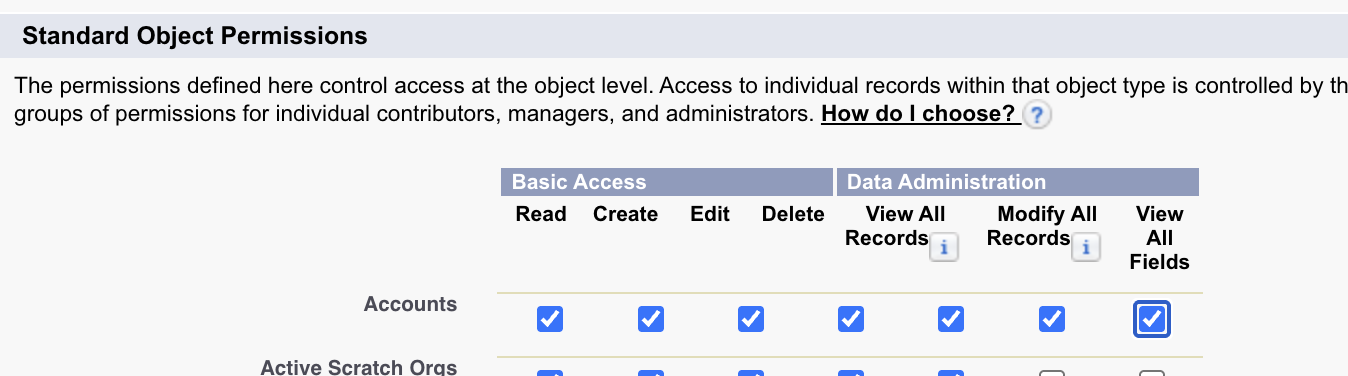
Enable the standard object permissions for each of the above object types.
Field-Level Security (FLS)
- Go to Setup → Object Manager → Contact → Fields & Relationships → Email Opt Out.
- Click Set Field-Level Security.
- For the allGood User profile, check Visible and leave Read-Only unchecked, then Save.
- Repeat for Lead: Object Manager → Lead → Fields & Relationships → Email Opt Out → Set Field-Level Security → Visible (not Read-Only) → Save.
- Do the same for any other fields you configure Mary to write, plus Company on Lead (Salesforce requires it when creating new Leads).
Create Dedicated User Account
- In left navigation: Administration → Users → Users
- Click New User
- Fill required fields:
- License: Select Salesforce
- Profile: Select allGood User
- Email: Use accessible team email address that somehow indicates “allGood”
- Make sure the
Marketing Userbox is checked.
- Click Save
- Copy the Username and store it securely
Verify User Account
- Check the email inbox used for the new user
- Open the Salesforce verification email
- Follow the verification link and set a password
- Store the password securely.
Connect Integration in allGood
-
Log into allGood and navigate to Settings → Integrations. Click Install next to “Salesforce”.
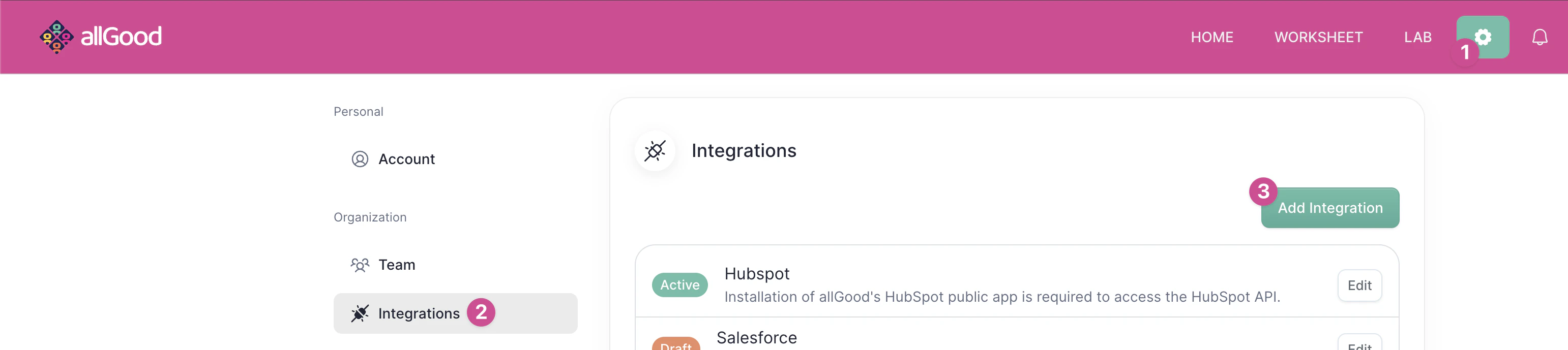
Click "Install" on the Salesforce integration.
-
Select the right SFDC environment (either production/live, sandbox, or a custom instance login URL)
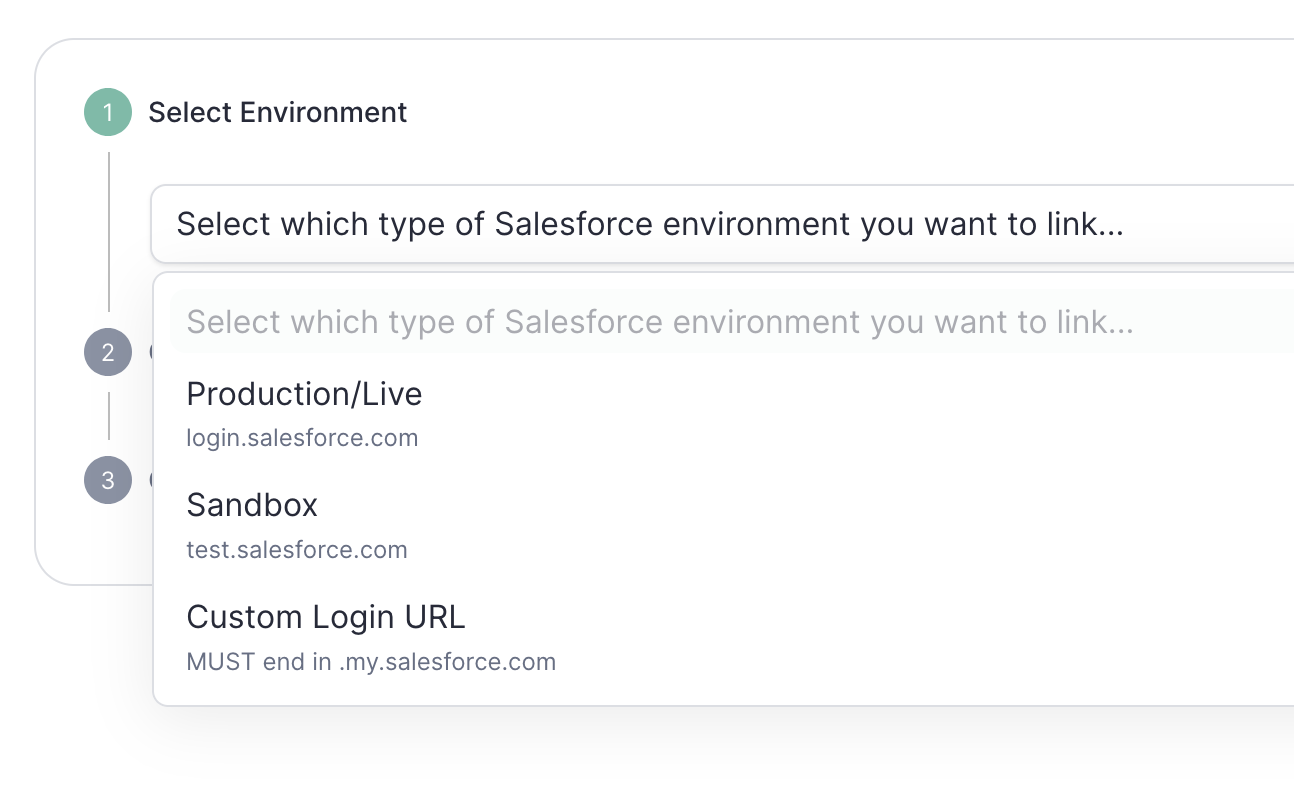
Select the right SFDC environment
-
Click Connect to Salesforce .
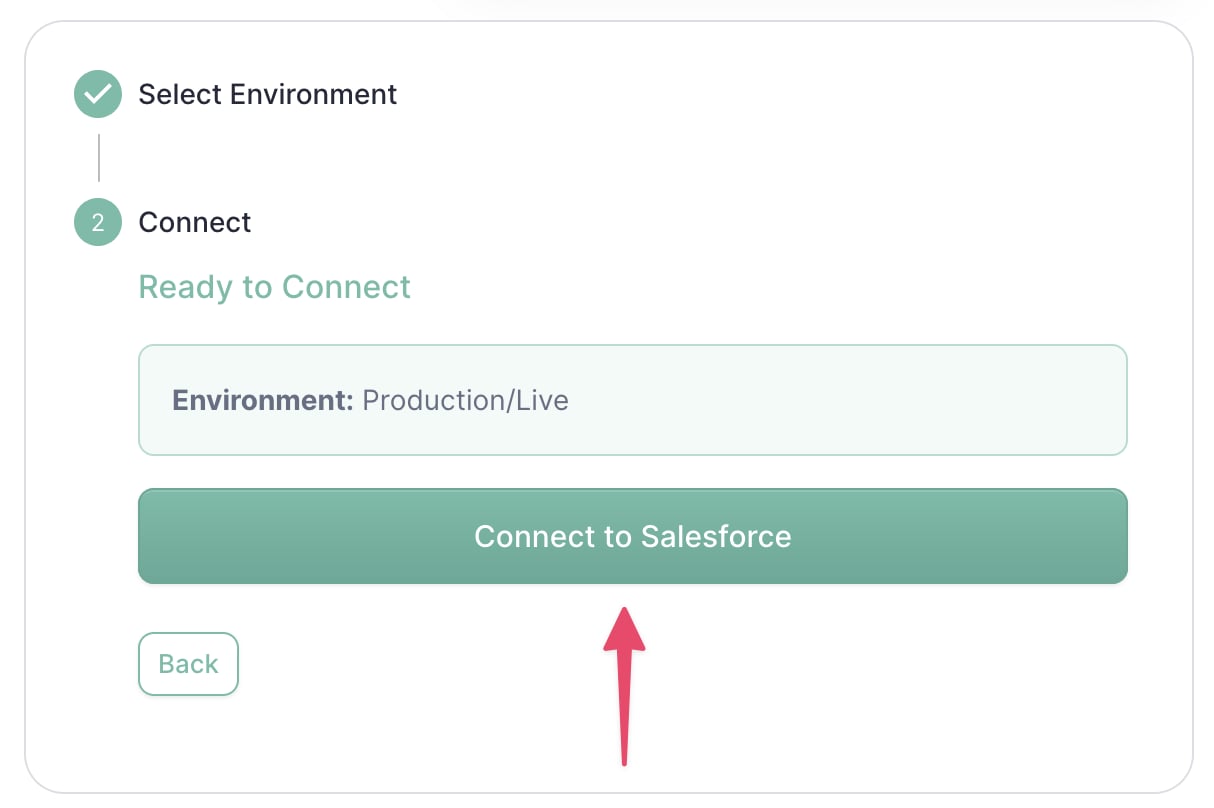
Connect to Salesforce
- Sign in using the allGood user credentials created above
- Verify the integration shows as Active on your integrations page
Verification & Testing
If Salesforce shows “Active” status in allGood integrations, Mary was able to connect successfully. Object-level access and FLS only surface at execution time, so verify the write path end-to-end before going live:- Send a message against a category whose actions write to Salesforce.
- Confirm the target Contact/Lead actually updated — including the
Email Opt Outfield forUnsubscribe. - If the record wasn’t found or the update was silently skipped, re-check
View All/Modify Allon Contact and Lead and the FLS on the field being written.
Frequently Asked Questions
Why does Mary need View All / Modify All when she already has Read / Edit?
Why does Mary need View All / Modify All when she already has Read / Edit?
Read/Edit, Mary’s lookup finds nothing (or the update fails on a
record she can’t touch). View All lets her find any matching record;
Modify All lets her write to records she doesn’t own.Do I need to grant Delete on any object?
Do I need to grant Delete on any object?
Mary's update runs but the field doesn't change. What's wrong?
Mary's update runs but the field doesn't change. What's wrong?
Which Salesforce edition do I need?
Which Salesforce edition do I need?
Troubleshooting
Error: 'No such column HasOptedOutOfEmail' (or another field)
Error: 'No such column HasOptedOutOfEmail' (or another field)
Mary reports 'no Contact or Lead found' for a person who exists
Mary reports 'no Contact or Lead found' for a person who exists
An update fails with 'insufficient access'
An update fails with 'insufficient access'
Adding to a campaign fails with 'insufficient access'
Adding to a campaign fails with 'insufficient access'
A field isn't being written
A field isn't being written
Creating a new Lead fails
Creating a new Lead fails
Why am I getting login errors?
Why am I getting login errors?
Where can I get help?
Where can I get help?
- Review this page for setup steps and common issues - Contact our support team for technical assistance