

Getting Started
1
Create a task in Asana and title it with your campaign name
The task title becomes your campaign identifier. Use a clear, descriptive name that follows your team’s naming conventions (e.g., 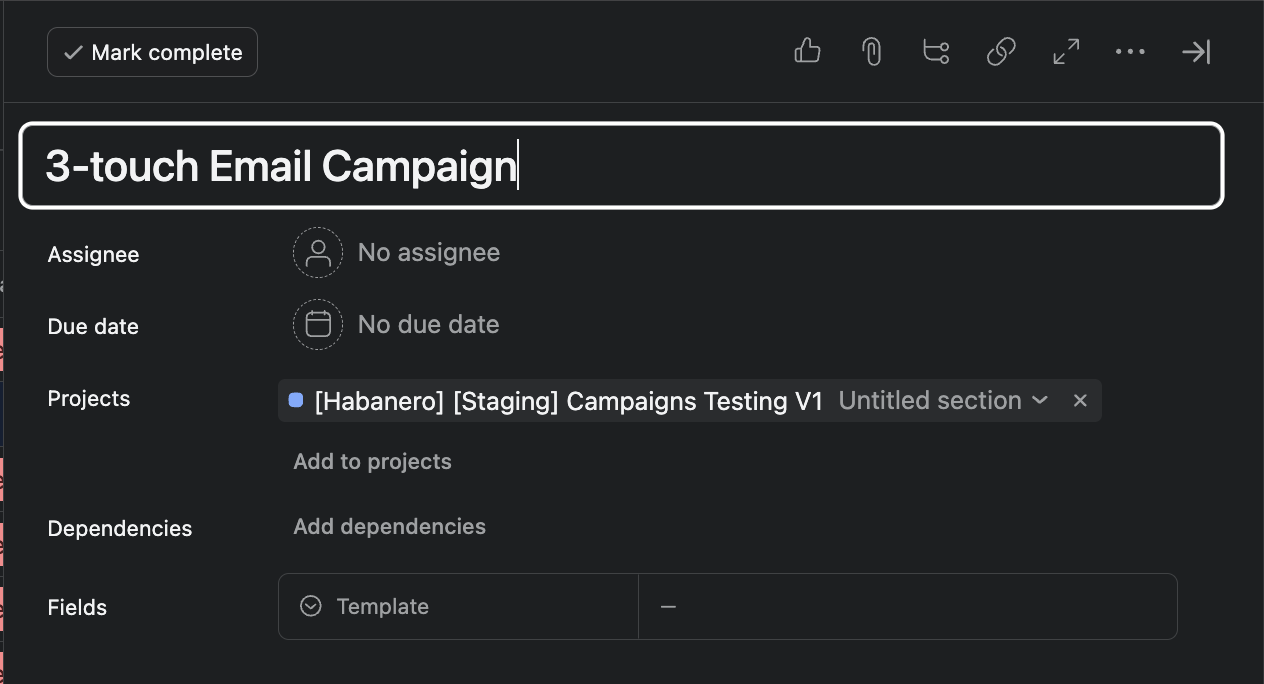
Q1_2025_Product_Launch_Webinar or EMEA_Nurture_Series_March).2
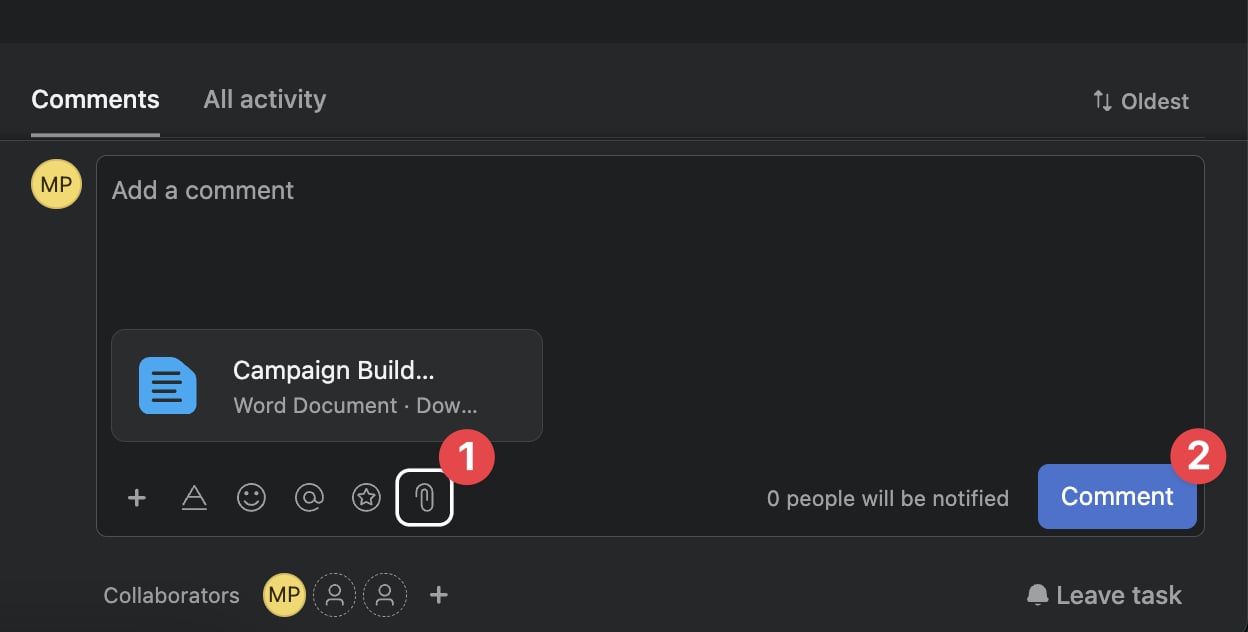
Attach your campaign brief to the task
Your campaign brief must be in
.docx format. This document should contain:- Program details (Marketo folder path, template name, required tokens)
- Email content (subject lines, body copy, CTAs)
- Landing page content and structure
-
UTM parameters and compliance requirements (if applicable)
3
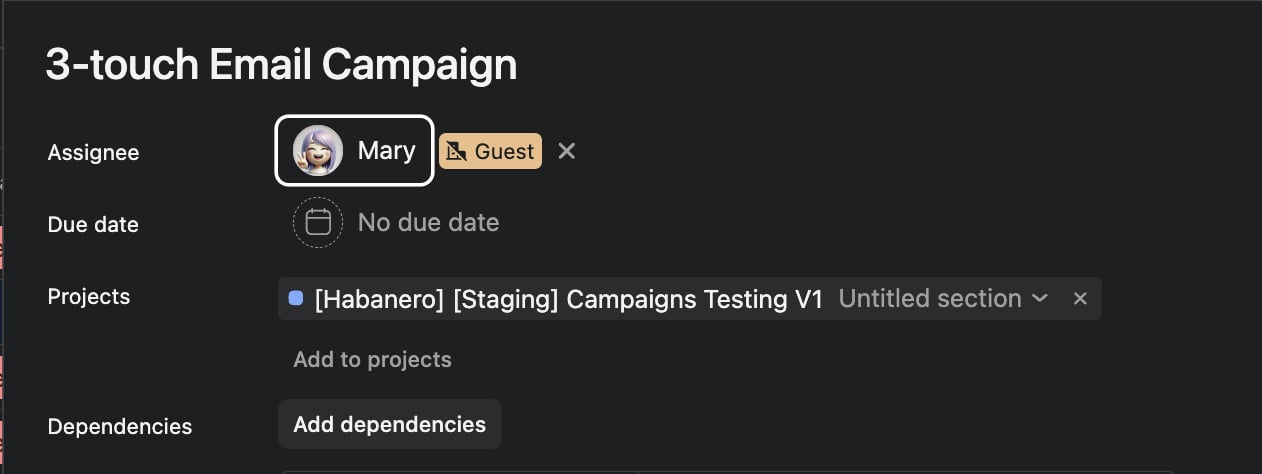
Add Mary as a collaborator or assign the task to her
This step triggers Mary to begin processing your campaign. You can either add her as a collaborator or assign the task directly to her — this won’t change how Mary handles the task. The choice simply comes down to what works best for your team internally.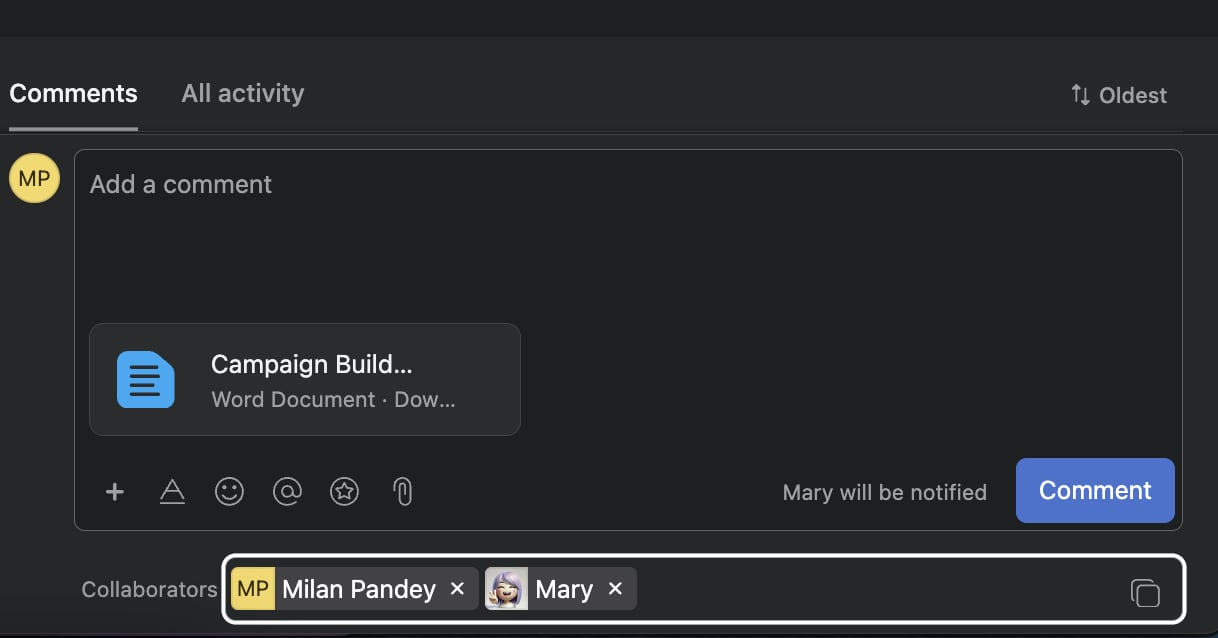
4
Provide required program configuration
Mary requires three critical pieces of information to proceed. If any are missing from your brief, she’ll pause and request them:
Mary will not proceed until all three are provided. This ensures programs are created in the correct location with the appropriate structure.
5
Handle existing campaign detection
If Mary detects an existing Marketo program with the same name, she’ll proactively ask for clarification:
“I just want to confirm, I already see a Campaign in Marketo with that name, should I use that, or do you want to give me a new name?”
- Confirm: Mary will use the existing program and update its assets based on your brief. Be certain you want to overwrite existing content.
- Provide new name: Mary will create a new program with your updated name.
6
Mary builds your campaign assets
Once all requirements are met, Mary automatically provisions and configures:
- Marketo program with correct folder placement and naming
- Email assets populated with your content, subject lines, and CTAs
- Landing pages with approved copy and proper UTM tracking
- Tokens and variables mapped from your brief
- Integration with Salesforce campaigns (if configured)
7
Respond to Mary's content requests
If your brief is missing required content elements, Mary creates specific tasks for each missing item. She cannot proceed to deployment until all content is provided.Example request from Mary:
“Please provide your content for Email 2 because it’s missing from your briefing document. I need: subject line, preview text, body copy, and CTA button text.”Respond directly in the Asana task comments with the missing content. Mary will automatically incorporate your responses and continue the build process.
Receiving Test Emails & QA Process
Once all campaign assets are built, Mary automatically initiates the quality assurance workflow.Automatic Test Email Delivery
Assuming your brief contained all required information, Mary automatically sends test emails to designated recipients. This behavior can be configured based on your team’s preferences:Landing Page Quality Assurance
For landing pages, Mary provides direct preview links to the staged pages:- Preview URL: Non-indexed staging link for content review
- Edit URL: Direct link to the page editor in your CMS/MAP
Making Revisions & Content Updates
During the QA phase, you can request revisions directly in the Asana task. Mary understands natural language commands and can handle a wide range of content and formatting changes.Supported Revision Types
Content Changes
Content Changes
- “@Mary update the subject line to ‘New Product Launch: Early Access for VIP Customers’”
- “@Mary change the CTA button text from ‘Learn More’ to ‘Register Now’”
- “@Mary replace the second paragraph in Email 1 with: [new content]”
Formatting & Styling Changes
Formatting & Styling Changes
- “@Mary bold the intro text in Email 2”
- “@Mary change the bullet list in the landing page to a numbered list”
- “@Mary make the product name in the headline use our brand color (hex #0066CC)”
Asset Replacement
Asset Replacement
- “@Mary swap out the Email 1 banner image with this new image” (attach updated image file)
- “@Mary replace the product screenshot in the landing page with the attached version”
- “@Mary use the updated company logo across all emails”
What Happens After Revision Requests
- Mary confirms she understands your request
- She makes the changes across all relevant assets (emails, landing pages, tokens)
- Updated test emails are automatically resent (if configured)
- Preview links are refreshed to show the latest version
- Mary logs all changes in the campaign event history for compliance purposes
Approval & Deployment
Once you’ve completed QA and all stakeholders have approved the campaign assets, you’re ready to deploy.Triggering Deployment
Simply tell Mary:“@Mary approve and deploy this campaign” or “@Mary this looks good, please make it live”Mary will:
- Activate the Marketo program and approve all assets
- Publish landing pages to production URLs
- Log the deployment event with timestamps and IDs for audit trail
Post-Deployment & Ongoing Management
After deployment, Mary continues to monitor your campaign and can assist with updates and troubleshooting.MOps Best Practices & Tips
1. Standardize Your Brief Templates
1. Standardize Your Brief Templates
Create standardized
.docx templates for different campaign types (webinars, nurtures, events, product launches). Include clearly labeled sections for all required fields. This reduces back-and-forth with Mary and speeds up processing time.2. Use Consistent Naming Conventions
2. Use Consistent Naming Conventions
Establish team-wide naming conventions for campaigns, programs, and assets. Include identifiers like date, region, campaign type, and version (e.g.,
2025_Q1_NA_Webinar_ProductLaunch_v1). This prevents accidental overwrites and improves searchability.3. Leverage Mary's Event Log
3. Leverage Mary's Event Log
Mary maintains a complete audit trail of all campaign activities. Use this for compliance reporting, troubleshooting, and stakeholder communication. You can ask “@Mary show me the full event history for this campaign” at any time.
4. Configure Approval Workflows
4. Configure Approval Workflows
Set up automatic stakeholder notifications in your brief. Include approvers’ email addresses so Mary can automatically share previews with legal, compliance, product marketing, or executive reviewers. This streamlines multi-stakeholder approvals.
Getting Help & Support
If you encounter issues or need assistance:- Ask Mary directly: “@Mary what went wrong with this deployment?” or “@Mary why didn’t the email send?”
- Review error logs: Mary provides detailed error messages with specific resolution steps
- Check the event history: “@Mary show me all errors for this campaign” reveals technical details
- Contact support: For platform issues or integration problems, reach out to your allGood support team with the campaign ID
This documentation reflects the current Asana integration workflow. For questions about other integrations (Jira, Monday.com, etc.) or advanced configuration options, consult the full allGood platform documentation or contact your MOps admin.