

Why this matters
Without the tag, allGood can’t see what happens on your website. You can still send campaigns and publish landing pages, but you won’t know who read the pricing page twice before filling in a form, or who came back a week later. The tag is what connects your marketing to what visitors actually do.Before you start
- A domain must be connected and active — the tag is served from your own allGood subdomain, so without one there’s no address to load it from. See Connect your subdomain.
- The website’s origin must be on your allowed origins list, or nothing it sends is accepted.
- You need a way to edit the
<head>of your pages, either directly or through a tag manager.
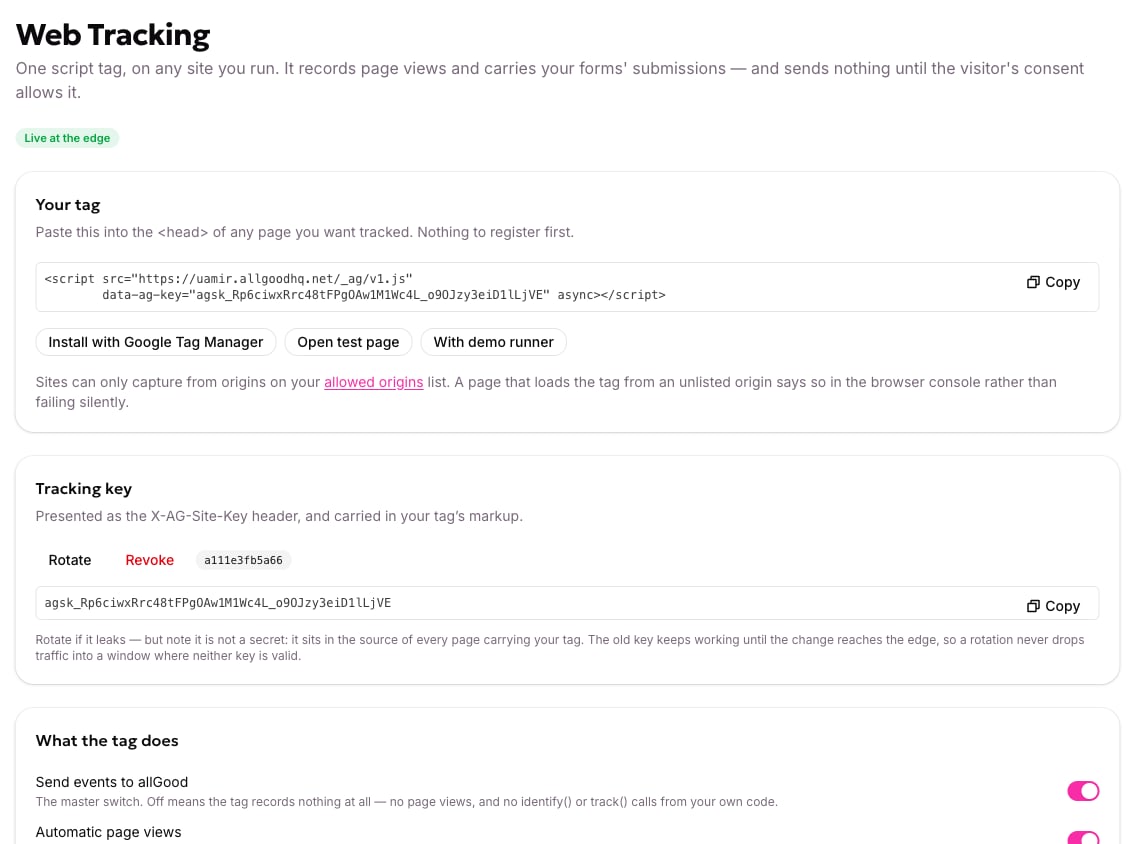
The Web Tracking settings page, showing the generated tag, the account's tracking key, and the two switches that control what the tag sends.
Install the tag
1
Open the Web Tracking settings
In allGood, go to Settings → Web Tracking.
2
Issue a tracking key
If the page shows Issue key instead of a key, click it. That mints your account’s key — a value beginning
agsk_ — and the tag snippet appears above it, filled in with your domain and your key.There is one key per account, not one per website.3
Turn on Send events to allGood
Under What the tag does, switch Send events to allGood on. On a new account it starts off, and while it’s off the tag sends nothing at all.Watch the status chip on the screen. It reads Publishing… while the change travels out to allGood’s edge network, then Live at the edge. Until it’s green, the previous setting is still the one being enforced.
4
Check the site is on your allowed origins list
Open Settings → Web Edge and look at Allowed origins. The site you’re about to add the tag to has to be listed there, written exactly as the browser sees it — scheme included, no trailing slash, no path.
https://www.brand.com and https://brand.com are different origins. Add each one you actually publish from.5
Copy your tag
Back on Settings → Web Tracking, click Copy under Your tag. The snippet looks like this, with your real domain and key already filled in:
6
Paste it into your pages
Paste the tag into the
<head> of every page you want tracked, before the closing </head>, and publish. More detail on placement and page views: Install the tag.Keep the async attribute. Including the tag twice on one page is harmless — the second copy sees the first and stops.7
Check that it's working
Load one of your pages and open the browser’s developer tools.
- Console — no message beginning
[allGood]. If there is one, it names the exact problem; the most common is an origin that isn’t on the allowed list. - Console — typing
window.allgood.versionreturns a version string, which confirms the script loaded. - Network — filter on
_ag. You should see/_ag/rcreturn200, and, once consent allows it,/_ag/ereturn202.
Can’t edit the
<head> directly? The Install with Google Tag Manager button on this screen generates a GTM template with your domain and key already built in. The result is identical to pasting the snippet.What the two switches do
Both live under What the tag does. Send events to allGood is the master switch. While it’s off, nothing is recorded — not page views, and not any custom events your developers send. Turning it back on resumes tracking straight away. Form submissions are unaffected either way; they don’t use the tracking key at all. Automatic page views controls only the page views the tag records by itself. On, it records one when a page loads and again on every route change in a single-page app. Off, it records none of its own, but custom events your team sends still arrive. Turn it off if your site changes its URL for reasons that aren’t really navigation, and you’d rather record page views deliberately.About your tracking key
The key sits in thedata-ag-key attribute of every page carrying your tag, so anyone who views your page source can read it. It isn’t a secret, and it doesn’t need protecting. It says which allGood account is sending; it doesn’t authorise the sender.
What actually controls who can send is the allowed origins list, together with bot protection for anything that isn’t a browser.
Beside the key, allGood shows a short keyId — the first characters of the key’s fingerprint. Quote that to support when you need to say which key is in force, rather than pasting the key itself.
Rotating and revoking the key are covered separately. In short: rotating never drops traffic, because the old key keeps working until the new one reaches the edge, and revoking stops event tracking immediately while leaving form capture running.
Consent
Tracking is gated on your visitors’ consent, configured under Consent Provider. Under the default posture the tag holds page views and custom events in memory until your consent platform says yes, then sends everything it held. This is the usual explanation for “the tag is installed, the console is clean, and nothing is arriving”: the consent signal never became a yes, so the tag waited and then quietly stopped. Setting your consent global totrue in the console and reloading is the fastest way to confirm that’s the cause.
Form submissions are never gated on this. A submission is something the visitor deliberately chose to do.
If it isn’t working
If the console is clean, the switch is on, and events still aren’t arriving, see Troubleshooting or contact support@allgoodhq.com with the page URL, the
keyId from the Web Tracking screen, and anything the console printed.