

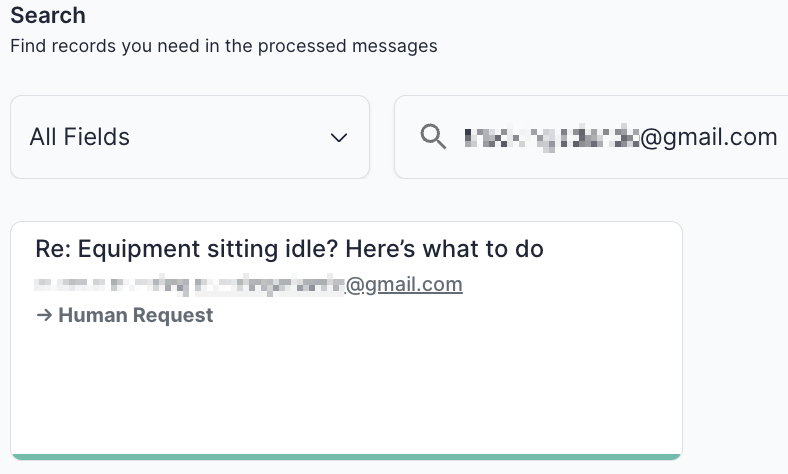
How to search
By default, search runs across all indexed fields at once — drop in a keyword, sender name, or phrase and you’ll see every email it appears in. For more targeted queries, use the dropdown to scope your search to a single field.Searchable fields
Results appear as cards just like the Messages feed, and you can click into any result to view the full processing detail.
Common debugging patterns
A few search workflows that come up regularly:- “Did this person’s reply get processed?” Search
fromfor the sender’s email. If nothing comes up, the reply never reached Mary — check your inbox forwarding rules. - “Why was this reply classified that way?” Find the email, click into it, and review Mary’s reasoning in the Classify Email section of the detail view.
- “Is this category over-firing?” Filter by
Categoryand skim the matches. If you see replies that shouldn’t be there, tighten the category prompt to rule them out — and add the misclassified examples to the Test Suite as regression checks. - “Where did we route the replacements from last quarter’s left-company replies?” Search
newContactEmailwith a date range onreceived_atto pull every extracted replacement contact.