Connect your Drift (SiftRock) account to allGood and start your email-reply management migration.
This guide walks you through connecting your Drift (SiftRock) account to allGood and starting your migration. It takes just a few minutes.
Before you start, you’ll need your Drift username (email) and password
— the same ones you use to sign in at email.drift.com.
The quickest way to start is directly from Email Reply Management during your initial setup. If you’ve already created a profile and later decide you want to migrate from Drift, that option won’t be available there anymore — instead, use Settings → Integrations, where Drift is always available as a migration integration. See Migrate via Settings → Integrations below. Either way, once your Drift credentials are entered, the rest of the migration works the same.
In allGood, open Email Reply Management from the top navigation.
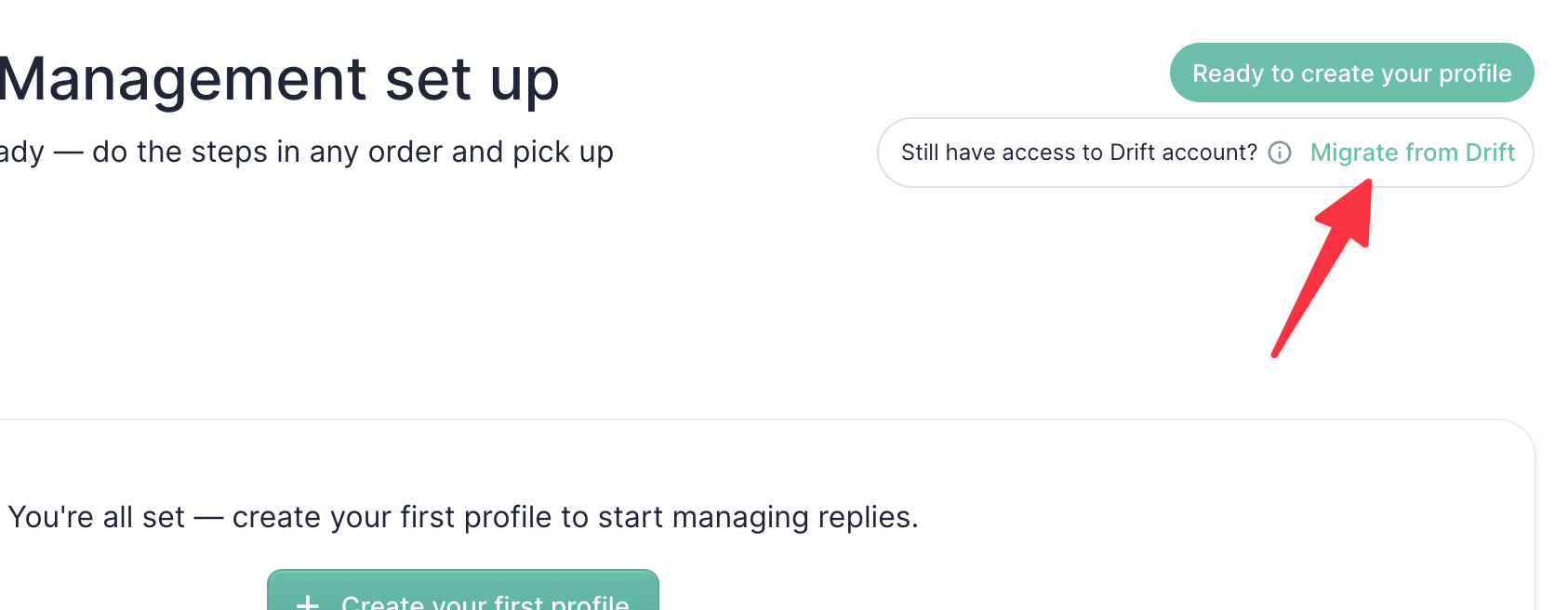
If your setup isn’t already flagged for a Drift migration, you’ll land on the setup page ready to create your profile. Click Migrate from Drift in the top right corner to switch into the migration flow.
The Migrate from Drift link in the top right corner
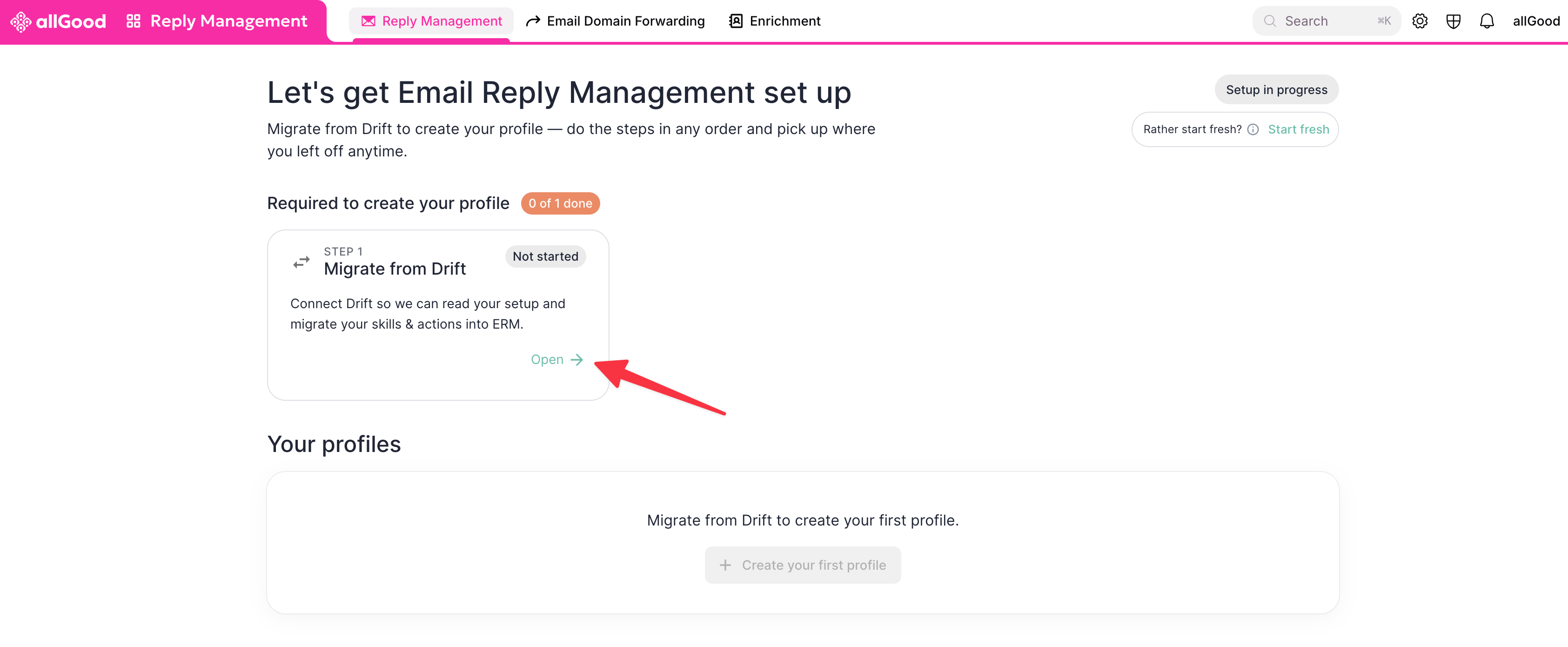
Whether you clicked that link, or your setup was already flagged for a Drift migration, you’ll see Migrate from Drift listed as the required first step. Click Open.
The Migrate from Drift step on the Email Reply Management setup page
2
Enter your Drift credentials
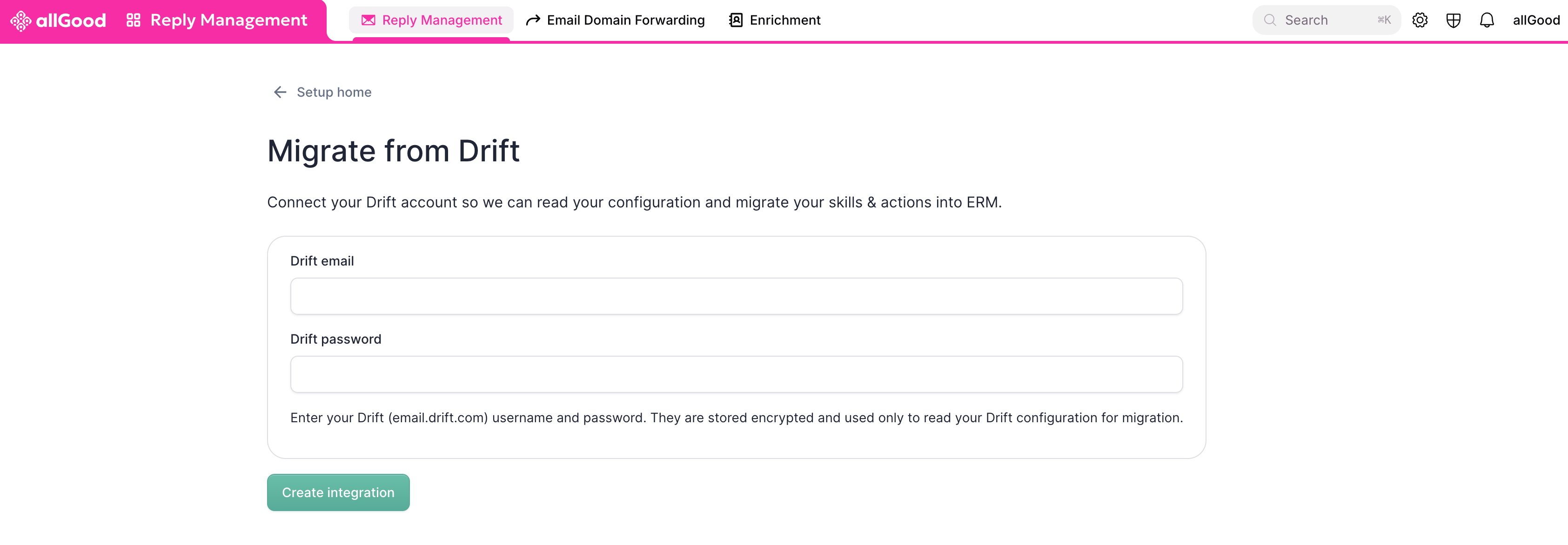
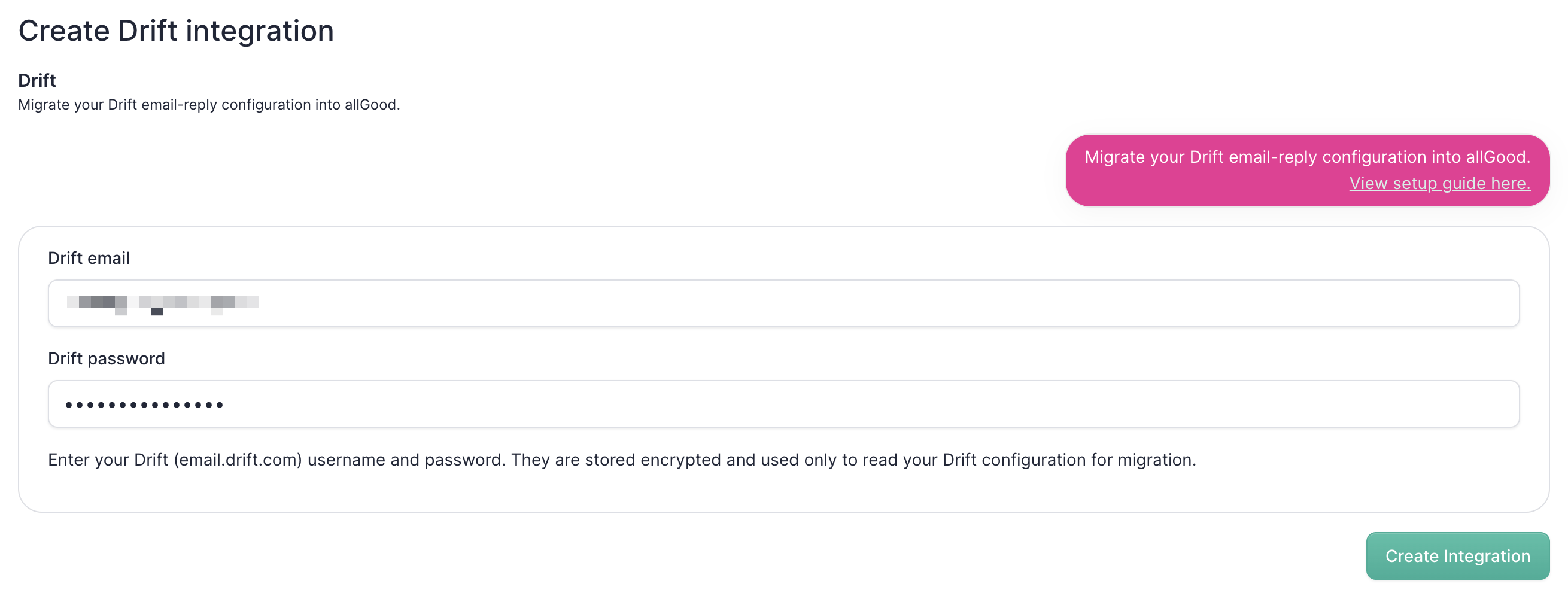
On the Migrate from Drift page, enter your Drift email and password, then click Create integration.Your credentials are stored securely (encrypted) and are used only to read your Drift configuration.
Entering your Drift email and password
3
Confirm it connected
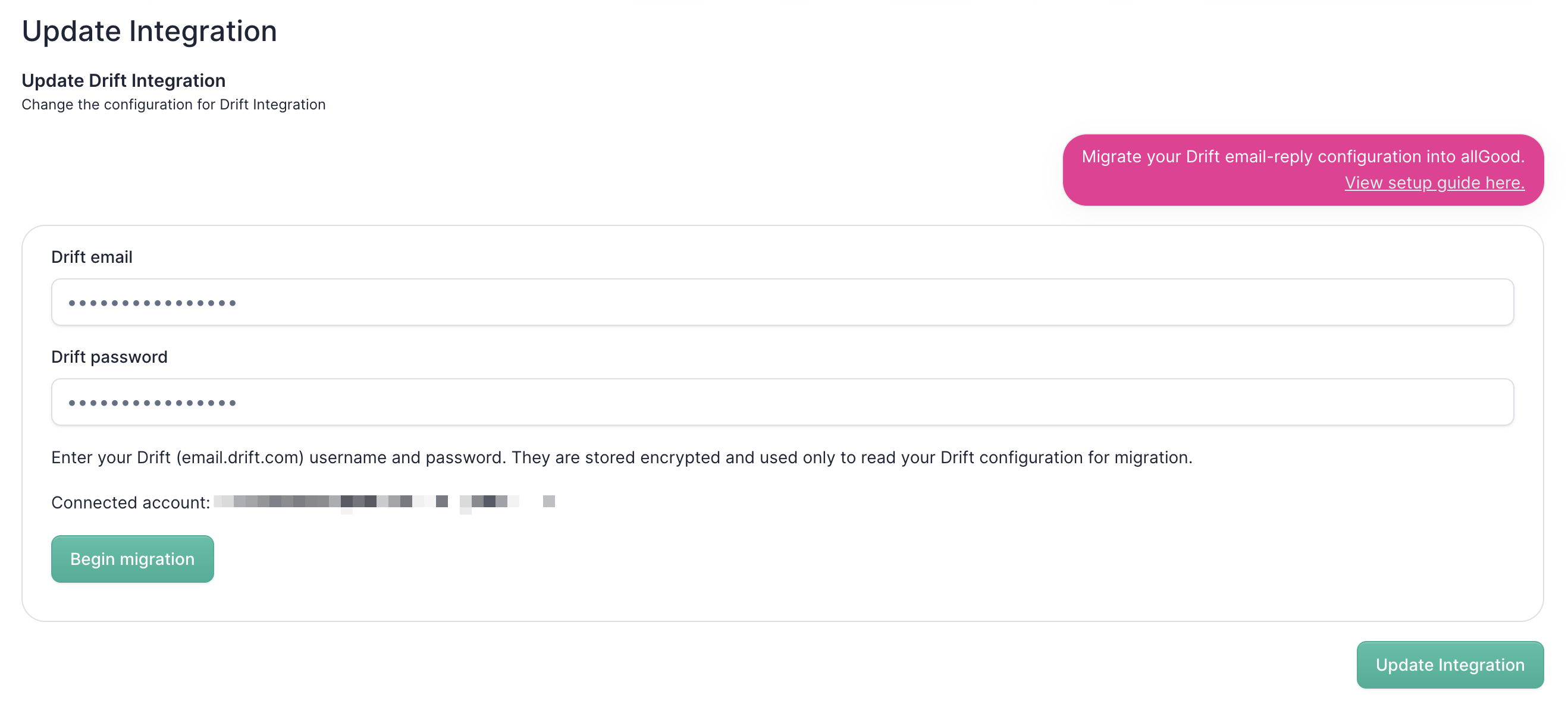
Wait for the confirmation that the integration is connected.
Connected account confirmation
4
Begin your migration
Click Begin migration.allGood will start pulling your Drift configuration. This can take a moment — you’ll see a “Fetching your Drift configuration…” message while it runs.
5
Review the summary
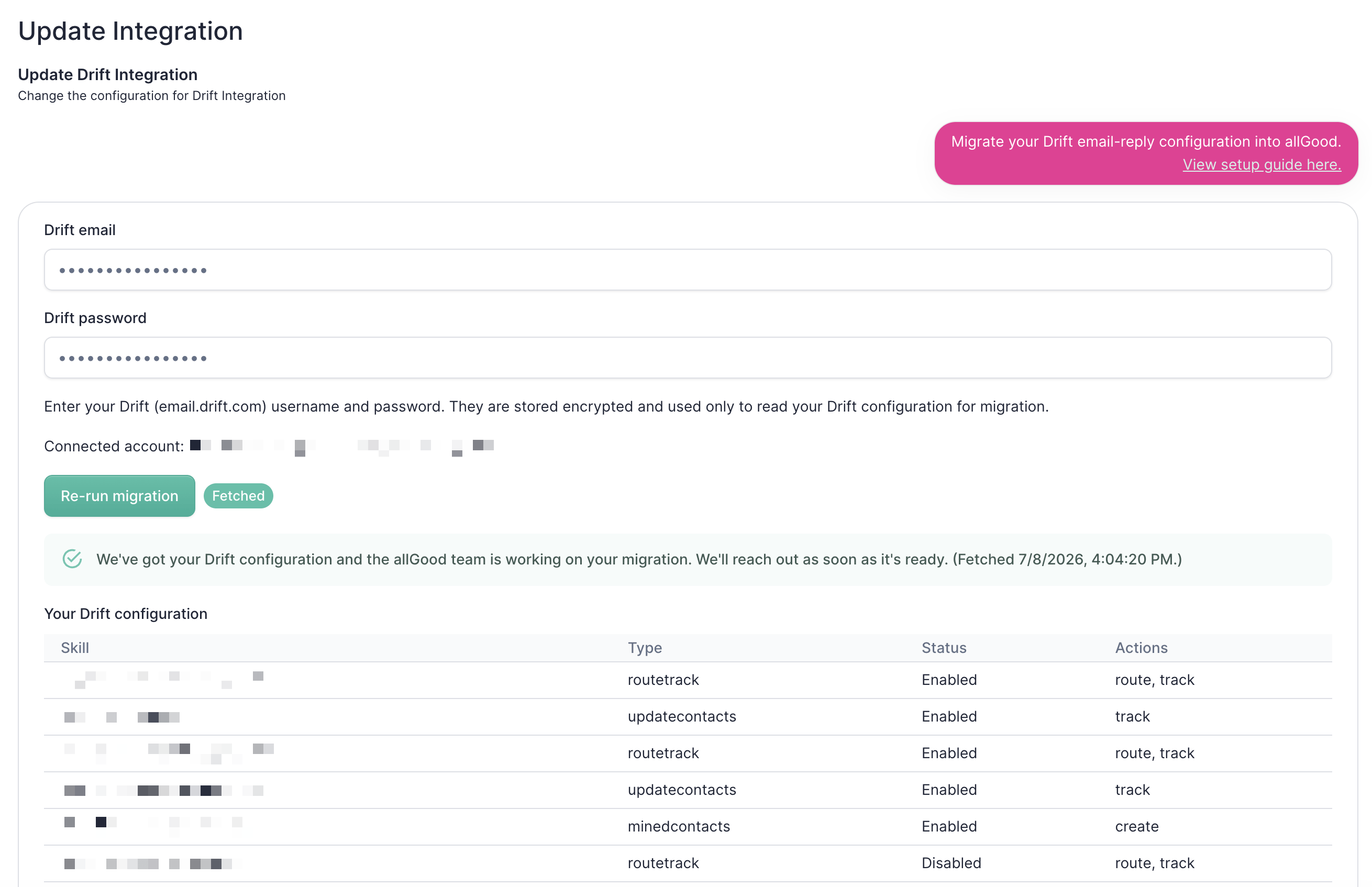
When the migration finishes, you’ll see a summary of your Drift instance — including your configured skills and what each one does.
Summary of your migrated Drift configuration
6
Let us know
Once you’ve completed these steps, let the allGood team know. We’ll take it from there and reach back out to finish your migration.
If you’ve already created your Email Reply Management profile and later decide you want to migrate from Drift, the Migrate from Drift option is no longer available there. You can still kick off the migration from Settings → Integrations, where Drift is always available as a migration integration. This requires admin permissions in allGood Settings.
1
Open Integrations
In allGood, go to Settings and select the Integrations tab.
2
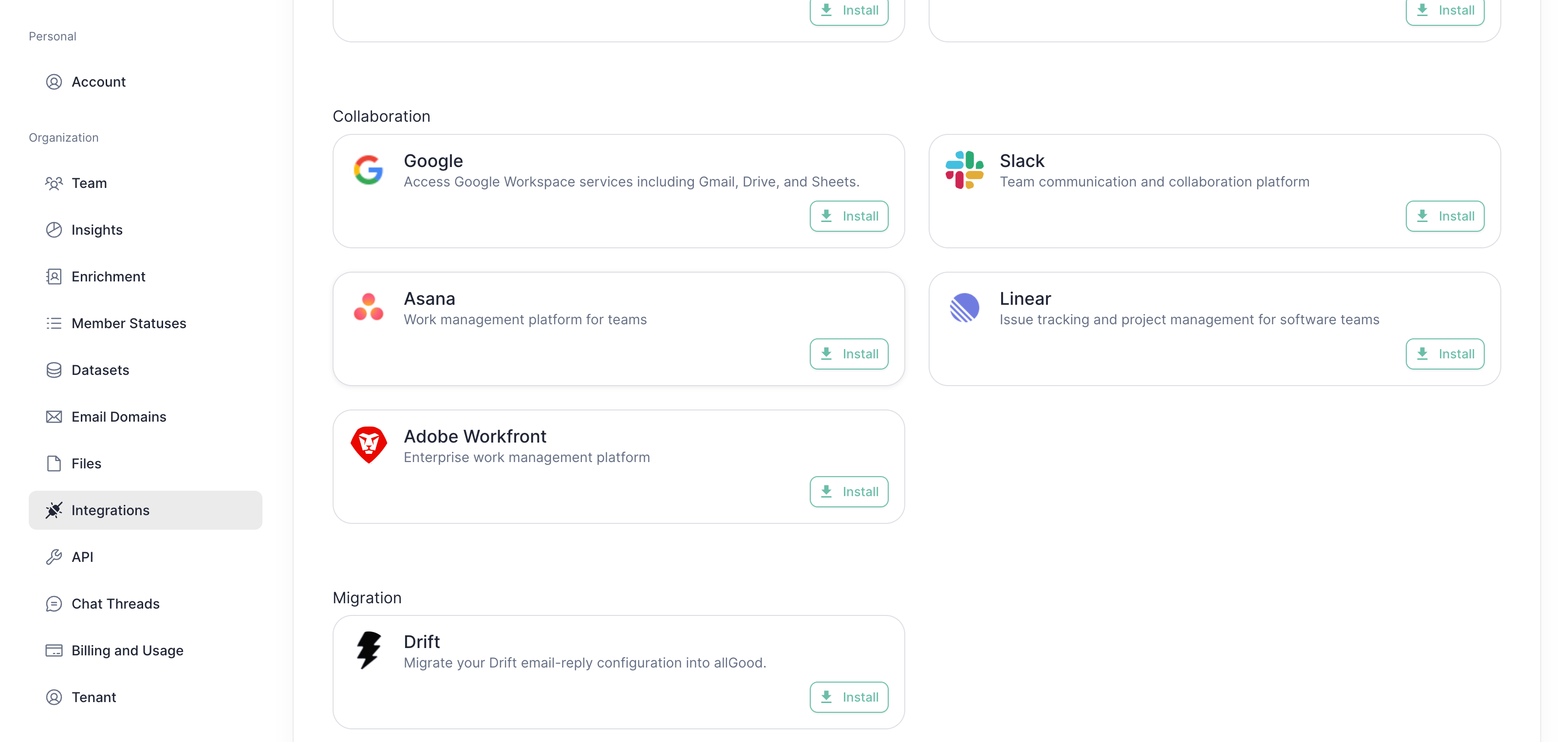
Find the Drift integration
Under Migration, locate the Drift integration.
The Drift integration under Migration
3
Enter your Drift credentials
Open the Drift integration and enter your Drift username (email) and password, then click Create integration.
Entering your Drift username and password
From here, the rest of the migration — confirming the connection, beginning the migration, and reviewing the summary — works exactly the same as described above. Follow steps 3-6 from the migration steps above.
Questions or something not working? Reach out to the allGood team and
we’ll help you through it.
Was this page helpful?
⌘I
Assistant
Responses are generated using AI and may contain mistakes.