

Before you begin
You’ll need:- The ChatGPT desktop app (classic app, macOS or Windows), signed in
- An allGood account with access to the Marketo integration
- The allGood Marketo MCP server URL:
https://api.allgoodhq.app/mcp/marketo
Steps
1
Find the Plugin Section
- Open the ChatGPT desktop app
- Click your profile icon and go to Settings
- Select Plugins in the left sidebar
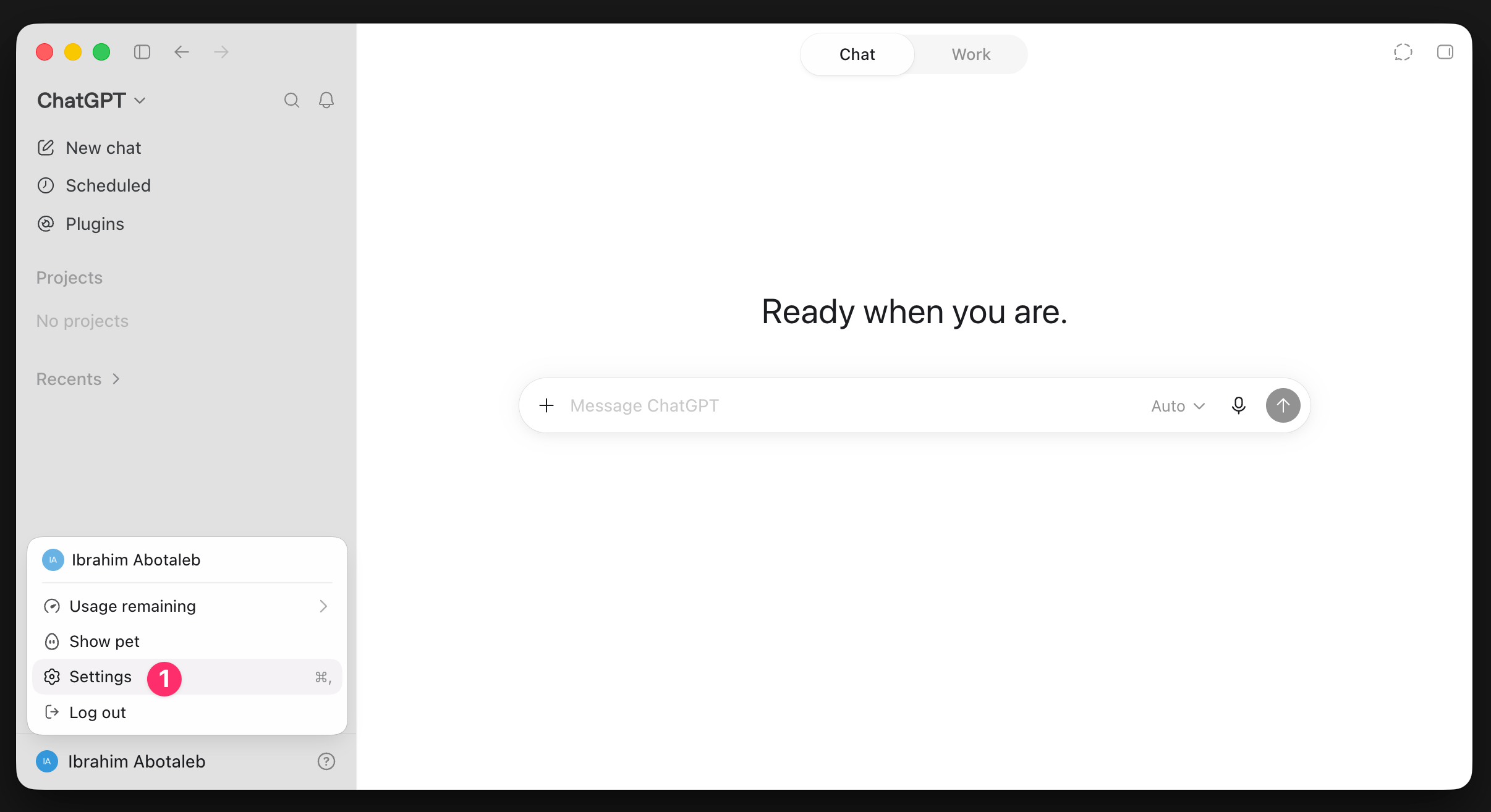
ChatGPT Settings window with the Plugins section selected
2
Add an MCP server
- Scroll to the top and click Add > Add MCP Server
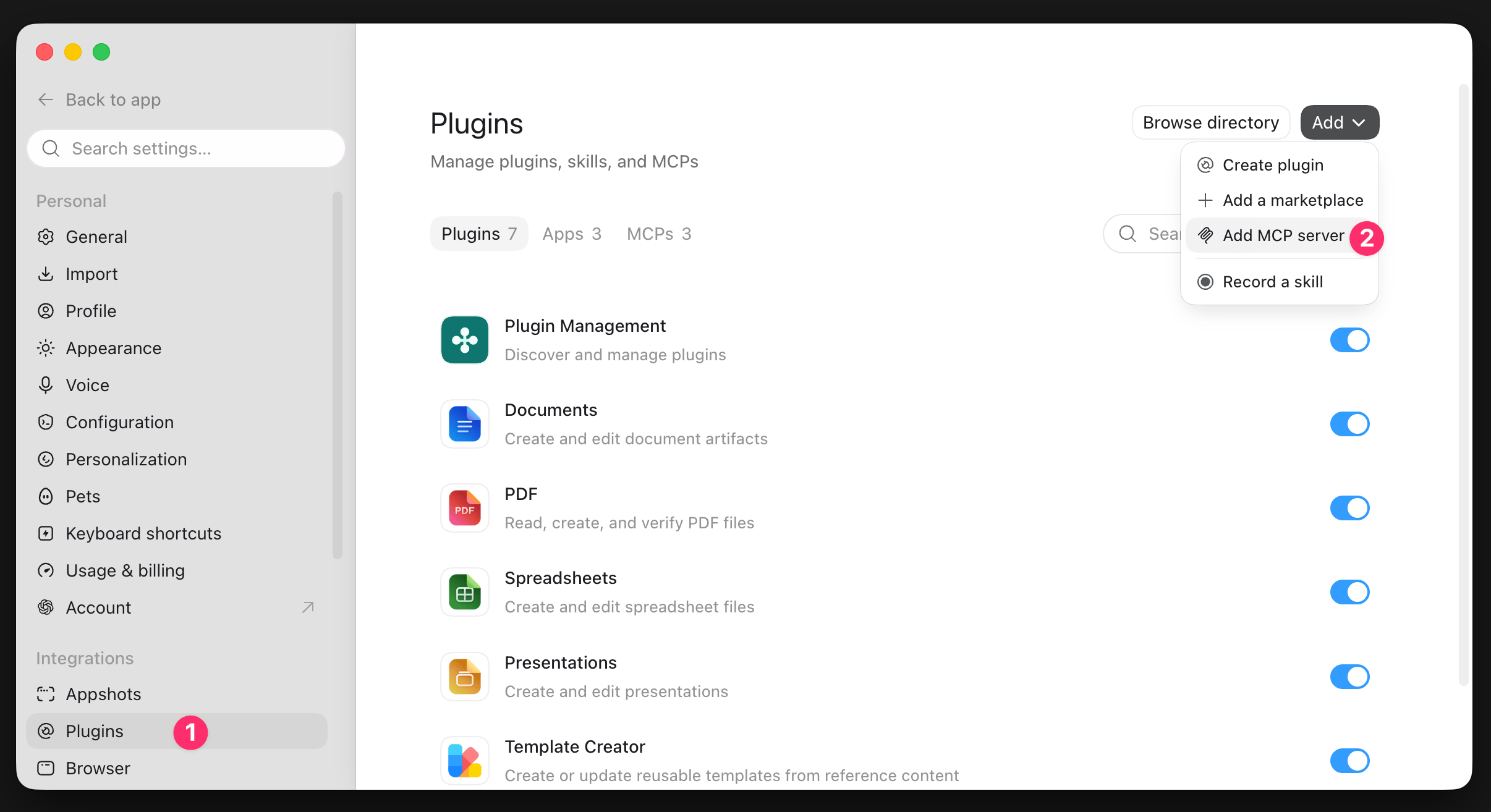
Plugins section showing the Add MCP Server button
3
Enter the connector details
- In Name, enter
allGood Marketo - Set Type to Streamable HTTP
- In MCP Server URL, enter
https://api.allgoodhq.app/mcp/marketo, then click Save
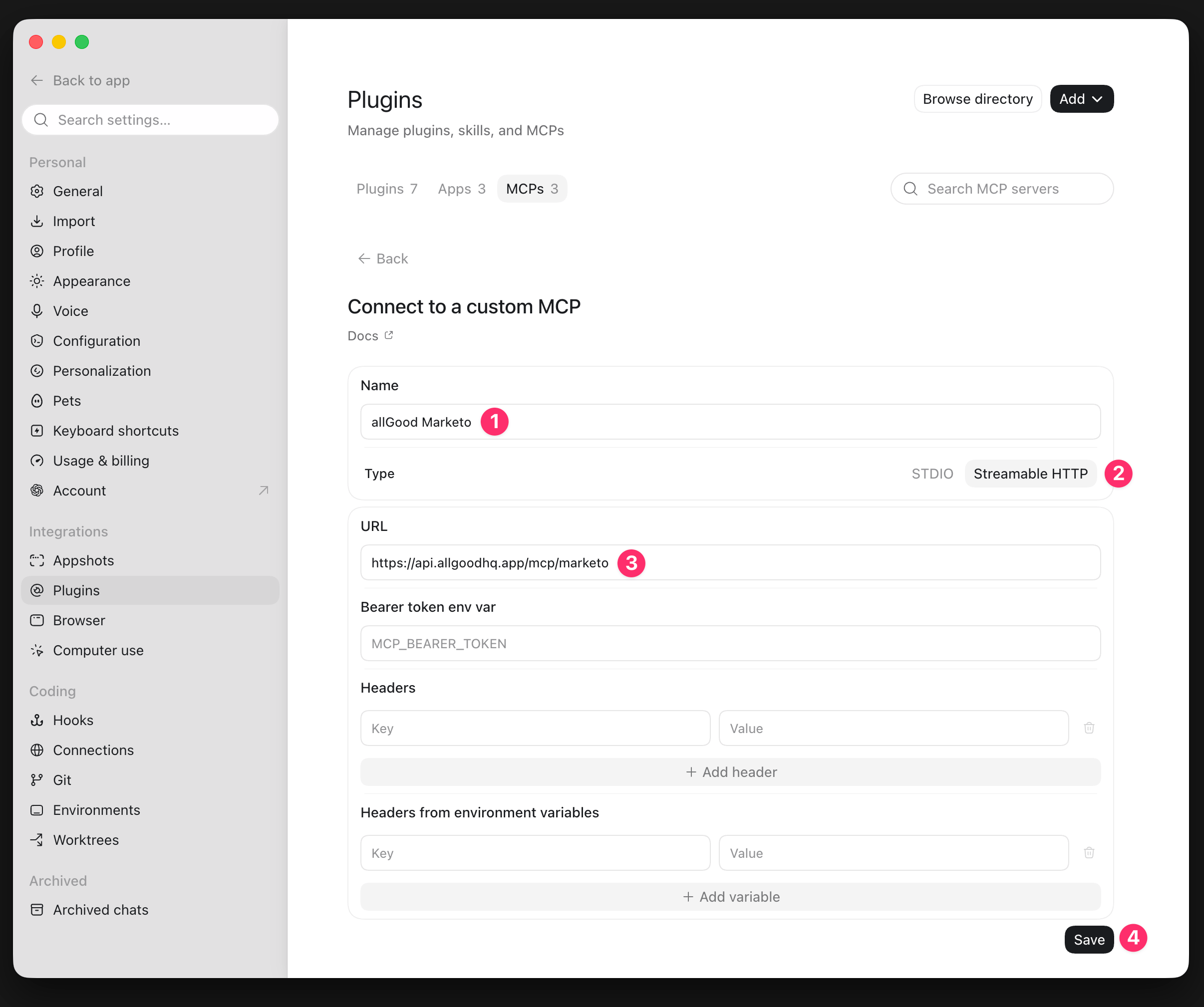
Create connector dialog with name, URL, and type fields filled in
4
Authenticate
- Click Authenticate on the new allGood Marketo connector
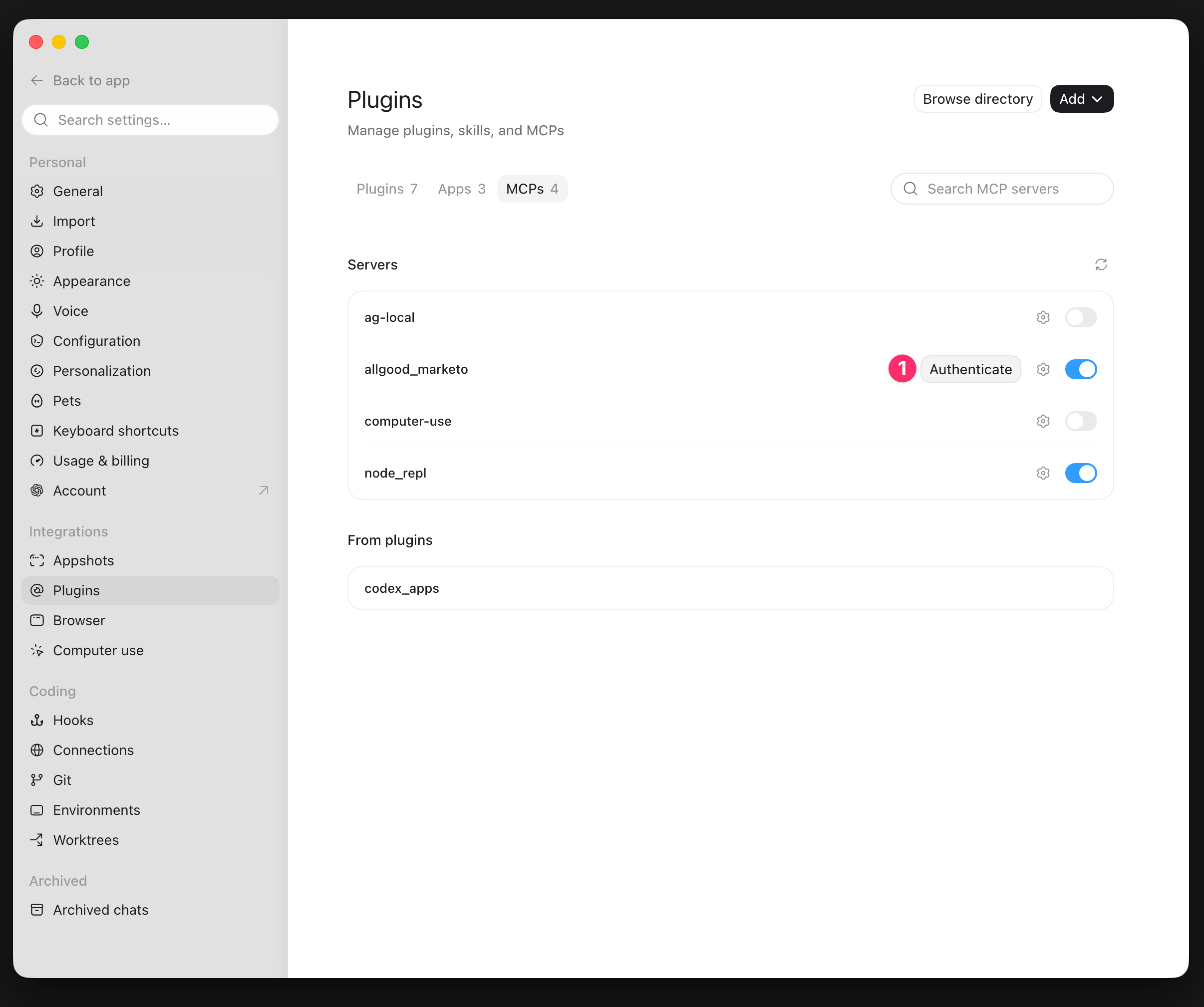
Plugins list showing the allGood Marketo connector with an Authenticate button
6
Test the connector in a chat
- Start a new chat in ChatGPT
- Select allGood Marketo from the list of available Plugins
- Test the connection by asking ChatGPT something like:
“Using allGood Marketo, look up the program details for [program name].”