A form only captures submissions once it’s connected to a page that renders it. How you connect it depends on where the page lives.

On a hosted allGood page

The page template already knows how to render the form. Choose the form when you set up the page’s content, and it’s connected. No code to copy.

On a page on your own website

Open the form and choose Add it to another site: Copy install code copies the script tag and markup straight to your clipboard. Send to your developer opens the full drawer instead: the endpoint, Form ID, the install code, and the raw HTTP contract for a custom integration, all in one place for them to work from.
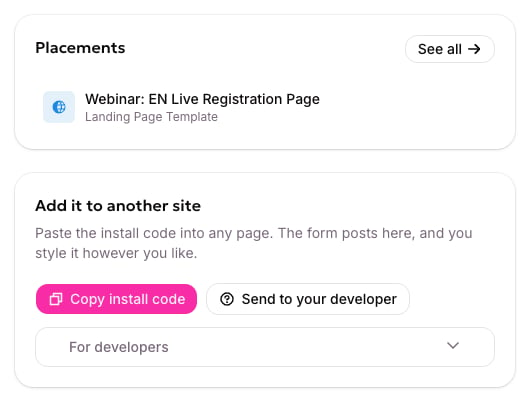
Copy the install code, or open the full drawer to send to your developer

Copy the install code, or open the full drawer to send to your developer.

That drawer is where the install code itself lives: a script tag plus the form’s own markup, labeled and ready to drop in (or a Minimal version, for a developer who’d rather write the markup by hand). allGood never renders or restyles it. The code also carries a set of hidden tracking fields (UTM parameters, gclid, and the like) that the script fills in from the page’s URL on its own; nobody wires those up by hand.
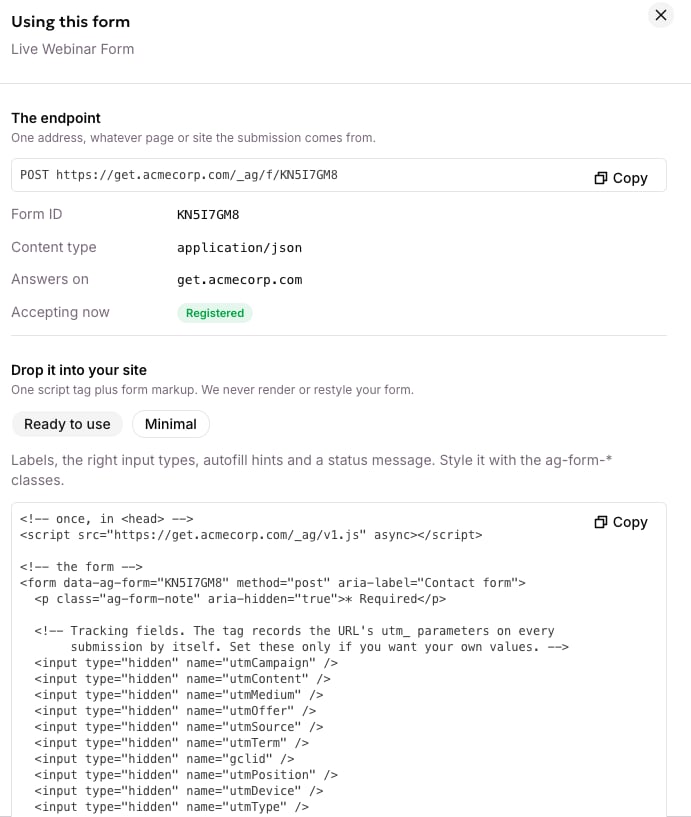
The endpoint, Form ID, and the install code, ready to use or minimal

The endpoint, Form ID, and the install code, ready to use or minimal.

The page’s own origin has to be on the form’s allowed-origins list before it can submit. See What protects a form.

For developers

Building a custom submission flow instead of using the install code, or want something other than the default thank-you message, such as a redirect or a custom confirmation? Both are developer work: see Capture a form for the install script’s full behavior, or posting to the form API directly for a server-side integration.