Start a Form Generator, describe what you’re collecting, then save and publish.
Creating a form means describing what you want to collect — there’s no field-by-field form builder to work through.
1
Start a Form Generator
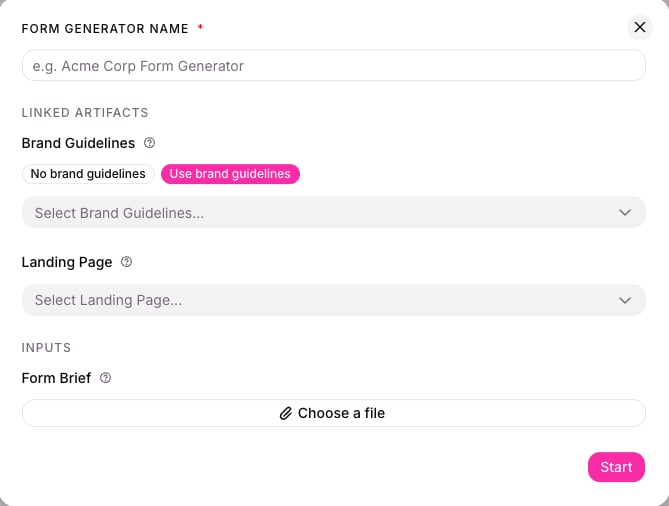
From Ask Mary, choose Form Generator. Name it, optionally link Brand Guidelines and a Landing Page it belongs to, and optionally attach a Form Brief file — then select Start.
Starting a Form Generator: name it, optionally link Brand Guidelines and a Landing Page, optionally attach a brief.
2
Describe what you're collecting
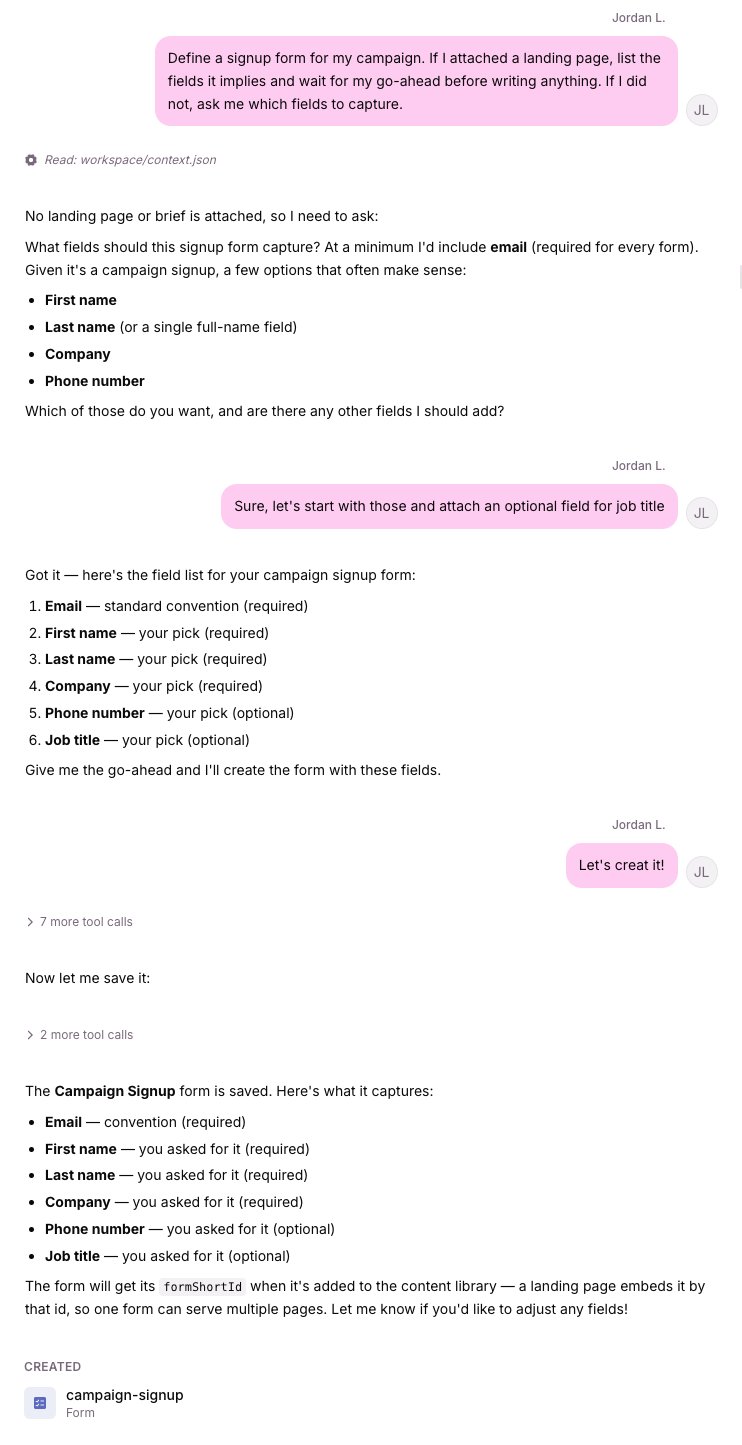
Tell Mary what the form is for — a webinar registration asks for different fields than a contact request. If you linked a landing page, Mary can read what it implies and propose fields from that instead. Either way, Mary proposes a field list and waits for your go-ahead before creating anything.
Mary proposes a field list and waits for your go-ahead before creating anything.
3
Consent comes along automatically
If you added a consent checkbox, Mary links it to your account’s default consent text — a reusable statement written out in each language your pages use, not something you type in here. Every accepted submission records exactly which version and language the visitor saw. Need different wording for this form, or a consent text for the first time? See Connect your consent platform.
4
Save it, then publish it
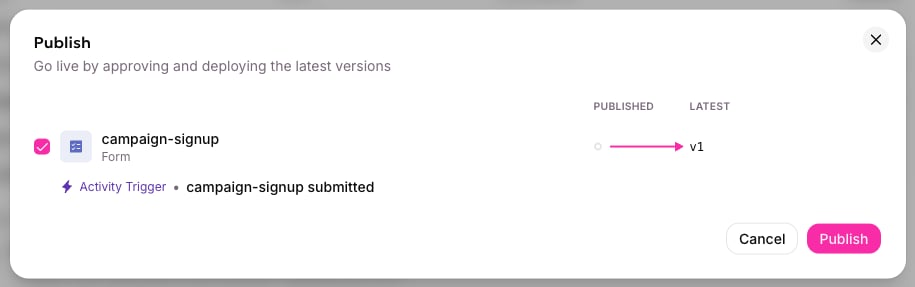
Saving creates a draft version — it isn’t live yet. Publish deploys the form (and anything it depends on, like its activity trigger) together; until then, its capture endpoint won’t accept anything.
Publish deploys the form and its Activity Trigger together, as one batch.
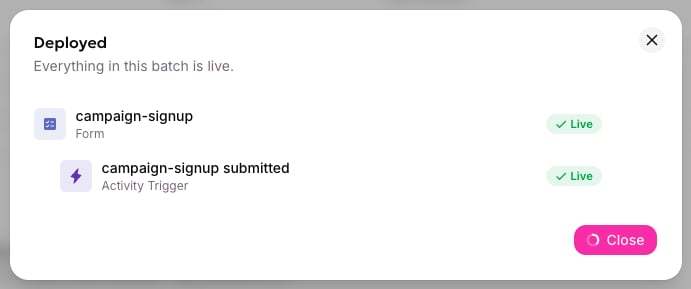
Once deployed, everything in that batch is live.
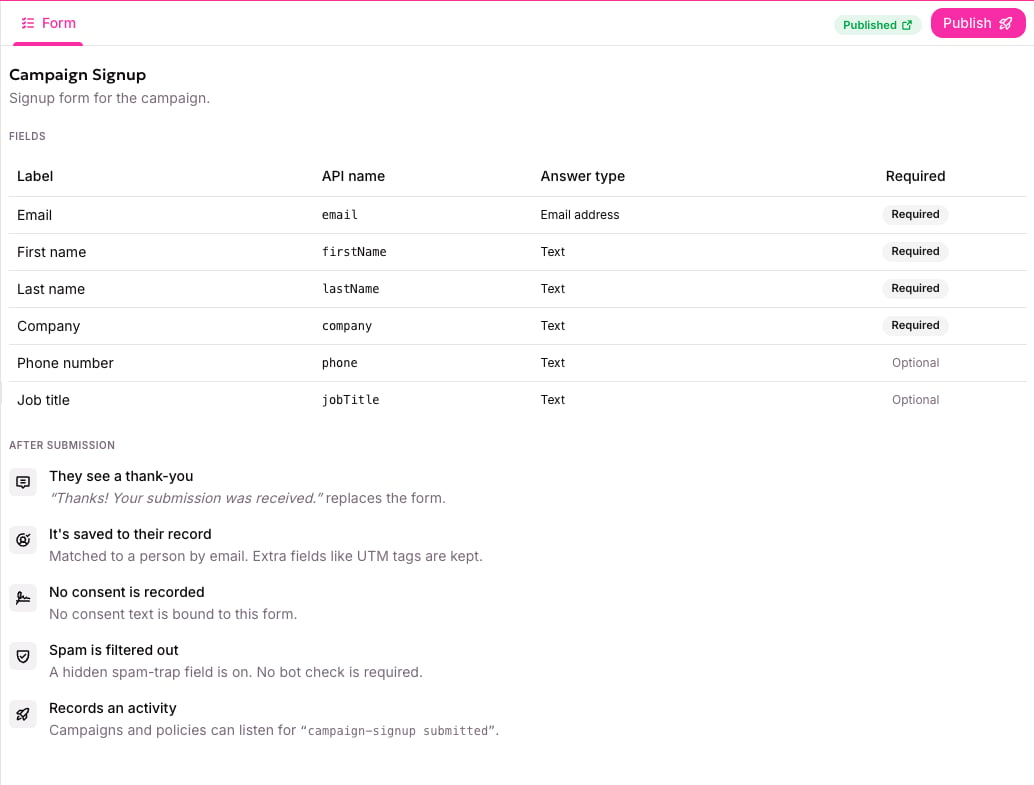
A published form: its fields, and what happens after someone submits.
Once you publish, the form shows as published and its capture endpoint accepts submissions.
The Form Generator in Workshop is the usual way to create a form. Forms can also be created programmatically for automated workflows — not covered here.
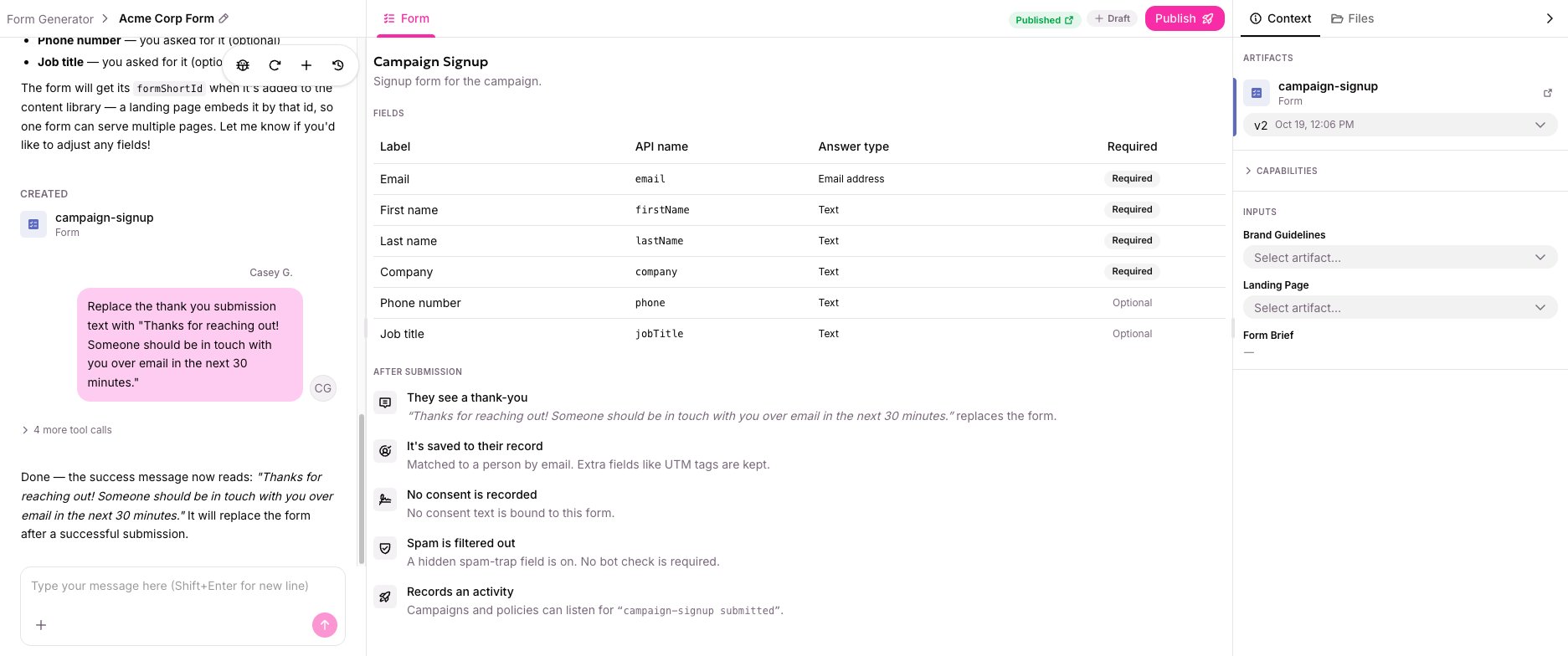
Editing a published form’s fields or after-submission text works the same way, through the same chat — but it creates a new draft version instead of changing the live one right away. Publish again when you’re ready; the previous version keeps serving submissions until then.
Editing a published form creates a new draft version to publish separately — this one's already at v2.
Once it’s published, test it before putting it on a live page — see Testing a form.
{"docsConfig":{"theme":"luma","$schema":"https://mintlify.com/docs.json","name":"allGood Docs","colors":{"primary":"#dc4393","light":"#ea7cb9","dark":"#b12563"},"logo":{"light":"https://mintcdn.com/allgoodtechnologyinc/QQ498qL6_aJdv7lm/logo/light.svg?fit=max\u0026auto=format\u0026n=QQ498qL6_aJdv7lm\u0026q=85\u0026s=0a6e25720e392678288f3d5e92580677","dark":"https://mintcdn.com/allgoodtechnologyinc/QQ498qL6_aJdv7lm/logo/dark.svg?fit=max\u0026auto=format\u0026n=QQ498qL6_aJdv7lm\u0026q=85\u0026s=d68d3e70bcb0adf89895e438a7dd3dd1"},"favicon":"https://mintcdn.com/allgoodtechnologyinc/QQ498qL6_aJdv7lm/favicon.svg?fit=max\u0026auto=format\u0026n=QQ498qL6_aJdv7lm\u0026q=85\u0026s=393be1889fc5f811dc575e9e7c4aa16f","background":{"decoration":"gradient"},"navbar":{"links":[{"href":"mailto:support@allgoodhq.com","label":"Support"}],"primary":{"type":"button","label":"App","href":"https://allgoodhq.app"}},"icons":{"library":"lucide"},"contextual":{"options":["copy","view","chatgpt","claude","mcp"],"display":"header"},"interaction":{"drilldown":true},"styling":{"latex":true},"navigation":{"global":{"anchors":[{"anchor":"Welcome","icon":"house","href":"/"},{"anchor":"Release Notes","icon":"list","href":"/release-notes"}]},"pages":[]}},"deployment":{"deploymentMetadataValue":{"subdomain":"allgoodtechnologyinc","hasAudioNarration":false,"actualSubdomain":"allgoodtechnologyinc","customDomains":["docs.allgoodhq.com"],"gitSource":{"type":"github","owner":"allgoodhq","repo":"mint","deployBranch":"main","contentDirectory":"","isPrivate":true,"mountPath":"","label":""},"chroma":{"liveDeploymentHistoryId":"6ae89845ed2f58cb10ee7f21","collectionId":"ded4f481-a124-4f34-9b5d-99e441c864c1","schemaVersion":"v3","latestBuiltDeploymentHistoryId":"6ae89845ed2f58cb10ee7f21"},"feedback":{"thumbs":true,"agentFeedback":true},"entitlements":{"AI_CHAT":{"status":"ENABLED"},"WEB_MCP":{"status":"ENABLED"},"NARRATION":{"status":"ENABLED"}},"buildId":"6aee4936ccb0d32d838b1741","clientVersion":"0.0.4076","searchFilterCounts":[{"language":"default","tag":"allGood","count":127},{"language":"default","tag":"Use Cases","count":68},{"language":"default","tag":"Email Reply Management","count":65},{"language":"default","tag":"Error Codes","count":38},{"language":"default","tag":"Marketing Kernel","count":20},{"language":"default","tag":"Marketo","count":18},{"language":"default","tag":"Integrations","count":17},{"language":"default","tag":"Settings","count":16},{"language":"default","tag":"Email Builder","count":12},{"language":"default","tag":"HubSpot","count":11}]},"assistantConfig":{"enableAskAiButton":false,"enableStarterQuestions":false,"enableAskAiSearchBar":true,"deflection":{"enabled":true,"email":"support@allgoodhq.com","showHelpButton":true}},"basePath":"","hasChatPermissions":true,"hasWebMcpPermissions":true,"toggles":[{"name":"kill-isr","enabled":true,"variant":{"name":"disabled","enabled":false,"feature_enabled":true},"impressionData":false},{"name":"agent-mintlify-slack","enabled":true,"variant":{"name":"disabled","enabled":false,"feature_enabled":true},"impressionData":false},{"name":"agent-integrations-settings","enabled":true,"variant":{"name":"disabled","enabled":false,"feature_enabled":true},"impressionData":false},{"name":"rbac-expansion","enabled":true,"variant":{"name":"disabled","enabled":false,"feature_enabled":true},"impressionData":false},{"name":"automations-pr-grouping","enabled":true,"variant":{"name":"disabled","enabled":false,"feature_enabled":true},"impressionData":false},{"name":"custom-prefix","enabled":true,"variant":{"name":"disabled","enabled":false,"feature_enabled":true},"impressionData":false},{"name":"analytics-v7","enabled":true,"variant":{"name":"disabled","enabled":false,"feature_enabled":true},"impressionData":false},{"name":"user-flows-analytics","enabled":true,"variant":{"name":"disabled","enabled":false,"feature_enabled":true},"impressionData":false},{"name":"no-publish-flow","enabled":true,"variant":{"name":"disabled","enabled":false,"feature_enabled":true},"impressionData":false},{"name":"workos-onboarding","enabled":true,"variant":{"name":"disabled","enabled":false,"feature_enabled":true},"impressionData":false},{"name":"llms-txt-v2","enabled":true,"variant":{"name":"disabled","enabled":false,"feature_enabled":true},"impressionData":false},{"name":"snapshot-serving-live","enabled":true,"variant":{"name":"disabled","enabled":false,"feature_enabled":true},"impressionData":false},{"name":"stripTemperatureMiddleware","enabled":true,"variant":{"name":"disabled","enabled":false,"feature_enabled":true},"impressionData":false},{"name":"support-platform-pylon-zendesk","enabled":true,"variant":{"name":"disabled","enabled":false,"feature_enabled":true},"impressionData":false},{"name":"snapshot-serving","enabled":true,"variant":{"name":"disabled","enabled":false,"feature_enabled":true},"impressionData":false},{"name":"instant-rollback","enabled":true,"variant":{"name":"disabled","enabled":false,"feature_enabled":true},"impressionData":false},{"name":"granular-notifications-server","enabled":true,"variant":{"name":"disabled","enabled":false,"feature_enabled":true},"impressionData":false},{"name":"granular-notifications","enabled":true,"variant":{"name":"disabled","enabled":false,"feature_enabled":true},"impressionData":false},{"name":"automations-fable","enabled":true,"variant":{"name":"disabled","enabled":false,"feature_enabled":true},"impressionData":false},{"name":"fixed-ai-action-pricing","enabled":true,"variant":{"name":"disabled","enabled":false,"feature_enabled":true},"impressionData":false},{"name":"automation-resolve-merge-conflict","enabled":true,"variant":{"name":"disabled","enabled":false,"feature_enabled":true},"impressionData":false},{"name":"scoped-publishing","enabled":true,"variant":{"name":"disabled","enabled":false,"feature_enabled":true},"impressionData":false},{"name":"mintql","enabled":true,"variant":{"name":"disabled","enabled":false,"feature_enabled":true},"impressionData":false},{"name":"page-level-analytics","enabled":true,"variant":{"name":"disabled","enabled":false,"feature_enabled":true},"impressionData":false},{"name":"editor-version-history-v2","enabled":true,"variant":{"name":"disabled","enabled":false,"feature_enabled":true},"impressionData":false},{"name":"billing-page-v2","enabled":true,"variant":{"name":"disabled","enabled":false,"feature_enabled":true},"impressionData":false},{"name":"full-page-search","enabled":true,"variant":{"name":"disabled","enabled":false,"feature_enabled":true},"impressionData":false},{"name":"workspace-projects","enabled":true,"variant":{"name":"disabled","enabled":false,"feature_enabled":true},"impressionData":false},{"name":"assistant-v5","enabled":true,"variant":{"name":"disabled","enabled":false,"feature_enabled":true},"impressionData":false},{"name":"fork-pr-previews","enabled":true,"variant":{"name":"disabled","enabled":false,"feature_enabled":true},"impressionData":false},{"name":"revalidation-jwt","enabled":true,"variant":{"name":"disabled","enabled":false,"feature_enabled":true},"impressionData":false},{"name":"workos-sso-scim","enabled":true,"variant":{"name":"disabled","enabled":false,"feature_enabled":true},"impressionData":false},{"name":"hobby-abuse-scan","enabled":true,"variant":{"name":"disabled","enabled":false,"feature_enabled":true},"impressionData":false},{"name":"dashboard-inbox","enabled":true,"variant":{"name":"disabled","enabled":false,"feature_enabled":true},"impressionData":false},{"name":"workos-signup","enabled":true,"variant":{"name":"disabled","enabled":false,"feature_enabled":true},"impressionData":false},{"name":"turbopuffer-dual-write","enabled":true,"variant":{"name":"disabled","enabled":false,"feature_enabled":true},"impressionData":false},{"name":"workos-enabled","enabled":true,"variant":{"name":"disabled","enabled":false,"feature_enabled":true},"impressionData":false},{"name":"approve-review-flow","enabled":true,"variant":{"name":"disabled","enabled":false,"feature_enabled":true},"impressionData":false},{"name":"sso-setup-deadline-banner","enabled":true,"variant":{"name":"disabled","enabled":false,"feature_enabled":true},"impressionData":false},{"name":"turbopuffer-serve","enabled":true,"variant":{"name":"disabled","enabled":false,"feature_enabled":true},"impressionData":false},{"name":"live-agents","enabled":true,"variant":{"name":"disabled","enabled":false,"feature_enabled":true},"impressionData":false},{"name":"comment-mode","enabled":true,"variant":{"name":"disabled","enabled":false,"feature_enabled":true},"impressionData":false}],"googleFontsInlined":false},"customCss":[{"filePath":"style.css","content":":root{--sidebar-width: 18rem}.frame{padding:0}.frame>.relative>*[data-as=\"p\"]{margin:0!important}div:has(>.frame){margin:0.5rem 0}.frame [data-component-part=\"frame-caption\"]{margin:0.5rem 0;margin-left:1rem;padding:0;text-align:left}"}],"page":{"pagePath":"mk/content/forms/creating-a-form","slug":"/mk/content/forms/creating-a-form","pageMetadata":{"title":"Creating a form","sidebarTitle":"Creating a form","description":"Start a Form Generator, describe what you're collecting, then save and publish.","noindex":true,"href":"/mk/content/forms/creating-a-form"},"description":{"compiledSource":"\"use strict\";\nconst {jsx: _jsx} = arguments[0];\nconst {useMDXComponents: _provideComponents} = arguments[0];\nfunction _createMdxContent(props) {\n const _components = {\n p: \"p\",\n ..._provideComponents(),\n ...props.components\n };\n return _jsx(_components.p, {\n children: \"Start a Form Generator, describe what you’re collecting, then save and publish.\"\n });\n}\nfunction MDXContent(props = {}) {\n const {wrapper: MDXLayout} = {\n ..._provideComponents(),\n ...props.components\n };\n return MDXLayout ? _jsx(MDXLayout, {\n ...props,\n children: _jsx(_createMdxContent, {\n ...props\n })\n }) : _createMdxContent(props);\n}\nreturn {\n default: MDXContent\n};\n","frontmatter":{},"scope":{}},"pageType":"default","mdx":{"mdxSource":{"compiledSource":"\"use strict\";const{Fragment:_Fragment,jsx:_jsx,jsxs:_jsxs}=arguments[0];const{useMDXComponents:_provideComponents}=arguments[0];function _createMdxContent(props){const _components={a:`a`,li:`li`,p:`p`,strong:`strong`,ul:`ul`,..._provideComponents(),...props.components},{Frame,Heading,Note,OptimizedImage,Step,Steps}=_components;if(!Frame)_missingMdxReference(`Frame`,true);if(!Heading)_missingMdxReference(`Heading`,true);if(!Note)_missingMdxReference(`Note`,true);if(!OptimizedImage)_missingMdxReference(`OptimizedImage`,true);if(!Step)_missingMdxReference(`Step`,true);if(!Steps)_missingMdxReference(`Steps`,true);return _jsxs(_Fragment,{children:[_jsx(_components.p,{children:`Creating a form means describing what you want to collect — there’s no field-by-field form builder to work through.`}),`\n`,_jsxs(Steps,{children:[_jsxs(Step,{id:`start-the-form-generator`,title:`Start a Form Generator`,children:[_jsxs(_components.p,{children:[`From `,_jsx(_components.strong,{children:`Ask Mary`}),`, choose `,_jsx(_components.strong,{children:`Form Generator`}),`. Name it, optionally link `,_jsx(_components.strong,{children:`Brand Guidelines`}),` and a `,_jsx(_components.strong,{children:`Landing Page`}),` it belongs to, and optionally attach a `,_jsx(_components.strong,{children:`Form Brief`}),` file — then select `,_jsx(_components.strong,{children:`Start`}),`.`]}),_jsx(Frame,{caption:`Starting a Form Generator: name it, optionally link Brand Guidelines and a Landing Page, optionally attach a brief.`,children:_jsx(OptimizedImage,{src:`https://mintcdn.com/allgoodtechnologyinc/9DaQ84rhZ2o4ihI1/images/mk/content/forms/form-generator-setup.png?fit=max\u0026auto=format\u0026n=9DaQ84rhZ2o4ihI1\u0026q=85\u0026s=657238c0905741635ff852980c410c2a`,alt:`Starting a Form Generator: name it, optionally link Brand Guidelines and a Landing Page, optionally attach a brief`,\"data-og-width\":`669`,width:`669`,\"data-og-height\":`506`,height:`506`,\"data-path\":`images/mk/content/forms/form-generator-setup.png`,\"data-optimize\":`true`,\"data-opv\":`3`,srcset:`https://mintcdn.com/allgoodtechnologyinc/9DaQ84rhZ2o4ihI1/images/mk/content/forms/form-generator-setup.png?w=280\u0026fit=max\u0026auto=format\u0026n=9DaQ84rhZ2o4ihI1\u0026q=85\u0026s=5e83e1153ebe2ac71fdaef61a11bff27 280w, https://mintcdn.com/allgoodtechnologyinc/9DaQ84rhZ2o4ihI1/images/mk/content/forms/form-generator-setup.png?w=560\u0026fit=max\u0026auto=format\u0026n=9DaQ84rhZ2o4ihI1\u0026q=85\u0026s=62b30b4477ba47e2a6c18a4816ea894a 560w, https://mintcdn.com/allgoodtechnologyinc/9DaQ84rhZ2o4ihI1/images/mk/content/forms/form-generator-setup.png?w=840\u0026fit=max\u0026auto=format\u0026n=9DaQ84rhZ2o4ihI1\u0026q=85\u0026s=4c2e66c85e1ca4dacb9103dc67a2bb69 840w, https://mintcdn.com/allgoodtechnologyinc/9DaQ84rhZ2o4ihI1/images/mk/content/forms/form-generator-setup.png?w=1100\u0026fit=max\u0026auto=format\u0026n=9DaQ84rhZ2o4ihI1\u0026q=85\u0026s=4973eef3dffb5f9ff901e297da41b2b4 1100w, https://mintcdn.com/allgoodtechnologyinc/9DaQ84rhZ2o4ihI1/images/mk/content/forms/form-generator-setup.png?w=1650\u0026fit=max\u0026auto=format\u0026n=9DaQ84rhZ2o4ihI1\u0026q=85\u0026s=349778b175d0091629bed80df6186ec9 1650w, https://mintcdn.com/allgoodtechnologyinc/9DaQ84rhZ2o4ihI1/images/mk/content/forms/form-generator-setup.png?w=2500\u0026fit=max\u0026auto=format\u0026n=9DaQ84rhZ2o4ihI1\u0026q=85\u0026s=6ccd068a9df83dd85c9885b0239b2546 2500w`})})]}),_jsxs(Step,{id:`describe-what-to-collect`,title:`Describe what you're collecting`,children:[_jsx(_components.p,{children:`Tell Mary what the form is for — a webinar registration asks for different fields than a contact request. If you linked a landing page, Mary can read what it implies and propose fields from that instead. Either way, Mary proposes a field list and waits for your go-ahead before creating anything.`}),_jsx(Frame,{caption:`Mary proposes a field list and waits for your go-ahead before creating anything.`,children:_jsx(OptimizedImage,{src:`https://mintcdn.com/allgoodtechnologyinc/DQMtL2_opiZ_jq3e/images/mk/content/forms/form-generator-chat.png?fit=max\u0026auto=format\u0026n=DQMtL2_opiZ_jq3e\u0026q=85\u0026s=fddfec93486f38037219c5c9ddac566a`,alt:`Mary proposes a field list and waits for your go-ahead before creating anything`,\"data-og-width\":`742`,width:`742`,\"data-og-height\":`1445`,height:`1445`,\"data-path\":`images/mk/content/forms/form-generator-chat.png`,\"data-optimize\":`true`,\"data-opv\":`3`,srcset:`https://mintcdn.com/allgoodtechnologyinc/DQMtL2_opiZ_jq3e/images/mk/content/forms/form-generator-chat.png?w=280\u0026fit=max\u0026auto=format\u0026n=DQMtL2_opiZ_jq3e\u0026q=85\u0026s=8e6251dcace67f806810e4af86aaeee7 280w, https://mintcdn.com/allgoodtechnologyinc/DQMtL2_opiZ_jq3e/images/mk/content/forms/form-generator-chat.png?w=560\u0026fit=max\u0026auto=format\u0026n=DQMtL2_opiZ_jq3e\u0026q=85\u0026s=3d09cc99c1efc8245a35631c9ac3990f 560w, https://mintcdn.com/allgoodtechnologyinc/DQMtL2_opiZ_jq3e/images/mk/content/forms/form-generator-chat.png?w=840\u0026fit=max\u0026auto=format\u0026n=DQMtL2_opiZ_jq3e\u0026q=85\u0026s=63a900087e4b8138e9cb6b8acd99efa8 840w, https://mintcdn.com/allgoodtechnologyinc/DQMtL2_opiZ_jq3e/images/mk/content/forms/form-generator-chat.png?w=1100\u0026fit=max\u0026auto=format\u0026n=DQMtL2_opiZ_jq3e\u0026q=85\u0026s=bf1f684c0acb4cb908214692397e4913 1100w, https://mintcdn.com/allgoodtechnologyinc/DQMtL2_opiZ_jq3e/images/mk/content/forms/form-generator-chat.png?w=1650\u0026fit=max\u0026auto=format\u0026n=DQMtL2_opiZ_jq3e\u0026q=85\u0026s=1a85a0c03abc99df50e0b29ad0d8e9b8 1650w, https://mintcdn.com/allgoodtechnologyinc/DQMtL2_opiZ_jq3e/images/mk/content/forms/form-generator-chat.png?w=2500\u0026fit=max\u0026auto=format\u0026n=DQMtL2_opiZ_jq3e\u0026q=85\u0026s=3eb40b19f11ce2de6420d80fe477cfcd 2500w`})})]}),_jsx(Step,{id:`write-the-consent`,title:`Consent comes along automatically`,children:_jsxs(_components.p,{children:[`If you added a consent checkbox, Mary links it to your account’s `,_jsx(_components.strong,{children:`default consent text`}),` — a reusable statement written out in each language your pages use, not something you type in here. Every accepted submission records exactly which version and language the visitor saw. Need different wording for this form, or a consent text for the first time? See `,_jsx(_components.a,{href:`/mk/settings/web-edge/consent-provider`,children:`Connect your consent platform`}),`.`]})}),_jsxs(Step,{id:`save-and-publish`,title:`Save it, then publish it`,children:[_jsxs(_components.p,{children:[`Saving creates a draft version — it isn’t live yet. `,_jsx(_components.strong,{children:`Publish`}),` deploys the form (and anything it depends on, like its activity trigger) together; until then, its capture endpoint won’t accept anything.`]}),_jsx(Frame,{caption:`Publish deploys the form and its Activity Trigger together, as one batch.`,children:_jsx(OptimizedImage,{src:`https://mintcdn.com/allgoodtechnologyinc/9DaQ84rhZ2o4ihI1/images/mk/content/forms/form-publish.png?fit=max\u0026auto=format\u0026n=9DaQ84rhZ2o4ihI1\u0026q=85\u0026s=7023b2c1e972eeb1e65486401f426398`,alt:`Publish deploys the form and its Activity Trigger together, as one batch`,\"data-og-width\":`915`,width:`915`,\"data-og-height\":`287`,height:`287`,\"data-path\":`images/mk/content/forms/form-publish.png`,\"data-optimize\":`true`,\"data-opv\":`3`,srcset:`https://mintcdn.com/allgoodtechnologyinc/9DaQ84rhZ2o4ihI1/images/mk/content/forms/form-publish.png?w=280\u0026fit=max\u0026auto=format\u0026n=9DaQ84rhZ2o4ihI1\u0026q=85\u0026s=827f5d37f81458b15d0d3f1d08de115f 280w, https://mintcdn.com/allgoodtechnologyinc/9DaQ84rhZ2o4ihI1/images/mk/content/forms/form-publish.png?w=560\u0026fit=max\u0026auto=format\u0026n=9DaQ84rhZ2o4ihI1\u0026q=85\u0026s=cf0b908f5a5bf35946c035f93d4badf4 560w, https://mintcdn.com/allgoodtechnologyinc/9DaQ84rhZ2o4ihI1/images/mk/content/forms/form-publish.png?w=840\u0026fit=max\u0026auto=format\u0026n=9DaQ84rhZ2o4ihI1\u0026q=85\u0026s=d114dde0ab8810553ec6a53df4334737 840w, https://mintcdn.com/allgoodtechnologyinc/9DaQ84rhZ2o4ihI1/images/mk/content/forms/form-publish.png?w=1100\u0026fit=max\u0026auto=format\u0026n=9DaQ84rhZ2o4ihI1\u0026q=85\u0026s=92f27e6705e4383f687cb6b136156791 1100w, https://mintcdn.com/allgoodtechnologyinc/9DaQ84rhZ2o4ihI1/images/mk/content/forms/form-publish.png?w=1650\u0026fit=max\u0026auto=format\u0026n=9DaQ84rhZ2o4ihI1\u0026q=85\u0026s=578d86d897a3cdd6408b447da978c012 1650w, https://mintcdn.com/allgoodtechnologyinc/9DaQ84rhZ2o4ihI1/images/mk/content/forms/form-publish.png?w=2500\u0026fit=max\u0026auto=format\u0026n=9DaQ84rhZ2o4ihI1\u0026q=85\u0026s=cd30feb15e25bce6c0c7bd809bf84fd8 2500w`})}),_jsx(Frame,{caption:`Once deployed, everything in that batch is live.`,children:_jsx(OptimizedImage,{src:`https://mintcdn.com/allgoodtechnologyinc/DQMtL2_opiZ_jq3e/images/mk/content/forms/form-deployed.png?fit=max\u0026auto=format\u0026n=DQMtL2_opiZ_jq3e\u0026q=85\u0026s=86e308a9e32626761640f4b4324e6a96`,alt:`Once deployed, everything in that batch is live`,\"data-og-width\":`691`,width:`691`,\"data-og-height\":`289`,height:`289`,\"data-path\":`images/mk/content/forms/form-deployed.png`,\"data-optimize\":`true`,\"data-opv\":`3`,srcset:`https://mintcdn.com/allgoodtechnologyinc/DQMtL2_opiZ_jq3e/images/mk/content/forms/form-deployed.png?w=280\u0026fit=max\u0026auto=format\u0026n=DQMtL2_opiZ_jq3e\u0026q=85\u0026s=035bd4db5a2a6115a5998184258836c3 280w, https://mintcdn.com/allgoodtechnologyinc/DQMtL2_opiZ_jq3e/images/mk/content/forms/form-deployed.png?w=560\u0026fit=max\u0026auto=format\u0026n=DQMtL2_opiZ_jq3e\u0026q=85\u0026s=dd2eb80ba995d25b063537ad3bb73b33 560w, https://mintcdn.com/allgoodtechnologyinc/DQMtL2_opiZ_jq3e/images/mk/content/forms/form-deployed.png?w=840\u0026fit=max\u0026auto=format\u0026n=DQMtL2_opiZ_jq3e\u0026q=85\u0026s=8a1fa4a317b9bfcb2dade41c8b88f8ec 840w, https://mintcdn.com/allgoodtechnologyinc/DQMtL2_opiZ_jq3e/images/mk/content/forms/form-deployed.png?w=1100\u0026fit=max\u0026auto=format\u0026n=DQMtL2_opiZ_jq3e\u0026q=85\u0026s=d3de7cbd4983a206b8c9eff7ae8ba5c3 1100w, https://mintcdn.com/allgoodtechnologyinc/DQMtL2_opiZ_jq3e/images/mk/content/forms/form-deployed.png?w=1650\u0026fit=max\u0026auto=format\u0026n=DQMtL2_opiZ_jq3e\u0026q=85\u0026s=bd27394205f543265509d4dfe570aba0 1650w, https://mintcdn.com/allgoodtechnologyinc/DQMtL2_opiZ_jq3e/images/mk/content/forms/form-deployed.png?w=2500\u0026fit=max\u0026auto=format\u0026n=DQMtL2_opiZ_jq3e\u0026q=85\u0026s=d870541addd498d450f2fb9d8ba082ae 2500w`})}),_jsx(Frame,{caption:`A published form: its fields, and what happens after someone submits.`,children:_jsx(OptimizedImage,{src:`https://mintcdn.com/allgoodtechnologyinc/DQMtL2_opiZ_jq3e/images/mk/content/forms/form-detail.png?fit=max\u0026auto=format\u0026n=DQMtL2_opiZ_jq3e\u0026q=85\u0026s=9fd70d105e018922fcacbffa97707ad2`,alt:`A published form: its fields, and what happens after someone submits`,\"data-og-width\":`1034`,width:`1034`,\"data-og-height\":`785`,height:`785`,\"data-path\":`images/mk/content/forms/form-detail.png`,\"data-optimize\":`true`,\"data-opv\":`3`,srcset:`https://mintcdn.com/allgoodtechnologyinc/DQMtL2_opiZ_jq3e/images/mk/content/forms/form-detail.png?w=280\u0026fit=max\u0026auto=format\u0026n=DQMtL2_opiZ_jq3e\u0026q=85\u0026s=a636c578dc6f41618f00dcb107459b5e 280w, https://mintcdn.com/allgoodtechnologyinc/DQMtL2_opiZ_jq3e/images/mk/content/forms/form-detail.png?w=560\u0026fit=max\u0026auto=format\u0026n=DQMtL2_opiZ_jq3e\u0026q=85\u0026s=7b23463f92b24b7c67f9d6e971f85930 560w, https://mintcdn.com/allgoodtechnologyinc/DQMtL2_opiZ_jq3e/images/mk/content/forms/form-detail.png?w=840\u0026fit=max\u0026auto=format\u0026n=DQMtL2_opiZ_jq3e\u0026q=85\u0026s=b417e47402ccbf7439af35c74c9d3d9d 840w, https://mintcdn.com/allgoodtechnologyinc/DQMtL2_opiZ_jq3e/images/mk/content/forms/form-detail.png?w=1100\u0026fit=max\u0026auto=format\u0026n=DQMtL2_opiZ_jq3e\u0026q=85\u0026s=da71e93cce4d852d210002e8d839d815 1100w, https://mintcdn.com/allgoodtechnologyinc/DQMtL2_opiZ_jq3e/images/mk/content/forms/form-detail.png?w=1650\u0026fit=max\u0026auto=format\u0026n=DQMtL2_opiZ_jq3e\u0026q=85\u0026s=2e840c1c964bf56a81dd0509dcc56e94 1650w, https://mintcdn.com/allgoodtechnologyinc/DQMtL2_opiZ_jq3e/images/mk/content/forms/form-detail.png?w=2500\u0026fit=max\u0026auto=format\u0026n=DQMtL2_opiZ_jq3e\u0026q=85\u0026s=7bcbadc16a4bdc67c4fd8ce97ef5044e 2500w`})})]})]}),`\n`,_jsx(_components.p,{children:`Once you publish, the form shows as published and its capture endpoint accepts submissions.`}),`\n`,_jsx(Note,{children:_jsx(_components.p,{children:`The Form Generator in Workshop is the usual way to create a form. Forms can also be created programmatically for automated workflows — not covered here.`})}),`\n`,_jsx(Heading,{level:`2`,id:`editing-a-published-form`,children:`Editing a published form`}),`\n`,_jsx(_components.p,{children:`Editing a published form’s fields or after-submission text works the same way, through the same chat — but it creates a new draft version instead of changing the live one right away. Publish again when you’re ready; the previous version keeps serving submissions until then.`}),`\n`,_jsx(Frame,{caption:`Editing a published form creates a new draft version to publish separately — this one's already at v2.`,children:_jsx(OptimizedImage,{src:`https://mintcdn.com/allgoodtechnologyinc/DQMtL2_opiZ_jq3e/images/mk/content/forms/form-generator-edit.png?fit=max\u0026auto=format\u0026n=DQMtL2_opiZ_jq3e\u0026q=85\u0026s=4866b8199d081f34a249f31105f1c7ab`,alt:`Editing a published form creates a new draft version to publish separately — this one's already at v2`,\"data-og-width\":`1873`,width:`1873`,\"data-og-height\":`784`,height:`784`,\"data-path\":`images/mk/content/forms/form-generator-edit.png`,\"data-optimize\":`true`,\"data-opv\":`3`,srcset:`https://mintcdn.com/allgoodtechnologyinc/DQMtL2_opiZ_jq3e/images/mk/content/forms/form-generator-edit.png?w=280\u0026fit=max\u0026auto=format\u0026n=DQMtL2_opiZ_jq3e\u0026q=85\u0026s=62ba41a7f8481e6f6c2f2d2db42bc096 280w, https://mintcdn.com/allgoodtechnologyinc/DQMtL2_opiZ_jq3e/images/mk/content/forms/form-generator-edit.png?w=560\u0026fit=max\u0026auto=format\u0026n=DQMtL2_opiZ_jq3e\u0026q=85\u0026s=62cfbfc0c11bfa6e16f2977719cda627 560w, https://mintcdn.com/allgoodtechnologyinc/DQMtL2_opiZ_jq3e/images/mk/content/forms/form-generator-edit.png?w=840\u0026fit=max\u0026auto=format\u0026n=DQMtL2_opiZ_jq3e\u0026q=85\u0026s=2d98e13a66b13fd93515eed7eae20f4f 840w, https://mintcdn.com/allgoodtechnologyinc/DQMtL2_opiZ_jq3e/images/mk/content/forms/form-generator-edit.png?w=1100\u0026fit=max\u0026auto=format\u0026n=DQMtL2_opiZ_jq3e\u0026q=85\u0026s=94a20664c32e19db166ce3da0b32424c 1100w, https://mintcdn.com/allgoodtechnologyinc/DQMtL2_opiZ_jq3e/images/mk/content/forms/form-generator-edit.png?w=1650\u0026fit=max\u0026auto=format\u0026n=DQMtL2_opiZ_jq3e\u0026q=85\u0026s=a90d7ba64a54c0a108f3f2223d84fd04 1650w, https://mintcdn.com/allgoodtechnologyinc/DQMtL2_opiZ_jq3e/images/mk/content/forms/form-generator-edit.png?w=2500\u0026fit=max\u0026auto=format\u0026n=DQMtL2_opiZ_jq3e\u0026q=85\u0026s=fe9fa5ff6ea1ada611ce66239f7cdaa4 2500w`})}),`\n`,_jsxs(_components.p,{children:[`Once it’s published, test it before putting it on a live page — see `,_jsx(_components.a,{href:`/mk/content/forms/testing-a-form`,children:`Testing a form`}),`.`]}),`\n`,_jsx(Heading,{level:`2`,id:`related-articles`,children:`Related articles`}),`\n`,_jsxs(_components.ul,{children:[`\n`,_jsx(_components.li,{children:_jsx(_components.a,{href:`/mk/content/forms/what-a-form-is`,children:`What a form is`})}),`\n`,_jsx(_components.li,{children:_jsx(_components.a,{href:`/mk/content/forms/testing-a-form`,children:`Testing a form`})}),`\n`,_jsx(_components.li,{children:_jsx(_components.a,{href:`/mk/content/forms/adding-a-form-to-a-page`,children:`Adding a form to a page`})}),`\n`]})]})}function MDXContent(props={}){const{wrapper:MDXLayout}={..._provideComponents(),...props.components};return MDXLayout?_jsx(MDXLayout,{...props,children:_jsx(_createMdxContent,{...props})}):_createMdxContent(props)}return{default:MDXContent};function _missingMdxReference(id,component){throw new Error(`Expected `+(component?`component`:`object`)+\" `\"+id+\"` to be defined: you likely forgot to import, pass, or provide it.\")}","frontmatter":{},"scope":{"config":{},"pageMetadata":{"title":"Creating a form","sidebarTitle":"Creating a form","description":"Start a Form Generator, describe what you're collecting, then save and publish.","noindex":true,"href":"/mk/content/forms/creating-a-form"}}},"mdxSourceWithNoJs":null},"mdxExtracts":{"tableOfContents":[{"title":"Editing a published form","slug":"editing-a-published-form","depth":2,"children":[]},{"title":"Related articles","slug":"related-articles","depth":2,"children":[]}],"codeExamples":{}},"jsLinks":[],"subdomain":"allgoodtechnologyinc","siteName":"allGood Docs","title":"Creating a form - allGood Docs","relatedPagesConfig":{"enabled":false,"limit":5,"mode":"automatic"},"navMaps":{"firstHrefInVersion":{},"firstHrefInLanguage":{}},"lastModified":"2026-10-29T14:26:59.876Z","originalFileLocation":"mk/content/forms/creating-a-form.mdx"},"headHtml":"\u003cscript data-mint-head>(function(){var d=document.documentElement,p=null;if(!p){try{p=localStorage.getItem(\"isDarkMode\")}catch(e){}if(p==='true')p='dark';else if(p==='false')p='light';if(p!=='light'\u0026\u0026p!=='dark'\u0026\u0026p!=='system')p=\"system\"}var r=p==='system'?(matchMedia(\"(prefers-color-scheme: dark)\").matches?'dark':'light'):p;d.classList.remove(r==='dark'?'light':'dark');d.classList.add(r);d.setAttribute(\"data-theme-preference\",p)})();\u003c/script>\u003cmeta data-mint-head name=\"description\" content=\"Start a Form Generator, describe what you\u0026#x27;re collecting, then save and publish.\">\u003cmeta data-mint-head name=\"application-name\" content=\"allGood Docs\">\u003cmeta data-mint-head name=\"generator\" content=\"Mintlify\">\u003cmeta data-mint-head name=\"robots\" content=\"noindex\">\u003clink data-mint-head rel=\"icon\" type=\"image/png\" sizes=\"192x192\" href=\"/mintlify-assets/_mintlify/favicons/allgoodtechnologyinc/_ALjgld6m1uJaRhW/_generated/favicon/android-chrome-192x192.png\" media=\"(prefers-color-scheme: light)\">\u003clink data-mint-head rel=\"apple-touch-icon\" type=\"image/png\" sizes=\"180x180\" href=\"/mintlify-assets/_mintlify/favicons/allgoodtechnologyinc/_ALjgld6m1uJaRhW/_generated/favicon/apple-touch-icon.png\">\u003clink data-mint-head rel=\"icon\" type=\"image/png\" sizes=\"16x16\" href=\"/mintlify-assets/_mintlify/favicons/allgoodtechnologyinc/_ALjgld6m1uJaRhW/_generated/favicon/favicon-16x16.png\" media=\"(prefers-color-scheme: light)\">\u003clink data-mint-head rel=\"icon\" type=\"image/png\" sizes=\"32x32\" href=\"/mintlify-assets/_mintlify/favicons/allgoodtechnologyinc/_ALjgld6m1uJaRhW/_generated/favicon/favicon-32x32.png\" media=\"(prefers-color-scheme: light)\">\u003clink data-mint-head rel=\"shortcut icon\" type=\"image/x-icon\" href=\"/mintlify-assets/_mintlify/favicons/allgoodtechnologyinc/_ALjgld6m1uJaRhW/_generated/favicon/favicon.ico\" media=\"(prefers-color-scheme: light)\">\u003clink data-mint-head rel=\"icon\" type=\"image/png\" sizes=\"192x192\" href=\"/mintlify-assets/_mintlify/favicons/allgoodtechnologyinc/_ALjgld6m1uJaRhW/_generated/favicon-dark/android-chrome-192x192.png\" media=\"(prefers-color-scheme: dark)\">\u003clink data-mint-head rel=\"icon\" type=\"image/png\" sizes=\"16x16\" href=\"/mintlify-assets/_mintlify/favicons/allgoodtechnologyinc/_ALjgld6m1uJaRhW/_generated/favicon-dark/favicon-16x16.png\" media=\"(prefers-color-scheme: dark)\">\u003clink data-mint-head rel=\"icon\" type=\"image/png\" sizes=\"32x32\" href=\"/mintlify-assets/_mintlify/favicons/allgoodtechnologyinc/_ALjgld6m1uJaRhW/_generated/favicon-dark/favicon-32x32.png\" media=\"(prefers-color-scheme: dark)\">\u003clink data-mint-head rel=\"shortcut icon\" type=\"image/x-icon\" href=\"/mintlify-assets/_mintlify/favicons/allgoodtechnologyinc/_ALjgld6m1uJaRhW/_generated/favicon-dark/favicon.ico\" media=\"(prefers-color-scheme: dark)\">\u003cmeta data-mint-head property=\"og:title\" content=\"Creating a form - allGood Docs\">\u003cmeta data-mint-head property=\"og:description\" content=\"Start a Form Generator, describe what you\u0026#x27;re collecting, then save and publish.\">\u003cmeta data-mint-head property=\"og:site_name\" content=\"allGood Docs\">\u003cmeta data-mint-head property=\"og:url\" content=\"https://docs.allgoodhq.com/mk/content/forms/creating-a-form\">\u003cmeta data-mint-head property=\"og:type\" content=\"website\">\u003cmeta data-mint-head property=\"og:image\" content=\"https://allgoodtechnologyinc.mintlify.site/_mintlify/api/og/v2?division=Forms\u0026amp;title=Creating+a+form\u0026amp;description=Start+a+Form+Generator%2C+describe+what+you%27re+collecting%2C+then+save+and+publish.\u0026amp;theme=1dffc1444f7b7db60f57189e\u0026amp;signature=cf17cb034f402f0d88e4f044b5c26f8ab897fb62b6a1f57e9805826ef2015ed2\">\u003cmeta data-mint-head property=\"og:image:width\" content=\"1200\">\u003cmeta data-mint-head property=\"og:image:height\" content=\"630\">\u003cmeta data-mint-head name=\"twitter:card\" content=\"summary_large_image\">\u003cmeta data-mint-head name=\"twitter:title\" content=\"Creating a form - allGood Docs\">\u003cmeta data-mint-head name=\"twitter:description\" content=\"Start a Form Generator, describe what you\u0026#x27;re collecting, then save and publish.\">\u003cmeta data-mint-head name=\"twitter:image\" content=\"https://allgoodtechnologyinc.mintlify.site/_mintlify/api/og/v2?division=Forms\u0026amp;title=Creating+a+form\u0026amp;description=Start+a+Form+Generator%2C+describe+what+you%27re+collecting%2C+then+save+and+publish.\u0026amp;theme=1dffc1444f7b7db60f57189e\u0026amp;signature=cf17cb034f402f0d88e4f044b5c26f8ab897fb62b6a1f57e9805826ef2015ed2\">\u003cmeta data-mint-head name=\"twitter:image:width\" content=\"1200\">\u003cmeta data-mint-head name=\"twitter:image:height\" content=\"630\">\u003cmeta data-mint-head name=\"msapplication-config\" content=\"/mintlify-assets/_mintlify/favicons/allgoodtechnologyinc/_ALjgld6m1uJaRhW/_generated/favicon/browserconfig.xml\">\u003cmeta data-mint-head name=\"apple-mobile-web-app-title\" content=\"allGood Docs\">\u003cmeta data-mint-head name=\"msapplication-TileColor\" content=\"#dc4393\">\u003clink data-mint-head rel=\"canonical\" href=\"https://docs.allgoodhq.com/mk/content/forms/creating-a-form\">\u003clink data-mint-head rel=\"alternate\" type=\"application/xml\" href=\"/sitemap.xml\">\u003clink data-mint-head rel=\"alternate\" type=\"text/markdown\" href=\"/mk/content/forms/creating-a-form.md\">\u003cscript data-mint-head type=\"application/ld+json\">{\"@context\":\"https://schema.org\",\"@type\":\"WebSite\",\"name\":\"allGood Docs\",\"creator\":{\"@type\":\"Organization\",\"name\":\"Mintlify\",\"url\":\"https://mintlify.com\"}}\u003c/script>","siteName":"allGood Docs","nav":{"global":{"anchors":[{"anchor":"Welcome","icon":"house","href":"/"},{"anchor":"Release Notes","icon":"list","href":"/release-notes"}]},"tabs":[{"tab":"allGood","icon":"book-open","pages":[{"title":"allGood","href":"/use-cases/email-builder"}]},{"tab":"Marketing Kernel","icon":"layers","groups":[{"group":"Marketing Kernel","pages":[{"title":"Marketing Kernel","sidebarTitle":"Overview","href":"/mk"},{"group":"Content","pages":[{"title":"Content","sidebarTitle":"Overview","href":"/mk/content/index"},{"title":"Getting started with Content","sidebarTitle":"Getting Started","href":"/mk/content/getting-started"},{"group":"Set up once","pages":[{"title":"Brand guidelines","sidebarTitle":"Brand Guidelines","href":"/mk/content/brand-guidelines"},{"title":"Component libraries","sidebarTitle":"Component Libraries","href":"/mk/content/component-libraries"},{"title":"Templates","sidebarTitle":"Templates","href":"/mk/content/templates"}]},{"group":"Visual assets","pages":[{"title":"Visual assets","sidebarTitle":"Overview","href":"/mk/content/visual-assets/index"},{"title":"Using an image in an email or page","sidebarTitle":"In an email or page","href":"/mk/content/visual-assets/using-an-image-in-an-email-or-page"},{"title":"Using an image you host elsewhere","sidebarTitle":"Images hosted elsewhere","href":"/mk/content/visual-assets/images-hosted-elsewhere"},{"title":"Visual assets FAQ","sidebarTitle":"FAQ","href":"/mk/content/visual-assets/faq"}]},{"title":"Hosted files","sidebarTitle":"Hosted Files","href":"/mk/content/hosted-files"},{"group":"Landing pages","pages":[{"title":"Landing pages","sidebarTitle":"Overview","href":"/mk/content/landing-pages/index"},{"title":"What a landing page is","sidebarTitle":"What a landing page is","href":"/mk/content/landing-pages/what-a-landing-page-is"},{"title":"Creating a landing page","sidebarTitle":"Creating a landing page","href":"/mk/content/landing-pages/creating-a-landing-page"},{"title":"Making a page from a template","sidebarTitle":"From a template","href":"/mk/content/landing-pages/making-a-page-from-a-template"},{"title":"Page components","sidebarTitle":"Page Components","href":"/mk/content/landing-pages/page-components"},{"title":"Editing a landing page's code","sidebarTitle":"Editing the code","href":"/mk/content/landing-pages/editing-the-code"},{"title":"Previewing a landing page","sidebarTitle":"Previewing","href":"/mk/content/landing-pages/previewing-a-landing-page"},{"title":"Checks before a page goes live","sidebarTitle":"Checks before publishing","href":"/mk/content/landing-pages/checks-before-publishing"},{"title":"Publishing a landing page","sidebarTitle":"Publishing and taking down","href":"/mk/content/landing-pages/publishing-a-landing-page"},{"title":"Showing different versions of a page","sidebarTitle":"Different versions","href":"/mk/content/landing-pages/testing-versions-of-a-page"},{"title":"Using a page you host elsewhere","sidebarTitle":"External pages","href":"/mk/content/landing-pages/using-an-external-page"},{"title":"Coming from Marketo or HubSpot: landing pages","sidebarTitle":"Coming from Marketo/HubSpot","href":"/mk/content/landing-pages/coming-from-marketo-hubspot"},{"title":"Landing page not showing or not saving?","sidebarTitle":"Troubleshooting","href":"/mk/content/landing-pages/troubleshooting"},{"title":"Landing pages FAQ","sidebarTitle":"FAQ","href":"/mk/content/landing-pages/faq"}]},{"group":"Email","pages":[{"title":"Email","sidebarTitle":"Overview","href":"/mk/content/email/index"},{"group":"Components","pages":[{"title":"Email components","sidebarTitle":"Overview","href":"/mk/content/email/components/index"},{"title":"Editing an email component","sidebarTitle":"Editing a component","href":"/mk/content/email/components/editing-an-email-component"},{"title":"Setting up and reviewing email components in allGood","sidebarTitle":"Setting up and reviewing","href":"/mk/content/email/components/setting-up-and-reviewing-email-components"},{"title":"What MJML is","sidebarTitle":"What MJML is","href":"/mk/content/email/components/what-mjml-is"}]},{"group":"Email templates","pages":[{"title":"Email templates","sidebarTitle":"Overview","href":"/mk/content/email/templates/index"},{"title":"What an email template is","sidebarTitle":"What a template is","href":"/mk/content/email/templates/what-an-email-template-is"},{"title":"Creating an email template","sidebarTitle":"Creating a template","href":"/mk/content/email/templates/creating-an-email-template"},{"title":"Decide what writers fill in","sidebarTitle":"What writers fill in","href":"/mk/content/email/templates/writing-the-copy-schema"},{"title":"Changing an email template","sidebarTitle":"Changing a template","href":"/mk/content/email/templates/changing-an-email-template"}]},{"group":"Emails","pages":[{"title":"Emails","sidebarTitle":"Overview","href":"/mk/content/email/emails/index"},{"title":"What an email is","sidebarTitle":"What an email is","href":"/mk/content/email/emails/what-an-email-is"},{"title":"Creating an email","sidebarTitle":"Creating an email","href":"/mk/content/email/emails/creating-an-email"},{"title":"Previewing and testing an email","sidebarTitle":"Previewing and testing","href":"/mk/content/email/emails/previewing-and-testing-an-email"},{"title":"Editing an email's code","sidebarTitle":"Editing the code","href":"/mk/content/email/emails/editing-the-code"},{"title":"Personalizing an email","sidebarTitle":"Personalizing","href":"/mk/content/email/emails/personalizing-an-email"},{"title":"Merge field reference","sidebarTitle":"Merge field reference","href":"/mk/content/email/emails/merge-field-reference"},{"title":"Show content conditionally and repeat a list","sidebarTitle":"Conditional content","href":"/mk/content/email/emails/conditional-content-and-lists"},{"title":"Liquid recipes for emails","sidebarTitle":"Liquid recipes","href":"/mk/content/email/emails/liquid-recipes"},{"title":"Before an email can send","sidebarTitle":"Before it can send","href":"/mk/content/email/emails/before-an-email-can-send"},{"title":"How unsubscribes work","sidebarTitle":"How unsubscribes work","href":"/mk/content/email/emails/how-unsubscribes-work"},{"title":"Email not sending or rendering wrong?","sidebarTitle":"Troubleshooting","href":"/mk/content/email/emails/troubleshooting"}]},{"title":"Email FAQ","sidebarTitle":"FAQ","href":"/mk/content/email/faq"},{"title":"Coming from Marketo or HubSpot: email","sidebarTitle":"Coming from Marketo or HubSpot","href":"/mk/content/email/coming-from-marketo-hubspot"}]},{"group":"Forms","pages":[{"title":"Forms","sidebarTitle":"Overview","href":"/mk/content/forms/index"},{"title":"What a form is","sidebarTitle":"What a form is","description":"A form is a capture target, not a page — what that separation means and how one form can serve many placements.","href":"/mk/content/forms/what-a-form-is"},{"title":"Creating a form","sidebarTitle":"Creating a form","href":"/mk/content/forms/creating-a-form"},{"title":"Testing a form","sidebarTitle":"Testing a form","description":"Post a real submission from the form's own Test section before putting it in front of visitors.","href":"/mk/content/forms/testing-a-form"},{"title":"Adding a form to a page","sidebarTitle":"Adding a form to a page","href":"/mk/content/forms/adding-a-form-to-a-page"},{"title":"What protects a form","sidebarTitle":"What protects a form","href":"/mk/content/forms/what-protects-a-form"},{"title":"See how a form is performing","sidebarTitle":"Seeing performance","href":"/mk/content/forms/seeing-form-performance"},{"title":"Find where a form is used","sidebarTitle":"Finding where it's used","href":"/mk/content/forms/finding-where-a-form-is-used"},{"title":"Form not capturing submissions?","sidebarTitle":"Troubleshooting","href":"/mk/content/forms/troubleshooting"},{"title":"Forms FAQ","sidebarTitle":"FAQ","href":"/mk/content/forms/faq"},{"title":"Coming from Marketo or HubSpot: forms","sidebarTitle":"Coming from Marketo/HubSpot","href":"/mk/content/forms/coming-from-marketo-hubspot"}]},{"title":"Copy and variants","sidebarTitle":"Copy and Variants","href":"/mk/content/copy-and-variants"},{"title":"Publishing and versions","sidebarTitle":"Publishing and Versions","href":"/mk/content/approvals"},{"title":"Marketo to MK","icon":"arrow-right-left","href":"/mk/content/marketo-to-mk"}]},{"group":"Data Platform","pages":[{"title":"MK Data Platform","sidebarTitle":"Overview","href":"/mk/data/index"},{"title":"Data Sharing","sidebarTitle":"Data Sharing","href":"/mk/data/sharing"},{"title":"Data Architecture","href":"/mk/data/architecture"},{"title":"Orchestration","sidebarTitle":"Orchestration","href":"/mk/data/orchestration"}]},{"group":"Formulas","pages":[{"title":"Formulas in MK","sidebarTitle":"Overview","href":"/mk/formulas/index"},{"title":"What formulas are and when to use one","sidebarTitle":"What formulas are","href":"/mk/formulas/what-formulas-are"},{"title":"How formulas find your data","sidebarTitle":"How formulas find your data","href":"/mk/formulas/how-formulas-find-your-data"},{"title":"Filter a list with a formula","sidebarTitle":"Filter a list","href":"/mk/formulas/filter-a-list"},{"title":"Add a calculated column to a list","sidebarTitle":"Add a calculated column","href":"/mk/formulas/add-a-calculated-column"},{"title":"Handle blank and messy values in formulas","sidebarTitle":"Handle blank values","href":"/mk/formulas/handle-blank-values"},{"title":"Formula recipes","sidebarTitle":"Recipes","href":"/mk/formulas/recipes"},{"title":"Where you can use formulas in MK","sidebarTitle":"Where you can use formulas","href":"/mk/formulas/where-you-can-use-formulas"},{"title":"Formula reference: functions and operators","sidebarTitle":"Reference","href":"/mk/formulas/reference"},{"title":"Formula gives a blank, wrong, or error result","sidebarTitle":"Formula not working","href":"/mk/formulas/not-working"},{"title":"Formulas FAQ","sidebarTitle":"FAQ","href":"/mk/formulas/faq"},{"title":"Coming from Marketo: formulas in MK","sidebarTitle":"Coming from Marketo","href":"/mk/formulas/coming-from-marketo"}]},{"group":"Motions","pages":[{"title":"Motions","sidebarTitle":"Overview","href":"/mk/motions/index"},{"title":"Motion types","sidebarTitle":"Motion Types","href":"/mk/motions/motion-types"},{"title":"Gated content","sidebarTitle":"Gated Content","href":"/mk/motions/gated-content"},{"title":"Webinars","sidebarTitle":"Webinars","href":"/mk/motions/webinars"},{"title":"Launching a motion","sidebarTitle":"Launching","href":"/mk/motions/launching"}]},{"group":"Web Edge for developers","pages":[{"title":"Add Web Edge to your website","sidebarTitle":"Overview","href":"/mk/developer/web-edge/index"},{"group":"Add it to your website","pages":[{"title":"Create a form","sidebarTitle":"Create a Form","href":"/mk/developer/web-edge/create-a-form"},{"title":"Install the tag","sidebarTitle":"Install the Tag","href":"/mk/developer/web-edge/install-the-tag"},{"title":"Install with Google Tag Manager","sidebarTitle":"Install with GTM","href":"/mk/developer/web-edge/install-with-gtm"},{"title":"Capture a form","sidebarTitle":"Capture a Form","href":"/mk/developer/web-edge/capture-a-form"},{"title":"Identify and track","sidebarTitle":"Identify and Track","href":"/mk/developer/web-edge/identify-and-track"},{"title":"Track custom events on your website","sidebarTitle":"Track Custom Events","href":"/mk/developer/web-edge/track-custom-events"},{"title":"What consent gates","sidebarTitle":"Consent Behavior","href":"/mk/developer/web-edge/consent-behavior"},{"title":"A complete example page","sidebarTitle":"Worked Example","href":"/mk/developer/web-edge/worked-example"},{"title":"Test your setup","sidebarTitle":"Test Your Setup","href":"/mk/developer/web-edge/test-your-setup"},{"title":"Troubleshooting","sidebarTitle":"Troubleshooting","href":"/mk/developer/web-edge/troubleshooting"},{"title":"Coming from Marketo: Web Edge for developers","sidebarTitle":"Coming from Marketo","href":"/mk/developer/web-edge/from-marketo"}]},{"group":"Reference","pages":[{"title":"Form capture API","sidebarTitle":"Form Capture API","href":"/mk/developer/web-edge/reference/form-api"},{"title":"Event capture API","sidebarTitle":"Event Capture API","href":"/mk/developer/web-edge/reference/event-api"},{"title":"Endpoint reference","sidebarTitle":"Endpoints","href":"/mk/developer/web-edge/reference/endpoints"},{"title":"Reason codes","sidebarTitle":"Reason Codes","href":"/mk/developer/web-edge/reference/reason-codes"},{"title":"Settings reference","sidebarTitle":"Settings","href":"/mk/developer/web-edge/reference/settings"},{"title":"Glossary","sidebarTitle":"Glossary","href":"/mk/developer/web-edge/reference/glossary"}]}]}]},{"group":"Platform","pages":[{"group":"Integrations","pages":[{"title":"The Integrations screen","sidebarTitle":"Overview","href":"/mk/integrations/index"},{"title":"Add your Anthropic API key","sidebarTitle":"Anthropic","href":"/mk/integrations/anthropic"},{"title":"How allGood connects with your other marketing tools","href":"/mk/integrations/how-allgood-connects"},{"title":"Understanding incoming and outgoing webhooks","href":"/mk/integrations/webhooks"}]},{"group":"Email components for developers","pages":[{"title":"How MJML works","sidebarTitle":"How MJML works","href":"/mk/developer/email/how-mjml-works"},{"title":"Write an email component","sidebarTitle":"Writing components","href":"/mk/developer/email/how-to-write-email-components"},{"title":"Compare MJML with other email tools","sidebarTitle":"Compare MJML with other tools","href":"/mk/developer/email/compare-mjml-with-other-tools"},{"title":"Move your Marketo unsubscribes to allGood","sidebarTitle":"Move Marketo unsubscribes","href":"/mk/developer/email/move-your-marketo-unsubscribes"}]},{"group":"Landing pages for developers","pages":[{"title":"Write a landing page by hand","sidebarTitle":"Write a page by hand","href":"/mk/developer/landing-pages/write-a-landing-page"},{"title":"Retire your Marketo landing page subdomain","sidebarTitle":"Retire Marketo landing pages","href":"/mk/developer/landing-pages/retire-marketo-landing-pages"}]},{"group":"API and Webhooks","pages":[{"title":"API and Webhooks","sidebarTitle":"Overview","href":"/mk/developer/api/index"}]}]},{"group":"Enterprise","pages":[{"title":"Enterprise","sidebarTitle":"Overview","href":"/mk/enterprise/index"},{"title":"MCP usage","sidebarTitle":"MCP Usage","href":"/mk/enterprise/mcp-usage"},{"title":"Data privacy","sidebarTitle":"Data Privacy","href":"/mk/enterprise/data-privacy"}]},{"group":"Settings","pages":[{"group":"Web Edge","pages":[{"title":"Web Edge","sidebarTitle":"Overview","href":"/mk/settings/web-edge/index"},{"title":"How Web Edge keeps your domain secure","sidebarTitle":"How it works","href":"/mk/settings/web-edge/how-it-works"},{"title":"Connect a subdomain","sidebarTitle":"Connect a subdomain","href":"/mk/settings/web-edge/connect-a-subdomain"},{"title":"Set your allowed origins","sidebarTitle":"Allowed origins","href":"/mk/settings/web-edge/allowed-origins"},{"title":"Connect your consent platform","sidebarTitle":"Consent provider","href":"/mk/settings/web-edge/consent-provider"},{"title":"Set up Web Tracking","sidebarTitle":"Web Tracking","href":"/mk/settings/web-edge/tracking-setup"},{"title":"Turn on bot protection for a form","sidebarTitle":"Bot protection","href":"/mk/settings/web-edge/bot-protection"},{"title":"Review your form processing settings","sidebarTitle":"Form processing","href":"/mk/settings/web-edge/form-processing"},{"title":"Manage your landing page settings","sidebarTitle":"Landing page settings","href":"/mk/settings/web-edge/landing-page-settings"},{"title":"Saved vs live at the edge","sidebarTitle":"Saved vs live","href":"/mk/settings/web-edge/edge-sync"},{"title":"Web Edge setup checklist","sidebarTitle":"Setup checklist","href":"/mk/settings/web-edge/setup-checklist"},{"title":"Coming from Marketo: Web Edge for admins","sidebarTitle":"Coming from Marketo","href":"/mk/settings/web-edge/coming-from-marketo"},{"title":"Web Edge FAQ","sidebarTitle":"FAQ","href":"/mk/settings/web-edge/faq"}]},{"group":"Email","pages":[{"title":"Set up an email domain","href":"/mk/settings/email/domains-setup"},{"title":"Web Edge domain vs. email domain","href":"/mk/settings/email/domains-vs-web-edge"},{"title":"Authenticate your sending domain: SPF, DKIM, DMARC, BIMI, and VMC","href":"/mk/settings/email/authentication"},{"title":"Your sending IP: shared pool or dedicated","href":"/mk/settings/email/sending-ip"},{"title":"Set up your Subscription Center","sidebarTitle":"Subscription Center","href":"/mk/settings/email/subscription-center"},{"title":"Email Frequently Asked Questions","href":"/mk/settings/email/faq"}]}]}]}]},"basePath":"","title":"Creating a form - allGood Docs","buildId":"dpl_8LJbrAiZvr1K98WQNZXCyY5AvT34","deploymentId":"dpl_8LJbrAiZvr1K98WQNZXCyY5AvT34","dynamics":["07c022d89b","a74be98ba7"],"chunks":["Frame-NdetNziF.js","DynamicMarkdown-CD8713Yy.js","zoom-image-lightbox-DMoL6lHz.js","lightbox-handle-r17bVUz3.js"]}