Post a real submission from the form’s own Test section before putting it in front of visitors.
A registered form is ready to accept submissions, but “ready” and “tested” aren’t the same thing. Test from the form’s own Test section before relying on it.
1
Send a quick test submission
Send a test submission fills the form with sample answers and posts it from the app itself. Test submissions are marked, so they’re easy to tell apart from real ones. Want different sample values first? Edit them under Change what gets sent.
2
Test on a real page
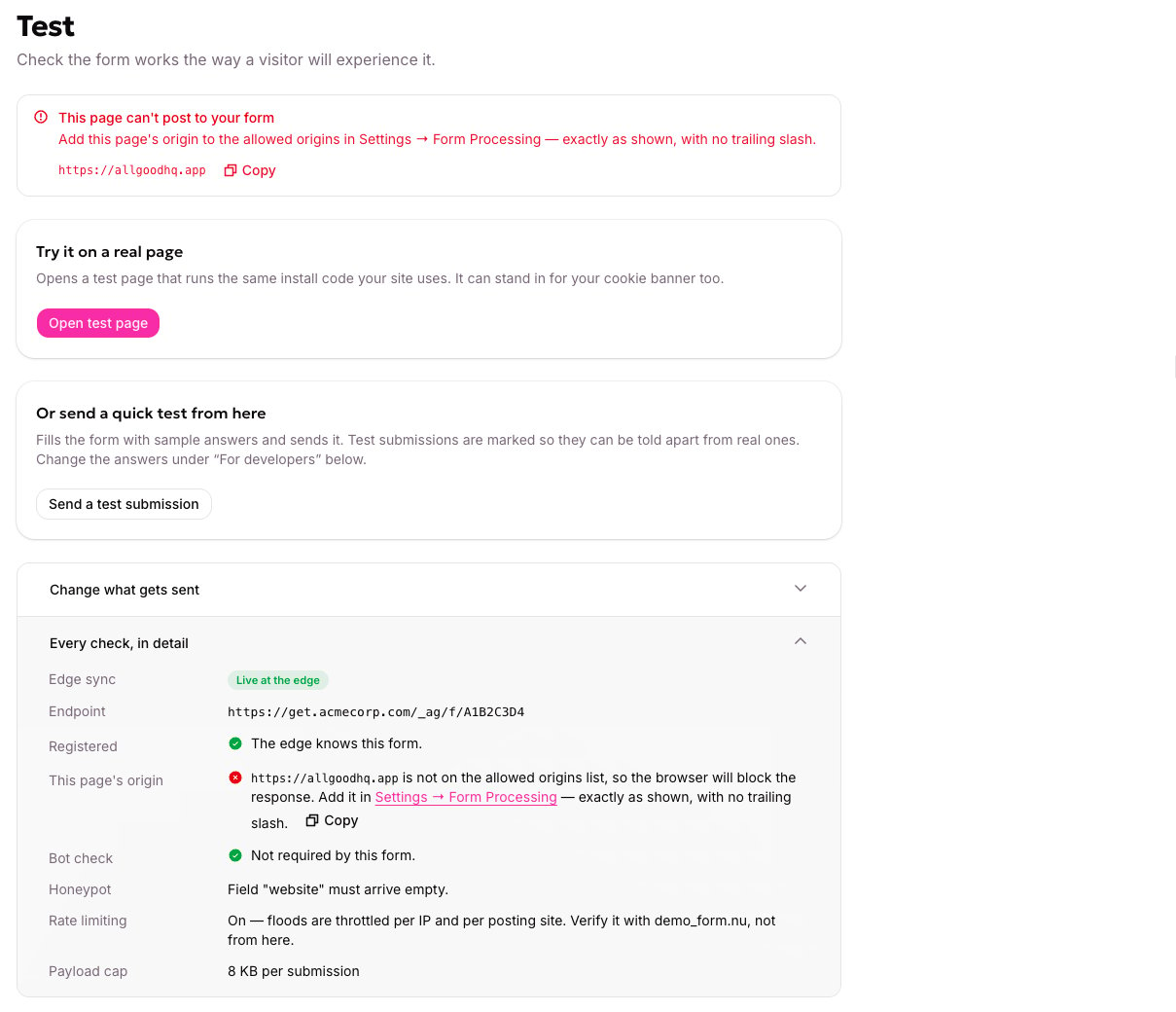
Try it on a real page opens a hosted test page running the same install code your site uses — close enough to stand in for your cookie banner too, not just the form.
Every check, in detail: what's registered, what's allowed, and what's still blocking a real submission.
3
Trip the defenses on purpose
Deliberately fail the honeypot and the bot check to confirm they’re working, rather than assuming. Every response says which defense answered, so a submission that doesn’t arrive has a reason you can look up.
You finish with a response for each test that names the check that answered, so you know the form accepts submissions or exactly what is blocking them.
A result reading “This page can’t post to your form” means that page’s origin isn’t on the form’s allowed-origins list yet — add it exactly as shown, with no trailing slash. See What protects a form for where that list lives (the in-app message currently points to “Form Processing”; the setting itself is under Web Edge Sessions).
{"docsConfig":{"theme":"luma","$schema":"https://mintlify.com/docs.json","name":"allGood Docs","colors":{"primary":"#dc4393","light":"#ea7cb9","dark":"#b12563"},"logo":{"light":"https://mintcdn.com/allgoodtechnologyinc/QQ498qL6_aJdv7lm/logo/light.svg?fit=max\u0026auto=format\u0026n=QQ498qL6_aJdv7lm\u0026q=85\u0026s=0a6e25720e392678288f3d5e92580677","dark":"https://mintcdn.com/allgoodtechnologyinc/QQ498qL6_aJdv7lm/logo/dark.svg?fit=max\u0026auto=format\u0026n=QQ498qL6_aJdv7lm\u0026q=85\u0026s=d68d3e70bcb0adf89895e438a7dd3dd1"},"favicon":"https://mintcdn.com/allgoodtechnologyinc/QQ498qL6_aJdv7lm/favicon.svg?fit=max\u0026auto=format\u0026n=QQ498qL6_aJdv7lm\u0026q=85\u0026s=393be1889fc5f811dc575e9e7c4aa16f","background":{"decoration":"gradient"},"navbar":{"links":[{"href":"mailto:support@allgoodhq.com","label":"Support"}],"primary":{"type":"button","label":"App","href":"https://allgoodhq.app"}},"icons":{"library":"lucide"},"contextual":{"options":["copy","view","chatgpt","claude","mcp"],"display":"header"},"interaction":{"drilldown":true},"styling":{"latex":true},"navigation":{"global":{"anchors":[{"anchor":"Welcome","icon":"house","href":"/"},{"anchor":"Release Notes","icon":"list","href":"/release-notes"}]},"pages":[]}},"deployment":{"deploymentMetadataValue":{"subdomain":"allgoodtechnologyinc","hasAudioNarration":false,"actualSubdomain":"allgoodtechnologyinc","customDomains":["docs.allgoodhq.com"],"gitSource":{"type":"github","owner":"allgoodhq","repo":"mint","deployBranch":"main","contentDirectory":"","isPrivate":true,"mountPath":"","label":""},"chroma":{"liveDeploymentHistoryId":"6ae89845ed2f58cb10ee7f21","collectionId":"ded4f481-a124-4f34-9b5d-99e441c864c1","schemaVersion":"v3","latestBuiltDeploymentHistoryId":"6ae89845ed2f58cb10ee7f21"},"feedback":{"thumbs":true,"agentFeedback":true},"entitlements":{"AI_CHAT":{"status":"ENABLED"},"WEB_MCP":{"status":"ENABLED"},"NARRATION":{"status":"ENABLED"}},"buildId":"6aee4936ccb0d32d838b1741","clientVersion":"0.0.4076","searchFilterCounts":[{"language":"default","tag":"allGood","count":127},{"language":"default","tag":"Use Cases","count":68},{"language":"default","tag":"Email Reply Management","count":65},{"language":"default","tag":"Error Codes","count":38},{"language":"default","tag":"Marketing Kernel","count":20},{"language":"default","tag":"Marketo","count":18},{"language":"default","tag":"Integrations","count":17},{"language":"default","tag":"Settings","count":16},{"language":"default","tag":"Email Builder","count":12},{"language":"default","tag":"HubSpot","count":11}]},"assistantConfig":{"enableAskAiButton":false,"enableStarterQuestions":false,"enableAskAiSearchBar":true,"deflection":{"enabled":true,"email":"support@allgoodhq.com","showHelpButton":true}},"basePath":"","hasChatPermissions":true,"hasWebMcpPermissions":true,"toggles":[{"name":"kill-isr","enabled":true,"variant":{"name":"disabled","enabled":false,"feature_enabled":true},"impressionData":false},{"name":"agent-mintlify-slack","enabled":true,"variant":{"name":"disabled","enabled":false,"feature_enabled":true},"impressionData":false},{"name":"agent-integrations-settings","enabled":true,"variant":{"name":"disabled","enabled":false,"feature_enabled":true},"impressionData":false},{"name":"rbac-expansion","enabled":true,"variant":{"name":"disabled","enabled":false,"feature_enabled":true},"impressionData":false},{"name":"automations-pr-grouping","enabled":true,"variant":{"name":"disabled","enabled":false,"feature_enabled":true},"impressionData":false},{"name":"custom-prefix","enabled":true,"variant":{"name":"disabled","enabled":false,"feature_enabled":true},"impressionData":false},{"name":"analytics-v7","enabled":true,"variant":{"name":"disabled","enabled":false,"feature_enabled":true},"impressionData":false},{"name":"user-flows-analytics","enabled":true,"variant":{"name":"disabled","enabled":false,"feature_enabled":true},"impressionData":false},{"name":"no-publish-flow","enabled":true,"variant":{"name":"disabled","enabled":false,"feature_enabled":true},"impressionData":false},{"name":"workos-onboarding","enabled":true,"variant":{"name":"disabled","enabled":false,"feature_enabled":true},"impressionData":false},{"name":"llms-txt-v2","enabled":true,"variant":{"name":"disabled","enabled":false,"feature_enabled":true},"impressionData":false},{"name":"snapshot-serving-live","enabled":true,"variant":{"name":"disabled","enabled":false,"feature_enabled":true},"impressionData":false},{"name":"stripTemperatureMiddleware","enabled":true,"variant":{"name":"disabled","enabled":false,"feature_enabled":true},"impressionData":false},{"name":"support-platform-pylon-zendesk","enabled":true,"variant":{"name":"disabled","enabled":false,"feature_enabled":true},"impressionData":false},{"name":"snapshot-serving","enabled":true,"variant":{"name":"disabled","enabled":false,"feature_enabled":true},"impressionData":false},{"name":"instant-rollback","enabled":true,"variant":{"name":"disabled","enabled":false,"feature_enabled":true},"impressionData":false},{"name":"granular-notifications-server","enabled":true,"variant":{"name":"disabled","enabled":false,"feature_enabled":true},"impressionData":false},{"name":"granular-notifications","enabled":true,"variant":{"name":"disabled","enabled":false,"feature_enabled":true},"impressionData":false},{"name":"automations-fable","enabled":true,"variant":{"name":"disabled","enabled":false,"feature_enabled":true},"impressionData":false},{"name":"fixed-ai-action-pricing","enabled":true,"variant":{"name":"disabled","enabled":false,"feature_enabled":true},"impressionData":false},{"name":"automation-resolve-merge-conflict","enabled":true,"variant":{"name":"disabled","enabled":false,"feature_enabled":true},"impressionData":false},{"name":"scoped-publishing","enabled":true,"variant":{"name":"disabled","enabled":false,"feature_enabled":true},"impressionData":false},{"name":"mintql","enabled":true,"variant":{"name":"disabled","enabled":false,"feature_enabled":true},"impressionData":false},{"name":"page-level-analytics","enabled":true,"variant":{"name":"disabled","enabled":false,"feature_enabled":true},"impressionData":false},{"name":"editor-version-history-v2","enabled":true,"variant":{"name":"disabled","enabled":false,"feature_enabled":true},"impressionData":false},{"name":"billing-page-v2","enabled":true,"variant":{"name":"disabled","enabled":false,"feature_enabled":true},"impressionData":false},{"name":"full-page-search","enabled":true,"variant":{"name":"disabled","enabled":false,"feature_enabled":true},"impressionData":false},{"name":"workspace-projects","enabled":true,"variant":{"name":"disabled","enabled":false,"feature_enabled":true},"impressionData":false},{"name":"assistant-v5","enabled":true,"variant":{"name":"disabled","enabled":false,"feature_enabled":true},"impressionData":false},{"name":"fork-pr-previews","enabled":true,"variant":{"name":"disabled","enabled":false,"feature_enabled":true},"impressionData":false},{"name":"revalidation-jwt","enabled":true,"variant":{"name":"disabled","enabled":false,"feature_enabled":true},"impressionData":false},{"name":"workos-sso-scim","enabled":true,"variant":{"name":"disabled","enabled":false,"feature_enabled":true},"impressionData":false},{"name":"hobby-abuse-scan","enabled":true,"variant":{"name":"disabled","enabled":false,"feature_enabled":true},"impressionData":false},{"name":"dashboard-inbox","enabled":true,"variant":{"name":"disabled","enabled":false,"feature_enabled":true},"impressionData":false},{"name":"workos-signup","enabled":true,"variant":{"name":"disabled","enabled":false,"feature_enabled":true},"impressionData":false},{"name":"turbopuffer-dual-write","enabled":true,"variant":{"name":"disabled","enabled":false,"feature_enabled":true},"impressionData":false},{"name":"workos-enabled","enabled":true,"variant":{"name":"disabled","enabled":false,"feature_enabled":true},"impressionData":false},{"name":"approve-review-flow","enabled":true,"variant":{"name":"disabled","enabled":false,"feature_enabled":true},"impressionData":false},{"name":"sso-setup-deadline-banner","enabled":true,"variant":{"name":"disabled","enabled":false,"feature_enabled":true},"impressionData":false},{"name":"turbopuffer-serve","enabled":true,"variant":{"name":"disabled","enabled":false,"feature_enabled":true},"impressionData":false},{"name":"live-agents","enabled":true,"variant":{"name":"disabled","enabled":false,"feature_enabled":true},"impressionData":false},{"name":"comment-mode","enabled":true,"variant":{"name":"disabled","enabled":false,"feature_enabled":true},"impressionData":false}],"googleFontsInlined":false},"customCss":[{"filePath":"style.css","content":":root{--sidebar-width: 18rem}.frame{padding:0}.frame>.relative>*[data-as=\"p\"]{margin:0!important}div:has(>.frame){margin:0.5rem 0}.frame [data-component-part=\"frame-caption\"]{margin:0.5rem 0;margin-left:1rem;padding:0;text-align:left}"}],"page":{"pagePath":"mk/content/forms/testing-a-form","slug":"/mk/content/forms/testing-a-form","pageMetadata":{"title":"Testing a form","sidebarTitle":"Testing a form","description":"Post a real submission from the form's own Test section before putting it in front of visitors.","noindex":true,"href":"/mk/content/forms/testing-a-form"},"description":{"compiledSource":"\"use strict\";\nconst {jsx: _jsx} = arguments[0];\nconst {useMDXComponents: _provideComponents} = arguments[0];\nfunction _createMdxContent(props) {\n const _components = {\n p: \"p\",\n ..._provideComponents(),\n ...props.components\n };\n return _jsx(_components.p, {\n children: \"Post a real submission from the form’s own Test section before putting it in front of visitors.\"\n });\n}\nfunction MDXContent(props = {}) {\n const {wrapper: MDXLayout} = {\n ..._provideComponents(),\n ...props.components\n };\n return MDXLayout ? _jsx(MDXLayout, {\n ...props,\n children: _jsx(_createMdxContent, {\n ...props\n })\n }) : _createMdxContent(props);\n}\nreturn {\n default: MDXContent\n};\n","frontmatter":{},"scope":{}},"pageType":"default","mdx":{"mdxSource":{"compiledSource":"\"use strict\";const{Fragment:_Fragment,jsx:_jsx,jsxs:_jsxs}=arguments[0];const{useMDXComponents:_provideComponents}=arguments[0];function _createMdxContent(props){const _components={a:`a`,li:`li`,p:`p`,strong:`strong`,ul:`ul`,..._provideComponents(),...props.components},{Frame,Heading,Note,OptimizedImage,Step,Steps}=_components;if(!Frame)_missingMdxReference(`Frame`,true);if(!Heading)_missingMdxReference(`Heading`,true);if(!Note)_missingMdxReference(`Note`,true);if(!OptimizedImage)_missingMdxReference(`OptimizedImage`,true);if(!Step)_missingMdxReference(`Step`,true);if(!Steps)_missingMdxReference(`Steps`,true);return _jsxs(_Fragment,{children:[_jsxs(_components.p,{children:[`A registered form is ready to accept submissions, but “ready” and “tested” aren’t the same thing. Test from the form’s own `,_jsx(_components.strong,{children:`Test`}),` section before relying on it.`]}),`\n`,_jsxs(Steps,{children:[_jsx(Step,{id:`run-the-quick-test`,title:`Send a quick test submission`,children:_jsxs(_components.p,{children:[_jsx(_components.strong,{children:`Send a test submission`}),` fills the form with sample answers and posts it from the app itself. Test submissions are marked, so they’re easy to tell apart from real ones. Want different sample values first? Edit them under `,_jsx(_components.strong,{children:`Change what gets sent`}),`.`]})}),_jsxs(Step,{id:`test-on-a-real-page`,title:`Test on a real page`,children:[_jsxs(_components.p,{children:[_jsx(_components.strong,{children:`Try it on a real page`}),` opens a hosted test page running the same install code your site uses — close enough to stand in for your cookie banner too, not just the form.`]}),_jsx(Frame,{caption:`Every check, in detail: what's registered, what's allowed, and what's still blocking a real submission.`,children:_jsx(OptimizedImage,{src:`https://mintcdn.com/allgoodtechnologyinc/9DaQ84rhZ2o4ihI1/images/mk/content/forms/form-test-section.png?fit=max\u0026auto=format\u0026n=9DaQ84rhZ2o4ihI1\u0026q=85\u0026s=efb37879d918c412b30f6643981f5d2d`,alt:`Every check, in detail: what's registered, what's allowed, and what's still blocking a real submission`,\"data-og-width\":`1209`,width:`1209`,\"data-og-height\":`1040`,height:`1040`,\"data-path\":`images/mk/content/forms/form-test-section.png`,\"data-optimize\":`true`,\"data-opv\":`3`,srcset:`https://mintcdn.com/allgoodtechnologyinc/9DaQ84rhZ2o4ihI1/images/mk/content/forms/form-test-section.png?w=280\u0026fit=max\u0026auto=format\u0026n=9DaQ84rhZ2o4ihI1\u0026q=85\u0026s=1a4d32bca178ab4b9ec825bfda763ef0 280w, https://mintcdn.com/allgoodtechnologyinc/9DaQ84rhZ2o4ihI1/images/mk/content/forms/form-test-section.png?w=560\u0026fit=max\u0026auto=format\u0026n=9DaQ84rhZ2o4ihI1\u0026q=85\u0026s=b412785c16d88e3ca4aae3e46996d9d7 560w, https://mintcdn.com/allgoodtechnologyinc/9DaQ84rhZ2o4ihI1/images/mk/content/forms/form-test-section.png?w=840\u0026fit=max\u0026auto=format\u0026n=9DaQ84rhZ2o4ihI1\u0026q=85\u0026s=dd69107c5f5401298da9a629a7e846ee 840w, https://mintcdn.com/allgoodtechnologyinc/9DaQ84rhZ2o4ihI1/images/mk/content/forms/form-test-section.png?w=1100\u0026fit=max\u0026auto=format\u0026n=9DaQ84rhZ2o4ihI1\u0026q=85\u0026s=2a95be805642f0bd35a89440d818018e 1100w, https://mintcdn.com/allgoodtechnologyinc/9DaQ84rhZ2o4ihI1/images/mk/content/forms/form-test-section.png?w=1650\u0026fit=max\u0026auto=format\u0026n=9DaQ84rhZ2o4ihI1\u0026q=85\u0026s=623c5e3e9d19ce424c5f13f0f5062547 1650w, https://mintcdn.com/allgoodtechnologyinc/9DaQ84rhZ2o4ihI1/images/mk/content/forms/form-test-section.png?w=2500\u0026fit=max\u0026auto=format\u0026n=9DaQ84rhZ2o4ihI1\u0026q=85\u0026s=152b3c7158a2c5655ce931af37eb1384 2500w`})})]}),_jsx(Step,{id:`trip-the-defenses`,title:`Trip the defenses on purpose`,children:_jsx(_components.p,{children:`Deliberately fail the honeypot and the bot check to confirm they’re working, rather than assuming. Every response says which defense answered, so a submission that doesn’t arrive has a reason you can look up.`})})]}),`\n`,_jsx(_components.p,{children:`You finish with a response for each test that names the check that answered, so you know the form accepts submissions or exactly what is blocking them.`}),`\n`,_jsx(Note,{children:_jsxs(_components.p,{children:[`A result reading “This page can’t post to your form” means that page’s origin isn’t on the form’s allowed-origins list yet — add it exactly as shown, with no trailing slash. See `,_jsx(_components.a,{href:`/mk/content/forms/what-protects-a-form`,children:`What protects a form`}),` for where that list lives (the in-app message currently points to “Form Processing”; the setting itself is under Web Edge Sessions).`]})}),`\n`,_jsx(Heading,{level:`2`,id:`related-articles`,children:`Related articles`}),`\n`,_jsxs(_components.ul,{children:[`\n`,_jsx(_components.li,{children:_jsx(_components.a,{href:`/mk/content/forms/creating-a-form`,children:`Creating a form`})}),`\n`,_jsx(_components.li,{children:_jsx(_components.a,{href:`/mk/content/forms/what-protects-a-form`,children:`What protects a form`})}),`\n`,_jsx(_components.li,{children:_jsx(_components.a,{href:`/mk/content/forms/troubleshooting`,children:`Form not capturing submissions?`})}),`\n`]})]})}function MDXContent(props={}){const{wrapper:MDXLayout}={..._provideComponents(),...props.components};return MDXLayout?_jsx(MDXLayout,{...props,children:_jsx(_createMdxContent,{...props})}):_createMdxContent(props)}return{default:MDXContent};function _missingMdxReference(id,component){throw new Error(`Expected `+(component?`component`:`object`)+\" `\"+id+\"` to be defined: you likely forgot to import, pass, or provide it.\")}","frontmatter":{},"scope":{"config":{},"pageMetadata":{"title":"Testing a form","sidebarTitle":"Testing a form","description":"Post a real submission from the form's own Test section before putting it in front of visitors.","noindex":true,"href":"/mk/content/forms/testing-a-form"}}},"mdxSourceWithNoJs":null},"mdxExtracts":{"tableOfContents":[{"title":"Related articles","slug":"related-articles","depth":2,"children":[]}],"codeExamples":{}},"jsLinks":[],"subdomain":"allgoodtechnologyinc","siteName":"allGood Docs","title":"Testing a form - allGood Docs","relatedPagesConfig":{"enabled":false,"limit":5,"mode":"automatic"},"navMaps":{"firstHrefInVersion":{},"firstHrefInLanguage":{}},"lastModified":"2026-10-29T14:26:59.885Z","originalFileLocation":"mk/content/forms/testing-a-form.mdx"},"headHtml":"\u003cscript data-mint-head>(function(){var d=document.documentElement,p=null;if(!p){try{p=localStorage.getItem(\"isDarkMode\")}catch(e){}if(p==='true')p='dark';else if(p==='false')p='light';if(p!=='light'\u0026\u0026p!=='dark'\u0026\u0026p!=='system')p=\"system\"}var r=p==='system'?(matchMedia(\"(prefers-color-scheme: dark)\").matches?'dark':'light'):p;d.classList.remove(r==='dark'?'light':'dark');d.classList.add(r);d.setAttribute(\"data-theme-preference\",p)})();\u003c/script>\u003cmeta data-mint-head name=\"description\" content=\"Post a real submission from the form\u0026#x27;s own Test section before putting it in front of visitors.\">\u003cmeta data-mint-head name=\"application-name\" content=\"allGood Docs\">\u003cmeta data-mint-head name=\"generator\" content=\"Mintlify\">\u003cmeta data-mint-head name=\"robots\" content=\"noindex\">\u003clink data-mint-head rel=\"icon\" type=\"image/png\" sizes=\"192x192\" href=\"/mintlify-assets/_mintlify/favicons/allgoodtechnologyinc/_ALjgld6m1uJaRhW/_generated/favicon/android-chrome-192x192.png\" media=\"(prefers-color-scheme: light)\">\u003clink data-mint-head rel=\"apple-touch-icon\" type=\"image/png\" sizes=\"180x180\" href=\"/mintlify-assets/_mintlify/favicons/allgoodtechnologyinc/_ALjgld6m1uJaRhW/_generated/favicon/apple-touch-icon.png\">\u003clink data-mint-head rel=\"icon\" type=\"image/png\" sizes=\"16x16\" href=\"/mintlify-assets/_mintlify/favicons/allgoodtechnologyinc/_ALjgld6m1uJaRhW/_generated/favicon/favicon-16x16.png\" media=\"(prefers-color-scheme: light)\">\u003clink data-mint-head rel=\"icon\" type=\"image/png\" sizes=\"32x32\" href=\"/mintlify-assets/_mintlify/favicons/allgoodtechnologyinc/_ALjgld6m1uJaRhW/_generated/favicon/favicon-32x32.png\" media=\"(prefers-color-scheme: light)\">\u003clink data-mint-head rel=\"shortcut icon\" type=\"image/x-icon\" href=\"/mintlify-assets/_mintlify/favicons/allgoodtechnologyinc/_ALjgld6m1uJaRhW/_generated/favicon/favicon.ico\" media=\"(prefers-color-scheme: light)\">\u003clink data-mint-head rel=\"icon\" type=\"image/png\" sizes=\"192x192\" href=\"/mintlify-assets/_mintlify/favicons/allgoodtechnologyinc/_ALjgld6m1uJaRhW/_generated/favicon-dark/android-chrome-192x192.png\" media=\"(prefers-color-scheme: dark)\">\u003clink data-mint-head rel=\"icon\" type=\"image/png\" sizes=\"16x16\" href=\"/mintlify-assets/_mintlify/favicons/allgoodtechnologyinc/_ALjgld6m1uJaRhW/_generated/favicon-dark/favicon-16x16.png\" media=\"(prefers-color-scheme: dark)\">\u003clink data-mint-head rel=\"icon\" type=\"image/png\" sizes=\"32x32\" href=\"/mintlify-assets/_mintlify/favicons/allgoodtechnologyinc/_ALjgld6m1uJaRhW/_generated/favicon-dark/favicon-32x32.png\" media=\"(prefers-color-scheme: dark)\">\u003clink data-mint-head rel=\"shortcut icon\" type=\"image/x-icon\" href=\"/mintlify-assets/_mintlify/favicons/allgoodtechnologyinc/_ALjgld6m1uJaRhW/_generated/favicon-dark/favicon.ico\" media=\"(prefers-color-scheme: dark)\">\u003cmeta data-mint-head property=\"og:title\" content=\"Testing a form - allGood Docs\">\u003cmeta data-mint-head property=\"og:description\" content=\"Post a real submission from the form\u0026#x27;s own Test section before putting it in front of visitors.\">\u003cmeta data-mint-head property=\"og:site_name\" content=\"allGood Docs\">\u003cmeta data-mint-head property=\"og:url\" content=\"https://docs.allgoodhq.com/mk/content/forms/testing-a-form\">\u003cmeta data-mint-head property=\"og:type\" content=\"website\">\u003cmeta data-mint-head property=\"og:image\" content=\"https://allgoodtechnologyinc.mintlify.site/_mintlify/api/og/v2?division=Forms\u0026amp;title=Testing+a+form\u0026amp;description=Post+a+real+submission+from+the+form%27s+own+Test+section+before+putting+it+in+front+of+visitors.\u0026amp;theme=1dffc1444f7b7db60f57189e\u0026amp;signature=483f97a874a9558baa67e7d7321ce3f753a94eac87c41772101226f985f90cad\">\u003cmeta data-mint-head property=\"og:image:width\" content=\"1200\">\u003cmeta data-mint-head property=\"og:image:height\" content=\"630\">\u003cmeta data-mint-head name=\"twitter:card\" content=\"summary_large_image\">\u003cmeta data-mint-head name=\"twitter:title\" content=\"Testing a form - allGood Docs\">\u003cmeta data-mint-head name=\"twitter:description\" content=\"Post a real submission from the form\u0026#x27;s own Test section before putting it in front of visitors.\">\u003cmeta data-mint-head name=\"twitter:image\" content=\"https://allgoodtechnologyinc.mintlify.site/_mintlify/api/og/v2?division=Forms\u0026amp;title=Testing+a+form\u0026amp;description=Post+a+real+submission+from+the+form%27s+own+Test+section+before+putting+it+in+front+of+visitors.\u0026amp;theme=1dffc1444f7b7db60f57189e\u0026amp;signature=483f97a874a9558baa67e7d7321ce3f753a94eac87c41772101226f985f90cad\">\u003cmeta data-mint-head name=\"twitter:image:width\" content=\"1200\">\u003cmeta data-mint-head name=\"twitter:image:height\" content=\"630\">\u003cmeta data-mint-head name=\"msapplication-config\" content=\"/mintlify-assets/_mintlify/favicons/allgoodtechnologyinc/_ALjgld6m1uJaRhW/_generated/favicon/browserconfig.xml\">\u003cmeta data-mint-head name=\"apple-mobile-web-app-title\" content=\"allGood Docs\">\u003cmeta data-mint-head name=\"msapplication-TileColor\" content=\"#dc4393\">\u003clink data-mint-head rel=\"canonical\" href=\"https://docs.allgoodhq.com/mk/content/forms/testing-a-form\">\u003clink data-mint-head rel=\"alternate\" type=\"application/xml\" href=\"/sitemap.xml\">\u003clink data-mint-head rel=\"alternate\" type=\"text/markdown\" href=\"/mk/content/forms/testing-a-form.md\">\u003cscript data-mint-head type=\"application/ld+json\">{\"@context\":\"https://schema.org\",\"@type\":\"WebSite\",\"name\":\"allGood Docs\",\"creator\":{\"@type\":\"Organization\",\"name\":\"Mintlify\",\"url\":\"https://mintlify.com\"}}\u003c/script>","siteName":"allGood Docs","nav":{"global":{"anchors":[{"anchor":"Welcome","icon":"house","href":"/"},{"anchor":"Release Notes","icon":"list","href":"/release-notes"}]},"tabs":[{"tab":"allGood","icon":"book-open","pages":[{"title":"allGood","href":"/use-cases/email-builder"}]},{"tab":"Marketing Kernel","icon":"layers","groups":[{"group":"Marketing Kernel","pages":[{"title":"Marketing Kernel","sidebarTitle":"Overview","href":"/mk"},{"group":"Content","pages":[{"title":"Content","sidebarTitle":"Overview","href":"/mk/content/index"},{"title":"Getting started with Content","sidebarTitle":"Getting Started","href":"/mk/content/getting-started"},{"group":"Set up once","pages":[{"title":"Brand guidelines","sidebarTitle":"Brand Guidelines","href":"/mk/content/brand-guidelines"},{"title":"Component libraries","sidebarTitle":"Component Libraries","href":"/mk/content/component-libraries"},{"title":"Templates","sidebarTitle":"Templates","href":"/mk/content/templates"}]},{"group":"Visual assets","pages":[{"title":"Visual assets","sidebarTitle":"Overview","href":"/mk/content/visual-assets/index"},{"title":"Using an image in an email or page","sidebarTitle":"In an email or page","href":"/mk/content/visual-assets/using-an-image-in-an-email-or-page"},{"title":"Using an image you host elsewhere","sidebarTitle":"Images hosted elsewhere","href":"/mk/content/visual-assets/images-hosted-elsewhere"},{"title":"Visual assets FAQ","sidebarTitle":"FAQ","href":"/mk/content/visual-assets/faq"}]},{"title":"Hosted files","sidebarTitle":"Hosted Files","href":"/mk/content/hosted-files"},{"group":"Landing pages","pages":[{"title":"Landing pages","sidebarTitle":"Overview","href":"/mk/content/landing-pages/index"},{"title":"What a landing page is","sidebarTitle":"What a landing page is","href":"/mk/content/landing-pages/what-a-landing-page-is"},{"title":"Creating a landing page","sidebarTitle":"Creating a landing page","href":"/mk/content/landing-pages/creating-a-landing-page"},{"title":"Making a page from a template","sidebarTitle":"From a template","href":"/mk/content/landing-pages/making-a-page-from-a-template"},{"title":"Page components","sidebarTitle":"Page Components","href":"/mk/content/landing-pages/page-components"},{"title":"Editing a landing page's code","sidebarTitle":"Editing the code","href":"/mk/content/landing-pages/editing-the-code"},{"title":"Previewing a landing page","sidebarTitle":"Previewing","href":"/mk/content/landing-pages/previewing-a-landing-page"},{"title":"Checks before a page goes live","sidebarTitle":"Checks before publishing","href":"/mk/content/landing-pages/checks-before-publishing"},{"title":"Publishing a landing page","sidebarTitle":"Publishing and taking down","href":"/mk/content/landing-pages/publishing-a-landing-page"},{"title":"Showing different versions of a page","sidebarTitle":"Different versions","href":"/mk/content/landing-pages/testing-versions-of-a-page"},{"title":"Using a page you host elsewhere","sidebarTitle":"External pages","href":"/mk/content/landing-pages/using-an-external-page"},{"title":"Coming from Marketo or HubSpot: landing pages","sidebarTitle":"Coming from Marketo/HubSpot","href":"/mk/content/landing-pages/coming-from-marketo-hubspot"},{"title":"Landing page not showing or not saving?","sidebarTitle":"Troubleshooting","href":"/mk/content/landing-pages/troubleshooting"},{"title":"Landing pages FAQ","sidebarTitle":"FAQ","href":"/mk/content/landing-pages/faq"}]},{"group":"Email","pages":[{"title":"Email","sidebarTitle":"Overview","href":"/mk/content/email/index"},{"group":"Components","pages":[{"title":"Email components","sidebarTitle":"Overview","href":"/mk/content/email/components/index"},{"title":"Editing an email component","sidebarTitle":"Editing a component","href":"/mk/content/email/components/editing-an-email-component"},{"title":"Setting up and reviewing email components in allGood","sidebarTitle":"Setting up and reviewing","href":"/mk/content/email/components/setting-up-and-reviewing-email-components"},{"title":"What MJML is","sidebarTitle":"What MJML is","href":"/mk/content/email/components/what-mjml-is"}]},{"group":"Email templates","pages":[{"title":"Email templates","sidebarTitle":"Overview","href":"/mk/content/email/templates/index"},{"title":"What an email template is","sidebarTitle":"What a template is","href":"/mk/content/email/templates/what-an-email-template-is"},{"title":"Creating an email template","sidebarTitle":"Creating a template","href":"/mk/content/email/templates/creating-an-email-template"},{"title":"Decide what writers fill in","sidebarTitle":"What writers fill in","href":"/mk/content/email/templates/writing-the-copy-schema"},{"title":"Changing an email template","sidebarTitle":"Changing a template","href":"/mk/content/email/templates/changing-an-email-template"}]},{"group":"Emails","pages":[{"title":"Emails","sidebarTitle":"Overview","href":"/mk/content/email/emails/index"},{"title":"What an email is","sidebarTitle":"What an email is","href":"/mk/content/email/emails/what-an-email-is"},{"title":"Creating an email","sidebarTitle":"Creating an email","href":"/mk/content/email/emails/creating-an-email"},{"title":"Previewing and testing an email","sidebarTitle":"Previewing and testing","href":"/mk/content/email/emails/previewing-and-testing-an-email"},{"title":"Editing an email's code","sidebarTitle":"Editing the code","href":"/mk/content/email/emails/editing-the-code"},{"title":"Personalizing an email","sidebarTitle":"Personalizing","href":"/mk/content/email/emails/personalizing-an-email"},{"title":"Merge field reference","sidebarTitle":"Merge field reference","href":"/mk/content/email/emails/merge-field-reference"},{"title":"Show content conditionally and repeat a list","sidebarTitle":"Conditional content","href":"/mk/content/email/emails/conditional-content-and-lists"},{"title":"Liquid recipes for emails","sidebarTitle":"Liquid recipes","href":"/mk/content/email/emails/liquid-recipes"},{"title":"Before an email can send","sidebarTitle":"Before it can send","href":"/mk/content/email/emails/before-an-email-can-send"},{"title":"How unsubscribes work","sidebarTitle":"How unsubscribes work","href":"/mk/content/email/emails/how-unsubscribes-work"},{"title":"Email not sending or rendering wrong?","sidebarTitle":"Troubleshooting","href":"/mk/content/email/emails/troubleshooting"}]},{"title":"Email FAQ","sidebarTitle":"FAQ","href":"/mk/content/email/faq"},{"title":"Coming from Marketo or HubSpot: email","sidebarTitle":"Coming from Marketo or HubSpot","href":"/mk/content/email/coming-from-marketo-hubspot"}]},{"group":"Forms","pages":[{"title":"Forms","sidebarTitle":"Overview","href":"/mk/content/forms/index"},{"title":"What a form is","sidebarTitle":"What a form is","href":"/mk/content/forms/what-a-form-is"},{"title":"Creating a form","sidebarTitle":"Creating a form","description":"Start a Form Generator, describe what you're collecting, then save and publish.","href":"/mk/content/forms/creating-a-form"},{"title":"Testing a form","sidebarTitle":"Testing a form","href":"/mk/content/forms/testing-a-form"},{"title":"Adding a form to a page","sidebarTitle":"Adding a form to a page","description":"Connect a registered form to a hosted allGood page or to a page on your own website.","href":"/mk/content/forms/adding-a-form-to-a-page"},{"title":"What protects a form","sidebarTitle":"What protects a form","href":"/mk/content/forms/what-protects-a-form"},{"title":"See how a form is performing","sidebarTitle":"Seeing performance","href":"/mk/content/forms/seeing-form-performance"},{"title":"Find where a form is used","sidebarTitle":"Finding where it's used","href":"/mk/content/forms/finding-where-a-form-is-used"},{"title":"Form not capturing submissions?","sidebarTitle":"Troubleshooting","href":"/mk/content/forms/troubleshooting"},{"title":"Forms FAQ","sidebarTitle":"FAQ","href":"/mk/content/forms/faq"},{"title":"Coming from Marketo or HubSpot: forms","sidebarTitle":"Coming from Marketo/HubSpot","href":"/mk/content/forms/coming-from-marketo-hubspot"}]},{"title":"Copy and variants","sidebarTitle":"Copy and Variants","href":"/mk/content/copy-and-variants"},{"title":"Publishing and versions","sidebarTitle":"Publishing and Versions","href":"/mk/content/approvals"},{"title":"Marketo to MK","icon":"arrow-right-left","href":"/mk/content/marketo-to-mk"}]},{"group":"Data Platform","pages":[{"title":"MK Data Platform","sidebarTitle":"Overview","href":"/mk/data/index"},{"title":"Data Sharing","sidebarTitle":"Data Sharing","href":"/mk/data/sharing"},{"title":"Data Architecture","href":"/mk/data/architecture"},{"title":"Orchestration","sidebarTitle":"Orchestration","href":"/mk/data/orchestration"}]},{"group":"Formulas","pages":[{"title":"Formulas in MK","sidebarTitle":"Overview","href":"/mk/formulas/index"},{"title":"What formulas are and when to use one","sidebarTitle":"What formulas are","href":"/mk/formulas/what-formulas-are"},{"title":"How formulas find your data","sidebarTitle":"How formulas find your data","href":"/mk/formulas/how-formulas-find-your-data"},{"title":"Filter a list with a formula","sidebarTitle":"Filter a list","href":"/mk/formulas/filter-a-list"},{"title":"Add a calculated column to a list","sidebarTitle":"Add a calculated column","href":"/mk/formulas/add-a-calculated-column"},{"title":"Handle blank and messy values in formulas","sidebarTitle":"Handle blank values","href":"/mk/formulas/handle-blank-values"},{"title":"Formula recipes","sidebarTitle":"Recipes","href":"/mk/formulas/recipes"},{"title":"Where you can use formulas in MK","sidebarTitle":"Where you can use formulas","href":"/mk/formulas/where-you-can-use-formulas"},{"title":"Formula reference: functions and operators","sidebarTitle":"Reference","href":"/mk/formulas/reference"},{"title":"Formula gives a blank, wrong, or error result","sidebarTitle":"Formula not working","href":"/mk/formulas/not-working"},{"title":"Formulas FAQ","sidebarTitle":"FAQ","href":"/mk/formulas/faq"},{"title":"Coming from Marketo: formulas in MK","sidebarTitle":"Coming from Marketo","href":"/mk/formulas/coming-from-marketo"}]},{"group":"Motions","pages":[{"title":"Motions","sidebarTitle":"Overview","href":"/mk/motions/index"},{"title":"Motion types","sidebarTitle":"Motion Types","href":"/mk/motions/motion-types"},{"title":"Gated content","sidebarTitle":"Gated Content","href":"/mk/motions/gated-content"},{"title":"Webinars","sidebarTitle":"Webinars","href":"/mk/motions/webinars"},{"title":"Launching a motion","sidebarTitle":"Launching","href":"/mk/motions/launching"}]},{"group":"Web Edge for developers","pages":[{"title":"Add Web Edge to your website","sidebarTitle":"Overview","href":"/mk/developer/web-edge/index"},{"group":"Add it to your website","pages":[{"title":"Create a form","sidebarTitle":"Create a Form","href":"/mk/developer/web-edge/create-a-form"},{"title":"Install the tag","sidebarTitle":"Install the Tag","href":"/mk/developer/web-edge/install-the-tag"},{"title":"Install with Google Tag Manager","sidebarTitle":"Install with GTM","href":"/mk/developer/web-edge/install-with-gtm"},{"title":"Capture a form","sidebarTitle":"Capture a Form","href":"/mk/developer/web-edge/capture-a-form"},{"title":"Identify and track","sidebarTitle":"Identify and Track","href":"/mk/developer/web-edge/identify-and-track"},{"title":"Track custom events on your website","sidebarTitle":"Track Custom Events","href":"/mk/developer/web-edge/track-custom-events"},{"title":"What consent gates","sidebarTitle":"Consent Behavior","href":"/mk/developer/web-edge/consent-behavior"},{"title":"A complete example page","sidebarTitle":"Worked Example","href":"/mk/developer/web-edge/worked-example"},{"title":"Test your setup","sidebarTitle":"Test Your Setup","href":"/mk/developer/web-edge/test-your-setup"},{"title":"Troubleshooting","sidebarTitle":"Troubleshooting","href":"/mk/developer/web-edge/troubleshooting"},{"title":"Coming from Marketo: Web Edge for developers","sidebarTitle":"Coming from Marketo","href":"/mk/developer/web-edge/from-marketo"}]},{"group":"Reference","pages":[{"title":"Form capture API","sidebarTitle":"Form Capture API","href":"/mk/developer/web-edge/reference/form-api"},{"title":"Event capture API","sidebarTitle":"Event Capture API","href":"/mk/developer/web-edge/reference/event-api"},{"title":"Endpoint reference","sidebarTitle":"Endpoints","href":"/mk/developer/web-edge/reference/endpoints"},{"title":"Reason codes","sidebarTitle":"Reason Codes","href":"/mk/developer/web-edge/reference/reason-codes"},{"title":"Settings reference","sidebarTitle":"Settings","href":"/mk/developer/web-edge/reference/settings"},{"title":"Glossary","sidebarTitle":"Glossary","href":"/mk/developer/web-edge/reference/glossary"}]}]}]},{"group":"Platform","pages":[{"group":"Integrations","pages":[{"title":"The Integrations screen","sidebarTitle":"Overview","href":"/mk/integrations/index"},{"title":"Add your Anthropic API key","sidebarTitle":"Anthropic","href":"/mk/integrations/anthropic"},{"title":"How allGood connects with your other marketing tools","href":"/mk/integrations/how-allgood-connects"},{"title":"Understanding incoming and outgoing webhooks","href":"/mk/integrations/webhooks"}]},{"group":"Email components for developers","pages":[{"title":"How MJML works","sidebarTitle":"How MJML works","href":"/mk/developer/email/how-mjml-works"},{"title":"Write an email component","sidebarTitle":"Writing components","href":"/mk/developer/email/how-to-write-email-components"},{"title":"Compare MJML with other email tools","sidebarTitle":"Compare MJML with other tools","href":"/mk/developer/email/compare-mjml-with-other-tools"},{"title":"Move your Marketo unsubscribes to allGood","sidebarTitle":"Move Marketo unsubscribes","href":"/mk/developer/email/move-your-marketo-unsubscribes"}]},{"group":"Landing pages for developers","pages":[{"title":"Write a landing page by hand","sidebarTitle":"Write a page by hand","href":"/mk/developer/landing-pages/write-a-landing-page"},{"title":"Retire your Marketo landing page subdomain","sidebarTitle":"Retire Marketo landing pages","href":"/mk/developer/landing-pages/retire-marketo-landing-pages"}]},{"group":"API and Webhooks","pages":[{"title":"API and Webhooks","sidebarTitle":"Overview","href":"/mk/developer/api/index"}]}]},{"group":"Enterprise","pages":[{"title":"Enterprise","sidebarTitle":"Overview","href":"/mk/enterprise/index"},{"title":"MCP usage","sidebarTitle":"MCP Usage","href":"/mk/enterprise/mcp-usage"},{"title":"Data privacy","sidebarTitle":"Data Privacy","href":"/mk/enterprise/data-privacy"}]},{"group":"Settings","pages":[{"group":"Web Edge","pages":[{"title":"Web Edge","sidebarTitle":"Overview","href":"/mk/settings/web-edge/index"},{"title":"How Web Edge keeps your domain secure","sidebarTitle":"How it works","href":"/mk/settings/web-edge/how-it-works"},{"title":"Connect a subdomain","sidebarTitle":"Connect a subdomain","href":"/mk/settings/web-edge/connect-a-subdomain"},{"title":"Set your allowed origins","sidebarTitle":"Allowed origins","href":"/mk/settings/web-edge/allowed-origins"},{"title":"Connect your consent platform","sidebarTitle":"Consent provider","href":"/mk/settings/web-edge/consent-provider"},{"title":"Set up Web Tracking","sidebarTitle":"Web Tracking","href":"/mk/settings/web-edge/tracking-setup"},{"title":"Turn on bot protection for a form","sidebarTitle":"Bot protection","href":"/mk/settings/web-edge/bot-protection"},{"title":"Review your form processing settings","sidebarTitle":"Form processing","href":"/mk/settings/web-edge/form-processing"},{"title":"Manage your landing page settings","sidebarTitle":"Landing page settings","href":"/mk/settings/web-edge/landing-page-settings"},{"title":"Saved vs live at the edge","sidebarTitle":"Saved vs live","href":"/mk/settings/web-edge/edge-sync"},{"title":"Web Edge setup checklist","sidebarTitle":"Setup checklist","href":"/mk/settings/web-edge/setup-checklist"},{"title":"Coming from Marketo: Web Edge for admins","sidebarTitle":"Coming from Marketo","href":"/mk/settings/web-edge/coming-from-marketo"},{"title":"Web Edge FAQ","sidebarTitle":"FAQ","href":"/mk/settings/web-edge/faq"}]},{"group":"Email","pages":[{"title":"Set up an email domain","href":"/mk/settings/email/domains-setup"},{"title":"Web Edge domain vs. email domain","href":"/mk/settings/email/domains-vs-web-edge"},{"title":"Authenticate your sending domain: SPF, DKIM, DMARC, BIMI, and VMC","href":"/mk/settings/email/authentication"},{"title":"Your sending IP: shared pool or dedicated","href":"/mk/settings/email/sending-ip"},{"title":"Set up your Subscription Center","sidebarTitle":"Subscription Center","href":"/mk/settings/email/subscription-center"},{"title":"Email Frequently Asked Questions","href":"/mk/settings/email/faq"}]}]}]}]},"basePath":"","title":"Testing a form - allGood Docs","buildId":"dpl_8LJbrAiZvr1K98WQNZXCyY5AvT34","deploymentId":"dpl_8LJbrAiZvr1K98WQNZXCyY5AvT34","dynamics":["07c022d89b","a74be98ba7"],"chunks":["Frame-NdetNziF.js","DynamicMarkdown-CD8713Yy.js","zoom-image-lightbox-DMoL6lHz.js","lightbox-handle-r17bVUz3.js"]}