

Changing the words on a page is not always a code edit. If the page was made from a template, its words live in a separate copy document. Ask Mary to change the copy rather than typing over the code, so the change is easy to track. There’s no editor for a copy document yet.
Open the code
Open the page and select Edit Source in the left menu, under Author. It works the same way as Edit Source for an email. See Editing an email’s code. The screen says it’s for writing the page’sindex.html by hand, and that saving creates a new version. You see the file with line numbers, and Upload a file, Save and Save and publish at the top. Save and Save and publish stay off until you change something. If you don’t have permission to edit pages, the screen opens read-only.
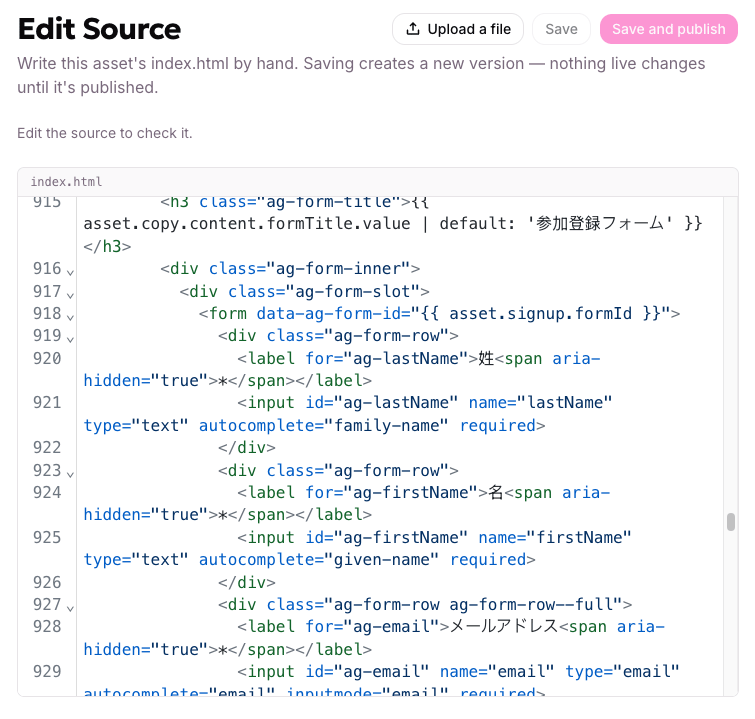
Edit Source shows the page's index.html, with Upload a file, Save and Save and publish above it
Make a change
1
Edit the HTML
Type in the editor, or select Upload a file to replace the code with an HTML file from your computer. Uploading fills the editor but doesn’t save anything yet.
2
Read the check
The message above the editor checks your code as you edit. If it finds a problem, it lists what to fix, and you can’t save until it’s fixed. Before you’ve changed anything it reads “Edit the source to check it.”
3
Save it
Select Save to keep your change as a new version without putting it live. Select Save and publish to save and publish in one step. Both stay off until you’ve changed something, and Save and publish needs permission to publish.
What happens to the live page
Nothing changes on a live page when you save. It keeps serving its last published version until you publish the new one. Every save is its own version, so you can try a change and go back. See Publishing and versions. A page is served exactly as you write it. Unlike an email, there is no build step.Good to know
- Leave the
{{ }}references in place. Where the page uses its copy document or its form, the code holds a reference such as{{ asset.signup.formId }}. If you type words over a reference, that part no longer follows the copy document. - Keep the form’s markers. A form on the page is connected through attributes in its markup. If you remove them, the form stops capturing. See Adding a form to a page.
- Components can’t be edited by hand. If the page was built from a page component library, each section is checked against its block when you save. A change that no longer matches a block’s shape is refused.
- Your own scripts run as written. Tags you paste in, such as analytics or ad pixels, aren’t covered by allGood’s consent settings. See Landing pages FAQ.