

Email has its own library, called Email Components. This page is about the one for landing pages. See Component libraries for how the two compare.
What a library holds
Open a library from Content. At the top you see its name, a short description, and a count of its blocks. A new library starts as a Draft, with a Publish button at the top right.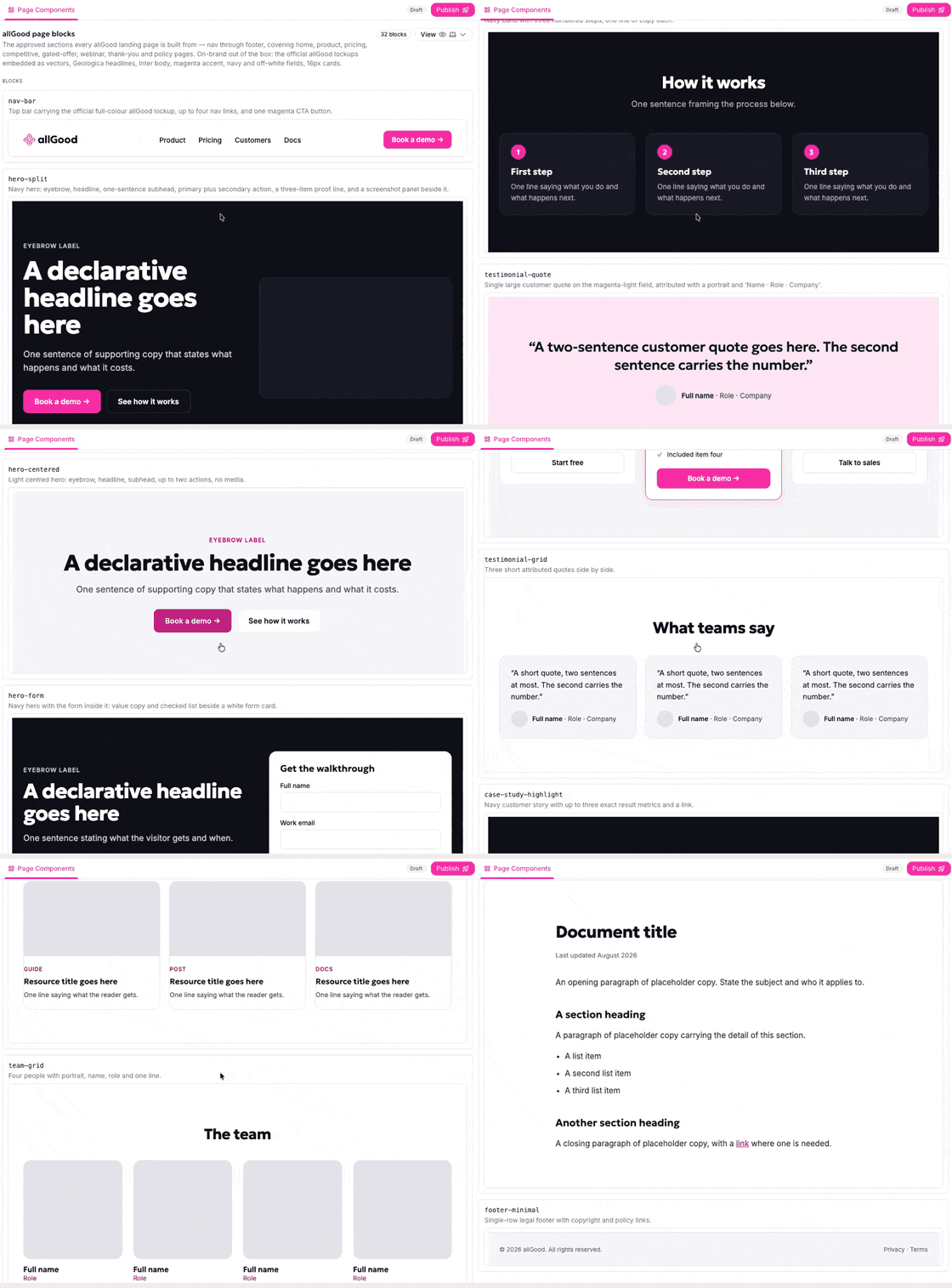
Scrolling through a page component library: each block's name, description and preview.
- Its name, in code type, such as
nav-barorhero-split. Pages use this name to say which block a section came from. - What it is. For example, “top bar with the logo, up to four links and one button.”
- The block itself, shown as it will look.
Change how you view the blocks
Select View at the top right. Format switches every block between Preview and HTML. Device switches between Mobile, Tablet and Desktop, so you can check how the blocks look on a phone.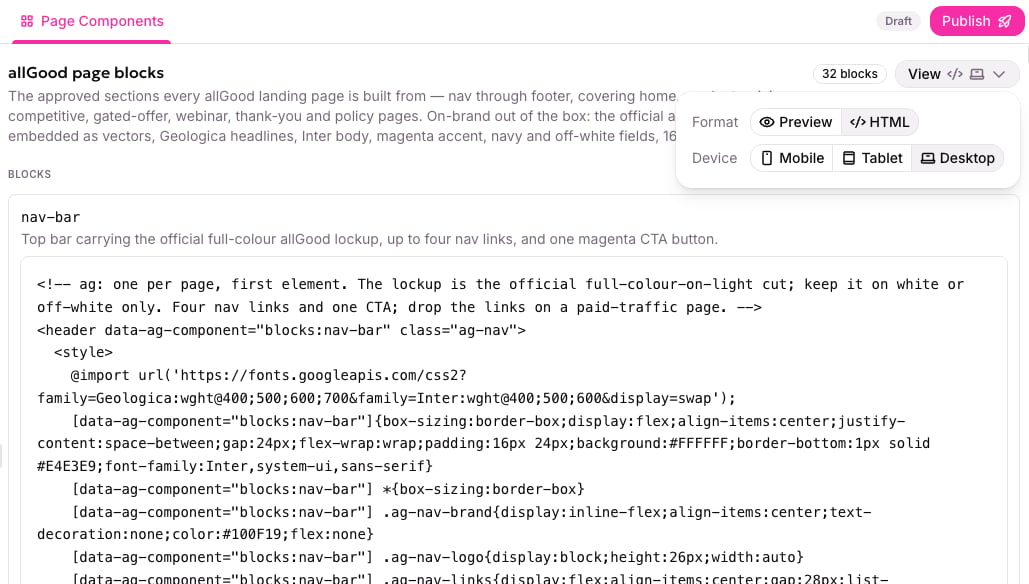
The View menu, set to HTML. Each block now shows its code.
How a page uses the library
A page marks each section with the block it came from. When you save the page, allGood checks that every marked section matches that block’s shape. It compares structure only, meaning which elements there are and how they nest. It ignores your words and your styling, because those change on every page. Changing the headline in a hero is fine. Turning a hero into something that is no longer a hero is not, and the save stops with a message naming the block and what no longer matches. When one block sits inside another, such as a button inside a hero, each is checked on its own. Changing the shared button checks the button, not every section that contains one. Component libraries explains the check in full, including strict and advisory modes.Components and templates
A component is one section. A landing page template is the whole page: which sections go in what order, plus the list of words that change from page to page. You usually want both. The library is the set of sections, and the template is how they fit together. A template is expected to be built entirely from library blocks, so anything on it that isn’t a block gets flagged.Create a library
1
Start the library
In Content, select Create and choose Page Components. Give it your brand guideline. If you have a landing page that already looks the way you want, give it that too.Starting from a page you already have is usually faster. The generator lifts the sections that repeat out of it and writes them up as blocks.
2
Review the blocks
Scroll through the blocks and check each preview against your brand: the colors, the fonts and the logo. Switch the View menu to Mobile to check the small screen. If a block is missing, or one is wrong, ask Mary to add it or fix it.
3
Publish the library
Select Publish at the top right. Publishing the pages built on the library locks in the library version they used. See Publishing and versions.
Change a block
Describe the change to Mary in plain language, and she makes it as a new version. Nothing changes on a live page until you publish. You can’t edit a block’s code by hand. To see the code behind a block, set Format in the View menu to HTML.Good to know
- No library means no check. A page with no library has nothing to match against. The first page you build gets the least benefit, and the second gets the most.
- A page cites the library once. Adding a block to the library later doesn’t change pages that already exist.
- A block is self-contained. Its styling is part of the block, and it doesn’t load outside style files. Fonts from a public font service are fine.