The allGood Marketo MCP server brings Mary’s Marketo capabilities into the AI apps you already use — like Claude Desktop and ChatGPT desktop. Once connected, you can ask the assistant to look up programs, emails, forms, and templates. You can also clone campaigns and upload assets to Marketo’s Design Studio, all from the same chat window.

What is MCP, and what does connecting it actually do?

MCP (Model Context Protocol) is the mechanism behind this. It lets an assistant you already use — Claude, ChatGPT — ask allGood and Marketo questions and make specific, named changes for you. That means no more switching tabs and clicking through the Marketo UI yourself. Connecting it doesn’t hand the assistant a blank check. It can only use the tools your organization has given you access to. It tells you what it’s about to do before doing it. And nothing touches your live Marketo instance until you actually ask for a change. You’re also not stuck with an all-or-nothing switch. Every individual tool — not just the connector as a whole — can be set to run automatically, ask you first, or be turned off entirely. See the Marketo MCP FAQ for how to set that up.

Get Marketo MCP Connected

1

Claude Desktop

Follow the Claude Desktop guide to add allGood Marketo as a custom connector.
2

ChatGPT Desktop

Follow the ChatGPT Desktop guide to add allGood Marketo as a connector under Settings → Plugins.
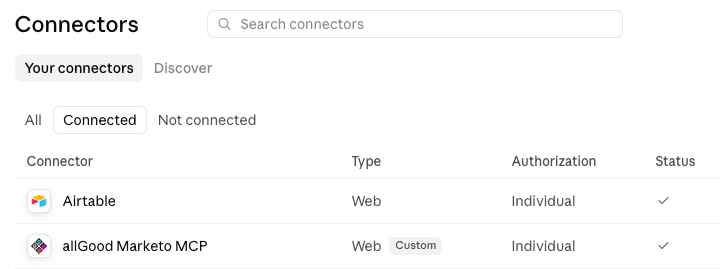
Once connected, you’ll see allGood Marketo listed as an active connector in your assistant’s tools panel, and you can start asking it about your Marketo programs right away.
Connectors list showing allGood Marketo MCP with a checkmark under Status, confirming it's connected

allGood Marketo MCP shown as a connected connector


Two ways this connects to Marketo

The Marketo MCP tools in this article talk to Marketo directly — programs, emails, tokens, templates — using allGood’s own Marketo integration credential. Nothing routes through allGood’s own data model first. Worksheets (used for list uploads and similar imports) work differently. There, you’re working with allGood’s own worksheet model, and Marketo is one of the systems a worksheet’s steps might act on for you — not something the import tools touch directly. If you’re importing a spreadsheet of leads or contacts, you want Import a list into a worksheet with MCP, which uses a separate set of tools with a different data flow from the one described here.

What you can do once you’re connected

See Finding programs and working with data and Editing and sending emails for the full list of tools — finding programs and assets, reading and updating tokens, reviewing and editing email content, cloning programs and emails, and more. If something isn’t working the way this article describes, see the Marketo MCP FAQ or contact allGood support.