

Unsubscribe runs one set of actions; one that lands in Left Company runs another.
Available action types
Forward Email
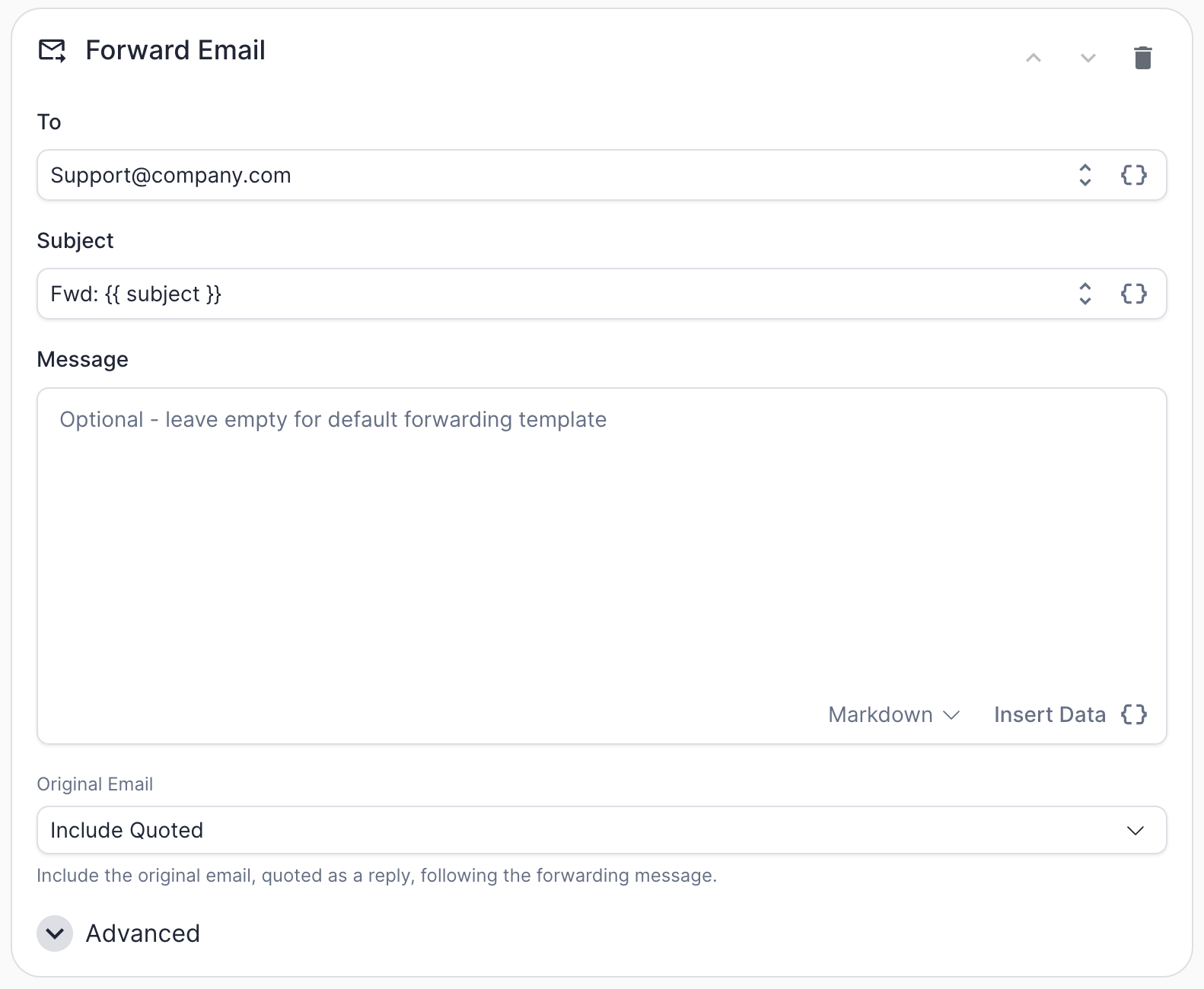
Forward Email action configuration
Human Request reply to your shared sales inbox, or looping a specific rep in on Out-Of-Office replies for accounts they own.
Forward Email is a generic action and works the same way regardless of which marketing automation platform you’re connected to.
The
Original Email dropdown controls what happens with the source message:
Under Advanced:
Add to Worksheet
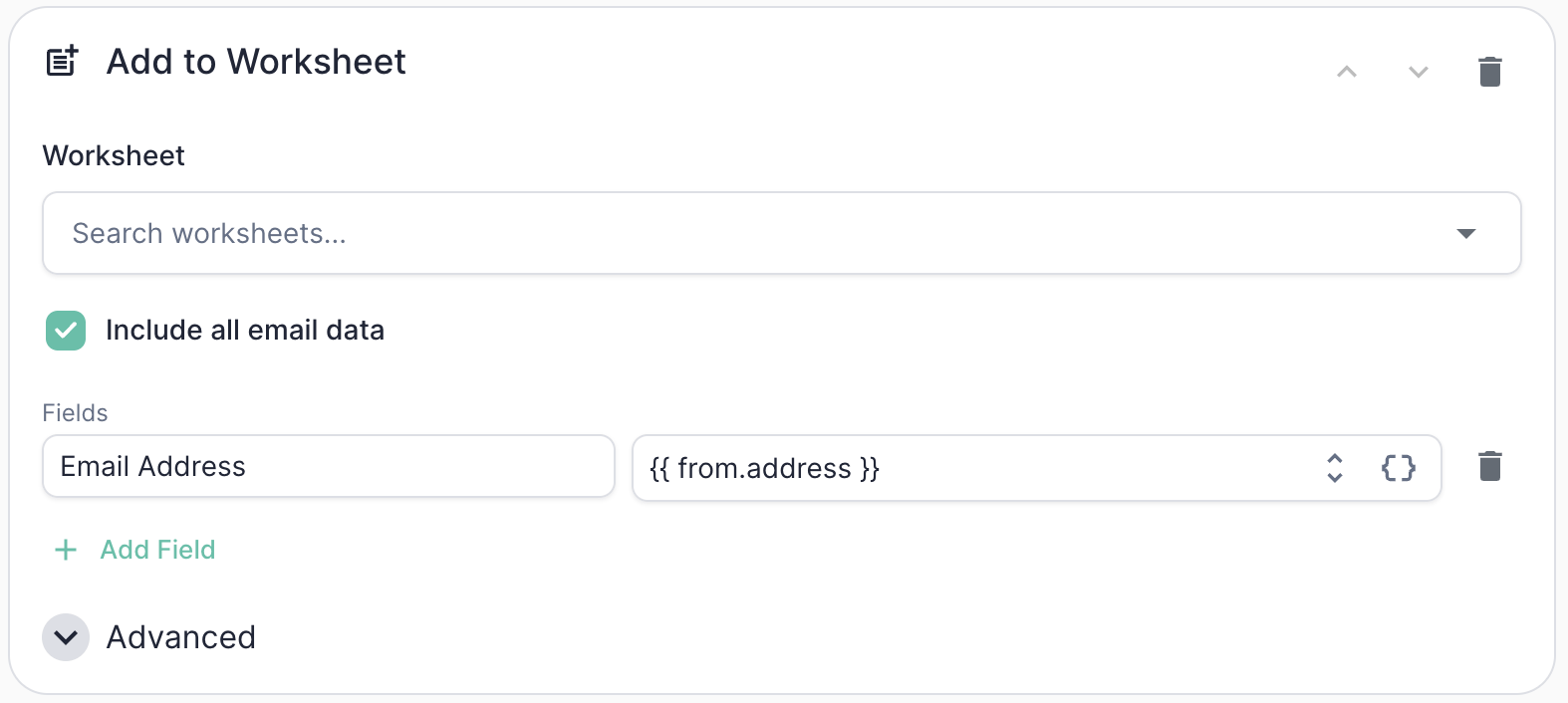
Add to Worksheet action configuration
Human Request sender to a follow-up worksheet that triages and routes them, or pushing extracted replacement contacts from Left Company replies into a new-lead worksheet.
Add to Worksheet is a generic action and works the same way regardless of which marketing automation platform you’re connected to.
Under Advanced:
Sync Contact to Act-On
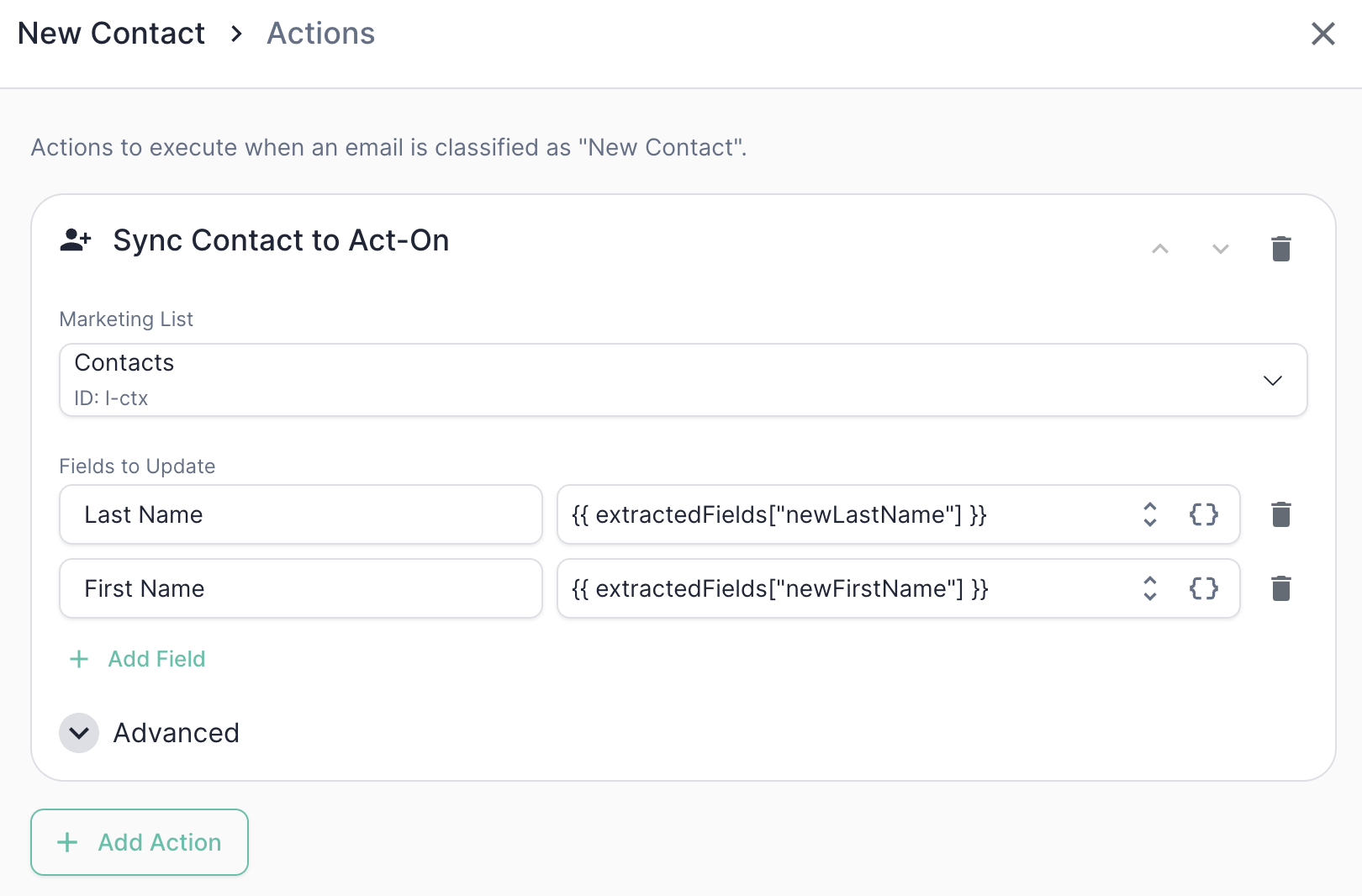
Sync Contact to Act-On action configuration
Act-On writes are list-scoped: every sync targets a specific marketing list rather than a global contact table. Pick the list from the Marketing List dropdown, which is populated from the contact lists in your Act-On account.
- Static values — e.g.,
Unsubscribed = true - Dynamic values — tokens that resolve at runtime from Mary’s classification or extracted data, e.g.,
Unsubscribe Reason = [allGood] {{ classification }}: {{ rationale }}
First Name, Company), not internal API names. The email address is always included automatically — it’s the lookup key.
There’s no sync-mode dropdown. Act-On’s list-record endpoint always upserts (create-or-update) in one call, so the sync both creates the contact when it’s missing and updates it when it already exists.
Add to Act-On List
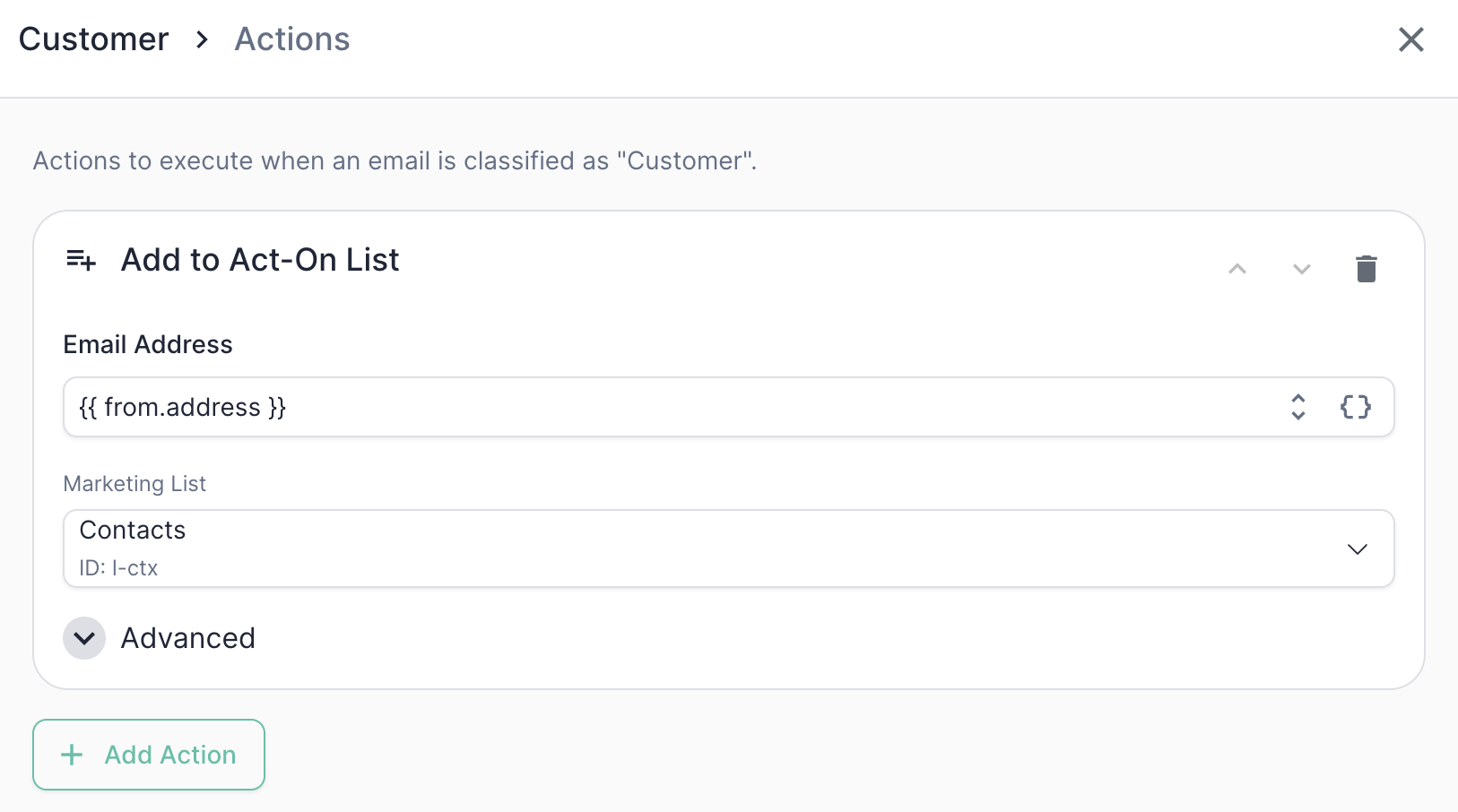
Add to Act-On List action configuration
Unsubscribe in Act-On
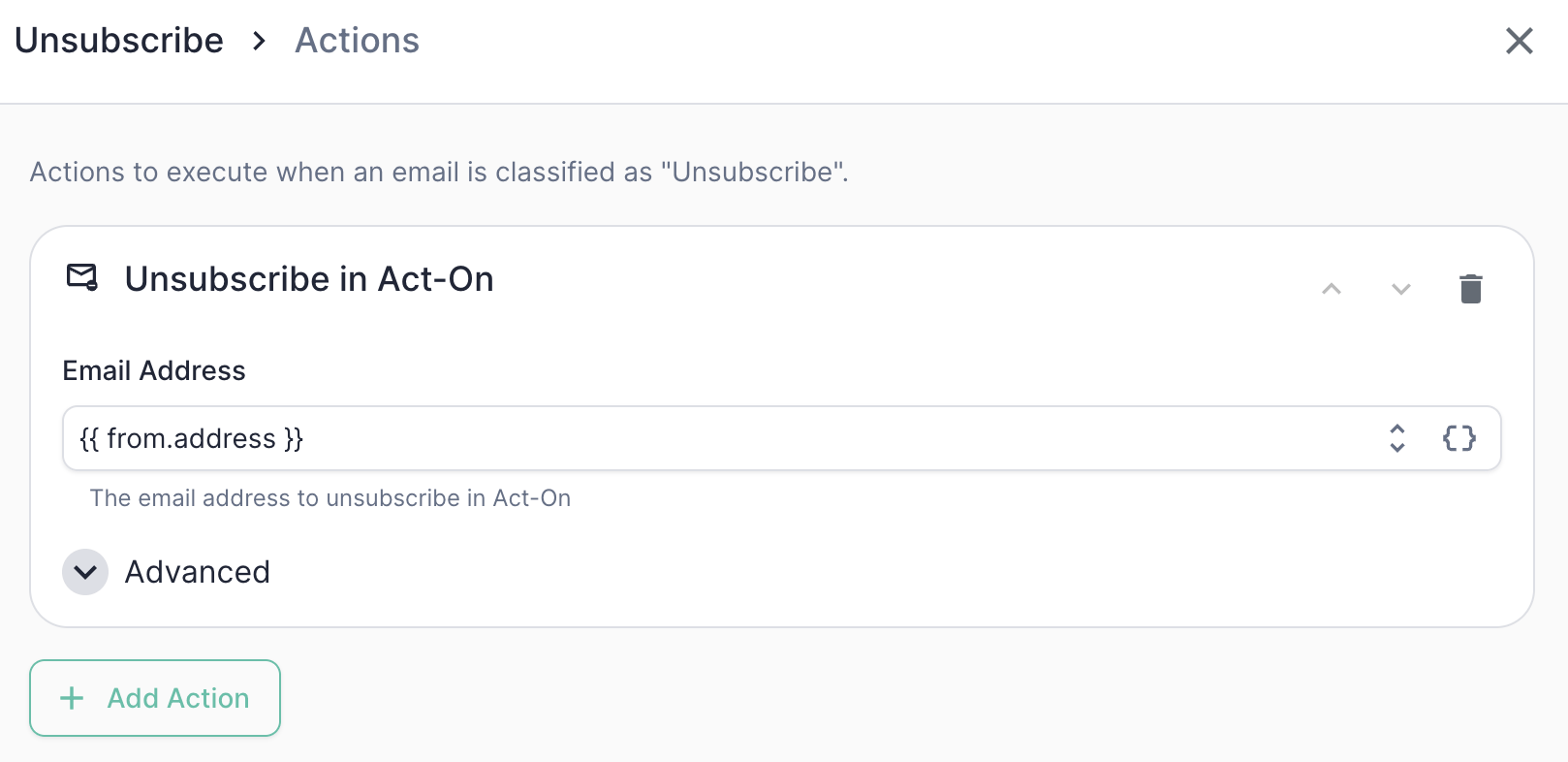
Unsubscribe in Act-On action configuration
Because the opt-out doesn’t require a prior lookup, there’s no skip if not found toggle on this action — it applies the suppression by email regardless of whether the contact already exists on a list.
Example: Unsubscribe actions
Here’s the action chain a typicalUnsubscribe category would run:
1
Unsubscribe in Act-On
Honor the opt-out so the suppression is recorded in Act-On and respected on future sends. Leave Subscription Category blank for an account-level opt-out.
2
Sync Contact to Act-On
Record the reason on the contact for the audit trail. Because the sync upserts, it also guarantees the contact is on your suppression list.
{{ rationale }} token is particularly useful here — it gives your ops team a human-readable audit trail directly on the contact record explaining why Mary marked someone as unsubscribed.
Stacking and reordering actions
You can configure multiple actions per category, and they run in the order they’re listed. Use the up/down arrows on each action row to reorder them. Click + Add Action to add more. Order matters mainly for field dependencies — if a later action references a field set by an earlier action, make sure the order reflects that dependency.Unlike some platforms, Act-On’s Add to Act-On List and Sync Contact to Act-On both upsert by email, so you don’t need to order a sync before a list-add to make sure the contact exists — either action will create it.
Conditional actions
Every action supports an only-if condition — a token expression that must evaluate totrue for the action to run. This lets you fan out behavior within a single category. For example, only add to a “Hot Leads” list when an extracted intent field is high, while still running the rest of the chain for everyone.
Act-On actions don’t expose a skip if not found toggle. None of them do a prior contact lookup — syncs and list-adds upsert by email, and unsubscribes apply by email — so there’s no “missing contact” case to skip or error on.
Fetching contact data (optional)
If you want to reference a sender’s existing Act-On fields inside your action templates — for example, writing theirOwner or Region into a forward — add a Fetch Act-On Contact step to the category’s data pipeline. It looks the contact up by email and exposes the record to later templates:
Best practices
- Use the
[allGood]prefix in audit fields. Following the example above (Unsubscribe Reason = [allGood] ...) makes it easy to see at a glance which records were touched by Mary versus a human or another system. - Use the list’s column names, and pick from the field picker. The field-map keys must match the columns on the selected marketing list exactly. The picker lists them for you so you don’t have to guess — a column name that doesn’t exist on the list will fail at execution time.
- Prefer the native unsubscribe. For opt-outs, use Unsubscribe in Act-On rather than just setting a field on a list — it records the suppression in Act-On so it’s honored on future sends.
- Pick the right list up front. Every sync and list-add targets one marketing list. If you suppress and report out of a dedicated list (e.g.
Unsubscribed by Mary), point both the sync and the add at it. - Test the full chain, not just the classification. The Test Suite validates categorization and extraction; once those pass, sanity-check the actions against a sandbox Act-On account before going live.