

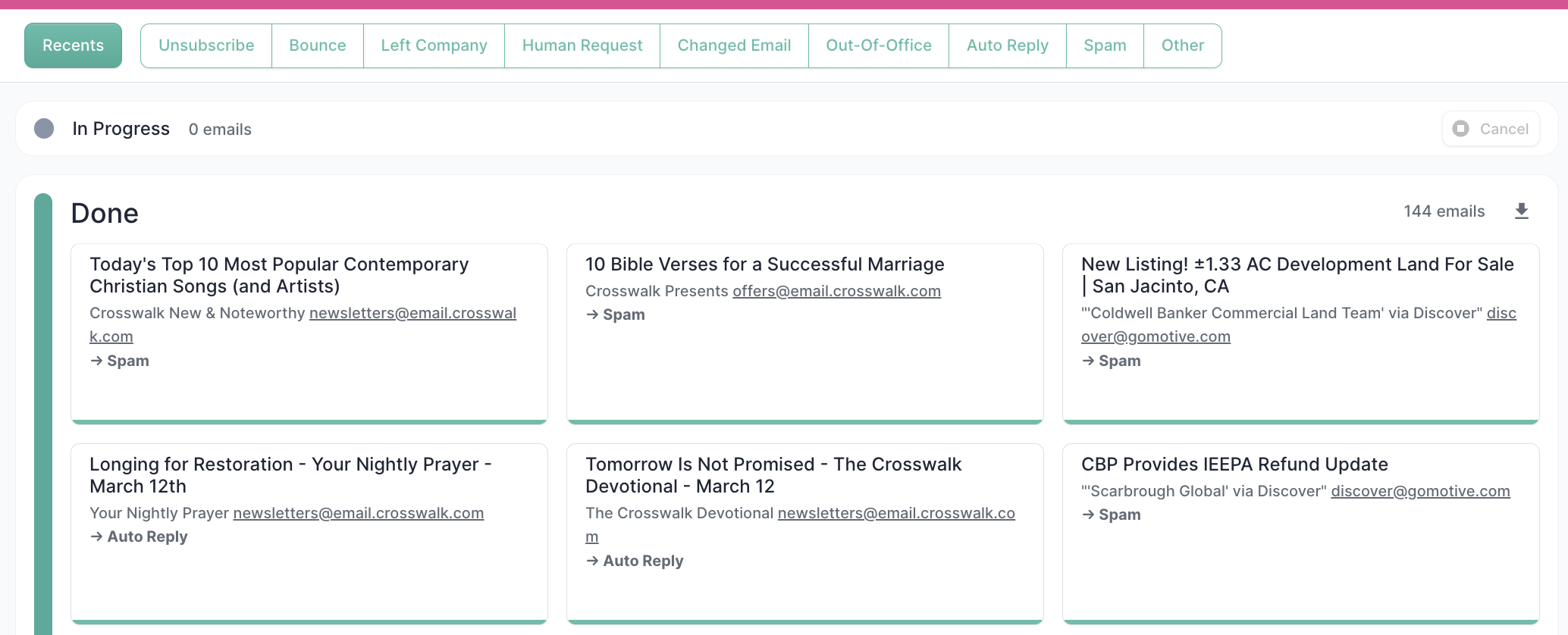
The message feed
Processed emails are displayed as cards showing:- The email subject line
- The sender’s name and email address
- The category Mary assigned (e.g.,
→ Human Request)
Filtering by category
Use the tab bar at the top to slice the feed by category. Click Unsubscribe to see only unsubscribe replies, Bounce for bounces, and so on. Recents shows the most recently processed emails regardless of category.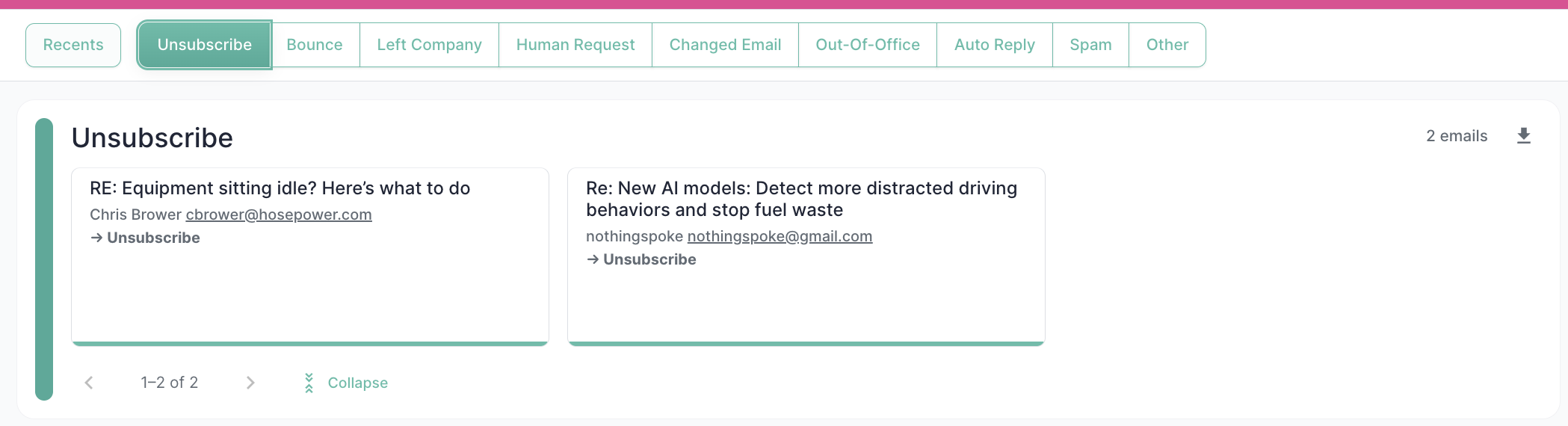
Inspecting an individual email
Click any message card to open the detailed view. The detail panel is structured around the full processing pipeline, so you can see exactly what happened at each step.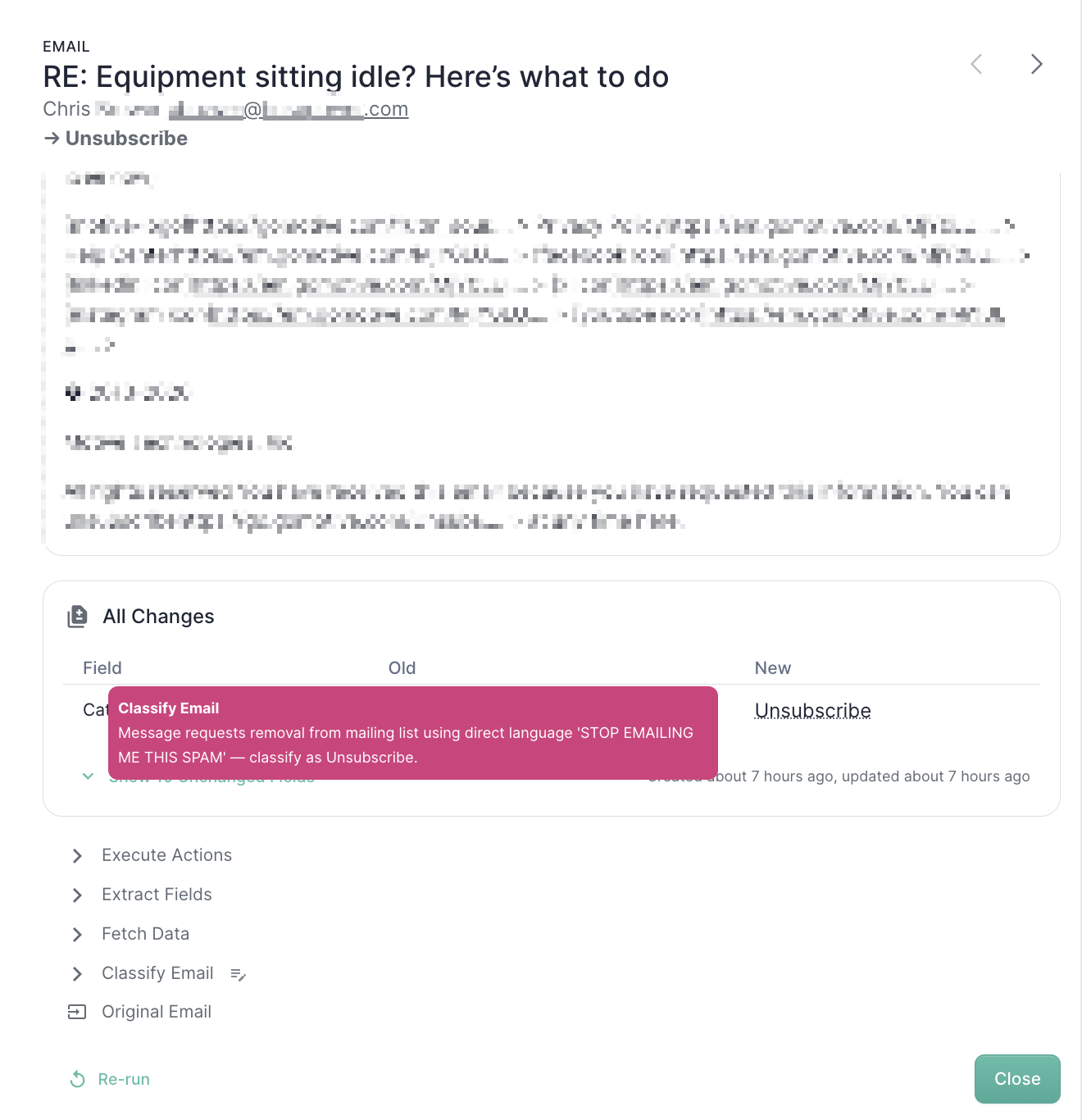
- The full email body as it arrived
- The classification Mary assigned and her plain-English reasoning for why she made that call
This view is the single best debugging tool when something looks off — you can see Mary’s reasoning, the values she extracted, and the result of every action she fired, all in one place.
Re-running a misclassified email
If you spot an email that was classified incorrectly, you don’t have to wait for a similar reply to arrive again to test your fix. Click Re-run on the detail view and Mary will reprocess the email using your current category configuration. This is the standard workflow for tightening up a category prompt:1
Find a misclassified example
Spot it in the feed or via Search.
2
Adjust the category prompt
Edit the category that should have caught it — or the one that incorrectly caught it.
3
Re-run the email
Open the message and click Re-run. Confirm the new classification is correct.
4
Lock it in with a test
Add the email to the Test Suite as a regression check so the fix can’t quietly break later.