

Unsubscribe runs one set of actions; one that lands in Left Company runs another.
Available action types
Forward Email
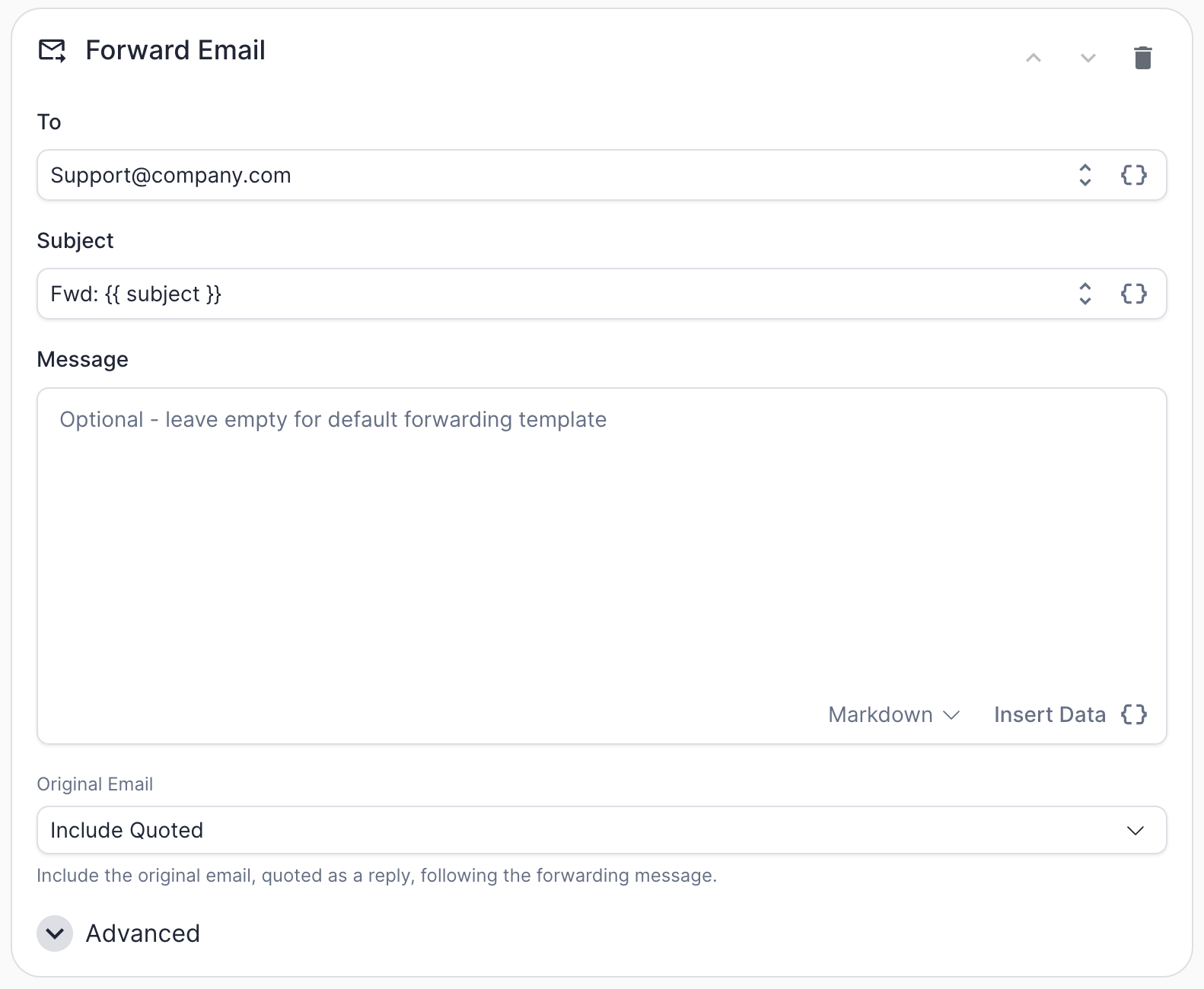
Forward Email action configuration
Human Request reply to your shared sales inbox, or looping a specific rep in on Out-Of-Office replies for accounts they own.
Forward Email is a generic action and works the same way regardless of which marketing automation platform you’re connected to.
The
Original Email dropdown controls what happens with the source message:
Under Advanced:
Add to Worksheet
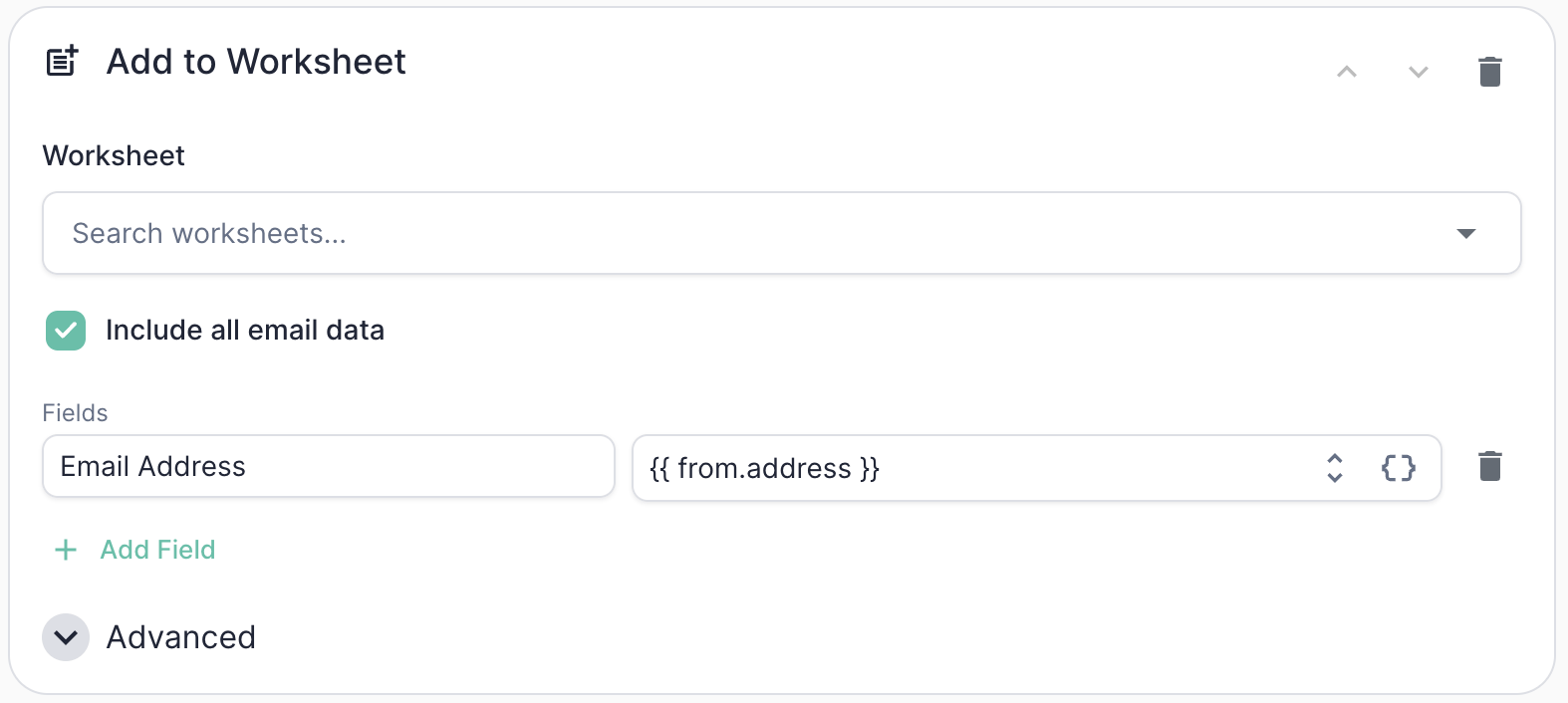
Add to Worksheet action configuration
Human Request sender to a follow-up worksheet that triages and routes them, or pushing extracted replacement contacts from Left Company replies into a new-lead worksheet.
Add to Worksheet is a generic action and works the same way regardless of which marketing automation platform you’re connected to.
Under Advanced:
Sync Lead to Marketo
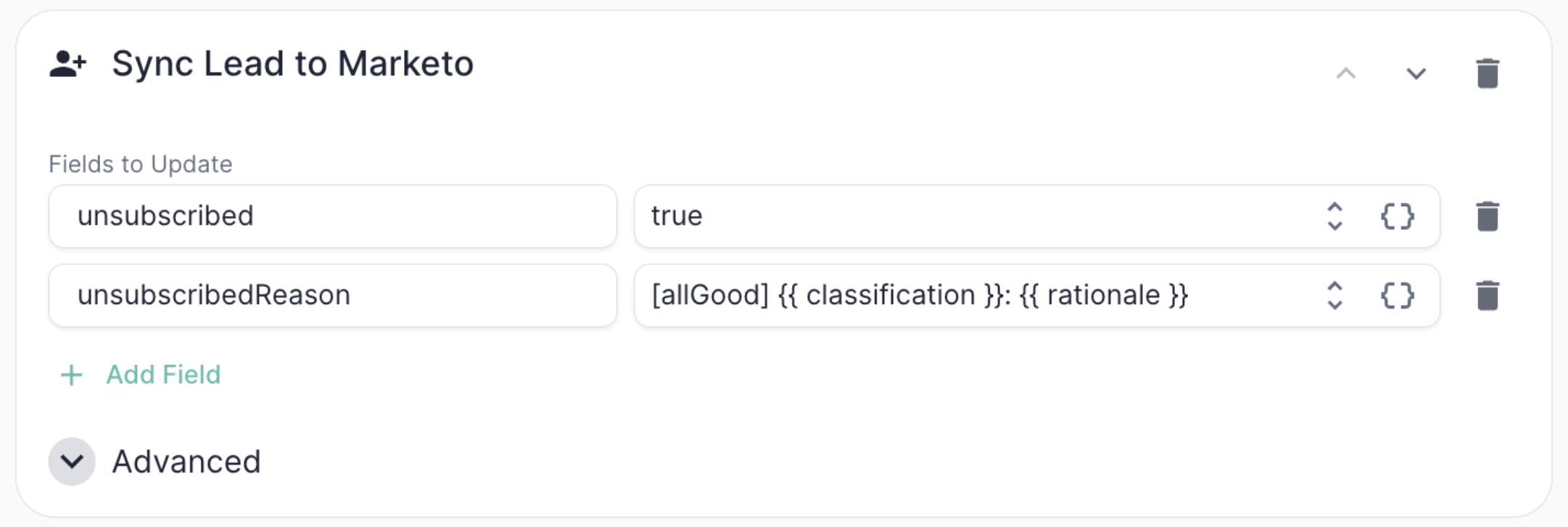
Sync Lead to Marketo action configuration
- Static values — e.g.,
unsubscribed = true - Dynamic values — tokens that resolve at runtime from Mary’s classification or extracted data, e.g.,
unsubscribedReason = [allGood] {{ classification }}: {{ rationale }}
Common tokens you can reference:
Add to Marketo Static List
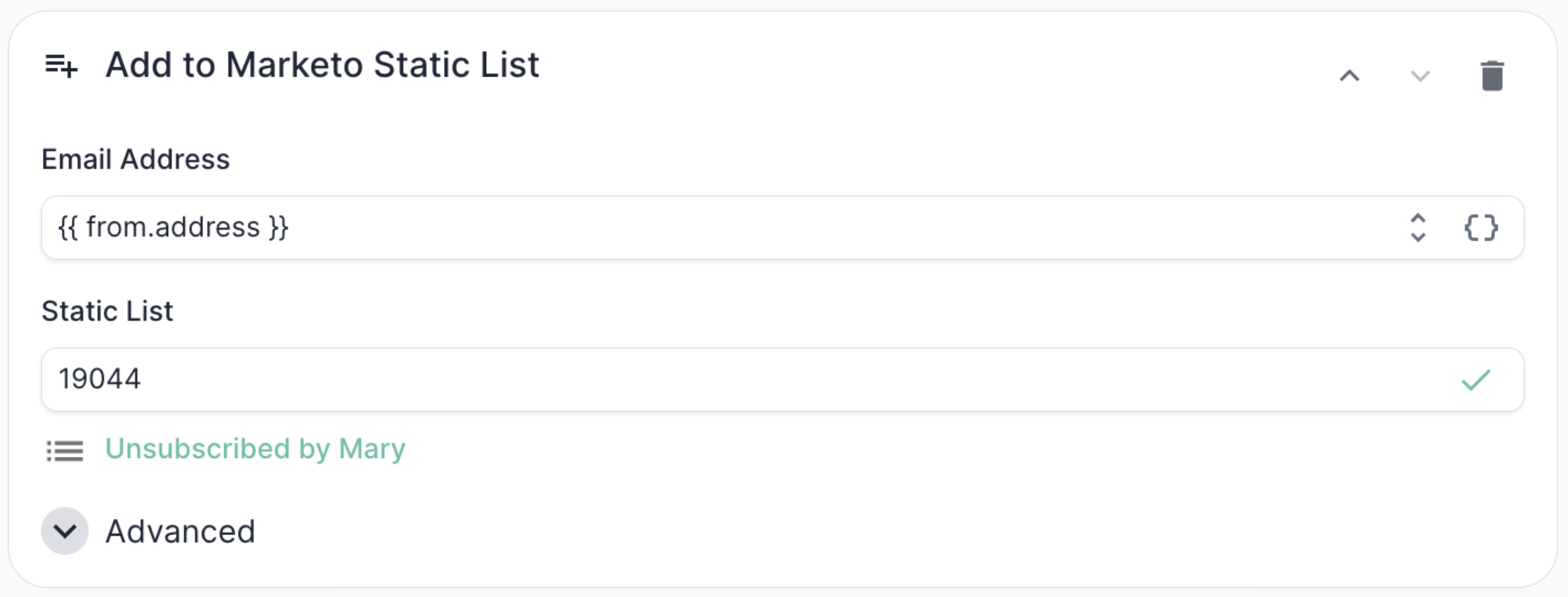
Add to Marketo Static List action configuration
Example: Unsubscribe actions
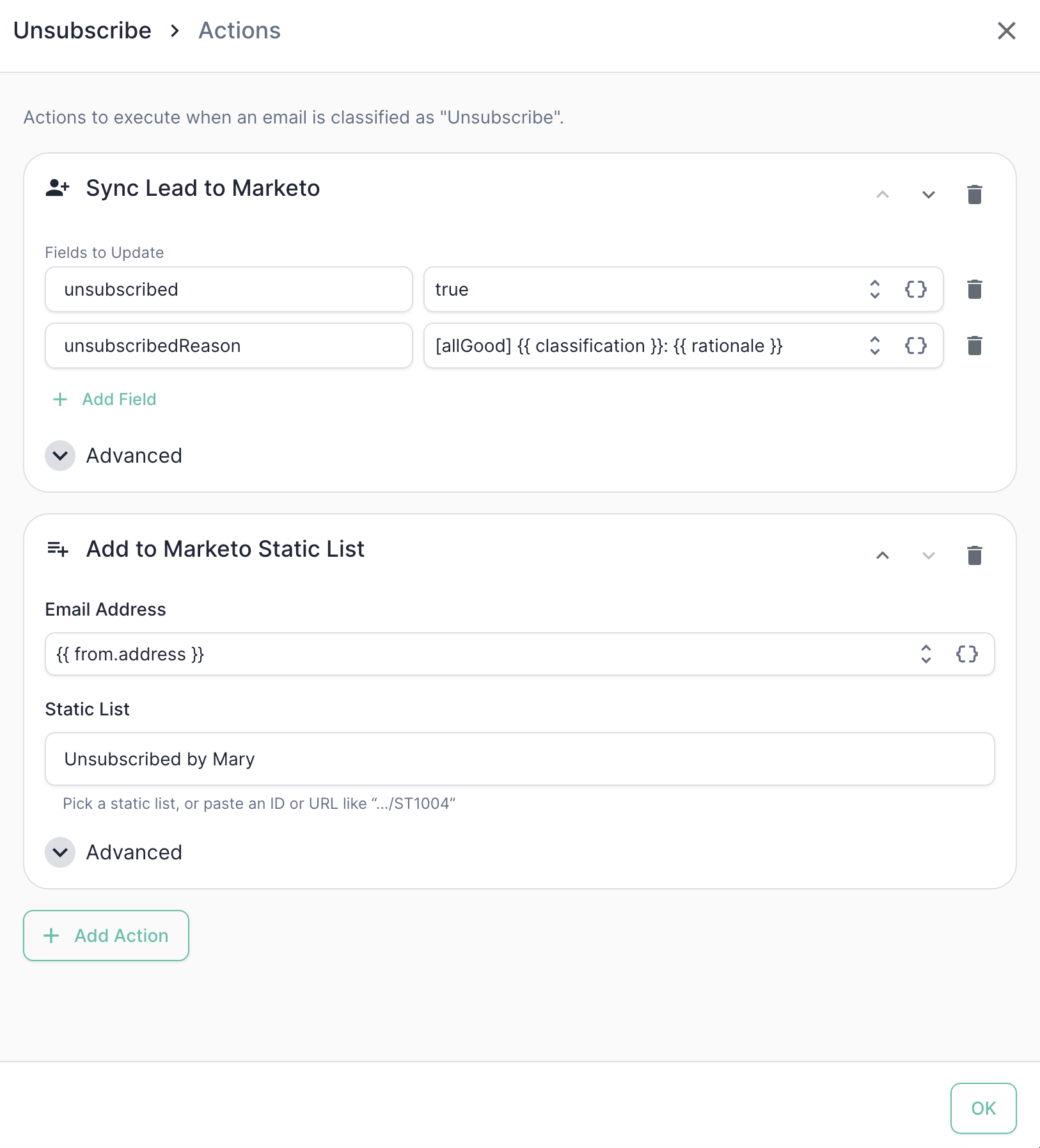
The full Unsubscribe action chain in the Marketo category editor
Unsubscribe category would run:
1
Sync Lead to Marketo
Mark the lead as unsubscribed and record the reason for the audit trail. Using
Create or Update mode also guarantees the lead exists before the next step runs.2
Add to Marketo Static List
Drop the lead into the Mary-managed unsubscribe list for downstream reporting and suppression.
{{ rationale }} token is particularly useful here — it gives your ops team a human-readable audit trail directly on the lead record explaining why Mary marked someone as unsubscribed.
Stacking and reordering actions
You can configure multiple actions per category, and they run in the order they’re listed. Use the up/down arrows on each action row to reorder them. Click + Add Action to add more. Order matters in two cases:- Dependent actions. If an
Add to Static Listdepends on the lead existing, putSync Lead to Marketo(inCreate or Updatemode) first. - Field dependencies. If a later action references a field set by an earlier action, make sure the order reflects that dependency.
Conditional actions
Every action supports an only-if condition — a token expression that must evaluate totrue for the action to run. This lets you fan out behavior within a single category. For example, only add to a “Hot Leads” list when an extracted intent field is high, while still running the rest of the chain for everyone.
Actions that look a lead up by email also expose a skip if not found toggle, which controls whether a missing lead is treated as a quiet skip or a hard error.
Best practices
- Use the
[allGood]prefix in audit fields. Following the example above (unsubscribedReason = [allGood] ...) makes it easy to see at a glance which records were touched by Mary versus a human or another system. - Use field internal names, not labels. The field map keys must be Marketo’s internal field names (found in Admin → Field Management), not the friendly labels shown elsewhere in the UI. A field name that doesn’t exist will fail at execution time.
- Test the full chain, not just the classification. The Test Suite validates categorization and extraction; once those pass, sanity-check the actions in a sandbox Marketo instance before going live.
- Watch the order when adding to lists. Most static-list add failures we see are leads that didn’t exist yet. Lead with a Sync Lead to Marketo in
Create or Updatemode to be safe.