

Prerequisites
Before beginning, ensure you have completed the following:- Email Builder setup has been successfully configured
- A valid Campaign Brief has been prepared (refer to “Preparing the Campaign Brief” guide)
- Program Name and campaign details are finalized and ready for implementation
- Workfront integration is successfully configured allGood - Workfront Setup guide
Step-by-Step Process
Create and Configure the Workfront Task/Subtask
-
Attach Campaign Brief Document
- Navigate to your Workfront task or subtask
- In the Documents section, upload your prepared campaign brief
- Ensure the file is properly formatted and contains all required campaign details
- Verify the document appears in the task’s document library
-
Add Mary as Task Assignee
- On the same page, add Mary as the assignee
- This action triggers Mary to begin processing your campaign request
- Important: Mary must be assigned AFTER the campaign brief document is attached
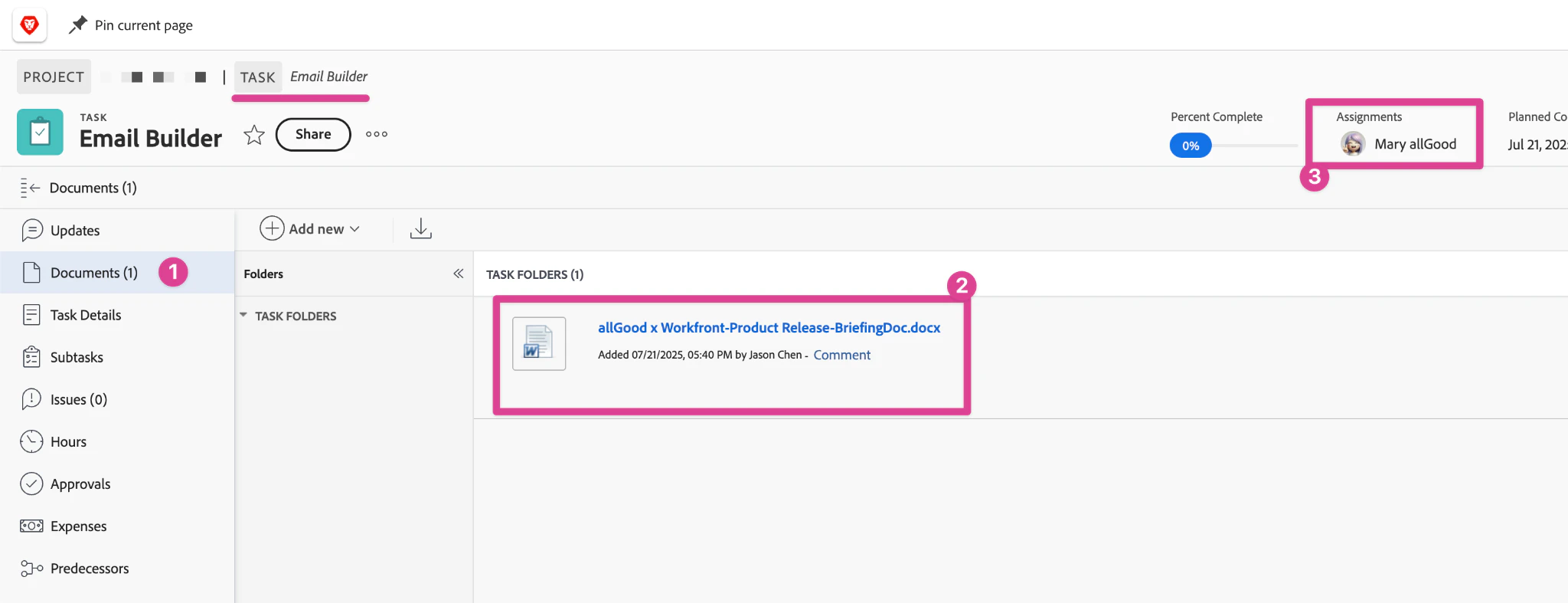
Workfront task interface with Documents section displaying uploaded campaign brief and Mary being added as the assignee
Monitor Mary's Initial Response and Processing
- Mary will post an initial comment in the Workfront task
- A link will be provided in the comment directing you to the campaign worksheet
- The worksheet name will automatically match your Workfront task name for easy reference
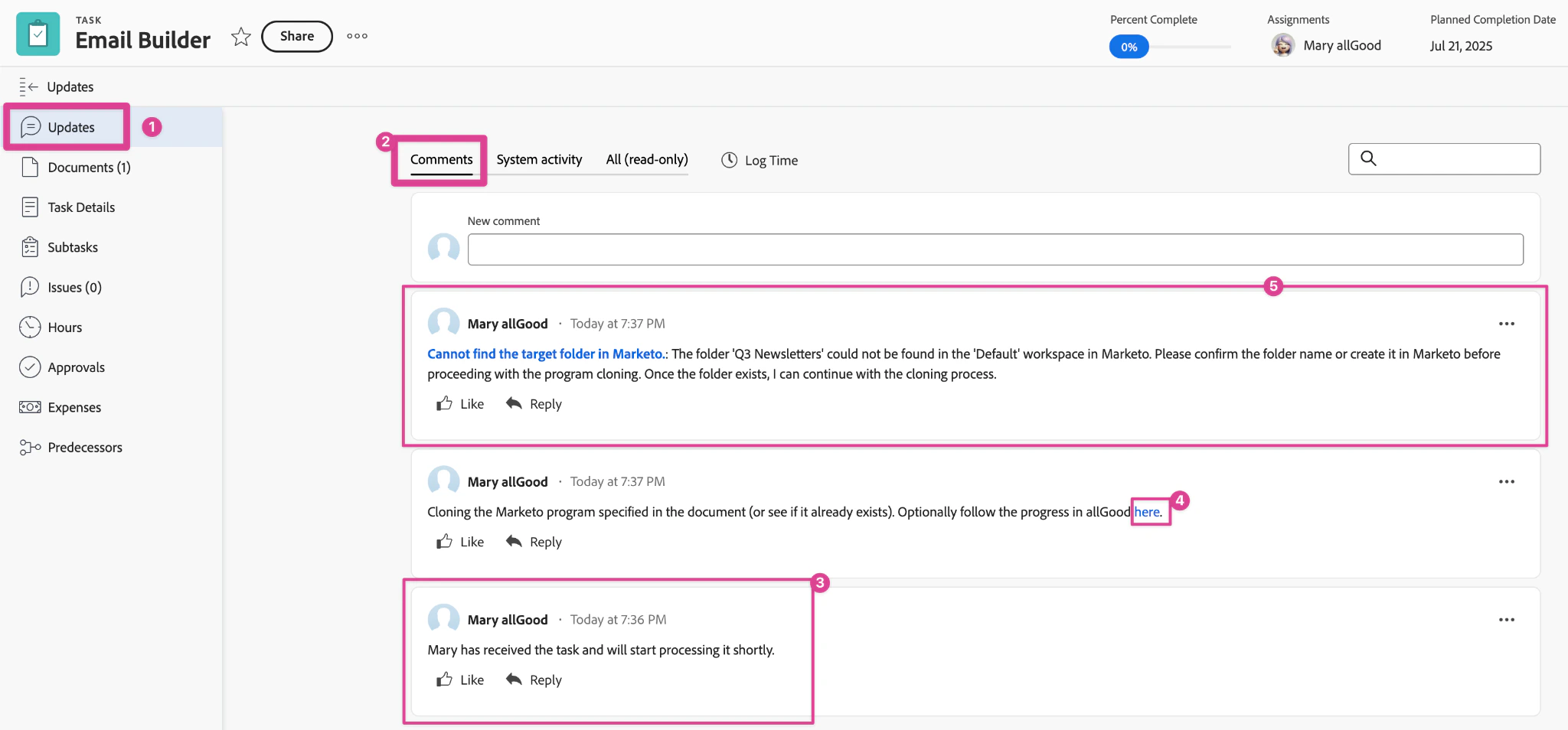
Workfront task Updates section displaying Mary's initial processing comment with worksheet link
Respond to Mary's Requests
-
Provide Detailed Responses with “@Mary” mention.
- Use Workfront’s “@Mary” mention feature in comments
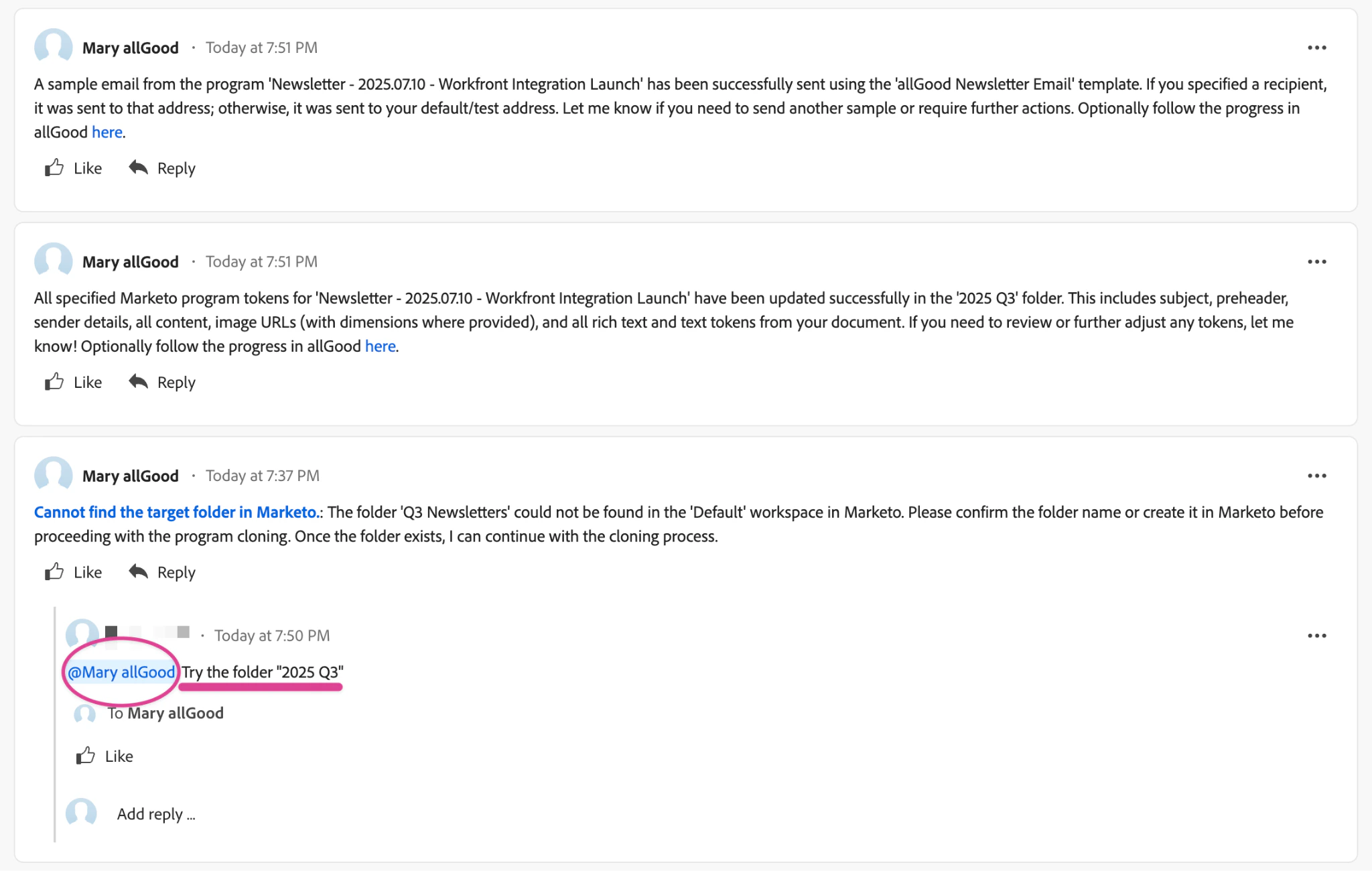
Workfront task updates interface demonstrating @Mary mention in comment and response example
Review sample emails
- Sometimes the preview email is delayed for a few minutes.
- In some instances, the email could be marked as spam. Check your spam folder.
- You can also comment “@Mary send sample emails to <youremail@company.com>”
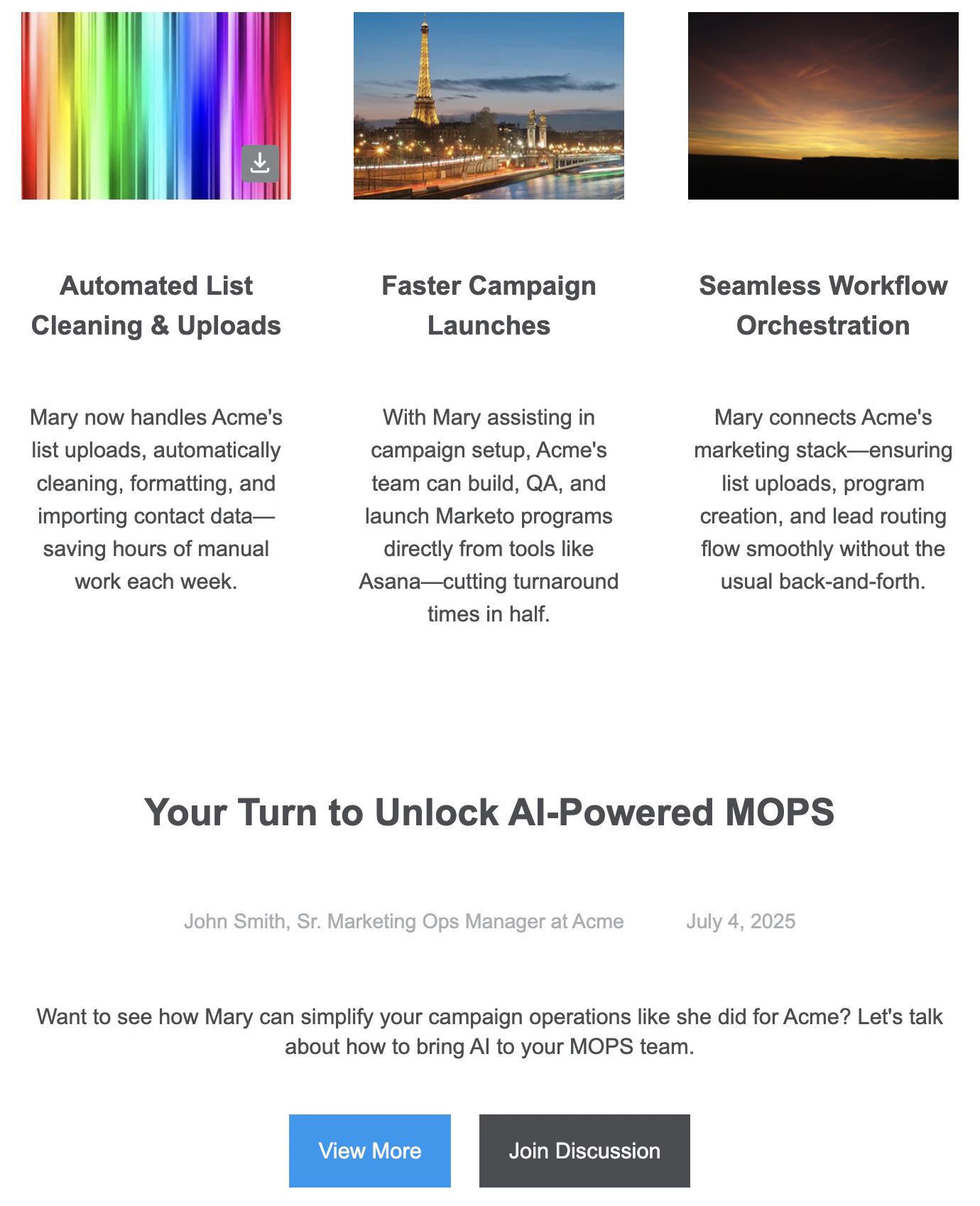
Verify email sent to your email address
Review Campaign Completion and Delivery
-
Review Final Output
- Mary will confirm completion in both Workfront and allGood platforms
- All completed tasks will be marked with completion status
- A distinctive logo indicates messages originating from Workfront
-
Access Your Campaign
- A direct link to your newly created email program in Marketo will be provided
- The worksheet will inherit the name of the new email program
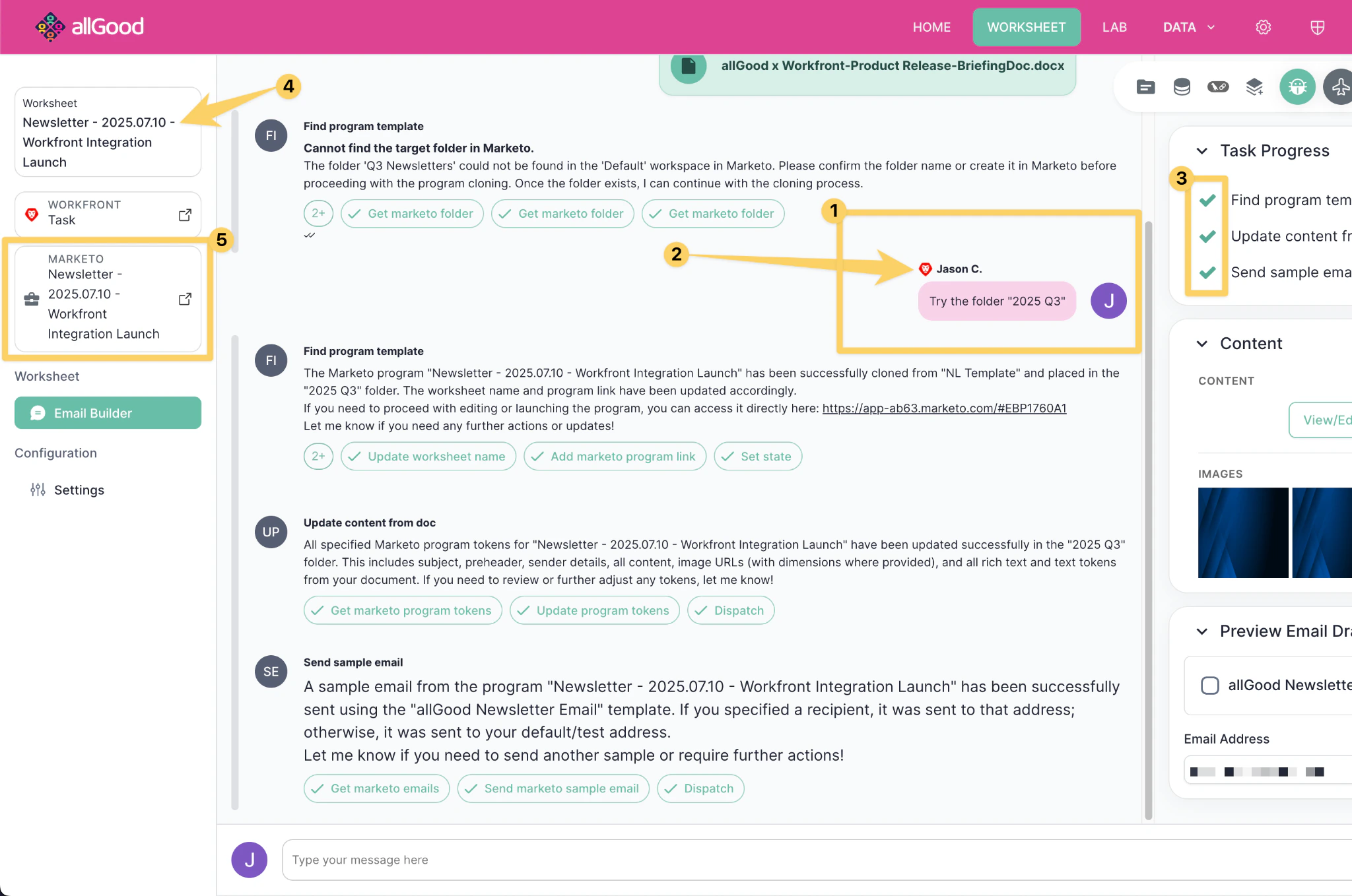
allGood completion interface with Marketo program link and task status indicators
Best Practices
File Management
- Always attach campaign briefs before assigning Mary
- Use clear, descriptive file names for easy identification
- Ensure campaign briefs are complete and properly formatted
Communication
- Be specific and detailed in your responses to minimize revision cycles
- Use @Mary mentions in Workfront for all communication directed to the system
- Monitor both Workfront and allGood platforms for updates and requests
Organization
- Maintain consistent task naming conventions for easy tracking
- Keep all campaign-related communications within the designated task
- Regularly check completion status and follow provided links for final deliverables
Support
For additional assistance or technical issues, refer to the comprehensive documentation library or contact the support team through the allGood platform.Frequently Asked Questions
Can multiple team members communicate with Mary within the same Workfront task?
Can multiple team members communicate with Mary within the same Workfront task?
What happens if I upload the campaign brief after assigning Mary to the task?
What happens if I upload the campaign brief after assigning Mary to the task?
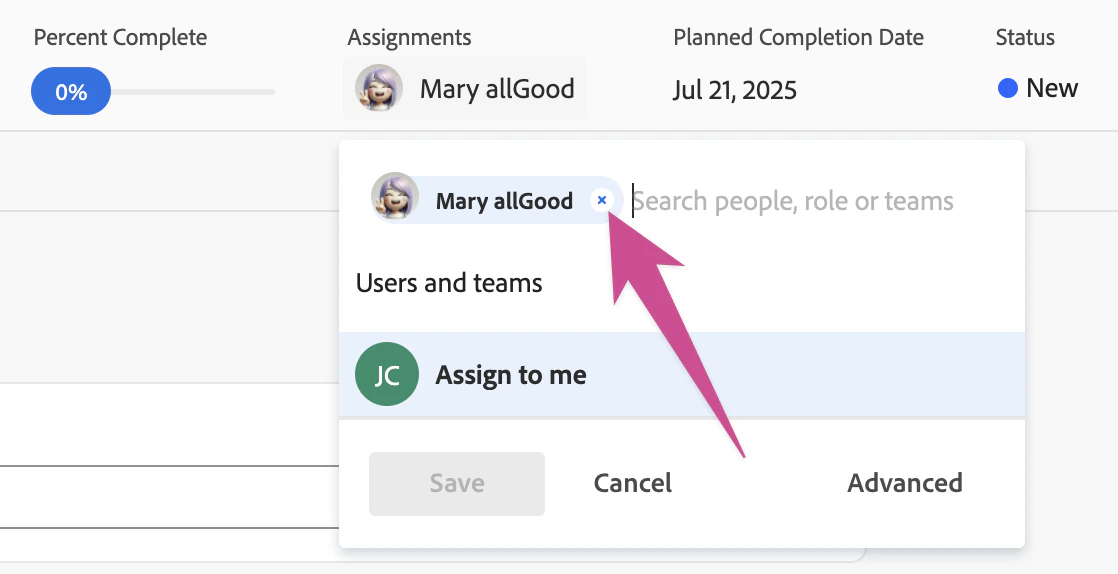
Unassign button for Mary (required before reassigning her)
How can I track all campaign communications and progress?
How can I track all campaign communications and progress?
How many revisions or adjustments can I request during the campaign creation process?
How many revisions or adjustments can I request during the campaign creation process?