

Creating Program Tokens
- Navigate to the My Tokens tab in your template program
- Create your tokens. Any text you would like formatted from your briefing doc needs to be a Rich Text token type and any URL or Image must be a standard Text token type.
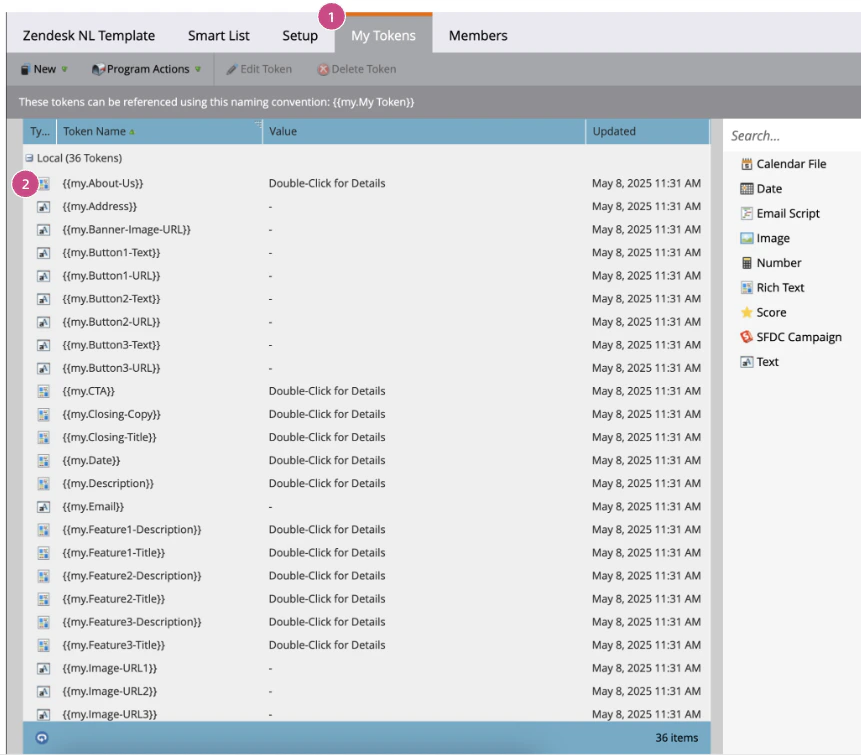
Create tokens
- Marketo will not let you save your tokens with empty values.
- Please input some filler text as a dummy value to save and close your tokens. Mary will overwrite these filler values. (a simple dash does the job)
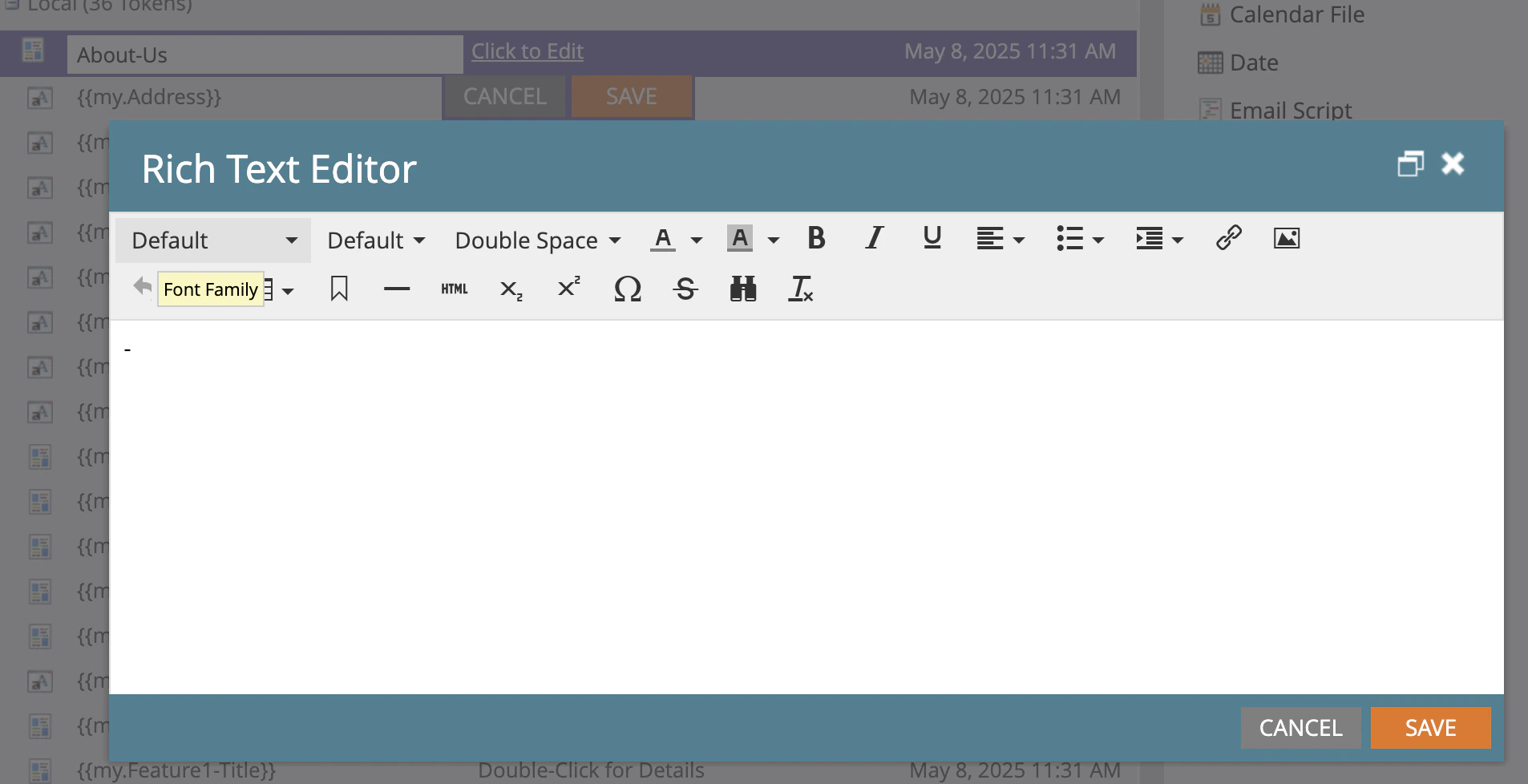
Enter dummy value (dash "-")
Tokens to your Email(s)
Insert Tokens
- Add each of your tokens where you’d like Mary to populate the content.
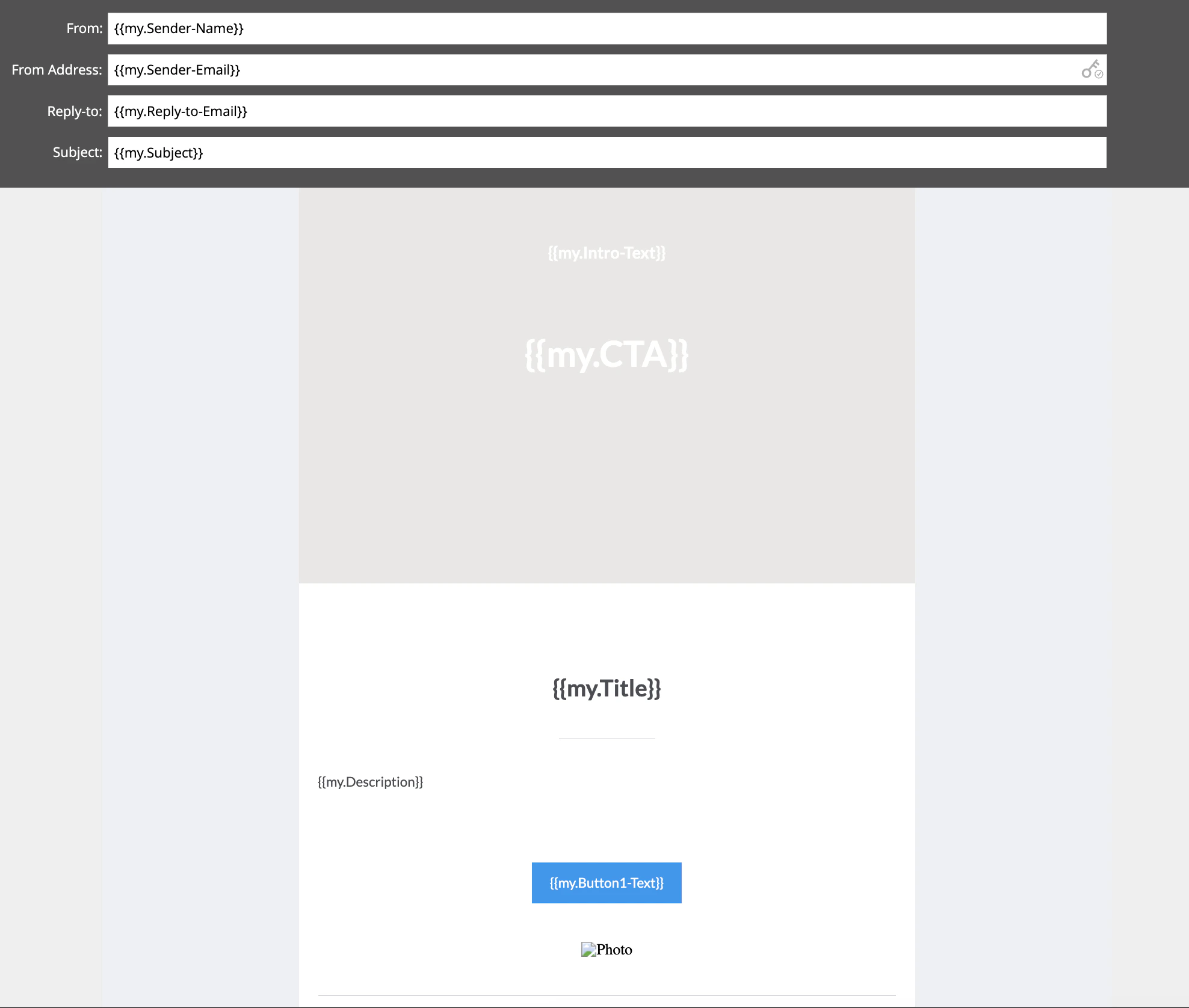
Example for tokenized email
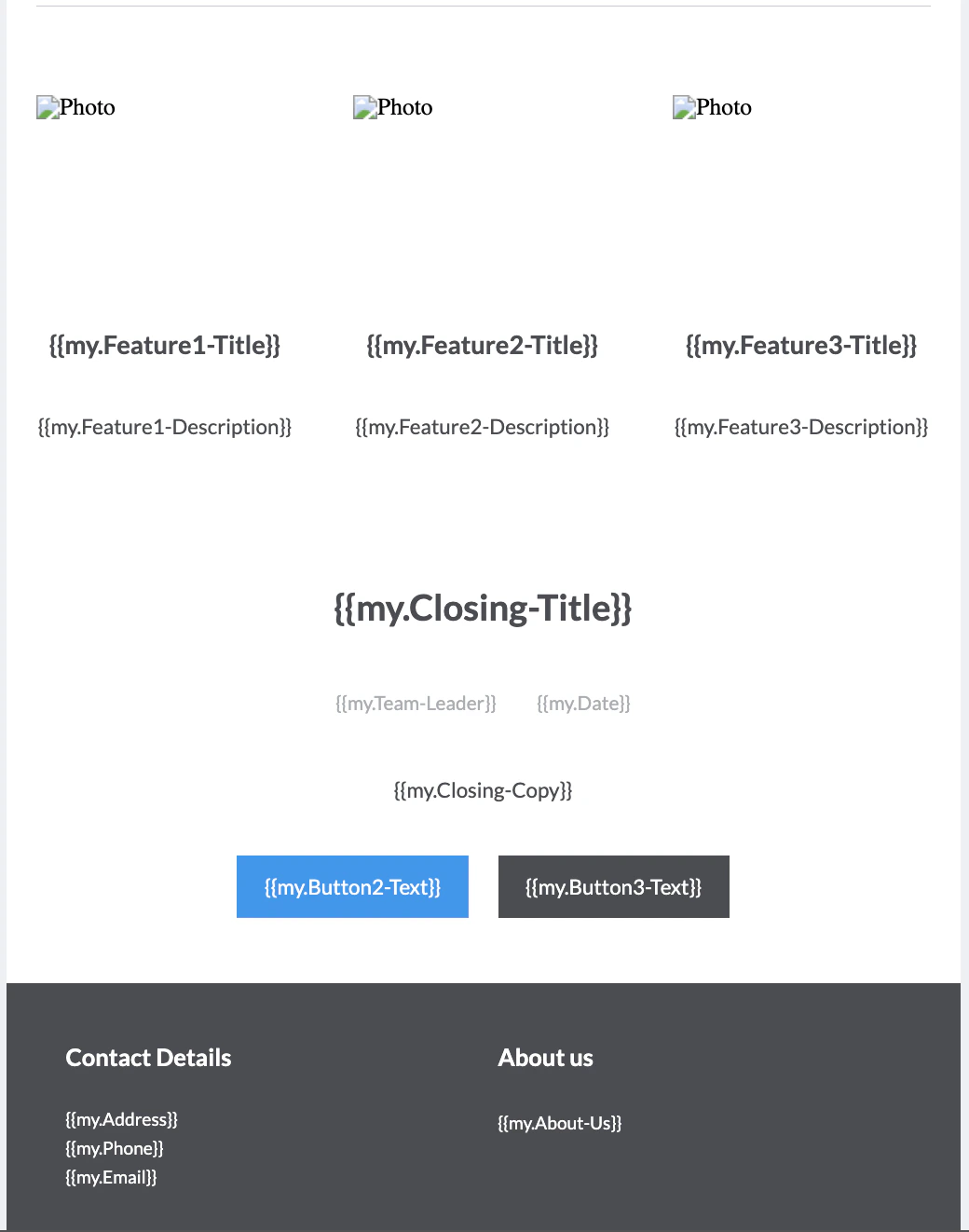
Example for tokenized email
Image and URL tokens must be placed directly in modules
NOTE To tell Mary to process the image properly, make sure to have “image-URL” in the name of the tokens explicitly, for example- Header-image-URL
- Banner-image-URL
- Footer-image-URL
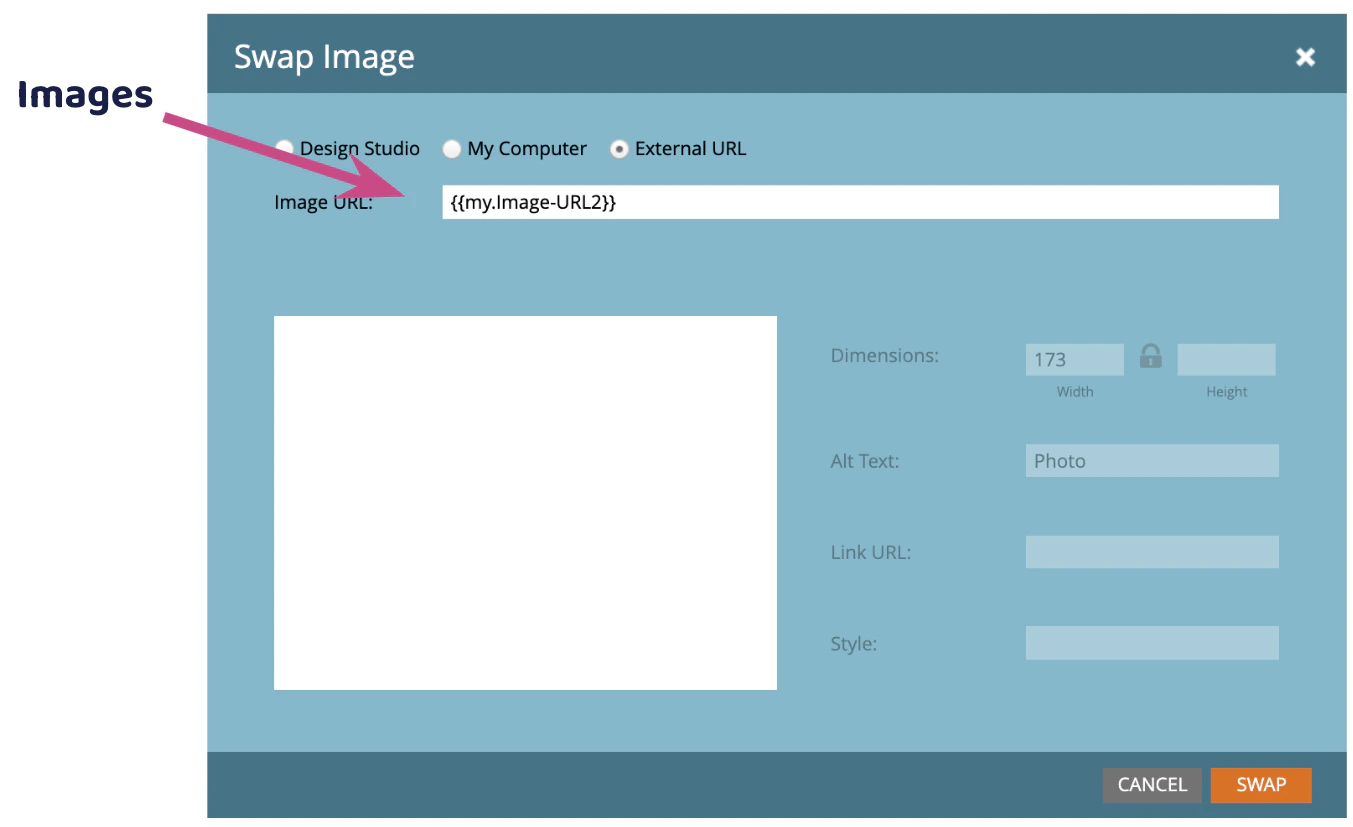
Example for tokenized image URL
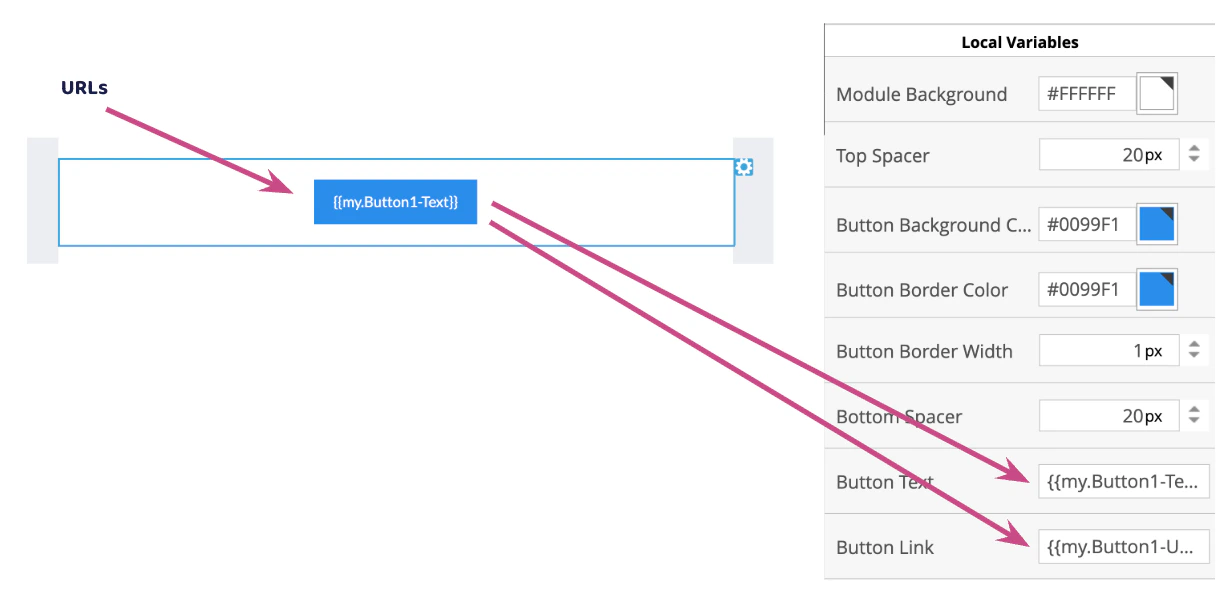
Example for tokenized button with Link
Preheader
Preheader is unsupported with tokens from Marketo (https://experienceleague.adobe.com/en/docs/marketo/using/product-docs/email-marketing/general/email-editor-2/email-editor-v2-0-overview) Mary only supports Preheader with static content. Learn more about it on Feature: Update Preheader
Tokens not supported in the Preheader