

Overview
Email Builder automates Marketo program cloning by creating new programs, updating tokens, and verifying results. You can manage token updates directly or import them from campaign briefs, then send sample emails to confirm everything looks correct. This eliminates the manual work of cloning programs, filling individual tokens, and handling image uploads/resizing.Prerequisites
- An Integration with Marketo has already been setup.
How it works
Diagram: Overview of how Email Builder works.Step-by-Step Guide
For this quick start, we will use a sample template program and sample campaign brief to start.1
Check out a sample program
- allGood will create a sample template program with a sample email. Checkout program in Marketo -> Marketing Activities -> Search for “NL - YYYY.MM.DD - allGood Customer Newsletter”.
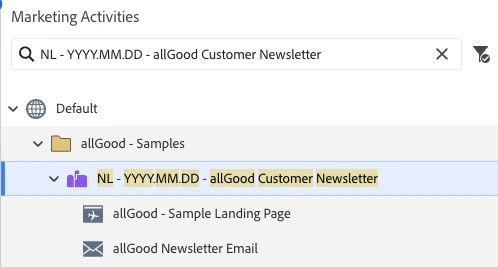
Search for "NL - YYYY.MM.DD - allGood Customer Newsletter"
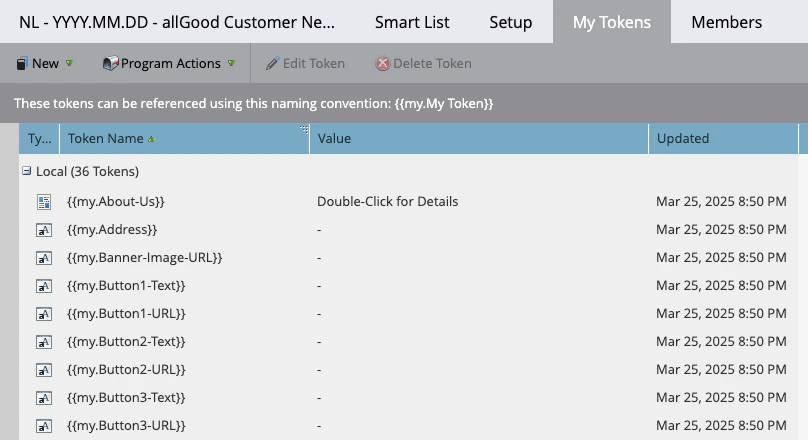
My Tokens
2
Preparation with Campaign Brief
- allGood will provide a Campaign Brief template, which will contain Program Details and Tokens for the program
- Copy the brief doc into your Google drive.
- In “Program Details”, fill out the template program to clone, as well as the new program name and folder to clone into
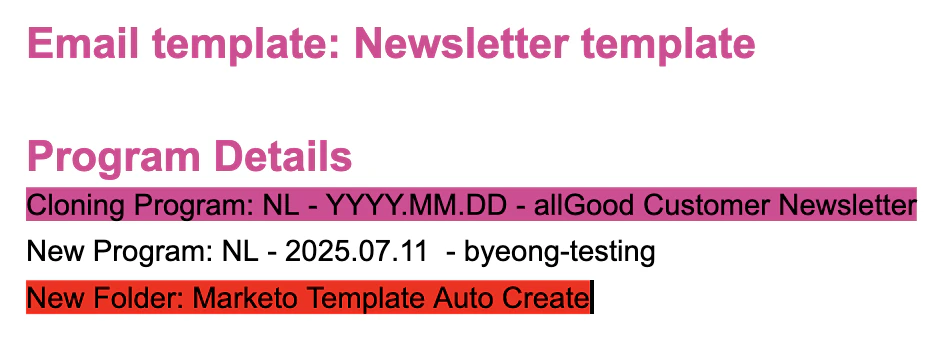
Campaign brief - Program details
3
Update Email content
- The sample campaign brief already have basic sample content
- Update any content such as subject and diescription
- Utilize text formatting abilities within the document (refer to the Preparing the Campaign Brief for more details)
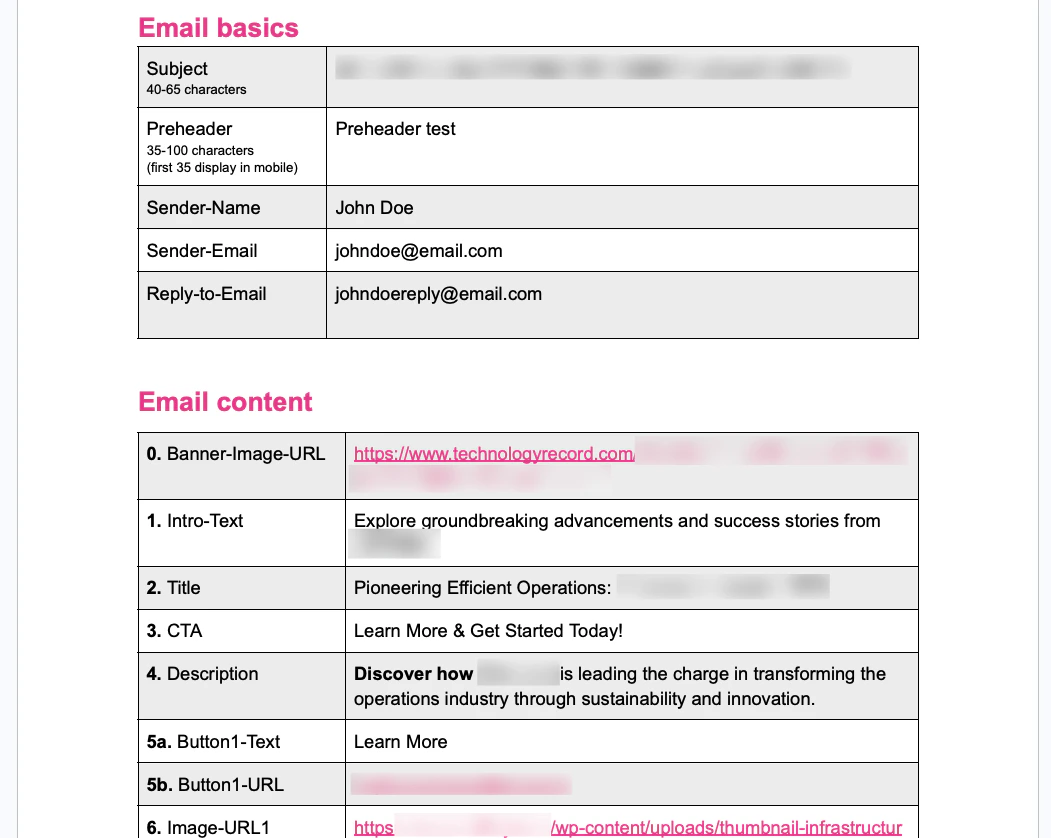
Campaign Brief - Email content
4
Start Email builder
- Sign in to allGoodhq.app
- In the “Home” screen, click “Start Email Builder”. This will guide you to the Worksheet screen.
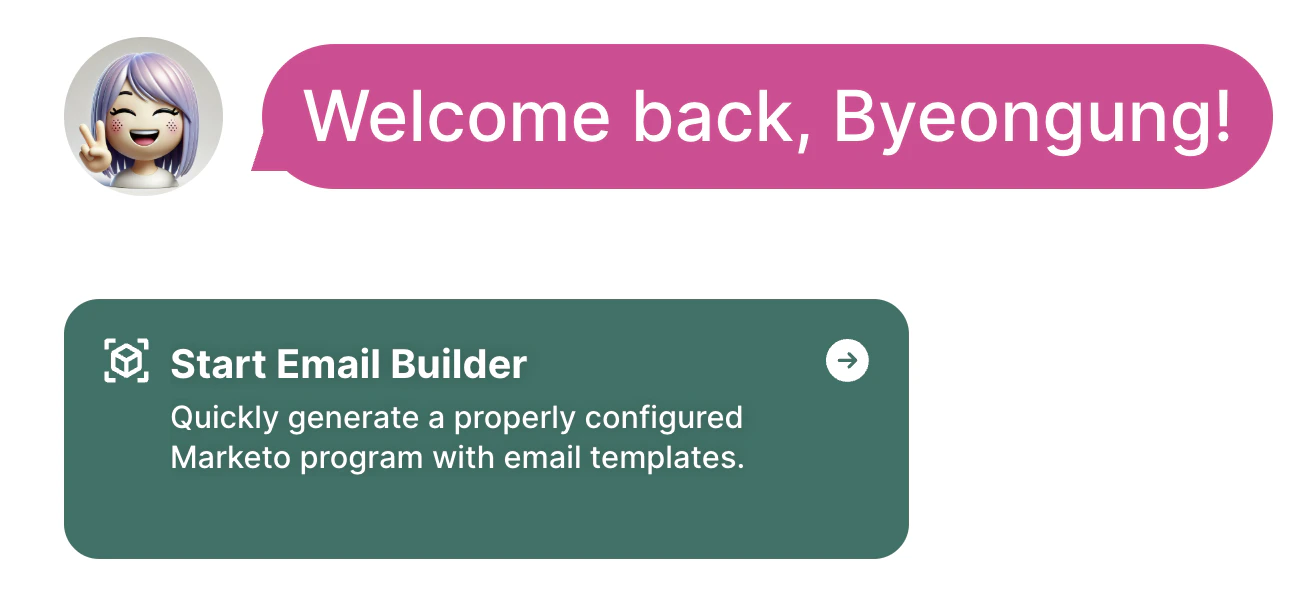
Home - Start Email Builder
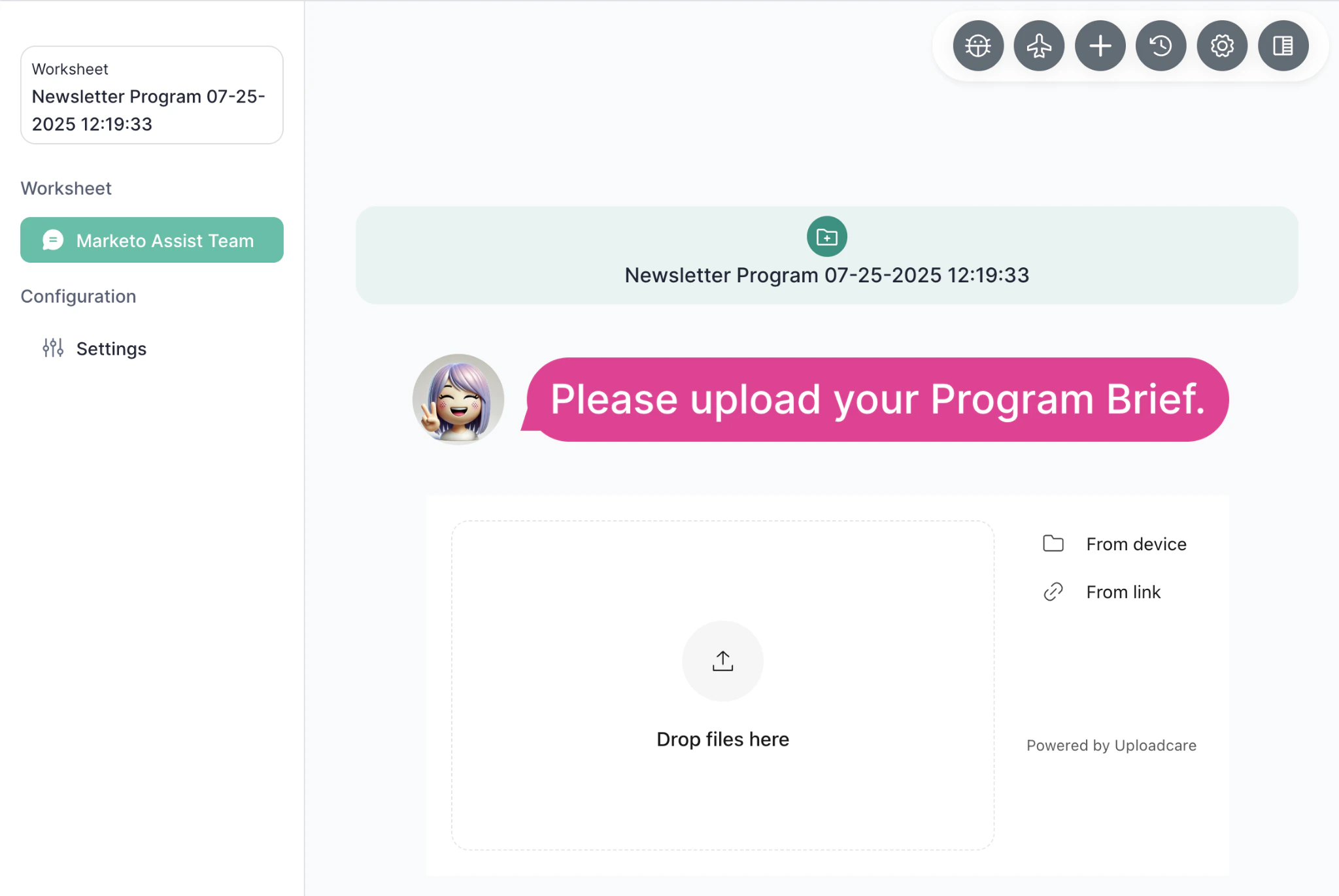
Worksheet screen
- Click “From link” button
- Paste the Campaign brief url into the link

Copy the Campaign brief URL from the browser
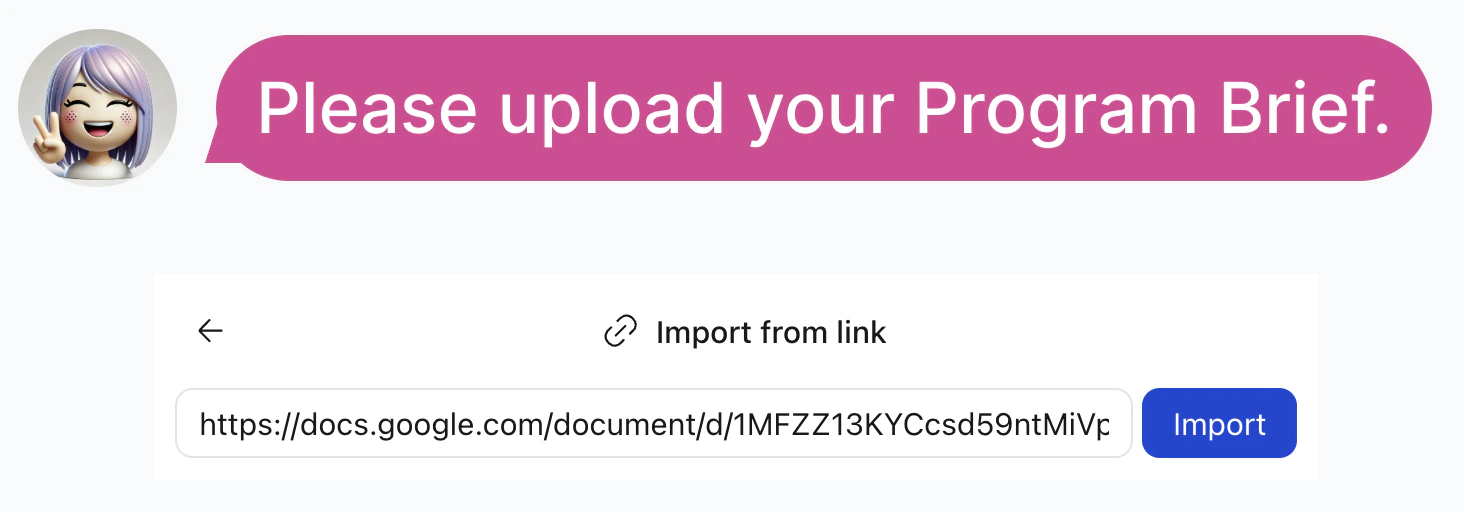
Paste in the Import from link
- Click “Import” button
- Mary will start building your program from the template program
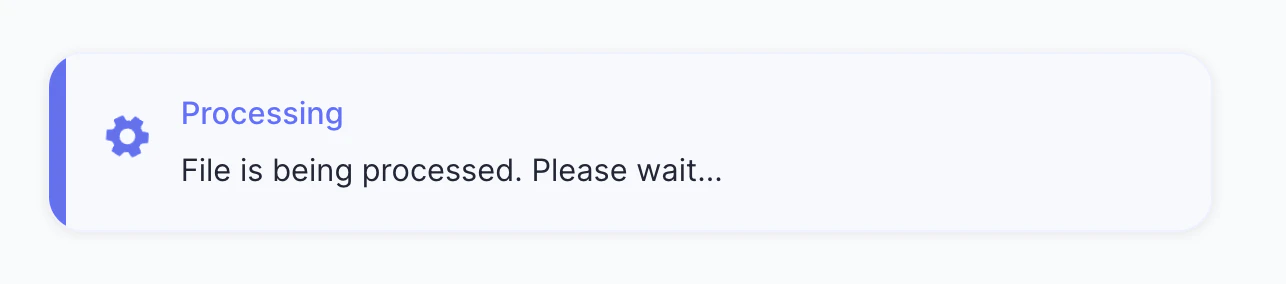
File is being processed once you import
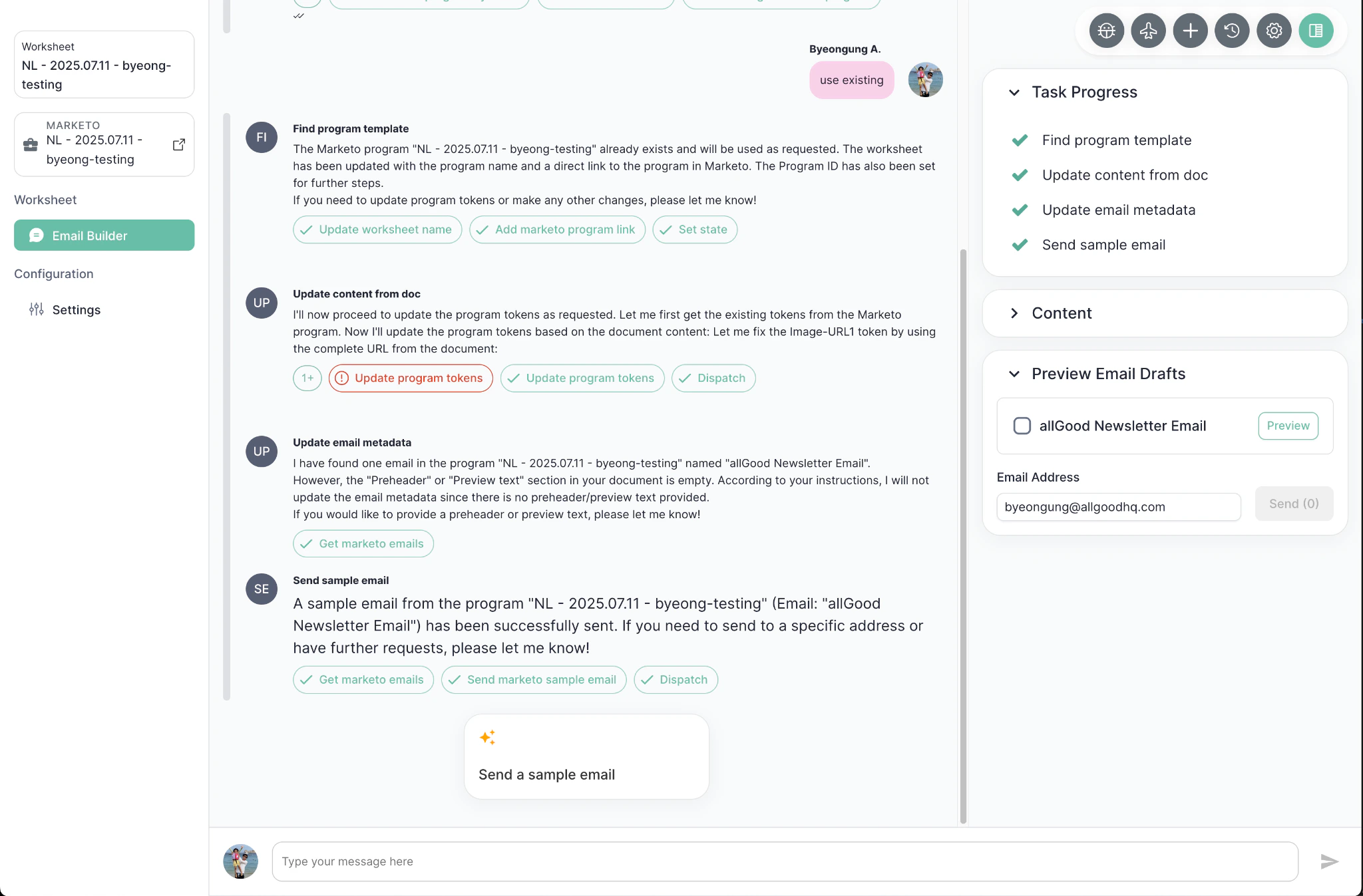
Mary built program successfully and sent a sample email.
5
Review sample emails
-
Verify you received the sample email
- Sometimes the preview email is delayed for a few minutes.
- In some instances, the email could be marked as spam. Check your spam folder.
- You can also click “Preview” button to see the preview email in Marketo
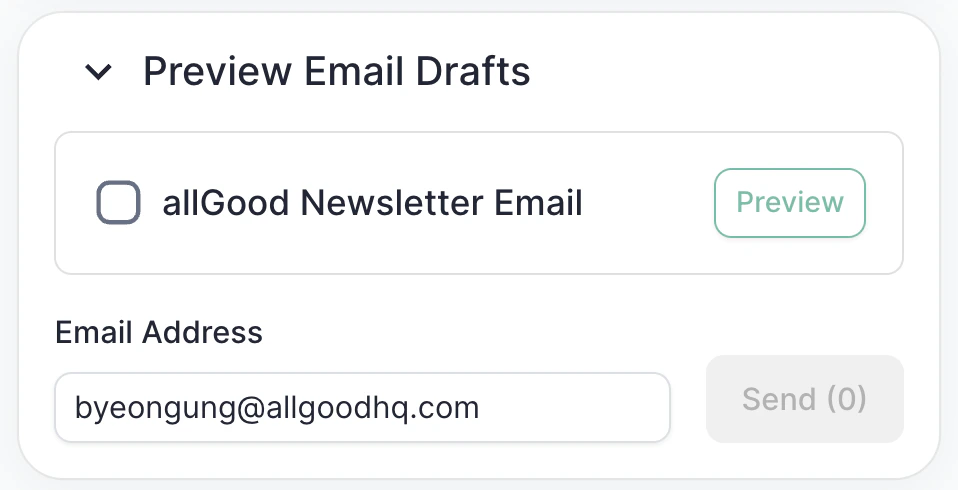
Right sidebar - click "Preview" on "Preview Email Drafts" section.
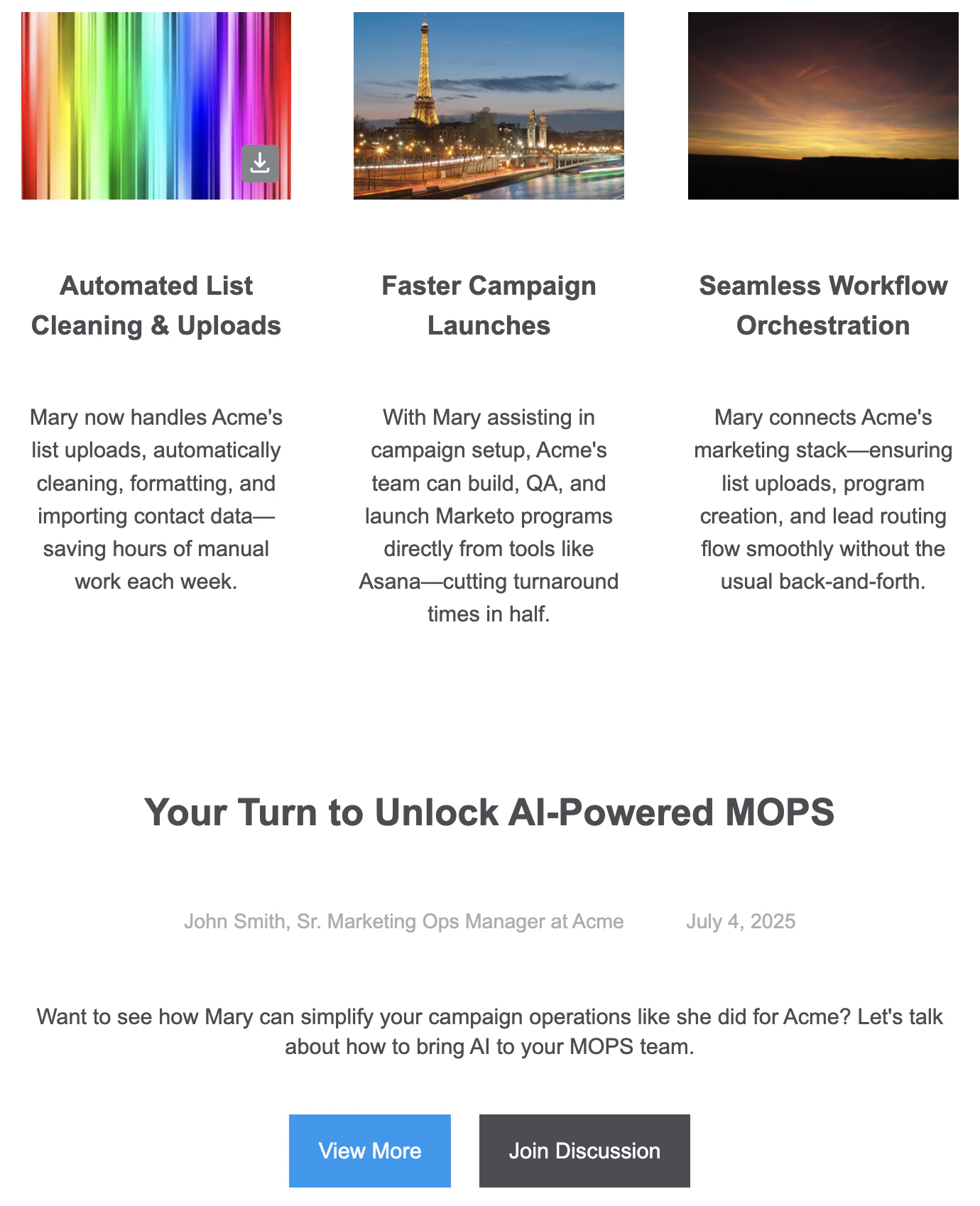
Verify email sent to your email address
- Tokenize your emails
- Prepare a Campaign brief doc
- Launch a campaign with allGood
- Launch a campaign with Asana
- Launch a campaign with Workfront