

Overview
Campaign brief is a document that contains Campaign information to run a new Marketo Program. This includes Template Program information to be cloned, new program name, and the folder name. Also, specify all the token information in the program that Mary will automatically update within the program. allGood will provide a sample template Campaign brief. But the format is not restricted to the sample as long as it contains the necessary information.Supported Format
There are two formats supported.- Upload MS Word docx(.docx)
-
Google Docs
- Via Direct link
- Via download as MS Word docx and upload the file
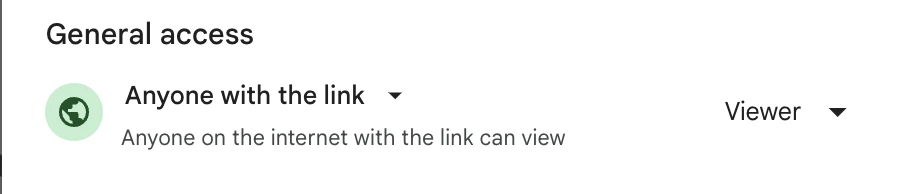
- Make sure your Google integration user is accessible with the doc by anyone with the link or shared with the user
- Check out more details for Google Setup allGood - Google Setup Guide
Campaign Brief components
Program Details
Program details must include:- The name of the program to be cloned
- The name of the new program
- The name of folder you would like the new program to be cloned into
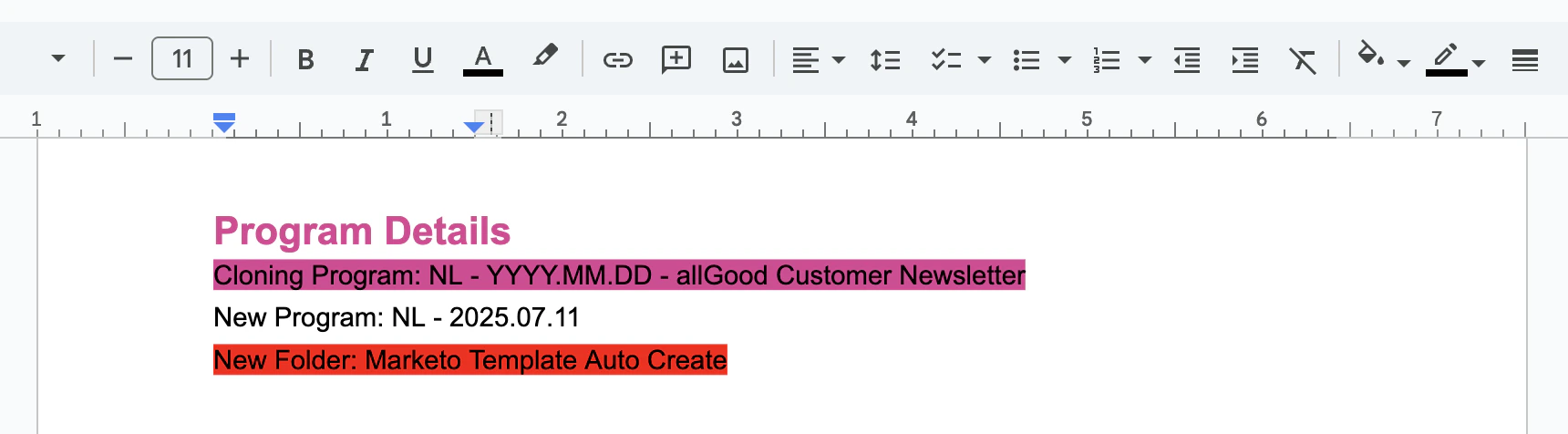
Sample of Program Details
Email Content
List out all tokens in 2-column table format with their respective token names in Marketo.-
(optional) We recommend you split up the tokens into two categories:
- Email Basics and Email Content
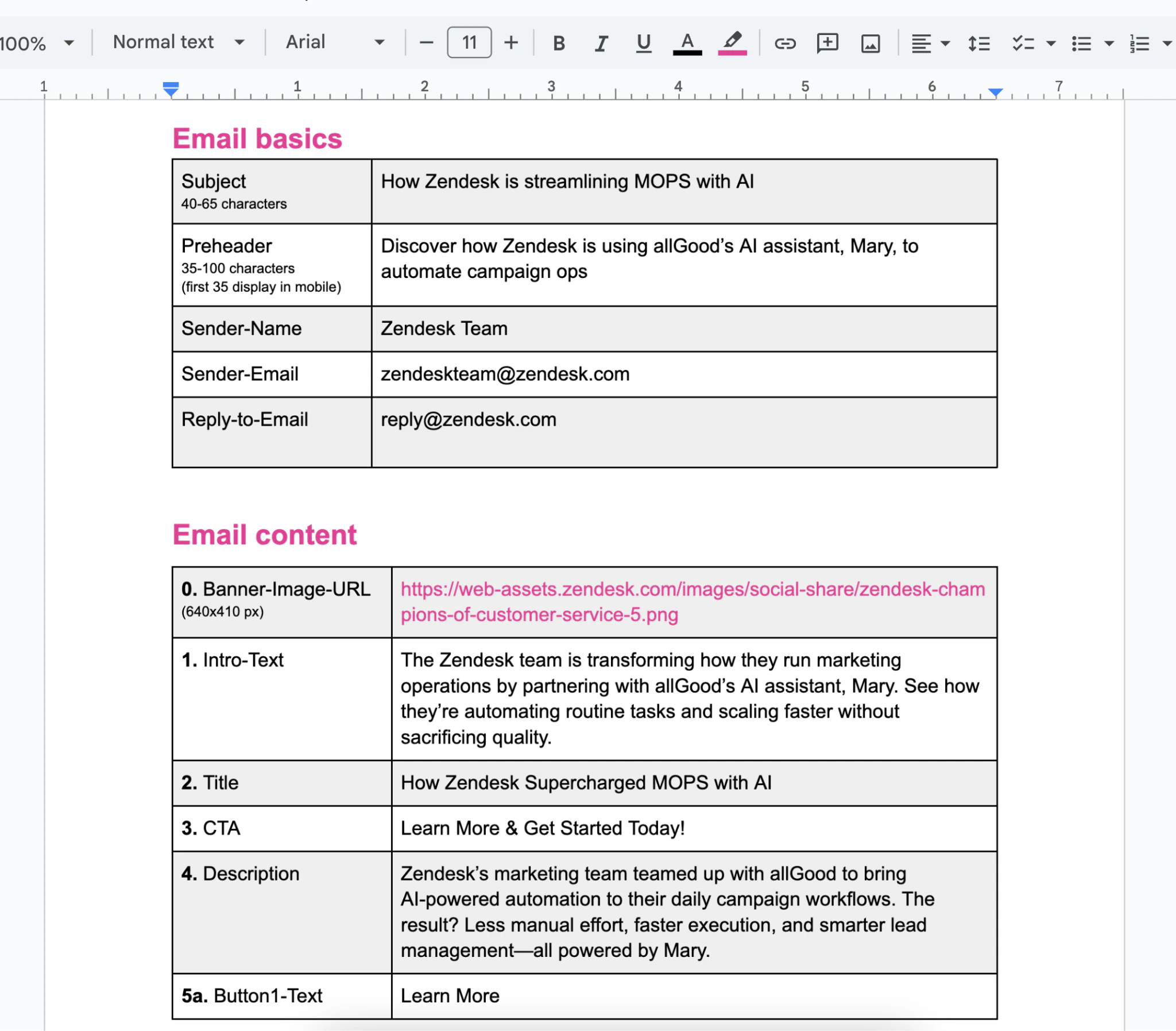
Sample of Email Content
Content Formatting
Mary will pass any of the formatting of the content over to the email- Don’t be shy when adding multiple types of formatting to one token
- As long as the token is a Rich Text token, Mary will be able to add the correct formatting
Table: Supported Content formatting
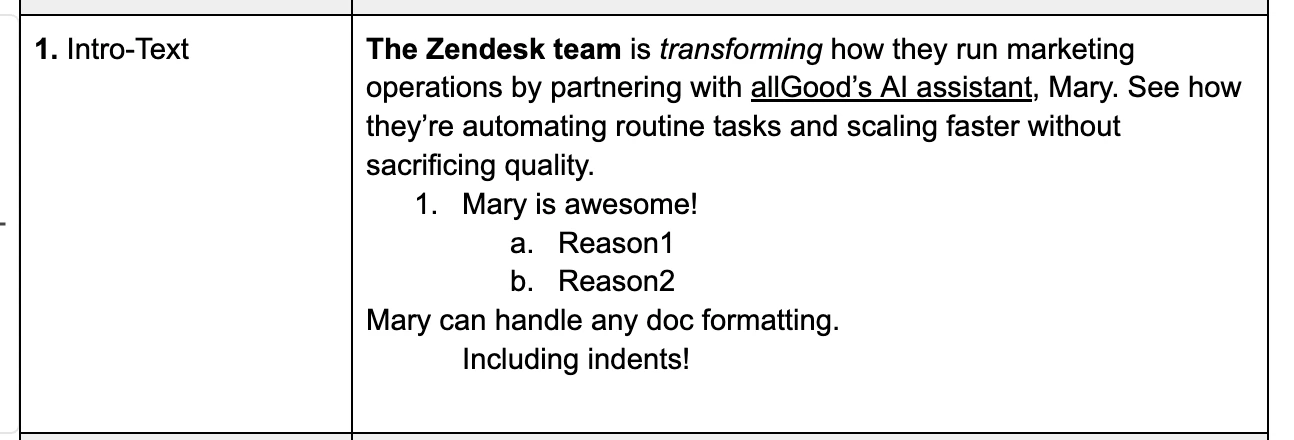
Sample of Content Formatting
Inline CSS Support
NOTE: While text styling such as font size, color, and alignment are not directly supported, you can still specify
inline CSS in the content. For example, to change the font size, you can use
<span style="font-size: 20px;">Your Text Here</span>.
However, please note that not all email clients may render
inline CSS consistently, so it’s advisable to test the email across different clients to ensure the desired appearance.
If you are interested in formatting that is unsupported or not in the list above, please drop us a message, and we can
look into how Mary can learn new formatting skills.
Handling Images
Images are supported with Text tokens and directly uploaded into your Marketo assets. Note that The Image token is not supported.Token naming convention
To tell Mary to process image properly, make sure to have “image-URL” in the name of the tokens explicitly, for example- Header-image-URL
- Banner-image-URL
- Footer-image-URL
Add images
There are two ways to fill out images in your token-
Add image URL
- Make sure the image URL is publicly accessible
-
Embed image
- You can directly embed an image in the image URL
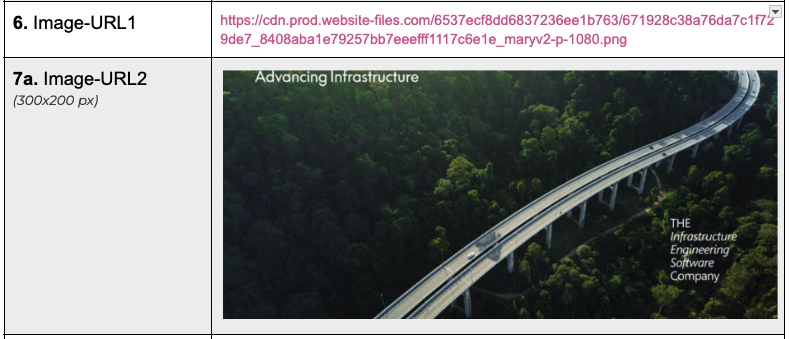
Two ways of providing image URLs
Specify image dimensions
Mary will follow the image dimensions in the token and transform the image with the dimensions before uploading the image.
Specify image dimensions (300x200 px)
Specify File name
By default, Mary uploads images in Marketo following this rule.-
Public URL is provided
-
If the image file name is on the URL, Mary will upload the image with the name.
- For example - https://cdn.prod.website-files.com/6537ecf8dd6837236ee1b763/671928c38a76da7c1f729de7_8408aba1e79257bb7eeefff1117c6e1e_maryv2-p-1080.png
- File name would be “671928c38a76da7c1f729de7_8408aba1e79257bb7eeefff1117c6e1e_maryv2-p-1080.png”
-
If the image file name is not identifiable, Mary will upload the image with this naming convention
- <Program ID>_<Token name>_<Random ID>.png
- For example) 1131_Image-URL2_V3FKDPDA.png
-
If the image file name is on the URL, Mary will upload the image with the name.
-
Embeded image is provided
-
Mary will upload the image with this naming convention
- <Program ID>_<Token name>_<Random ID>.png
- For example) 1131_Image-URL2_V3FKDPDA.png
-
Mary will upload the image with this naming convention
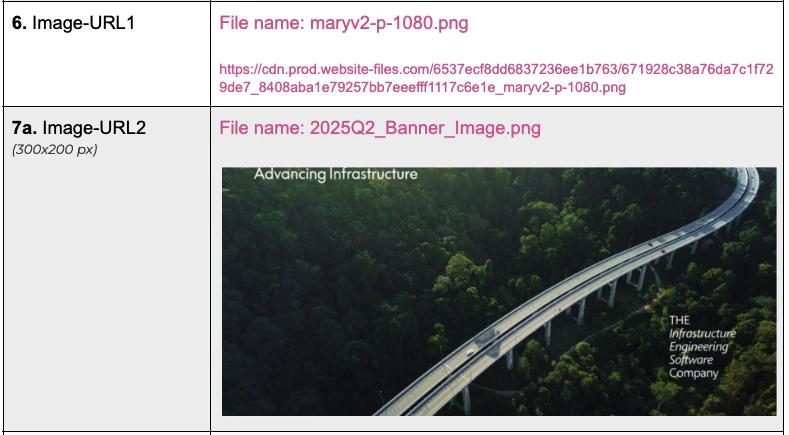
Specify a specific File name in your image URL.
Where can I find the images uploaded in my Marketo?
You can find all the images uploaded In your Marketo -> Design Studio -> Images and Files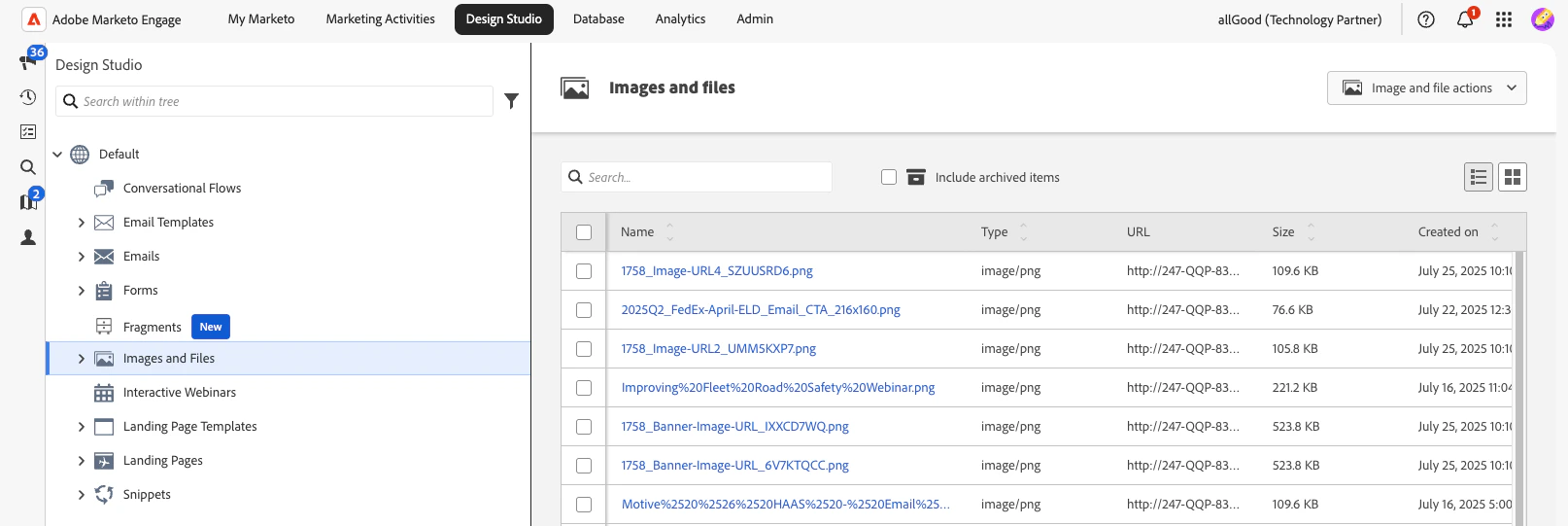
Find uploaded images in Marketo
Advanced: Add Mary Instructions
You can tell Mary how you want to process your tokens. There are some use cases:- Append UTM parameters in every links
- Remove “https://” or specific text in the brief doc.
- Validate specific token values